跳至内容

报告中心

The Report Center in the Customer Portal offers operational insights into your IBX data center deployments. The reports can assist you with compliance requirements, internal process reviews, and uptime optimization of your deployments.

The reports provide information about:

  • 电源管理和冗余
  • 安全审核、访问日志和安全权限
  • 主机代管、交叉连接和电源部署
  • Smart Hands 在预算和计划中的使用
  • 故障排除和事件调查

Reports are generated in Microsoft Excel (.xlsx) format or comma-separated values (.csv) format.

注意

Your permissions determine which reports are available to you.

报告频率:

可以根据需要或定期按计划生成报表。

  • 一次性
  • 每周
  • 每月
  • 每季度
  • 每年

报告类型

自助服务报告

These are the self-service reports that you can order on-demand in the Customer Portal:

名称描述单位持续时间Permissions Needed
IBX、网络和管理式服务通知显示某个期间内的所有维护通知机笼7 天,14 天,30 天,3 个月,6 个月,1 年IBX 服务通知
IBX 访问日志Shows a list of visitors who signed in with Security at an IBX.Org1d, 7d, 14d, 30d, 90d, 180d, 1yr, Custom rangeAdministrator role, with Manage User permission
安装基数报告Shows install base (all assets, including cages, cabinets, power, cross connects, etc.). For more details, see View Your Install Base/Assets.Org7 天,14 天,30 天,3 个月,6 个月,1 年Install Base
占用端口报告根据配线架显示端口使用情况配线架快照Cross Connect及设施内电缆
订单通知报告显示某个期间内的所有维护通知Org7 天,14 天,30 天,3 个月,6 个月,1 年n/a
订单报告显示给定期间内下的所有订单Org7 天,14 天,30 天,3 个月,6 个月,1 年n/a
Smart Hands:费用和人工Shows details about all your billed Smart Hands charges for a selected time period.Org / IBX7 天,14 天,30 天,3 个月,6 个月,1 年订购 Smart Hands
用户审计报告Shows a list of changes (i.e., audit trail) for the access list.Org7 天,14 天,30 天,3 个月,6 个月,1 年Administrator role, with Manage User permission
用户详情报告显示具有帐户权限、门户网站访问、IBX 访问、通知联系人、活跃站点访客和以太网门户网站访问的联系人列表Org快照Administrator role, with Manage User permission
功率消耗报告Shows power consumption for the selected assets (cage, cabinet, or circuit) for a specified time period.Cage / Cabinet / Circuit1d, 30d, 1m,1qtr, 1yr, custom range功耗报告权限

Chargeable Reports

These reports can also be ordered in the Customer Portal; but because they require a Smart Hands technician to collect data at the IBX, they are associated with a fee:

名称描述单位持续时间Permissions Needed
用电量报告 - 非 BCMShows power consumption by cage for equipment NOT covered by BCM. Shows manual power measurements for each circuit. An Equinix technician goes to your cage or cabinet and takes a measurement of amperage using an amp clamp. Applies to AC and DC, primary and redundant.20 个线路快照订购 Smart Hands
IBX 访问活动报告Shows who has accessed the cage, and when (security provided by the EOC). Note: This report was formerly known as the Cage Access Log. Charges 0.5 Smart Hands hours.机笼1d, 7d, 14d, 30d, 90d, 180d, 1yr, Custom range订购 Smart Hands
IBX 访问权限报告Shows a list of contacts who have permission to access the customer space (with or without an access card). Note: This report was formerly known as the Access Enrollment Report. Charges 0.5 Smart Hands hours.机笼1d, 7d, 14d, 30d, 90d, 180d, 1yr, Custom range订购 Smart Hands
提示

For discounted fees, you can purchase a Smart Hands Support Plan.

服务交付报告

To order a one-time or recurring Service Delivery report, contact your CSM or the Global Service Desk (GSD).

New requests for Service Delivery reports are charged as shown below.

报告类型描述费用
服务交付报告——SLA(服务水平协议)Provides site-level details such as temperature, humidity, cross connect availability, and power draw details.1 Smart Hands hour per cage
服务交付报告——IBX 服务概要Provides IBX details such as incident reports, cage access, access enrollment, and planned preventive maintenance.2 Smart Hands hours per cage
服务交付报告——定制Provides custom details at your request, such as trouble tickets, environmental reports, portal reports, finance data, PUE readings, and business or service review reports.2 Smart Hands hours per cage
提示

For discounted fees, you can purchase a Smart Hands Support Plan.

请求报告

To order reports in the Customer Portal:

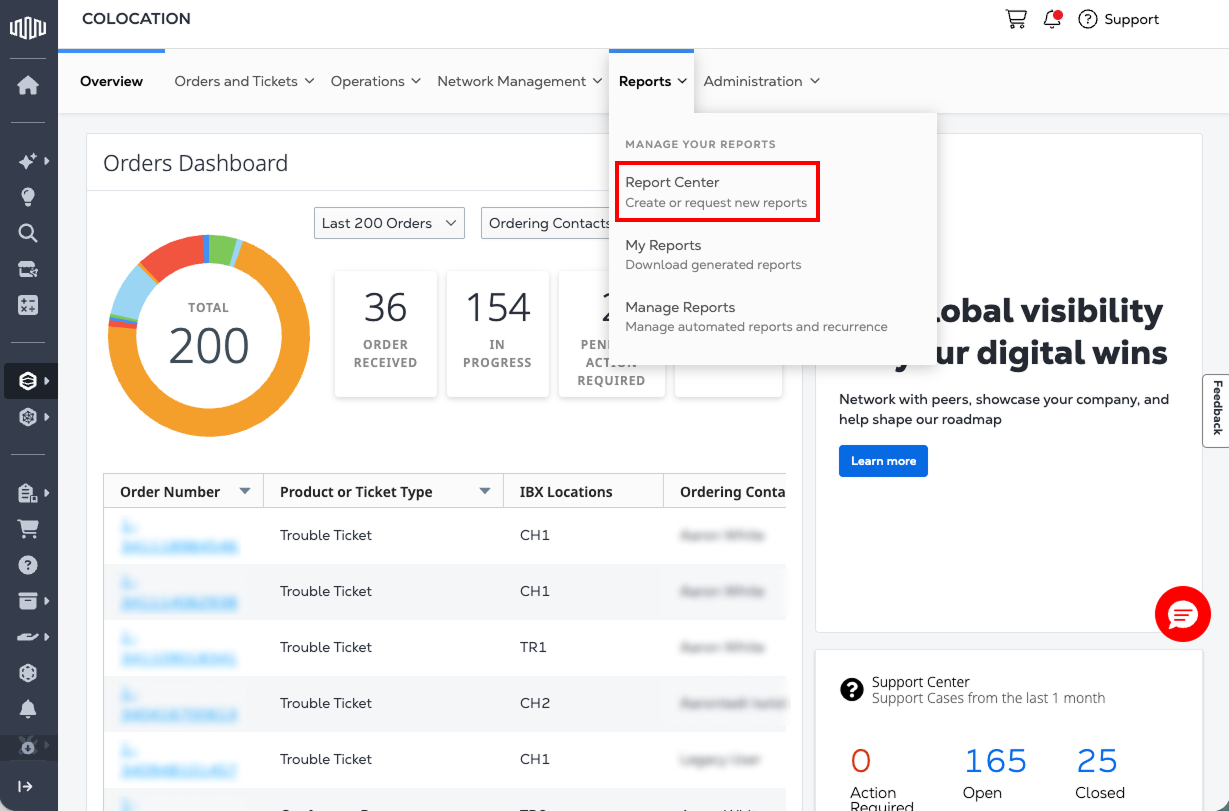
  1. From the Reports menu, select Report Center.

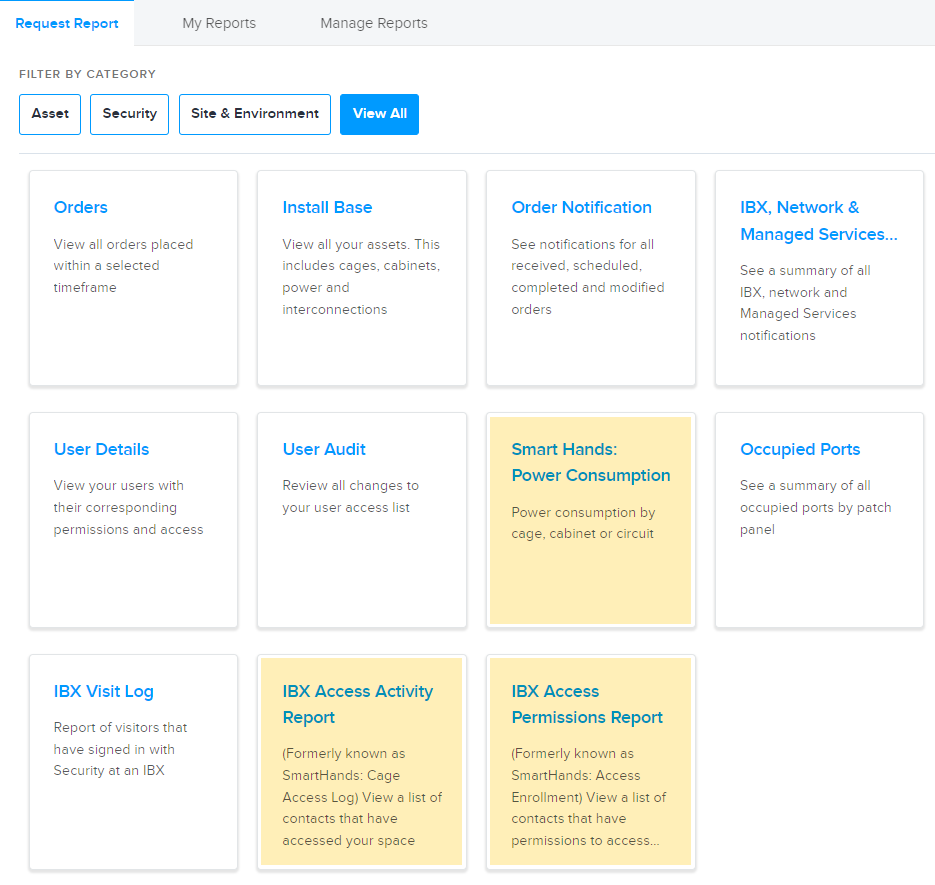
    The Request Report tab lists the available reports.

    注意

    Reports highlighted in yellow are chargeable because they require a Smart Hands technician at the IBX data center. Learn more about Smart Hands.

  2. To refine the list of reports, use the Filter By Category options.

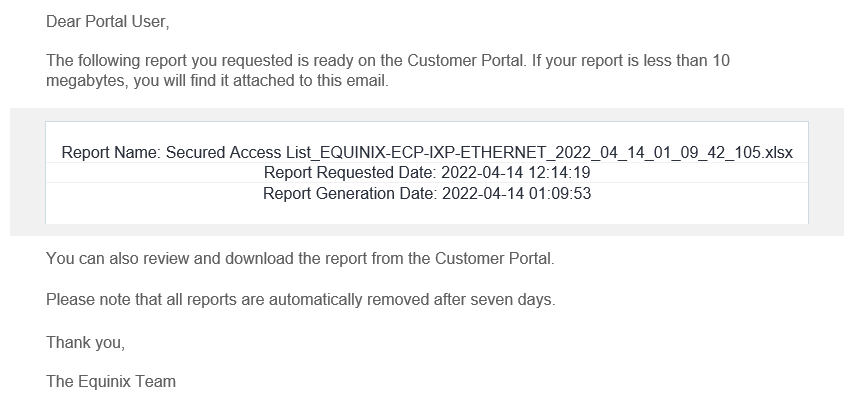
  3. Select a report, complete the required fields, and select Generate Report. You will receive an email notification when the report is ready. For example:

Viewing or Downloading Your Report

When your report is ready, you receive an email notification. If the report is small, the report file may be attached to the notification email, and you can view or download it directly from the email. If the report is not attached to the email, you can retrieve it from the Customer Portal.

For Self-Service Reports

To download or delete a self-service report:

登录至客户门户网站

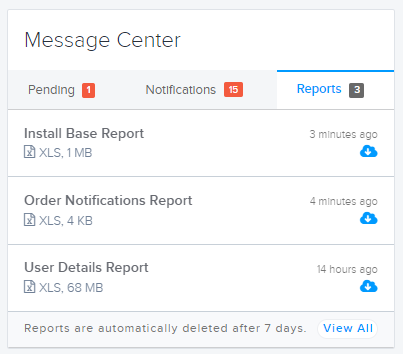
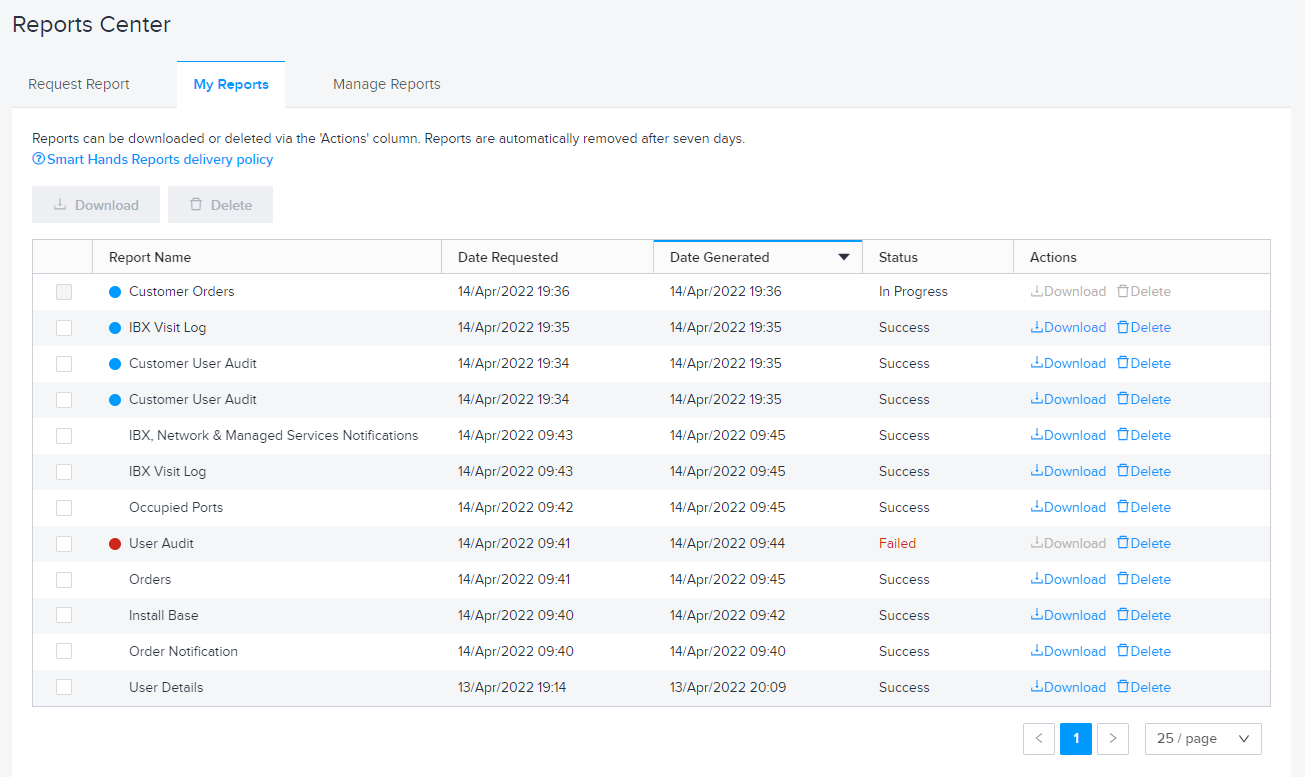
  • You can see your reports in the Message Center on your Orders dashboard.

  • Or, from the Reports menu, select My Reports.

注意
  • A blue dot indicates a newly generated report.
  • A red dot indicates a report that did not run successfully. Try requesting the report again.

For each report listed, you can download it to your device, or you can delete it. You can use the checkboxes in the first column to download or delete multiple reports at once.

重要提示:

All self-service reports are automatically deleted from the portal after 7 days.

For Chargeable Reports

To download a Smart Hands report:

  1. 登录至客户门户网站

  2. From the Orders and Tickets menu, select Orders and Tickets History.

  3. Locate the Smart Hands order for the report, then select it.

    提示

    For help finding an order, see Orders and Tickets History.

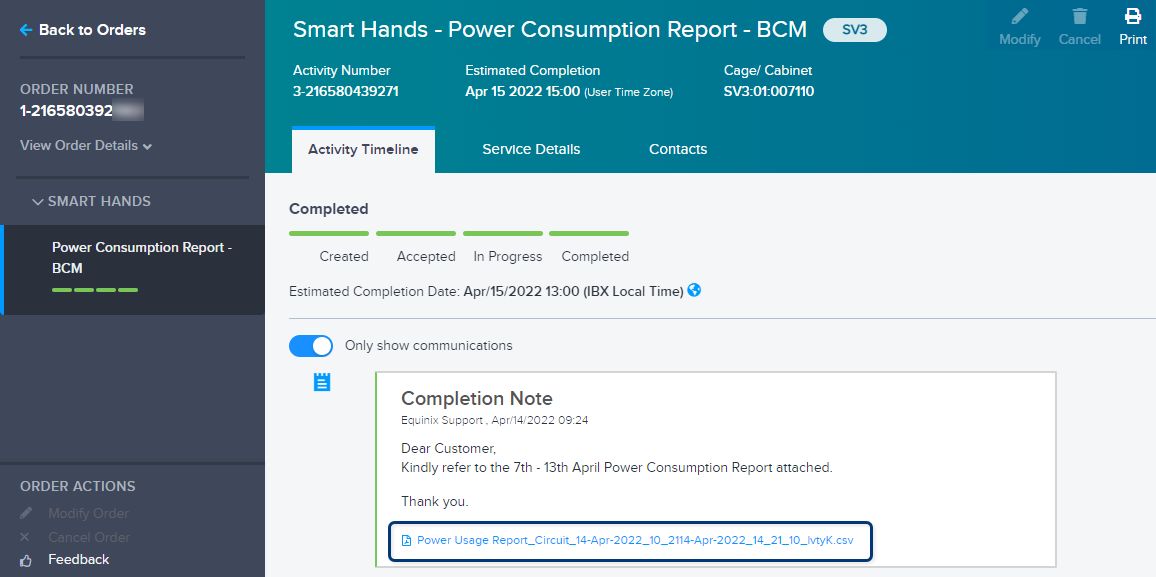
    The generated report is shown in the Activity Timeline as a file attachment.

  4. Click the file to download it.

Changing the Settings for Recurring Reports

If you configured a report to run automatically on a schedule, you can change the settings at any time.

For Self-Service Reports

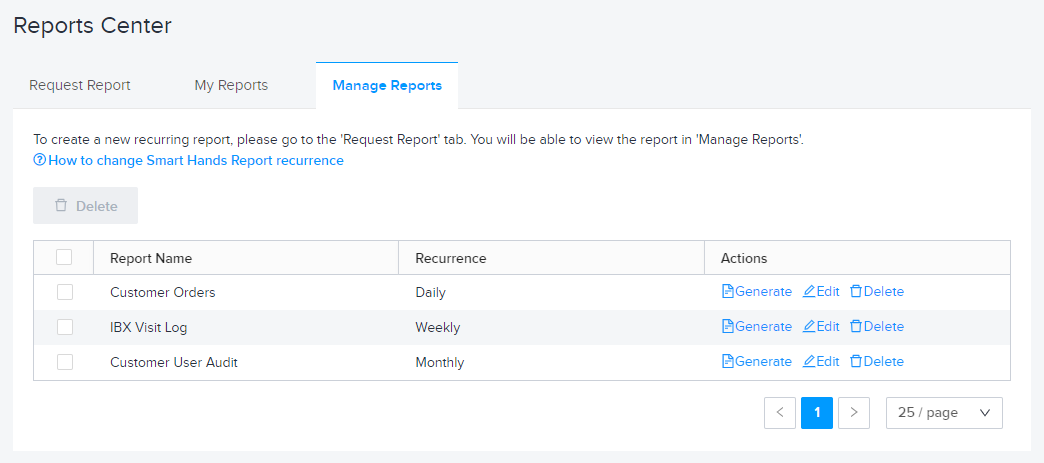
  1. From the Reports menu, select Manage Reports

  2. For each report, you have options to:

    • Generate the report now.
    • Edit the report settings.
    • Delete the report (this cancels all future runs).
    重要提示:

    For reports that are sent to multiple recipients, changing or deleting the report recurrence affects all recipients.

For Chargeable Reports

After you submit an order for a recurring report (such as a Power Consumption report that runs every month), a new Smart Hands order is automatically placed every month for the report. If you need to change or cancel the recurrence settings, contact the Global Service Desk (GSD).

重要提示:

Recurring chargeable reports are billed per each instance of report delivery. For example, if the report is set to run weekly, you are charged for the report every week.

Renaming Reports

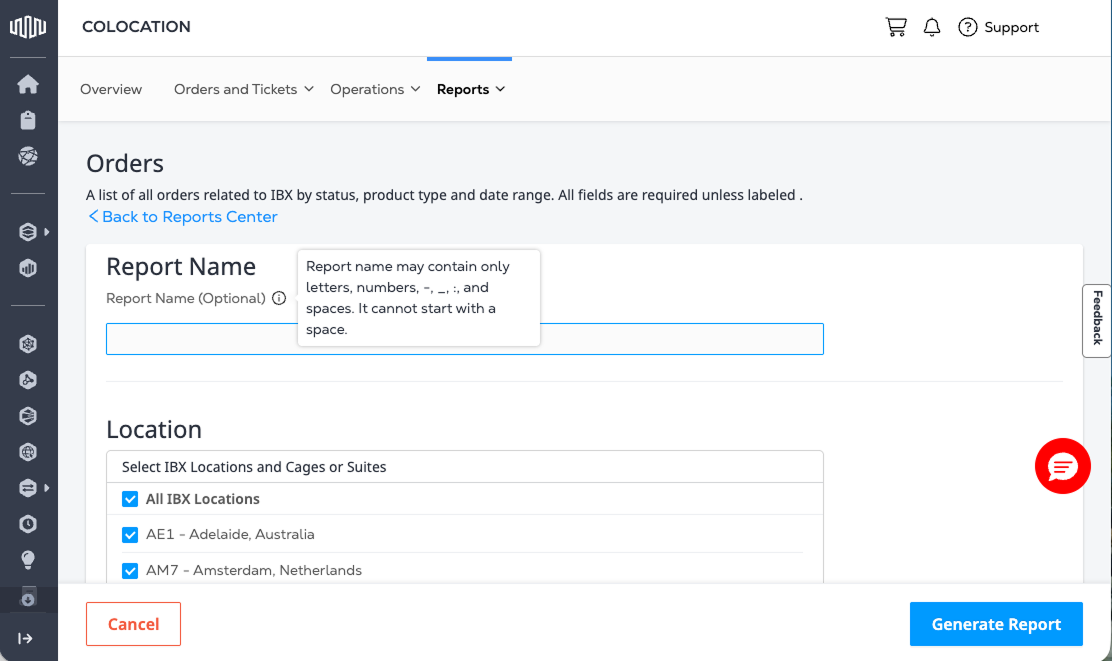
To specify a custom report name in Report Center, go to any Reports page (except Smart View: Power Consumption Report, Smart View: Environmental Report, and Smart Hands: Power Consumption):

  1. Enter a name for the report in the Report Name field.

  2. The name must contain only:

    • Letters (A–Z, a–z)
    • 数字 (0-9)
    • Underscores (_)
    • Hyphens (-)

Report Name field in Report Center

此页面有帮助吗?