Traffic Mirroring
The Traffic Mirroring feature clones and encapsulates ingress or egress traffic from a Virtual Device network interface. The system then routes this mirrored traffic to another Virtual Device within your Equinix deployment, or delivers it over Fabric to external destinations like a colocation facility or a connected Cloud Service Provider.
Prerequisites
- A mirror device
- A virtual connection between the mirror device and the mirror target
Create a Mirror Session
-
Sign in to the Equinix Customer Portal and navigate to Network Edge.
-
From the Network Edge menu, select Traffic Mirroring.
-
Click Start Traffic Mirroring.

-
In the Traffic Mirroring Session Details section, enter:
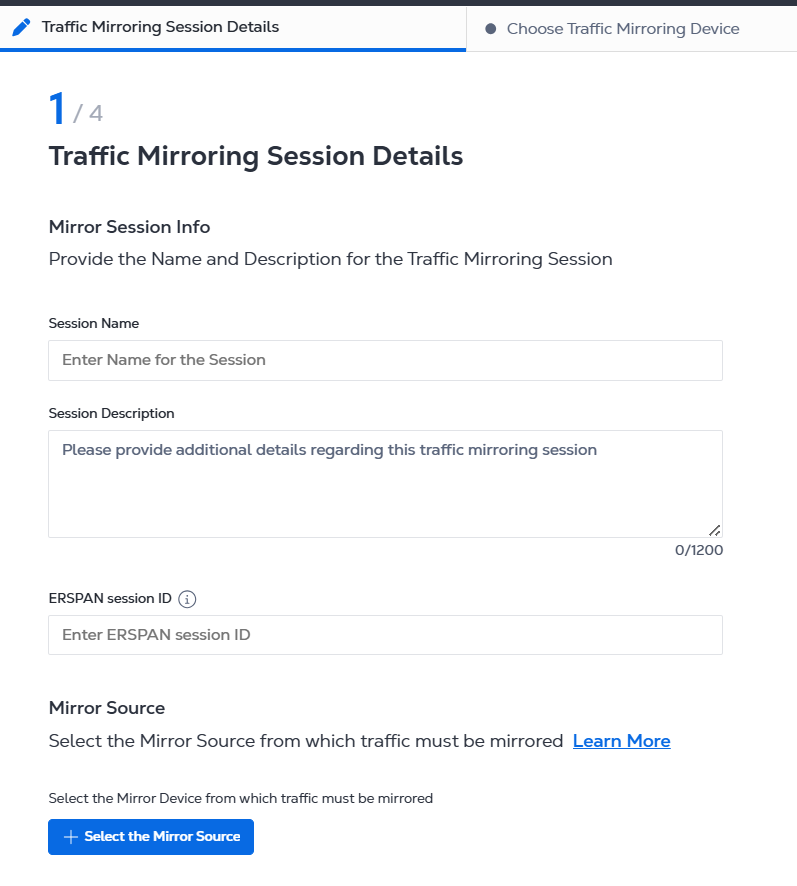
- Session Name
- Session Description
- ERSPAN session ID
-
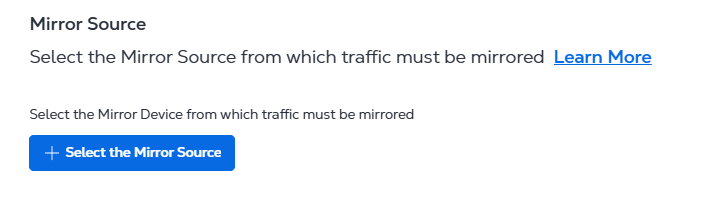
Click Select the Mirror Source.
-
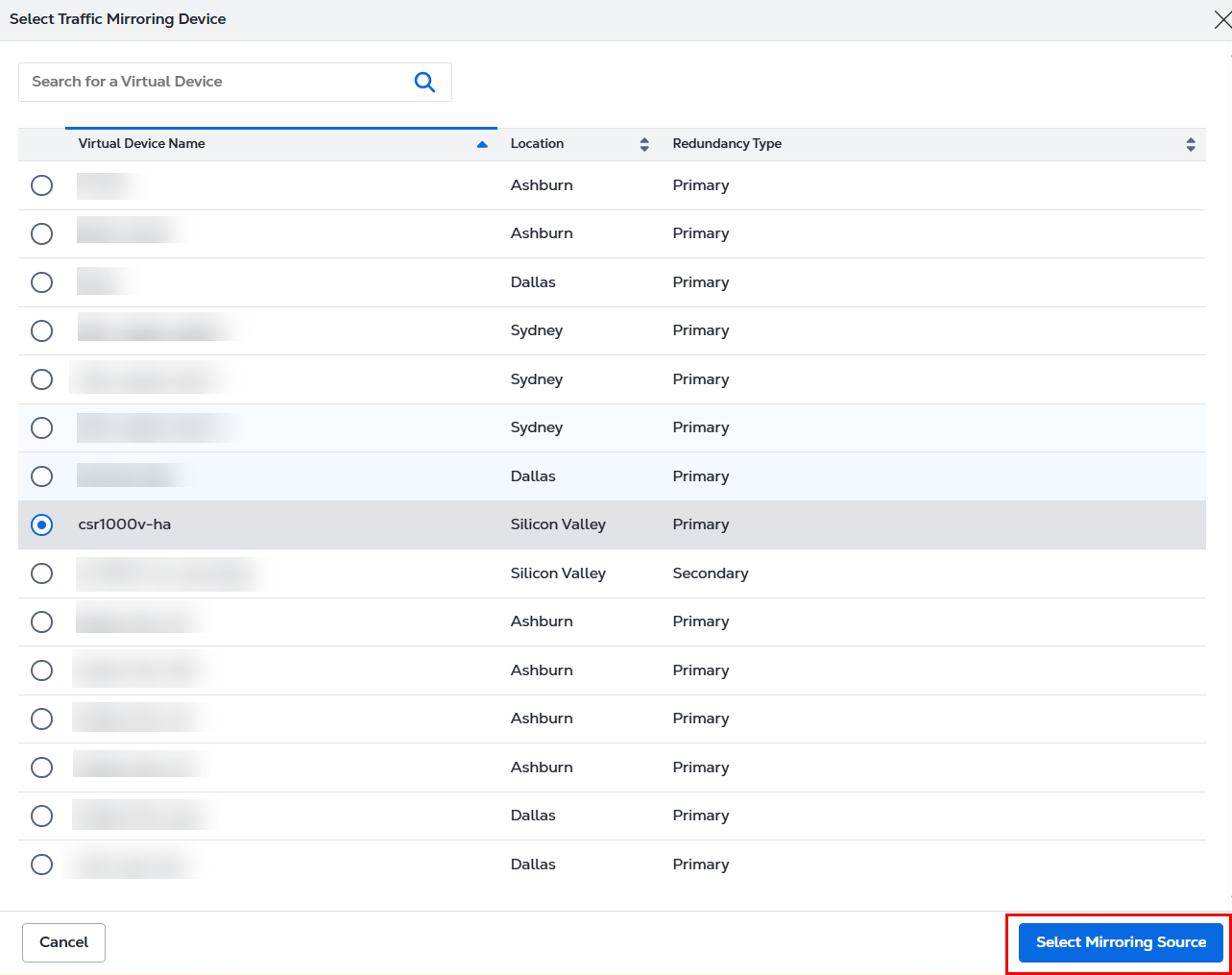
Select a device and click Select Mirroring Source
-
Select a Mirror Interface and click Next.

-
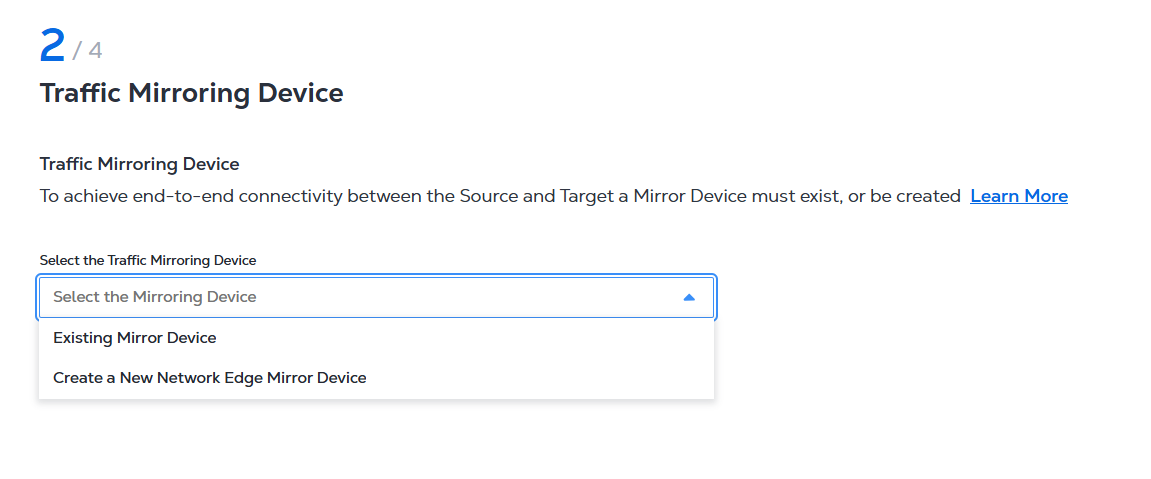
In the Traffic Mirroring Device section, decide if you want to mirror an existing device or a newly created device.
-
If you have an existing device to mirror, select Existing Virtual Device, select a device, and then click Select Mirroring Source.
-
If you want to mirror a new device, select Create a New Network Edge Virtual Device, enter a name for the new device, a tunnel source IP address, and a tunnel destination IP address.
-
Click Next
-
In the Configure the Traffic Mirroring section, set the schedule:
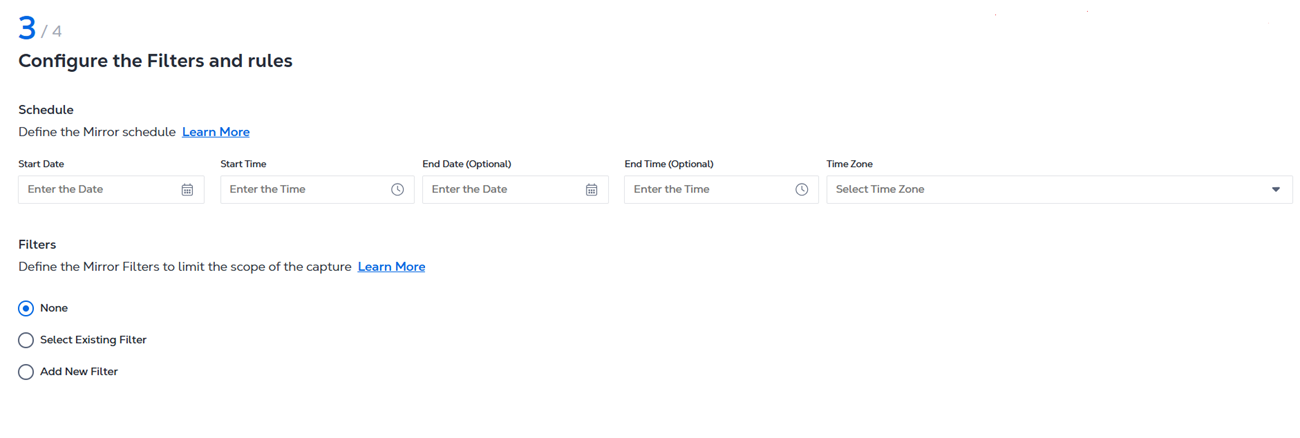
- Enter Start Date and Start Time.
- Enter End Date and End Time.
- Select the Time Zone.
- In the Filters section, define the mirror filters by selecting:
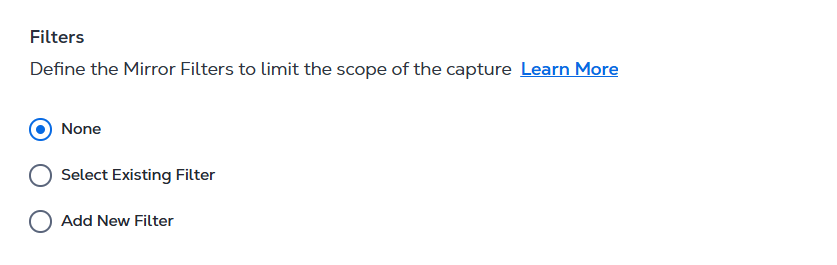
- None
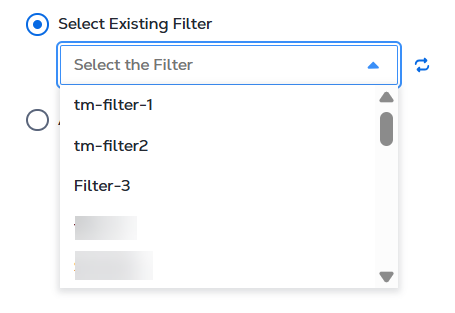
- Select Existing Filter - select an existing filter from the drop-down menu.
- Add a New Filter - enter a filter name and set the rule parameters.

-
Click Next.
-
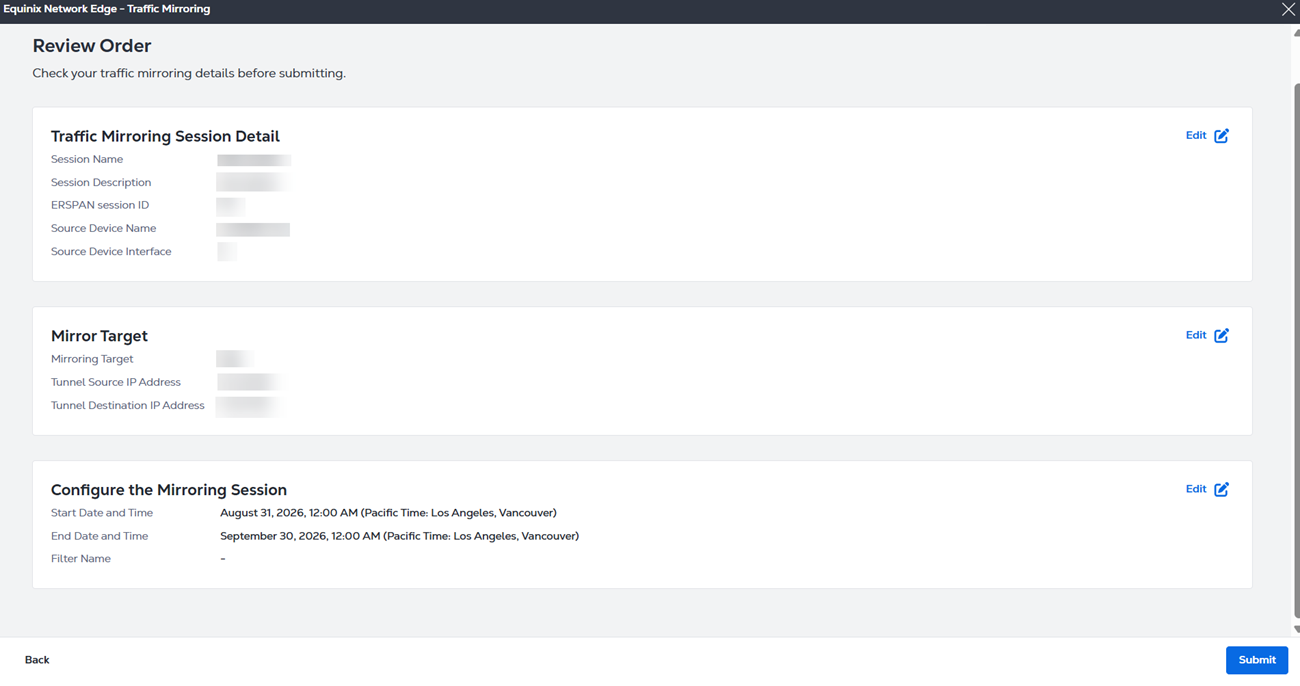
In the Review and Start the Traffic Mirroring section, review your session and click Submit.