Internet Exchange权限
Internet Exchange的访问受三个部分的约束:
- 身份和访问管理-基于角色的访问控制,用于查看Internet Exchange清单,订购端口和管理服务。
- Internet Exchange权限-用于控制Internet Exchange控制面板访问权限的Colocation_用户管理_权限。
- 订购权限- Colocation_用户管理_权限,用于控制对特定IBX中订购网络端口的访问权限。
身份和访问管理
自2026年10月起,Internet Exchange权限将迁移到身份和访问管理(IAM),Internet Exchange资产将迁移到客户资源层次结构。
角色,Internet Exchange清单和服务激活功能将于2026年10月中旬向所有账户推出。
有四种新的IAM权限:
fabric.internetexchangeservice.read-查看Internet Exchange服务实例。fabric.internetexchangeservice.create-创建Internet Exchange服务实例。fabric.internetexchangeservice.update-更新Internet Exchange服务实例。fabric.internetexchangeservice.delete-删除Internet Exchange服务实例。
权限正在添加到以下角色:
| 角色 | 权限 |
|---|---|
Fabric Viewer | fabric.internetexchangeservice.read |
Fabric Manager | fabric.internetexchangeservice.read,fabric.internetexchangeservice.create,fabric.internetexchangeservice.update,fabric.internetexchangeservice.delete |
Internet Exchange项目
迁移过程中,Equinix正在将您的Internet Exchange资产迁移到贵组织的默认项目或新的Internet Exchange特定项目。或Fabric Manager的项目级角色将自动分配给用户Fabric Viewer,以便您不会失去查看或管理服务的访问权限。
在客户门户网站中,使用_项目切换器_在项目之间导航。
Fabric Viewer和Fabric Manager角色现在包括Internet Exchange权限,因此拥有这些角色的用户将有权访问已迁移到默认项目中的Internet Exchange资产。如果您拥有"项目管理员"或"组织管理员"角色,则可以选择保持项目和服务的原样,也可以移动项目和/或您的服务。如果要限制对Internet Exchange资产的访问,请为其创建单独的项目和角色。 有关更多信息,请参阅管理项目和管理资产。
管理用户访问权限
如果您是管理员,则可以通过添加或删除或Fabric Viewer角色来管理用户对Internet Exchange的访问权限Fabric Manager。
有关更多信息,请参阅管理用户的访问权限和角色。
Internet Exchange库存访问权限
fabric.internetexchangeservice.read访问Internet Exchange清单需要权限。角色中包含此权限Fabric Viewer。
要更新或删除Internet Exchange清单中列出的服务,fabric.internetexchangeservice.update fabric.internetexchangeservice.delete需要权限。角色中包含这些权限Fabric Manager。
订购权限
要订购Internet Exchange服务,您既需要网络端口权限,也需要Ordering具有权限的角色fabric.internetexchangeservice.create(如Fabric Manager角色)。
如果您是管理员:
-
您可以从_Colocation控制面板的__管理_选项卡管理
Ordering权限。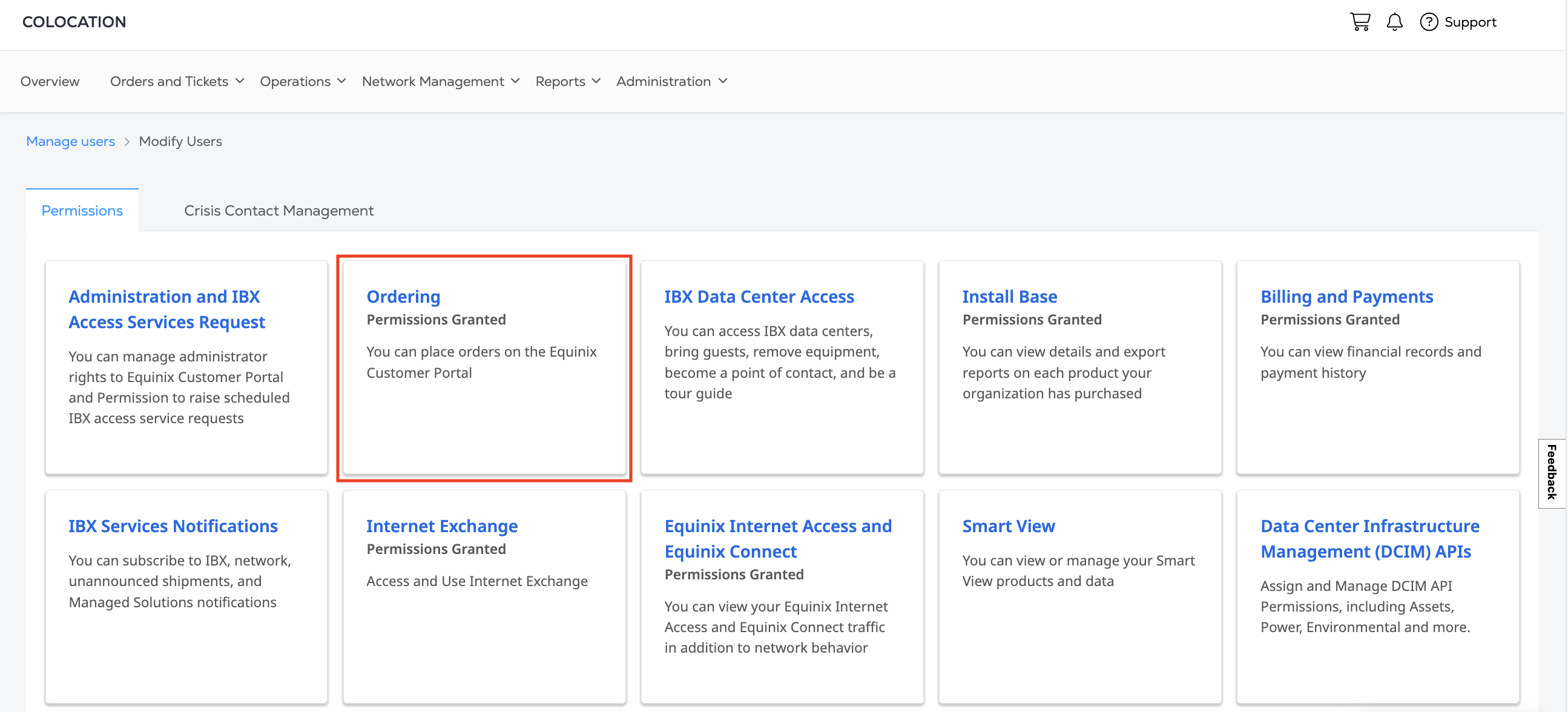
从“网络端口”列中选择您或您的用户可以订购端口的IBX,然后单击**“提交**”。
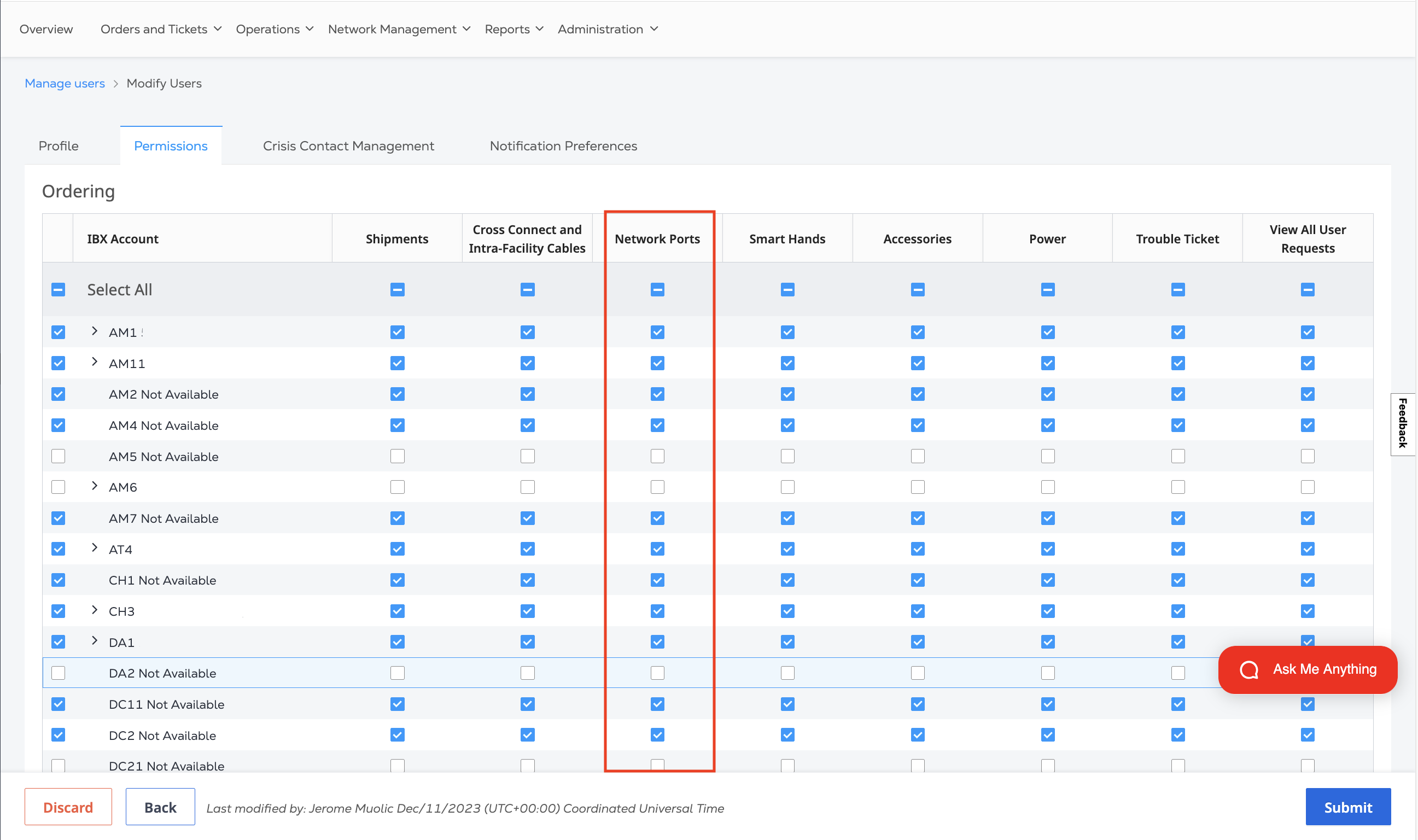
有关更多信息,请参阅管理用户权限。
-
您可以从身份和访问管理中分配或取消分配
Fabric Manager角色(或fabric.internetexchangeservice.create权限)。有关更多信息,请参阅管理用户的访问权限和角色。
控制面板访问权限
Internet Exchange查看Internet Exchange控制面板需要权限。
如果您没有权限,可以从_Internet Exchange控制面板_页面向公司管理员申请访问权限。
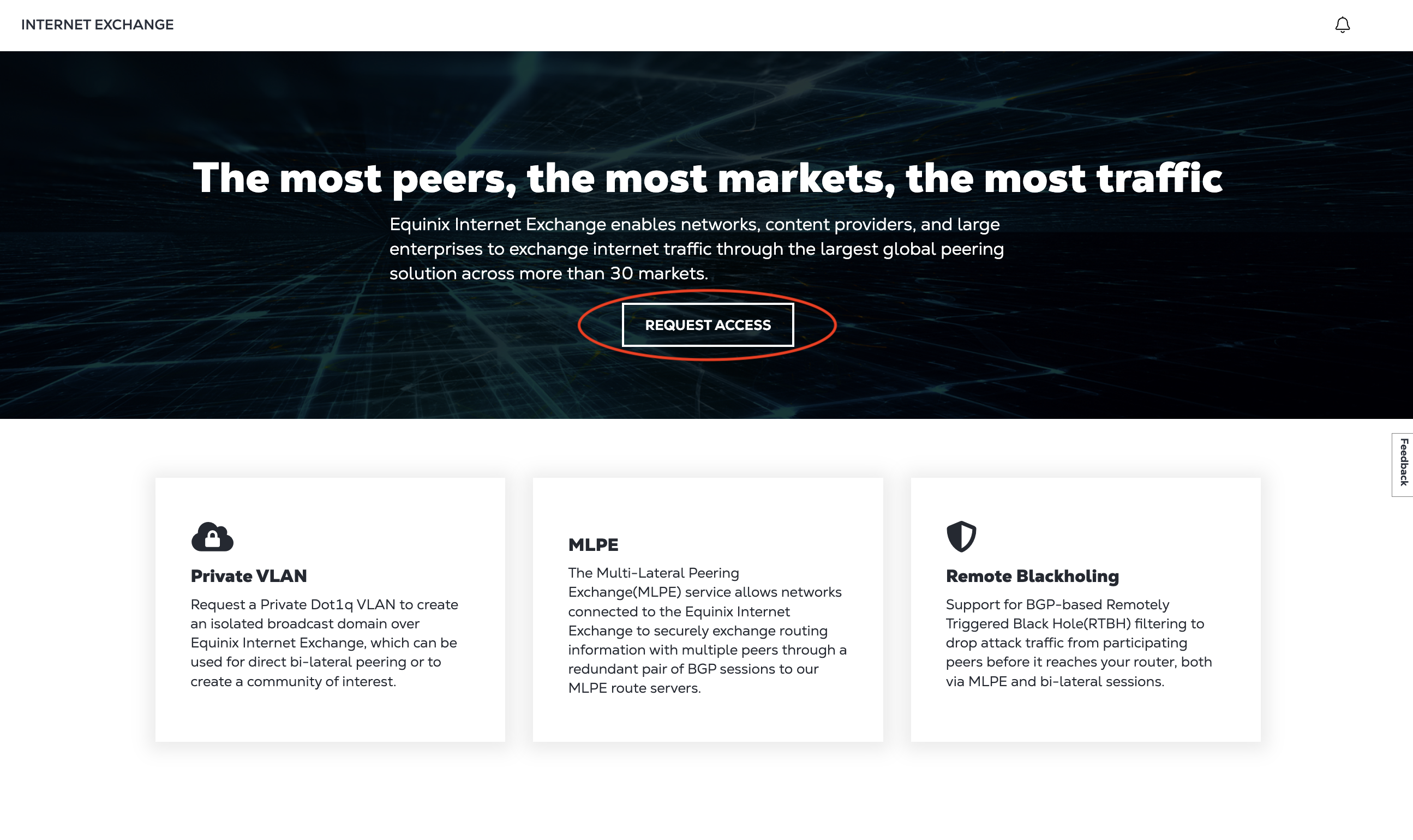
如果您是管理员,您可以从Colocation控制面板的_“管理”_选项卡管理互联网访问控制面板权限。
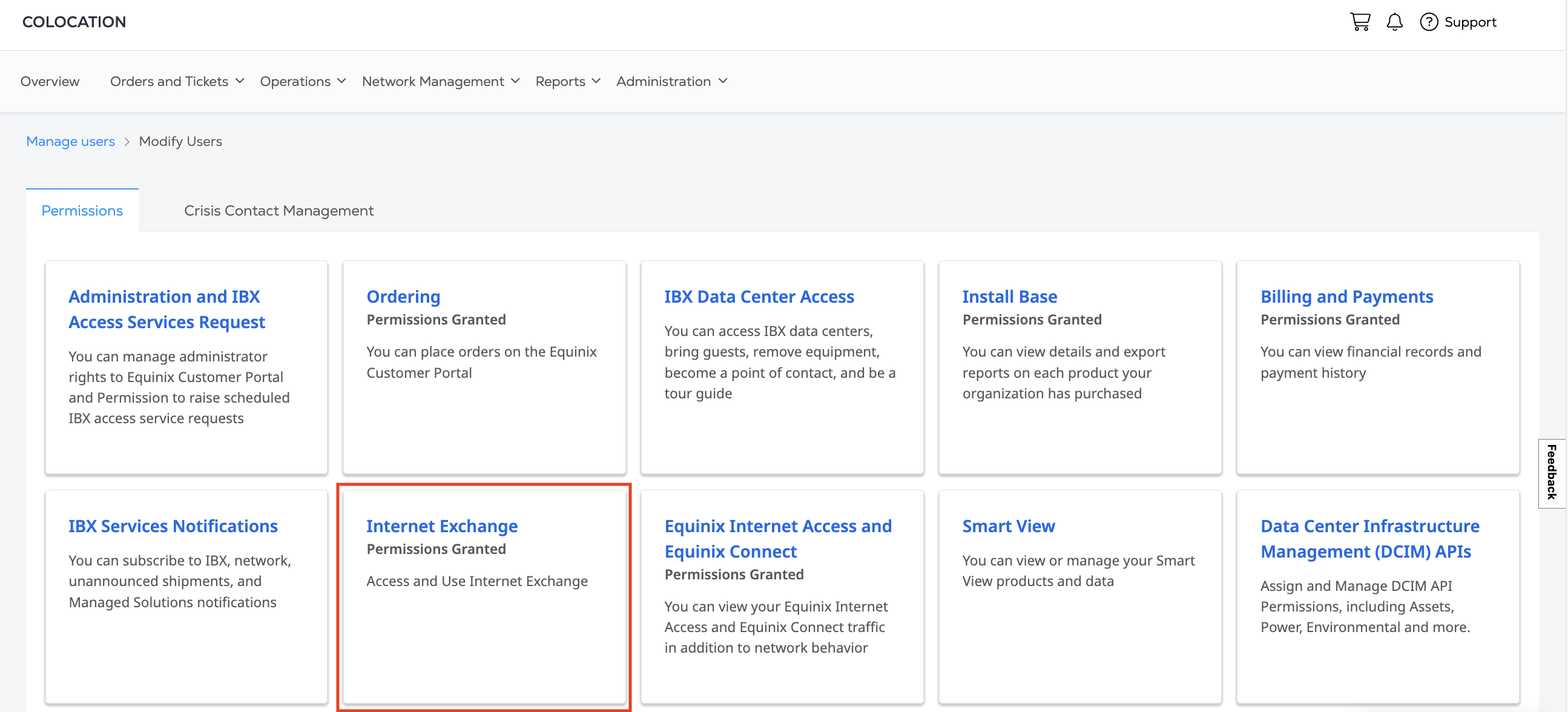
有关更多信息,请参阅管理用户权限。