管理用户权限
使用客户门户网站中Colocation控制面板的_“管理”部分,将尚未登录的资产和产品的权限分配给_身份_和_访问管理(IAM)。
此权限管理功能适用于管理和IBX访问服务请求,订购,安装库,账单和付款,IBX服务通知,Smart Hands支持计划,Colocation订购,虚拟资产通知权限和功耗报告。
要授予对 IBX、笼子和柜子的物理访问权限,请参阅IBX 访问权限。
已登录IAM的资产和产品,请参阅管理用户的访问权限和角色。
Fabric和Network Edge权限通过IAM角色进行管理,无法通过客户门户网站分配权限。
手动为用户分配权限
-
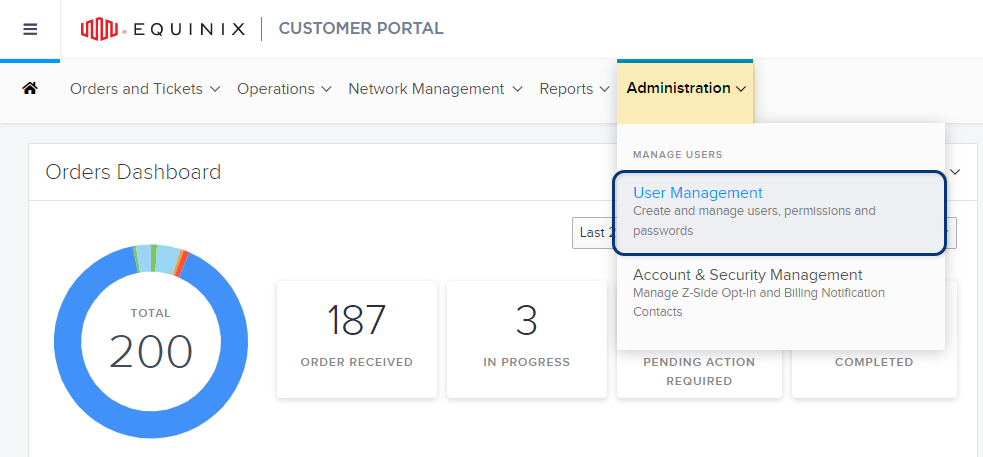
从“管理”菜单中,选择“用户管理”。
-
找到你要管理的用户账户。
-
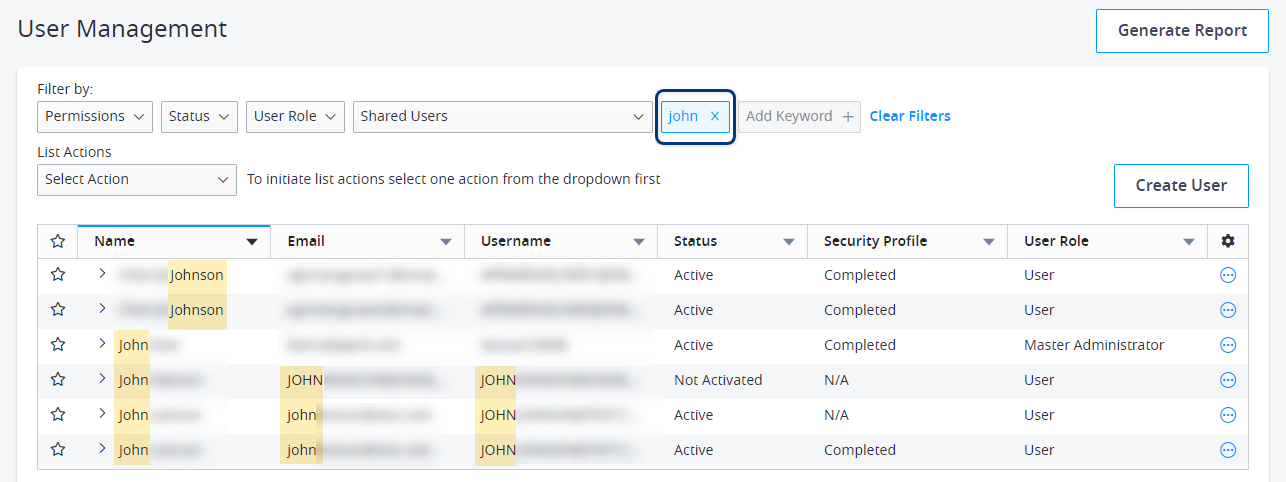
要搜索特定用户,请在“添加关键字”字段中输入名字、姓氏、用户名或电子邮件地址:
-
你还可以使用顶部的过滤选项,按照用户状态、角色、组织和当前权限来细化用户列表。
提示要快速查找新用户帐户,请将 Status 筛选器设置为 Not Activated。
-
-
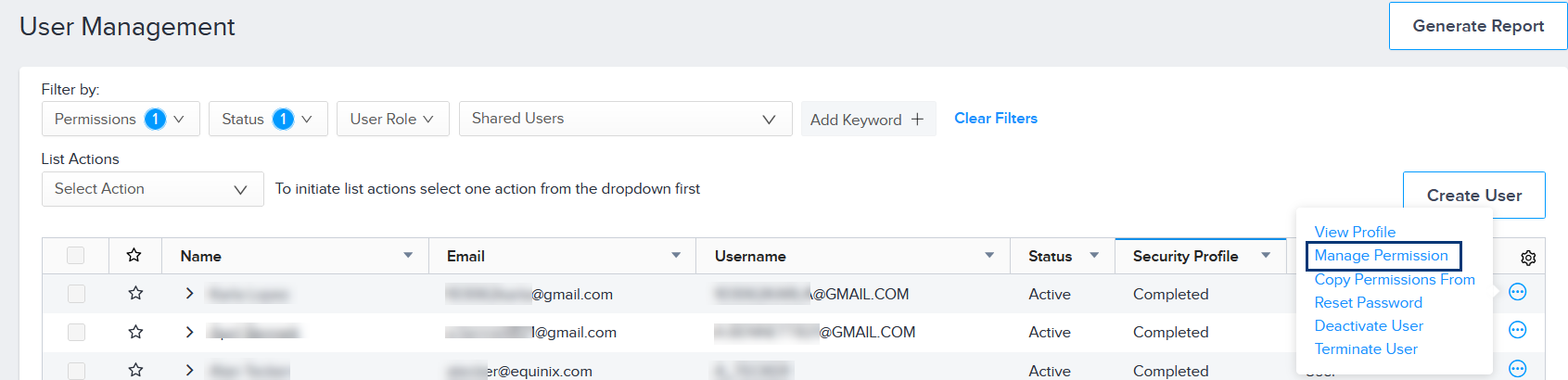
点击选项菜单,然后选择管理权限。
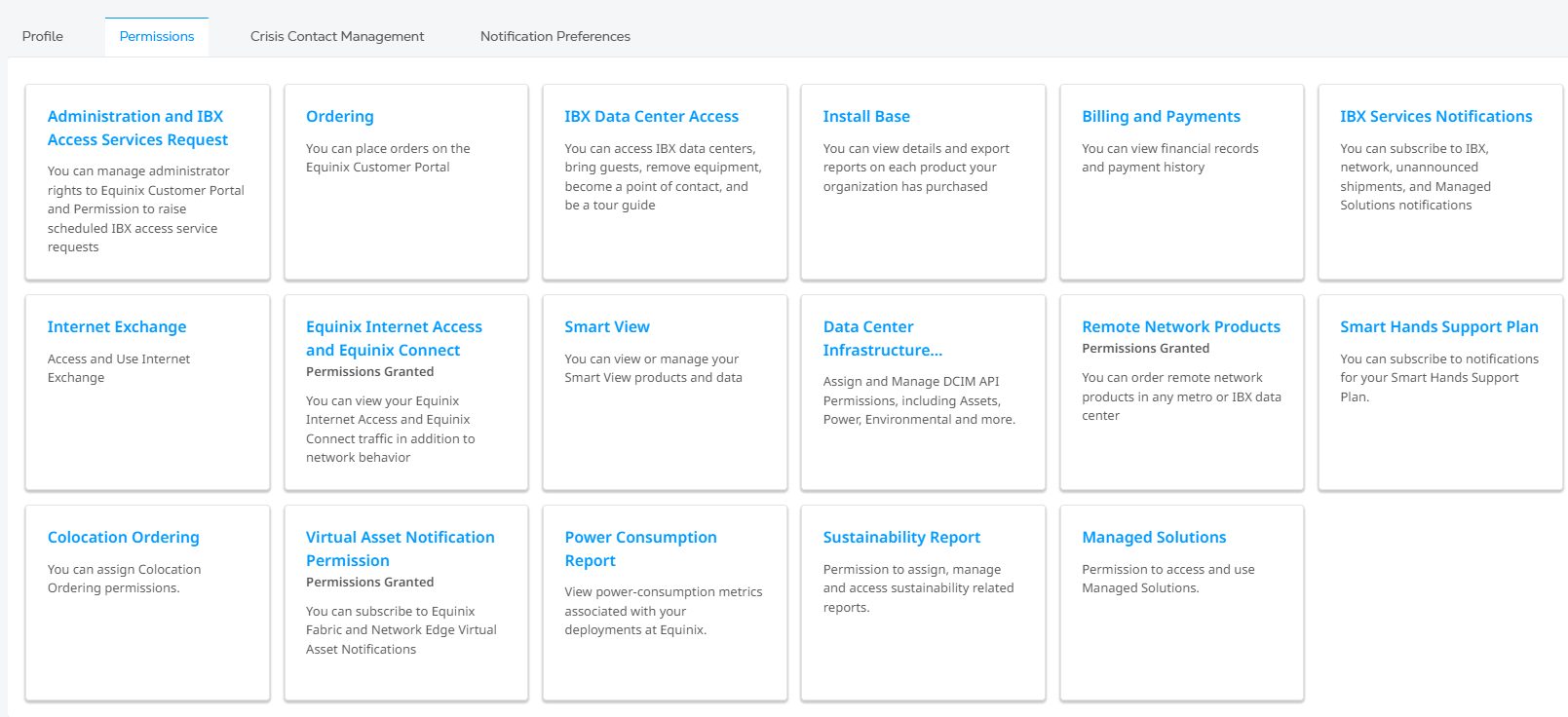
“权限”选项卡显示权限类型目录。
-
如果这是新用户账户,请选择_管理和IBX访问服务请求_。列表显示该用户可用的所有IBX网点。
-
(可选)要为此用户分配_公司_或_IBX管理员_权限,请单击管理员权限,然后选择要分配的管理员角色:
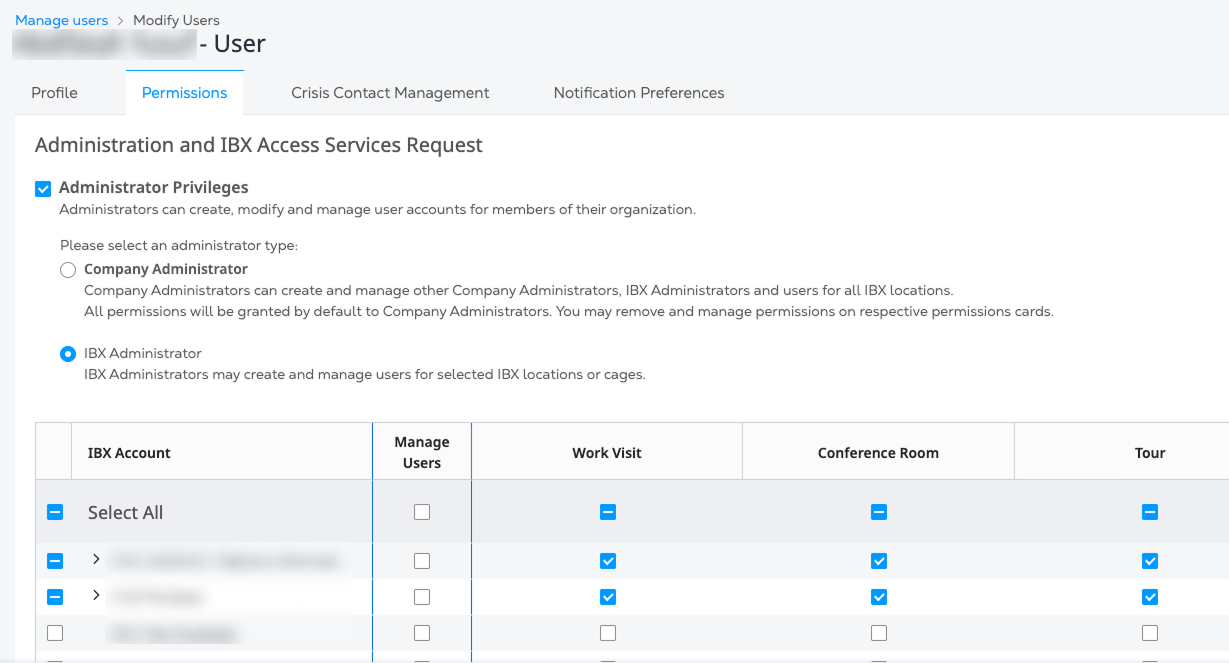
有关管理员角色的信息,请参阅客户门户中的角色。
-
选择用户的 IBX 和笼式权限。
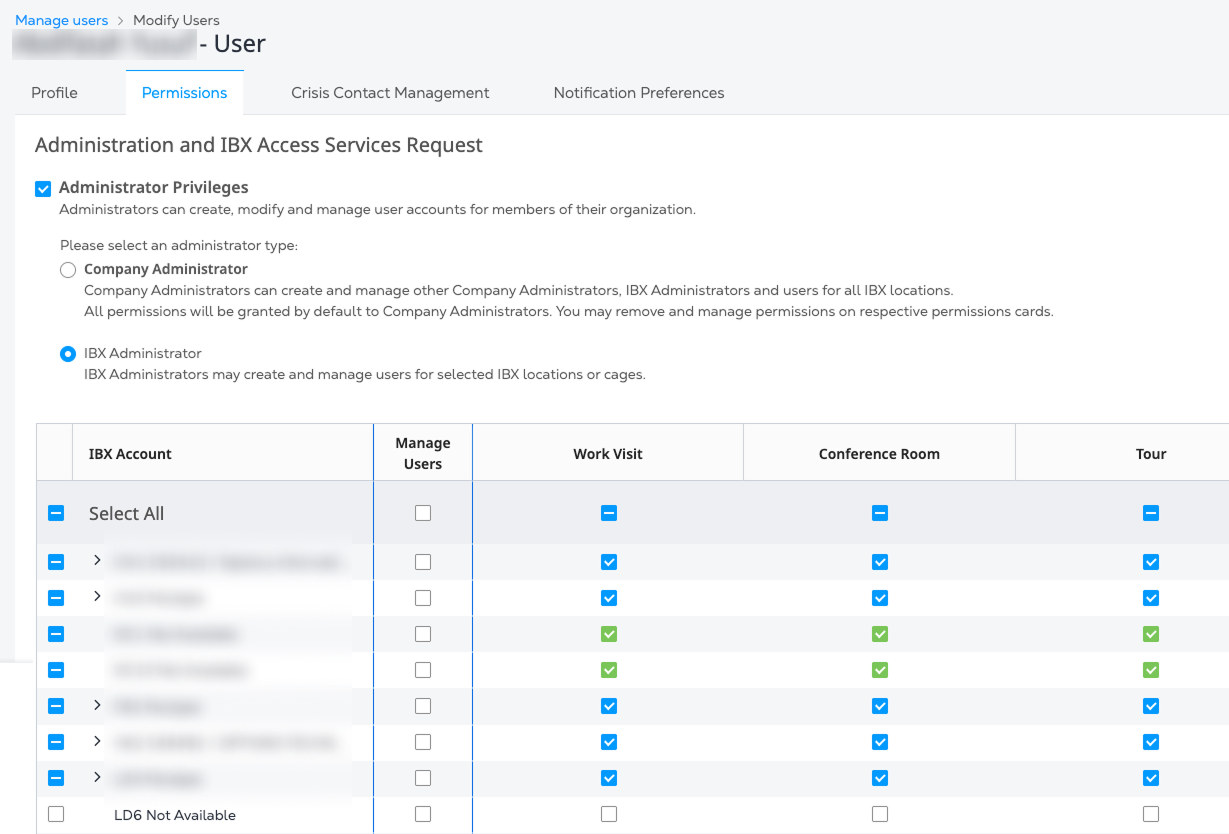
有关更多详细信息,请参阅IBX 访问权限。
-
-
要分配更多权限类型(例如订购、结算等),请使用“返回”按钮返回到“权限”选项卡。根据需要分配其他权限。
在大型组织中,权限更改可能需要几分钟才能在系统中传播。如果用户在使用新定义的权限时遇到困难,请他们注销,等待几分钟,然后重新登录。
许可类型
Fabric和Network Edge权限仅通过IAM角色进行管理,无法通过客户门户网站分配权限。
| 类别 | 描述 |
|---|---|
| 行政和 IBX 访问服务请求 | 允许用户安排IBX访问请求(工作访问、会议室访问和数据中心参观)。允许管理员管理其他客户门户用户帐户。 |
| 订购 | 允许用户在门户中下订单(装运、交叉连接和设施内电缆、网络端口、智能手、配件、电源、故障单),查看其他用户的订单,并查看其组织的采购订单。 |
| IBX 数据中心访问 | 允许用户进入 IBX 数据中心和机笼/机柜,带客人来,并拆除设备。 |
| Install Base | 允许用户查看有关其组织的产品/资产和采购订单的详细信息。控制对 "安装基础 "屏幕、"安装基础 "报告、"主机托管资产 "屏幕和 "采购订单管理 "屏幕的访问。 |
| 账单和付款 | 允许用户查看其组织的财务记录、付款历史和采购订单。 |
| IBX 服务通知 | 允许用户订阅有关IBX事件,网络事件,未经通知的货物,托管服务和IBX政策违规的通知。还允许用户在Service Insight控制面板上查看事件。 重要提示:每个组织中必须至少配置两名管理员才能接收IBX策略违规(即,可以查看和订阅IBX策略违规通知权限)。 |
| 互联网交流门户 | 允许用户访问互联网交换(IX)门户。 |
| Equinix Internet Access 和 Equinix Connect | 允许用户查看其 Equinix Internet Access 和 Equinix Connect 的流量和网络行为。 |
| Smart View | 允许用户为 IBX 订购Equinix Smart View ,并查看Smart View数据。 |
| 远程网络产品 | 允许用户为特定区域内的 IBX 订购远程网络产品。 |
| 智能手支持计划 | 允许用户订购Smart Hands支持计划,并订阅其支持计划的通知。 |
| 主机托管订购 | 允许用户在线订购安全柜和私人笼子产品。 |
| 虚拟资产通知权限 | 允许用户查看和订阅Fabric和Network Edge虚拟资产通知。 |
| Managed Solutions门户 | 允许用户访问Managed Solutions门户网站。 |
| 耗电量报告 | 允许用户运行电力消耗报告。 |
| 支持个案经理 | 允许用户查看、管理和回复其组织内任何用户提交的所有支持案例。 |
创建模板以分配权限
模板提供了一种简单、有效的方式来分配整个组织的相同的常用权限。你可以创建模板,并将其应用于需要相同权限来执行类似角色的用户。
-
从“管理”菜单中,选择“用户管理”。
-
单击创建用户。
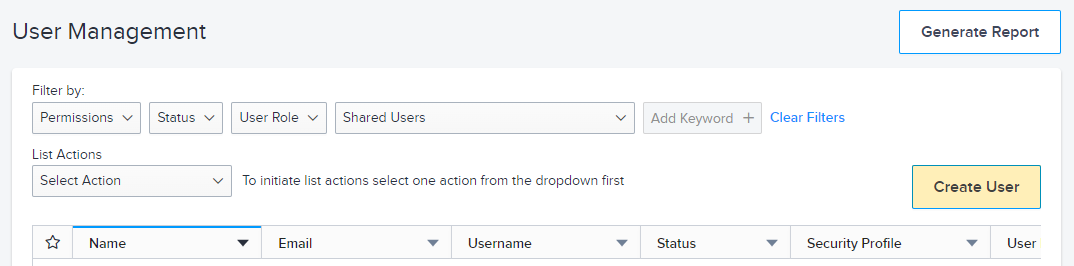
-
选择“添加用户”选项卡。
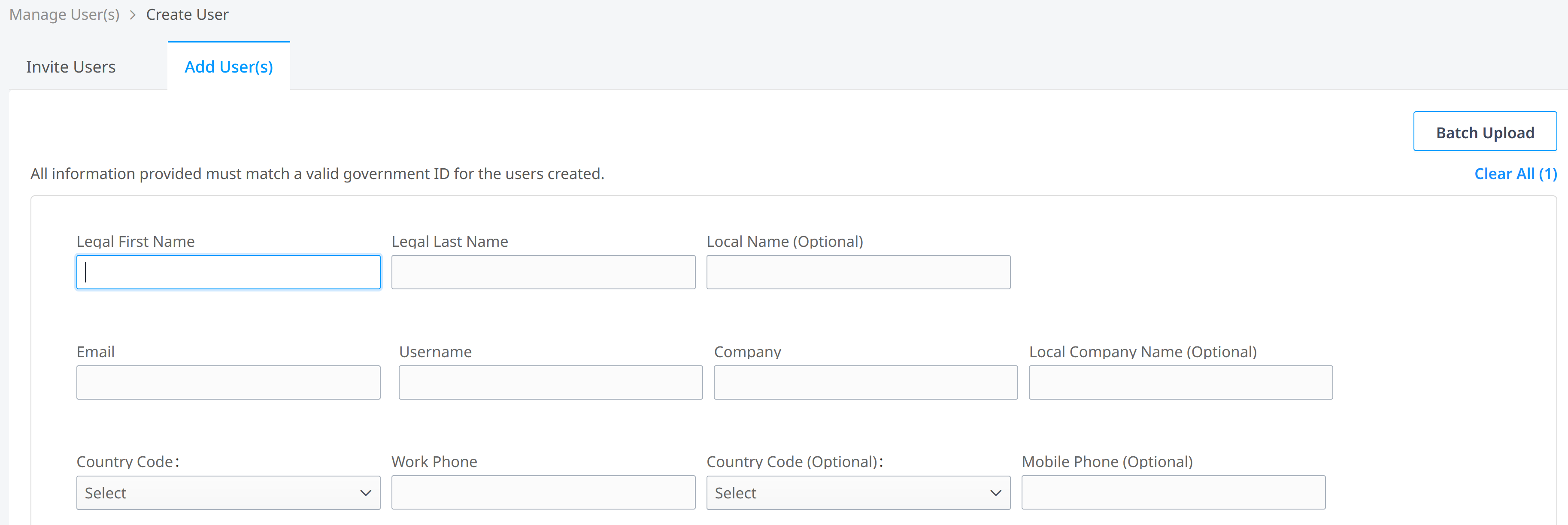
-
在以下字段中输入有关此模板的信息。
注意您正在输入通用用户配置文件的信息,而不是实际用户的信息。此配置文件未在门户中激活;它仅用作将权限应用于其他用户的模板。
- 名字(法定名字)——此类用户的定义。例如:NOCuser
- 姓氏或法定姓氏 - 输入模板(这允许您稍后搜索模板)。
- 电子邮件 – 您的电子邮件地址。
- 用户名(可选)– 用于在控制面板中快速识别此模板的唯一名称。例如:nocusertemplate
- 公司 – 您的公司名称。
- 国家代码 – 您的国家代码。
- 工作电话 – 您的工作电话号码。
-
点击提交。窗口顶部会显示确认信息。
-
点击确认页面中的“分配权限”链接,即可显示“用户管理”控制面板。
-
在控制面板上,点击选项菜单,然后选择管理权限。
权限选项卡显示权限类型的目录。
-
选择此模板的权限。有关详细信息,请参阅手动分配权限。
信息稍后,当您使用此模板将权限分配给其他用户帐户时,这些权限将应用于这些用户。
-
单击Submit (提交)。
从模板分配权限
从模板分配权限将覆盖任何以前分配给用户的权限。
-
从“管理”菜单中,选择“用户管理”。
-
在_筛选方式_部分中,键入
template_添加关键字字字_段。
你的模板已经列出。
-
在控制面板上,点击选项菜单,选择“从……复制权限”。此时会列出可用用户。
-
点击仪表板左边的复选框,选择你想应用模板权限的用户。
-
单击用户列表顶部的应用:

模板中的权限被应用到选定的用户身上。任何其他先前的权限都会从选定的用户账户中删除。