阿里巴巴云高速连接
使用Equinix Customer Portal或API创建从Fabric端口,Fabric Cloud Router或Network Edge虚拟设备到阿里巴巴云快速连接的连接。阿里巴巴云高速连接通过合作伙伴的专用骨干网络将本地Equinix数据中心连接到阿里巴巴云。
更多信息, 请参阅阿里巴巴云文档中心的快速连接。
概述
Equinix支持通过阿里巴巴云快速连接服务配置文件连接到阿里巴巴云。
网点
| 亚太地区 | 美洲 | 欧洲、中东和非洲地区 |
|---|---|---|
| 香港(HK) 新加坡 (SG) 东京(TY) | 阿什本(DC) 硅谷(SV) | 法兰克福(法国) 伦敦 (LD) |
带宽选项
- 50 Mbps
- 200 Mbps
- 500 Mbps
- 1000 Mbps
先决条件
建立到阿里巴巴云的连接,您必须具备以下条件:
-
阿里巴巴Cloud Express Connect上的账户,并可访问阿里巴巴Cloud Express Connect控制台。
-
阿里巴巴Cloud Express Connect Express Connect线路;专用或共享。有关更多信息,请参阅通过快速连接电路进行连接。
注意要通过专用Cross Connect (单模光纤)连接到阿里巴巴快速连接,您必须通过阿里巴巴云门户提交订单。
-
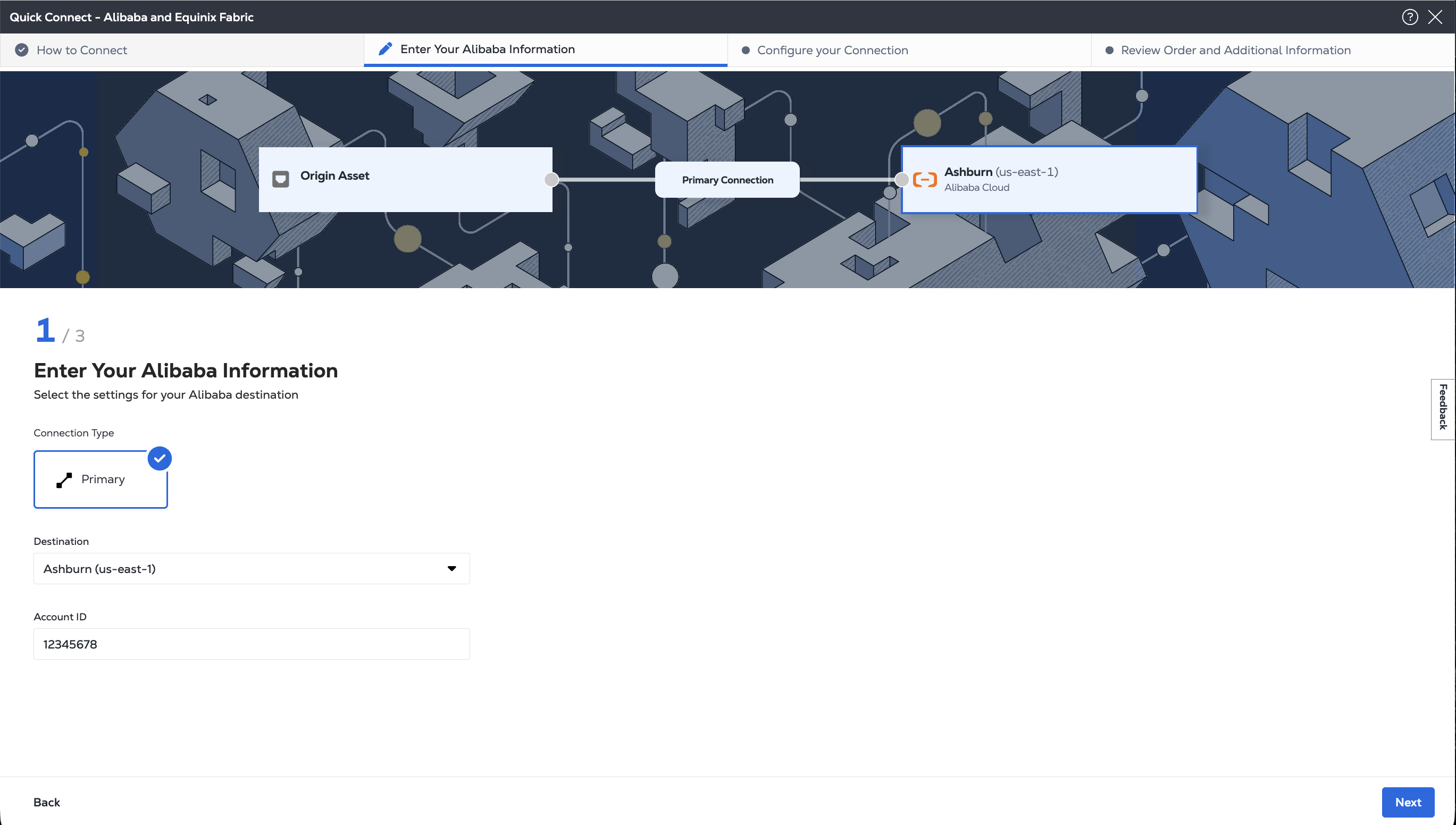
从阿里巴巴Cloud Express Connect控制台获取您的阿里巴巴账户ID。
-
您必须拥有角色,才能在Fabric中创建连接
Fabric Connections Manager。
在Fabric中创建连接
- Portal
- API
-
验证-提交您的用户凭据,客户端ID和客户端机密以进行OAuth2验证。有关如何致电OAuth API以验证和验证您的凭据的说明,请参阅API验证。
-
确定A侧信息。以下任一项:
- 向端点发送请求
/fabric/v4/ports,以确定您的Equinix Fabric端口信息GET。端口UUID和链路协议类型(Dot1q或QinQ),
或
- 通过向端点发送请求
/fabric/v4/serviceTokens来检索A端服务令牌GET。您需要令牌的UUID。A端令牌提供配置连接A端的相关信息。
或
- 确定您的Fabric Cloud Router信息。向端点发送请求
/fabric/v4/routers/search,以检查可用的云路由器POST。您需要路由器的UUID。
或
- 确定您的Network Edge设备信息。向端点发送请求
/ne/v1/devices,以检查可用的虚拟设备和集群GET。您需要设备UUID。向端点发送GET请求/ne/v1/devices/{device_id}以获取设备详情。您可以在设备上选择任何可用接口进行连接。如果不指定接口,连接将自动分配给下一个可用接口。
- 向端点发送请求
-
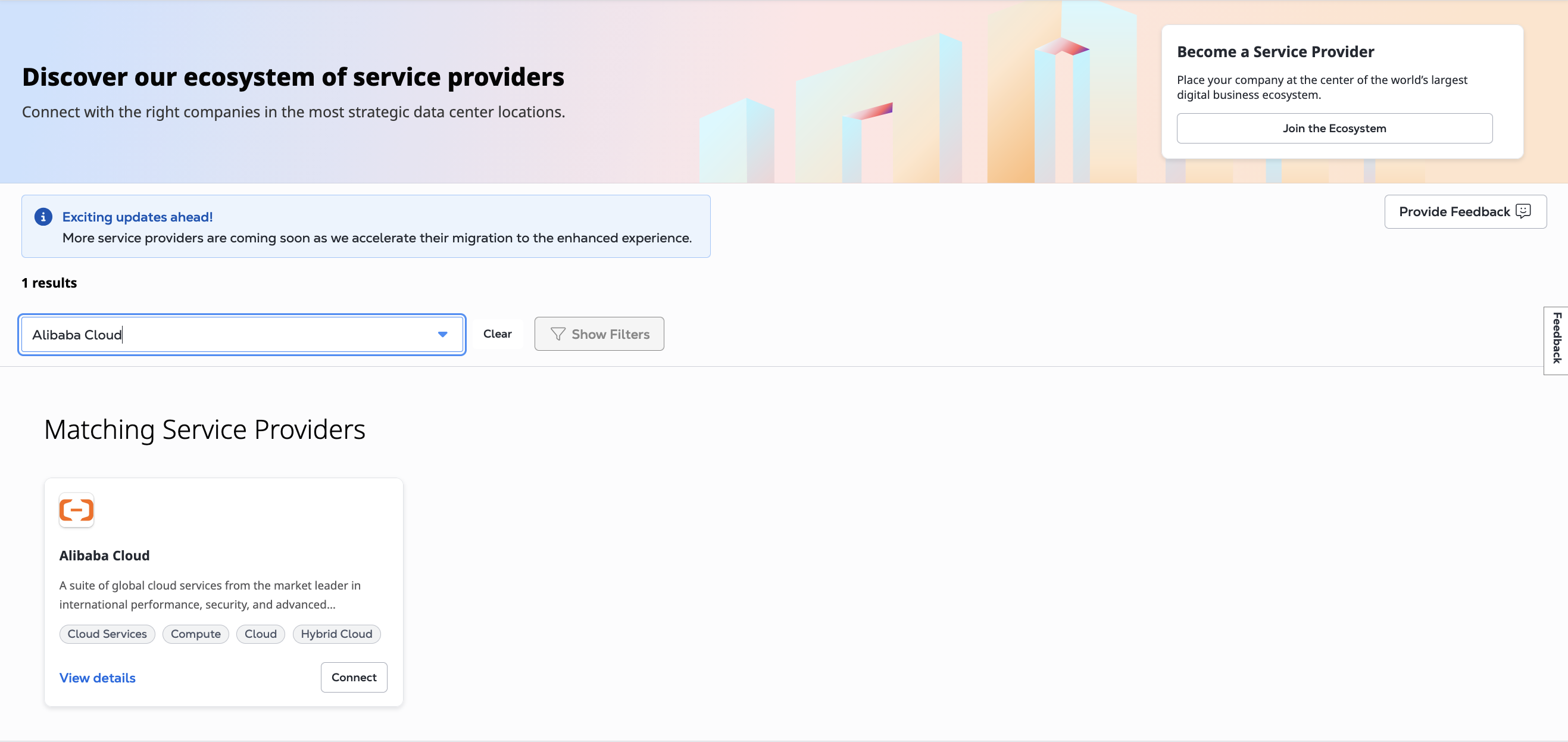
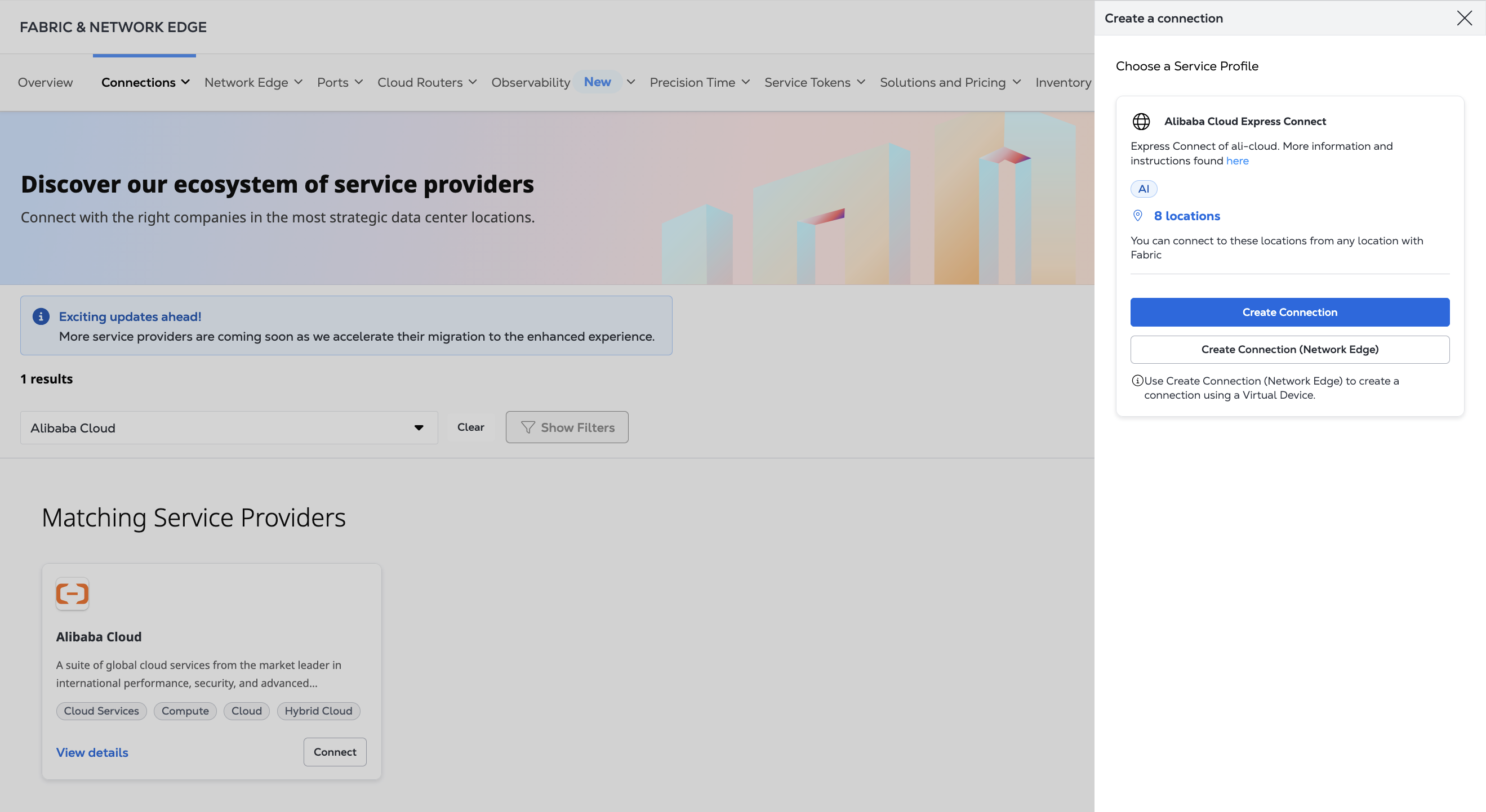
获取阿里巴巴云Express Connect服务配置文件信息。使用检索服务配置文件API请求搜索特定的服务配置文件,或使用获取服务配置文件API请求列出所有可用的服务配置文件。您需要阿里巴巴云Express Connect服务配置文件的UUID以及要在现场连接的位置
sellerRegion。- 阿里巴巴云高速连接-
4c4b8edf-873b-4c6c-805a-edb2c335bd6c
- 阿里巴巴云高速连接-
从端口连接
- Portal
- API
-
从_源资产类型_下拉列表中,选择端口。
-
在_主要连接_部分中:
-
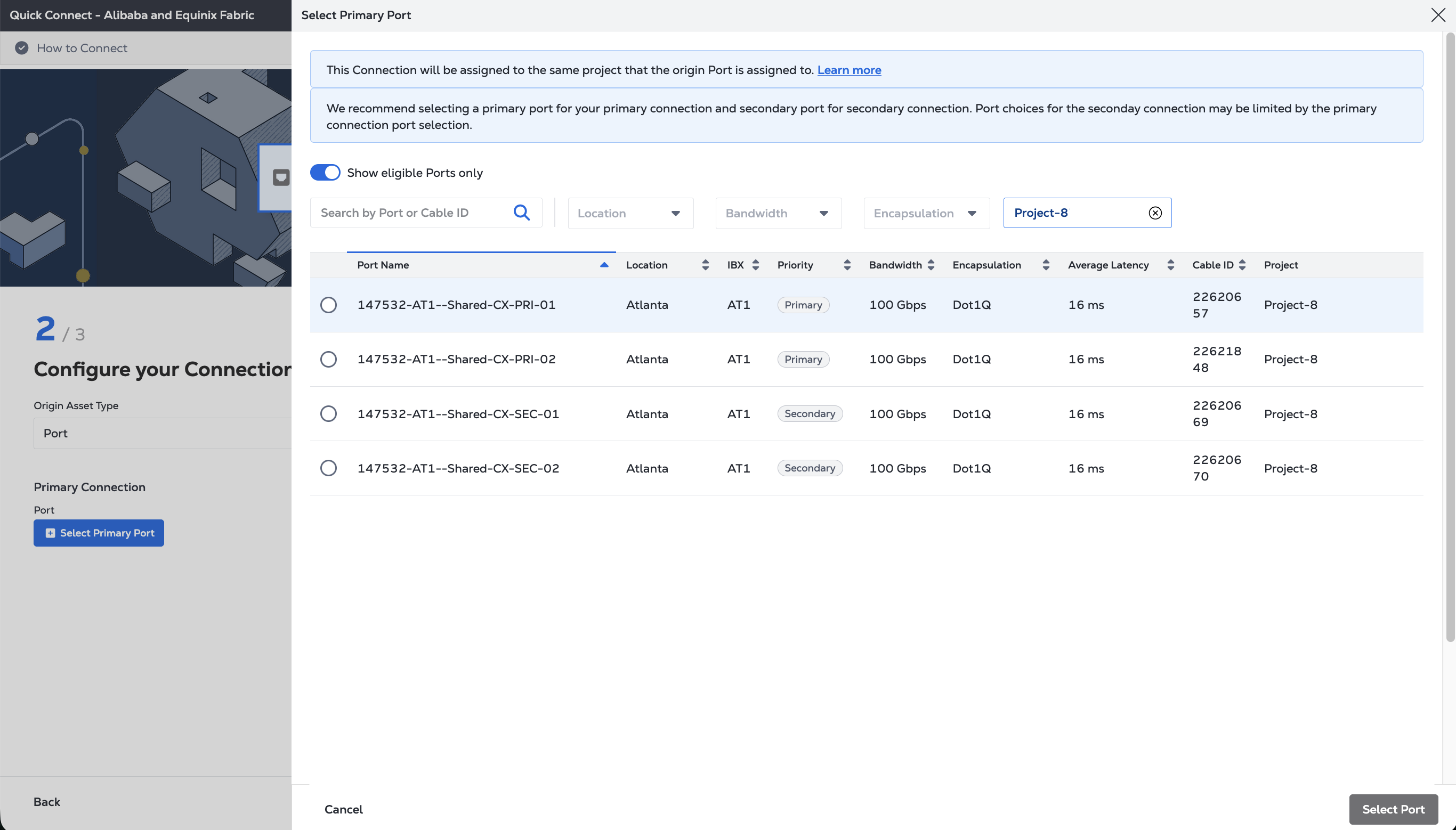
单击_+选择主要端口_,然后选择主要连接端口并单击选择端口。只有主要端口可供选择。
-
请输入主连接名称。
-
选择带宽。
-
输入VLAN ID (适用于Dot1q端口)或客户VLAN标记(C-tag)和服务VLAN标记(S-tag)(适用于QinQ端口)。
-
-
在_次要连接_部分中:
- 单击_+选择次要端口_,然后选择_次_要连接端口并单击选择端口。只有次要端口可供选择。
- 请输入辅助连接名称。
- 选择带宽。
- 输入VLAN ID (适用于Dot1q端口)或客户VLAN标记(C-tag)和服务VLAN标记(S-tag)(适用于QinQ端口)。
-
(可选)选择是否启用Geo Zones。默认值为_"Disabled"(已禁用_)。
-
选择期限长度。
-
单击下一步。
-
在“查看订单和其他信息”页面上,查看“连接配置”部分中的信息。
-
使用_通知_字段提供接收连接状态通知的收件人的电子邮件地址。您最多可以添加12个电子邮件地址。
-
(可选)在“购买订单”部分输入或添加订单信息。
-
请提供客户参考标识符,以便您在发票上识别此订单。
-
点击“显示订单概要”以查看订单详情和连接定价信息。
准备就绪后,单击创建连接。
要从您的Dot1q端口创建连接到阿里巴巴Cloud Express Connect,请向端点发送POST请求/fabric/v4/connections。
在对象中提供您的端口信息aSide,包括:
accessPoint.typeASCOLO- 将您的端口UUID提供给
port.uuid - LinkProtocol.type AS
DOT1Q - 将VLAN ID提供给
linkProtocol.vlanTag
在对象中提供阿里巴巴云详情和位置详情zSide,包括:
- 设置
accessPoint.type为SP。 - 设置
profile.type为L2_PROFILE。 - 在中指定您要连接的快速连接服务配置文件
profile.uuid。 - 在中指定您要连接的Equinix都会区位置
location.metroCode。 - 在中指定与Equinix都会区关联的快速连接区域
sellerRegion。 - 设置
authenticationKey为您的阿里巴巴云账户ID。
cURL 请求示例:
curl -X POST 'https://api.equinix.com/fabric/v4/connections' \
-H 'content-type: application/json' \
-H 'authorization: Bearer <token>' \
-d '{
  "type": "EVPL_VC",
  "name": "<connection_name>,
  "bandwidth": <bandwidth_speed>,
  "redundancy": {
    "priority": "<redundancy_code>"
  },
  "aSide": {
    "accessPoint": {
      "type": "COLO",
      "port": {
        "uuid": "<port-uuid>"
      },
      "linkProtocol": {
        "type": "DOT1Q",
        "vlanTag": <vlan-id>
      }
    }
  },
  "zSide": {
    "accessPoint": {
      "type": "SP",
      "profile": {
        "uuid": "<alibaba_service_profile_uuid>"
      },
      "location": {
        "metroCode": "<equinix_metro_code>"
      },
      "authenticationKey": "<alibaba_cloud_account_id>",
      "sellerRegion": "<alibaba_region_id>"
      }
    },
  "notifications": {
    "type": "ALL",
    "emails": [
      "<contact_email>",
      "<contact_email>"
    ]
  }
}'
要创建从QinQ端口到阿里巴巴云Express Connect的连接,请向端点发送POST请求/fabric/v4/connections。
在对象中提供您的端口信息aSide,包括:
- 设置
accessPoint.type为COLO - 将您的端口UUID提供给
port.uuid linkProtocol.typeASQINQ- 向提供内部标记ID
linkProtocol.vlanCTag - 向提供外部标记ID
linkProtocol.vlanSTag
在对象中提供阿里巴巴云详情和位置详情zSide,包括:
- 设置
accessPoint.type为SP。 - 设置
profile.type为L2_PROFILE。 - 在中指定您要连接的快速连接服务配置文件
profile.uuid。 - 在中指定您要连接的Equinix都会区位置
location.metroCode。 - 在中指定与Equinix都会区关联的快速连接区域
sellerRegion。 - 设置
authenticationKey为您的阿里巴巴云账户ID。
cURL 请求示例:
curl -X POST 'https://api.equinix.com/fabric/v4/connections' \
-H 'content-type: application/json' \
-H 'authorization: Bearer <token>' \
-d '{
  "type": "EVPL_VC",
  "name": "<connection_name>,
  "bandwidth": <bandwidth_speed>,
  "redundancy": {
    "priority": "<redundancy_code>"
  },
  "aSide": {
    "accessPoint": {
      "type": "COLO",
      "port": {
        "uuid": "<port_uuid>"
       },
      "linkProtocol": {
        "type": "QINQ",
        "vlanCTag": <vlan_tag>,
        "vlanSTag": <vlan_tag>
      }
    }
  },
  "zSide": {
    "accessPoint": {
      "type": "SP",
      "profile": {
        "uuid": "<alibaba_service_profile_uuid>"
      },
      "location": {
        "metroCode": "<equinix_metro_code>"
      },
      "authenticationKey": "<alibaba_cloud_account_id>",
      "sellerRegion": "<alibaba_region_id>"
      }
    },
  "notifications": {
    "type": "ALL",
    "emails": [
      "<contact_email>",
      "<contact_email>"
    ]
  }
}'
从服务令牌连接
- Portal
- API
-
从_源资产类型_下拉列表中,选择服务令牌。
-
在_主要连接_部分中:
-
单击_+输入主要服务令牌_,提供服务_令牌_,然后单击兑换服务令牌。
-
请输入主连接名称。
-
选择带宽。
-
-
在_次要连接_部分中:
- 单击_+输入次要_服务_令牌_,提供服务_令牌_,然后单击兑换服务令牌。
- 请输入辅助连接名称。
- 选择带宽。
-
单击下一步。
-
在“查看订单和其他信息”页面上,查看“连接配置”部分中的信息。
-
使用_通知_字段提供接收连接状态通知的收件人的电子邮件地址。您最多可以添加12个电子邮件地址。
-
(可选)在“购买订单”部分输入或添加订单信息。
-
请提供客户参考标识符,以便您在发票上识别此订单。
-
点击“显示订单概要”以查看订单详情和连接定价信息。
准备就绪后,单击创建连接。
要使用A侧服务令牌创建到阿里巴巴云Express Connect的连接,请向端点发送POST请求/fabric/v4/connections。连接type为EVPL_VC。
在对象中提供服务令牌UUIDaSide。服务令牌提供建立连接所需的所有其他必要信息。
在对象中提供阿里巴巴云详情和位置详情zSide,包括:
- 设置
accessPoint.type为SP。 - 设置
profile.type为L2_PROFILE。 - 在中指定您要连接的快速连接服务配置文件
profile.uuid。 - 在中指定您要连接的Equinix都会区位置
location.metroCode。 - 在中指定与Equinix都会区关联的快速连接区域
sellerRegion。 - 设置
authenticationKey为您的阿里巴巴云账户ID。
cURL 请求示例:
curl -X POST 'https://api.equinix.com/fabric/v4/connections' \
-H 'content-type: application/json' \
-H 'authorization: Bearer <token>' \
-d '{
  "type": "EVPL_VC",
  "name": "<your_connection_name>",
  "bandwidth": <connection_speed>,
  "redundancy": {
    "priority": "<redundancy_code>"
  },
  "aSide": {
    "serviceToken": {
      "uuid": "<service-token-uuid>"
    }
  },
  "zSide": {
    "accessPoint": {
      "type": "SP",
      "profile": {
        "uuid": "<alibaba_service_profile_uuid>"
      },
      "location": {
        "metroCode": "<equinix_metro_code>"
      },
      "authenticationKey": "<alibaba_cloud_account_id>",
      "sellerRegion": "<alibaba_region_id>"
      }
    },
  "notifications": {
    "type": "ALL",
    "emails": [
      "<contact_email>",
      "<contact_email>"
    ]
  }
}'
从Fabric Cloud Router连接
- Portal
- API
-
从_源资产类型_下拉列表中,选择云路由器。
-
单击_+选择云路由器_,选择_云路由器_实例,然后单击选择云路由器。
-
在_主要连接_部分中:
- 请输入主连接名称。
- 选择带宽。您选择的带宽值也将应用于辅助连接。
-
要创建冗余连接,请在_次要连接_部分输入次_要连接_名称。您为主要连接选择的带宽值也将应用于次要连接。
-
(可选)您可以配置边界网关协议(BGP)路由详情,或在连接创建过程完成后等待配置BGP。选择_配置路由详情_并提供所需信息。
-
单击下一步。
-
在“查看订单和其他信息”页面上,查看“连接配置”部分中的信息。
-
使用_通知_字段提供接收连接状态通知的收件人的电子邮件地址。您最多可以添加12个电子邮件地址。
-
(可选)在“购买订单”部分输入或添加订单信息。
-
请提供客户参考标识符,以便您在发票上识别此订单。
-
点击“显示订单概要”以查看订单详情和连接定价信息。
准备就绪后,单击创建连接。
要创建从云路由器到FastConnect的连接,请向端点发送POST请求/fabric/v4/connections。连接type为IP_VC。
在对象中指定您的Fabric Cloud RouteraSide,包括:
- 设置
accessPoint.type为CLOUD_ROUTER。 - 设置
router.uuid为路由器的UUID。
在对象中提供阿里巴巴云详情和位置详情zSide,包括:
- 设置
accessPoint.type为SP。 - 设置
profile.type为L2_PROFILE。 - 在中指定您要连接的快速连接服务配置文件
profile.uuid。 - 在中指定您要连接的Equinix都会区位置
location.metroCode。 - 在中指定与Equinix都会区关联的快速连接区域
sellerRegion。 - 设置
authenticationKey为您的阿里巴巴云账户ID。
cURL 请求示例:
curl -X POST 'https://api.equinix.com/fabric/v4/connections' \
-H 'content-type: application/json' \
-H 'authorization: Bearer <token>' \
-d '{
  "type": "IP_VC",
  "name": "<your_connection_name>",
  "bandwidth": <connection_speed>,
  "redundancy": {
    "priority": "<redundancy_code>"
  },
  "aSide": {
    "accessPoint": {
      "type": "CLOUD_ROUTER",
      "router": {
        "uuid": "<cloud_router_uuid>"
      }
    }
  },
  "zSide": {
    "accessPoint": {
      "type": "SP",
      "profile": {
        "uuid": "<alibaba_service_profile_uuid>"
      },
      "location": {
        "metroCode": "<equinix_metro_code>"
      },
      "authenticationKey": "<alibaba_cloud_account_id>",
      "sellerRegion": "<alibaba_region_id>"
      }
    },
  "notifications": {
    "type": "ALL",
    "emails": [
      "<contact_email>",
      "<contact_email>"
    ]
  }
}'
从Network Edge虚拟设备进行连接
- Portal
- API
-
查看创建连接的步骤,然后单击创建连接至阿里巴巴云Express Connect。
-
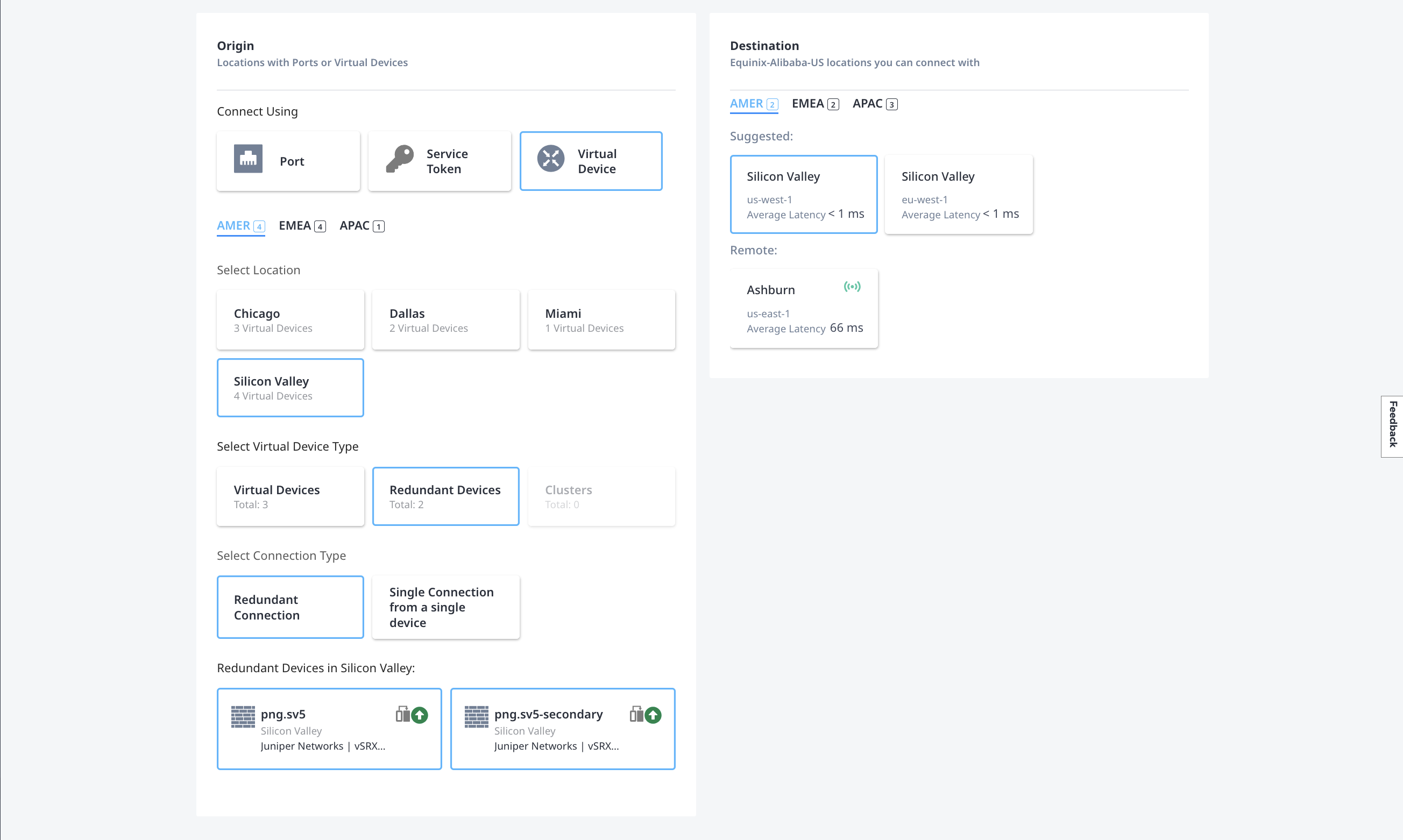
在_选择位置_页面上,提供连接的源和目标的位置详细信息。
在_源_部分中:
- 单击虚拟设备,然后选择要使用的设备的位置。
- 从可用的单台设备或冗余设备中选择_虚拟设备类型_。然后选择_连接类型_。您可以选择单一连接或冗余连接。
- 选择要用于连接的特定虚拟设备。
在“目标”部分中,选择要连接的快速连接位置。
-
单击下一步。
-
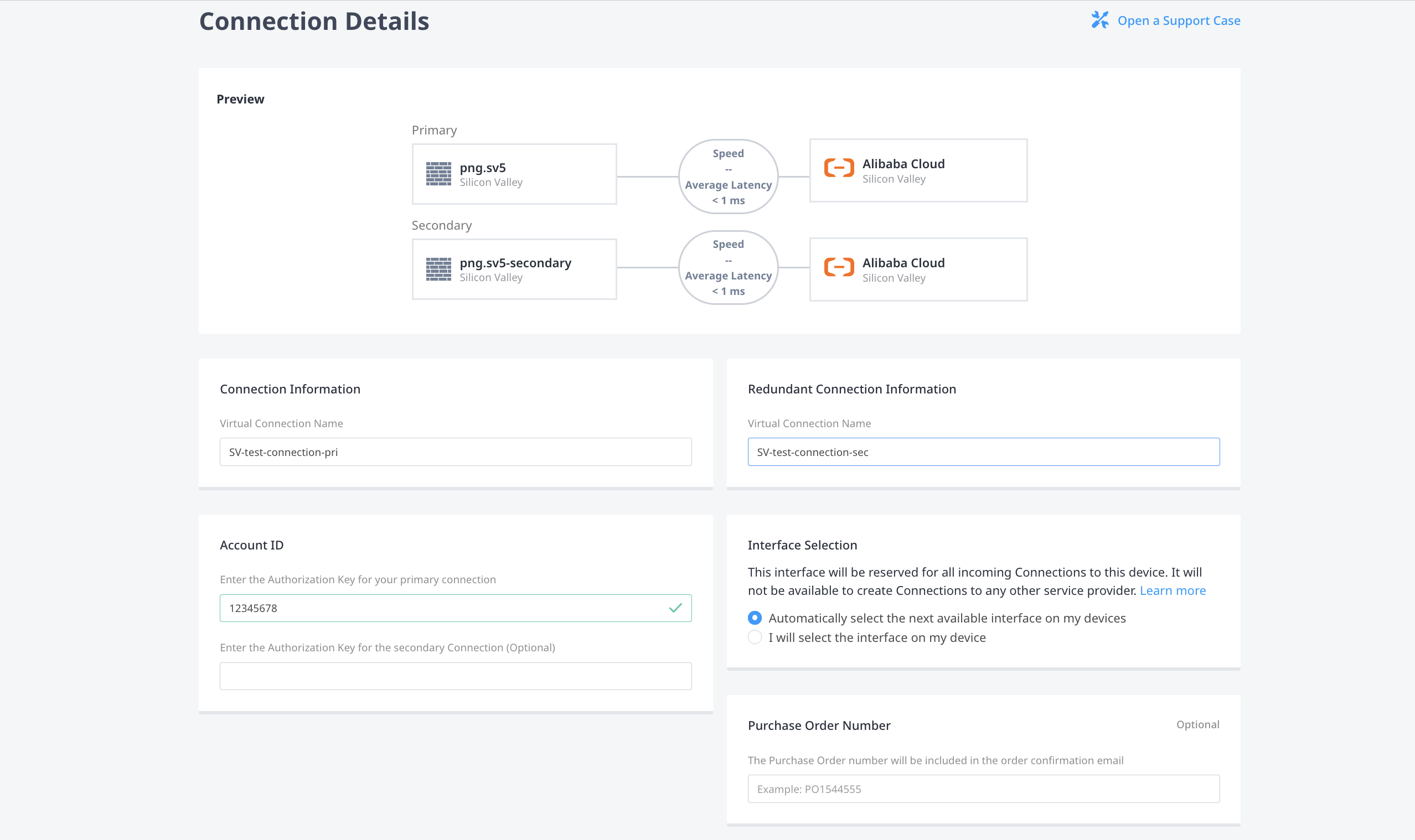
在_连接详情_页面上,提供其他连接信息。
-
在_连接信息_中为您的连接命名。要创建冗余连接,请在_冗余连接信息_中为第二个连接命名。
-
在_账户ID_字段中,输入您的阿里巴巴云账户ID。如果您要创建冗余连接,可以根据需要输入第二个阿里巴巴云账户ID。
-
在“接口选择”中选择是使用下一个可用接口,还是通过接口手动选择要用于连接的接口。
-
(可选)在“购买订单编号”字段中,输入您的PO编号。
-
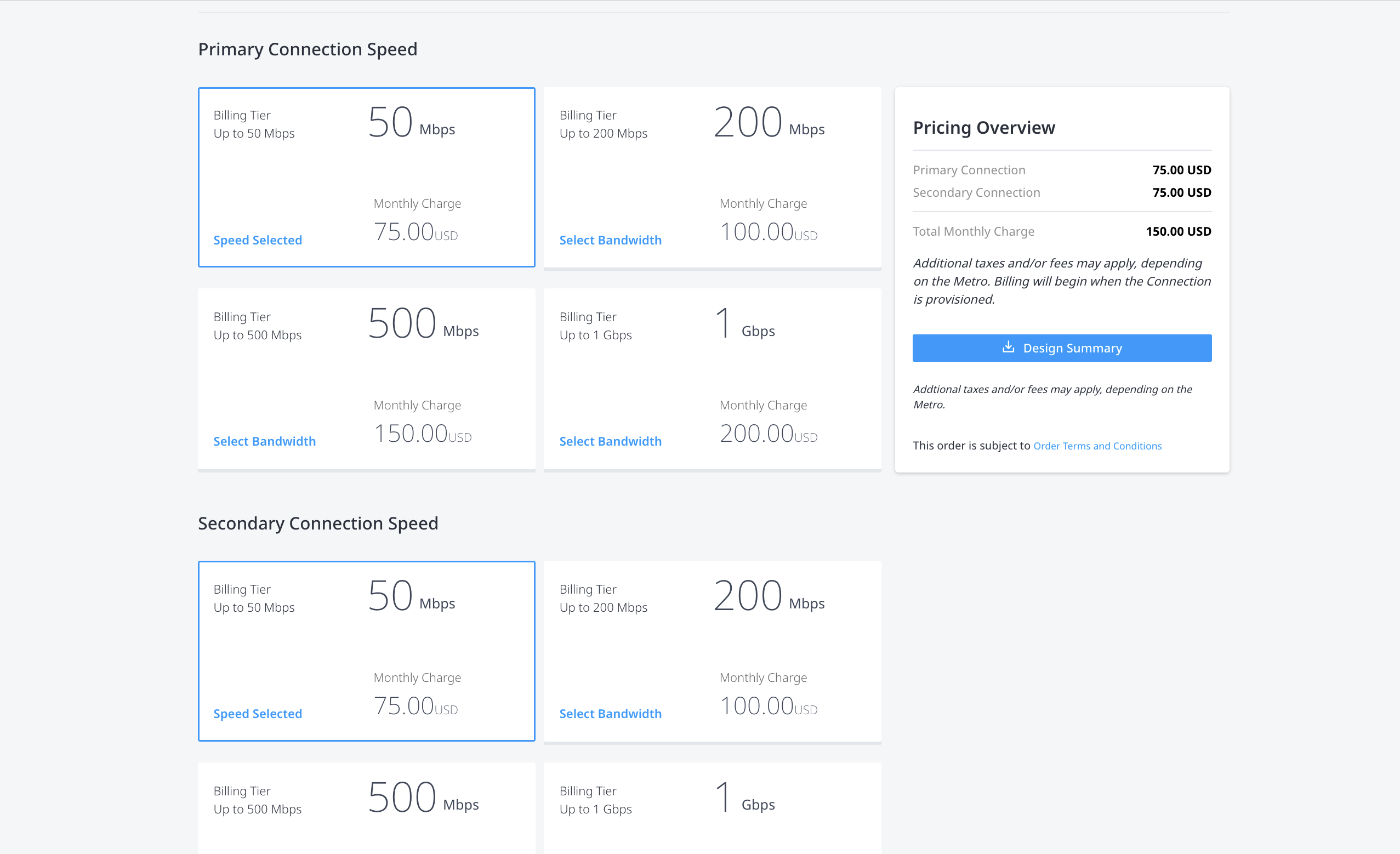
在_主要连接速度_中,选择账单层级和速度组合。如果要创建冗余连接,请在_次要连接速度_中选择计费层级和速度组合。
-
-
单击下一步。
-
在“查看”页面上,查看“主要连接概要”,“次_要_连接概要”(如果您正在创建冗余连接)和“定价概览”中的信息。
-
使用_通知_字段提供接收连接状态通知的收件人的电子邮件地址。您最多可以添加12个电子邮件地址。
-
单击提交订单。
要创建从Network Edge设备到阿里巴巴快速连接的连接,请向端点发送POST请求/fabric/v4/connections。
在对象中定义您的Network Edge设备aSide,包括:
accessPoint.typeasVDvirtualDevice.typeASEDGEvirtualDevice.uuid设备的UUID
在对象中提供阿里巴巴云详情和位置详情zSide,包括:
- 设置
accessPoint.type为SP。 - 设置
profile.type为L2_PROFILE。 - 在中指定您要连接的快速连接服务配置文件
profile.uuid。 - 在中指定您要连接的Equinix都会区位置
location.metroCode。 - 在中指定与Equinix都会区关联的快速连接区域
sellerRegion。 - 设置
authenticationKey为您的阿里巴巴云账户ID。
cURL 请求示例:
curl -X POST 'https://api.equinix.com/fabric/v4/connections' \
-H 'content-type: application/json' \
-H 'authorization: Bearer <token>' \
-d '{
  "type": "EVPL_VC",
  "name": "<connection-name>",
  "bandwidth": <bandwidth-speed>,
  "aSide": {
    "accessPoint": {
      "type": "VD",
      "virtualDevice": {
        "type": "EDGE",
        "uuid": "<virtual-device-uuid>"
      }
    }
  },
  "zSide": {
    "accessPoint": {
      "type": "SP",
      "profile": {
        "uuid": "<alibaba_service_profile_uuid>"
      },
      "location": {
        "metroCode": "<equinix_metro_code>"
      },
      "authenticationKey": "<alibaba_cloud_account_id>",
      "sellerRegion": "<alibaba_region_id>"
      }
    },
  "notifications": {
    "type": "ALL",
    "emails": [
      "<contact_email>",
      "<contact_email>"
    ]
  }
}'
监控连接状态
- Portal
- API
连接创建完毕后,连接将显示在“连接清单”中,您可以在其中监视其状态。
建立连接后,向端点发送GET监控连接状态的请求fabric/v4/connections/{connectionId}。
equinixStatus属性值 | providerStatus属性值 | 阿里巴巴云状态 | 描述 |
|---|---|---|---|
PROVISIONING | NOT_AVAILABLE | - | 连接请求尚未发送至阿里巴巴。 |
PROVISIONED | PENDING_APPROVAL | 等待创建 | 连接等待批准。 |
PROVISIONED | PROVISIONING / PROVISIONED | 正在创建 | 连接正在建立中。 |
PROVISIONED | PROVISIONED | 激活 | 连接已建立。 |
连接请求一经提交,就开始收费。
阿里巴巴云-接受并支付
- 登录阿里快递管理控制台。
- 从菜单中,选择物理连接。
- 确定新创建的实例,然后单击接受并支付。
请注意,您必须首先接受_出站数据传输计费_条款,然后才能接受连接。
更多信息,请参阅计费-定价|阿里巴巴云文档中心。
阿里巴巴云-创建虚拟边界路由器
虚拟边界路由器(VBR)是提供虚拟私有云(VPC)与本地数据中心之间通信的网关。在Equinix Customer Portal中创建连接后,可以在阿里巴巴云中创建VBR。
按照“创建和管理VBR”中的说明操作。
-
输入阿里巴巴网关的IPv4地址,并输入连接Equinix端云路由器,虚拟设备或其他3层基础设施的IPv4地址。
-
输入子网掩码。
-
验证在Equinix端分配给您的连接的VLAN ID与阿里巴巴控制台上的VBR关联的VLAN ID相同。
取消配置阿里巴巴快速连接
要删除与阿里云的连接:
-
在阿里巴巴云控制台中删除虚拟边界路由器。
-
在阿里云控制台删除该连接。
-
在阿里云控制台中清除连接后,该连接将自动从Fabric中删除。