Power Alerts
Power Alerts are customer-defined alerts for asset-level power draw. Unlike System Alerts, you define Power Alerts. They activate when the triggering condition becomes true for the assets you choose.
| Event Types | Thresholds |
|---|---|
| Cage Draw kVA to Contractual kVA % | Exceeds or falls below a certain percentage |
| Cabinet Draw kVA to Cabinet Rating kVA % | Exceeds or falls below a certain percentage |
| Cabinet Draw kVA to Usable kVA Installed % | Exceeds or falls below a certain percentage |
| Draw Amp Level | Exceeds or falls below a certain Amp value |
| Circuit Draw kVA to Usable kVA % | Exceeds or falls below a certain percentage |
Equinix is not notified when your Power Alerts activate.
You can view your Power Alerts from the Alerts page in the Customer Portal.
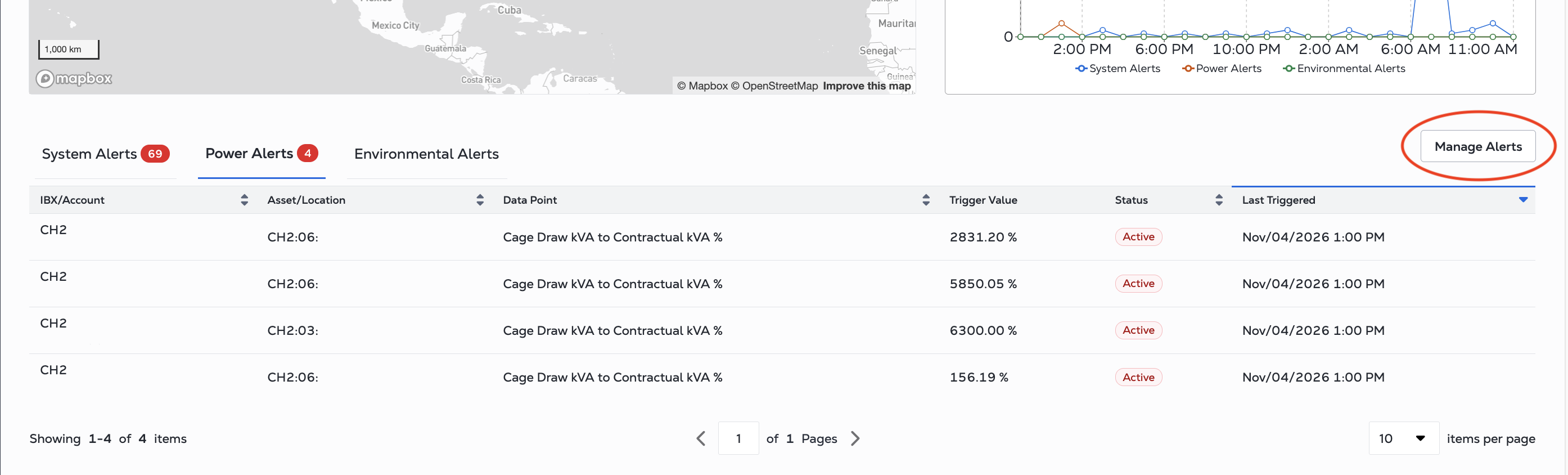
The Power Alerts table shows alerts for the last 24 hours across all of your IBX data centers and accounts.
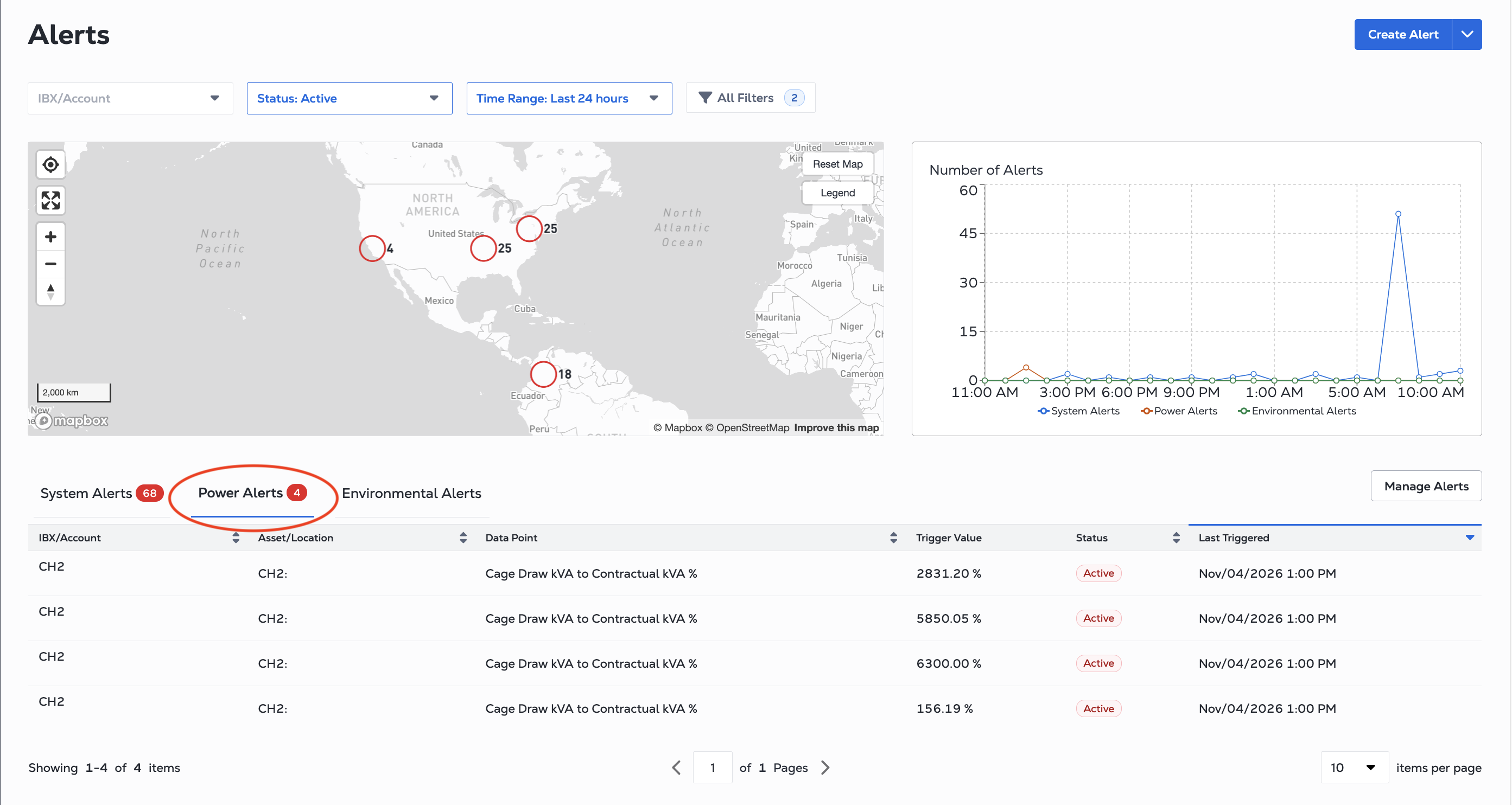
| Column | Description |
|---|---|
| IBX/Account | The IBX code and the account the alert belongs to. |
| Asset/Location | Asset or Location being monitored. |
| Data Point | The condition being monitored, such as Cage Draw kVA to Contractual kVA % |
| Trigger Value | The current value that triggered the alert. |
| Status | Active while the alert condition is true. Inactive after the condition resolves. Inactive alerts move to history; the system retains historical alert data for one year. |
| Last Triggered | Date and time of the last trigger of the alert, shown in your local time zone. To change the time zone, see User Preferences. |
Click on an alert to see the Alert Details.
Creating a Power Alert
To create a Power Alert:
-
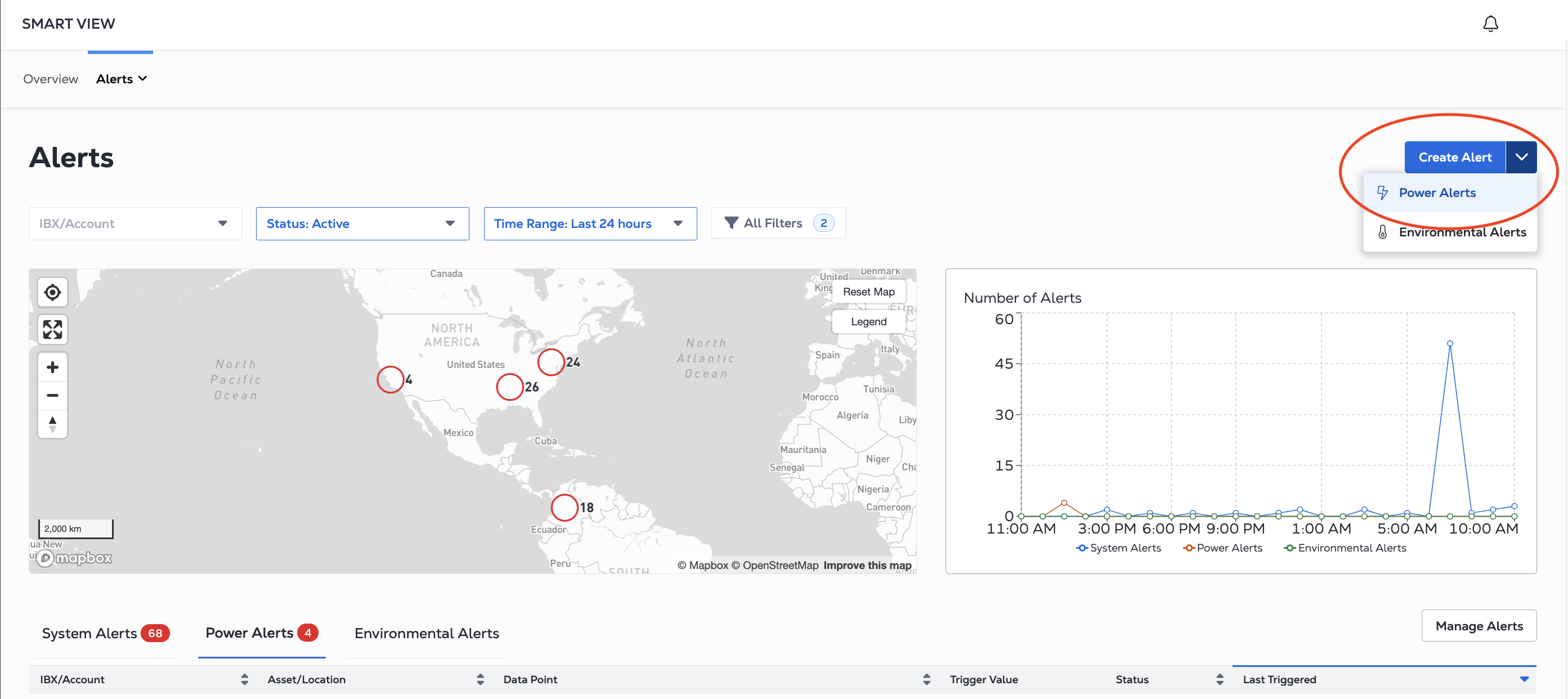
On the Alerts screen, click Create Alert and choose Power Alerts.
-
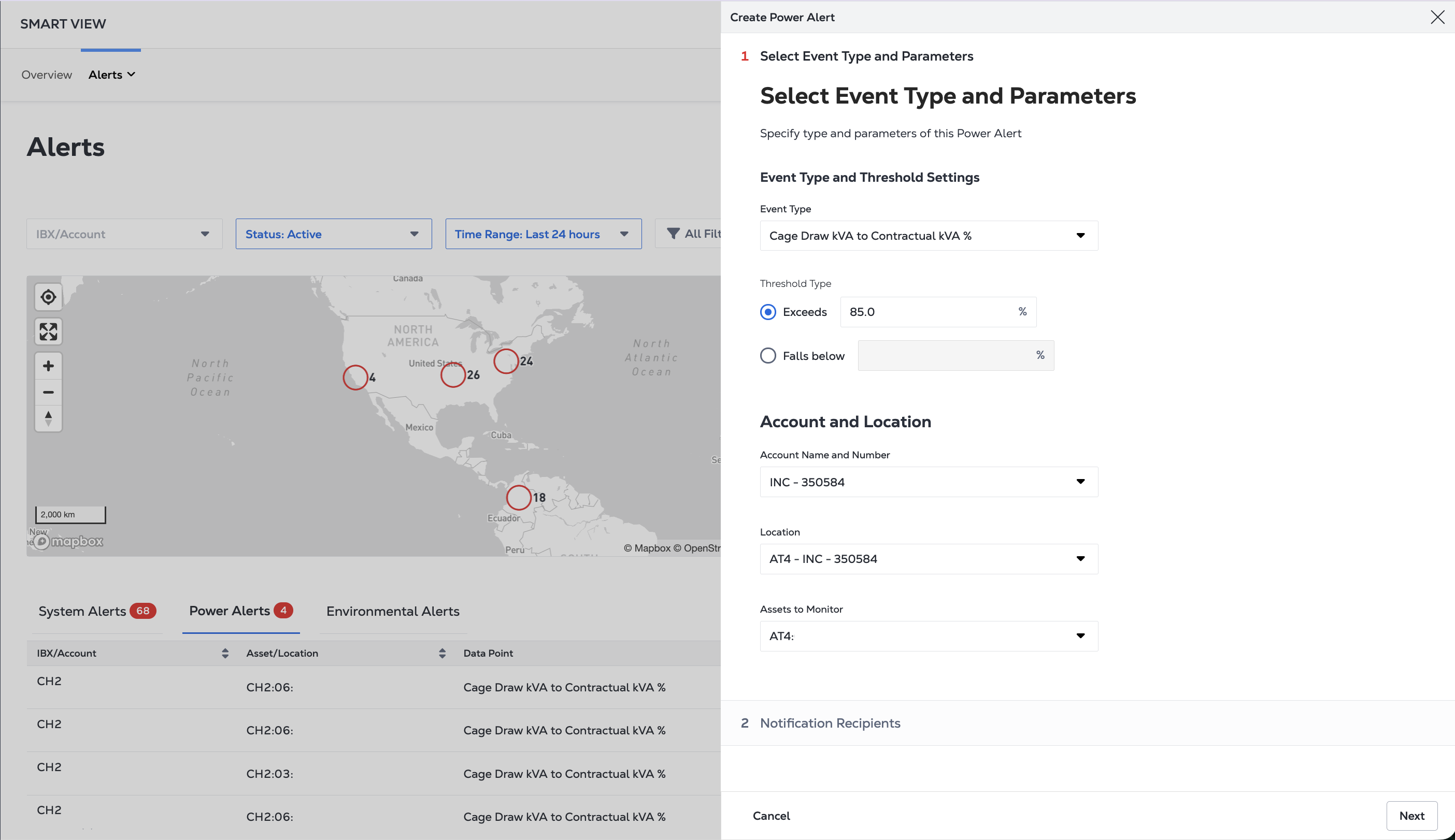
Specify type and parameters of the Power Alert.
- Choose the Event Type: Cage Draw kVA to Contractual kVA %, Cabinet Draw kVA to Cabinet Rating kVA %, Cabinet Draw kVA to Usable kVA Installed %, Draw Amp Level, Circuit Draw kVA to Usable kVA %.
- Then set the Threshold Type: select from Exceeds or Fails below, and enter a value.
-
In the Account and Location section, select the account and location (IBX), then select the Assets to Monitor. The asset list is available after you choose an event type.
-
Click Next.
-
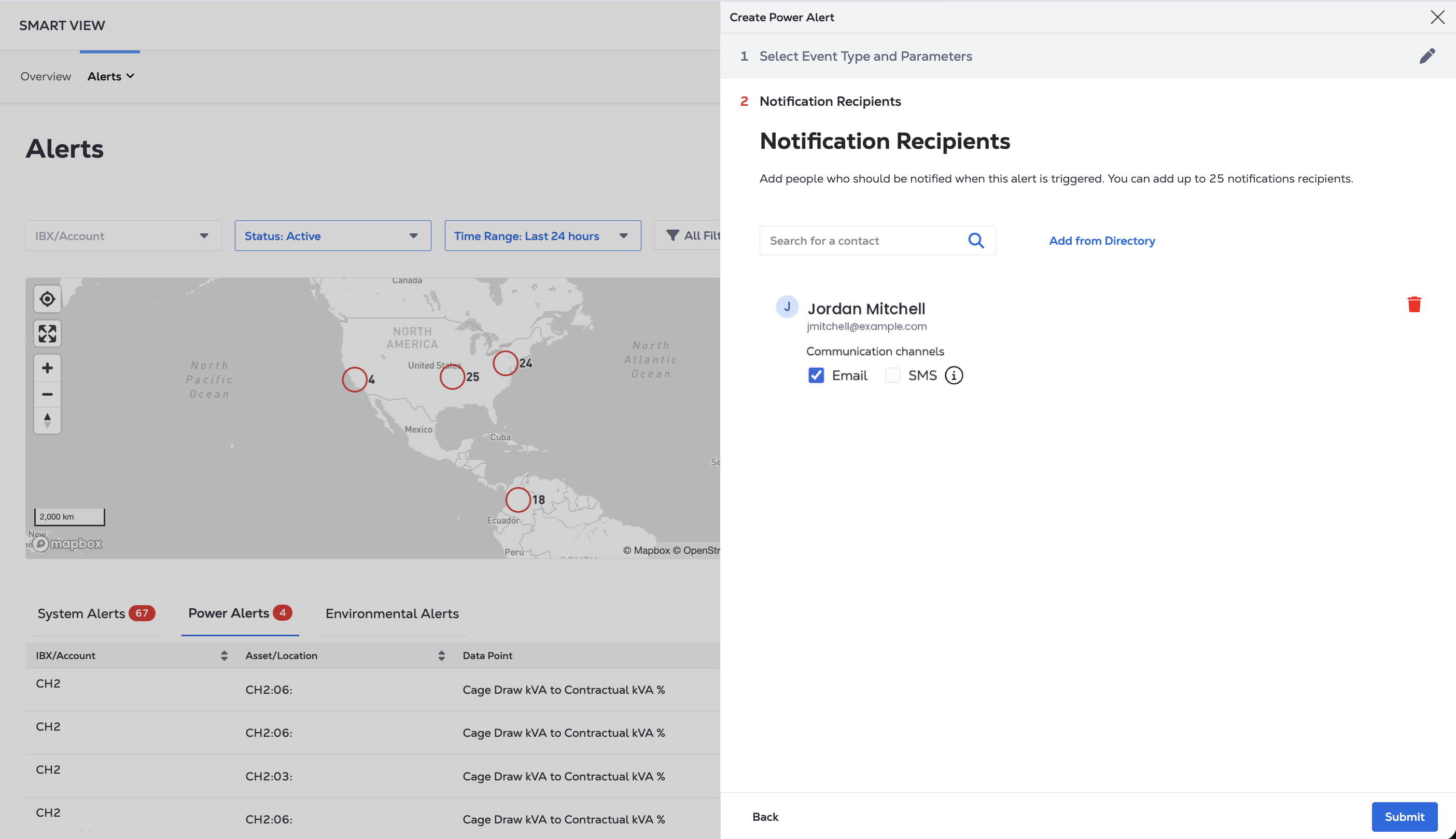
Add notification recipients for the alert. To find contacts, either use the Search for a contact, field or click Add From Directory. For each new recipient, select the Email and/or SMS communication channel. You can add up to 25 recipients.
-
Click Submit.
After you create an alert, it is automatically Enabled.
Power Alert Notification Format
A notification for a Power Alert contains:
- Location – IBX location where the alert was triggered.
- During Maintenance – Whether the alert was generated during maintenance: Yes or No.
- Alert Description – Section, Asset Type (including its unique Asset ID), Tag Display Name (the event type you chose), and Alert Trigger.
- Current Reading – The reading when the alert triggered.
- Date and Time of Occurrence – In the IBX’s local time zone, format:
DD-Month-YYYY hh:mm Timezone.
Power Alert Settings
You can manage or change your Power Alerts from Alert Settings. To access the Alert Settings page, click Manage Alerts.
On the Alert Settings page you can:
- View the settings for each configured system alert
- Change the alert definitions
- Enable or disable the alert
- Turn alert notifications on or off
- Add or remove recipients
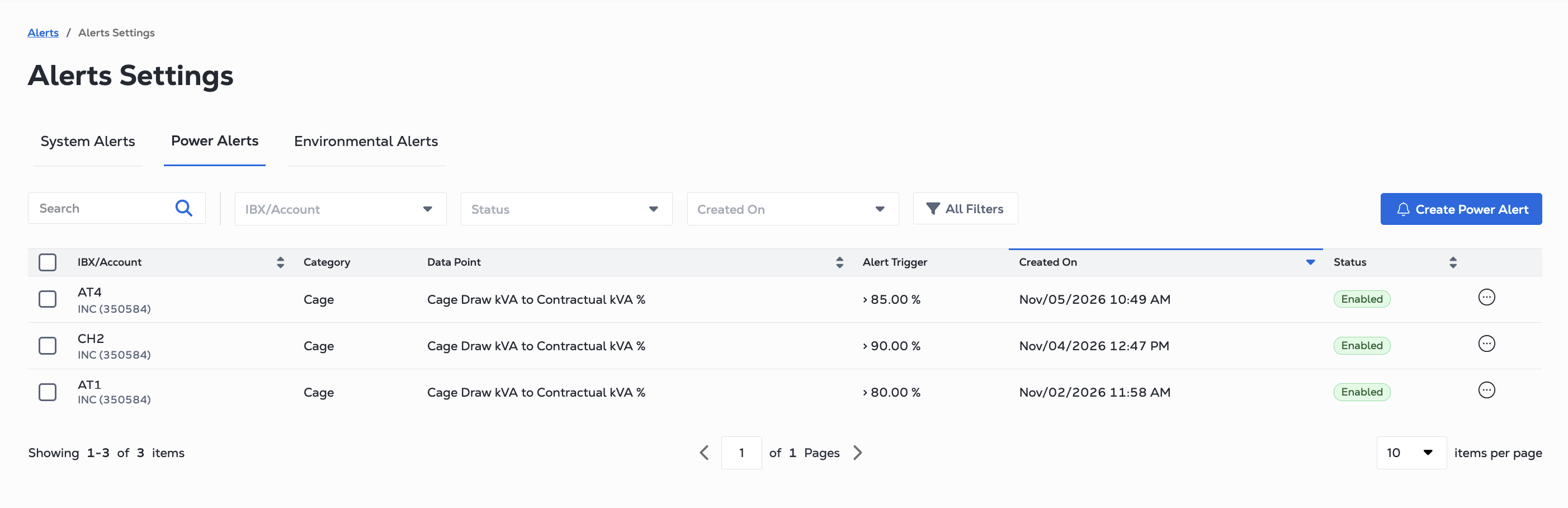
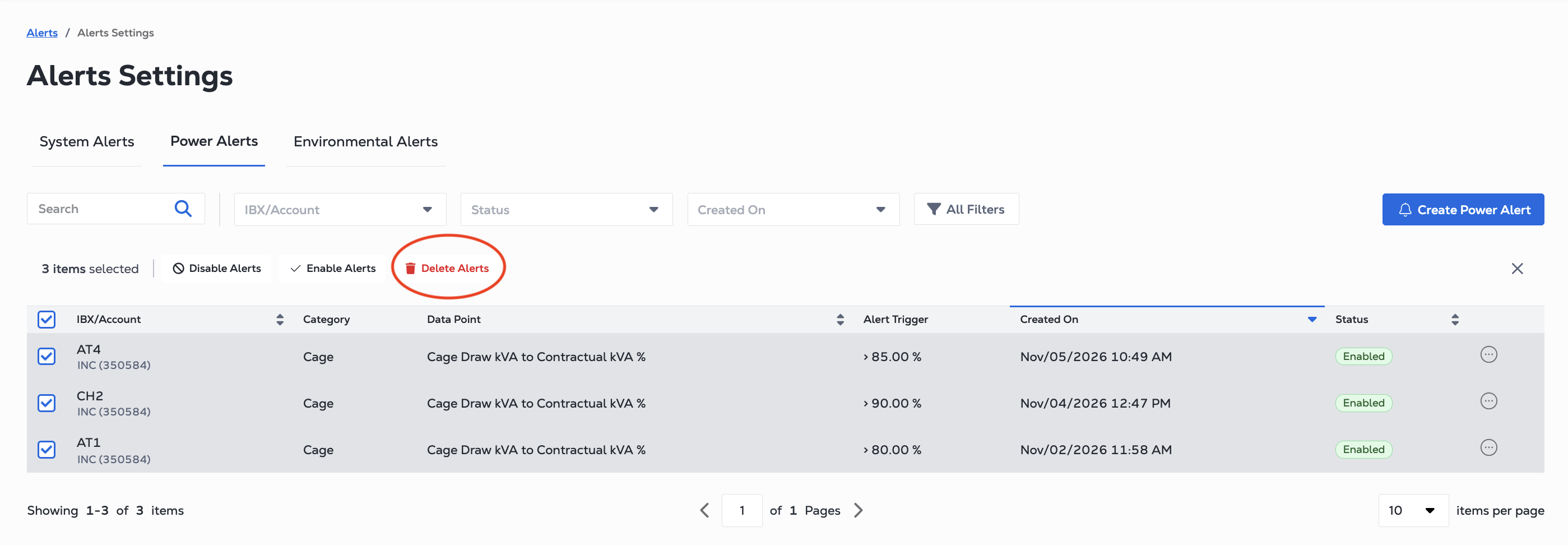
Use the Search field, or the IBX/Account, Category, Asset Type, and All filters to find specific alerts.
| Column | Description |
|---|---|
| IBX/Account | The IBX code and account. |
| Category | Asset category -- Cage, Cabinet, or Circuit |
| Data Point | The condition being monitored, such as Cage Draw kVA to Contractual kVA % |
| Alert Trigger | The value that triggers the alert, such as > 80.000%. |
| Created On | Date and time the alert was created. |
| Status | Enabled or Disabled. |
Editing a Power Alert
-
On Alerts Settings page, click Power Alerts.
-
Locate the alert you want to change.
-
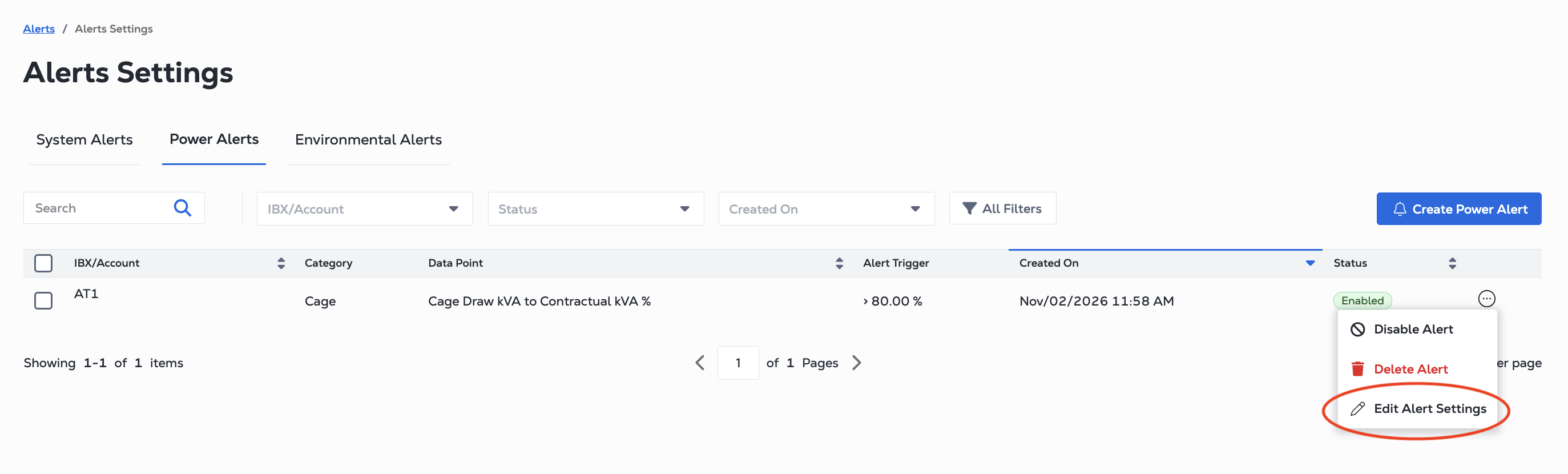
Click the ellipsis (…) and choose Edit Alert Settings.
-
Update the Event Type and Parameters and the Notification Recipients and click Submit to save your changes.
Disable or Disable a Power Alert
A disabled alert does not trigger until you enable it again.
-
On Alerts Settings page, click Power Alerts.
-
Locate the alert you want to change.
- To change one alert, click the ellipsis choose Disable Alert or Enable Alert.
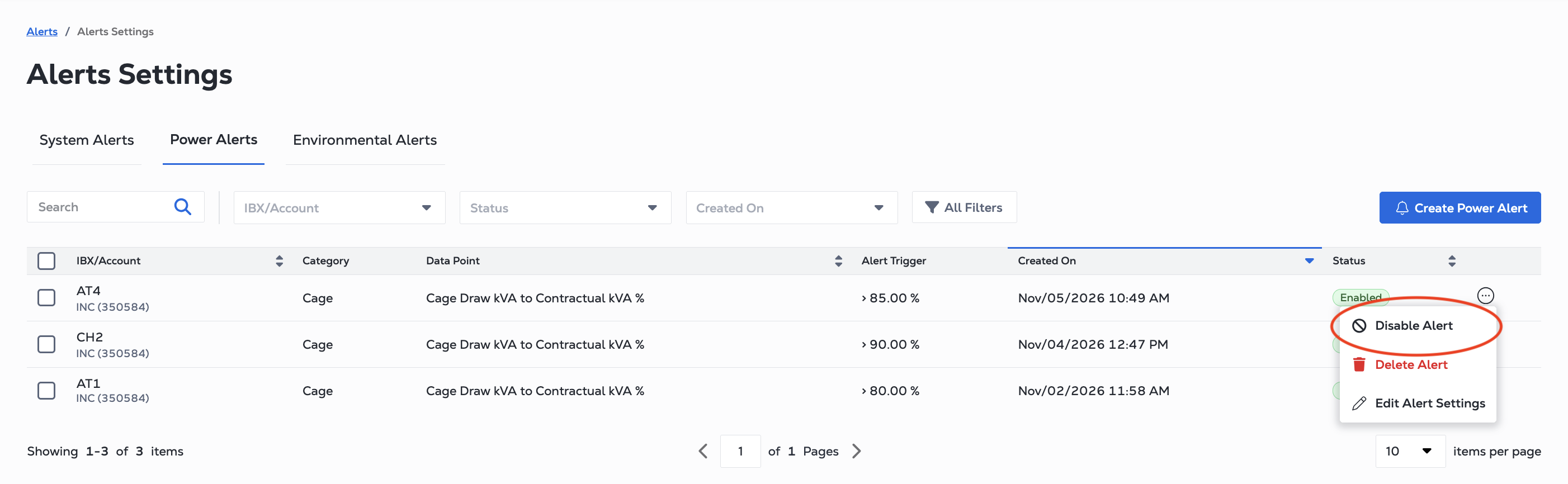
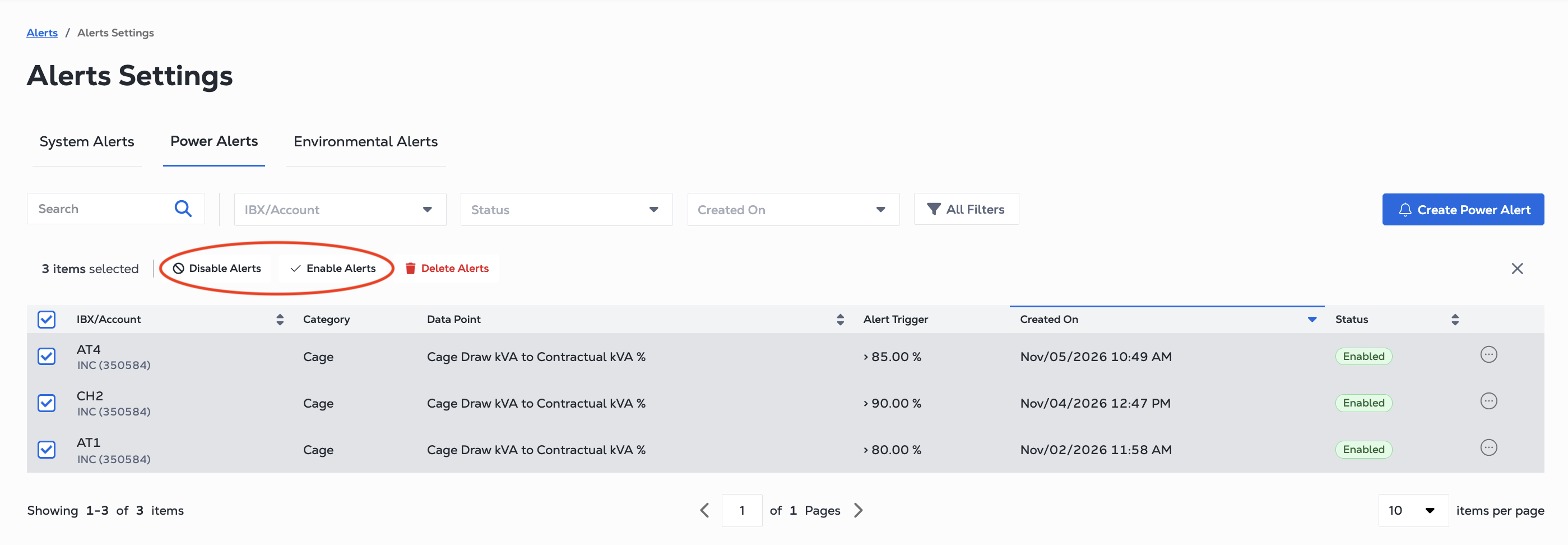
- To change several alerts, click the checkboxes for the alerts, then click Disable Alerts or Enable Alerts.
Deleting a Power Alert
Deleting an alert permanently removes it, and no future alerts of this type are generated.
-
On Alerts Settings page, click Power Alerts.
-
Locate the alert you want to change.
- To delete one alert, click the ellipsis choose Delete Alert.
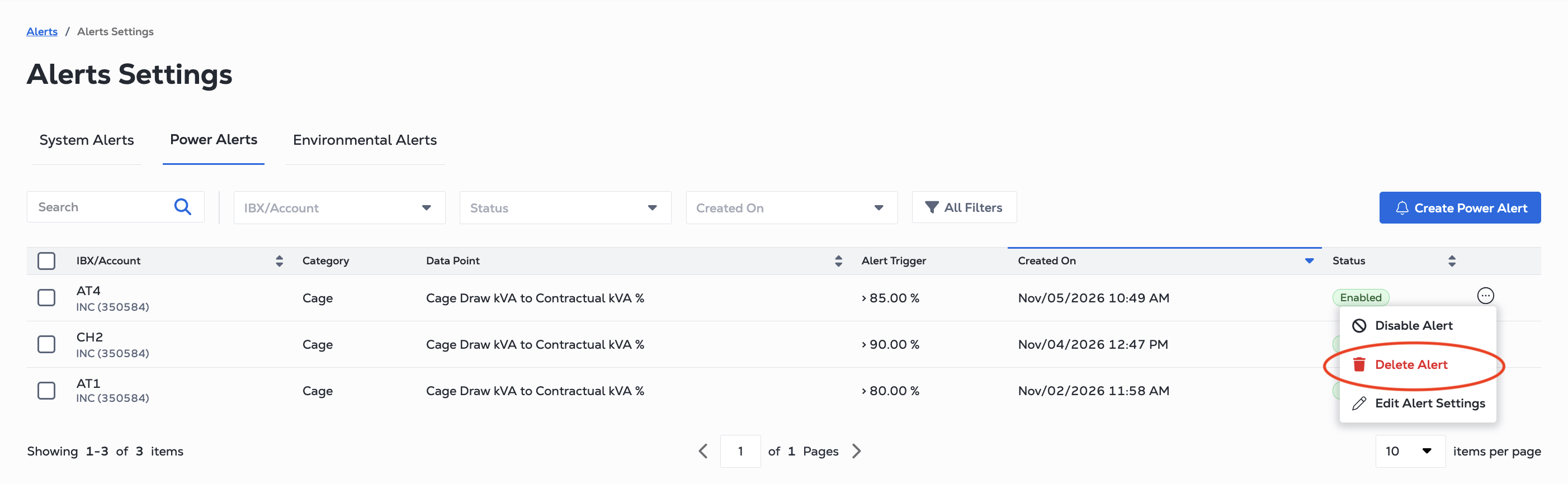
- To delete several alerts, click the checkboxes for the alerts, then click Delete Alerts.