Adicionar redundância a um único dispositivo virtual
Adicione um dispositivo secundário a um dispositivo virtual ativo para criar um par redundante. Adicionar resiliência a um dispositivo existente elimina a necessidade de começar de novo com dois novos dispositivos.
Algumas características do dispositivo secundário devem ser as mesmas do dispositivo primário, incluindo:
- configuração do dispositivo
- Licenciamento
- Recursos do dispositivo
- Pacote de software
- Taxa de transferência de licenças
Se ambos os dispositivos pertencerem à mesma conta, o período de vigência da conta secundária deverá ser o mesmo da conta principal.
Você pode personalizar os seguintes atributos do dispositivo secundário:
- Versão
- Metrô
- Nome do host
- Lista de notificações
- Lista de usuários SSH
- Endereços IP de acesso
- Largura de banda adicional
Observe que o suporte à VNF para dispositivos redundantes que executam versões diferentes varia. Se diferentes versões de software para o dispositivo secundário forem suportadas, ter dois dispositivos em um par redundante com versões de software diferentes pode afetar o desempenho. Para fornecedores de VNF com estado/em cluster (PAN-OS HA da Palo Alto Networks, Fortinet FortiGate FGCP, cluster de chassi Juniper vSRX), versões de software incompatíveis NÃO são suportadas, pois elas interrompem ativamente a sincronização de sessão e os mecanismos de HA Heartbeat, causando falha na formação de cluster HA ou de cérebro dividido.
Se você estiver provisionando um dispositivo secundário em um Metro diferente do primário, esteja ciente de que os pares redundantes entre metropolitanos que utilizam clustering HA de fornecedor nativo exigem transporte de baixa latência e interconectividade apropriada, por exemplo, um Grupo de link de dispositivo ou EVP-LAN de fabric.
Pré-requisitos
- Um único dispositivo virtual de Network Edge não redundante.
- A
Network Edge Device Managerfunção.
- Portal
- API
-
Entre no Equinix Customer Portal e navegue até Network Edge .
-
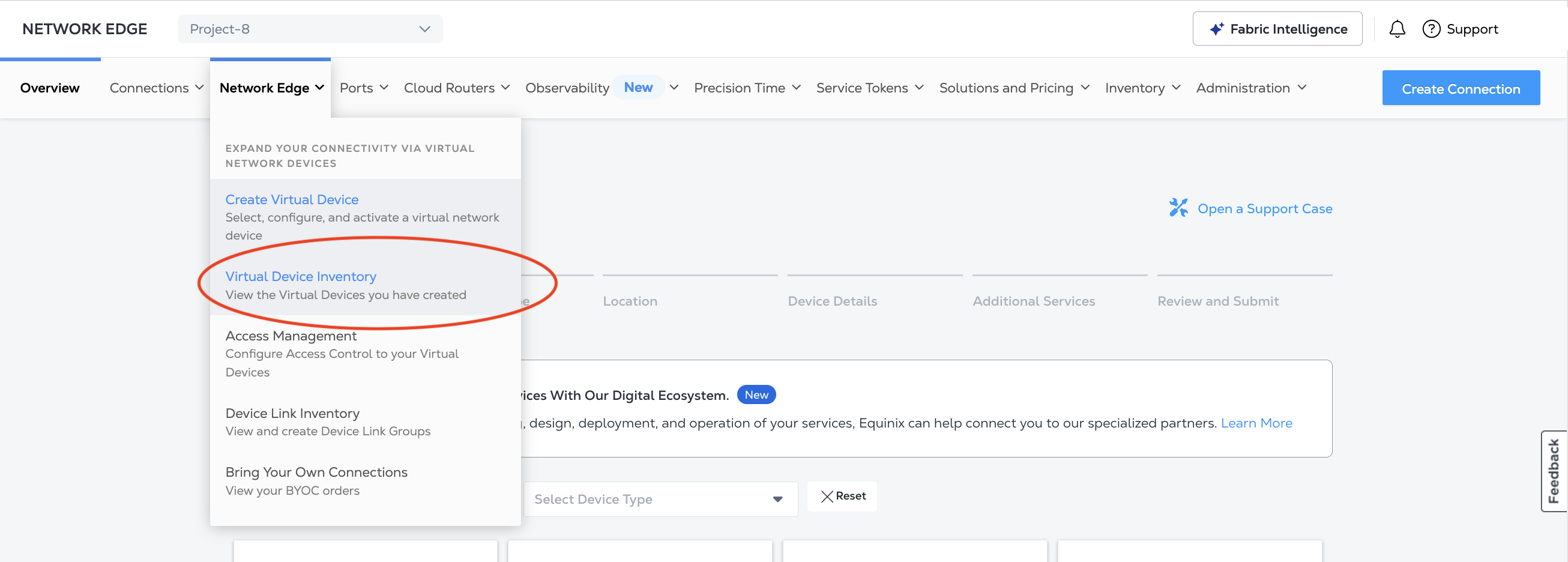
No menu Network Edge, selecione Inventário de dispositivos virtuais .
-
Clique no dispositivo que deseja editar. Os detalhes do dispositivo virtual serão exibidos.
-
Autenticar - Envie suas credenciais de usuário, ID do cliente e segredo do cliente para autenticação OAuth2. Consulte Autenticação API para obter instruções sobre como chamar o OAuth API para validar e autenticar suas credenciais.
-
Obtenha as informações do dispositivo principal. Envie uma
GETsolicitação ao/ne/v1/devicesendpoint para listar seus dispositivos virtuais. Identifique em qual dispositivo você está adicionando um secundário e envie umaGETsolicitação para obter o/ne/v1/devices/{uuid}endpoint para obter os atributos do dispositivo primário.
Adicionando o dispositivo virtual secundário
- Portal
- API
-
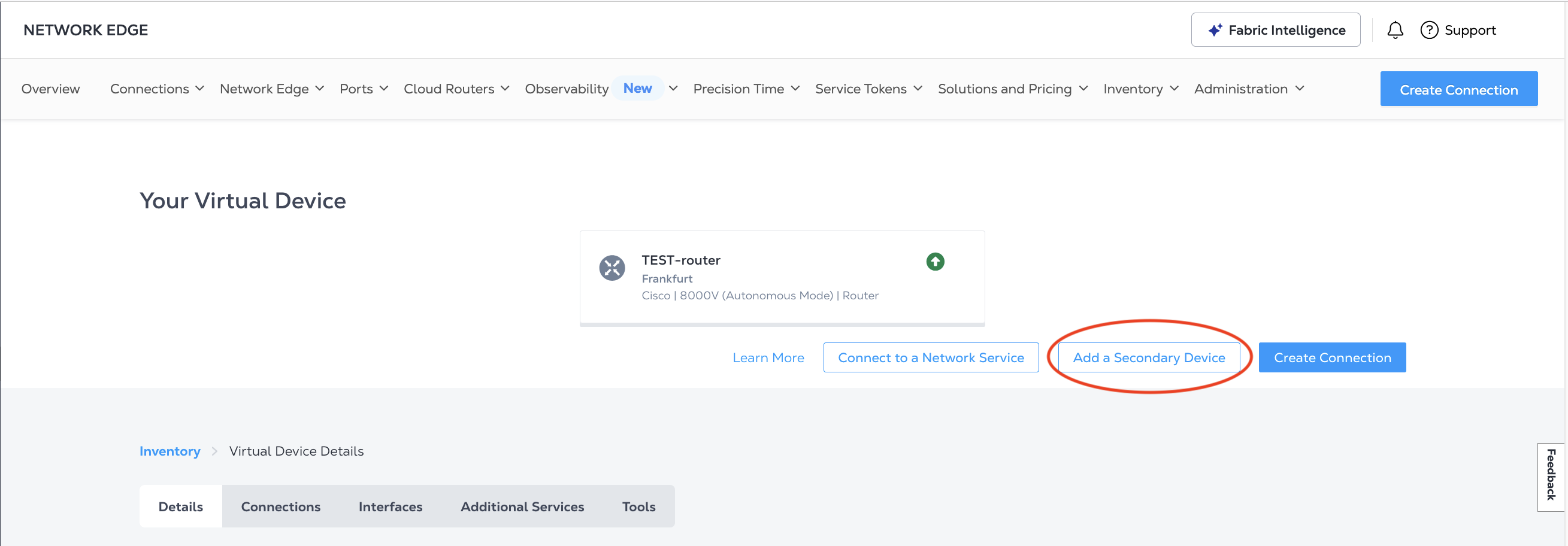
Em seu Inventário de Dispositivos Virtuais , clique no nome do dispositivo virtual para exibir seus Detalhes do Dispositivo Virtual .
-
Clique em Adicionar um Dispositivo Secundário .
-
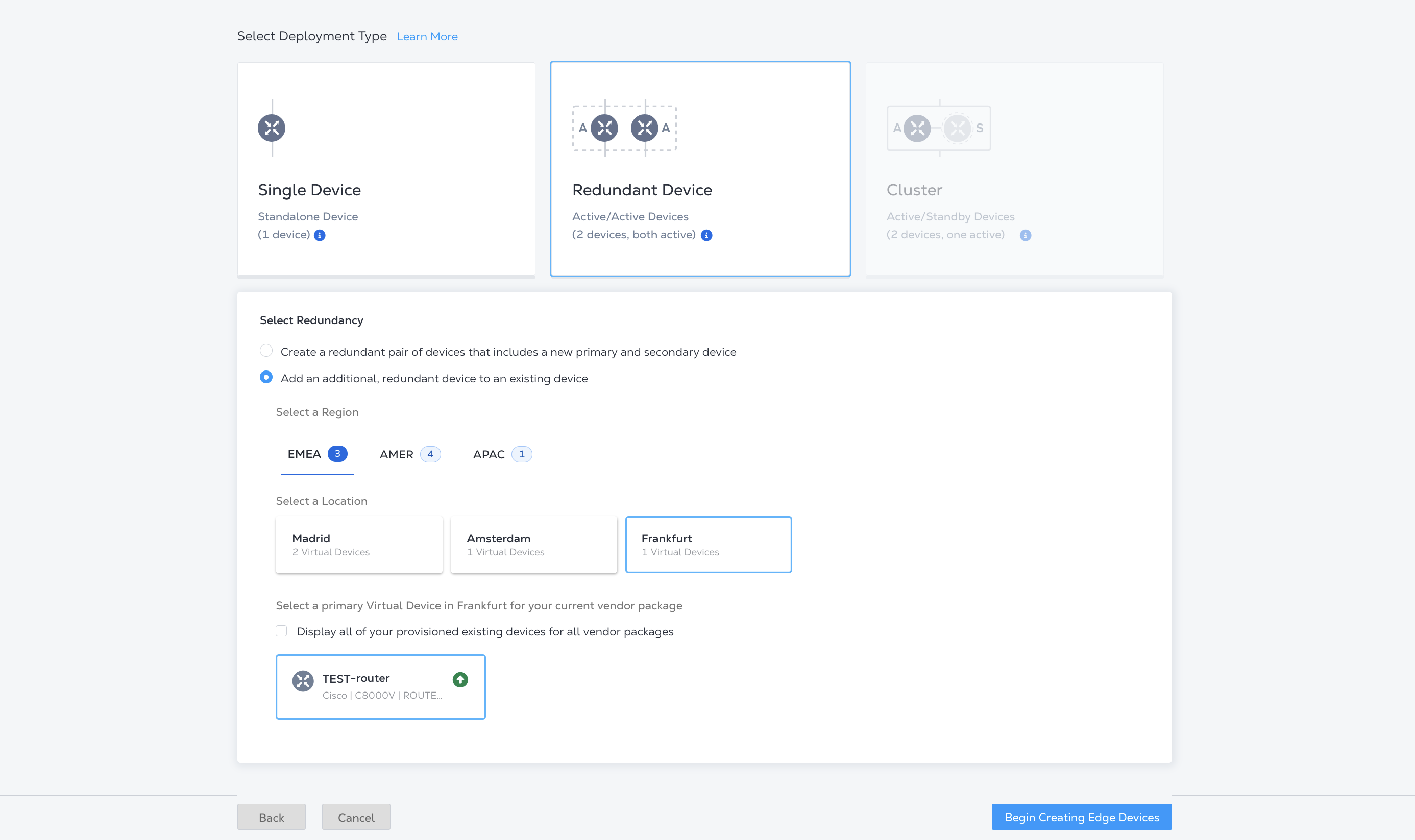
O pacote do fornecedor é definido automaticamente para ser o mesmo que o seu dispositivo principal. Você não precisa selecionar ou configurar o pacote do fornecedor para o dispositivo secundário.
-
Para Selecionar tipo de implantação, as seguintes opções são configuradas automaticamente:
- Dispositivo redundante
- Adicione um dispositivo adicional redundante a um dispositivo existente
- A localização e o dispositivo virtual principal
-
Clique em Começar a criar dispositivos de borda .
-
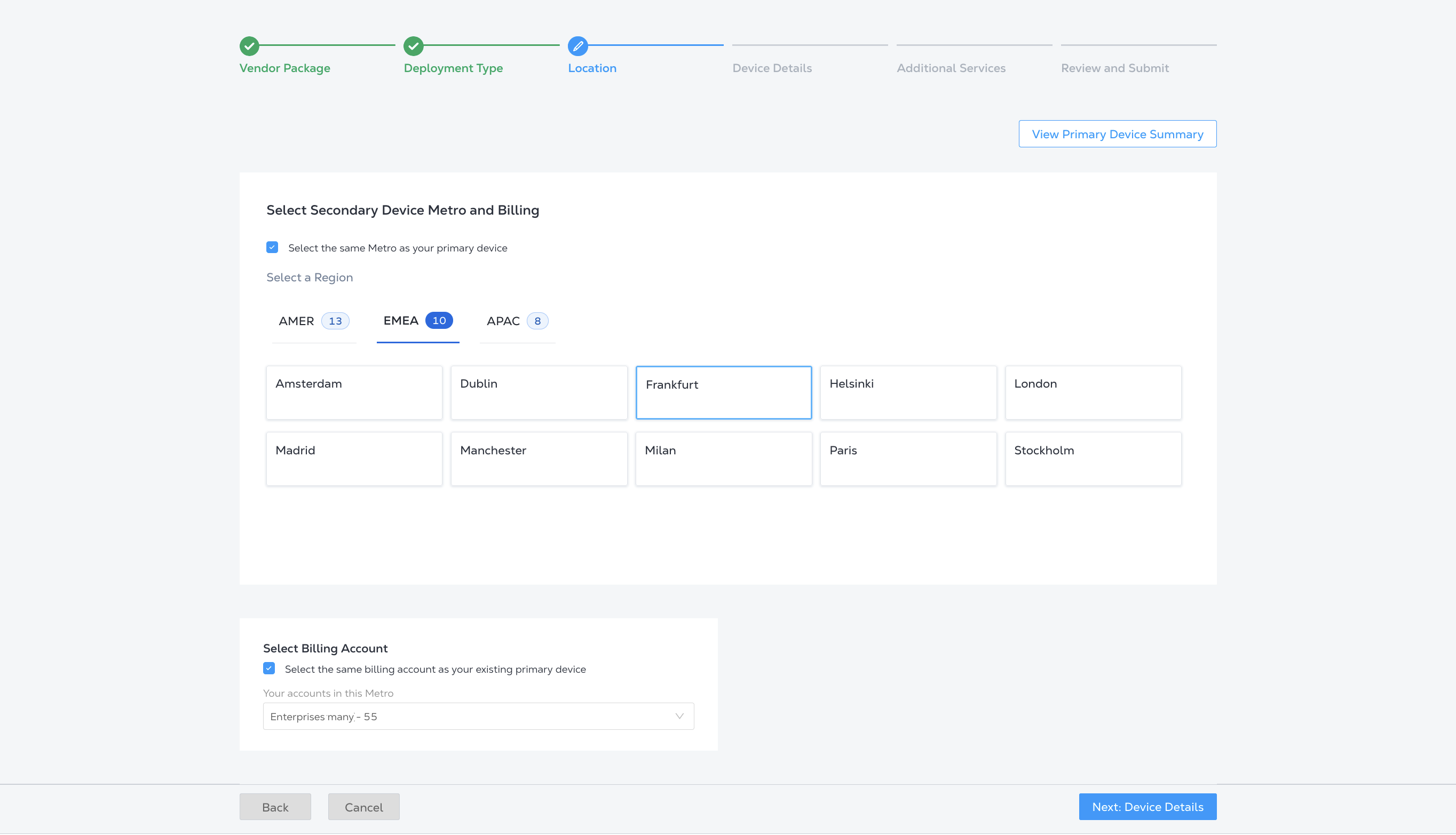
Selecione um local para o dispositivo secundário. Por padrão, selecione o mesmo Metro como seu dispositivo principal está marcado, e o Metro do dispositivo principal selecionado.
Para selecionar um local diferente do Metro, desmarque Selecionar o mesmo Metro do seu dispositivo principal e selecione um Metro diferente.
-
Selecione uma conta de cobrança na lista suspensa ou clique em Selecionar a mesma conta de cobrança do seu dispositivo principal existente .
informaçõesClique em Exibir resumo do dispositivo principal para visualizar detalhes da conta, detalhes do dispositivo, informações de licença, detalhes de notificação e informações de largura de banda do dispositivo principal.
-
Clique em Avançar: Detalhes do dispositivo .
-
A maioria dos Detalhes do dispositivo deve ser igual ao dispositivo principal, é selecionada automaticamente e não pode ser modificada, exceto:
-
Você pode dar um nome diferente ao seu dispositivo secundário.
-
Se você escolher uma conta de cobrança diferente da usada para o dispositivo principal, selecione um período na seção Duração do período.
-
-
Clique em Avançar: Serviços adicionais .
-
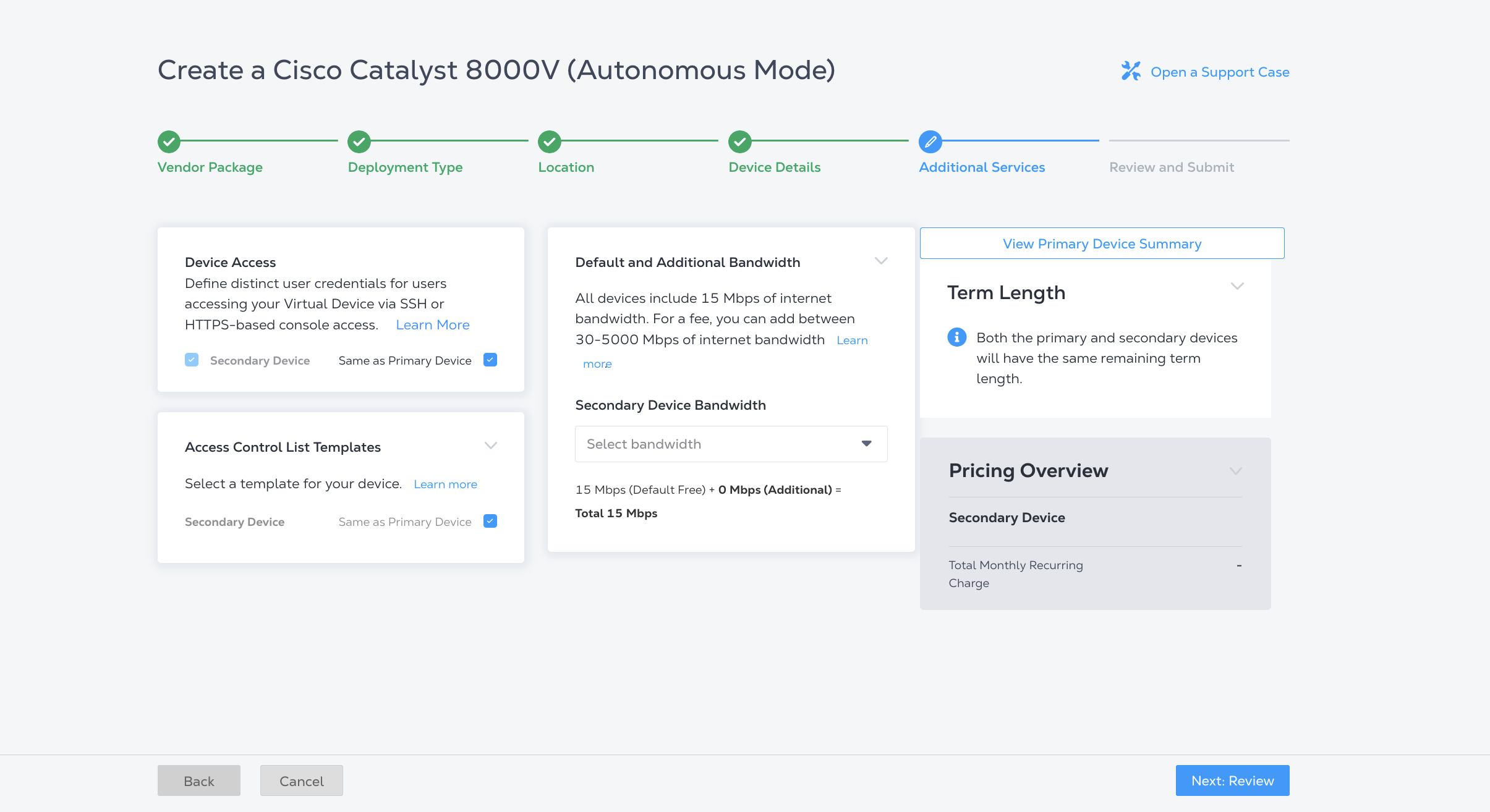
Selecione quaisquer serviços adicionais para o dispositivo secundário. Eles têm como padrão as mesmas seleções do dispositivo principal.
-
Para modificar o Acesso ao Dispositivo , desmarque Igual ao Dispositivo Principal e configure a configuração de acesso do dispositivo secundário.
-
Para modificar os Modelos de Lista de Controle de Acesso , desmarque Igual ao Dispositivo Principal e selecione um na lista suspensa ou crie um novo.
-
Para adicionar largura de banda adicional ao dispositivo secundário, selecione uma largura de banda no menu suspenso Largura de banda do dispositivo secundário.
-
-
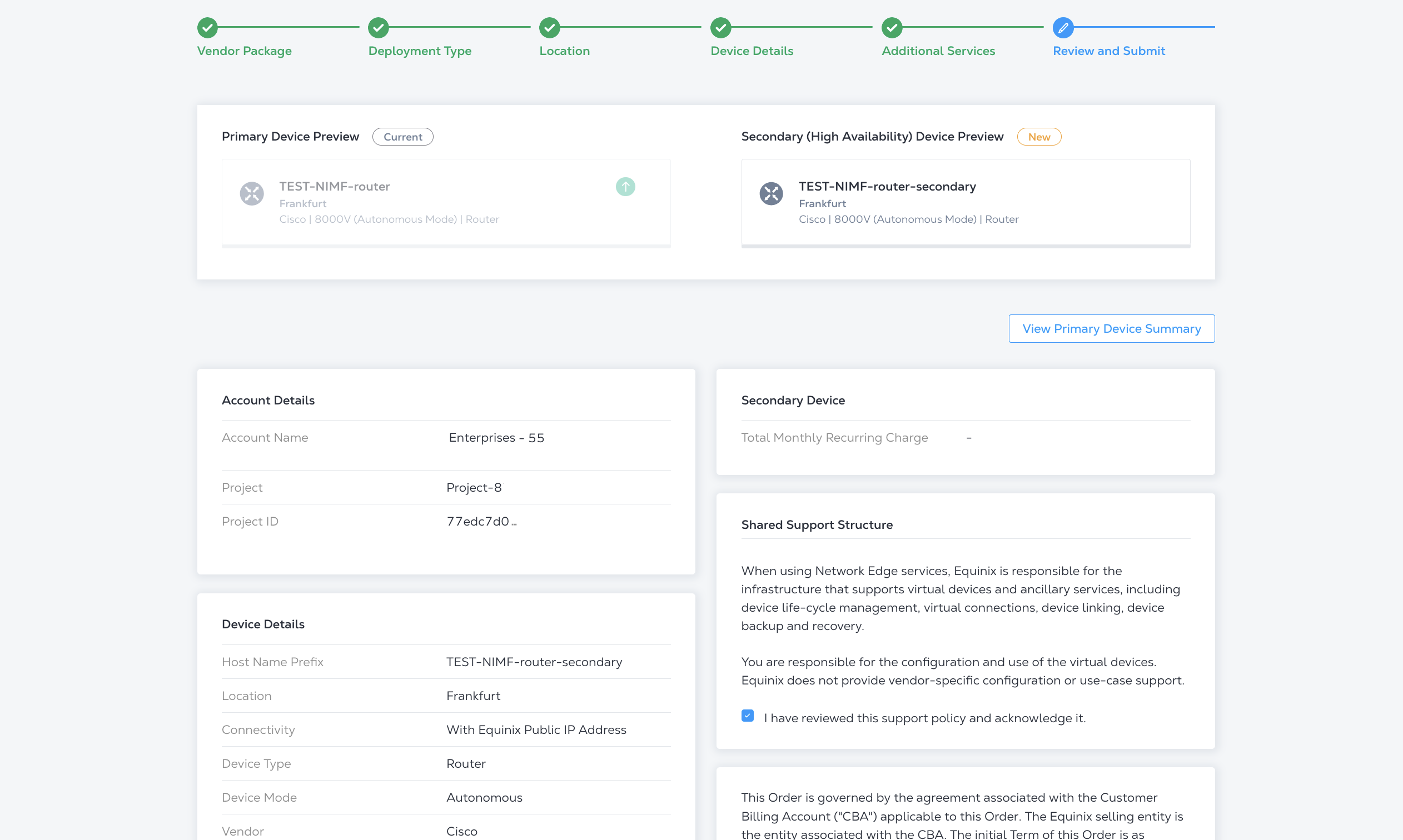
Clique em Avançar: Revise e revise seu pedido. Na seção Estrutura de suporte compartilhada, você deve clicar em Eu revisei esta política de suporte e reconhecê-la.
-
Clique em Criar dispositivo virtual .
Para criar um dispositivo secundário, envie uma POST solicitação para o /ne/v1/devices endpoint. No corpo da solicitação, especifique:
- O UUID do seu dispositivo principal para
primaryDeviceUuid. - A configuração do dispositivo secundário no
secondaryobjeto.metroCode,virtualDeviceNameenotificationssão campos obrigatórios.
Exemplo de solicitação cURL:
curl -X POST "https://api.equinix.com/ne/v1/devices" \
-H "content-type: application/json" \
-H "Authorization: Bearer <token>" \
-d '{
  "primaryDeviceUuid": "device_uuid",
  "secondary": {
    "metroCode": "<metro_code>",
    "version": "<version_number>",
    "virtualDeviceName": "<secondary_device_name>",
    "hostNamePrefix": "<secondary_device_hostname_prefix>",
    "notifications": [
      "<contact_email>"
    ],
    "aclDetails": [
      {
        "uuid": "<acl_uuid>",
        "interfaceType": "<acl_interface_type>"
      }
    ],
    "userPublicKey": {
      "username": "<username>",
      "keyName": "<keyname>"
    }
  }
}'
Enquanto o dispositivo secundário estiver sendo provisionado, o status do dispositivo principal mudará para
WAITING_FOR_SECONDARY. Se o secundário falhar ao provisionar, o primário voltará para o
estado provisionado. Se as disposições secundárias, o status de ambos os dispositivos mudará para
PROVISIONED.