Managing Assets
In order to view or stream data, metrics, and events from an asset, you must first attach it to a stream. The following assets are supported:
- Ports - stream bandwidth usage, errors and dropped packet metrics, up/down events, and lifecycle events.
- Connections - stream bandwidth usage, dropped packet metrics, up/down events, and lifecycle events.
- Fabric Cloud Routers - stream BGP state events, route quota usage events, and lifecycle events.
- Network Edge Virtual Devices - stream Access Control List, device attribute, reboot, and Device Link Group events.
- Metros - stream metro latency metrics.
- Projects - To view all of your project's events, including state change events and lifecycle events for assets in your project, attach a project to your stream. To get more information on Projects, see Managing Projects.
- Organizations - To view organization events, including life cycle events for projects and identity and access management events such as role assignments, attach an organization to your stream. For more information on organizations, see Managing Organizations.
- Company Profiles - stream profile attribute, tag, and lifecycle events.
For more information, see the Metrics and Events pages.
Prerequisites
-
To attach assets (Port, Connections, etc) onto a stream, the user needs to have at least the
ViewerRole on that asset. -
To attach projects to a stream for lifecycle provisioning events, the user needs to have the
Project Adminrole. -
To attach organizations to a stream for role assignment, user login, and resource management events, the user needs to have the
Org Adminrole. To attach organizations to a stream for role assignment, the user needs to have theOrg Adminrole. -
If you are using the API, submit your user credentials, Client ID, and Client Secret for OAuth2 authentication. Refer to API Authentication for more information on how to authenticate your requests to the Equinix API.
Attaching Assets in the Portal
-
Log in to the Customer Portal > Fabric Dashboard.
-
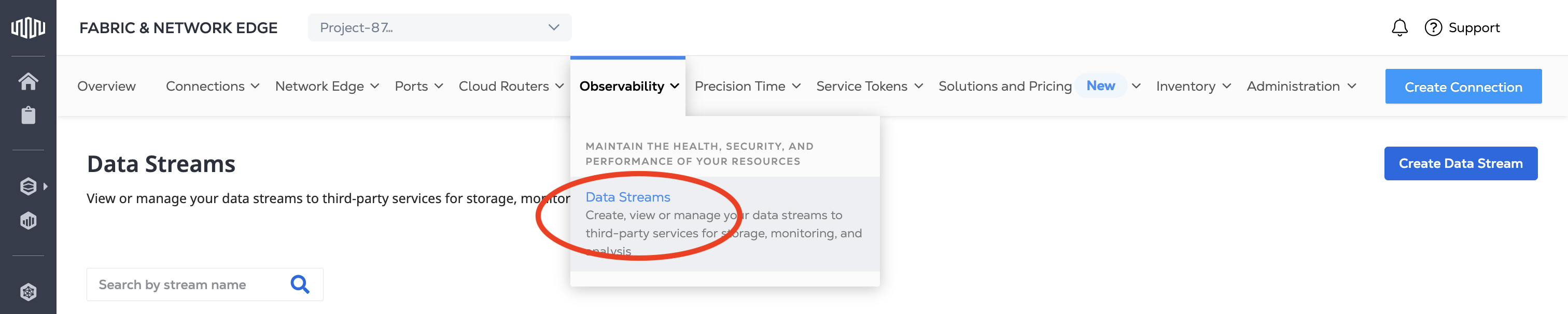
From the Observability menu, select Data Streams.
-
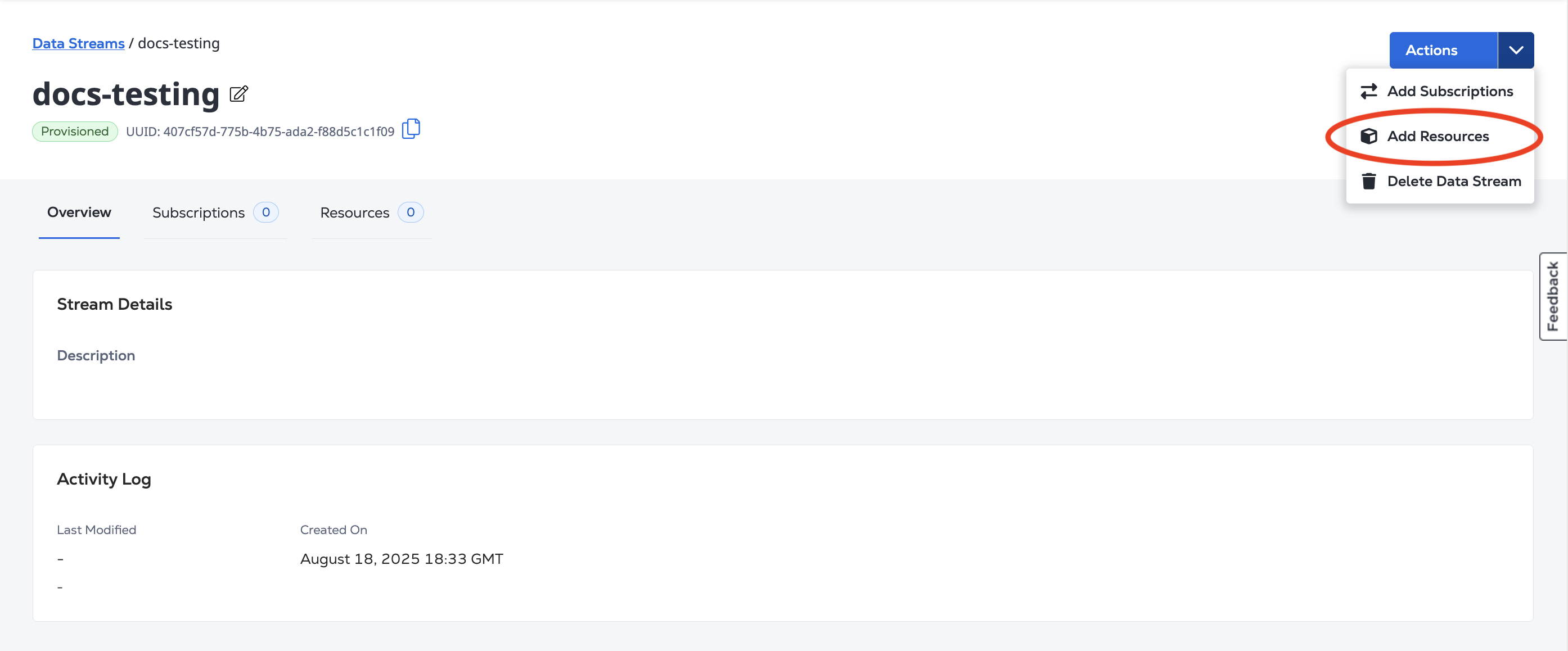
Click the Stream Name you want to add resources to.
-
From the Actions drop-down menu, select Add Resources.
-
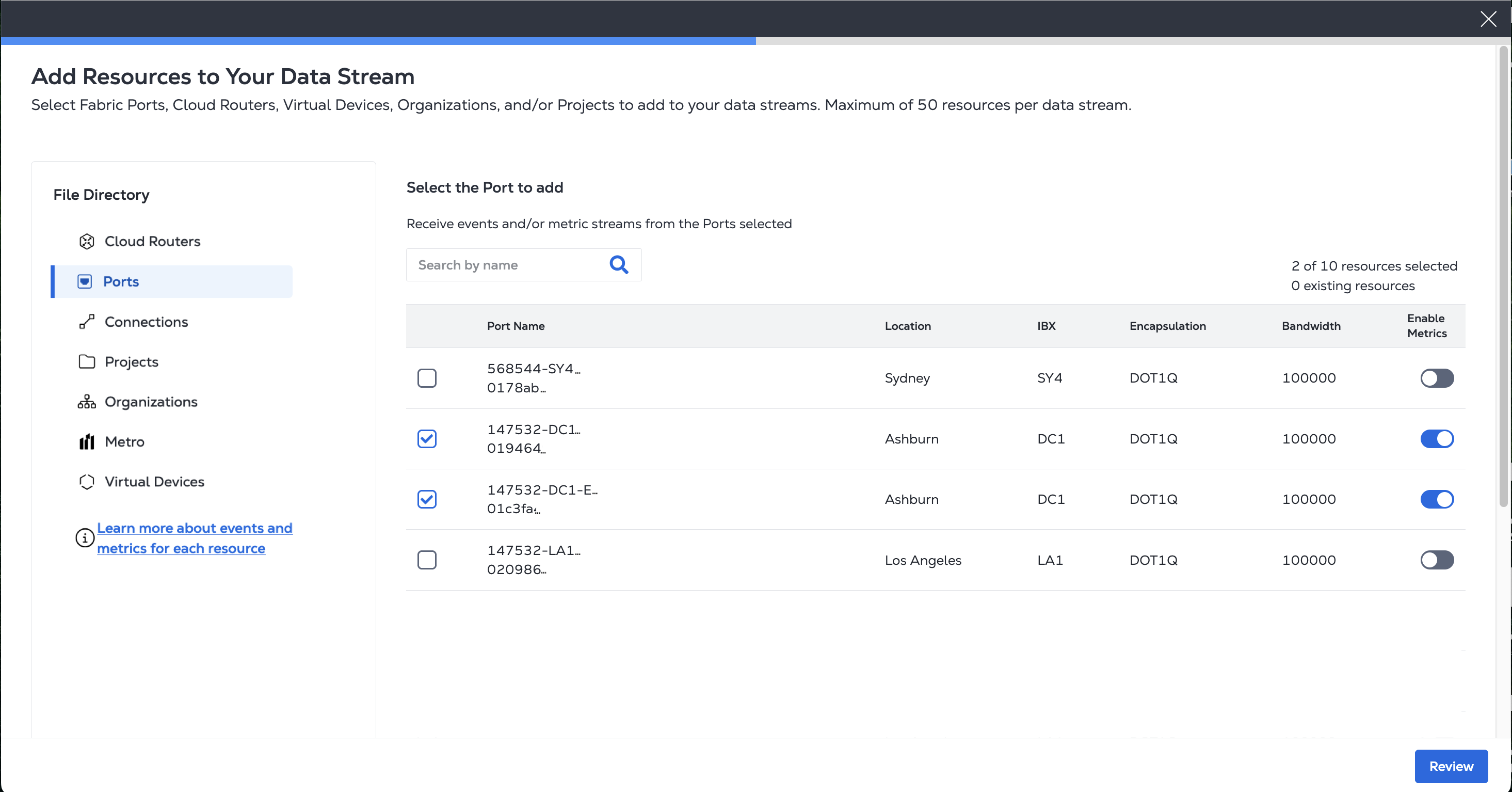
Use the File Directory menu to filter the available resource types.
-
Select the specific resource or resources to add to the Stream. Added resources send event data and if you want to also send metrics, toggle Enable Metrics. Once you have selected your desired resources, click Review.
-
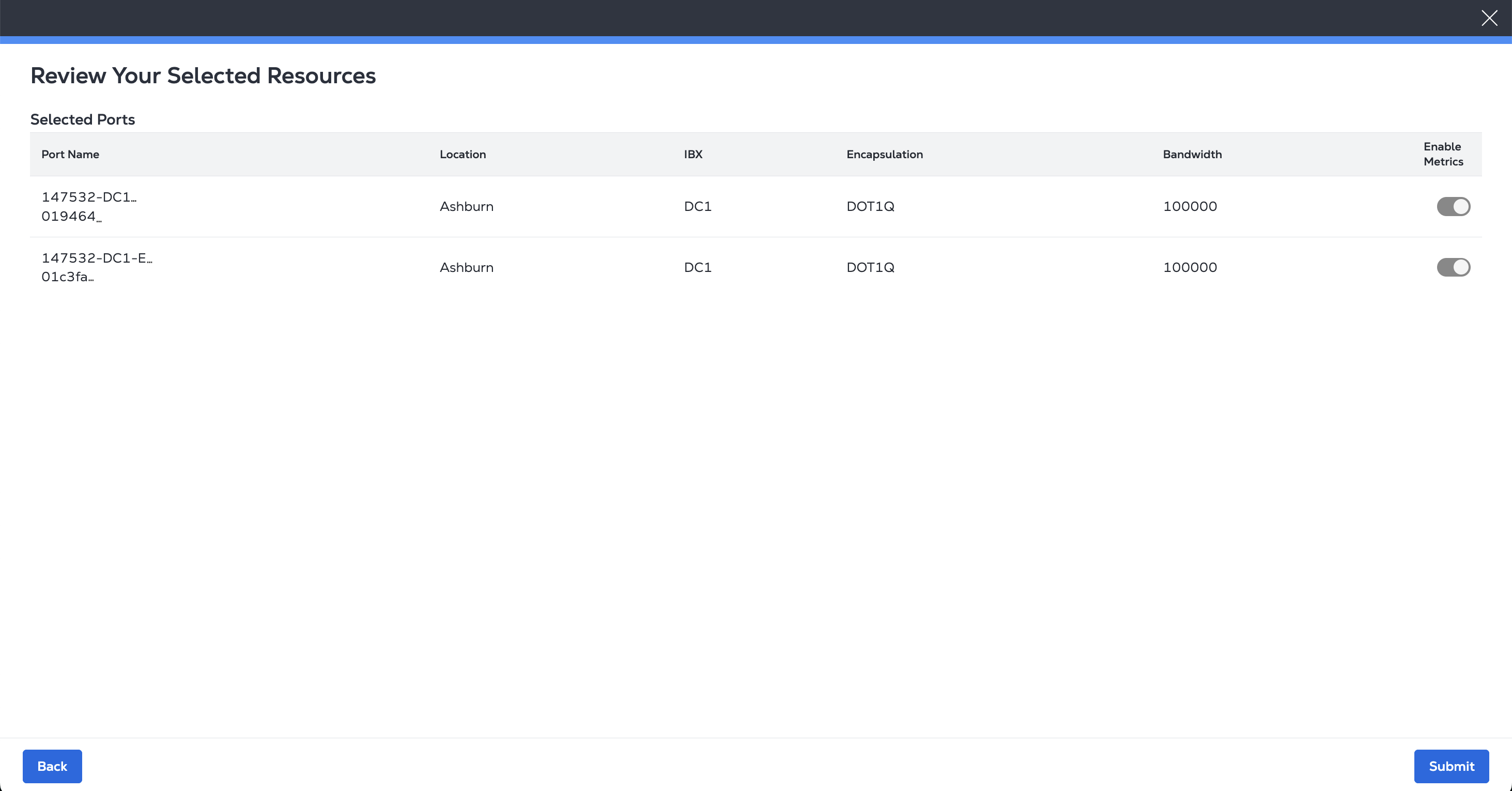
Review the list of assets to attach to the stream.
-
Click Submit.
Attaching Assets in the API
To attach a port to a stream, send a PUT request to the /fabric/v4/streams/{streamId}/{asset}/{assetId} endpoint.
Refer to the examples below to attach an asset to a stream for the supported assets.
Ports
Sample cURL Request:
curl -X 'PUT' 'https://api.equinix.com/fabric/v4/streams/<streamId>/ports/<portId>' \
-H 'accept: application/json' \
-H 'Content-Type: application/json' \
-H 'Authorization: Bearer <Bearer Token>' \
-d '{
    "metricsEnabled": true
}'
Sample Response:
{
    "href": "https://api.equinix.com/fabric/v4/streams/241372e9-79c9-4ef8-b77a-8b8176c2098b4/ports/dee885d7-a845-4873-8774-f83012e7a",
    "uuid": "dee885d7-a845-4873-8774-f83012e7a",
    "type": "XF_PORT",
    "metricsEnabled": true,
    "attachmentStatus": "ATTACHING"
}
Connections
Sample cURL Request:
curl -X 'PUT' 'https://api.equinix.com/fabric/v4/streams/<streamId>/connections/<connectionId>' \
-H 'accept: application/json' \
-H 'Content-Type: application/json' \
-H 'Authorization: Bearer <Bearer Token>' \
-d '{
    "metricsEnabled": true
}'
Sample Response:
{
    "href": "https://api.equinix.com/fabric/v4/streams/241372e9-79c9-4ef8-b77a-8b8176c2098b4/connections/dee885d7-a845-4873-8774-f83012e7a",
    "uuid": "dee885d7-a845-4873-8774-f83012e7a",
    "type": "IP_VC",
    "metricsEnabled": true,
    "attachmentStatus": "ATTACHING"
}
Fabric Cloud Routers
Sample cURL Request:
curl -X 'PUT' 'https://api.equinix.com/fabric/v4/streams/<streamId>/routers/<routerId>' \
-H 'accept: application/json' \
-H 'Content-Type: application/json' \
-H 'Authorization: Bearer <Bearer Token>' \
-d '{
    "metricsEnabled": false
}'
Sample Response:
{
    "href": "https://api.equinix.com/fabric/v4/streams/241372e9-79c9-4ef8-b77a-8b8176c2098b4/routers/dee885d7-a845-4873-8774-f83012e7a",
    "uuid": "dee885d7-a845-4873-8774-f83012e7a",
    "type": "XF_ROUTER",
    "metricsEnabled": false,
    "attachmentStatus": "ATTACHED"
}
Network Edge Virtual Devices
Sample cURL Request:
curl -X 'PUT' 'https://api.equinix.com/fabric/v4/streams/<streamId>/networkEdgeDevices/<networkEdgeDeviceId>' \
-H 'accept: application/json' \
-H 'Content-Type: application/json' \
-H 'Authorization: Bearer <Bearer Token>' \
-d '{
    "metricsEnabled": false
}'
Sample Response:
{
    "href": "https://api.equinix.com/fabric/v4/streams/41372e9-79c9-4ef8-b77a-8b8176c2098b4/networkEdgeDevices/e78f71ef-d82d-4fab-947b-7c95d153e362",
    "uuid": "e78f71ef-d82d-4fab-947b-7c95d153e362",
    "type": "VD",
    "metricsEnabled": false,
    "attachmentStatus": "ATTACHED"
}
Metros
Sample cURL Request:
curl -X 'PUT' 'https://api.equinix.com/fabric/v4/streams/<streamId>/metros/<metroCode>' \
-H 'accept: application/json' \
-H 'Content-Type: application/json' \
-H 'Authorization: Bearer <Bearer Token>' \
-d '{
    "metricsEnabled": true
}'
Sample Response:
{
    "href": "https://api.equinix.com/fabric/v4/streams/241372e9-79c9-4ef8-b77a-8b8176c2098b4/metros/SV",
    "uuid": "SV",
    "type": "XF_METRO",
    "metricsEnabled": true,
    "attachmentStatus": "ATTACHED"
}
Projects
Sample cURL Request:
curl -X 'PUT' 'https://api.equinix.com/fabric/v4/streams/<streamId>/projects/<projectId>' \
-H 'accept: application/json' \
-H 'Content-Type: application/json' \
-H 'Authorization: Bearer <Bearer Token>' \
-d '{
    "includes": ["*"],
    "metricsEnabled": true
}'
Sample Response:
{
    "href": "https://api.equinix.com/fabric/v4/streams/241372e9-79c9-4ef8-b77a-8b8176c2098b4/projects/dee885d7-a845-4873-8774-f83012e7a",
    "uuid": "dee885d7-a845-4873-8774-f83012e7a",
    "type": "PROJECT",
    "metricsEnabled": true ,
    "attachmentStatus": "ATTACHED"
}
Organizations
Sample cURL Request:
curl -X 'PUT' 'https://api.equinix.com/fabric/v4/streams/<streamId>/organizations/<organizationId>' \
-H 'accept: application/json' \
-H 'Content-Type: application/json' \
-H 'Authorization: Bearer <Bearer Token>' \
-d '{
    "includes": ["*"],
    "metricsEnabled": true
}'
Sample Response:
{
    "href": "https://api.equinix.com/fabric/v4/streams/241372e9-79c9-4ef8-b77a-8b8176c2098b4/organizations/dee885d7-a845-4873-8774-f83012e7a",
    "uuid": "dee885d7-a845-4873-8774-f83012e7a",
    "type": "ORGANIZATION",
    "metricsEnabled": true,
    "attachmentStatus": "ATTACHED"
}
Company Profiles
Sample cURL Request:
curl -X 'PUT' 'https://api.equinix.com/fabric/v4/streams/<streamId>/companyProfiles/<companyProfileId>' \
-H 'accept: application/json' \
-H 'Content-Type: application/json' \
-H 'Authorization: Bearer <Bearer Token>' \
-d '{
    "metricsEnabled": false
}'
Sample Response:
{
    "href": "https://api.equinix.com/fabric/v4/streams/41372e9-79c9-4ef8-b77a-8b8176c2098b4/companyProfiles/12345918-3333-2222-1111-12345ae12345",
    "uuid": "12345918-3333-2222-1111-12345ae12345",
    "type": "COMPANY_PROFILE",
    "metricsEnabled": false,
    "attachmentStatus": "ATTACHED"
}
Viewing Attached Assets
- Portal
- API
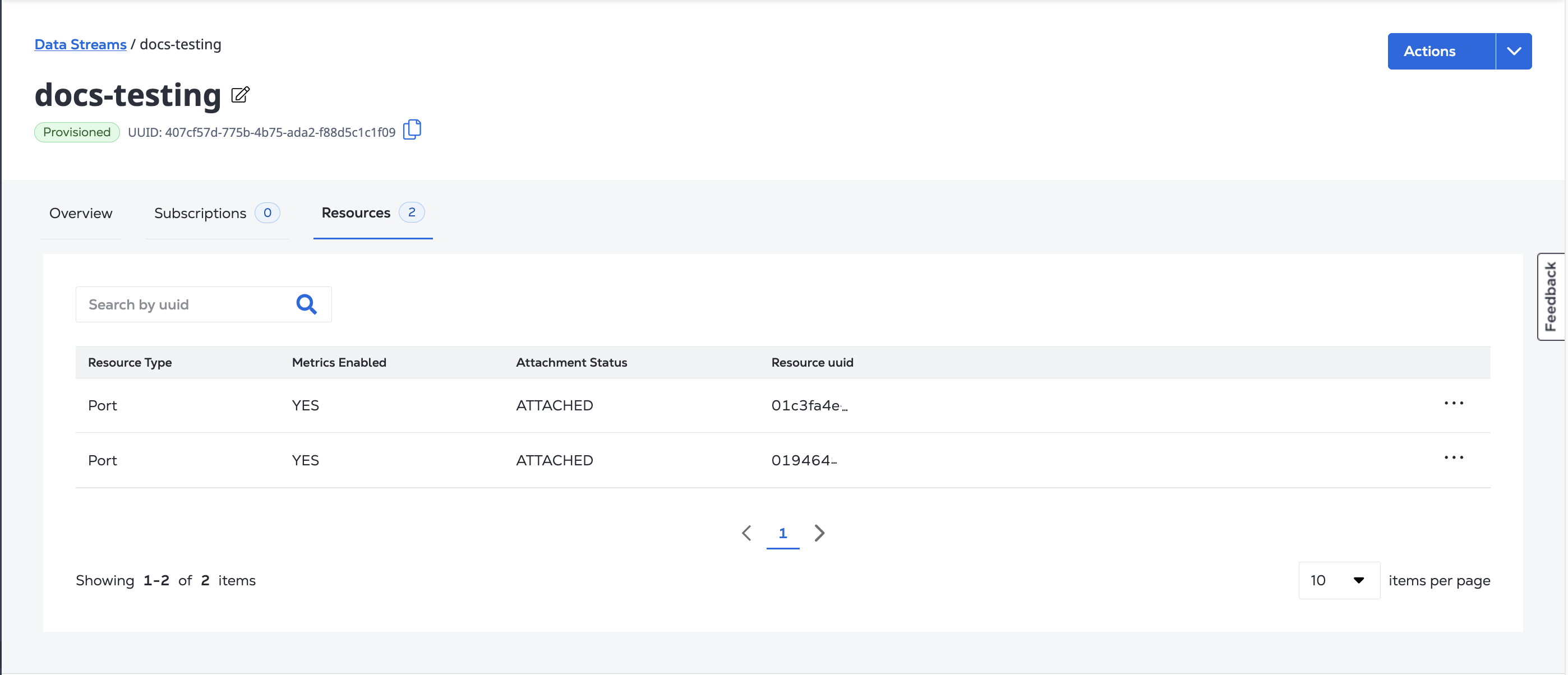
To view the list of resources that you have added to a stream, select its stream from your Data Streams Inventory.
From the Stream Details page, click Resources to view the Resource List.
To get an asset's attachment details and status, send a GET request to the fabric/v4/streams/{streamId}/{asset}/{assetId} endpoint.
Sample cURL Request:
curl -X 'GET' 'https://api.equinix.com/fabric/v4/streams/657400f8-d360-11e9-bb65-2a2ae2dbcce5/ports/757400f8-d360-11e9-bb65-2a2ae2dbcce6' \
-H 'accept: application/json' \
-H 'Authorization: Bearer <Bearer Token>'
Sample Response:
{
      "href": "https://api.equinix.com/fabric/v4/streams/241372e9-79c9-4ef8-b77a-8b8176c2098b4/ports/dee885d7-a845-4873-8774-f83012e7a",
      "uuid": "dee885d7-a845-4873-8774-f83012e7a",
      "metricsEnabled": true,
      "attachmentStatus": "ATTACHED"
}
Deleting an Asset Attachment
- Portal
- API
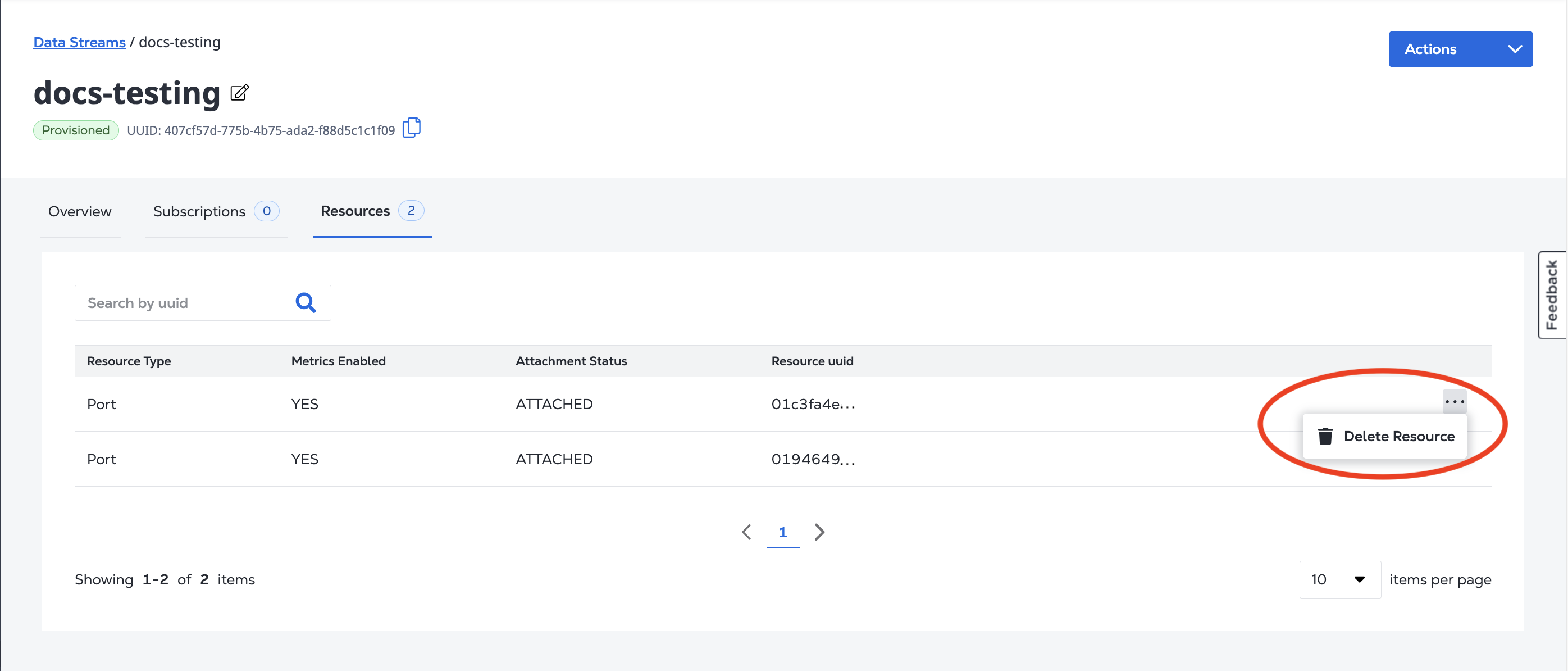
To delete a resource from a stream, select the stream from your Data Streams Inventory. From the Stream Details page, click Resources to view the Resource List.
From the resource's options menu, click Delete Resource.
To delete an asset attachment, send a DELETE request to the fabric/v4/streams/{streamId}/{asset}/{assetId} endpoint.
Sample cURL Request:
curl -X 'DELETE' 'https://api.equinix.com/fabric/v4/streams/657400f8-d360-11e9-bb65-2a2ae2dbcce5/ports/757400f8-d360-11e9-bb65-2a2ae2dbcce6' \
-H 'Content-Type: application/json' \
-H 'Authorization: Bearer <Bearer Token>'
Sample Response:
{
      "href": "https://api.equinix.com/fabric/v4/stream/241372e9-79c9-4ef8-b77a-8b8176c2098b4/ports/dee885d7-a845-4873-8774-f83012e7a",
      "uuid": "dee885d7-a845-4873-8774-f83012e7a",
      "metricsEnabled": true,
      "attachmentStatus": "DETACHING"
}