Cisco Catalyst 8000V SD-WAN (Controller Mode)
The Cisco Catalyst 8000V SD-WAN (Controller Mode) is a virtual router that delivers SD-WAN, WAN gateway, and network services functions in virtual and cloud environments. On Equinix Network Edge, you can deploy it as a virtual network function (VNF) to connect your sites, clouds, and services over Equinix’s global platform.
Deployment Types
- Single Device
- Redundant Devices
Prerequisites
The prerequisites for deploying Cisco Catalyst 8000V in the SD-WAN Controller mode are:
- Cisco.com log in credentials.
- The appropriate DNA licenses from Cisco.com to provision and operate the Catalyst 8000V device. This license is installed in vManage, not Equinix.
- Your Cisco vManage software (controller) should be running and operational (not managed by Equinix).
Generate a Bootstrap Configuration File
-
Sign into the Cisco vManage SD-WAN Controller.
-
Locate the SD-WAN edge device in the controller.
-
On the Cisco vManage menu, select Configuration > Devices.
-
Select the logical C8000V SD-WAN you are using for your new Network Edge device and click the ellipsis and select Generate Bootstrap Configuration.
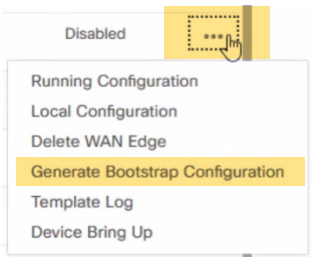 note
A chassis number for your C8000V is populated by syncing your Smart Account on SD-WAN Manager after your license is deposited to your Smart Account. Select any unused chassis number to generate the bootstrap file. It is important to follow Step 4 above before creating a profile.
-
In the Generate Bootstrap Configuration box, select Cloud-Init and click OK. Selecting Include Default Root Certificate is optional.
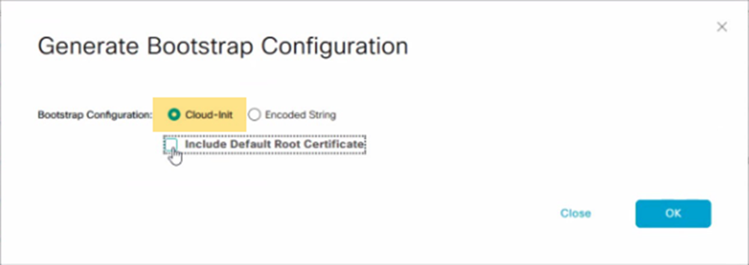
The Generate Bootstrap Configuration box displays the bootstrap configuration, including the OTP token for the license, vBond address, UUID, and organization information.
-
Click Download in the Generate Bootstrap Configuration box to save a copy of the bootstrap configuration.
-
Validate your bootstrap file content to ensure that no extra information is included. The example below shows the valid format and attributes allowed in the cloud-init file to be uploaded in the C8000V device creation workflow.
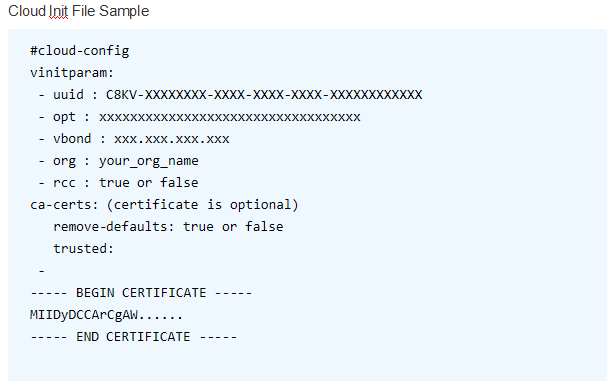 note
This is an example of a cloud-init file. Use the file downloaded from vManage and do not modify it. For the most up-to-date documentation on the bootstrap generation, see Bootstrap Process for Cisco SD-WAN Cloud-Hosted Devices.
-
While specifying your Device Details, you will upload the device configuration file.
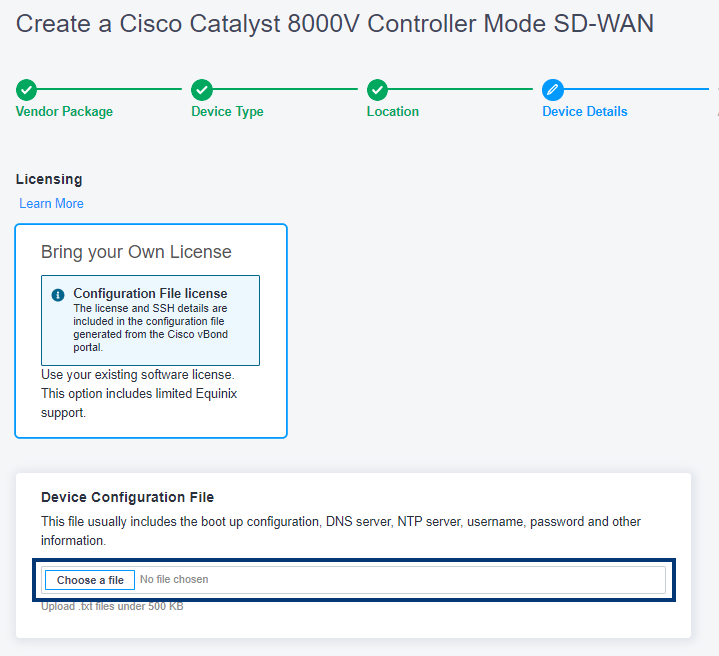
Catalyst 8000V SD-WAN Specifications
| Device Resources | 2 Cores - 8 GB 4 Cores - 8 GB 6 Cores - 16 GB 8 Cores - 16 GB 16 Cores - 16 GB |
| Software Package | DNA Essentials DNA Advantage DNA Premier |
| Interfaces Supported (default/max) | 10/24 |
| System Reserved Interfaces | GigabitEthernet 1 (Management) GigabitEthernet 2 (WAN/SSH) |
| Available License Type | BYOL |
| Access Methods | HTTPS (Web Console) vManage |
| Image Version | See Available Image Versions |
| Connectivity | With Equinix Public IP Address |
| RMA | Supported |
| Snapshot | Supported |
| Resize | Supported |
Enable Federal Information Processing Standards (FIPS) Mode
FIPS mode is supported on Catalyst 8000V (Controller Mode) for version 17.15.06. By default, FIPS mode is not enabled on Cisco Catalyst 8000V devices, so you need to enable it manually.
To enable FIPS Mode on Catalyst 8000V:
-
Configure
platform ipsec fips-mode.C8000V#conf t>Enter configuration commands, one per line. End with CNTL/Z.C8000V-FIPS(config)#platform ipsec fips-modeEnable FIPS mode will take effect after reboot! -
Save the configurations.
C8000V#copy running-config startup-config>Destination filename [startup-config]?Building configuration...[OK] -
Reload the router.
C8000V#reload>Proceed with reload? [confirm] -
Verify that FIPS mode is enabled after the router is online.
C8000V-#show running-config | inc fips>platform ipsec fips-mode