Virtual Device Inventory
The Virtual Device Inventory page provides a single location for viewing all Network Edge devices in a project.
To access your Virtual Device Inventory:
-
Sign in to the Customer Portal and navigate to Network Edge.
-
From the Network Edge drop-down menu, select Virtual Device Inventory.
The devices in the inventory display in a table.
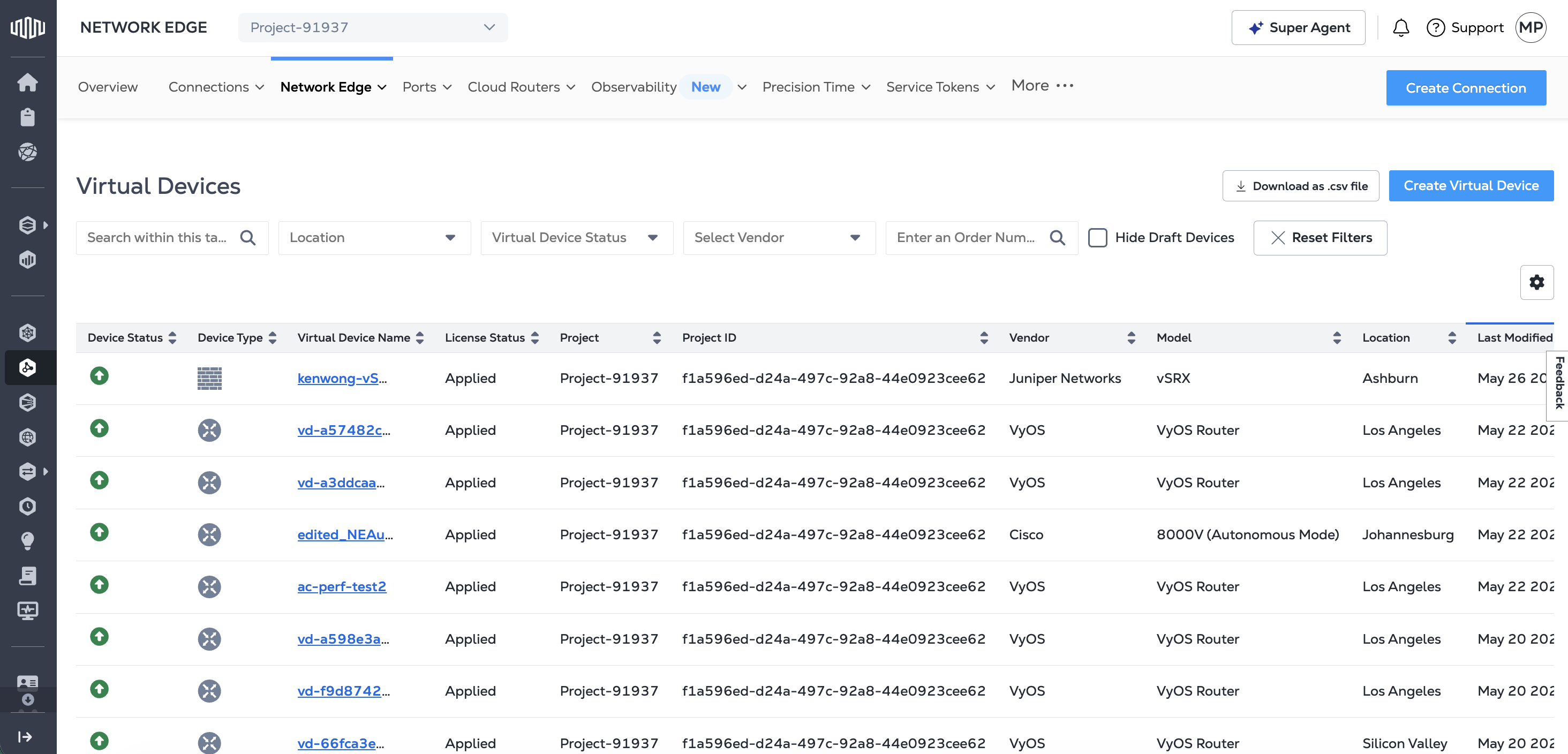
Columns include:
- Device Status
- Device Type
- Virtual Device Name
- Project
- Project ID
- Vendor
- Model
- Location
- Last Modified
- License Type
- Bandwidth
- Virtual Device UUID
- Service ID
- IP Address
- Term Length
- Account Name
- Account Number
- Created By
- Created Date
- Order Number
The columns that display in the table can be customized by clicking the settings icon and selecting or deselecting columns.

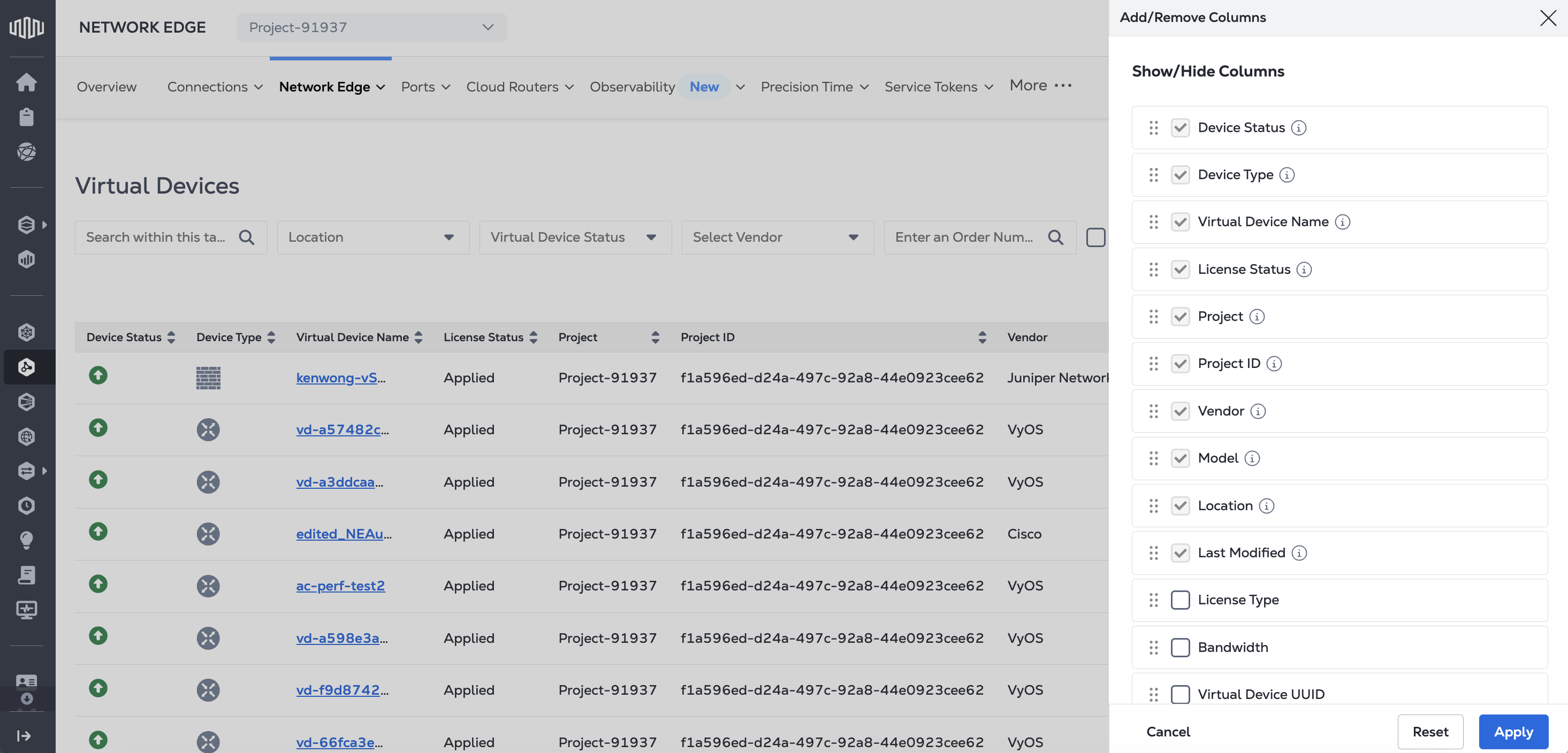
Select a device to view the details of that device. For more information about virtual device details, see Virtual Device Details.
Search Filters
Use the search fields and filtering options to narrow your search to specific devices or criteria.

Search
The Search field is a free-form text field that can be used to match on any of the available fields. A common search pattern is for a device name or part of the name to locate specific devices.

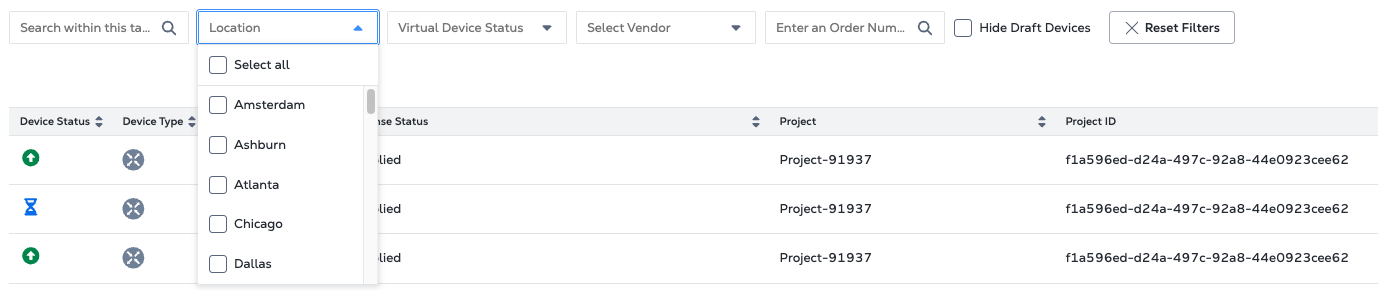
Location
Use the Location drop-down to search for devices by location. Only locations in which you have devices will display in the drop-down.
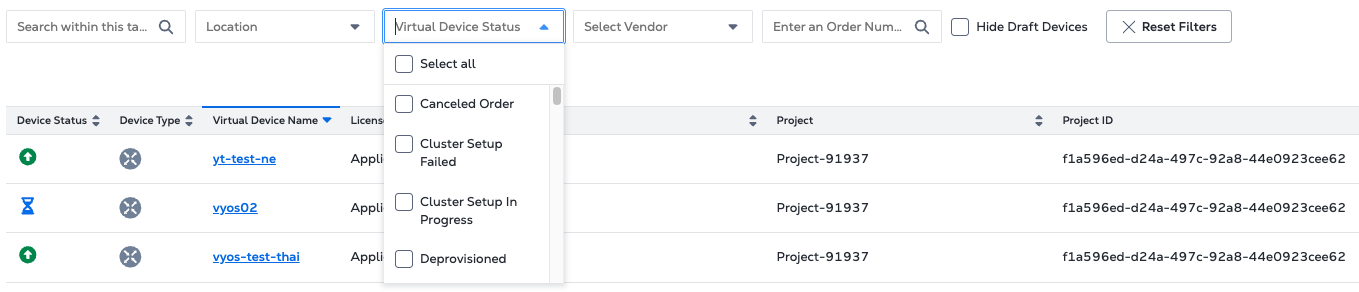
Virtual Device Status
Use the Virtual Device Status drop-down to search for devices that are in a specific state, such as Provisioned, Draft, or Initializing.
Select Vendor
Use the Select Vendor drop-down to search for devices belonging to one or more vendors.
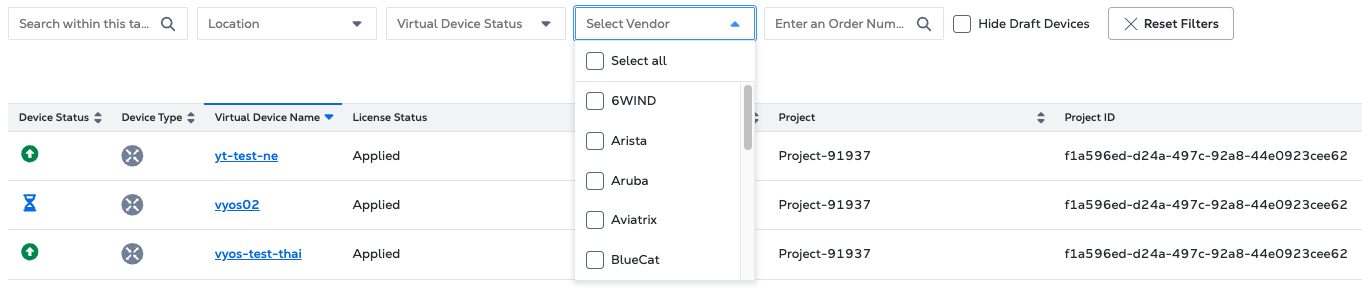
Order Number
Enter the order number of the device to return devices associated with that order number.
Hide Draft Devices
Exclude devices in Draft status from the search results.
Download Device Details
Click Download as .csv file to download a spreadsheet containing all the details for your virtual devices.
