Managed Private Firewall
Managed Private Firewall (MPF) provides scalable firewall capacity and a choice of firewall functionality to protect infrastructure against cyber-attacks and prevent unauthorized access to data.
Implementing and operating firewall solutions is complex for many companies. Security and networking have become increasingly critical as architectures grow more distributed and diverse, introducing new vulnerabilities and expanding workload boundaries. Many organizations face challenges in this area, and managed, virtualized, as-a-service solutions can help reduce operational complexity.
Managed Private Firewall is a network security system that monitors and controls incoming and outgoing network traffic based on predefined security rules configured by the customer. When properly configured, a firewall establishes a boundary between trusted and untrusted networks. Expert security professionals, advanced technology, SLA-backed availability, and 24/7 monitoring combine to deliver a robust defense against cyber-attacks.
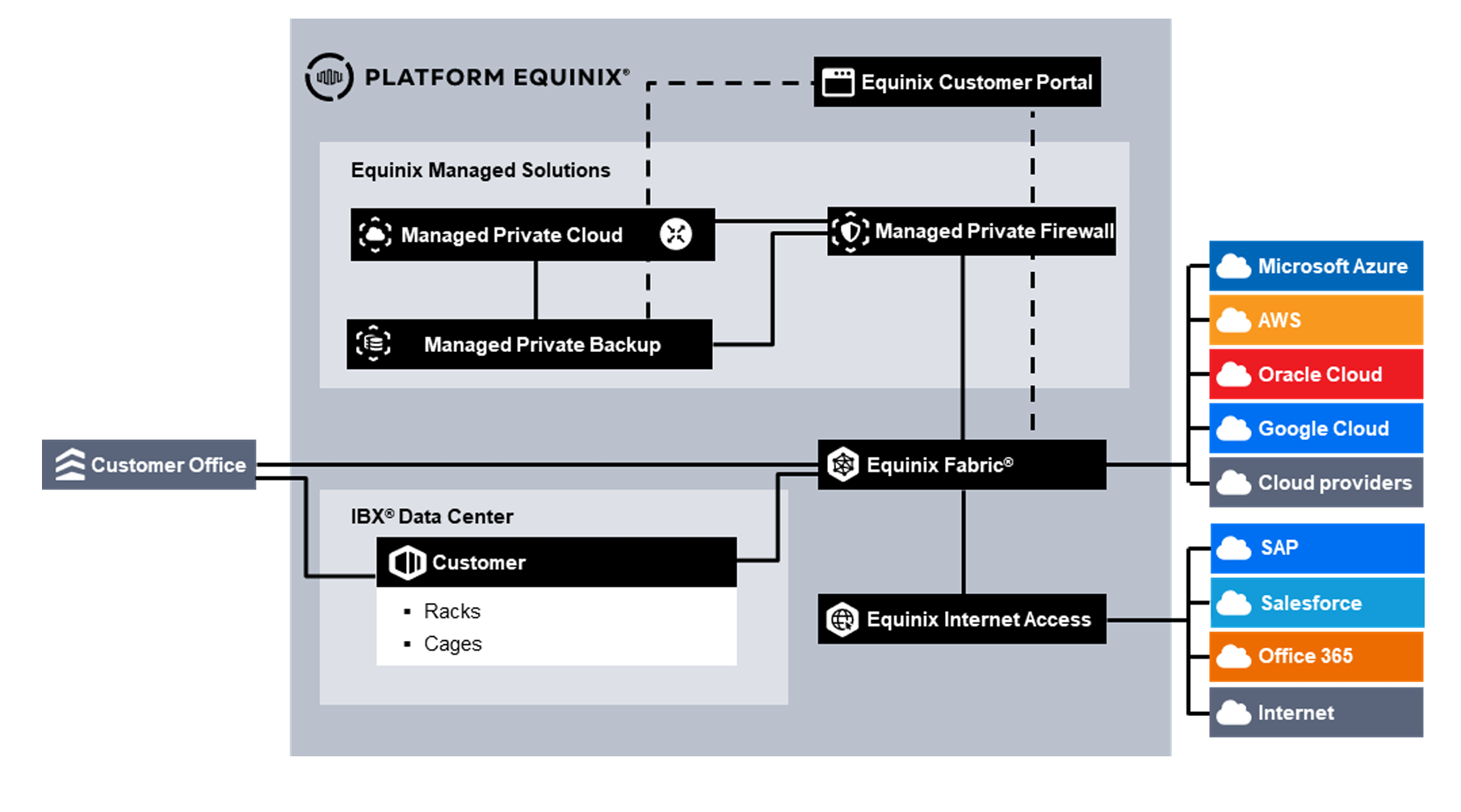
Main Features
- Continuous monitoring around the clock with prioritized response.
- Threat prevention technology protects the network from malware, phishing, and other cyber-attacks.
- Automatic updates keep firewall defenses current.
- Reporting provides visibility into the network’s security posture.
- Technology abstraction simplifies complex procedures for easier management.
- Optional services are billed only when used to reduce unnecessary spending.
- Services can be configured and adjusted to meet changing requirements and scale as needed.
- Global environments are supported through distributed data centers with managed platforms.
- Oversight is provided by specialists who track emerging technologies.
- Regulatory compliance is supported through alignment with industry standards.
- Continuous protection reduces downtime risks by prioritizing critical services during cyber threats or heavy traffic.
Accessing Managed Private Firewall
To access Managed Private Firewall (MPF), go to the Customer Portal. From there, you can access the following:
- Managed Solutions Portal (MSP) – used to raise tickets, submit service requests, and view MPF usage insights.
- Operational Console – used to manage and operate MPF resources.
Managing Managed Private Firewall
User Management
Users of the Operational Console are managed through the Customer Portal. See User and Password management. Once users are added, a Service Request must be submitted to assign the MPF tenant role to the user.
To use a different identity source, identity federation can be configured in the Customer Portal to integrate with an external identity provider. This enables users to sign in using their company credentials.
Operational Console
The Operational Console is the portal used to perform all tasks required to manage the MPF environment. The console provides access to MPF resources within a specific region. MPF operates across four regions: South America, North America, Europe, and Asia. If an MPF deployment exists in a particular region, the corresponding Operational Console is available through one of the four buttons on the page.
Administrator Console
The standard service uses a central self‑service portal, technically defined as an Administrative Domain (ADOM). The ADOM enables the customer’s firewall administrator to create, delete, and modify firewall rules and policies, and to administer Virtual Private Networks specific to their Virtual Appliances.
Administrative Domain
An Administrative Domain (ADOM) defines the customer within the Operational Console. The ADOM functions as a container that groups all MPF resources, including firewalls, policy packages, and policy objects. A customer may have multiple ADOMs, each with different characteristics such as the geographic location of an Equinix IBX (for example, Amsterdam, London, or Ashburn) or a specific purpose (for example, Production or Test). If the existing firewall capacity is insufficient, contact the Service Delivery Manager or Account Manager.
Log Analyzer Console
The standard service includes a central log analyzer accessible through the Administrative Domain (ADOM). The Log Analyzer Console enables firewall administrators to manage log collection, perform analytics, and generate reports. This console is separate from the Network Console and supports automation, orchestration, and response to logged events.
Customer Role Permissions
In the Operational Console, two predefined roles can be assigned to users.
| Role | Manager Portal Permissions | Analyzer Portal Permissions |
|---|---|---|
| Customer‑Admin | • View device configuration • View routing table • Create policy objects • Create policy packs • Create firewall rules • Deploy policy packs to associated firewalls • Create VPN settings (IPsec and SSL VPN*) | • View logs • Create and view reports • Schedule reports |
| Customer‑Read Only | • View device configuration • View routing table • View policy objects • View policy packs • View firewall rules • View VPN settings (IPsec and SSL VPN*) | • View logs |
*SSL VPN will be removed in the next software update from the vendor. If you depend on SSL VPN, contact our Service Delivery Manager or Account Executive to discuss alternatives.
Steps for Policy Configuration
- Log in to the FortiManager GUI.
- Open a web browser and navigate to the Management Console in the Managed Solutions Portal or go directly to the FortiManager URL.
- Enter your username and password.
- Select the appropriate ADOM (applicable only when more than one ADOM is available).
- Choose the ADOM associated with the required environment.
- Use the ADOM drop‑down menu to switch if necessary.
- Navigate to Policy & Objects.
- Go to Policy & Objects > IPv4 Policy.
- Create a new policy.
- Click Create New to add a policy.
- Define the policy name.
- Set the source and destination interfaces (for example, LAN to WAN).
- Specify source and destination addresses (predefined or custom).
- Select the service (for example, HTTP, HTTPS).
- Choose the action (Allow or Deny).
- Configure any additional options such as logging or security profiles.
- Save the policy.
- Click OK.
- Arrange policies.
- Ensure the new policy is placed correctly in the policy list. FortiGate processes policies from top to bottom.
- Install policies.
- Click Install Wizard and follow the prompts.
- Use Install Preview to review the changes and Policy Package Diff to compare differences.
- Click Install to complete the deployment.
Steps for VPN Configuration
- Log in to the FortiManager GUI.
- Open a web browser and navigate to the Management Console in the Managed Solutions Portal or go directly to the FortiManager URL.
- Enter your username and password.
- Select the appropriate ADOM (applicable only when more than one ADOM is available).
- Choose the ADOM associated with the required environment.
- Use the ADOM drop‑down menu to switch if necessary.
- Navigate to VPN.
- Go to VPN > IPsec Wizard.
- Create a new VPN.
- Click Create New.
- Select the VPN type (for example, Site‑to‑Site).
- Define the VPN name.
- Configure VPN settings.
- Set the remote gateway IP address.
- Select the authentication method and enter the pre‑shared key if applicable.
- Specify the local interface.
- Configure Phase 1 and Phase 2 settings.
- Define encryption and authentication algorithms.
- Set the Diffie‑Hellman group and key lifetimes.
- Define Quick Mode Selectors.
- Specify the local and remote subnets.
- Save and apply. Click OK.
- Install the VPN configuration.
- Click Install Wizard.
- Use Install Preview and Policy Package Diff as needed.
- Click Install to apply the configuration.
Steps for Intrusion Prevention System (IPS) Configuration
- Log in to the FortiManager GUI.
- Open a web browser and navigate to the Management Console in the Managed Solutions Portal or go directly to the FortiManager URL.
- Enter your username and password.
- Select the appropriate ADOM (applicable only when more than one ADOM is available).
- Choose the ADOM associated with the required environment.
- Use the ADOM drop‑down menu to switch if necessary.
- Navigate to Security Profiles.
- Go to Security Profiles > Intrusion Prevention.
- Create or edit an IPS sensor.
- Click Create New or select an existing sensor.
- Define the sensor name.
- Add IPS signatures.
- Add signatures from the list and use filters as needed.
- Configure actions for each signature (Monitor, Block).
- Apply the IPS sensor to a policy.
- Go to Policy & Objects > IPv4 Policy.
- Edit the target policy.
- Enable IPS in Security Profiles and select the configured sensor.
- Save and apply. Click OK.
Steps for Log Reporting
- Log in to the FortiAnalyzer GUI.
- Open a web browser and access the Analytics Console in the Managed Solutions Portal or go directly to the FortiAnalyzer URL.
- Enter your username and password.
- Select the appropriate ADOM (if more than one is available).
- Choose the ADOM associated with the required environment.
- Use the ADOM drop‑down menu to switch if necessary.
- Access Log View on FortiAnalyzer.
- Go to Log View.
- Select the log type (Traffic, Event, Security, and so on).
- Apply filters such as source IP, destination IP, or time range.
- Generate reports.
- Navigate to Reports.
- Click Create New or select an existing template.
- Configure report criteria, period, and filters.
- Run the report or schedule it.
- Customize reports.
- Modify templates to adjust charts, tables, and data elements.
- Save templates for reuse.
- View and download reports.
- Open completed reports in the Reports section.
- Download in formats such as PDF or CSV.
- Set up automated reporting.
- Configure scheduling options in Report Settings.
- Enable email distribution to designated recipients.
By following these steps, customer administrators can report logs through an ADOM in FortiAnalyzer and obtain the insights needed to manage and secure their network environments.
Granting Access to the Operational Console
To give another user access to the MPF Service:
- Request access for the user through the Equinix Customer Portal.
- Open a ticket to assign the required permissions for accessing MPF.
- Use the Create user in Operational Console option in the service catalog to complete the setup.
Service Description
The Managed Private Firewall (MPF) is deployed as a high-availability pair and contains two Virtual Domains (VDOMs).
-
Customer Domain - Monitors and controls traffic between trusted and untrusted network segments. This domain is the active customer firewall enforcing access policies.
-
Management Domain - Used solely for management purposes and connected only to the Equinix management environment. No customer traffic flows through this domain.
Applications are hosted on the Managed Private Cloud. The Customer Domain firewall controls access to and from the Internet, the WAN, and the network segments in the Managed Private Cloud, based on rules configured through the self‑service portal or via a change request.
The central management system, which includes the self‑service portal and the Analyzer Portal, uses a management ADOM to manage the Customer VDOM. The Analyzer system collects logs and events to provide online and real‑time visibility. Optionally, logs from the Customer Domain can be sent to an external SIEM system to support holistic security monitoring.
Standard Service
The standard service includes the following:
- Deployment of firewalls in an active‑failover high‑availability pair in a single IBX, supporting at least 99.95 percent availability.
- Standard logging.
- Configuration of two usable network interfaces. Dual‑homed Internet or WAN connectivity requires additional interfaces.
- Routing via BGP or static routes.
- Setup of the Self‑Service Portal and Analyzer Portal.
- Regular patching and updating of the firewalls.
- 24/7 monitoring of firewall uptime.
- Incident management and support:
- Priority 1 incidents: 24/7.
- Priority 2 and Priority 3 incidents: Business Hours.
- Service requests: Business Hours.
- Firewall functionality included in all subscriptions, with further service options available.
Virtual Appliance
The MPF service uses a high‑availability active‑passive virtual appliance pair deployed on the Managed Private Cloud platform in an Equinix IBX. Multiple performance options are available to meet different throughput requirements.
This variant includes:
- Required vCPU, vRAM, and storage resources for the selected performance option.
- Configuration of the resources.
- Installation and configuration of the high‑availability virtual firewall pair as specified in the order.
- Access to the Self‑Service Portal and Analyzer Portal.
Dual Site
In locations where dual‑site deployments are available, two independent high‑availability pairs can be deployed to form a resilient, high‑availability design across sites.
Administrator Console
The standard service uses a central self‑service portal defined as an Administrative Domain (ADOM). The ADOM enables customer firewall administrators to create, delete, and modify firewall rules and policies, and to administer Virtual Private Networks specific to their virtual appliances.
Log Analyzer Console
The standard service includes a central log analyzer accessible through the Administrative Domain (ADOM). This console enables firewall administrators to manage log collection, perform analytics, and generate reporting. The Log Analyzer Console is separate from the Network Console and supports automation, orchestration, and response to logged events.
Service Options
The following Managed Private Firewall Service Options can be ordered.
The standard service is based on the Firewall license. As chargeable options, the IPS license or ATP/UTP bundles can be selected. The table below lists the features unlocked by each license.
| License | Description | Features |
|---|---|---|
| FW | Standard Service | Firewall |
| IPS | Intrusion Prevention Services | Firewall Intrusion Prevention Services |
| ATP | Advanced Threat Protection | Firewall Intrusion Prevention Services Advanced Malware Protection Service App Control |
| UTP | Unified Threat Protection | Firewall Intrusion Prevention Services Advanced Malware Protection Service App Control Web Security |
Firewall
The Firewall functionality is included in all subscriptions. It offers the following functions and features.
- Network Interfaces
- Policy/Rules (Firewall Rules)
- Security Profiles (default "out-of-the-box" profiles)
- VPN IPsec
- VPN SSL (Web and Tunnel)
- NLB (Network Load Balancing)
- DoS Policy (L3/4 Anomalies)
- Logging (Analyzer)
IPS
Intrusion Prevention Services (IPS) detects and blocks vulnerabilities and threats. IPS also supports network-based virtual patching and detection of malware, ransomware, and HTTPS-based attacks.
Advanced Malware Protection Service
Advanced Malware Protection includes Antivirus, Botnet IP/Domain Security, Mobile Security, Sandbox Cloud, Virus Outbreak Protection, and Content Disarm and Reconstruction.
App Control
Application Control allows creation of policies to allow, deny, or restrict access to applications or categories of applications.
Web Security
Web Content Filtering controls access to web content by blocking pages containing specified words or patterns. Words, phrases, patterns, wildcards, and Perl regular expressions can be used to match content.
Type
A range of Virtual Machine resource options can be selected to match required throughput.
Performance Options
Firewall performance in Gbps depends on the selected license, assigned vRAM and vCPU resources, and enabled features. The table provides indicative performance and required resources.
| Size | vCPU | vRAM | FW (Gbps) | IPS (Gbps) | ATP/UTP (Gbps) |
|---|---|---|---|---|---|
| S (small) | 2 | 4 | 7 | 1.7 | 0.9 |
| M (medium) | 4 | 8 | 10.8 | 3.3 | 1.8 |
| L (large) | 8 | 12 | 14 | 5.9 | 3.4 |
| XL (extra-large) | 16 | 16 | 15.5 | 10.1 | 6.3 |
Notes
- VM resources are included in the service.
- Maximum throughput is the combined incoming and outgoing traffic the firewall can process. Values are based on supplier test data. Actual capacity may vary depending on rule sets, enabled functions, and specific customer traffic.
- Firewall throughput measured with UDP (512 byte) packets.
- IPS performance measured with Enterprise Traffic Mix.
- Threat protection performance measured with IPS, Application Control, and Malware Protection using Enterprise Traffic Mix.
Log Storage Quota
Standard Logging includes up to 1 GB of log data per day with a maximum of 10 GB of total log storage per Managed Private Firewall service pair. Log retention is up to 60 days but may be shorter if the 10 GB storage limit is reached earlier. Additional log storage can be ordered as Extended Logging.
Service Demarcation and Enabling Services
Equinix is responsible for the Standard Service and the combination of Service Options as defined in the order and subsequent service requests. Equinix is not responsible for client software or Internet connectivity required to manage or use the service.
For the Virtual Firewalls, the following service boundaries apply:
- Logical network interfaces on the firewalls for production traffic
- UI and API for the Network and Analyzer Consoles
More information on service demarcations can be found in the Roles and Responsibilities and in the Product Policies.
The Managed Private Firewall can only be ordered with Managed Private Cloud (MPC) and functions as a security component within the overall solution.
Charge Types
When ordering the Managed Private Firewall service, select the variant that meets the requirements. The MPF service is charged based on baseline values.
- Baseline - the specific volume of the unit of measure of the service as defined in the order.
Catalog of billing items
| Category | Purchase Unit | UOM | Install Fee | Billing Method | Overage |
|---|---|---|---|---|---|
| MPF Service | Firewall type Firewall license Log storage quota | Each | Yes | Baseline | No |
Roles and Responsibilities
Onboarding - Installation
| Activities | Equinix | Customer |
|---|---|---|
| Schedule / execute project kickoff meeting | RA | CI |
| Schedule / execute customer onboarding | RA | CI |
| Virtual Machine resources (compute, storage, and networking) for the virtual firewall on MPC | RA | I |
| Virtual Firewall appliance software, licenses, and support | RA | I |
| Equinix management environment for firewall management including Network Console and Analyzer Console | RA | I |
Onboarding - Configuration
| Activities | Equinix | Customer |
|---|---|---|
| Firewall-appliance basic configuration, network interfaces, network settings, and hardening | RA | I |
| Set up firewall monitoring and logging to Analyzer Console | RA | I |
| Set up customer accounts on portal for access to logging, reporting, and self-service | RA | CI |
| Defining initial firewall ruleset | CI | RA |
| Loading initial firewall ruleset through Network consoles | CI | RA |
| Loading initial firewall ruleset through Service Request | RA | CI |
Acceptance Into Service
| Activities | Equinix | Customer |
|---|---|---|
| Test access to MPF Product page on Managed Solutions Portal | CI | RA |
| Test access to MPF documentation on docs.equinix.com | CI | RA |
| Test access to MPF operational console | CI | RA |
| Testing the configuration and failover as part of operational management | RA | CI |
| Functional testing | CI | RA |
Operational
| Activities | Equinix | Customer |
|---|---|---|
| Technical management of the service (overall) | RAC | I |
| Functional management of the customer environment within the service (overall) | I | RAC |
| Service desk | RA | CI |
| Maintenance of the firewall-appliance (infrastructure break / fix, software updates, security patches) | RA | I |
| 24/7 uptime monitoring of the virtual firewall including health checks | RA | I |
| Back-up and management of log files and rule base | RA | I |
| Submitting Service Request via the Portal | CI | RA |
| Implementation of changes in accordance with change process based on Service Requests | RA | CI |
| Interpretation of security events | RA |
RACI stands for Responsible, Accountable, Consulted and Informed.
For the avoidance of doubt, the customer is responsible for the firewall rulesets and policies, optional VPN-connection configuration, and server load balancing configurations. Equinix implements changes only based on customer instructions.
Incident Management
Incident management is included in service support. All incidents are handled based on priority. Priority is determined after the failure has been reported and assessed by Equinix based on the provided information.
| Priority | Impact / Urgency | Description |
|---|---|---|
| P1 High | Unforeseen unavailability of a service or environment delivered and managed by Equinix in accordance with the service description due to a disruption. The user cannot fulfill obligations towards users and suffers direct demonstrable damage due to the unavailability of this functionality. | The service must be restored immediately. The production environments are unavailable, with platform-wide disruptions. |
| P2 Medium | The service does not offer full functionality or has partial functionality or reduced performance, impacting users. The user suffers direct demonstrable damage due to unavailability of the functionality. The service may be impacted due to limited availability. | The service must be repaired the same working day. The management environment is not available. |
| P3 Low | The service functions with limited availability for one or more users and a workaround is in place. | The moment of repair is determined in consultation with the reporting person. |
The above classification does not apply to disruptions that are, for example, caused by user-specific applications, actions by the user, or dependent on third parties. The incidents can be submitted through the Customer Portal in the Managed Solutions section. P1 incidents need to be submitted by phone.
Service Requests
Service requests are used to report service issues or to request implementation or assistance with changes. Service requests can be raised for configuration changes that cannot be implemented through self-service in the Operational Console. Support for the Managed Private Firewall service is available round-the-clock. Two types of service requests are available:
- Included - Service requests that are within the scope of the service and do not incur additional charges.
- Additional - Service requests that are outside the scope of the service and incur additional charges.
In addition to the standard service, and when the appropriate service option has been selected, the following functionality or configuration can be requested during installation or via Service Request as a chargeable option.
- Add or remove additional network
- Add additional subnets beyond the standard two subnets, for purposes such as a DMZ, tier separation, or an additional WAN connection.
- Add, remove, or change policy or rules
- Modify the rule base and/or include a Security Profile. A maximum of five rules can be changed per request.
- Add, remove, or change security profile (additional or custom)
- Configure customer Security Profiles (IPS, Web filtering, etc). A valid subscription is required.
- Add, remove, or change VPN (site‑to‑site) connections
- Configure IPsec VPN connections to establish encrypted connectivity between locations.
- Add, remove, or change VPN (SSL) connections
- Configure SSL VPN connections for secure user access over the Internet. User authentication is provided by a customer-administered system or supporting service.
- Add, remove, or change SSL certificate
- Create a Certificate Signing Request (CSR) and implement the SSL certificate.
- Add, remove, or change server load balancing
- Configure basic traffic load balancing across backend servers. Supports L3 (IP), L4 (TCP/UDP), and L7 (HTTP, HTTPS, SSL/TLS, IMAPS, POP3S, SMTPS), including SSL/TLS offload up to TLS 1.3.
- Add, remove, or change DoS policy
- Configure policies to examine traffic for anomalous patterns at layer 3 and layer 4. Default thresholds are applied.
Some changes can be implemented via self-service, as shown in the table below, or can be requested through the service portal as a Service Request.
| Type of Change | Self-Service | Included/Additional |
|---|---|---|
| Add or remove additional network (Interface) | No | Additional |
| Add, remove, or change policy or rules (maximum 5 rules per request) | Yes | Additional |
| Add, remove, or change security profile (additional or custom, subscription required) | Yes | Additional |
| Add, remove, or change VPN (IPsec/S2S) (maximum 3 VPN tunnels per request) | Yes | Additional |
| Add, remove, or change VPN SSL (certificate creation excluded, one change per request) | Yes | Additional |
| Add, remove, or change SSL certificate | No | Additional |
| Add, remove, or change server load balancing (maximum 3 rules per request) | Yes | Additional |
| Add, remove, or change DoS policy | Yes | Additional |
| Ask information about the product | No | Included |
Customers can request changes not listed in the table by selecting "change" in the Service Request module in the Managed Solutions Portal. Equinix performs an impact analysis to determine feasibility, associated costs, and lead time.
Any charges related to Service Requests are deducted from the Premier Support Plan balance or, in case of insufficient balance, invoiced in arrears at the applicable rate.
Changes in baseline capacity, ordered quantity, or any change affecting the monthly service fee must be requested through the Sales team.
Reporting
The customer can view and save reports on network traffic and security events through the console. The console provides a customizable, interactive dashboard that displays graphs of network traffic, threats, applications, and related data. The system integrates real-time and historical information into a single overview.
Custom data reports can be generated using more than 70 built-in templates and more than 2000 combined datasets, charts, and macros for analysis such as anomaly detection and threat assessments. Reports can be run on-demand or scheduled with optional automatic email notifications. Supported output formats include PDF, HTML, CSV, XML, and JSON.
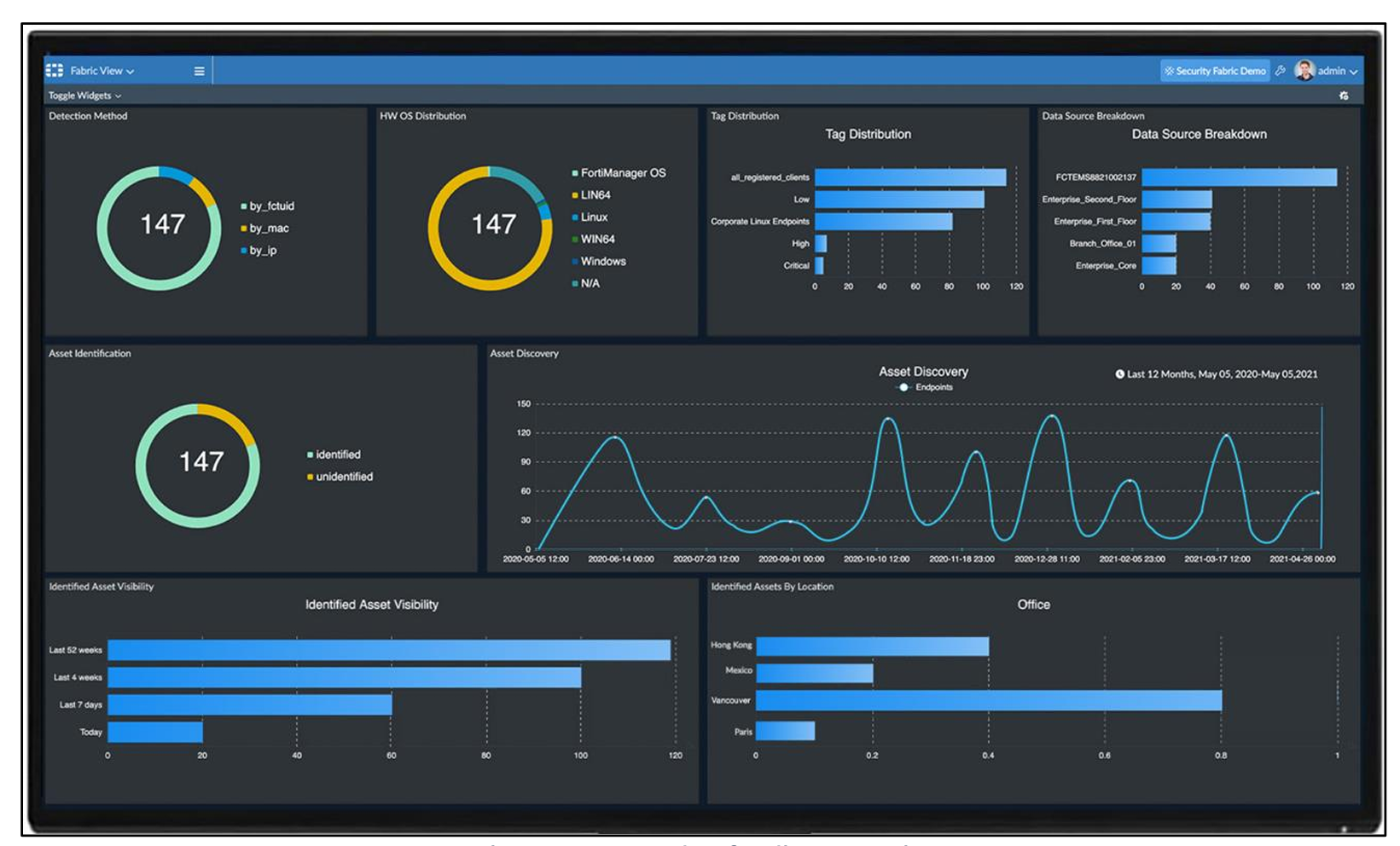
Security Events
Security teams can monitor and manage alerts and event logs from the firewall. Events are processed and correlated in a format suitable for analysis.
Service Levels
The Service Level Agreement (SLA) defines the measurable performance levels associated with the MPF service and specifies the remedies available if Equinix does not meet these levels. The service credits listed in the Product Policy are the exclusive remedy for failure to meet the defined thresholds.
The SLA for support applies to incident registration and resolution.
| Priority | Response Time¹ | Resolution Time² | Execution of Work | SLA³ |
|---|---|---|---|---|
| P1 | < 30 min | < 4 hours | 24/7 | 95% |
| P2 | < 60 min | < 24 hours | 24/7 | 95% |
| P3 | < 120 min | < 5 days | 24/7 | 95% |
¹ Response time is measured from the moment the trouble ticket is submitted until a Managed Solutions specialist issues a formal response.
² Resolution time is measured from registration to closure or cancellation in the ITSM tool, or handover to IBX Support.
³ SLA applies to response time. Additional details are available in the Product Policy.
Availability
The MPF service is considered "Unavailable" when firewall policies and rules are not applied to traffic for more than 5 minutes.
| Availability Service Level | Description |
|---|---|
| 99.95%+ | Achieved by limiting unavailability of the Firewall Service to less than twenty-two (22) minutes per calendar month. |
A service credit regime for availability is defined in the Product Policy, including calculation methods and applicable exclusions.
Fulfillment Process
When an MPF order is placed, the Equinix delivery team guides the requesting team through the fulfillment process for each location. The delivery workflow includes the following actions:
- The order is evaluated for related products, including Managed Private Cloud where applicable.
- The primary contact point for MPF is confirmed.
- User access to the Equinix Customer Portal, the Managed Solutions Portal, and all required permissions for MPF administration is verified.
- Required connectivity needed to protect the environment is verified as present and operational.
- The primary contact point is confirmed to have administrator‑equivalent credentials.
During the MPF onboarding process, the following information is provided:
- Organization name.
- One or more customer accounts with one of the defined roles assigned.
- Provisioned Firewalls delivered according to the approved design.
- Connectivity details for Internet, Cloud Service Providers, Colocation, and WAN providers.