Managed Private Backup
Equinix Managed Private Backup (MPB) is a centralized backup service for global data protection. The service abstracts hardware and software requirements and removes the need for lifecycle management and daily operational tasks. MPB is ordered based on the amount of data to be protected, measured in terabytes. A baseline data commitment is used for cost control, with the option to exceed the baseline if required (overage charges apply). Self-service capabilities allow selection of data sets for protection or restoration at any time.
MPB supports multiple combinations of retention periods and offsite protection options for each target, enabling configuration options based on unique data sets while maintaining data sovereignty. The maximum supported server size is 10 TB per virtual machine. Each combination is based on specific requirements. For example:
- Protect up to 10 TB of data with 30 days of retention and no offsite protection.
- Protect an additional 5 TB of data with 5 years of retention and 5 years of offsite protection.
- Protect an additional 5 TB of data with 10 years of retention and 10 years of offsite protection.
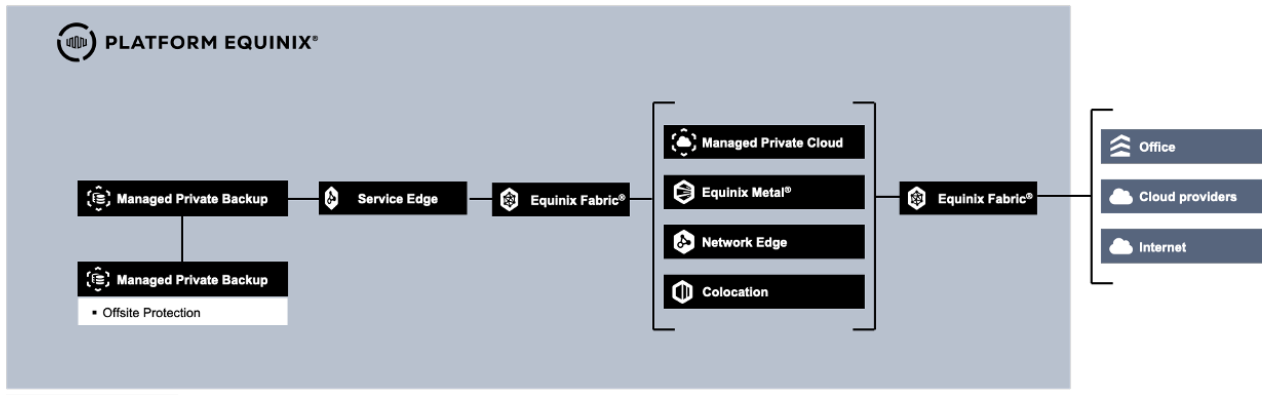
Main Features
- Scalable and secure backup platform that removes the need for hardware procurement, software installation, lifecycle management, and complex maintenance tasks.
- Self-service capabilities for selecting, configuring, and restoring protected data.
- Baseline commitment model for cost control, with the option to exceed the baseline when required (overage charges apply).
- API access to the Commvault Command Center (REST) for alert management, reporting, and install or upgrade operations.
- Database transaction log backups every 4 hours, supporting a recovery point objective (RPO) of up to 4 hours for supported databases.
- 99.95% SLA platform installed in high availability architecture to avoid service disruptions.
- Ransomware protection with immutability settings.
- Direct connectivity with access anywhere via Equinix Fabric
Accessing Managed Private Backup
To access MPB, go to the Customer Portal. From there, you can access the following:
- Managed Solutions Portal (MSP) - used to raise tickets, submit service requests, and view usage insights.
- Operational Console - used to manage the MPB service.
Regions
The Operational Console provides access to MPB within a specific region. MPB is available in four regions: South America, North America, Europe and Asia. If you have an MPB in a specific region, you can access its Operational Console by selecting the regional option.
Organization
An Organization (Org) represents the customer within the Operational Console. The Org can be viewed as a container for all MPB resources like backup volumes and retention settings located within an MPB region. The Org name is required when signing in to the MPB Operational Console.
Tenant Roles
Tenant roles define the permissions and actions available to users within an MPB tenant. Roles are assigned to users after they are added through the Customer Portal. Roles determine what actions users can perform in the Operational Console and which API capabilities are available to them.
During the initial deployment for a new MPB customer, the first user that is configured is the customer administrator account. This account is created by Equinix during the onboarding process using the customer-provided name and email address. The first customer administrator account added is automatically assigned the Tenant Admin role, which provides full access to the MPB Operational Console, including tenant-level administration and configuration capabilities.
Tenant Admin Permissions
- Access MPB Console
- Create backup routines
- Perform on‑demand backups
- Run restores
- Run Reports
- Monitor Alerts, events and Threats
- Create Tags
- Download and install backup agents
Onboarding
During the MPB onboarding process, customers receive the following information:
- Organization name
- One or more customer accounts with one of the above roles assigned
- The ordered volume of resources that are provisioned by region and by retention rules
- Authentication Code for performing installations
Managing MPB
User Management
Users of the Operational Console are managed through the Customer Portal. See User and Password management. Once users have been added, customers can raise a Service Request to assign an MPB Tenant role to the new user.
Operational Console
When a user is logged into the Customer Portal, the Operational Console can be accessed by navigating to the Managed Solutions Portal, selecting Managed Private Backup, and then selecting the desired region.
If the Operational Console is accessed directly through its URL and Sign In is selected, the user is redirected to the Customer Portal to authenticate with Customer Portal credentials. The Customer Portal also supports configuration of SAML-based federation with an organization’s identity provider, enabling users to access the Operational Console using their company credentials.
MPB Operational Console contains:
- Start dashboard: Overview of how many servers/VMs are being protected and the status of recent backup jobs.
- Protect: Map servers or instances to be protected.
- Virtualization: Map VMs/instances for image‑level backup.
- File Servers: Map servers for agent‑level backups.
- Databases: Map database instances for specific database agents.
- Jobs: Active jobs, history, scheduling.
- Reports: Information generated by Commvault about reliability and effectiveness of the backup solution.
- Note: The SLA shown in Commvault reports is not the MPB service SLA.
- Monitoring:
- Events: technical logs that can assist troubleshooting.
- Unusual file activities: indicators of atypical behaviors possibly associated with threats. This does not replace antivirus/security software.
- Download Center: agent packages for supported workloads.
A subscription to MPB is required for each location (IBX) where data needs to be protected. For example, if Managed Private Cloud (MPC) is deployed in Chicago (CH3) IBX, an MPB subscription must also be ordered in CH3 to protect data stored there. This supports governance and data sovereignty requirements.
Image‑level Protection
Image‑level protection allows MPB to connect at the hypervisor layer of Managed Private Cloud or a hypervisor (currently VMware and Hyper‑V, with other technologies in the future) and execute snapshot backups. This allows quicker restores of complete virtual machines for Disaster Recovery purposes. For MPC customers, all connectivity needed for image‑level protection has already been deployed by Equinix.
Agent‑level Protection
Some workloads use specific agents to support more granular protection and restore operations.
The following agent‑level protection options are available in MPB:
- File server agents (Windows, Linux and AIX): Protect individual folders and files.
- Database agents: These agents provide support for database‑level protection and granular restore operations such as table‑level recovery.
- Microsoft SQL Server agent
- Oracle Database agent
- MySQL Database agent
- PostgreSQL Database agent
- IBM DB2 Database agent
To connect to individual instances or virtual machines for agent‑based protection, required network connectivity must be in place.
Ports used by MPB
The following TCP ports must be open from each target server to the MPB service:
- TCP 443: From customer to backup infrastructure — use the endpoint provided during fulfillment
- TCP 8400 to 8499: Bi‑directional
- Fabric: Connection for colocation customers
Authenticate / log in to MPB
Access to MPB uses the same credentials as the Customer Portal. Users who do not have access must request it through their primary Equinix contact. Personal credentials must not be shared. Sharing login details violates the Equinix Acceptable Use Code and creates security and control issues. To locate the current Operational Console URL, use the product page within the Managed Solutions Portal (MSP). Saving a previously used URL in a browser bookmark may cause access issues if the URL changes.
Providing access to another user
- Request Customer Portal access for the user.
- After Customer Portal access is active, submit a ticket to assign MPB permissions.
- The service catalog includes a Create user in Operational Console option.
Image‑level protection for MPB
All connectivity required for image‑level protection of MPB environments is deployed during service setup.
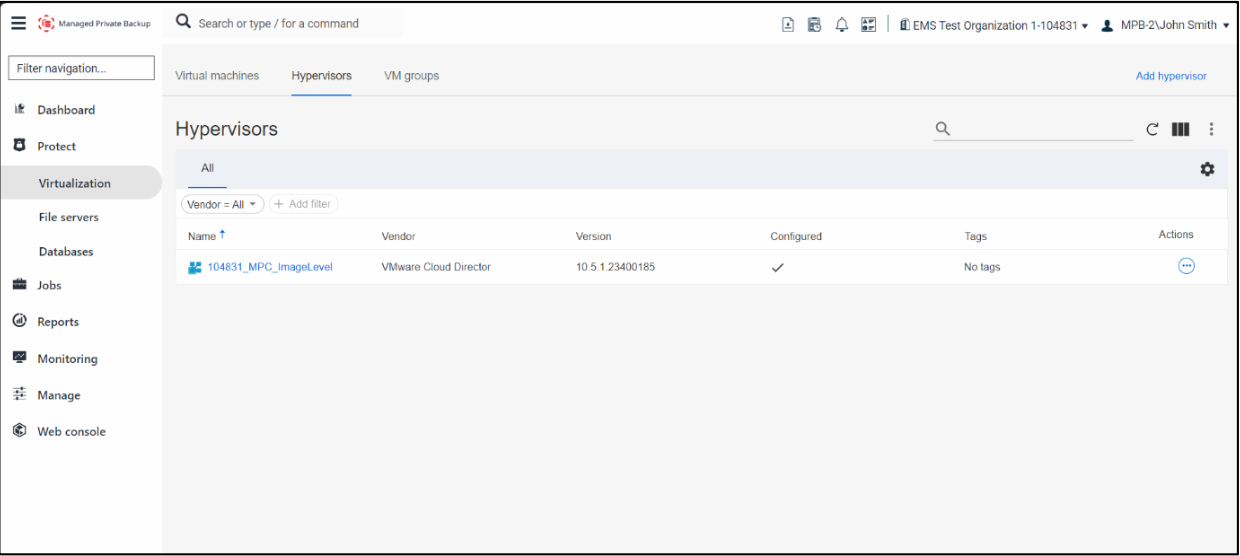
After access is in place, the VM Groups tab displays the available Virtual Machine Groups.
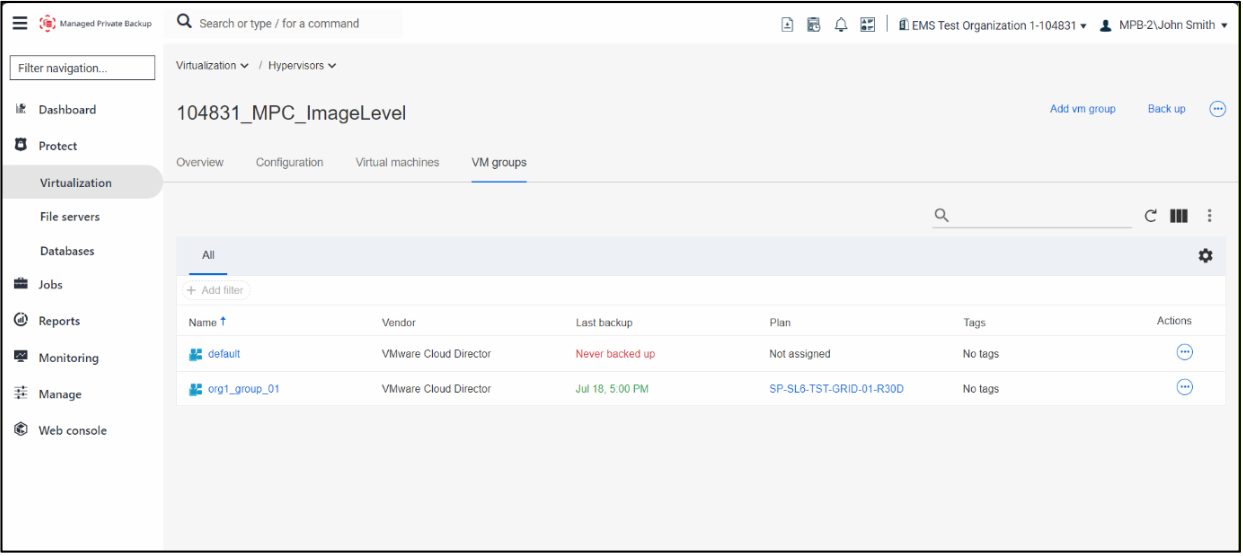
In this example, the org1_group_01 VM group has a specific backup policy applied (30 days of retention without offsite protection). The entry also references the proxy server used for backup operations. The required IP address and FQDN for the proxy server are provided during service fulfillment.
Image‑level protection for colocation environments (VMware)
How to configure image‑level protection for colocation (on‑premises) environments running VMware.
- Install a VSA Commvault (version 11.36).
- Download the .ova from Download Center in MPB Console and deploy in vCenter.
- In vCenter, right‑click the vApp where the VM appliance will be placed, and select Deploy OVF Template.
- Select the OVF template file from the local machine, choose Upload Files, then select Next.
- Specify the VM name and location.
- Select the appropriate compute resource, then choose Next.
- Select the resources for the VSA based on the environment’s backend TB requirements.
- Select the storage to be used. Ensure the policy is configured with thin provisioning.
- Select all networks required for communication with MPB assets and the vCenter Server.
- Configure disk size, IP address for the gateway, and the client name.
- Assign the IP address, netmask, gateway, and DNS settings for the VSA proxy.
- Leave the username field blank. Authentication will use an AuthCode.
- Provide the following during template customization:
- Disk size (reduced as much as possible for the environment)
- Network Gateway Proxy hostname or IP (IP address or FQDN)
- Client name (displayed in the MPB Console)
- IP address, network mask, gateway, and DNS values appropriate for the region
- Root password for the proxy operating system
- Password field left blank to enable AuthCode authentication
- After installation, log in to the proxy server and update the hosts file with the required naming entries. The necessary IP addresses and hostnames are provided during the onboarding session.
Deploy agent‑level backups
When agent‑level backup is required, the agent package must be downloaded and installed on the target file server or database server. The required details for installation are provided during the shadow session. Agent installers are available in the Download Center within the MPB Console.
Add naming entries manually
Before installing the agent, configure the required naming entries on the target server or virtual machine. The specific addresses are provided during onboarding.
- For Windows Operating System, add entry in HOSTS configuration file.
- For GNU/Linux/AIX operating system, add entry in /etc/hosts file.
Package download
After configuring the naming entries, download the required agent packages from the MPB Operational Console. Download only the packages needed for the specific server workload. Installing all packages is not required. For MPC virtual machines, agent installation can also be performed by mounting the installation ISO available in the VCD Content Hub.
Agent installation steps
For Windows‑based systems (File System or MS‑SQL Server agent):
- Run the .exe installer on the target server.
- Extract the package.
- Select the preferred language.
- Review the license agreement and select I agree.
- Select Install packages on this computer.
- Select Advanced selection.
- Choose the required packages:
- File System Core + File System for file system backups
- VSS Provider, VSS Hardware Provider, Virtual Server for VSA Proxy or Hyper‑V backups
- MS‑SQL Server for SQL Server databases
- Choose the installation path (default: C:\Program Files\Commvault\ContentStore). If unsure, use the default settings.
- Review the installation summary and select Next.
- Specify the Client Name (displayed in the MPB Console) and select the network interface (Host Name) for backup traffic.
- Enter the Network Gateway Proxy Address (same address configured during earlier steps).
- When installation begins, enter the AuthCode provided during onboarding to complete agent configuration.
- (Optional) Select a protection plan for the server or virtual machine.
For GNU/Linux/AIX systems:
- Extract the .tar file.
- In the extracted directory, run ./cvpkgadd
- Select Install packages on this machine.
- Select Advanced Selection.
- Choose the required packages:
- File System Core + File System for file system backups
- Virtual Server for VSA Proxy
- Oracle, MySQL, DB2, PostgreSQL for database backups
- Select No for Install agents for restore only.
- Select the installation path (default: /opt).
- Select the log directory (default: /var/log).
- Select No when prompted about laptop or desktop backup software.
- Create or assign a UNIX group if required (recommended for database agents).
- Enter the IP address of the server where the agent is being installed.
- Specify the Client Display Name (as it will appear in the MPB Console). DB2 agents require additional steps.
- Review the installation summary.
- Enter the MPB Network Gateway address provided during onboarding. Leave CommServe will connect to this computer to finish registration unchecked.
- Leave the HTTP proxy option set to No.
- Enter the AuthCode provided during onboarding. Leave username and password fields blank.
MySQL Agent Installation
After installing the MySQL agent, open the MPB Console and navigate to: Protect → Databases. If needed, select the database entry. In the Overview tab, select the pencil icon and change the Binary Directory, Log Directory, and Configuration File.
IBM DB2 Agent Installation
-
Clustered DB2:
- If DB2 is configured in clustered mode, select Yes for using shared directories for Archive, Retrieve, and Audit error paths.
- Then set the DB2 Input Path.
-
Standalone DB2:
- If DB2 is configured in standalone mode, select No for using shared directories for Archive, Retrieve, and Audit error paths.
- Set the DB2 Archive, Audit Error, and Retrieve directories.
-
After installation, go to: MPB Console → Protect → Databases.
-
Select the instance. In the Overview tab, select the pencil icon to include:
- The user administrator on the server to execute the backup of the database. This DB2 user must have the following permissions: SYSADM, SYSCTRL, or SYSMAINT, and DBADM.
- The plan for the backup execution.
- Information about the DB Home.
-
In the Databases tab, configure the database that will be backed up.
-
Configure the subclient for backup execution. At this point, select the backup type. To do this, edit the Content section.
-
If needed, an offline backup of the database can be configured.
-
If an online backup is needed, configure the behavior for database archives. Before starting an online backup, complete the following steps on the DB2 server:
- Run the script on the server using a DB2 user of the instance.
- This user must be included in the UNIX group for the Commvault installation.
- The script will change the database configuration on: LOGARCHMETH1, LOGARCHOPT1, VENDOROPT
- At this point, an online backup can be executed. Before that, an offline backup of the database must be performed.
PostgreSQL server installation
After installing the PostgreSQL agent, go to: MPB Console → Protect → Databases → Instances tab.
- In the Instance Overview, select the following:
- Server plan
- In Connection details: Database user, Database password, UNIX username, Maintenance database, Port (If the default values are correct, they can remain unchanged.)
- The plan for the backup execution
- Information about the DB Home
- In PostgreSQL paths, include Binary directory, Library directory, and Archive log directory.
- In the Backup Sets tab, configure whether the backup will be a DumpBasedBackupSet, or FSBasedBackupSet.
- For FSBasedBackupSet, verify that the archive directory is correctly configured and that archiving is working.
- Select the chosen backup type, then go to Database Groups and select the desired group.
- Edit the plan then select Backup.
- If the PostgreSQL pg_hba.conf is set to peer, it may be necessary to adjust the PostgreSQL authentication method.
- peer: trusts the identity of the UNIX user
- md5: requires a password and validates it after MD5 hashing
- trust: does not ask for a password and accepts any connection
The database backup is now configured and can be restored.
Add paths to the agent backup policy
-
In the MPB Console, go to: Protect → File Servers. Select the desired file server.
-
Go to the Subclients tab and either select the default subclient or add a new subclient.
- Subclients are used to organize backup folder and file groups (for example: C:, D:, Managers, Analysts).
- At least one subclient is required. The default subclient can be renamed if needed.
-
Edit the Plan according to the desired retention and location settings, then edit the Content.
-
Select ADD to browse for files, choose a content library, or manually enter the paths. Exclusions can also be configured. Select Save.
Include targets in the VM backup policy
To include virtual machines in image‑level backups, go to Virtualization in the MPB Console, select the Hypervisor tab, and choose the desired hypervisor (MPC, VMware, or Hyper‑V).
Virtual machines can be selected for protection using the available navigation options.
Use Add Rule to configure a rule that automatically includes virtual machines in the MPC environment. Use Content to manually specify which virtual machines should be protected.
Backup job status
To check the execution of backup jobs, go to the Jobs section and select Job history. If multiple jobs are listed, select the Failed in last 24 hours tab for a direct view of any recent failures.
Troubleshoot failed backup jobs
If a job has failed, the cause can be reviewed by opening the job log in the Actions column. If the backup job has been failing due to an Equinix platform issue, a ticket can be raised at any time. In Job details, an overview of all processes is available, including which targets were protected and the specific attempts made by MPB to protect the workload.
Check protected data for a server or instance
To check how much front‑end data has been protected by MPB for a specific server or virtual machine, view the Application Size column on the relevant page. To follow up on overall product usage, submit a request ticket.
Run a backup on demand
To start a manual backup job, locate the server or virtual machine in the Protect tab. Select the server name, then select Backup in the upper‑right corner. Select the appropriate backup type and submit the request.
Run a restore on demand
On the page where the backup was initiated, the latest recovery points available for restore are listed.
- Select the date. The available restore points for that date will be displayed. Select Restore to begin the procedure. A choice will be presented to recover specific files or to recover the full virtual machine.
- If Guest files is selected, a list of files is presented. Select the desired destination for the file and select Submit.
- If a full virtual machine restore is selected, choose whether to overwrite the virtual machine or restore it as a new virtual machine.
- Restore Guest Files does not always work within the Commvault environment. If it fails, select an alternative restore method. The connectivity layer and an agent must be installed on the destination server to complete restores.
- Guest files limitations: If the goal is to restore guest files, it is recommended to use a File System Agent because its restore process is faster and has fewer limitations. Guest file restores have a list of limitations, and because this is a shared environment, not all requirements can be guaranteed for all customers.
Limitations for file‑level restores
- The Image Level on Unix iDataAgent can perform a file‑level restore only when the operating systems and their versions on the client computer and the MediaAgent are the same. If they are different, the restore job enters a pending state with an error message instructing the user to check the log files.
- For a Windows MediaAgent, the Index Cache folder must reside on an NTFS partition.
- If metadata was not collected during backup, a file‑level restore cannot be performed. This may occur if Skip Metafile Creation was selected or if metadata collection failed during backup.
- Do not restore:
- hidden objects
- system files
- recycler files
- Image Browse is not supported. A no‑image browse operation returns the most recent version of the data available up to the last full backup, rather than returning an image of the specified entity. To perform a file‑level restore of an entity at a point in time, browse back to the specific point in time before restoring.
- If the cluster size (allocation unit) on the disk that was backed up is less than 1024 bytes, the file‑level restore will not complete successfully.
Full virtual machine restore
- Select Full virtual machine.
- Choose whether the restore will be In place (same location and name) or Out of place (destination information required).
- Select the new name (optional), the destination host, and the datastore.
- Select the restore options.
- Review the configuration and submit.
Service Description
MPB Flex
Managed Private Backup (MPB) currently has one service variant. The Flex service variant provides access to a standard platform managed by Equinix, with daily backup jobs executed at pre-scheduled times (outside business hours). All features listed below are included in this option:
- Access to the Operational Console.
- Self-service features for resource allocation, assigning backup policies, and executing on-demand backups and restores.
- Protection for physical servers and virtual machines.
- Protection for databases.
- Access to the MPB product page, including online documentation.
- Backup platform managed by Equinix.
Protected Resources
Protected Resources are measured by:
- Volume (when protecting file system, database, and image-level targets), measured in front-end terabytes.
- Retention period.
- Onsite versus Offsite protection.
Retention and offsite protection option combinations
Multiple combinations of retention and offsite protection options are available for each protected resource. Once ordered, the policy is available for use in the Operational Console.
Retention options define how long backup data is stored at the source IBX. Offsite options define how long backup data is stored at an alternative IBX.
The following combinations are available for Flex:
| Local Retention | Offsite Protection | Job Details |
|---|---|---|
| 30 days | Without | One backup per day (first one is full, then incremental for six days) |
| 30 days | 30 days | One backup per day (first one is full, then incremental for six days) |
| 30 days | 1 year | One backup per day (first one is full, then incremental for six days) |
| 30 days | 3 years | One backup per day (first one is full, then incremental for six days) |
| 30 days | 5 years | One backup per day (first one is full, then incremental for six days) |
| 30 days | 7 years | One backup per day (first one is full, then incremental for six days) |
| 1 year | Without | All backups of the current month + last full backup from the past 12 months |
| 1 year | 1 year | All backups of the current month + last full backup from the past 12 months |
| 3 years | Without | All backups of the current month + last full backup from the past 12 months + last full backup from the past 3 years |
| 3 years | 3 years | All backups of the current month + last full backup from the past 12 months + last full backup from the past 3 years |
| 5 years | Without | All backups of the current month + last full backup from the past 12 months + last full backup from the past 5 years |
| 5 years | 5 years | All backups of the current month + last full backup from the past 12 months + last full backup from the past 5 years |
| 7 years | Without | All backups of the current month + last full backup from the past 12 months + last full backup from the past 7 years |
| 7 years | 7 years | All backups of the current month + last full backup from the past 12 months + last full backup from the past 7 years |
| 10 years | Without | All backups of the current month + last full backup from the past 12 months + last full backup from the past 10 years |
| 10 years | 10 years | All backups of the current month + last full backup from the past 12 months + last full backup from the past 10 years |
Database Log Files
This service includes transaction log backups performed every four hours, enabling a Recovery Point Objective (RPO) of up to four hours.
API Access
This service provides API access to the Commvault Command Center, which enables users to create new users via REST API requests. Available API commands include tasks related to Alert Management, Report Management and Install/Upgrade packages.
Service Demarcation and Enabling Services
With MPB, Equinix offers Backup as a Service where Equinix provides and manages a platform (Operational Console, backup servers, and storage components). Equinix provides licensing and support for the MPB platform. Equinix is not responsible for any client software or Internet connectivity to either manage or use the Service.
MPB is set with the default backup job scheduling to run on the IBX time zone. So, if MPB is ordered in two different IBXs located in different time zones, each job's start time will differ.
The customer is responsible for defining which data should be protected by each backup policy and for installing the backup agents, discovering instances, and assigning backup policies to them. The customer is also responsible for identifying and correcting failed backup jobs, except when an MPB service/component unavailability causes the failure. The compute and network resources to allow backups to run are the responsibility of the customer. As a guide, instances should have at least 10% of free processing time and memory capacity plus 1 GB of free disk space to allow regular backup operation during backup window.
Additional information on service demarcations can be found in the Roles and Responsibilities and in the Product Policies.
Limitations
MPB is available only in combination with Managed Private Cloud and for customer workloads in an Equinix IBX. It functions as the protection component of this solution.
MPB provides immutability protection by default in the offsite protection location. If offsite protection is not ordered, immutability protection is not included.
The baseline volume may be exceeded by up to 25 percent and will incur overage charges (for example, 10 TB ordered as baseline and 12.5 TB in use). After this limit is reached, the service may be disrupted until the baseline volume is increased through a service order change.
Data can only be protected at the IBX location where the Managed Private Backup service is ordered.
Supported Agents
MPB supports the following operating systems, databases, and virtualization technologies. Support is limited to current and previous versions that are still supported by the original vendors as part of their standard lifecycle. Extended support versions are not included.
Operating Systems
| Vendor | Name |
|---|---|
| Microsoft | Windows Server |
| RedHat | Enterprise Linux |
| Suse | Linux Enterprise Server |
| Ubuntu | Server |
| Debian | Stable |
| CentOS | Stream |
Hypervisors
| Vendor | Name |
|---|---|
| VMware | vSphere |
| VMware | vCloud Director |
| Microsoft | Hyper-V |
| Nutanix | Acropolis |
Additional Agents
| Vendor | Name |
|---|---|
| Microsoft | SQL Server |
| MySQL | Database |
| Oracle | Database |
| Microsoft | Active Directory |
| Open Source | Kubernetes |
| SAP | SAP Oracle |
| PGDG (Open Source) | PostgreSQL |
| IBM | DB2 |
When vendors release new versions, support by the backup technology vendor and the MPB service may be delayed. Due to technology limitations in virtualized environments, MPB cannot protect instances with a vHBA device using image-level backup. Only agent-level backups are supported.
Purchase Units
The MPB Service is charged based on Baseline values or Baseline with Overage charge types.
Charge types
- Baseline — The specific volume of the service unit of measure as defined in the order.
- Overage — The quantity of the service consumed that exceeds the contracted Baseline volume.
When ordering the MPB service, choose the variant that best suits the requirements. MPB is billed per frontend terabyte protected. This configuration will allow protection up to baseline ordered. If the frontend data grows above the committed amount, the backup will not be disrupted. Instead, an overage charge will be generated based on the overage price defined on the quote.
These are the Units of Measure (UoM) for each variant available and the applicable fees:
| Protected Resource | UoM | Installation Fee | NRC | MRC | Overage |
|---|---|---|---|---|---|
| Volume | TB | No | No | Yes | Yes |
Calculation of Overage values
When the frontend TB protection ordered is exceeded, an overage charge will be generated based on the overage price defined on the quote. For example, the customer ordered 100 TB of frontend data protection. Here is a measure of how much data is protected on a daily basis (measured by the biggest backup size of each day in the month). In this case, the subscribed limit between days 4 and 5 was exceeded, and after these two days, data was probably deleted by the customer to reduce the backup image size.
| Day of the month | 1 | 2 | 3 | 4 | 5 | 6 | … | 29 | 30 |
|---|---|---|---|---|---|---|---|---|---|
| Usage | 70 TB | 75 TB | 85 TB | 105 TB | 110 TB | 90 TB | … | 98 TB | 98 TB |
During the period (month), the biggest full backup size was 110 TB, and since there is a baseline ordered of 100 TB, billing will generate a 10 TB overage charge for this period.
Roles and Responsibilities
Onboarding
Once the MPB order arrives for the Equinix fulfilment team, some tasks will be executed.
| Activities | Equinix | Customer |
|---|---|---|
| Schedule / execute project kickoff meeting | RA | CI |
| Schedule / execute customer onboarding | RA | CI |
| Buy/Setup connectivity solution between MPB and customer protection targets | CI | RA |
| Check for connectivity requirements between MPB and protection targets | RA | CI |
| Customer tenant enablement on MPB infrastructure | RA | I |
| Make backup policies ordered available to customer | RA | I |
| Guide customer on shadow session in how to deploy backup agents | RA | CI |
| Insert environment credentials to allow backup agent deployment | - | RA |
Acceptance Into Service
Once onboarding activities have been finished, testing activities will confirm if the product was delivered successfully and it is ready to be billed.
| Activities | Equinix | Customer |
|---|---|---|
| Test access to MPB Product page on Managed Solutions Portal | CI | RA |
| Test access to MPB documentation on docs.equinix.com | CI | RA |
| Test access to MPB Operational Console | CI | RA |
| Test one backup job finish for each protection target | RA | CI |
| Confirm MPB fulfillment based on preview evidence | CI | RA |
| Set product as enabled for customer on internal systems | RA | I |
Operational
Once the MPB service is enabled to customers, some operational items will be addressed.
| Activities | Equinix | Customer |
|---|---|---|
| Install backup agents and keep protections targets mapped | RA | |
| Start and manage any restore activity | RA | |
| Check and troubleshoot backup/restore jobs failing | CI | RA |
| Meet product availability SLA | RA | I |
| Troubleshoot MPB platform issues | RA | I |
| MPB infrastructure monitoring and maintenance | RA | I |
Service Requests
Service Requests are used to report service issues or to request assistance with implementation or configuration changes. Customers can raise a Service Request for configuration changes that cannot be implemented through self-service in the Operational Console, or if they require assistance with implementation of changes via the Operational Console. Round-the-clock support for the MPB Service is available, including these two types of service requests:
- Included - Service requests that are within the scope of the service, with no additional charges.
- Additional - Service requests that are outside the scope of the service, with additional charges.
Guidance is available for all service requests that can be completed through self-service, including procedural instructions and oversight of the customer’s task execution.
| Type of Change | Self-service | Type |
|---|---|---|
| Investigate and resolve issue | No | Included |
| Ask information about the product | No | Included |
| Guided Assistance – To install backup agents | Yes | Additional |
| Guided Assistance – Manual backup operation | Yes | Additional |
| Guided Assistance – To restore protected data | Yes | Additional |
Customers can select changes which are not listed in the table above by selecting Change at the service request module in the Managed Solutions Portal. Equinix will perform an impact analysis to determine whether the change can be implemented, to determine associated costs and lead time.
Any charges related to Service Requests will be deducted from the Premier Support Plan Balance, or in case of insufficient balance invoiced in arrears based on the prevailing rate.
Changes in the baseline capacity, amount ordered or any other change that will have an impact on the monthly service fee can be requested via the Sales team.
Reporting
Functional Reporting
The MPB Operational Console provides information regarding the service delivery.
- Dashboard - Overall information about the backup health
- Protection targets - Items that can be configured to be protected (virtualization platforms, databases, file servers, etc.)
- Jobs - Backup and restore listing, execution history and scheduling
- Reports - Detailed information about product configuration
SLA Reporting
Customers may ask for SLA reporting via Service Request at any time without incurring additional charges.
Service Levels
The Service Level Agreement (SLA) defines the measurable performance levels applicable to the MPB service and specifies the remedies available to the customer if Equinix fails to meet these levels. The service credits listed below are the sole and exclusive remedy for failure to meet the service level thresholds defined in this section.
| Priority | Response Time¹ | Resolution Time² | Execution of Work | SLA³ |
|---|---|---|---|---|
| P1 | < 30 min | < 4 hours | 24x7 | 95% |
| P2 | < 60 min | < 24 hours | 24x7 | 95% |
| P3 | < 120 min | < 5 days | 24x7 | 95% |
¹ Response time is measured from the moment a trouble ticket is submitted until an Equinix Managed Solutions specialist provides a formal response.
² Resolution time is measured from ticket creation to closure, cancellation, or handover to IBX Support.
³ SLA applies to the response time, details on the SLA can be found in the Product Policy.
The Availability Level of the MPB service SLA is as follows:
| Service Option | Availability |
|---|---|
| Managed Private Backup – Flex | 99.95% |