レポートセンター
カスタマーポータルのレポートセンターでは、IBXデータセンターの展開に関する運用上の洞察を提供します。このレポートは、コンプライアンス要件、社内プロセスのレビュー、導入環境の稼働率の最適化に役立ちます。
レポートは以下の情報を提供します:
- 電源管理と冗長性
- セキュリティ監査、アクセスログ、セキュリティ許可
- コロケーション、Cross Connect、パワーデプロイメント
- Smart Handsの使い方、予算と計画のために
- トラブルシューティングとインシデント調査
レポートはMicrosoft Excel(.xlsx)形式またはカンマ区切り値(.csv)形式で作成されます。
利用可能なレポートは、権限によって決まります。
レポート頻度
ほとんどのレポートは、必要に応じて生成することも、定期的にスケジュールすることもできます:
- ワンタイム
- 週次
- 月次
- 四半期ごと
- 年1回
レポートタイプ
セルフサービスレポート
これらは、カスタマーポータルでオンデマンド注文できるセルフサービスレポートです:
| 名前 | 説明 | 単位 | 期間 | 必要な許可 |
|---|---|---|---|---|
| IBX、ネットワーク、マネージドサービス関連の通知レポート | 期間中のすべてのメンテナンス通知を表示します。 | ケージ | 7d、14d、30d、3m、6m、1年 | IBXサービス関連の通知 |
| IBX訪問ログ | IBXでセキュリティを使ってサインインした訪問者のリストを表示します。 | 組織 | 1d、7d、14d、30d、90d、180d、1年、カスタムレンジ | ユーザー管理権限を持つ管理者ロール |
| インストールベースレポート | インストールベース(ケージ、キャビネット、電源、Cross Connects、など)。詳細については、「インストールベース/アセットを表示する」を参照してください。 | 組織 | 1d、7d、14d、30d、3m、6m、1yr、すべて | インストールベース |
| 使用中ポートレポート | パッチパネル別のポート使用率を示します。 | パッチパネル | スナップショット | 発注:Cross Connectおよび構内配線 |
| オーダー通知レポート | 期間中のすべてのメンテナンス通知を表示します。 | 組織 | 1d、7d、14d、30d、3m、6m、1yr | N/A (データセンター) |
| オーダーレポート | 一定期間内に発注されたすべての注文を表示します。 | 組織 | 1d、7d、14d、30d、3m、6m、1yr | N/A (データセンター) |
| Smart Hands料金労務レポート | 選択した期間に請求された Smart Hands の料金の詳細を表示します。 | 組織 / IBX | 1d、7d、14d、30d、3m、6m、1yr | 発注:Smart Hands |
| ユーザー監査レポート | アクセスリストの変更(監査証跡など)のリストを表示します。 | 組織 | 1d、7d、14d、30d、3m、6m、1yr | ユーザー管理権限を持つ管理者ロール |
| ユーザー詳細レポート | アカウント権限、ポータルアクセス、IBXアクセス、通知連絡先、アクティブサイト訪問者、およびイーサネットポータルアクセスを持つ連絡先のリストを表示します。 | 組織 | スナップショット | ユーザー管理権限を持つ管理者ロール |
| 消費電力レポート | 選択された資産(ケージ、キャビネット、または回路)の指定された期間の消費電力を表示します。 | ケージ/キャビネット/サーキット | 1d、30d、1m、1qtr、1yr、カスタムレンジ | 消費電力レポート権限 |
課金レポート
これらのレポートはカスタマーポータルで注文することもできますが、IBXでデータを収集するためにSmart Handsの技術者が必要となるため、有料となります:
| 名前 | 説明 | 単位 | 期間 | 必要な許可 |
|---|---|---|---|---|
| 消費電力レポート - 非BCM | BCMがカバーしない機器のケージ毎の電力消費を表示します。各回路の手動電力測定値を示します。Equinixの技術者がケージまたはキャビネットに行き、アンペア数をアンペアクランプで測定します。ACおよびDC、プライマリおよび冗長に適用されます。 | 20 回路 | スナップショット | 発注:Smart Hands |
| IBXアクセスアクティビティレポート | ケージに誰がアクセスしたか、およびいつ(EOCによって提供されるセキュリティ)を表示します。**注:**このレポートは、以前はケージアクセスログと呼ばれていました。料金は0.5 Smart Hands時間です。 | ケージ | 1d、7d、14d、30d、90d、180d、1年、カスタムレンジ | 発注:Smart Hands |
| IBXアクセス権限レポート | 顧客スペースにアクセスする権限を持つ連絡先のリストを表示します(アクセスカードの有無にかかわらず)。**注:**このレポートは、以前はアクセス登録レポートと呼ばれていました。料金は0.5 Smart Hands時間です。 | ケージ | 1d、7d、14d、30d、90d、180d、1年、カスタムレンジ | 発注:Smart Hands |
割引料金をご希望の場合は、Smart Handsサポートプランをご購入ください。
サービス提供レポート
ワンタイムまたは定期_サービス提供_レポートをオーダーするには、CSMまたはグローバルサービスデスク(GSD)にお問い合わせください。
サービスデリバリレポートの新規リクエストには、以下の料金がかかります。
| レポートタイプ | 説明 | 料金 |
|---|---|---|
| サービスデリバリレポート - SLA | 温度、湿度、Cross Connectの可用性、消費電力の詳細など、サイトレベルの詳細を提供します。 | Smart Hands1時間/ケージ |
| サービスデリバリーレポート - ISS(IBXサービス概要) | インシデントレポート、ケージアクセス、アクセス登録、計画的予防保守など、IBXの詳細を提供します。 | Smart Hands2時間/ケージ |
| サービスデリバリレポート - カスタマイズ | トラブルチケット、環境レポート、ポータルレポート、財務データ、PUE測定値、ビジネスまたはサービスレビューレポートなど、お客様のご要望に応じたカスタム詳細をプロバイダに提供します。 | Smart Hands2時間/ケージ |
割引料金をご希望の場合は、Smart Handsサポートプランをご購入ください。
レポートのリクエスト
カスタマーポータルでレポートをオーダーするには:
-
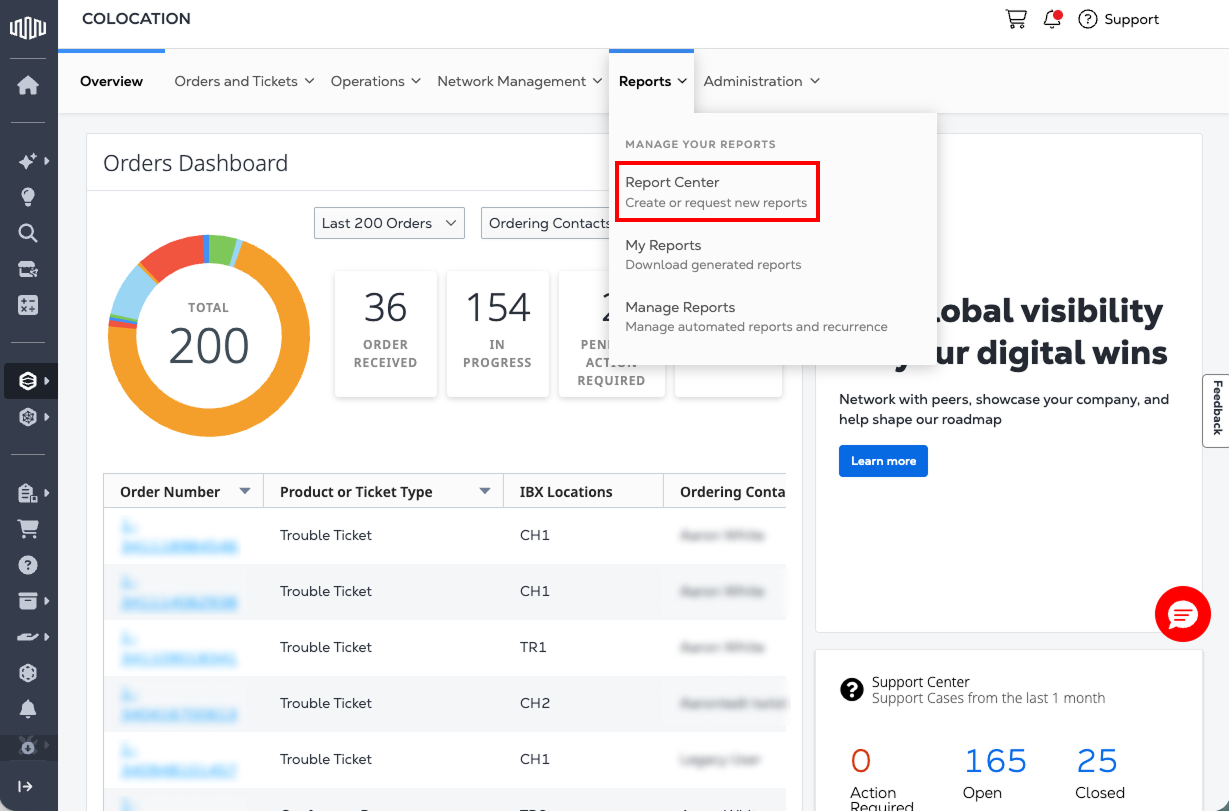
_[レポート]_メニューから[レポートセンター]を選択します。
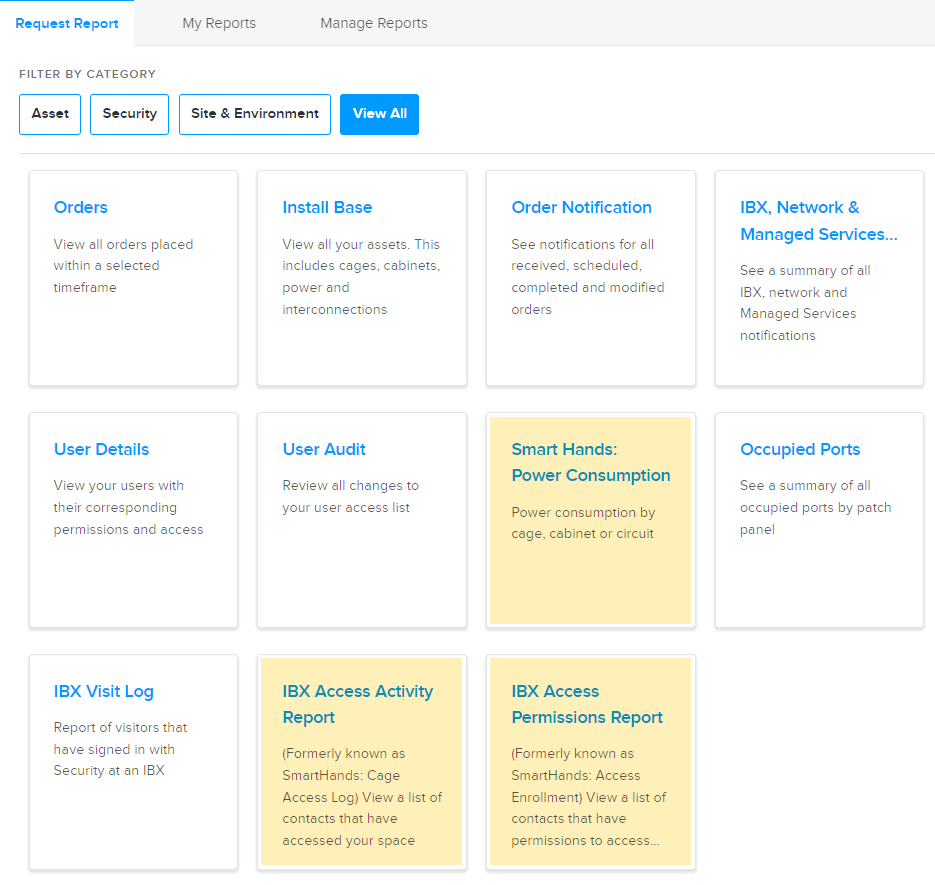
_[レポートのリクエスト]_タブには、使用可能なレポートが一覧表示されます。
 メモ
メモ黄色でハイライトされたレポートは、IBXデータセンターのSmart Hands技術者が必要なため、有料です。Smart Handsの詳細をご覧ください。
-
レポートのリストを絞り込むには、[_カテゴリで絞り込み]_オプションを使用します。
-
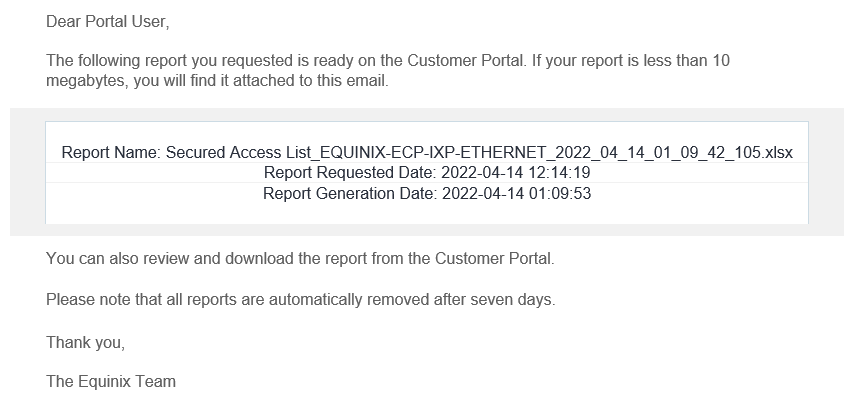
レポートを選択し、必要なフィールドに入力して、[レポートの生成]を選択します。レポートの準備が整うと、メール通知が届きます。例:
レポートの閲覧ダウンロード
レポートの準備が整うと、メール通知が届きます。レポートが小さい場合は、通知メールにレポートファイルが添付されている可能性があり、メールから直接表示またはダウンロードできます。レポートがメールに添付されていない場合は、カスタマーポータルから取得できます。
セルフサービスレポート
セルフサービスレポートをダウンロードまたは削除するには:
-
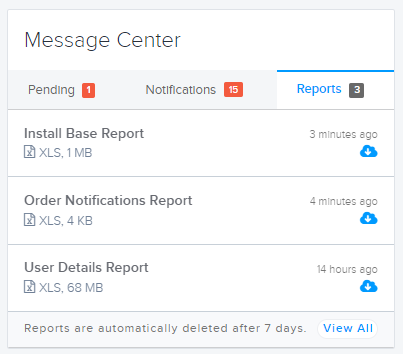
レポートは、_オーダー_ダッシュボードの_メッセージセンターで_確認できます。
-
または、_[レポート]_メニューから[マイレポート]を選択します。
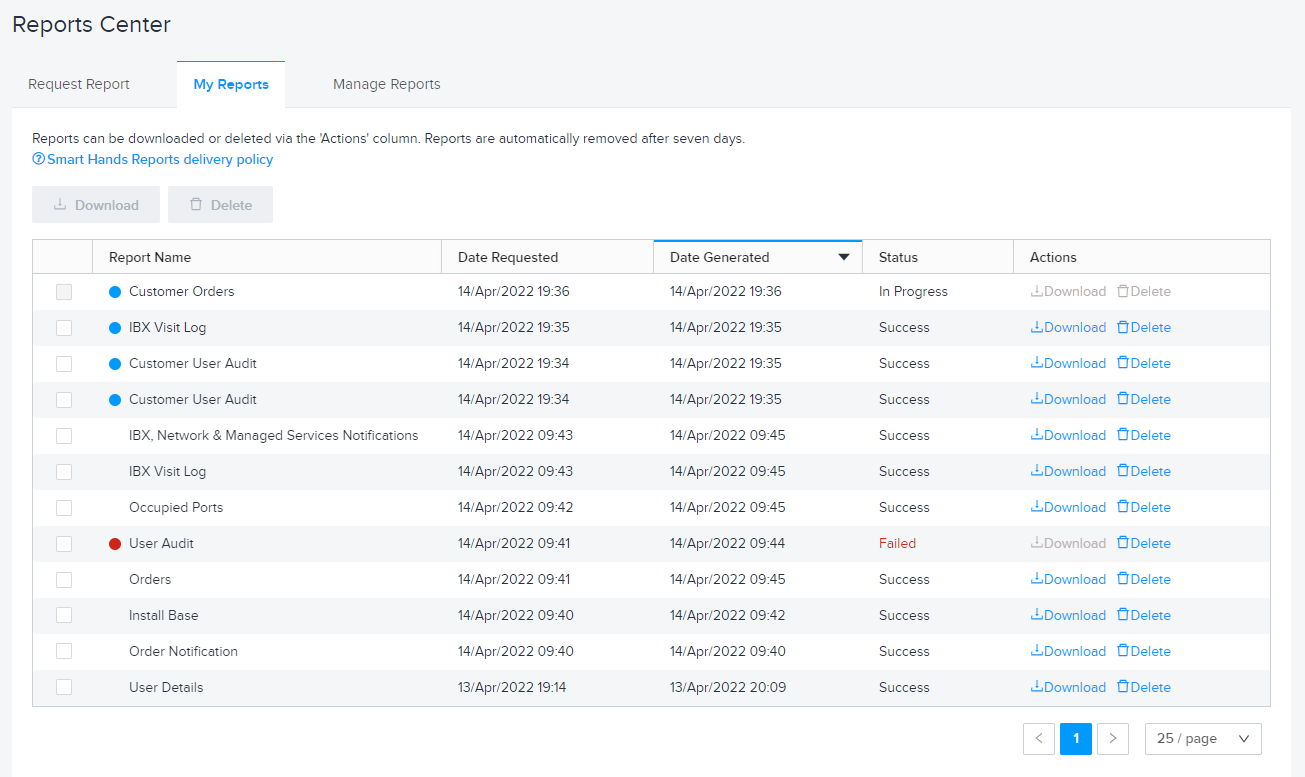
- 青い点は新しく生成されたレポートを示します。
- 赤い点は、レポートが正常に実行されなかったことを示します。もう一度レポートをリクエストしてみてください。
リストされている各レポートについて、デバイスにダウンロードするか、削除できます。最初の列のチェックボックスを使用すると、複数のレポートを一度にダウンロードまたは削除できます。
すべてのセルフサービスレポートは、7日後にポータルから自動的に削除されます。
課金対象レポート
Smart Handsのレポートをダウンロードする
-
[_オーダーとチケット]_メニューから、[オーダーとチケット履歴]を選択します。
-
レポートの_Smart Hands_オーダーを見つけて選択します。
チップオーダーの検索方法については、「オーダーとチケット履歴」を参照してください。
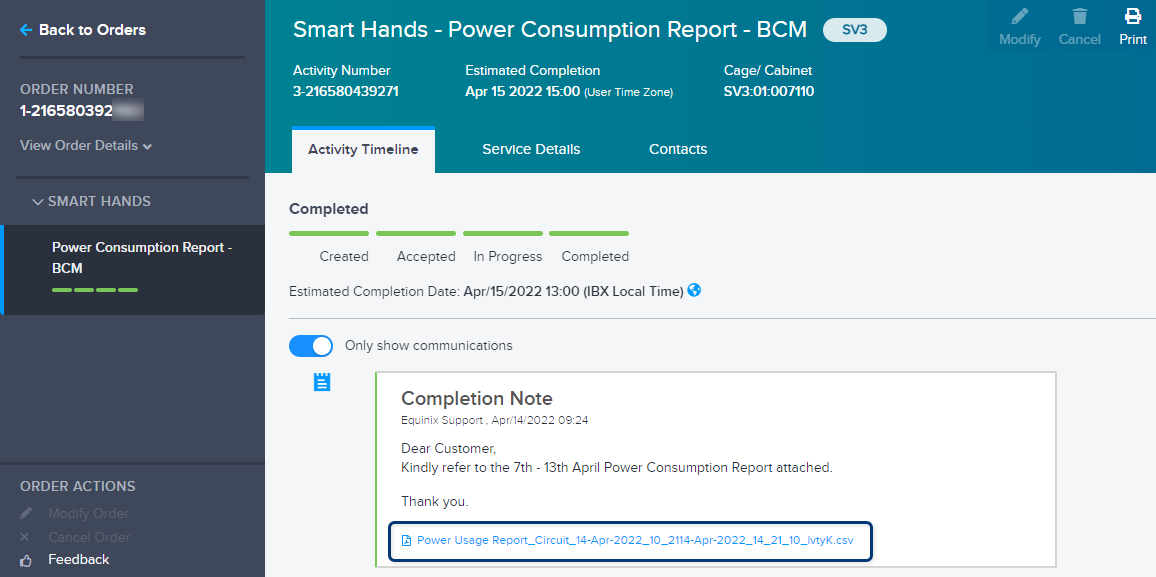
生成されたレポートは、_アクティビティタイムラインに_添付ファイルとして表示されます。
-
ファイルをクリックしてダウンロードしてください。
定期レポートの設定変更
レポートがスケジュールで自動的に実行されるように構成した場合、いつでも設定を変更することができます。
セルフサービスレポート
-
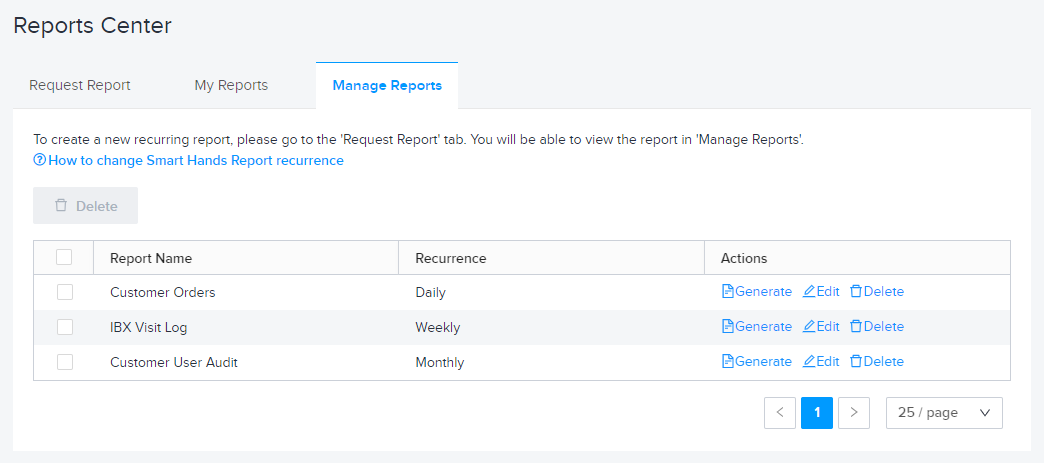
_[レポート]_メニューから[レポートの管理]を選択します。
-
各レポートには、以下のオプションがあります:
- 今すぐレポートを作成
- レポート設定を編集します。
- レポートを削除します(今後のすべての実行がキャンセルされます)。
重要複数の受信者に送信されるレポートでは、レポートの再帰を変更または削除すると、すべての受信者に影響します。
課金対象レポート
定期レポート(毎月実行される消費電力レポートなど)のオーダーを送信すると、レポート用の新しいSmart Handsオーダーが毎月自動的に発行されます。定期設定を変更またはキャンセルする必要がある場合は、グローバルサービスデスク(GSD)にお問い合わせください。
定期的な課金レポートは、レポート配信の各インスタンスごとに請求されます。たとえば、レポートが週次実行に設定されている場合、レポートに対して毎週課金されます。
レポート名の変更
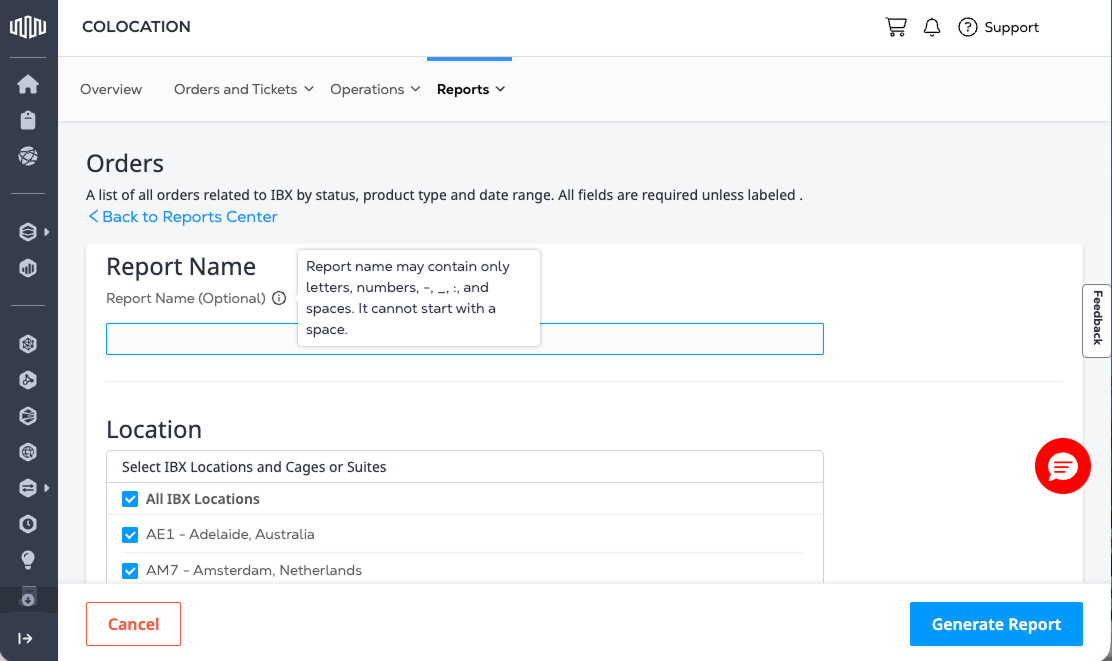
レポートセンター_でカスタムレポート名を指定するには、任意のレポートページに移動します(Smart Viewを除く:消費電力レポート、Smart View:環境レポート、および_Smart Hands:消費電力):
-
_[レポート名]_フィールドにレポートの名前を入力します。
-
名前には以下のみを含める必要があります:
- 文字(A~Z、a~z)
- 数字(0~9)
- アンダースコア(_)
- ハイフン(-)