IPブロックの管理
IPブロックを発注またはオンボードすると、_IP_ブロック_インベントリ_から表示および管理できます。
前提条件
- IPブロックおよびIPブロックインベントリを表示するには
Fabric Viewer、、Fabric Connection Manager、、Fabric ManagerまたはのFabric Service Provider役割が必要です。 - IPブロックの管理には
Fabric Connection Manager、、Fabric Manager、またはのFabric Service Provider役割が必要です。
- Portal
- API
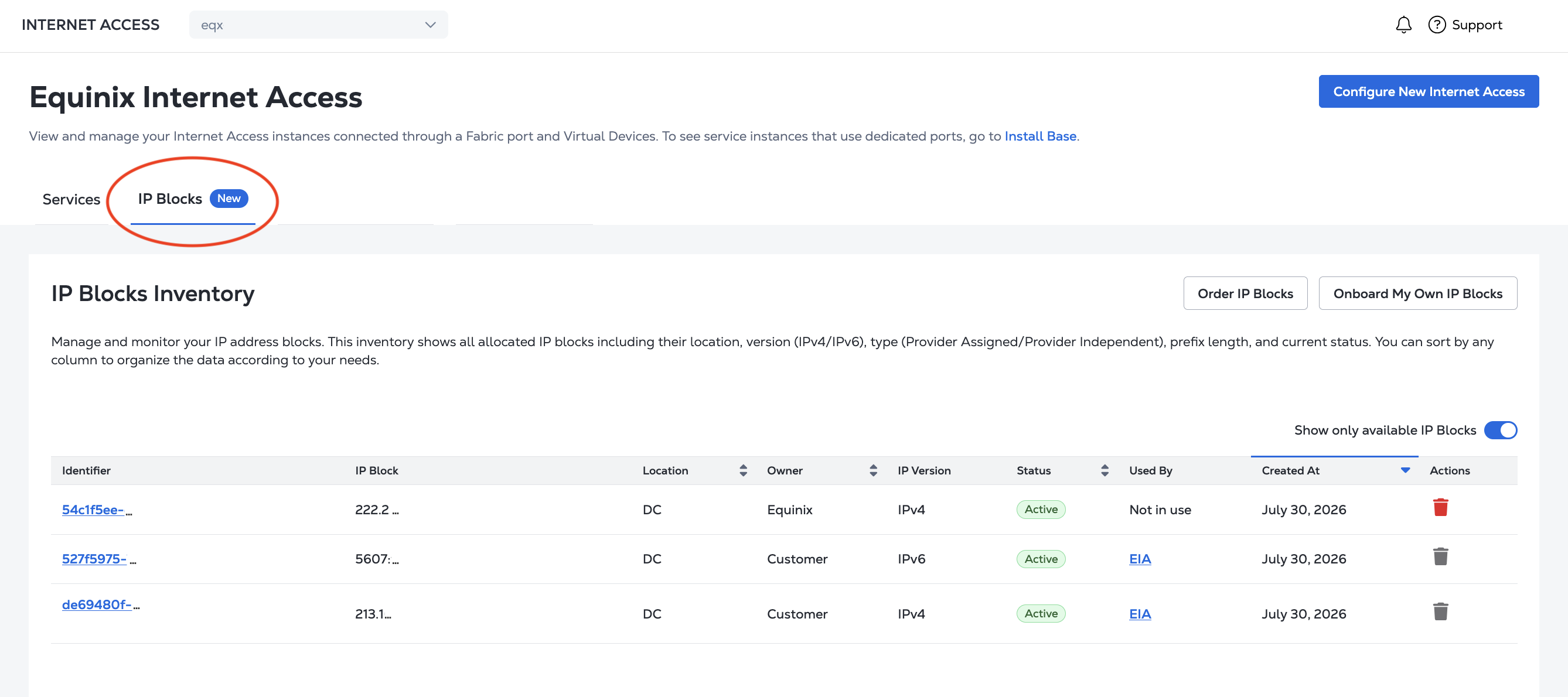
IPブロックインベントリ
- Portal
- API
このテーブルには、IPブロックの場所、バージョン(IPv4/IPv6)、所有者Equinix (IPv4/customer)、プレフィックス長、現在のステータスなど、すべてのIPブロックが表示されます。
列名をクリックすると、その列でソートされます。[使用可能なIPブロックのみを表示]をクリックして、テーブルをフィルターします。
IPブロックの詳細を表示するには、[_識別子]_列でそのUUIDをクリックします。
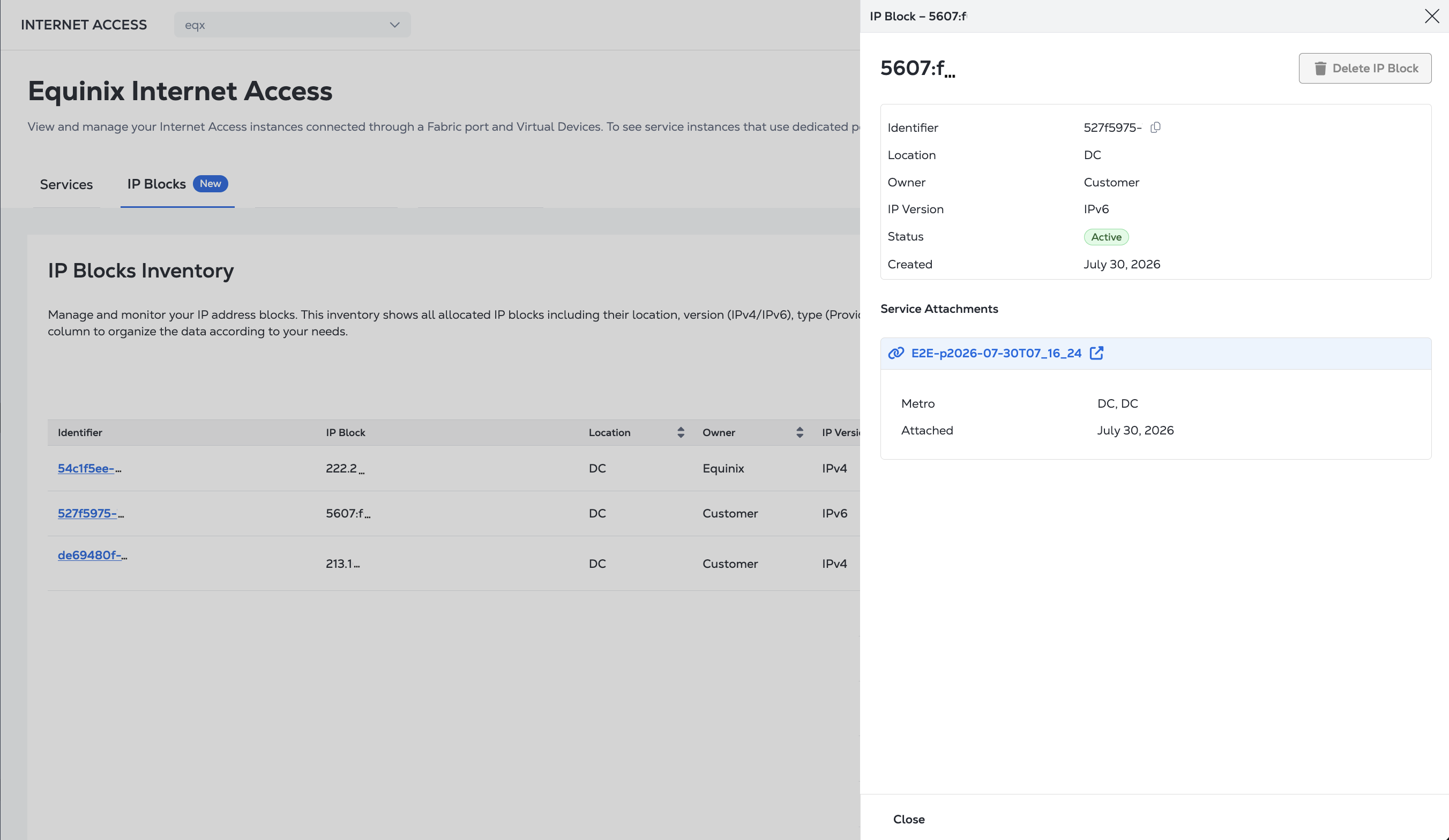
APIからIPブロックを検索して一覧表示するには、エンドポイントにリクエストを/fabric/v4/ipBlocks/search送信します。POSTリクエストの本文で検索条件を指定します。
curl -X POST 'https://api.equinix.com/fabric/v4/ipBlocks' \
-H 'content-type: application/json' \
-H 'authorization: Bearer <token>' \
-d '{
  "pagination": {
    "offset": 0,
    "limit": 20
  },
  "filter": {
    "and": [
      {
        "property": "string",
        "operator": "=",
        "values": [
        "string"
        ]
      }
    ]
  },
  "sort": [
    {
      "direction": "ASC",
      "property": "string"
    }
  ]
}'
IPブロックの詳細を取得するには、エンドポイントにリクエストを/fabric/v4/ipBlocks/{uuid}送信し、GETリクエストのパスにIPブロックのUUIDを指定します。
curl -X GET 'https://api.equinix.com/fabric/v4/ipBlocks/{uuid}' \
-H 'authorization: Bearer <token>'
IPブロックの使用
IPブロックを使用するには、使用しているサービスのドキュメントを参照してください。IPブロックの使用は以下によってサポートされています。
- インターネットアクセス-「IPアドレスの割り当て」、「インターネットアクセスの発注」、および「IPブロックの変更」を参照してください。
IPブロックが使用中の場合、そのIPブロックを使用しているサービスは[_使用者]_列にリストされます。IPブロックが使用されていない場合は、「使用されていません」と表示されます。
IPブロックの削除
サービスによって使用されているIPブロックは削除できません。削除する前に、IPブロックの使用を解除してください。最近プロビジョニング解除されたサービスからIPブロックを削除しようとしている場合は、IPブロックが解放されるまで数分待ちます。
IPブロックを削除するには:
- Portal
- API
-
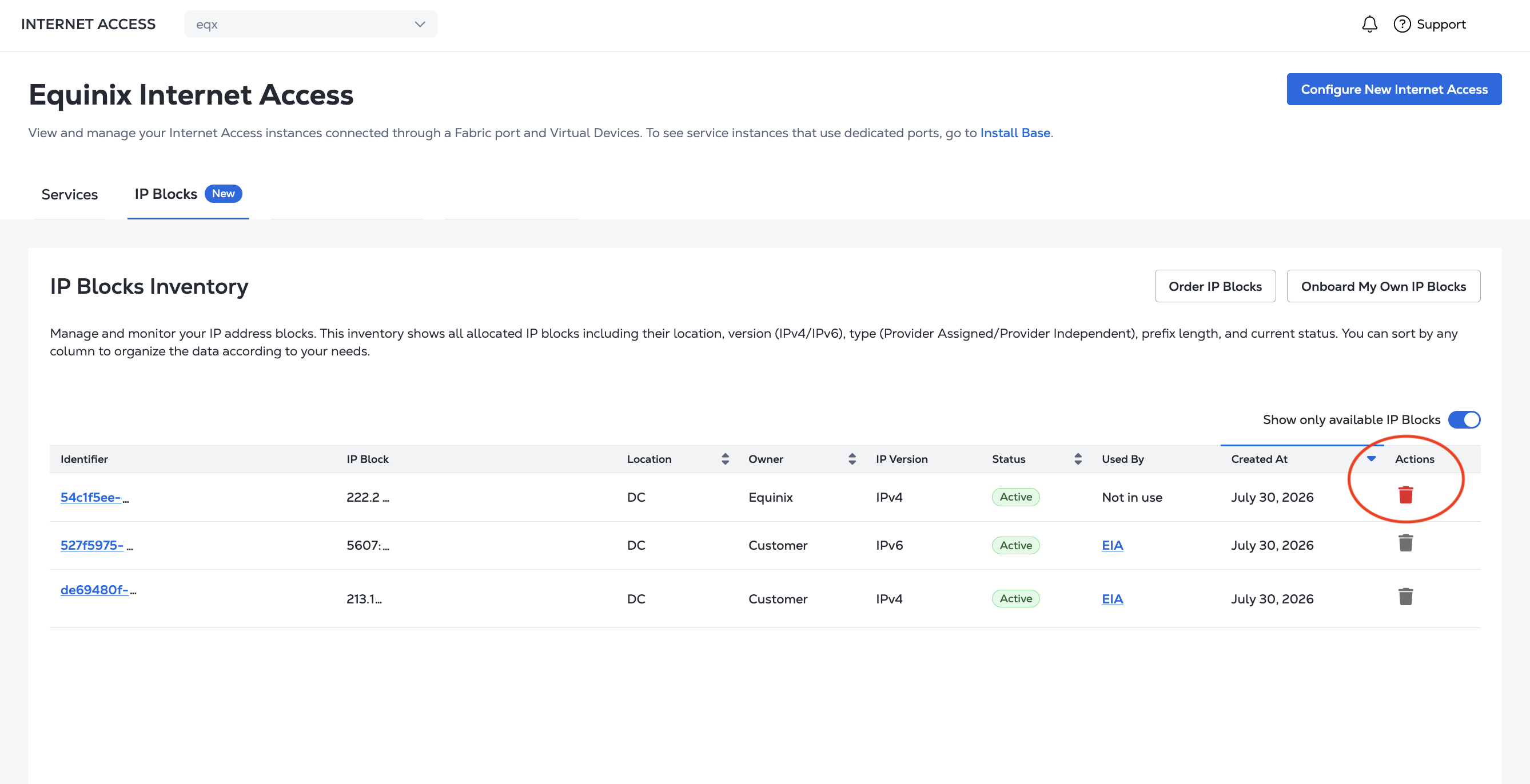
_IPブロックインベントリ_テーブルで、削除するIPブロックを見つけます。
-
_[アクション]_列で、[削除]をクリックします。
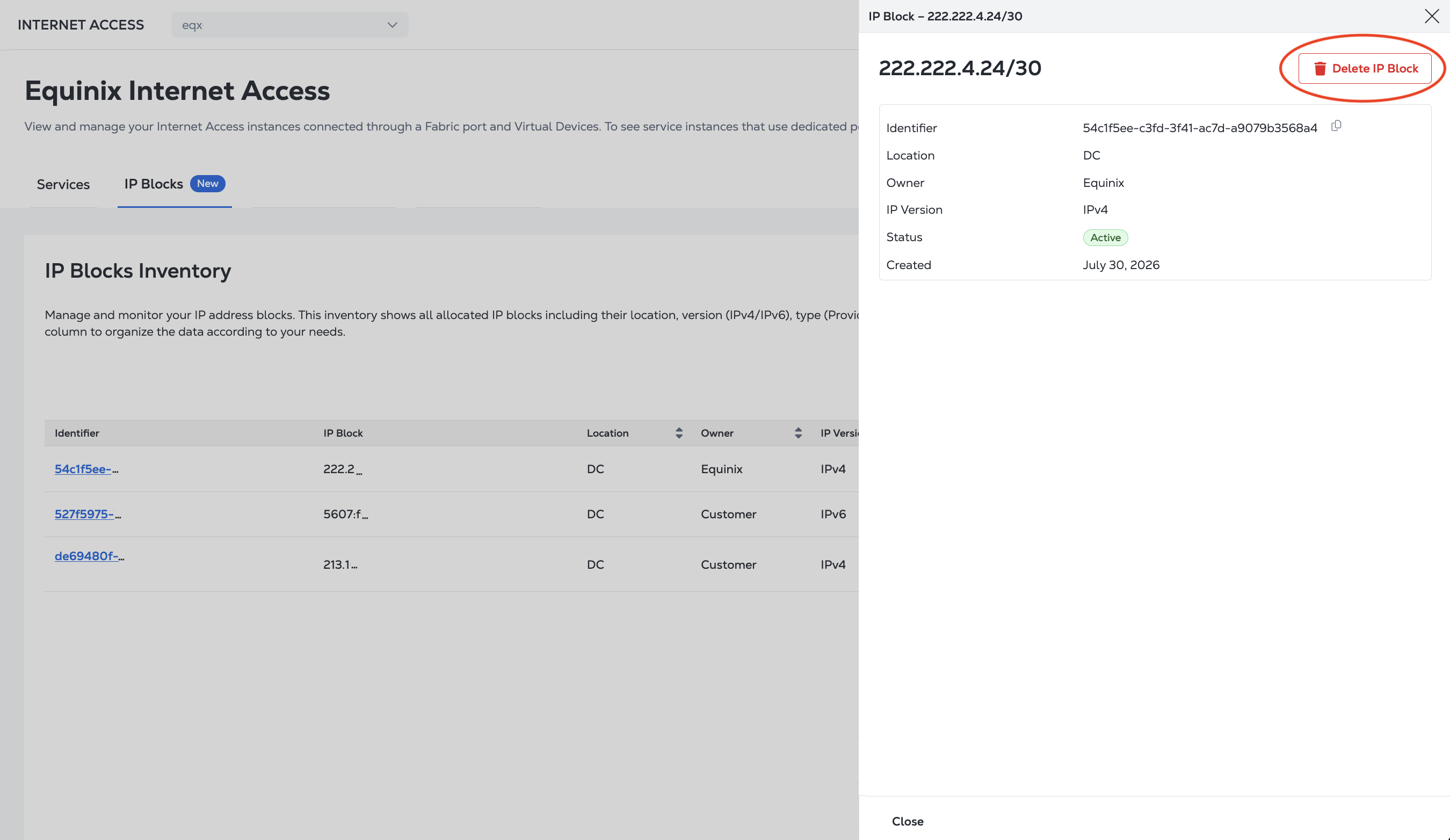
詳細ペインからIPブロックを削除することもできます。
IPブロックの詳細を取得するには、エンドポイントにリクエストを/fabric/v4/ipBlocks/{uuid}送信し、DELETEリクエストのパスにIPブロックのUUIDを指定します。
curl -X DELETE 'https://api.equinix.com/fabric/v4/ipBlocks/{uuid}' \
-H 'authorization: Bearer <token>'
削除されると、IPブロックはインベントリに残り、ステータスが表示されます。Deleted