インシデントの詳細
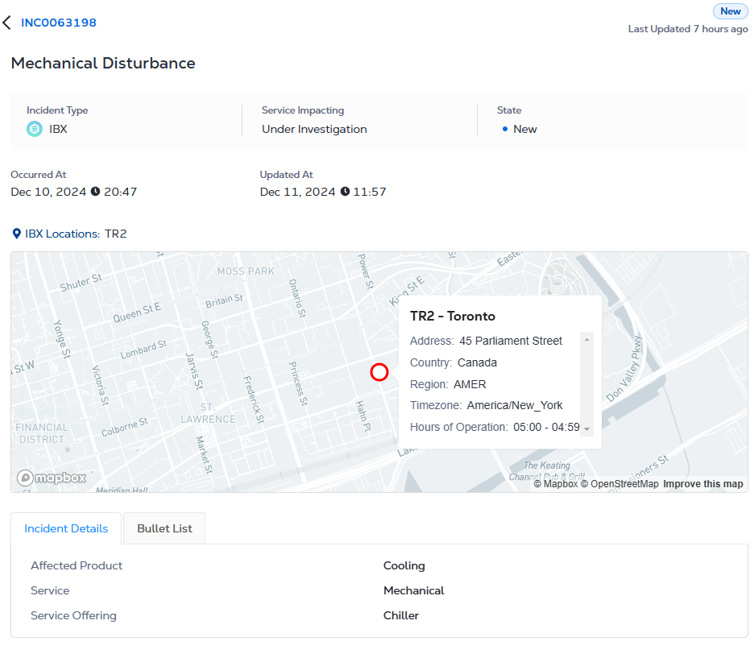
[最新のインシデント]セクションまたは_地理的表示でインシデントを_クリックして、インシデントの_詳細を_開きます。インシデントのタイトル、タイプ、サービスに影響を与える状態、タイムスタンプ、ロケーションデータなどの情報を表示します。インシデントの詳細と箇条書きリストを確認して、追加情報を確認し、インシデントに関連付けられているアセットを表示します。
_インシデントリスト_またはヘルスカードからインシデントのタイトルをクリックして、このビューにアクセスすることもできます。
インシデントの詳細画面が表示されます:
-
サービスへの影響 - エクイニクスが提供するサービスがインシデントによって影響を受けたかどうか(「はい」または「いいえ」)。
-
状態 - インシデントの現在の状況(新規、更新、解決済み)。
-
発生場所 - 事件が発生した日時。
-
更新日 - 事件が更新された日付/時刻。
-
解決済み - 問題が解決した日時。
-
インシデントタイプ - インシデントのタイプ (IBX、ネットワーク、ESH、セキュリティ) を示します。
-
インシデント番号 - インシデントの固有の ID です。
-
影響を受ける製品 - Equinix Internet Access、Internet Exchange、Metro Connect、コロケーション、Equinix Precision Time など。
-
IBX Locations - 影響を受けるデータセンターサイト。
-
サービス-(IBXインシデントのみ)電気、機械、Cross Connect、または拠点
-
サービス提供-(IBXインシデントのみ)ケージ番号やその他のアセットIDなど。
-
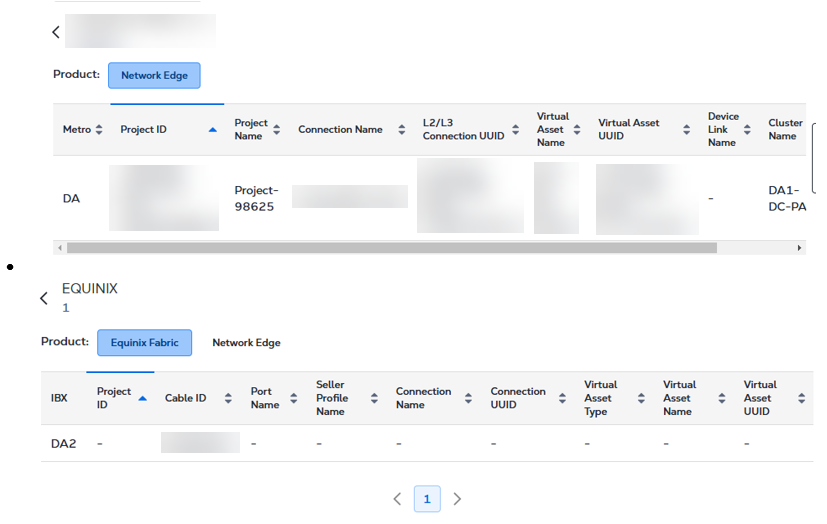
影響を受けるアセットとアカウント-インシデントの影響を受けるお客様のアカウント番号と名前。特定の名前または番号を検索するには、検索BOXを使用してください。リストをソートするには、列ヘッダーをクリックします。
-
通知
-
ウィンドウの右側には、インシデントに対するすべてのアップデートが、日付/タイムスタンプ順に表示されます:
- インシデントの最初の更新です。
- あるインシデントのその後のアップデート。
- 事件の解決に関する詳細。
-
更新のソート順を切り替えるには、[_ソート順]_ドロップダウンをクリックして、[**最新]**または[古い]を選択します。
![[並べ替え]ドロップダウン
チップコンピュータの検索機能(Windowsの場合はCtrl + Fなど)を使用して、インシデント更新メッセージ内の特定のテキストを検索できます。
-
影響を受けるアセット
[アセット]セクションには、特定のインシデントの影響を受けるすべてのアセットが表示されます。本セクションに記載されている詳細は、製品の種類によって異なる場合があります。
インシデントの解決
[インシデントの解決]セクションでは、解決後約1営業日後に、解決済みまたは完了済みのインシデントの完了レポートを表示およびダウンロードできます。また、インシデント後のレポート(PIR)リクエストの送信、各段階の進捗状況の追跡、Equinixサービスインサイト(ESI)で公開された最終的なPIRレポートの閲覧やダウンロードも可能です。
インシデント解決は、現在、IBX運用、セキュリティ、環境、安全衛生のインシデントでのみ利用できます。ネットワークインシデントのサポートは現在利用できず、将来のリリースに予定されています。
クローズレポート
完了レポートには、特定された根本原因、その影響、および実行された推奨または是正措置など、インシデントの解決の詳細が記載されています。Equinixサービスインサイト(ESI)からクローズレポートを直接表示およびダウンロードします。
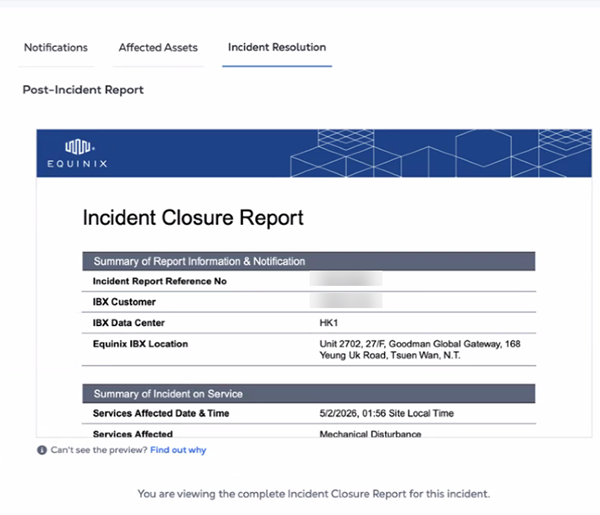
クローズレポートとPIRリクエストは、インシデントが解決されてから約1営業日後にのみ利用できます。
クローズレポートにカーソルを合わせると、表示またはダウンロードできます。
インシデント後のレポート
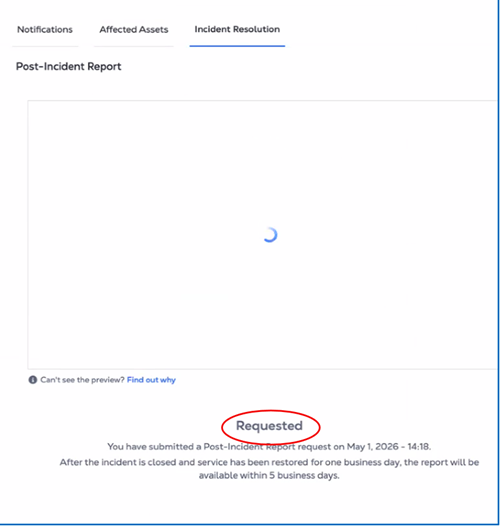
インシデント後レポート(PIR)をリクエストして、より詳細なお客様固有のレポートを入手してください。PIRチームがリクエストの処理を開始すると、PIRは次の段階に進みます。以下の段階では、リクエストの提出からEquinix Service Insights(ESI)での最終公開まで、PIRのライフサイクルの概要を説明します。
- リクエスト済み–PIRがリクエストされ、PIRプロセスが開始されるのを待っています。
- 進行中–PIRの準備が進行中です。
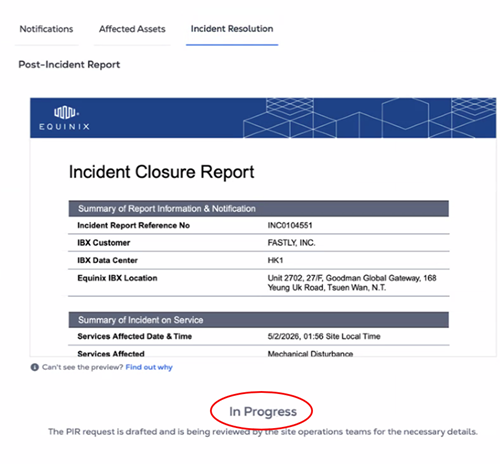
- レビュー中–PIRは承認プロセスを進めています。
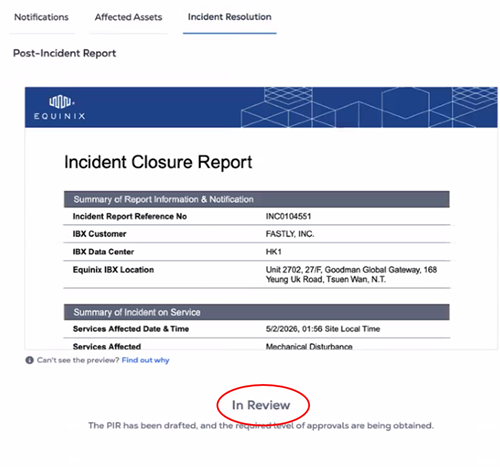
- 公開済み–PIRが完了し、お客様がアクセスできるようにESIで公開されます。
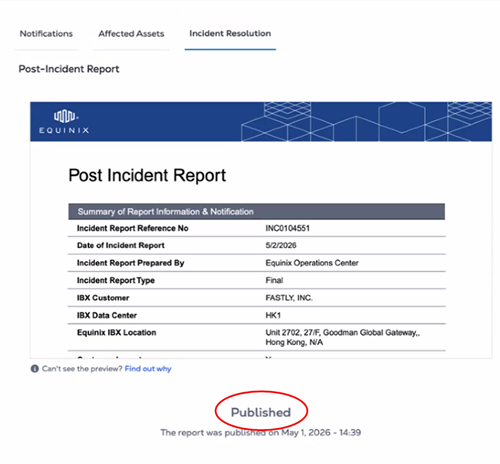
- キャンセル済み–PIRリクエストがキャンセルされました。
最終的なPIRは、リクエストが送信されてから5営業日以内にESIで公開されます。
サポートセンターとサービスインサイトの統合
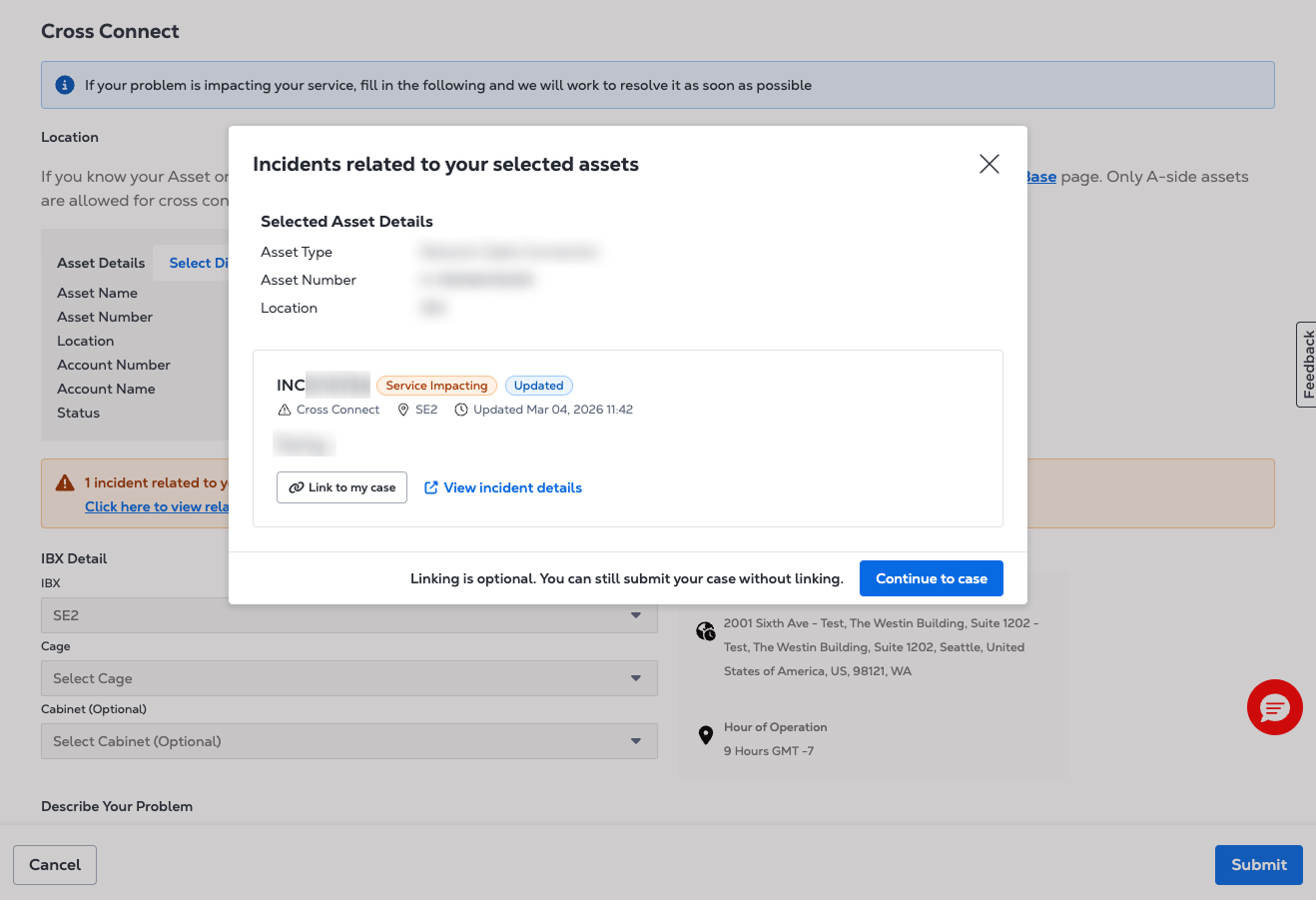
ケース送信時にアセットまたはIBXデータセンターを選択すると、そのアセットまたはIBXデータセンターに関連付けられている有効なインシデントがある場合はバナーが表示されます。バナーには、インシデントの概要と現在のステータスが表示されます。ケースをインシデントに関連付けるには、[自分のケースにリンク]を選択します。関連するインシデントが見つからない場合、またはインシデントサービスが一時的に利用できない場合、ケースの送信は通常どおり続行されます。
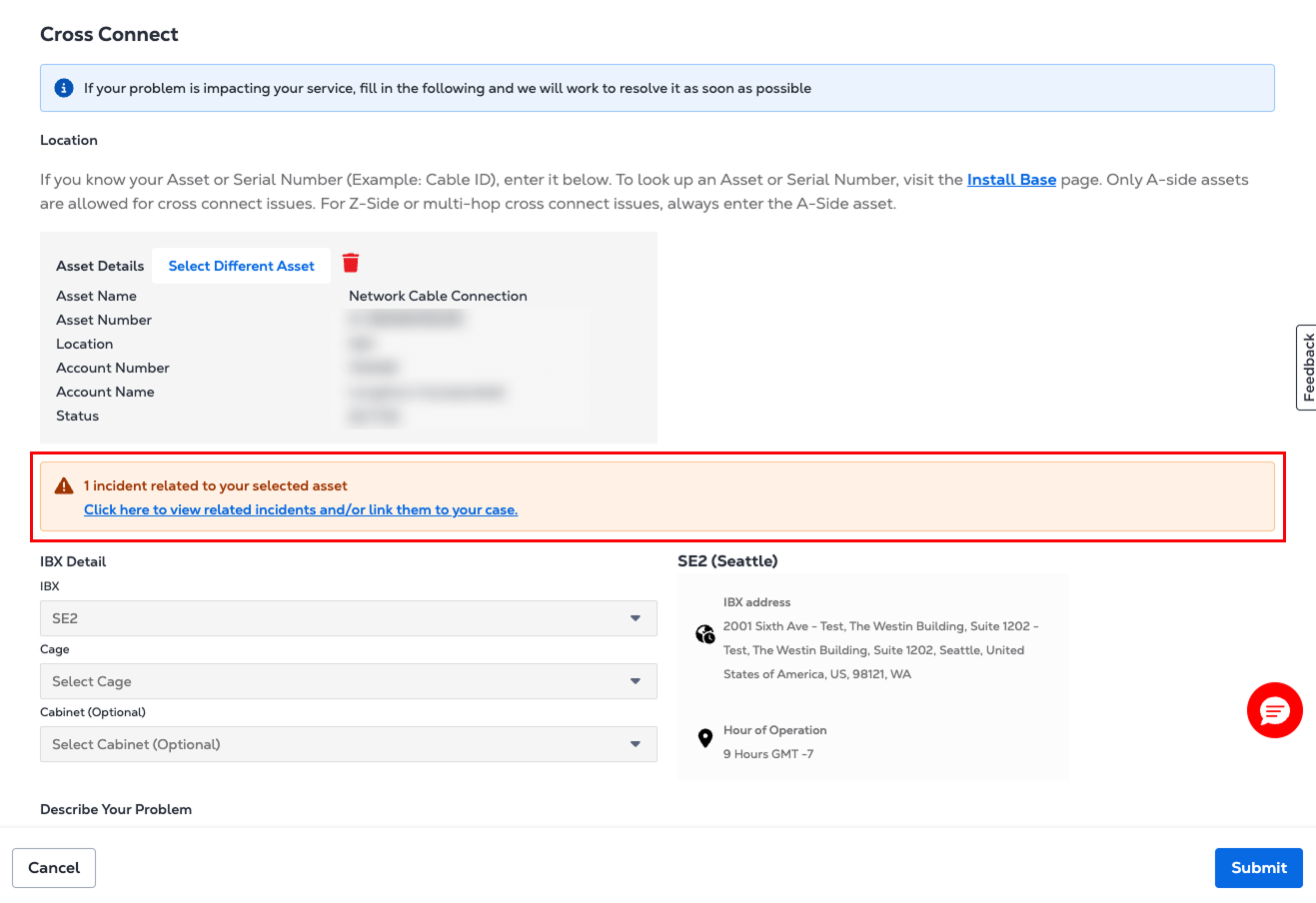
サポートケースの送信についての詳細は、「サポートケースを開く」を参照してください。