ユーザー権限の管理
使用して、カスタマーポータルのColocationダッシュボードの_管理_セクションを_アイデンティティおよびアクセス管理(IAM)にオンボーディングされてい_ないアセットと製品の権限を割り当てます。
この権限管理機能は、管理およびIBXアクセスサービスリクエスト、発注、インストールベース、請求と支払い、IBXサービス関連の通知、Smart Handsサポートプラン、Colocation発注、仮想アセット通知権限、消費電力レポート
IBX、ケージ、キャビネットへの物理アクセスを許可するには、IBXアクセス許可を参照してください。
IAMにオンボーディングされたアセットと製品については、「ユーザーのアクセスと役割の管理」を参照してください。
FabricおよびNetwork Edgeの権限はIAMの役割で管理され、カスタマーポータルの権限で割り当てることはできません。
ユーザーへの権限の手動割り当て
-
管理]メニューから[ユーザー管理]を選択します。
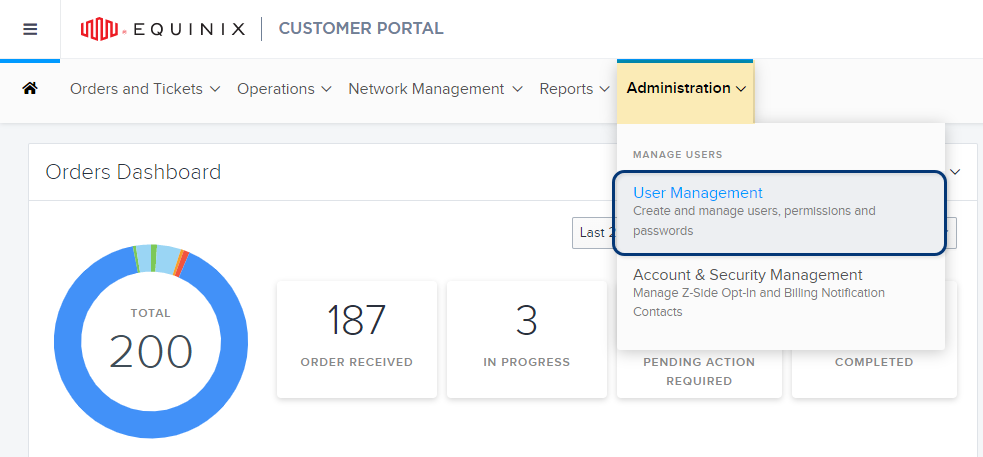
-
管理したいユーザーアカウントを探します。
-
特定のユーザーを検索するには、Add Keyword フィールドにファーストネーム、ラストネーム、ユーザー名、Eメールアドレスを入力してください:
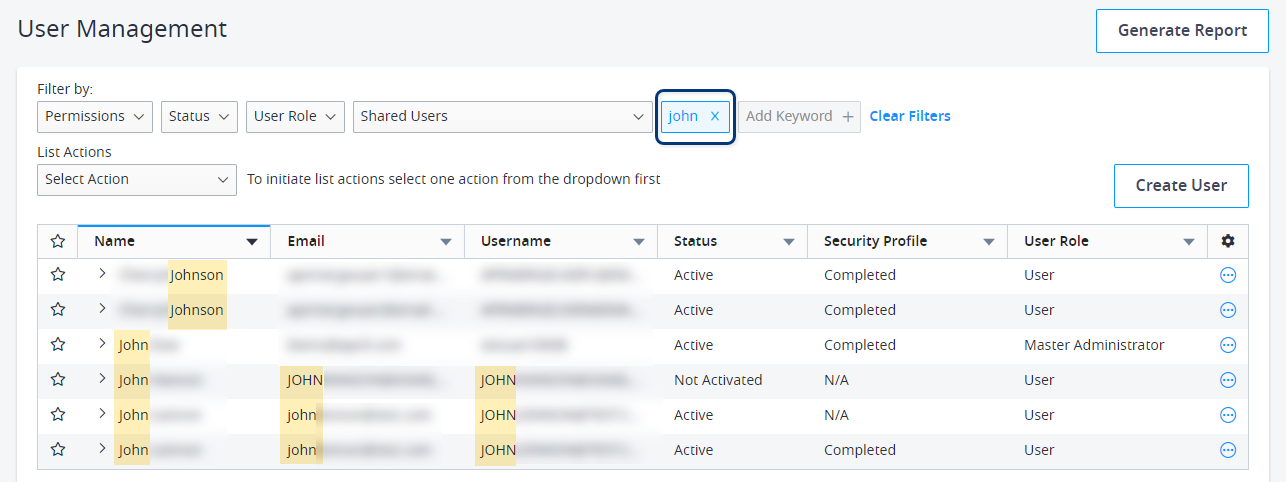
-
また、上部のフィルターオプションを使用して、ユーザーのステータス、役割、組織、および現在の権限でユーザーリストを絞り込むことができます。
チップ新しいユーザーアカウントをすばやく見つけるには、_Status_フィルタを_Not Activated_に設定します。
-
-
オプションメニューをクリックし、Manage Permission を選択します。
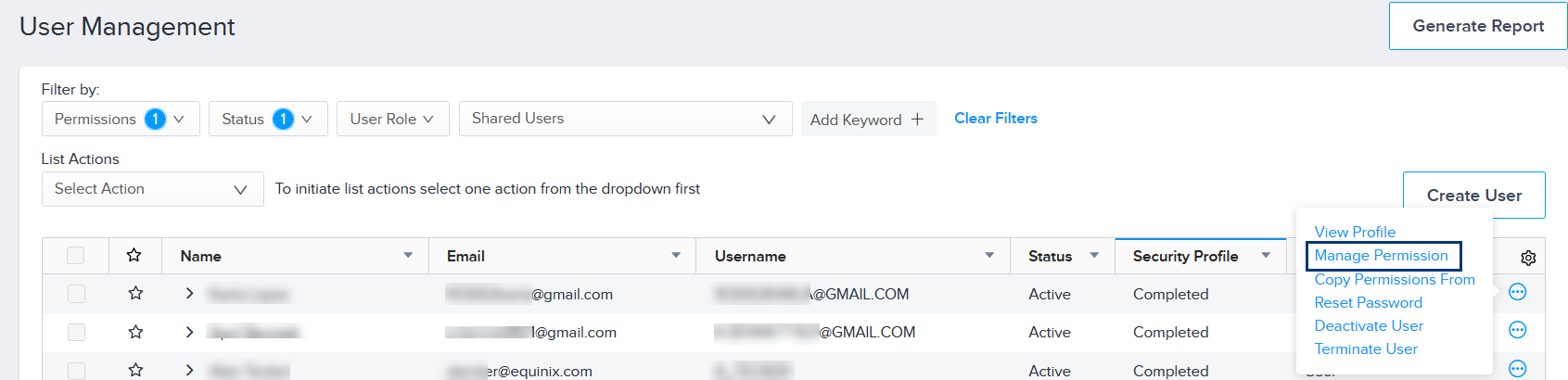
Permissions_タブには、権限タイプのカタログが表示されます。
![[権限]タブ](/ja/assets/images/manage-permissions-perms-tab-6be521835a42f62a87154b2f879231fe.png)
-
新規ユーザーアカウントの場合は、[_管理]および[IBXアクセスサービスリクエスト]を_選択します。このユーザーが利用できるすべてのIBX拠点がリストに表示されます。
-
(オプション)_会社_または_IBX管理者_権限をこのユーザーに割り当てるには、[管理者権限]をクリックし、割り当てる管理者の役割を選択します。
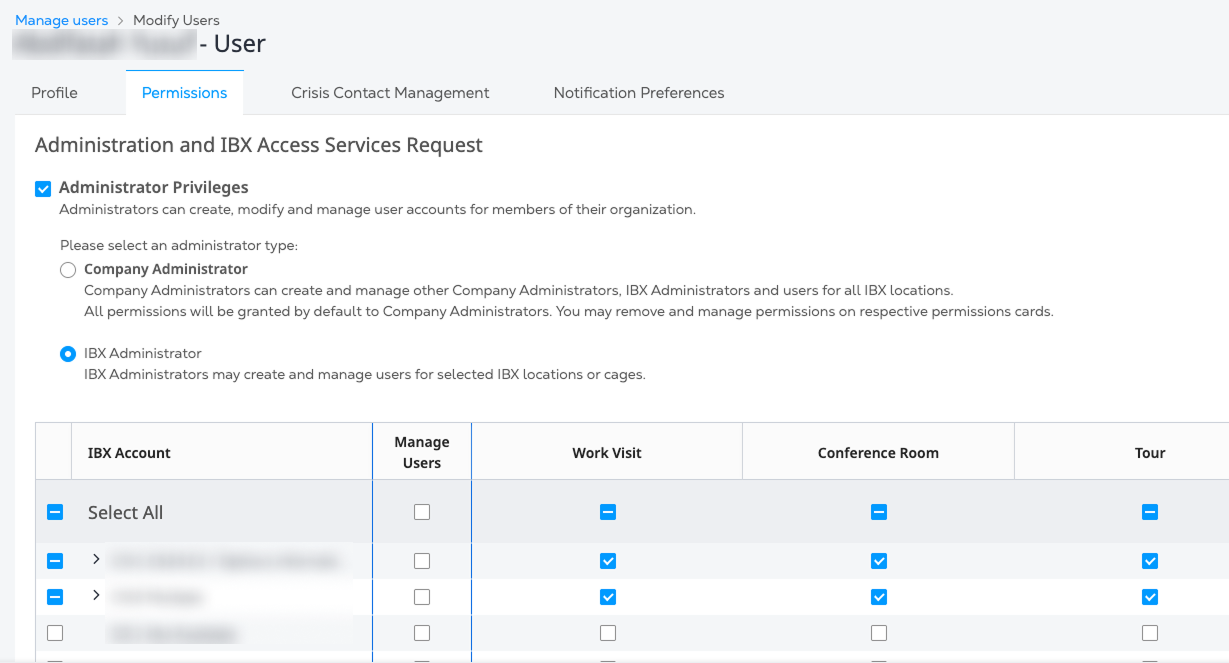
管理者ロールについては、カスタマー・ポータルのロール を参照してください。
-
IBX とユーザーのケージ権限を選択します。
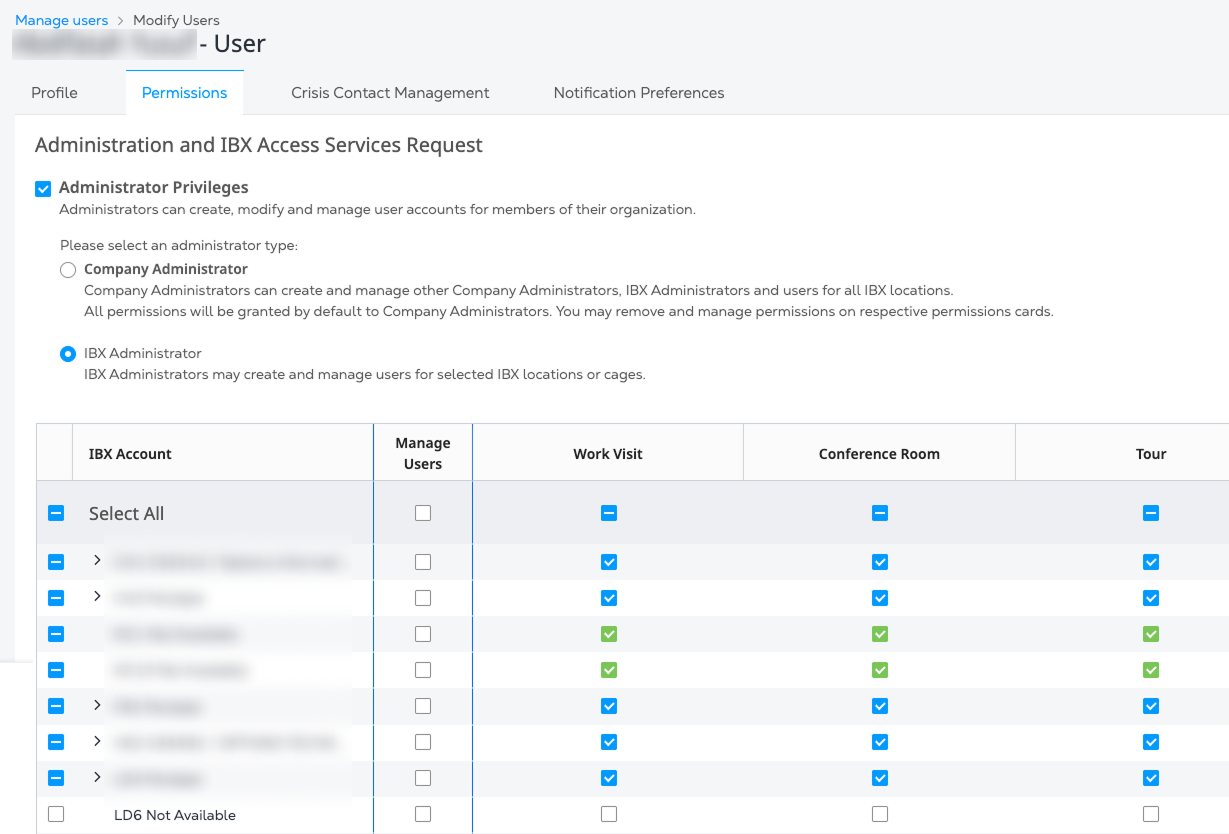
詳細については、IBXアクセス許可を参照してください。
-
-
その他の権限タイプ(注文、請求など)を割り当てるには、[戻る]ボタンを使用して[Permissions]タブに戻ります。必要に応じて追加の権限を割り当てます。
大規模な組織では、権限の変更がシステムに反映されるまでに数分かかることがあります。ユーザーが新しく定義されたパーミッションの使用に問題がある場合、ログアウトして数分待ってから再度ログインするように依頼する。
パーミッションの種類
FabricおよびNetwork Edgeの権限は、IAMの役割のみで管理され、カスタマーポータルの権限で割り当てることはできません。
| カテゴリー | 説明 |
|---|---|
| アドミニストレーションとIBXアクセスサービスのリクエスト | IBXへのアクセス要求(ワークビジット、会議室、データセンターツアー)のスケジュールを設定できます。管理者が他のカスタマーポータルのユーザーアカウントを管理できるようにします。 |
| ご注文 | ポータルでの発注(出荷、Cross Connectおよび施設内ケーブル、ネットワーク・ポート、Smart Hands、アクセサリ、電源、トラブル・チケット)、他のユーザーによる発注の閲覧、所属組織の発注の閲覧が可能です。 |
| IBXデータセンターアクセス | IBXデータセンターおよびケージ/キャビネットへのアクセス、ゲストの同伴、機器の取り外しが可能です。 |
| インストールベース | ユーザーが組織の製品/資産および発注書の詳細を表示できるようにします。インストール・ベース画面、インストール・ベース・レポート、コロケーション資産画面、発注管理画面へのアクセスを制御します。 |
| 課金・決済 | 組織の財務記録、支払履歴、発注書を閲覧することができます。 |
| IBXサービス関連の通知 | ユーザーは、IBXインシデント、ネットワークインシデント、未通知の荷物、マネージドサービス、IBXポリシー違反に関する通知を受信できます。また、ユーザーはService Insightダッシュボードでインシデントを表示できます。 重要:各組織で少なくとも2人の管理者がIBXポリシー違反を受信するように設定されている必要があります(つまり、はIBXポリシー違反通知を閲覧および受信できる権限)。 |
| インターネットExchangeポータル | ユーザーがインターネットエクスチェンジ(IX)ポータルにアクセスできるようにします。 |
| エクイニクスインターネットアクセスとエクイニクスコネクト | Equinix Internet AccessとEquinix Connectのトラフィックとネットワーク動作を確認できます。 |
| Smart View | Equinix Smart View for IBXを注文し、Smart Viewデータを表示できます。 |
| リモートネットワーク製品 | 特定の地域のIBXにリモートネットワーク製品を注文できます。 |
| スマートハンズサポートプラン | Smart Hands のサポートプランのご注文や、サポートプランに関する通知の購読が可能です。 |
| コロケーションのご注文 | セキュアキャビネットとプライベートケージ製品をオンラインで注文できるようにします。 |
| 仮想資産通知パーミッション | FabricおよびNetwork Edgeの仮想資産に関する通知の閲覧および購読を許可します。 |
| Managed Solutionsポータル | ユーザーがManaged Solutionsポータルにアクセスできるようにします。 |
| 消費電力レポート | 消費電力レポートの実行を許可する。 |
| サポートケースマネージャー | ユーザは、組織内の任意のユーザによって提出されたすべてのサポートケースの表示、管理、および返信を行うことができます。 |
権限を割り当てるテンプレートの作成
テンプレートは、組織全体で頻繁に使用されるパーミッションの同じセットを割り当てるための簡単で効率的な方法を提供します。テンプレートを作成し、同じような役割を果たすために同じ権限を必要とするユーザーに対して適用することができます。
-
管理]メニューから[ユーザー管理]を選択します。
-
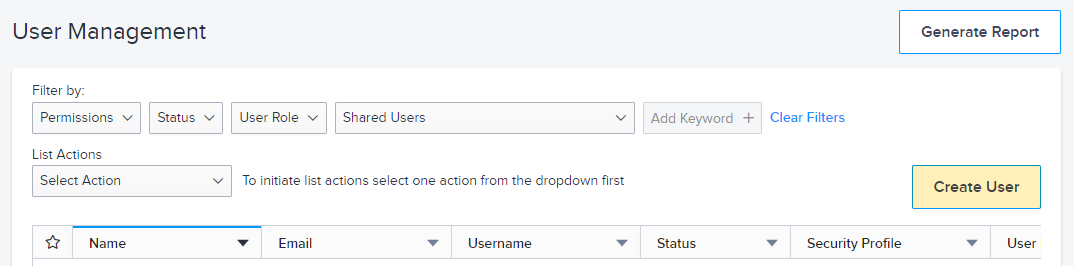
[ユーザーの作成]をクリックする。
-
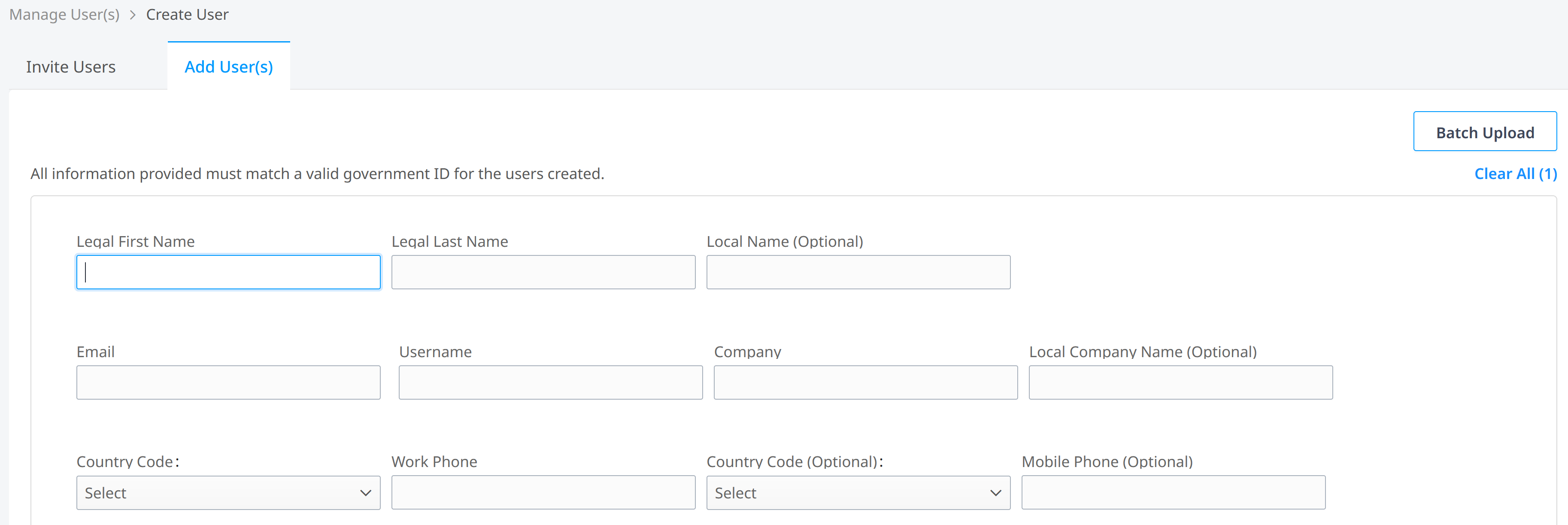
Add User(s)_タブを選択します。
-
このテンプレートに関する情報を以下のフィールドに入力します。
メモ実際のユーザではなく、一般的なユーザプロファイルの情報を入力しています。このプロファイルはポータルでは有効化されません。他のユーザに権限を適用するためのテンプレートとしてのみ使用されます。
- Given or Legal First Name - このタイプのユーザーの定義。例えばNOCuser
- Surname or Legal Last Name(姓または本籍) - テンプレートを入力(これで後でテンプレートを検索できます)。
- 電子メール - あなたの電子メールアドレス。
- ユーザー名(オプション) - ダッシュボードでこのテンプレートをすばやく識別するための一意の名前です。例:nocusertemplate
- 会社名 - あなたの会社名です。
- 国コード - あなたの国コード。
- 勤務先電話番号 - 勤務先の電話番号。
-
送信 をクリックします。ウィンドウの上部に確認が表示されます。
-
確認ダイアログの[権限の割り当て]リンクをクリックします。ユーザー管理ダッシュボードが表示されます。
-
ダッシュボードでオプションメニューをクリックし、Manage Permission を選択します。
権限]タブには、権限タイプのカタログが表示されます。
-
このテンプレートの権限を選択します。詳細については、「権限を手動で割り当てる」をご覧ください。
情報後で、このテンプレートを使って他のユーザーアカウントにパーミッションを割り当てるとき、これらのユーザーに適用されるパーミッションはこれです。
-
[送信]をクリックする。
テンプレートから権限を割り当てる
テンプレートから権限を割り当てると、ユーザーに割り当てられていた以前の権限は上書きされます。
-
管理]メニューから[ユーザー管理]を選択します。
-
_[絞り込み条件]_セクションで、[ _キーワードを追加]_フィールドに入力します。
template
お使いのテンプレートが表示されます。
-
ダッシュボードで、オプションメニューをクリックし、_Copy Permissions From_を選択します。利用可能なユーザーが一覧表示されます。
-
ダッシュボード左のチェックボックスをクリックし、テンプレートの権限を適用するユーザーを選択します。
-
ユーザーリストの一番上にある Apply をクリックします:

テンプレートの権限が、選択したユーザーに適用されます。それ以前の権限は、選択したユーザーアカウントから削除されます。