Managing IP Blocks
Once you have ordered or on-boarded an IP Block, you can view and manage it from your IP Blocks Inventory.
Prerequisites
- Viewing your IP Blocks and IP Blocks Inventory requires either the
Fabric Viewer,Fabric Connection Manager,Fabric Manager, orFabric Service Providerrole. - Managing IP Blocks requires either the
Fabric Connection Manager,Fabric Manager, orFabric Service Providerrole.
- Portal
- API
-
Sign in to the Customer Portal and navigate to Internet Access.
-
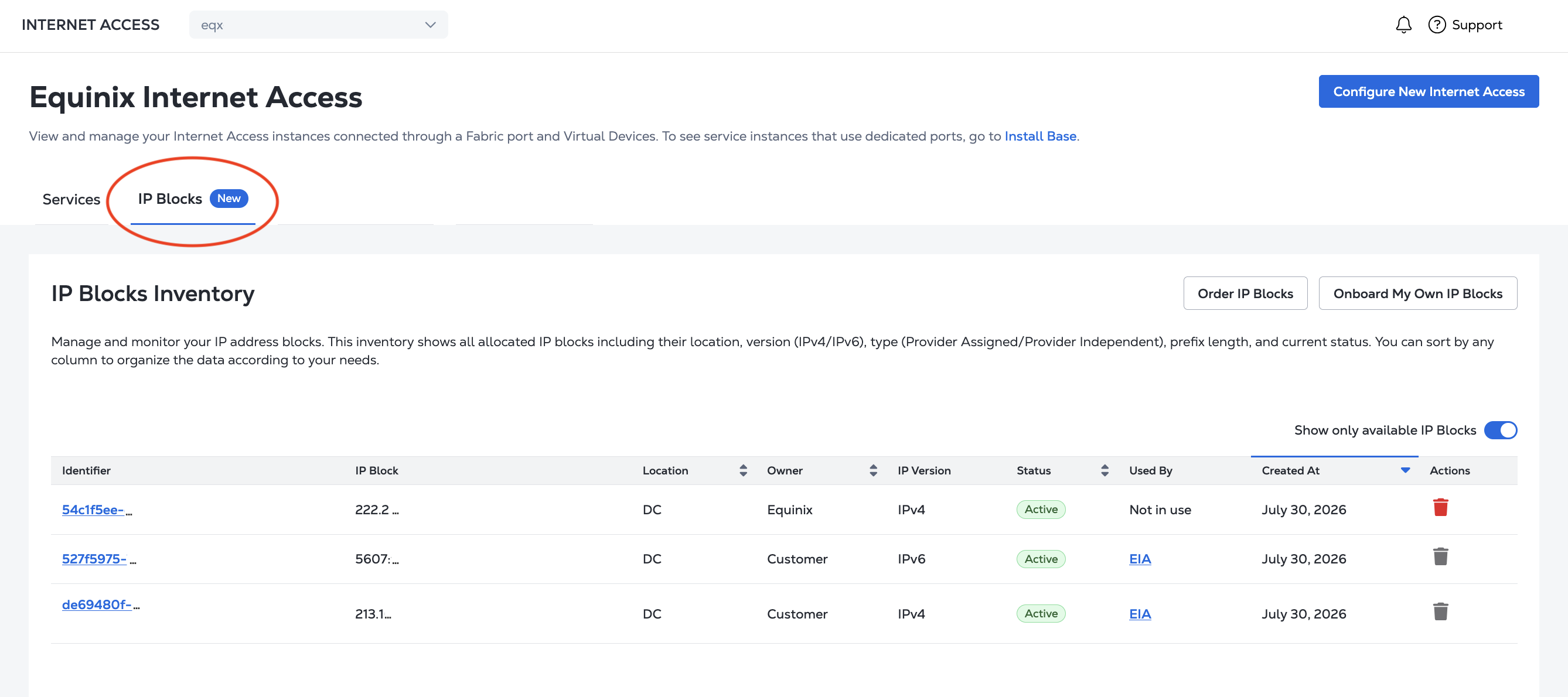
Click IP Blocks to go to your IP Blocks Inventory.
Authenticate - Submit your user credentials, Client ID, and Client Secret for OAuth2 authentication. Refer to API Authentication for instructions on how to call OAuth API to validate and authenticate your credentials.
IP Blocks Inventory
- Portal
- API
The table displays all of your IP Blocks including their location, version (IPv4/IPv6), Owner (Equinix/customer), prefix length, and current status.
Click a column name to sort by that column. Click Show only available IP Blocks to filter the table.
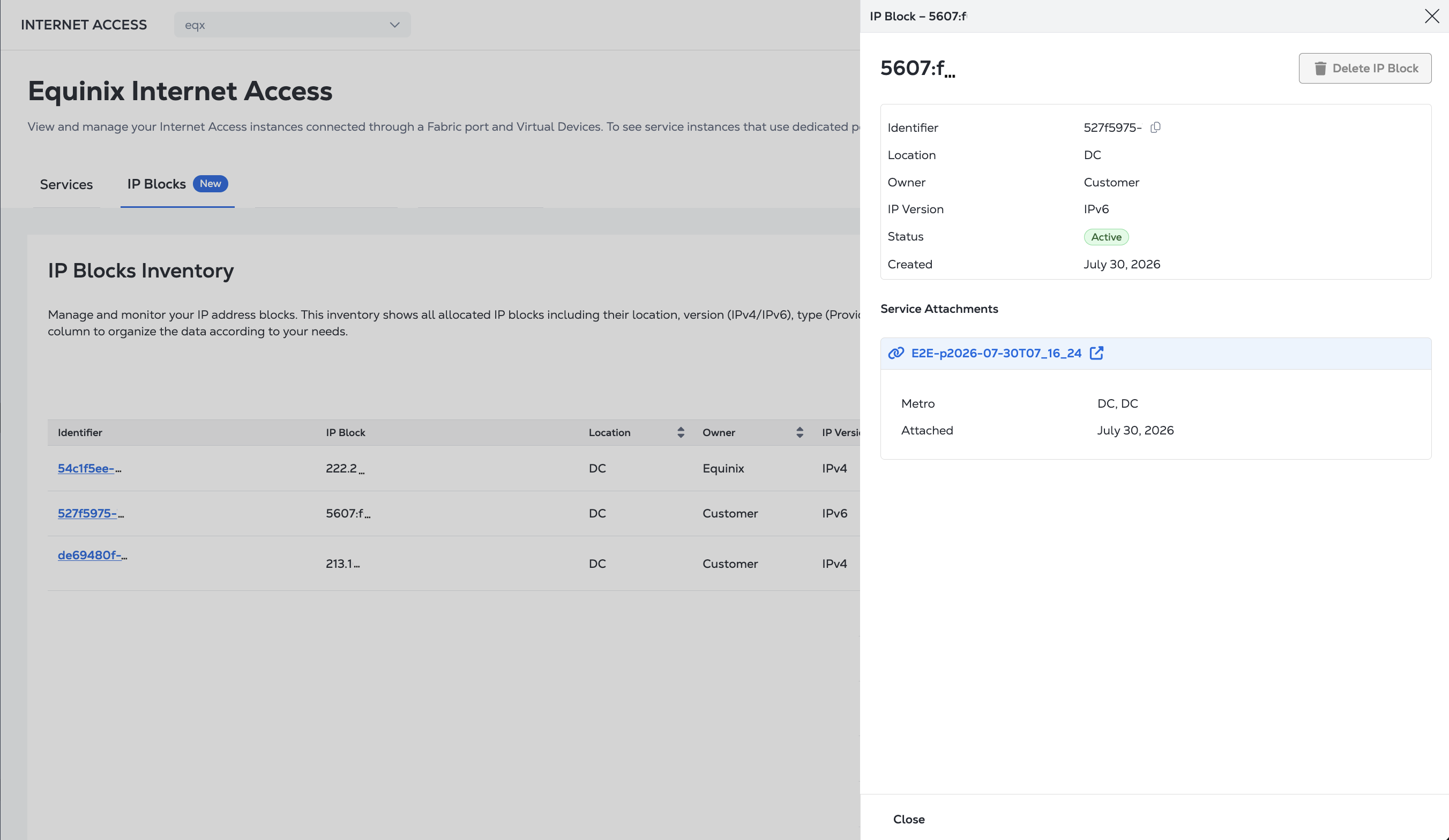
To view the IP Block details, click its UUID in the Identifier column.
To search and list your IP Blocks from the API, send a POST request to the /fabric/v4/ipBlocks/search endpoint. Specify your search criteria in the body of the request.
curl -X POST 'https://api.equinix.com/fabric/v4/ipBlocks' \
-H 'content-type: application/json' \
-H 'authorization: Bearer <token>' \
-d '{
  "pagination": {
    "offset": 0,
    "limit": 20
  },
  "filter": {
    "and": [
      {
        "property": "string",
        "operator": "=",
        "values": [
        "string"
        ]
      }
    ]
  },
  "sort": [
    {
      "direction": "ASC",
      "property": "string"
    }
  ]
}'
To get the details of an IP Block, send a GET request to the /fabric/v4/ipBlocks/{uuid} endpoint, specifying the UUID of the IP Block in the path of the request.
curl -X GET 'https://api.equinix.com/fabric/v4/ipBlocks/{uuid}' \
-H 'authorization: Bearer <token>'
Using an IP Block
To use an IP Block, refer to the documentation of the service you are using it for. Using IP Blocks is supported by:
- Internet Access - See IP Address Allocation, Ordering Internet Access, and Change IP Blocks.
If an IP Block is in use, the service using it is listed in the Used by column. If an IP Block is not in use, it says, "Not in use".
Deleting an IP Block
You can not delete an IP Block that is in use by a service. Remove the IP Block from use before deleting. If you are attempting to delete an IP Block from a recently deprovisioned service, wait a few minutes for the IP Block to be released.
To delete an IP Block:
- Portal
- API
-
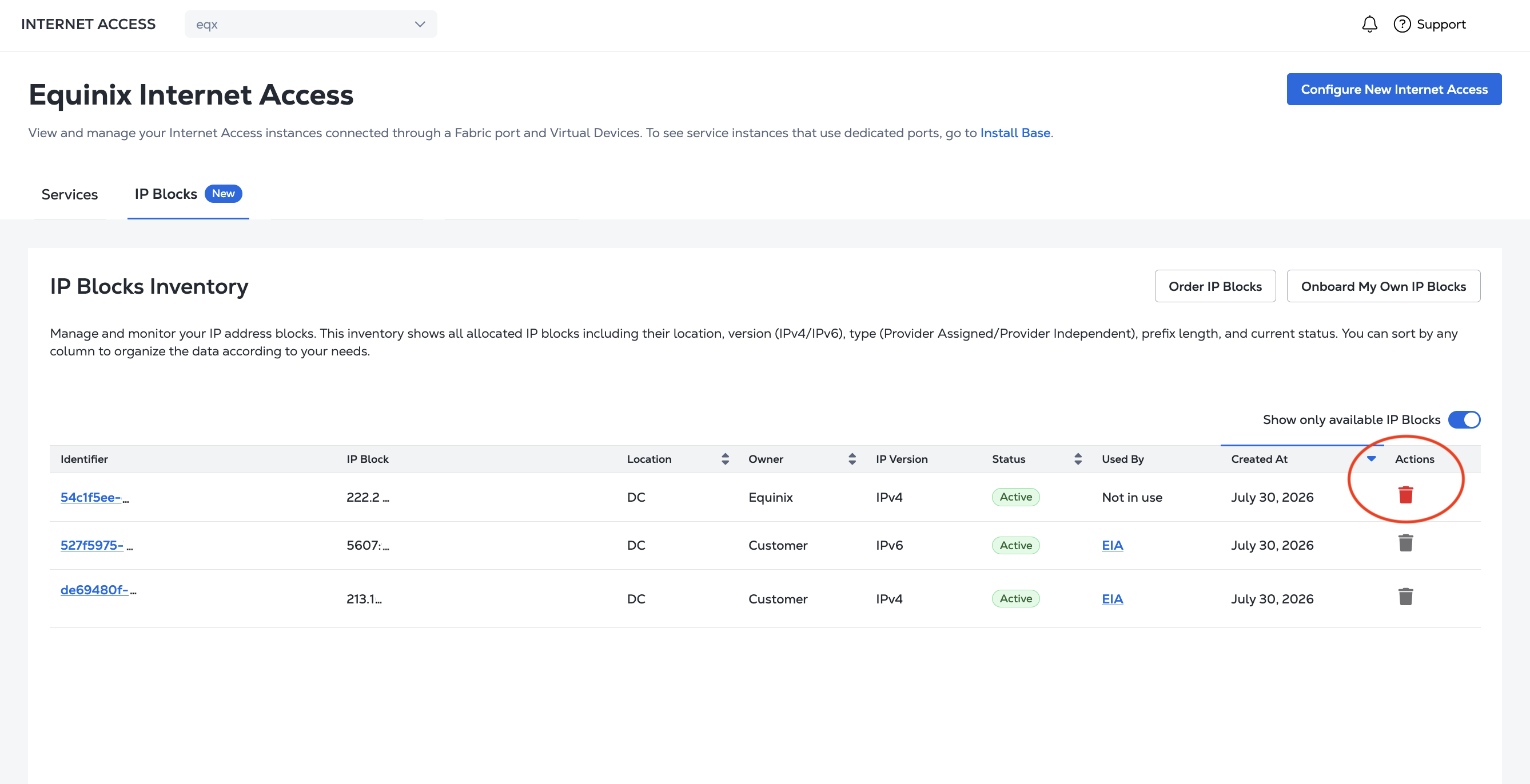
In your IP Blocks Inventory table, locate the IP Block you want to delete.
-
In the Actions column, click Delete.
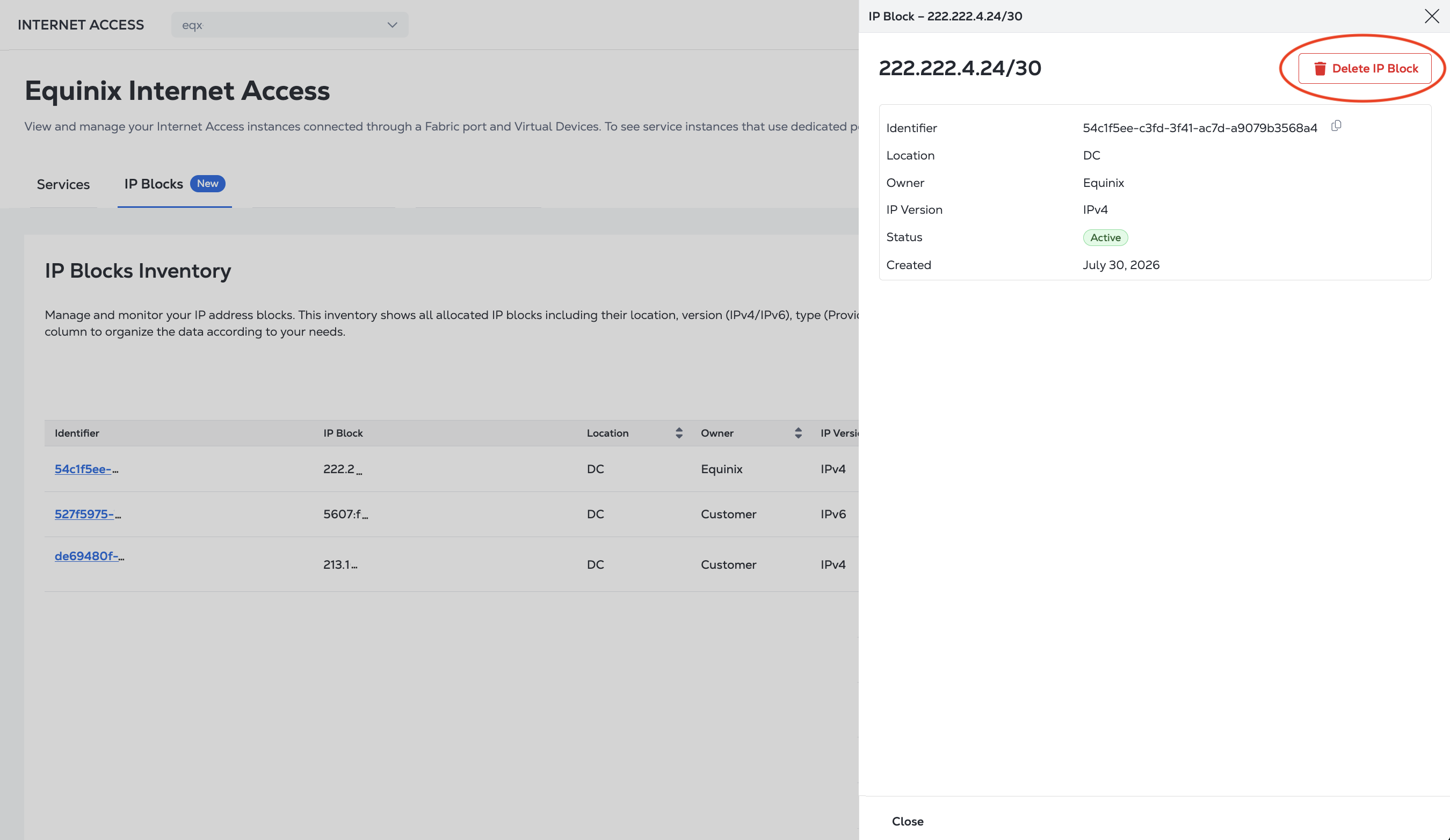
You can also delete an IP Block from its details pane.
To get the details of an IP Block, send a DELETE request to the /fabric/v4/ipBlocks/{uuid} endpoint, specifying the UUID of the IP Block in the path of the request.
curl -X DELETE 'https://api.equinix.com/fabric/v4/ipBlocks/{uuid}' \
-H 'authorization: Bearer <token>'
Once deleted, the IP Block remains in your inventory with status Deleted.