Creating IP Blocks
Create IP Blocks in the Customer Portal and Equinix API. You can purchase Equinix-owned IP Blocks or bring your own IP address space for use on Equinix.
- The total number of IP Blocks must not exceed 100.
- All IP Blocks must contain valid, unique IPv4 and/or IPv6 addresses in CIDR notation.
- New customer-provided IP Blocks must not already exist in the service.
Prerequisites
- Creating IP Blocks requires either the
Fabric Connection Manager,Fabric Manager, orFabric Service Providerrole.
- Portal
- API
-
Sign in to the Customer Portal and navigate to Internet Access.
-
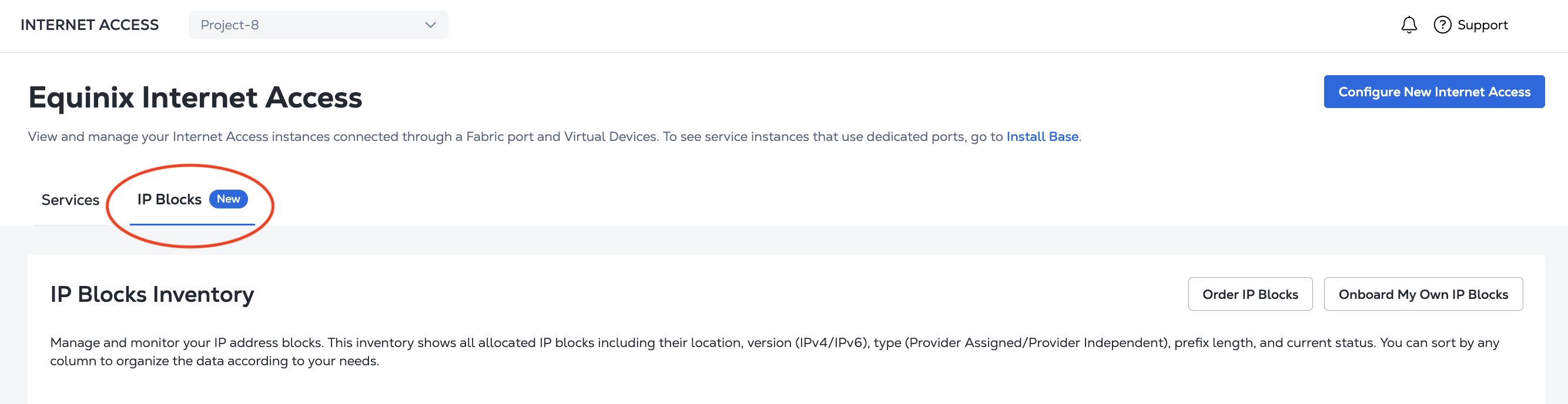
Click IP Blocks to go to your IP Blocks Inventory.
Authenticate - Submit your user credentials, Client ID, and Client Secret for OAuth2 authentication. Refer to API Authentication for instructions on how to call OAuth API to validate and authenticate your credentials.
Order IP Blocks
- Portal
- API
To order Equinix-owned IP Blocks:
-
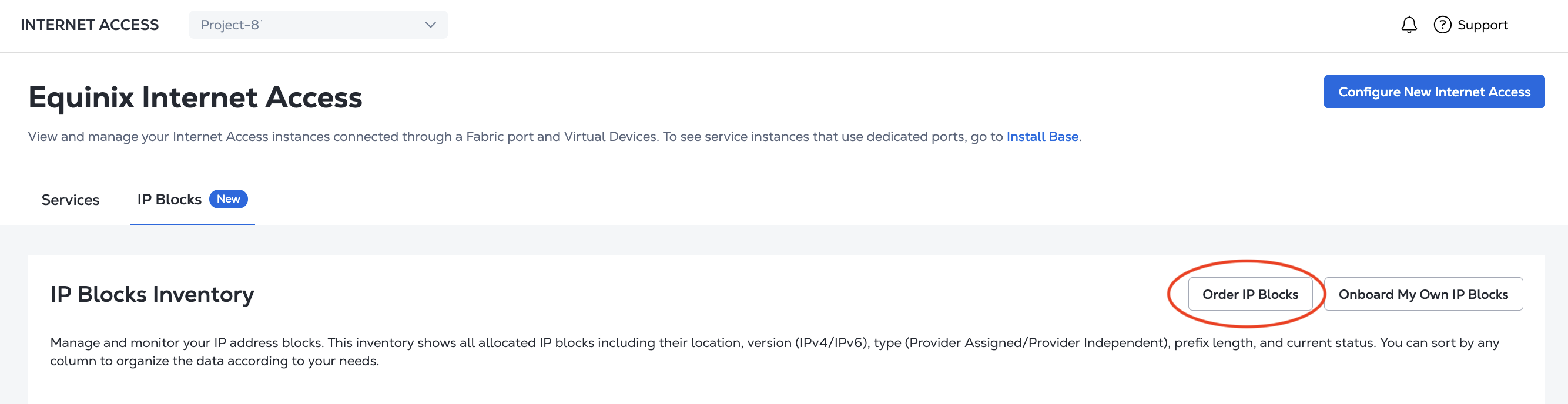
From your IP Blocks Inventory, click Order IP Blocks.
-
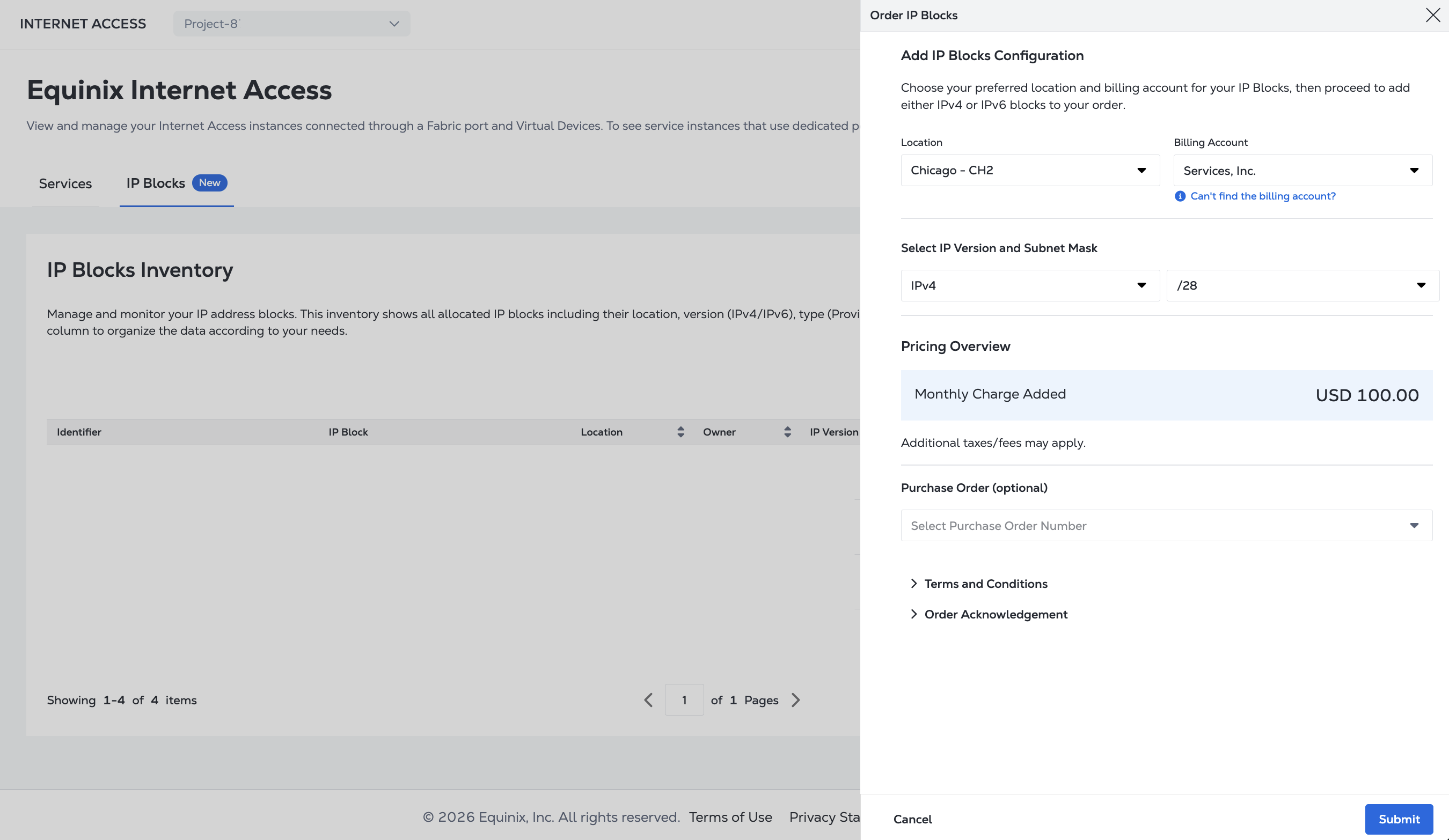
Select the Location from the drop-down menu. In order to create an IP Block in a Metro, you need either a global billing account or a local billing account for that location. Select your Billing Account from the drop-down menu.
-
Select the IP version and subnet size.
-
Review the Pricing Overview. To review the terms, click Terms and Conditions and Order Acknowledgement.
-
(Optional) Add a Purchase Order number by selecting one from the drop-down.
-
Click Submit.
To create an IP Block, send a POST request to the /fabric/v4/ipBlocks endpoint.
In the body of the request, specify:
prefixLength- The size of the IP Block, as an integer.metroCode- The two-letter code specifying where to create the IP Block.type- The type of IP address block, eitherIPV4_IP_BLOCKorIPV6_IP_BLOCK.projectId- The UUID of the project to create the IP Block in.
If you are in the APAC region, you also need to submit responses in the regulations object.
curl -X POST 'https://api.equinix.com/fabric/v4/ipBlocks' \
-H 'content-type: application/json' \
-H 'authorization: Bearer <token>' \
-d '{
  "prefixLength": <ip_block_size>,
  "location": {
    "metroCode": "<metro_code>"
  },
  "type": "<ip_address_type>",
  "project": {
    "projectId": "<project_uuid>"
  },
  "regulations": {
    "addressingPlans": [
      {
        "purpose": "<purpose_description>",
        "size": <integer>
      },
      {
        "purpose": "<purpose_description>",
        "size": <integer>
      }
    ],
    "questions": {
      "privateSpaceConsidered": <boolean>,
      "refusedPreviously": <boolean>,
      "returningAddressSpace": <boolean>
    }
  }
}'
Onboard Your Own IP Blocks
You must create route objects in the IRR associated with the Regional Internet Registry (RIR) and you must create a Route Origin Authorization (ROA) that authorizes announcing from ASN 15830. See Customer-owned IP Blocks for more information.
- Portal
- API
To create customer-owned IP Blocks:
-
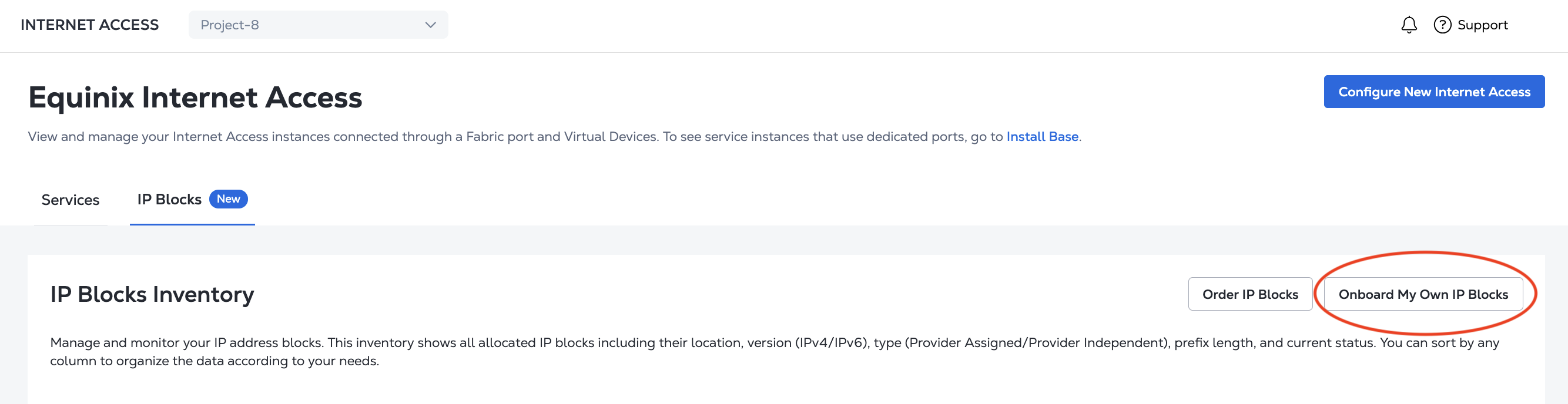
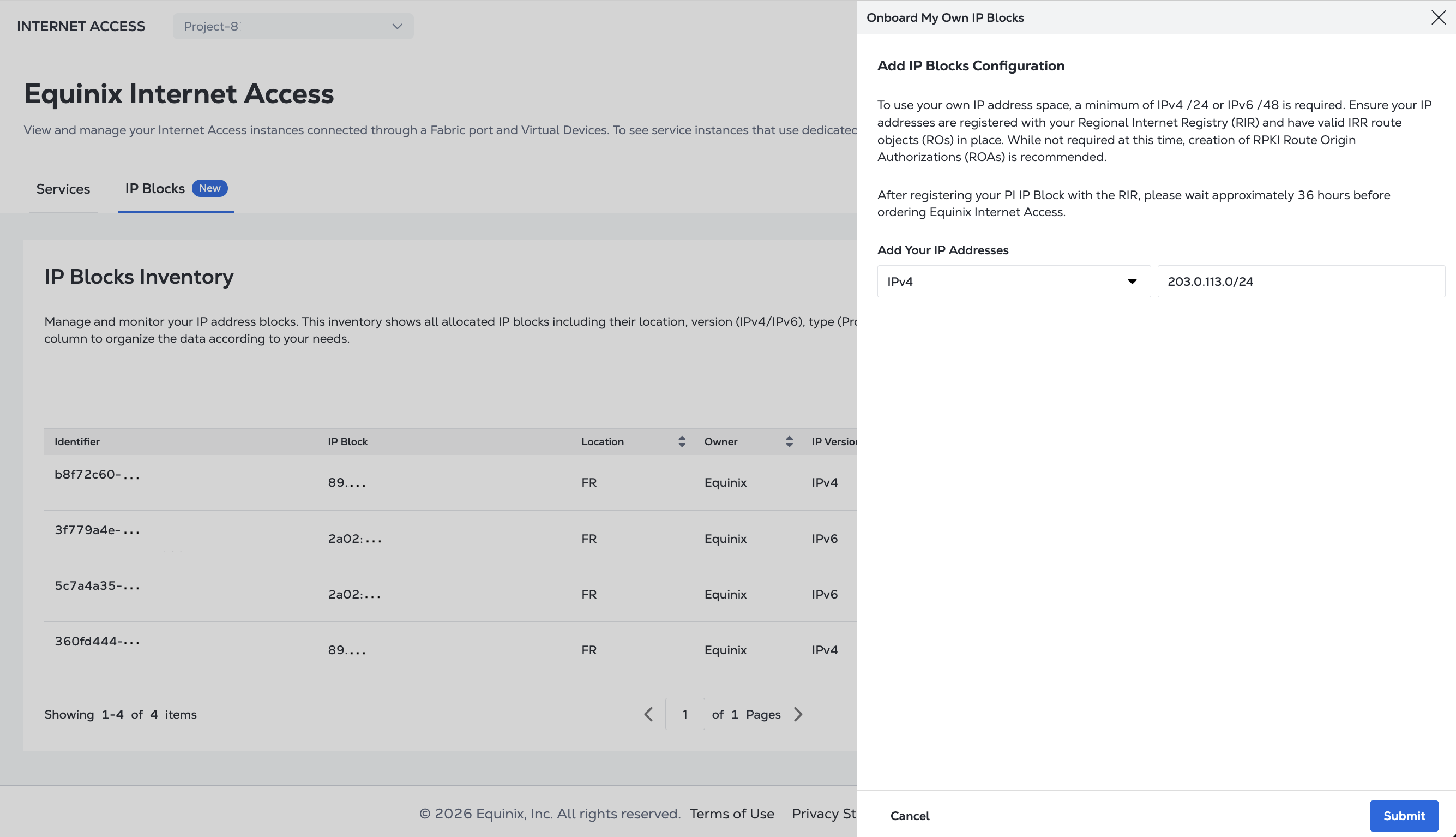
From your IP Blocks Inventory, click Onboard My Own IP Blocks.
-
Select either IPv4 or IPv6 from the Add Your IP Addresses drop-down and enter your IP block. Subnets must consist of valid and unique IPv4 and/or IPv6 addresses in CIDR notation.
-
Click Submit.
To create an IP Block, send a POST request to the /fabric/v4/ipBlocks endpoint.
In the body of the request, specify:
prefix- Your IP address block in CIDR notation.type- The type of IP address block, eitherIPV4_IP_BLOCKorIPV6_IP_BLOCK.projectId- The UUID of the project to create the IP Block in.
curl -X POST 'https://api.equinix.com/fabric/v4/ipBlocks' \
-H 'content-type: application/json' \
-H 'authorization: Bearer <token>' \
-d '{
  "prefix": "<ip_address_cidr>",
  "type": "ip_address_type",
  "project": {
    "projectId": "<project_uuid>"
  }
}'
Monitoring IP Block Status
After you have created an IP Block, it appears in the IP Blocks Inventory where you can view its status and details.