Completing an Offline Internet Access Order
Equinix is upgrading its systems and the user experience in the Customer Portal. Products and services ordered through an offline ordering process can be configured and completed in the Customer Portal.
Equinix offers ordering Internet Access through a formal quote and offline ordering process through the Equinix Sales team. Once you have received and accepted the quote, you get an order confirmation with a link to the Customer Portal where you can finish configuring your order and create your service.
Prerequisites
To complete the order for Internet Access, you must have one of the following:
-
If you are using a Fabric Port, you need a Fabric port and one of the following roles:
Fabric Port Manager,Fabric Manager, orFabric Service Provider. For more information about Fabric ports, see the Fabric documentation. -
If you are using a Network Edge virtual device, you need a provisioned device, such as a firewall, router, WAN, or other virtual device and the
Network Edge Connections Managerrole. For more information about Network Edge, see the Network Edge documentation. -
If you are ordering a Dedicated Port, you need a cage or cabinet already deployed in an Equinix data center. For more information see, Dedicated Port Configurations.
Finding the Order
You can access the order in one of two ways, from the email notification that your order has been created, or from your Order History in the Customer Portal.
To access the order from the Email Notification:
- Click the link in the email with the subject line: “Action required: Configure your Order# <order_number>”
To access the order from the Customer Portal:
-
Sign into the Customer Portal.
-
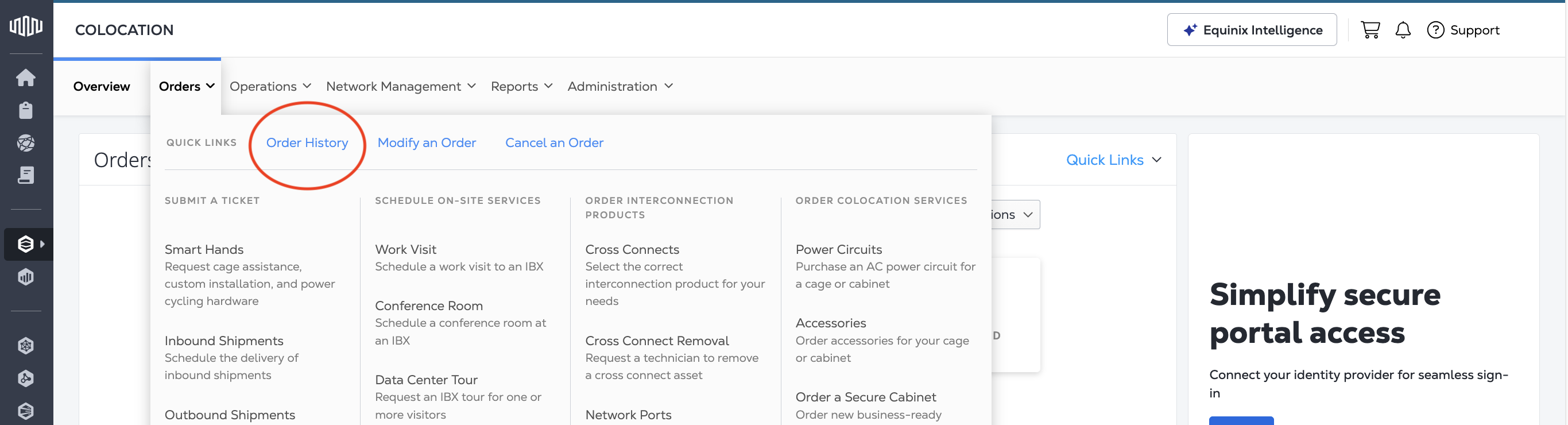
From the Colocation Dashboard, click on Orders, then Order History.
-
In the Order History table, search for the order number.
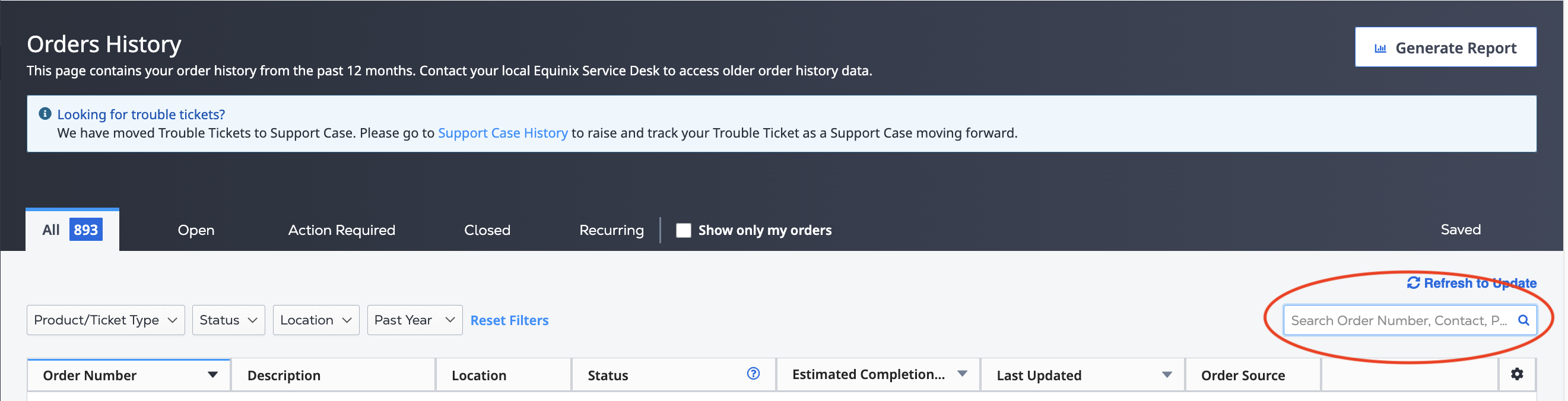
You can also use the filters to display only "Equinix Fabric" orders.
-
Once you have located the order, hover over the
Action Requiredstatus until it changes to Configure. Click Configure.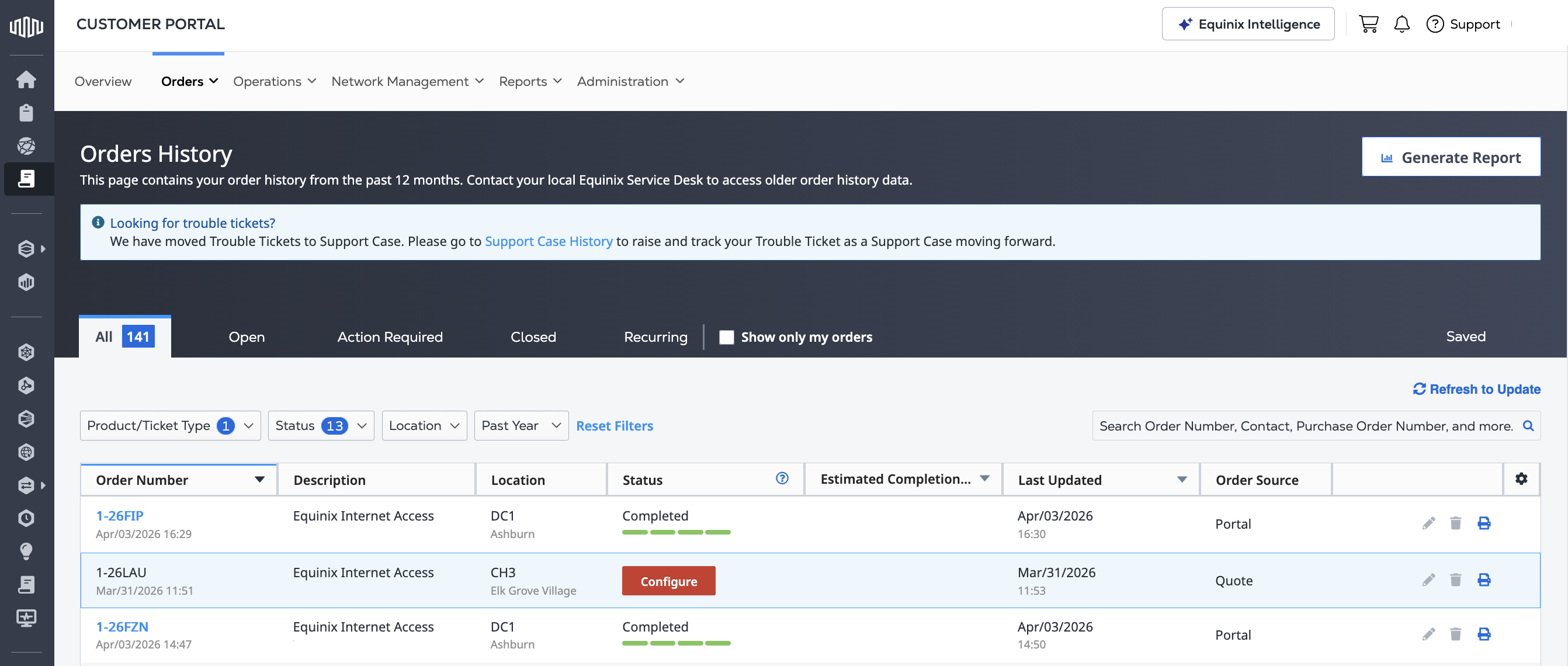
-
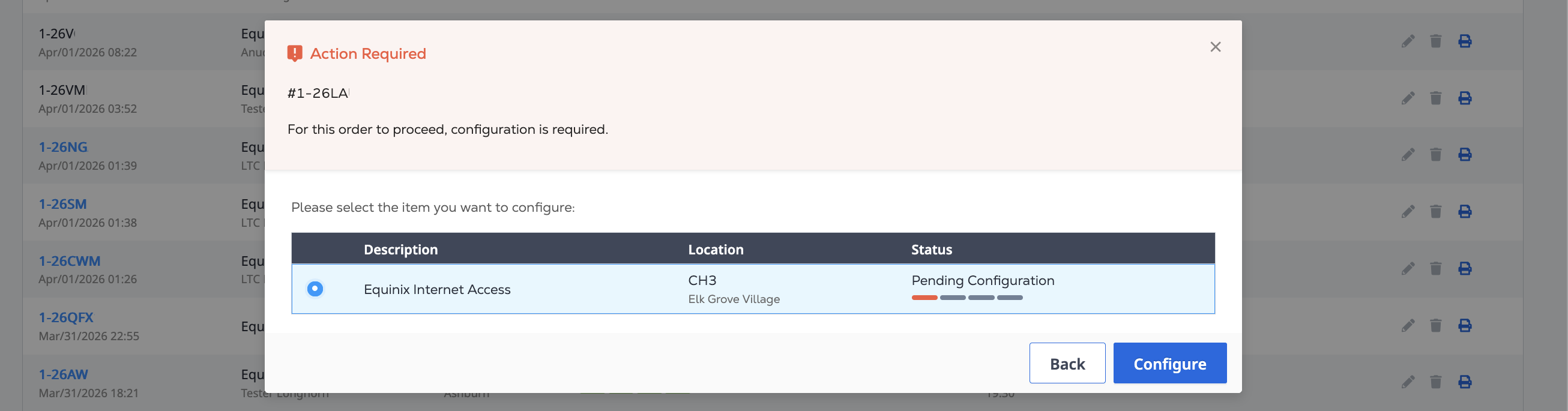
Select the Internet Access service from the order that you want to configure, and click Configure.
Completing Your Order
Complete your Internet Access order using the portal's on-line ordering flow. Configuration values derived from your quote can not be changed. These include:
- Connection Type
- Bandwidth
- Billing Account
-
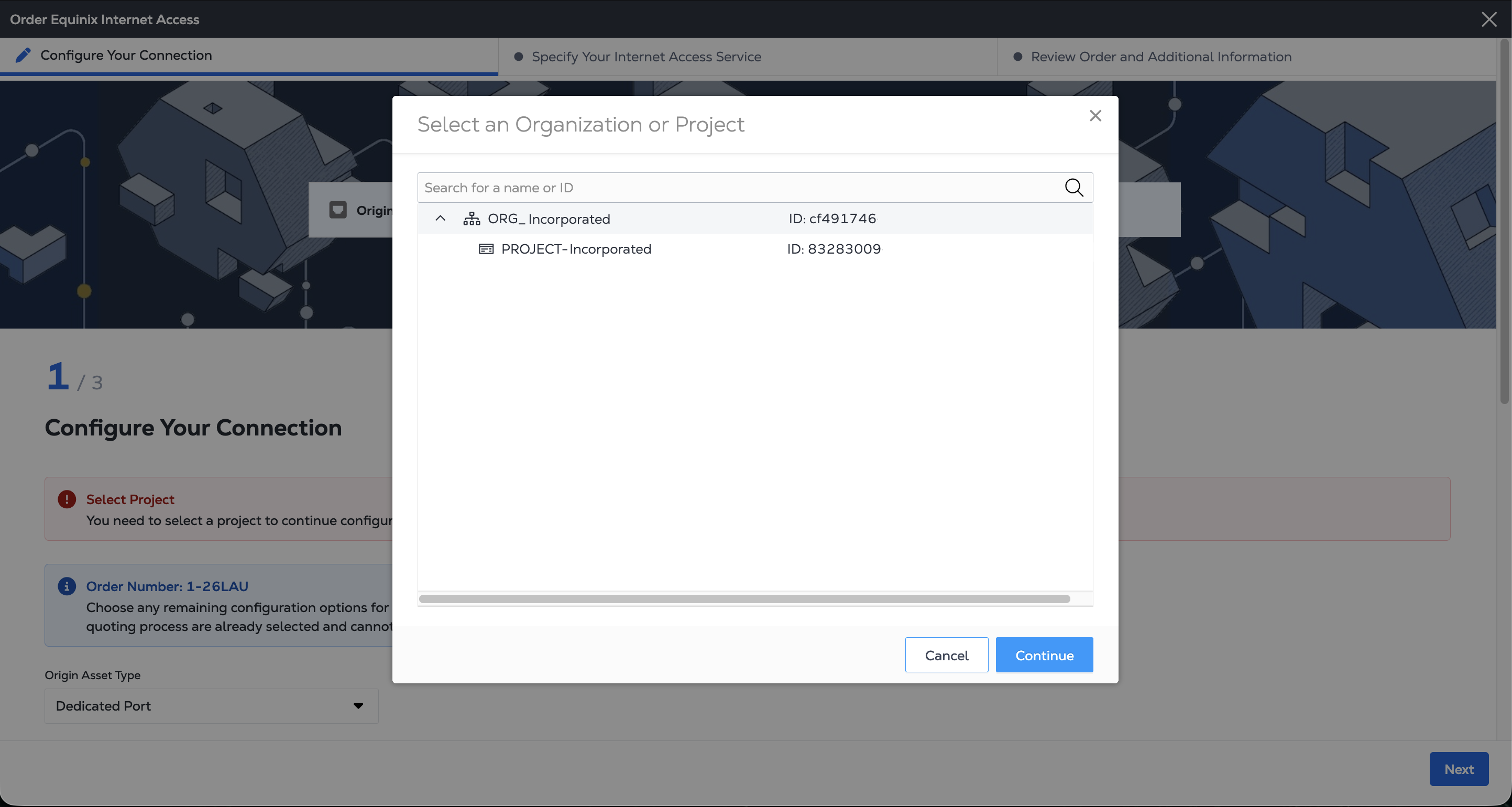
Select the Project to create the service in, then click Next.
-
On the Configure Your Connection page, choose the Origin Asset Type drop-down.
- Fabric Port - Choose the Port to use for your Internet Access service. Enter a Connection Name and the Origin VLAN ID.
- Virtual Device - Choose the device or devices to use for your Internet Access service. Enter a Connection Name and choose which device interface to use.
- Dedicated Port - Select the IBX location for your port and configure its Port Speed, Cage, Cabinet, Patch Panel, Connector Type, Port A, and Port B from the drop-downs. Enter a Connection Name and the Origin VLAN ID.
If your quote specified Redundant Connections, repeat the process for both Fabric Ports, both virtual device connections, or both Dedicated Ports.
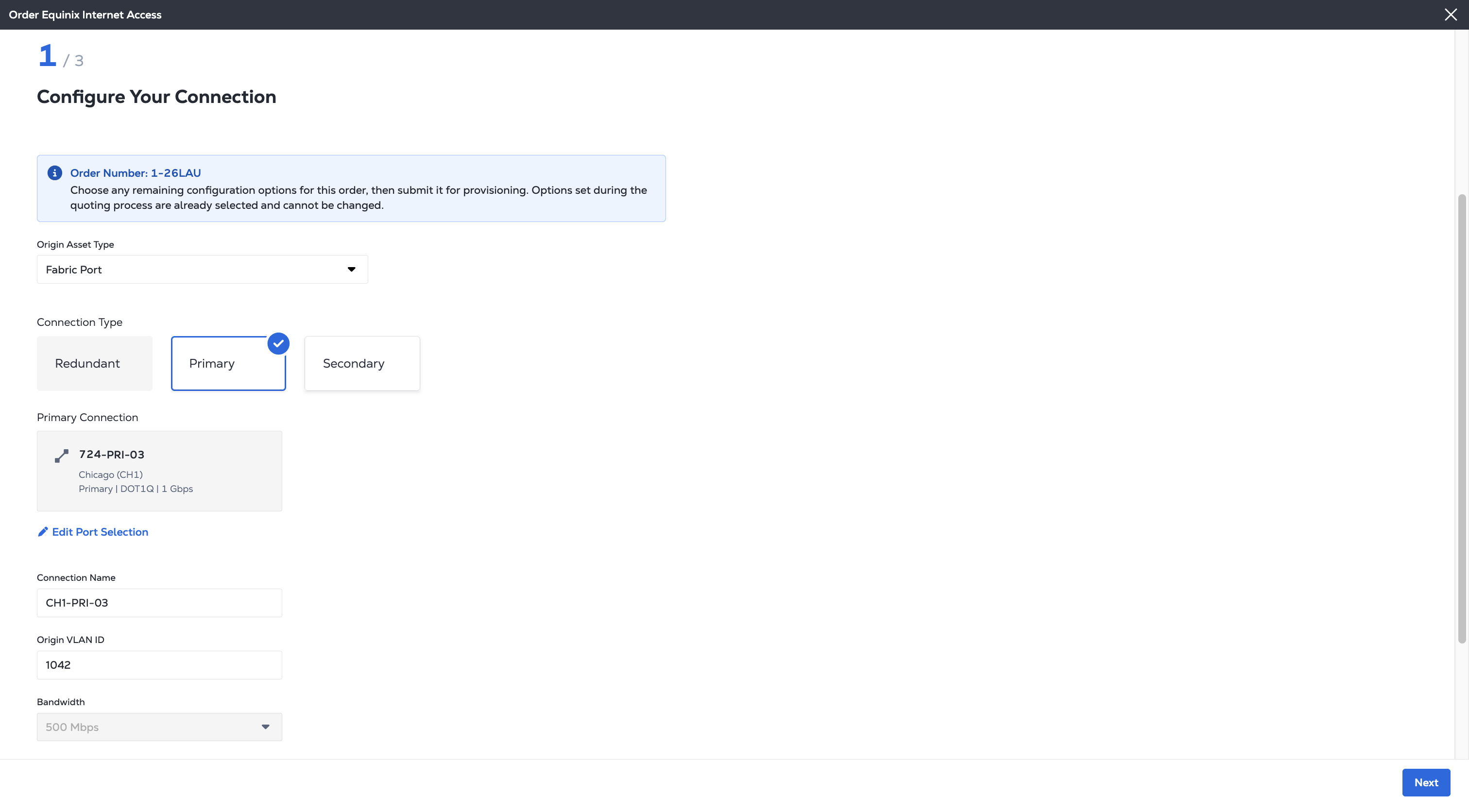
For more details on ordering Internet Access in the portal see Ordering Internet Access for Fabric Ports and virtual devices, or Ordering Internet Access for a Dedicated Port
-
Click Next
-
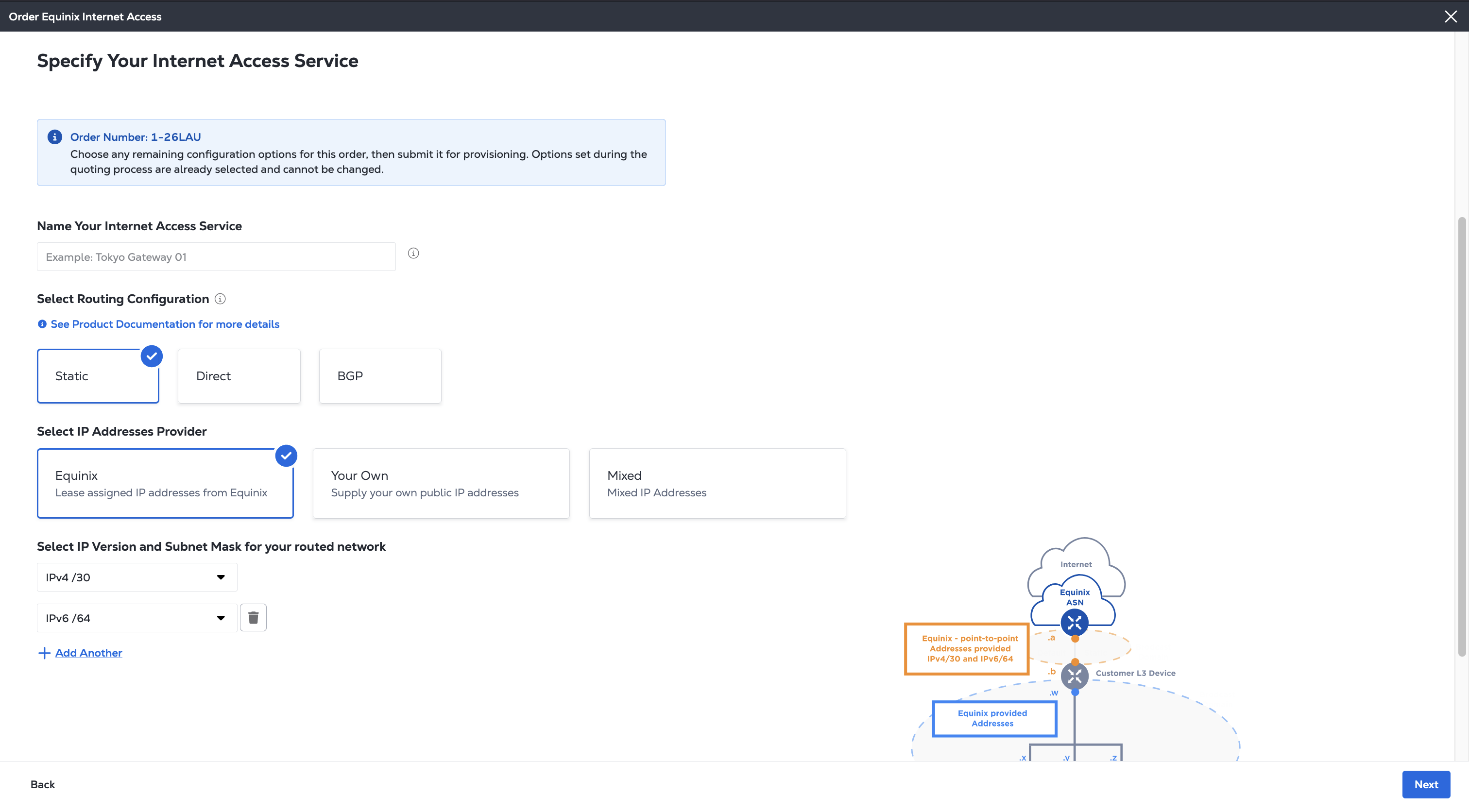
On the Specify Your Internet Access Service page, choose any remaining configuration options for your service.
- Routing Configuration - Choose between Static Routing, Direct Routing, or BGP Routing configurations.
- IP Address Provider - Choose between Equinix Provided IP addresses or using Your Own IP Addresses. More information on these IP address options, including details for how to bring your own IPs, is on the IP Address Allocation page. Mixed IP Addresses is not available on Dedicated Ports.
 note
noteCharges for IP addresses are separate from your quote and appear on your monthly bill.
-
Click Next.
Review Order and Additional Information
Configuration values derived from your quote can not be changed.
-
Review the Project, Metro, and Billing Account information for this order.
-
Review the information in the Connection Configuration and Equinix Internet Access sections.
-
Review the email addresses in the Notifications section. You can enter up to 12 addresses to receive updates about this order.
-
To add a Purchase Order (PO) to this order, click Select a Purchase Order number in the Purchase Order section. Choose a PO from the list of valid numbers. If your billing account requires a PO (also known as a PO bearing account), you must complete this step.
Submit
-
To review the terms for this order, click Review Terms and Conditions.
-
Read the text in the Order Acknowledgement section. Click I Accept.
-
Click Submit Service.
Once you have placed your order, you can track its progress in your Orders History. Once your Internet Access service is fully provisioned and active, you can view and manage your new service in Your Internet Access Inventory.