IAM Security Policies
The Security tab of the Identity and Access Management (IAM) section of the Customer Portal provides settings to manage IAM security policies for your entire Organization.
To access the IAM Security Policies you need either the IAM Admin or Equinix Company Admin role, or a custom role with identity.orgsecuritypolicy.read and identity.orgsecuritypolicy.update permissions.
To view and manage Security Policies:
-
Sign in to the Customer Portal.
-
Navigate to Identity and Access Management.
-
Click on Security.
Federated Single Sign-On
Federated Single Sign-On offers support for you and your users to sign in using existing corporate credentials via “Sign in with SSO,” with no separate Equinix MFA enrollment required. Access to the Customer Portal is managed through your identity provider (IdP) to authenticate users; Equinix trusts the IdP assertion at login.
For large enterprises, Equinix recommends federated SSO for accessing the Customer Portal.
To register your organization to use Federated SSO, or to manage your Federated SSO settings:
-
In the Federated Single Sign-On box, click Manage.

This opens the Self-Service Federation portal, where you can register and manage your metadata.
Multi-Factor Authentication
Multi-Factor Authentication (MFA) adds another layer of security to the Equinix portals. MFA increases security with an additional verification step that requires a one-time passcode (OTP) sent to or generated by a registered trusted device.
Equinix strongly recommends that you enable MFA for your organization.
When you enable MFA, all users within your organization must register a secondary authentication method using an alternate mechanism. Your users will be required to enable MFA when they next sign in to the portal and use an OTP for all subsequent sign-ins to the portal.
To enable Multi-factor Authentication for your organization:
-
In the Multi-Factor Authentication box, click Enable.

-
Read the information carefully, then toggle Enable. Click Submit.
Once MFA is enabled, users are asked to register for MFA during their next sign in. Documentation on how your users set up MFA with SMS is available in Enabling Multi-factor Authentication.
:::note Important MFA is Mandatory for all (non-SSO) accounts starting in March 2026. Once you enable MFA, it is required for all accounts and can no longer be disabled at the organization level. :::
Authentication Methods
Authentication App
Authenticator applications are supported for all account types and are generally more secure than SMS.
SMS (Text Message)
SMS (text message) authentication is available only for organizations that maintain an active Equinix billing account.
The following organizations cannot use SMS for multi-factor authentication:
- Trial organizations.
- Organizations with suspended billing accounts.
- Organizations without an active billing account.
This requirement follows industry best practices to reduce fraud attacks that abuse SMS one-time passcodes and to protect Equinix's messaging infrastructure.
Password Management
The following password policies are in place for the security of user accounts in your organizations.
-
Account Lockout Threshold - To protect against brute-force attacks, the portal blocks an IP address from logging in as a given user after 10 failed log in attempts. To unlock access to your account, click Reset Password on the login page and follow the password reset procedure.
-
Breached Password Detection - If your username and password combination has been compromised, Equinix:
- Blocks new sign ups with compromised credentials.
- Blocks compromised user accounts and requires a password reset to re-enable access.
- Sends an email notification to the account owner in case of a log in attempt.
-
Password Reuse - This policy prevents end users from reusing their last 24 passwords when setting up new ones.
To increase security of user accounts in your organization, you can enable password expiration options.
To change password expiration settings:
-
In the Password Management box, click Manage.

-
Set the password expiration period to 90 days, 180 days, 1 year, or Never Expire. Click Submit.
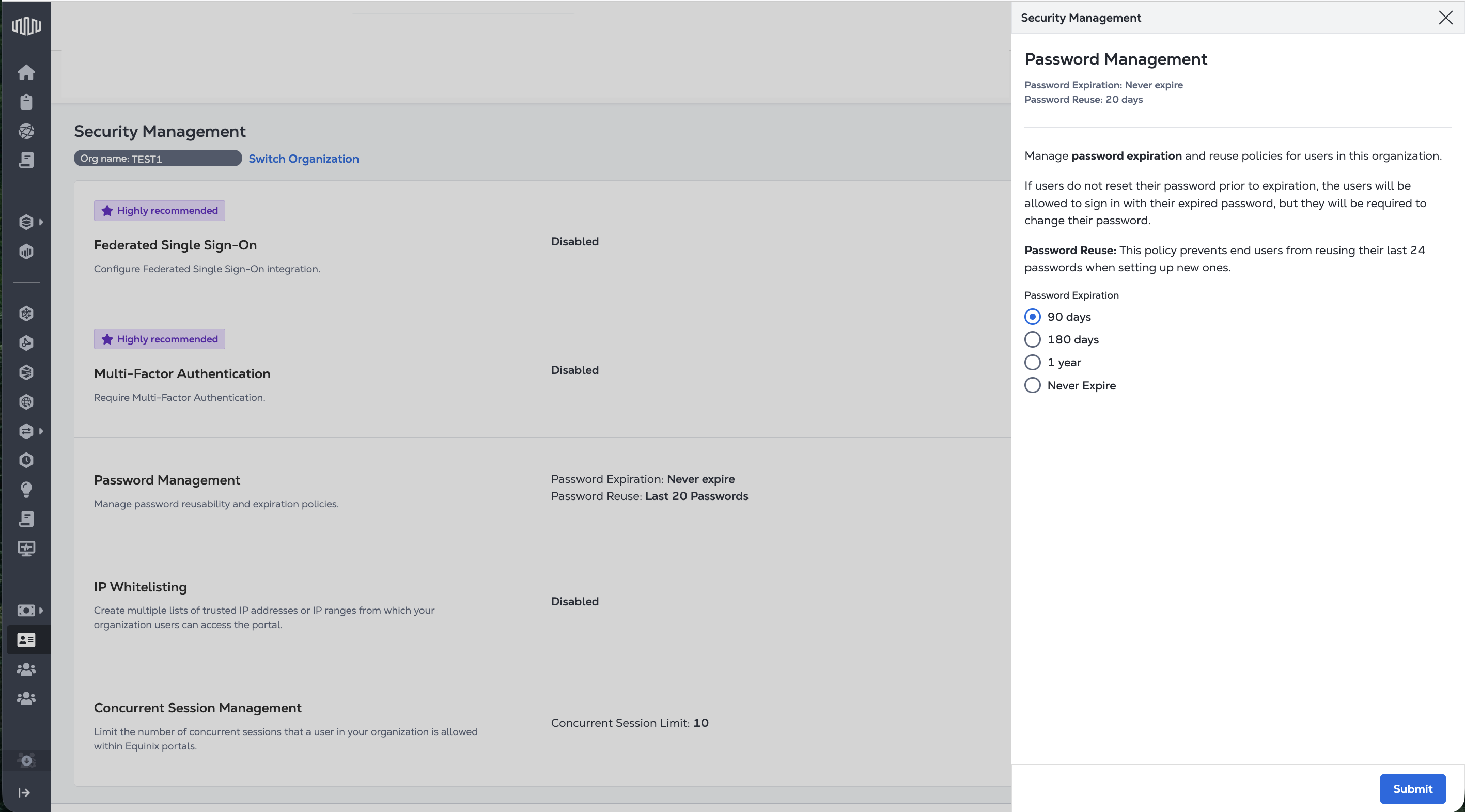
If your users do not reset their password prior to expiration, they are required to change their password on their next sign in.
IP Allow List
IP allowlist enables restricting access to the Equinix portal by allowing users to log in only from specified IP addresses.
To view and manage your IP allowlist:
-
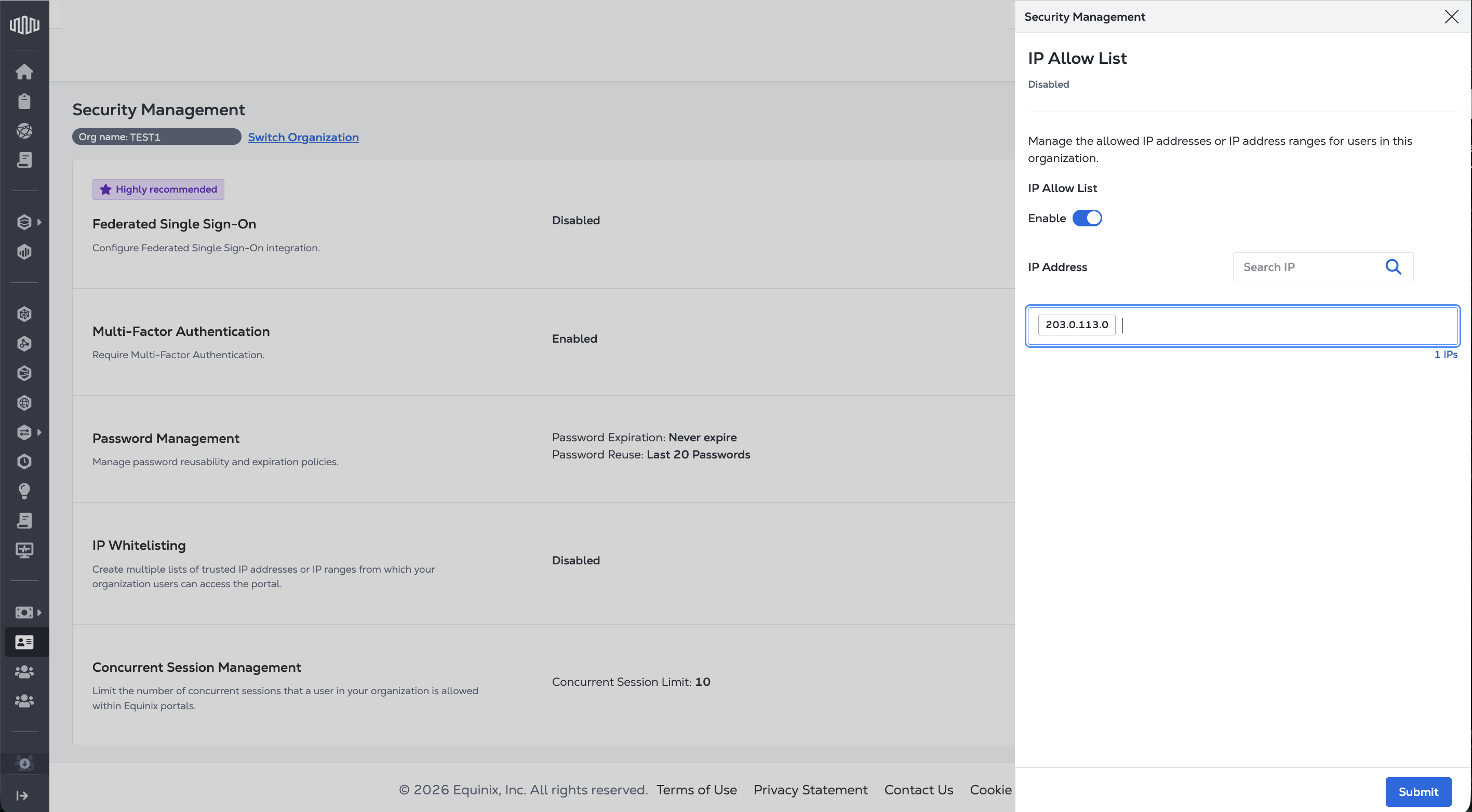
In the IP Whitelisting box, click Enable.

-
Toggle Enable, and add an IP address or a list of IP addresses to the field, and press enter.
-
Click Submit.
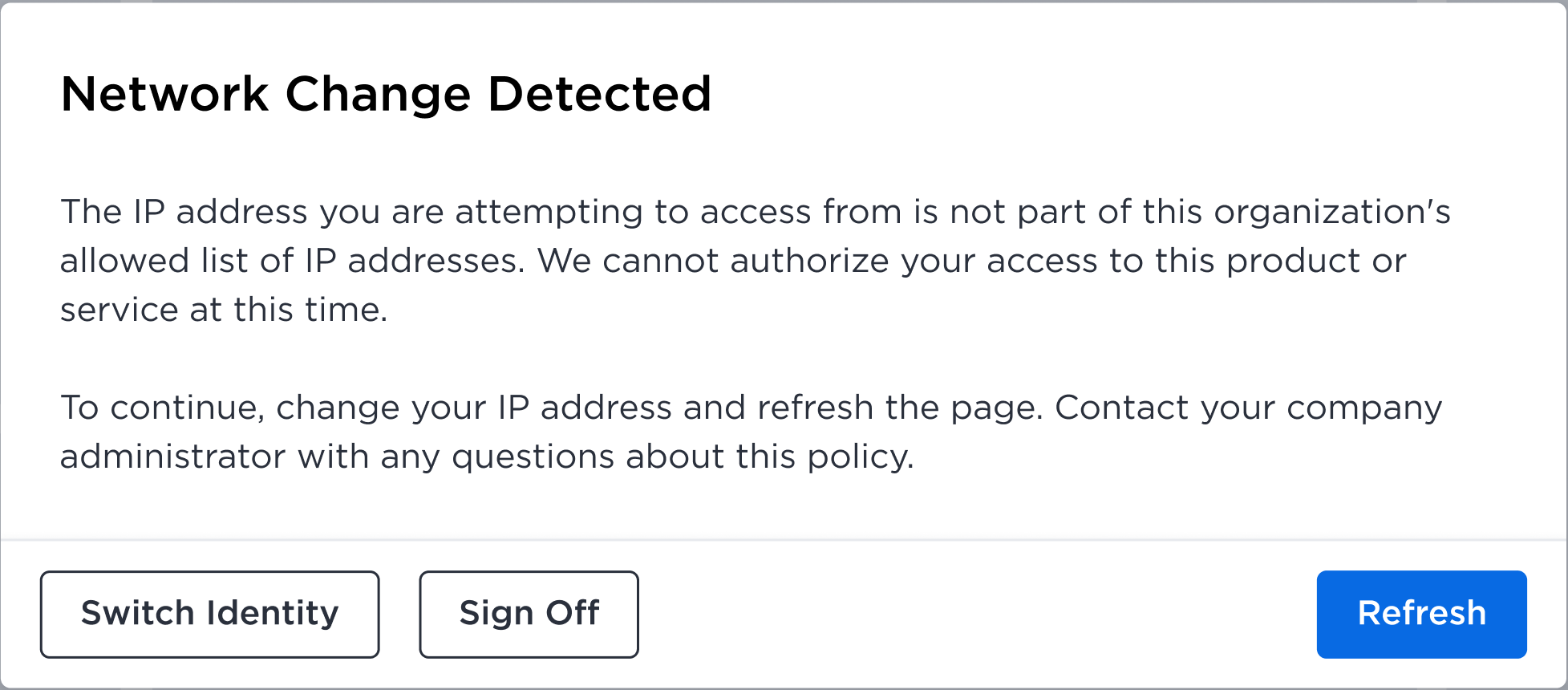
If you attempt to access the Customer Portal from an IP address that is not on your organization's allowlist, you get the following error.
Concurrent Session Management
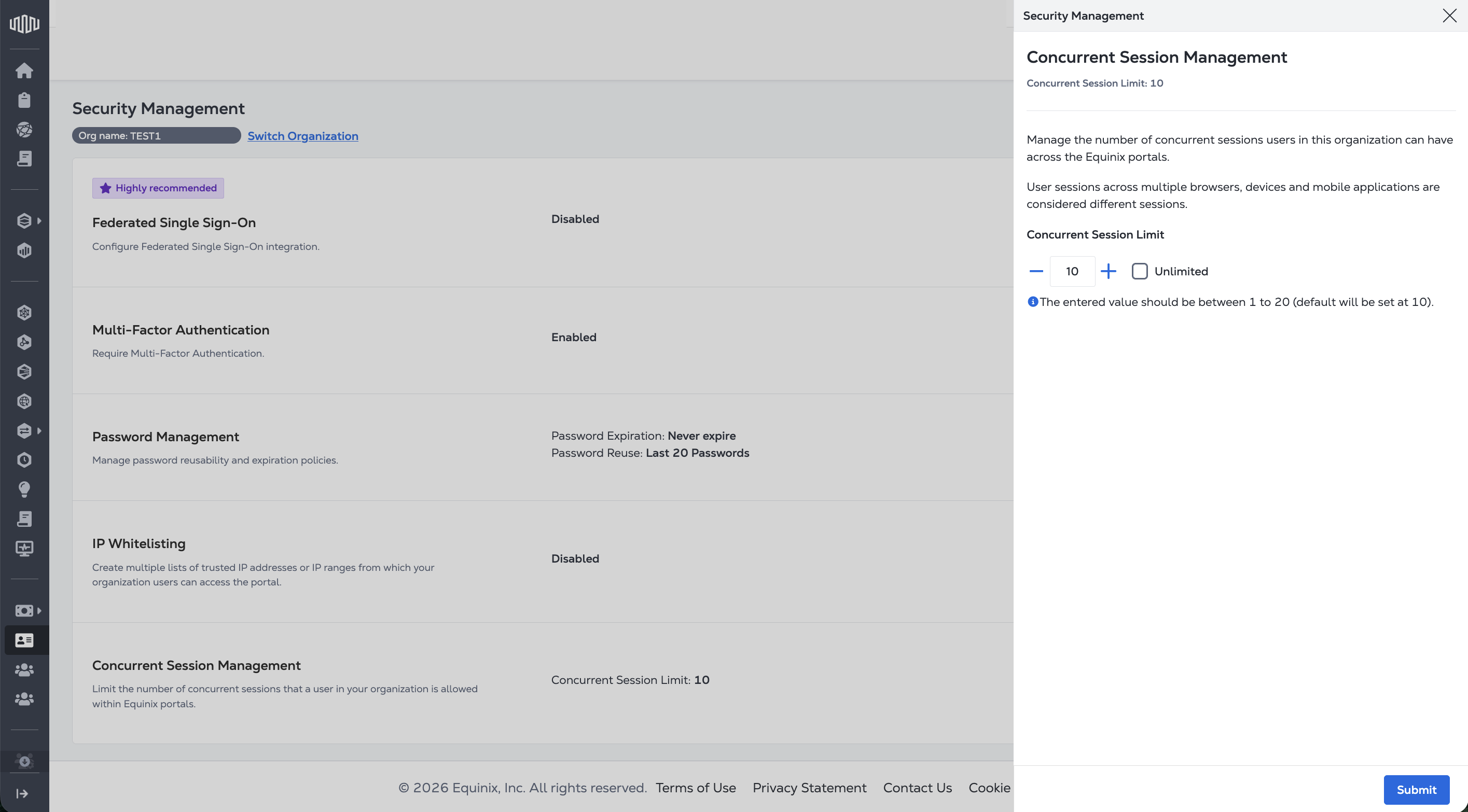
Control how many sessions you or your users can be logged into for a single account at the same time. The default concurrent session limit is 10. You can decide to set the concurrent session limit to anywhere between 1-20 sessions, or Unlimited.
To manage the concurrent session limit:
-
In the Concurrent Session Management box, click Manage.

-
Enter the number of concurrent sessions you want to allow in the field, or check the box for Unlimited. Click Submit.