Alibaba Cloud Express Connect
Utilisez Equinix Customer Portal ou API pour créer la connexion entre votre port Fabric, Fabric Cloud Router ou périphérique virtuel Network Edge et Alibaba Cloud Express Connect. Alibaba Cloud Express Connect connecte les datacentres Equinix sur site au cloud Alibaba via un réseau dorsal partenaire dédié.
Pour plus d'informations, consultez Express Connect dans le Centre de documentation cloud d'Alibaba .
Présentation
Equinix prend en charge la connexion à Alibaba Cloud via le profil de service Alibaba Cloud Express Connect.
Sites
| APAC | AMER | EMEA |
|---|---|---|
| Hong Kong (HK) Singapour (SG) Tokyo (TY) | Ashburn (DC) Silicon Valley (SV) | Francfort (FR) Londres (LD) |
Options de bande passante
- 50 Mbit/s.
- 200 Mbit/s.
- 500 Mbit/s.
- 1000 Mbit/s.
Conditions préalables
Pour établir une connexion à Alibaba Cloud, vous devez disposer des éléments suivants :
-
Un compte sur Alibaba Cloud Express Connect et un accès à la console Alibaba Cloud Express Connect.
-
Un circuit Alibaba Cloud Express Connect Express Connect ; dédié ou partagé. Pour plus d'informations, reportez-vous à la section connexion sur un circuit Express Connect .
notePour vous connecter à Alibaba Express Connect via un Cross Connect dédié (fibre monomode), vous devez envoyer une commande via le portail cloud d'Alibaba.
-
Votre identifiant de compte Alibaba à partir de la console Alibaba Cloud Express Connect.
-
Un port Fabric , un jeton de service A-Side , un Fabric Cloud Router ou un dispositif virtuel Network Edge .
-
Pour créer des connexions dans Fabric, vous devez disposer du
Fabric Connections Managerrôle.
Création de la connexion dans Fabric
- Portal
- API
-
Connectez-vous au Portail client et naviguez pour trouver un prestataire de services .
-
Utilisez la barre de recherche pour rechercher « Alibaba Cloud ».
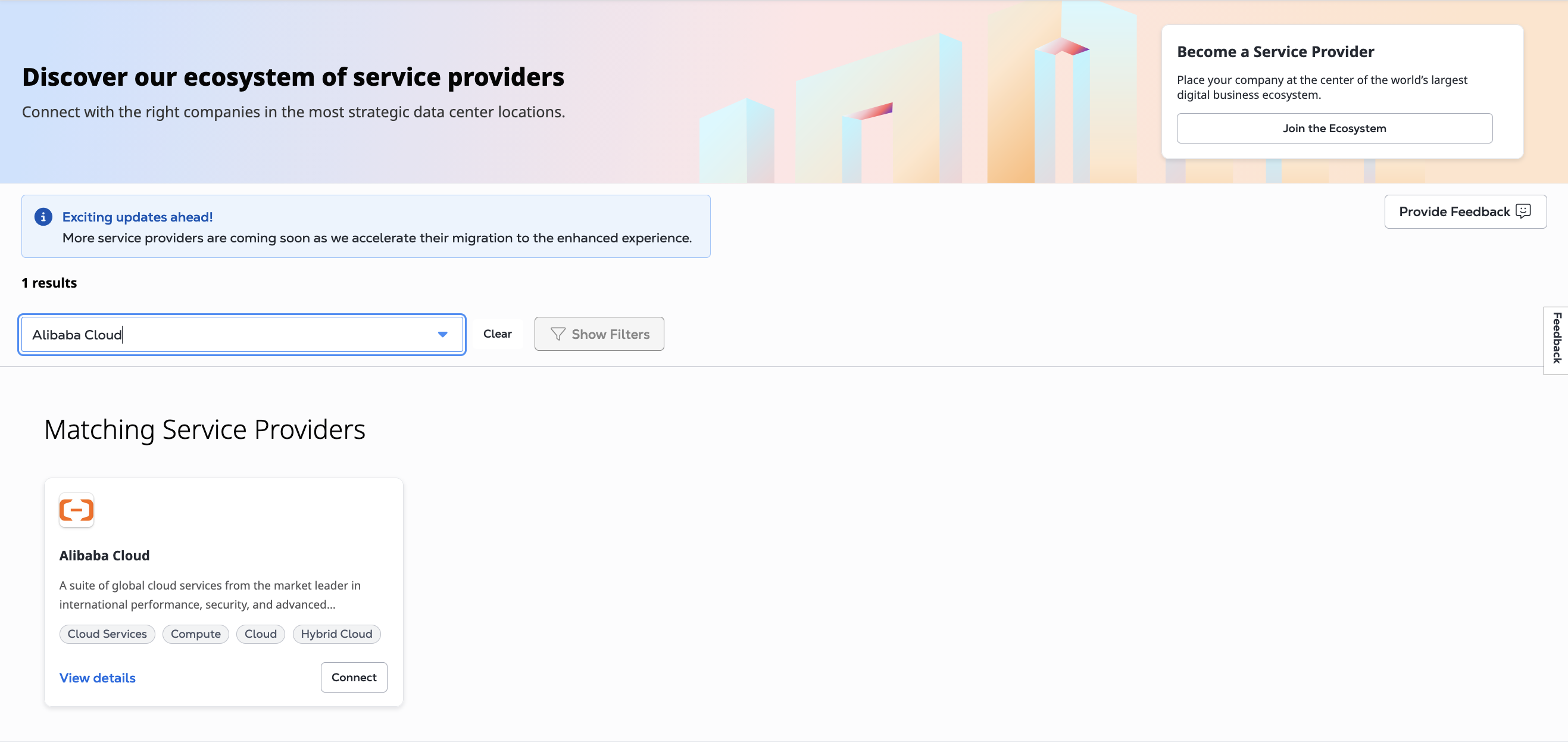
-
Sur la carte Cloud Alibaba, cliquez sur connecter. Dans le panneau créer une connexion , cliquez sur créer une connexion.
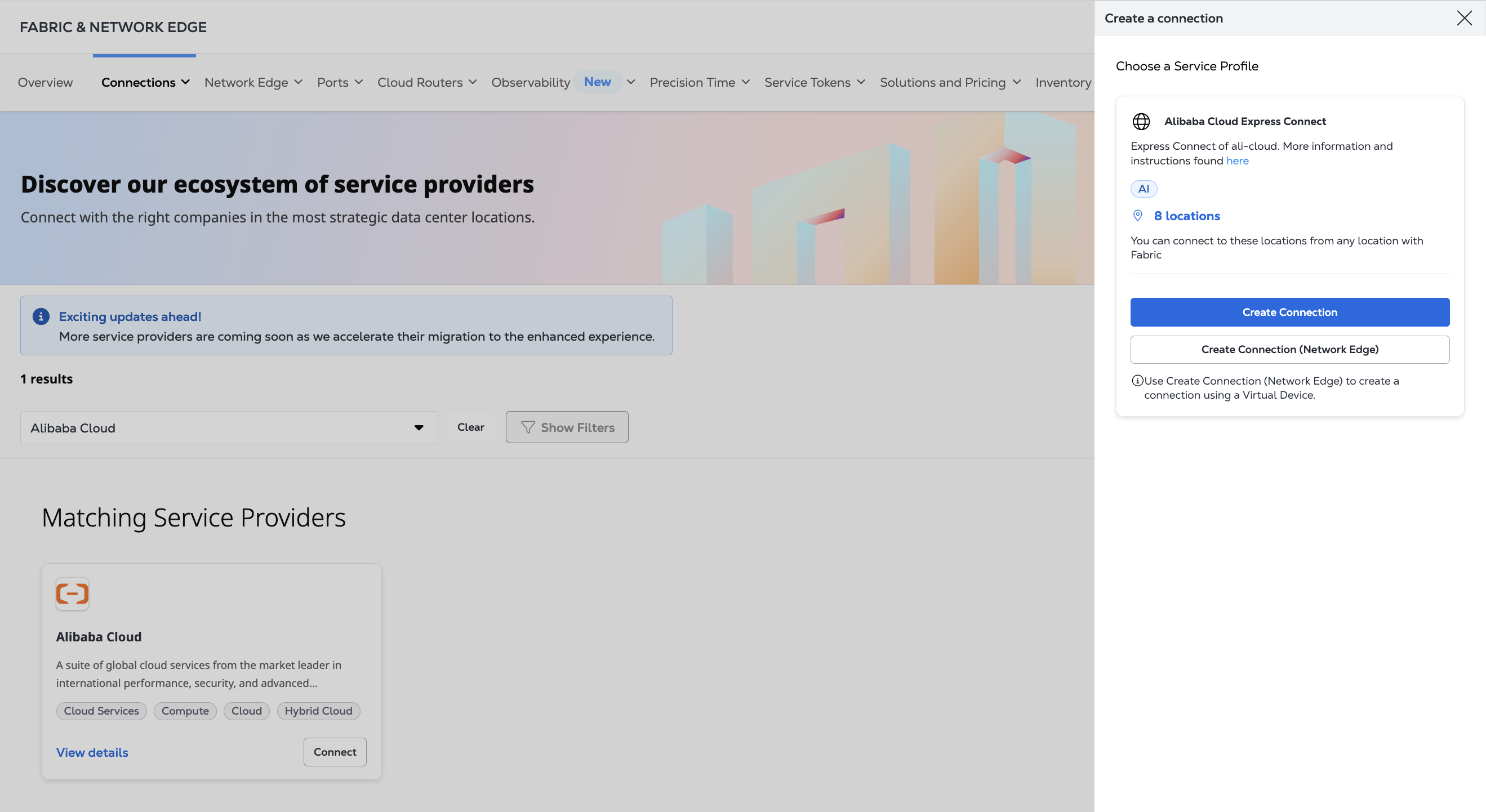
Si vous vous connectez à l'aide d'un périphérique virtuel Network Edge, cliquez sur créer une connexion (périphérique Network Edge) et passez directement à la sectiondu périphérique virtuel.
-
Passez en revue les étapes de création de la connexion et cliquez sur OK.
-
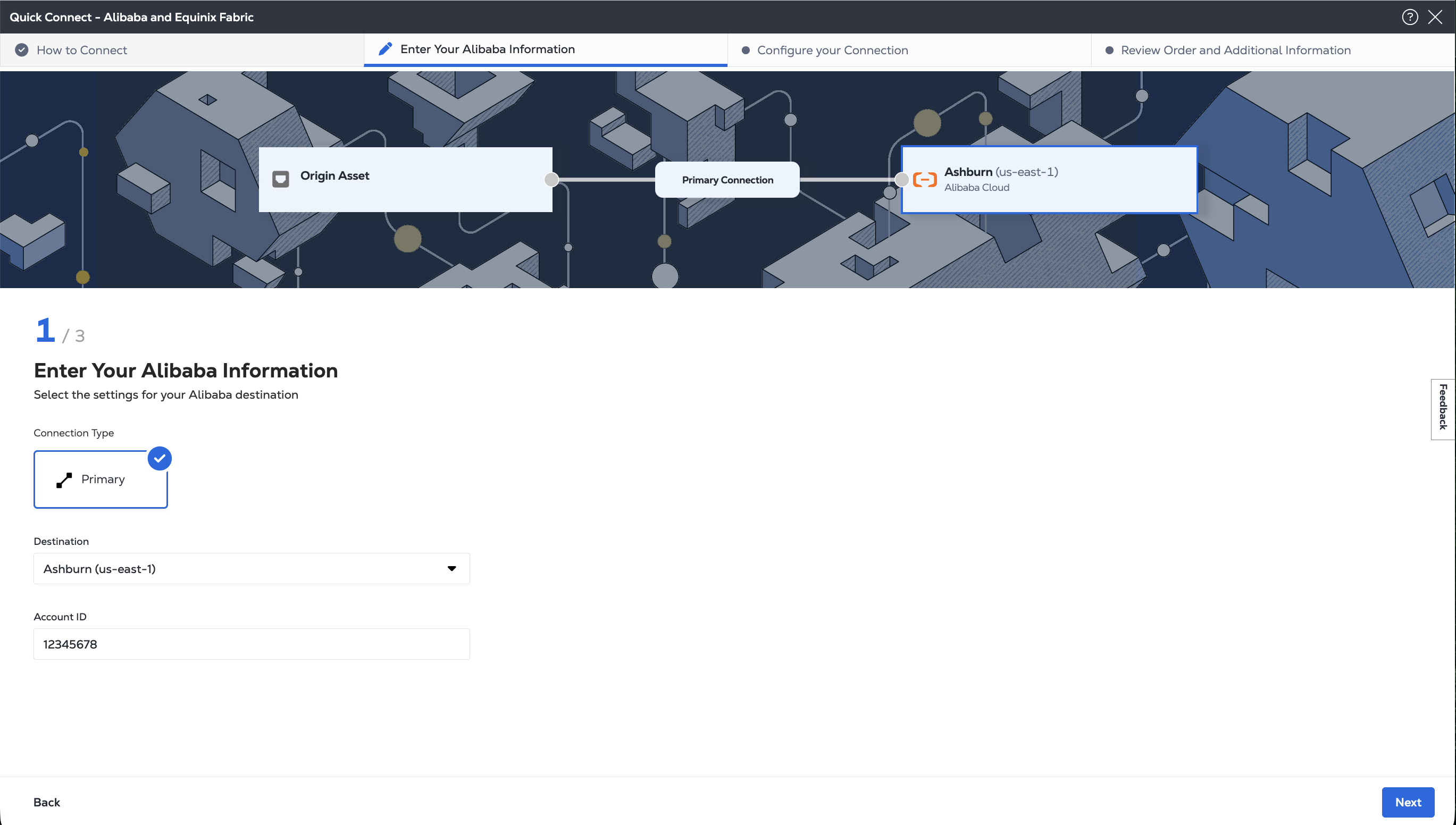
Saisissez vos informations Alibaba.
-
Sélectionnez la zone métropolitaine et la région auxquelles vous vous connectez.
-
Saisissez votre identifiant de compte Alibaba Cloud.
-
-
Cliquez sur suivant pour configurer votre connexion en fonction du type d’équipement d’origine : port, jeton de service, routeur cloud.
-
Authentifier - envoyez vos identifiants utilisateur, votre identifiant client et votre secret client pour l'authentification OAuth2. Pour savoir comment appeler OAuth API pour valider et authentifier vos identifiants, reportez-vous à authentification API.
-
Déterminez vos informations A-Side. Soit :
- Déterminez vos informations de ports Equinix Fabric en envoyant une
GETdemande au/fabric/v4/portspoint final. Vous avez besoin du(s) UUID(s) de port et du type de protocole de liaison (DOT1Q ou QINQ),
OU
- Récupérez vos jetons de service a-Side en envoyant une
GETdemande au/fabric/v4/serviceTokenspoint final. Vous avez besoin de l'UUID du jeton. Le jeton a-Side fournit les informations pertinentes pour configurer le a-Side de la connexion.
OU
- Déterminez vos informations Fabric Cloud Router. Vérifiez vos routeurs cloud disponibles en envoyant une
POSTdemande au/fabric/v4/routers/searchterminal. Vous avez besoin de l'UUID du routeur.
OU
- Déterminez les informations relatives à votre appareil Network Edge. Vérifiez vos périphériques virtuels et clusters disponibles en envoyant une
GETdemande au/ne/v1/devicesterminal. Vous avez besoin du ou des UUID de l'appareil. Envoyer uneGETdemande au/ne/v1/devices/{device_id}terminal pour obtenir les détails d'un appareil. Vous pouvez choisir n'importe quelle interface disponible sur l'appareil pour votre connexion. Si vous n'en spécifiez pas, la connexion est automatiquement attribuée à la prochaine interface disponible.
- Déterminez vos informations de ports Equinix Fabric en envoyant une
-
Obtenez les informations de profil du service Alibaba Cloud Express Connect. Utilisez la demande API récupérer les profils de service pour rechercher un profil de service spécifique ou la demande APIobtenir les profils de service pour répertorier tous les profils deservice disponibles. Vous avez besoin de l'UUID du profil de service Alibaba Cloud Express Connect et de l'emplacement auquel vous souhaitez vous connecter sur
sellerRegionle terrain.- Alibaba Cloud Express Connect -
4c4b8edf-873b-4c6c-805a-edb2c335bd6c
- Alibaba Cloud Express Connect -
Se connecter à partir d'un port
- Portal
- API
-
Dans la liste déroulante type d’équipement d’origine, sélectionnez Port.
-
Dans la section connexion principale :
-
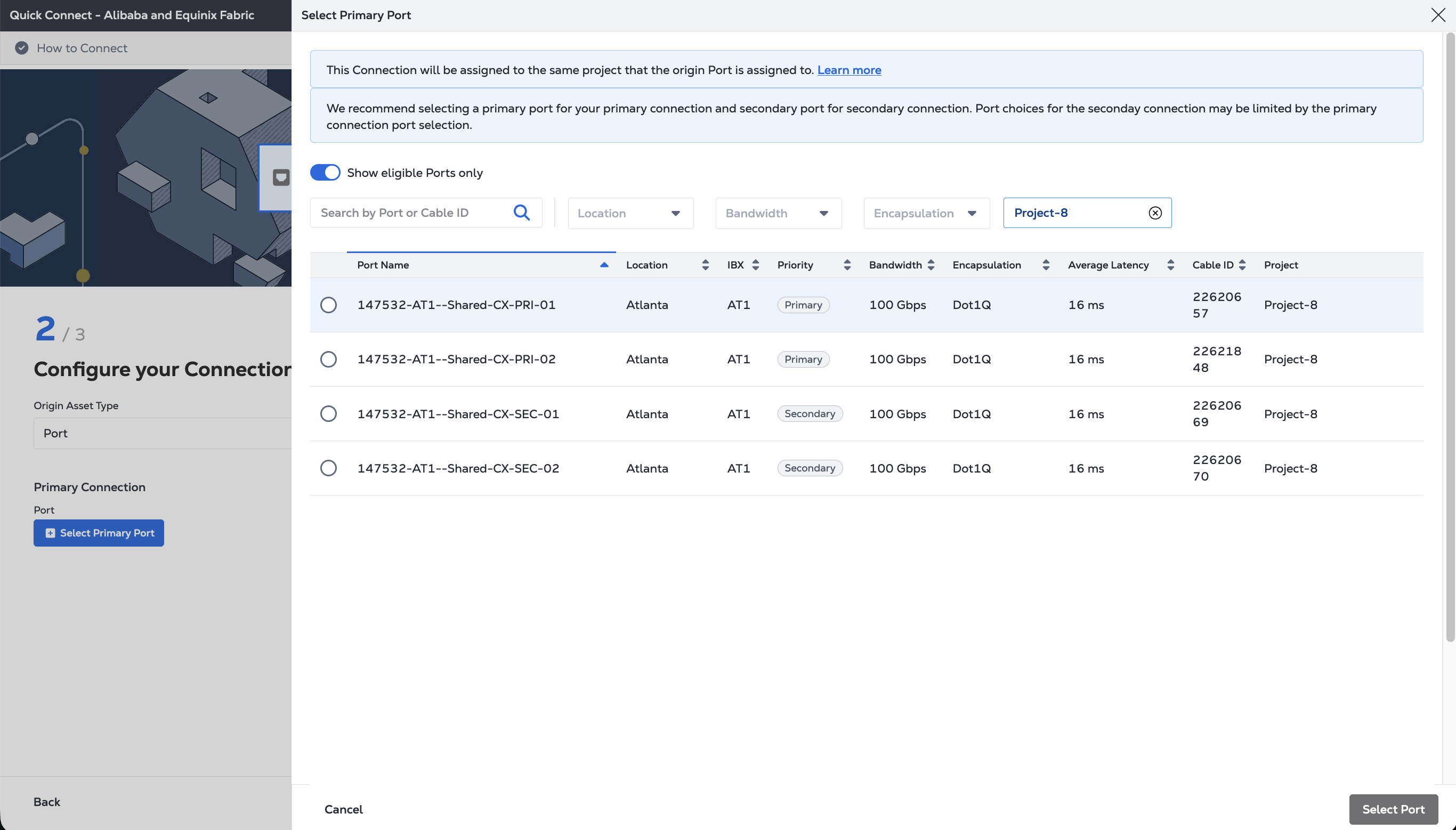
Cliquez sur + sélectionner le port principal , puis sélectionnez votre port de connexion principal et cliquez sur sélectionner le port. Seuls les ports principaux peuvent être sélectionnés.
-
Saisissez le nom de la connexion principale.
-
Sélectionnez une bande passante.
-
Saisissez un identifiant VLAN (applicable aux ports DOT1Q) ou une balise VLAN Client (C-tag) et une balise Service VLAN (S-tag) (applicable aux ports QINQ).
-
-
Dans la section connexion secondaire :
- Cliquez sur + sélectionner un port secondaire , puis sélectionnez votre port de connexion secondaire et cliquez sur sélectionner un port. Seuls les ports secondaires peuvent être sélectionnés.
- Saisissez le nom de la connexion secondaire.
- Sélectionnez une bande passante.
- Saisissez un identifiant VLAN (applicable aux ports DOT1Q) ou une balise VLAN Client (C-tag) et une balise Service VLAN (S-tag) (applicable aux ports QINQ).
-
(Facultatif) choisissez d'activer ou non les zones géographiques . La valeur par défaut est Désactivé.
-
Sélectionnez la durée du terme.
-
Cliquez sur suivant.
-
Sur la page vérifier la commande et les informations supplémentaires, vérifiez les informations dans les sections Configuration de la connexion.
-
Utilisez le champ notifications pour fournir les adresses e-mail des destinataires à notifier de l'état de la connexion. Vous pouvez ajouter jusqu'à 12 adresses e-mail.
-
(Facultatif) saisissez ou ajoutez des informations sur la commande dans la section bon de commande.
-
Indiquez un identifiant de référence client qui vous aidera à identifier cette commande sur votre facture.
-
Cliquez sur Afficher le récapitulatif de la commande pour afficher les détails de la commande et les informations de tarification de la connexion.
Lorsque vous êtes prêt, cliquez sur créer une connexion.
Pour créer une connexion entre votre port DOT1Q et Alibaba Cloud Express Connect, envoyez POSTune demande au /fabric/v4/connectionsterminal.
Indiquez vos informations de port dans l'aSideobjet, notamment :
accessPoint.typeasCOLO- Indiquez l'UUID de votre port à
port.uuid - LinkProtocol.type AS
DOT1Q - Indiquez l'identifiant VLAN à
linkProtocol.vlanTag
Fournir les détails du nuage Alibaba et les détails de l'emplacement dans l'zSideobjet, y compris :
- Définir
accessPoint.typecommeSP. - Définir
profile.typecommeL2_PROFILE. - Spécifiez le profil de service Express Connect auquel vous vous connectez dans
profile.uuid. - Spécifiez l'emplacement métropolitain Equinix auquel vous vous connectez dans
location.metroCode. - Spécifiez la région de connexion express associée à la zone métropolitaine Equinix dans
sellerRegion. - Définir
authenticationKeycomme identifiant de compte Alibaba Cloud.
Exemple de requête cURL :
curl -X POST 'https://api.equinix.com/fabric/v4/connections' \
-H 'content-type: application/json' \
-H 'authorization: Bearer <token>' \
-d '{
  "type": "EVPL_VC",
  "name": "<connection_name>,
  "bandwidth": <bandwidth_speed>,
  "redundancy": {
    "priority": "<redundancy_code>"
  },
  "aSide": {
    "accessPoint": {
      "type": "COLO",
      "port": {
        "uuid": "<port-uuid>"
      },
      "linkProtocol": {
        "type": "DOT1Q",
        "vlanTag": <vlan-id>
      }
    }
  },
  "zSide": {
    "accessPoint": {
      "type": "SP",
      "profile": {
        "uuid": "<alibaba_service_profile_uuid>"
      },
      "location": {
        "metroCode": "<equinix_metro_code>"
      },
      "authenticationKey": "<alibaba_cloud_account_id>",
      "sellerRegion": "<alibaba_region_id>"
      }
    },
  "notifications": {
    "type": "ALL",
    "emails": [
      "<contact_email>",
      "<contact_email>"
    ]
  }
}'
Pour créer une connexion entre votre port QINQ et Alibaba Cloud Express Connect, envoyez POSTune demande au /fabric/v4/connectionsterminal.
Indiquez vos informations de port dans l'aSideobjet, notamment :
- Définir
accessPoint.typecommeCOLO - Indiquez l'UUID de votre port à
port.uuid linkProtocol.typeasQINQ- Indiquez l'identifiant de l'étiquette interne à
linkProtocol.vlanCTag - Indiquez l'identifiant de la balise externe à
linkProtocol.vlanSTag
Fournir les détails du nuage Alibaba et les détails de l'emplacement dans l'zSideobjet, y compris :
- Définir
accessPoint.typecommeSP. - Définir
profile.typecommeL2_PROFILE. - Spécifiez le profil de service Express Connect auquel vous vous connectez dans
profile.uuid. - Spécifiez l'emplacement métropolitain Equinix auquel vous vous connectez dans
location.metroCode. - Spécifiez la région de connexion express associée à la zone métropolitaine Equinix dans
sellerRegion. - Définir
authenticationKeycomme identifiant de compte Alibaba Cloud.
Exemple de requête cURL :
curl -X POST 'https://api.equinix.com/fabric/v4/connections' \
-H 'content-type: application/json' \
-H 'authorization: Bearer <token>' \
-d '{
  "type": "EVPL_VC",
  "name": "<connection_name>,
  "bandwidth": <bandwidth_speed>,
  "redundancy": {
    "priority": "<redundancy_code>"
  },
  "aSide": {
    "accessPoint": {
      "type": "COLO",
      "port": {
        "uuid": "<port_uuid>"
       },
      "linkProtocol": {
        "type": "QINQ",
        "vlanCTag": <vlan_tag>,
        "vlanSTag": <vlan_tag>
      }
    }
  },
  "zSide": {
    "accessPoint": {
      "type": "SP",
      "profile": {
        "uuid": "<alibaba_service_profile_uuid>"
      },
      "location": {
        "metroCode": "<equinix_metro_code>"
      },
      "authenticationKey": "<alibaba_cloud_account_id>",
      "sellerRegion": "<alibaba_region_id>"
      }
    },
  "notifications": {
    "type": "ALL",
    "emails": [
      "<contact_email>",
      "<contact_email>"
    ]
  }
}'
Connexion à partir d'un jeton de service
- Portal
- API
-
Dans la liste déroulante type d’équipement d’origine, sélectionnez jeton de service .
-
Dans la section connexion principale :
-
Cliquez sur + saisir le jeton de service principal , fournissez le jeton de service, puis cliquez sur utiliser le jeton de service .
-
Saisissez le nom de la connexion principale.
-
Sélectionnez une bande passante.
-
-
Dans la section connexion secondaire :
- Cliquez sur + saisir le jeton de service secondaire , fournissez le jeton de service, puis cliquez sur utiliser le jeton de service .
- Saisissez le nom de la connexion secondaire.
- Sélectionnez une bande passante.
-
Cliquez sur suivant.
-
Sur la page vérifier la commande et les informations supplémentaires, vérifiez les informations dans les sections Configuration de la connexion.
-
Utilisez le champ notifications pour fournir les adresses e-mail des destinataires à notifier de l'état de la connexion. Vous pouvez ajouter jusqu'à 12 adresses e-mail.
-
(Facultatif) saisissez ou ajoutez des informations sur la commande dans la section bon de commande.
-
Indiquez un identifiant de référence client qui vous aidera à identifier cette commande sur votre facture.
-
Cliquez sur Afficher le récapitulatif de la commande pour afficher les détails de la commande et les informations de tarification de la connexion.
Lorsque vous êtes prêt, cliquez sur créer une connexion.
Pour créer une connexion à Alibaba Cloud Express Connect à l'aide d'un jeton de service A-Side, envoyez POSTune demande au /fabric/v4/connectionspoint de terminaison. La connexion type est EVPL_VC.
Indiquez votre UUID de jeton de service dans l'aSideobjet. Le jeton de service fournit toutes les autres informations nécessaires pour établir la connexion.
Fournir les détails du nuage Alibaba et les détails de l'emplacement dans l'zSideobjet, y compris :
- Définir
accessPoint.typecommeSP. - Définir
profile.typecommeL2_PROFILE. - Spécifiez le profil de service Express Connect auquel vous vous connectez dans
profile.uuid. - Spécifiez l'emplacement métropolitain Equinix auquel vous vous connectez dans
location.metroCode. - Spécifiez la région de connexion express associée à la zone métropolitaine Equinix dans
sellerRegion. - Définir
authenticationKeycomme identifiant de compte Alibaba Cloud.
Exemple de requête cURL :
curl -X POST 'https://api.equinix.com/fabric/v4/connections' \
-H 'content-type: application/json' \
-H 'authorization: Bearer <token>' \
-d '{
  "type": "EVPL_VC",
  "name": "<your_connection_name>",
  "bandwidth": <connection_speed>,
  "redundancy": {
    "priority": "<redundancy_code>"
  },
  "aSide": {
    "serviceToken": {
      "uuid": "<service-token-uuid>"
    }
  },
  "zSide": {
    "accessPoint": {
      "type": "SP",
      "profile": {
        "uuid": "<alibaba_service_profile_uuid>"
      },
      "location": {
        "metroCode": "<equinix_metro_code>"
      },
      "authenticationKey": "<alibaba_cloud_account_id>",
      "sellerRegion": "<alibaba_region_id>"
      }
    },
  "notifications": {
    "type": "ALL",
    "emails": [
      "<contact_email>",
      "<contact_email>"
    ]
  }
}'
Connexion à partir d'un Fabric Cloud Router
- Portal
- API
-
Dans la liste déroulante type d’équipement d’origine, sélectionnez routeur cloud .
-
Cliquez sur + sélectionner un routeur cloud , sélectionnez une instance de routeur cloud, puis cliquez sur sélectionner un routeur cloud .
-
Dans la section connexion principale :
- Saisissez le nom de la connexion principale.
- Sélectionnez une bande passante. La valeur de la bande passante que vous sélectionnez s'appliquera également à la connexion secondaire.
-
Si vous créez une connexion redondante, saisissez le nom de votre connexion secondaire dans la section connexion secondaire. La valeur de bande passante que vous avez sélectionnée pour la connexion principale est également appliquée à la connexion secondaire.
-
(Facultatif) vous pouvez configurer les détails de routage du protocole BGP (Border Gateway Protocol) ou attendre de configurer BGP une fois le processus de création de la connexion terminé. Sélectionnez configurer les détails de routage et fournissez les informations requises .
-
Cliquez sur suivant.
-
Sur la page vérifier la commande et les informations supplémentaires, vérifiez les informations dans les sections Configuration de la connexion.
-
Utilisez le champ notifications pour fournir les adresses e-mail des destinataires à notifier de l'état de la connexion. Vous pouvez ajouter jusqu'à 12 adresses e-mail.
-
(Facultatif) saisissez ou ajoutez des informations sur la commande dans la section bon de commande.
-
Indiquez un identifiant de référence client qui vous aidera à identifier cette commande sur votre facture.
-
Cliquez sur Afficher le récapitulatif de la commande pour afficher les détails de la commande et les informations de tarification de la connexion.
Lorsque vous êtes prêt, cliquez sur créer une connexion.
Pour créer une connexion entre votre routeur cloud et FastConnect, envoyez une POST demande au /fabric/v4/connectionsterminal. La connexion type est IP_VC.
Spécifiez votre Fabric Cloud Router dans l'aSideobjet, y compris :
- Définir
accessPoint.typecommeCLOUD_ROUTER. - Définir
router.uuidcomme UUID de votre routeur.
Fournir les détails du nuage Alibaba et les détails de l'emplacement dans l'zSideobjet, y compris :
- Définir
accessPoint.typecommeSP. - Définir
profile.typecommeL2_PROFILE. - Spécifiez le profil de service Express Connect auquel vous vous connectez dans
profile.uuid. - Spécifiez l'emplacement métropolitain Equinix auquel vous vous connectez dans
location.metroCode. - Spécifiez la région de connexion express associée à la zone métropolitaine Equinix dans
sellerRegion. - Définir
authenticationKeycomme identifiant de compte Alibaba Cloud.
Exemple de requête cURL :
curl -X POST 'https://api.equinix.com/fabric/v4/connections' \
-H 'content-type: application/json' \
-H 'authorization: Bearer <token>' \
-d '{
  "type": "IP_VC",
  "name": "<your_connection_name>",
  "bandwidth": <connection_speed>,
  "redundancy": {
    "priority": "<redundancy_code>"
  },
  "aSide": {
    "accessPoint": {
      "type": "CLOUD_ROUTER",
      "router": {
        "uuid": "<cloud_router_uuid>"
      }
    }
  },
  "zSide": {
    "accessPoint": {
      "type": "SP",
      "profile": {
        "uuid": "<alibaba_service_profile_uuid>"
      },
      "location": {
        "metroCode": "<equinix_metro_code>"
      },
      "authenticationKey": "<alibaba_cloud_account_id>",
      "sellerRegion": "<alibaba_region_id>"
      }
    },
  "notifications": {
    "type": "ALL",
    "emails": [
      "<contact_email>",
      "<contact_email>"
    ]
  }
}'
Connexion à partir d'un dispositif virtuel Network Edge
- Portal
- API
-
Consultez les étapes de création de la connexion et cliquez sur créer une connexion à Alibaba Cloud Express Connect.
-
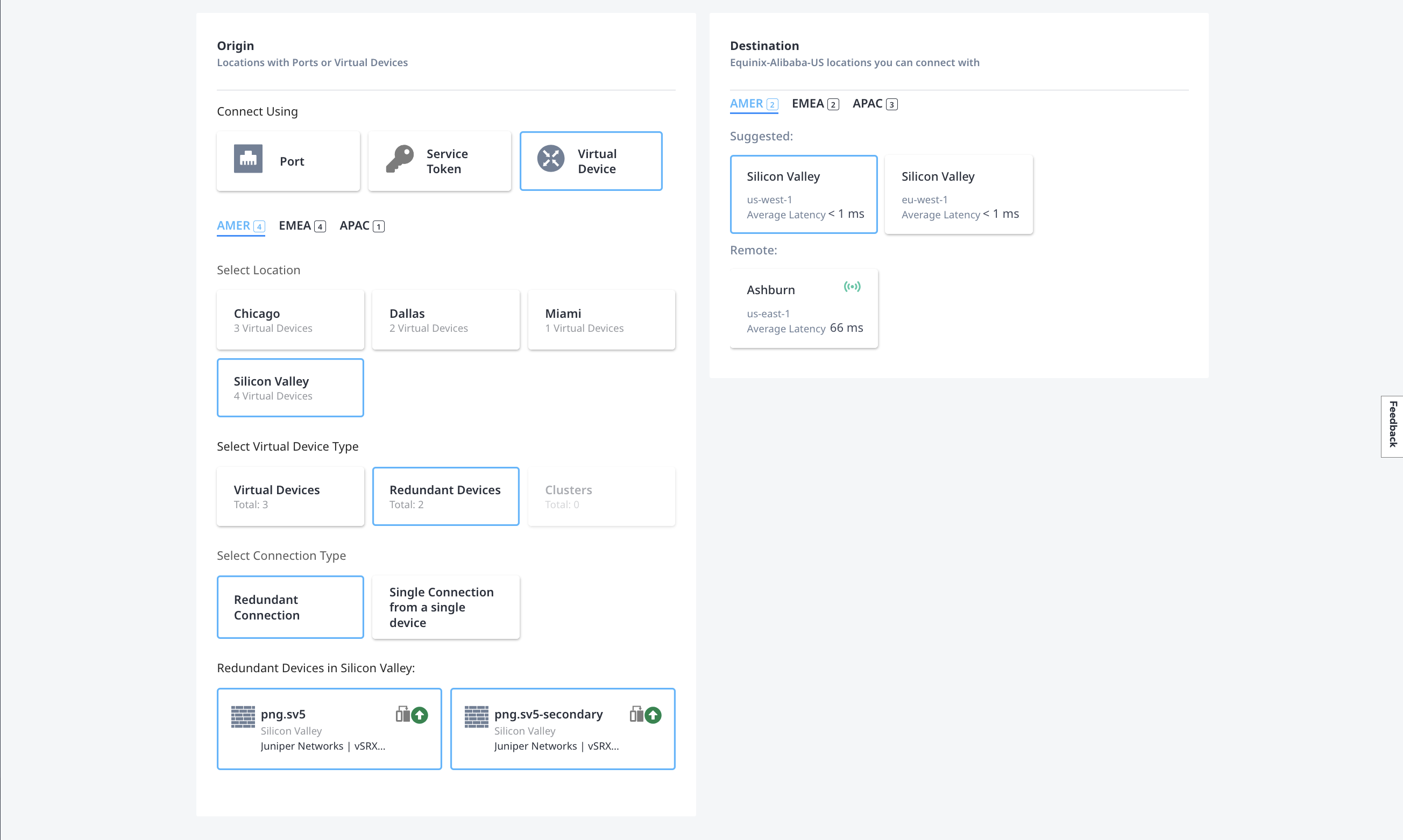
Sur la page sélectionner des emplacements, fournissez les détails de l'emplacement pour l'origine et la destination de la connexion.
Dans la section origine :
- Cliquez sur dispositif virtuel , puis sélectionnez l'emplacement du dispositif que vous souhaitez utiliser.
- Sélectionnez le type de dispositif virtuel parmi les dispositifs uniques ou redondants disponibles. Puis sélectionnez le type de connexion . Vous pouvez choisir des connexions uniques ou des connexions redondantes.
- Sélectionnez le(s) dispositif(s) virtuel(s) spécifique(s) à utiliser pour la connexion.
Dans la section destination, sélectionnez l'emplacement Express Connect auquel vous connecter.
-
Cliquez sur suivant.
-
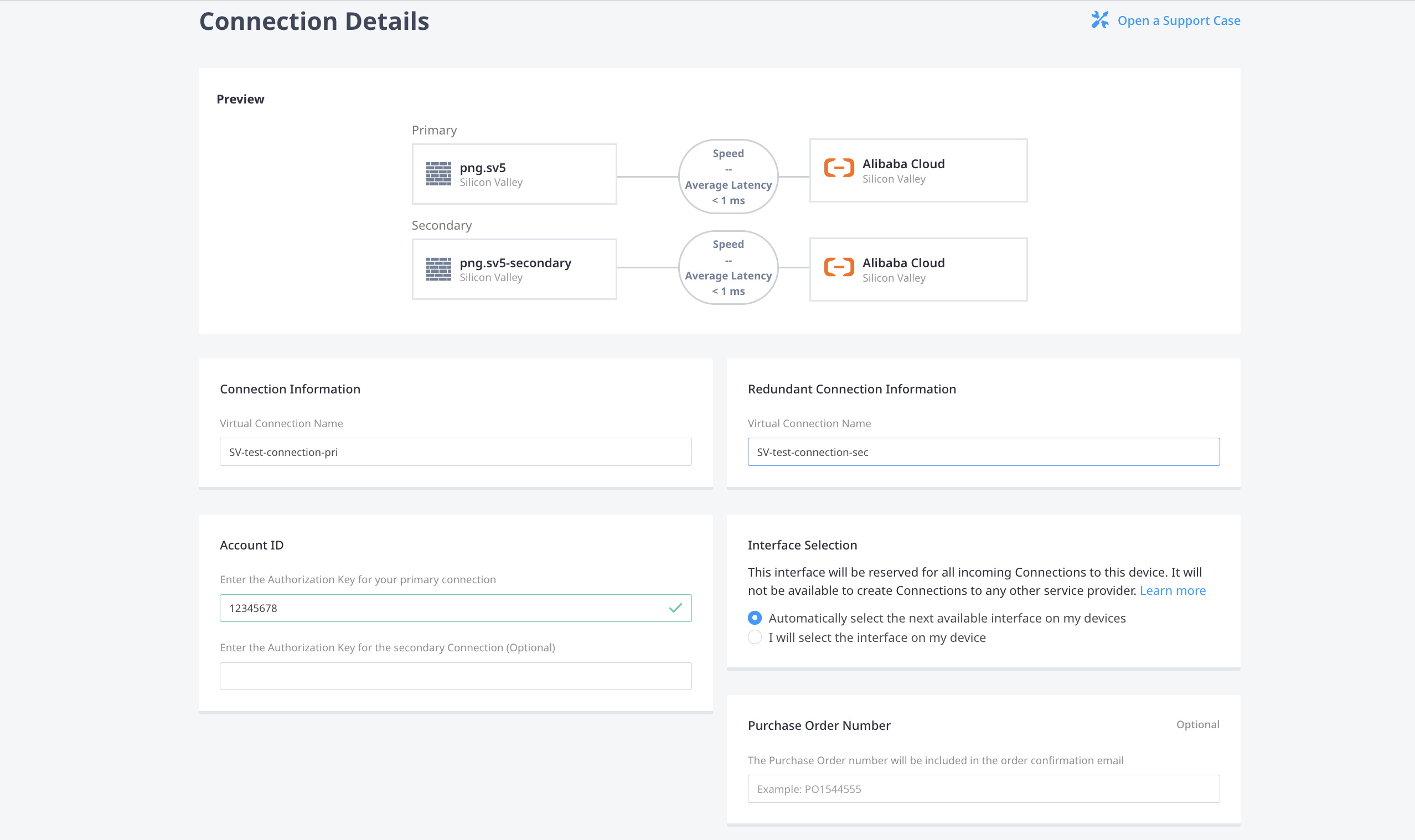
Sur la page Détails de la connexion, fournissez des informations de connexion supplémentaires.
-
Attribuez un nom à votre connexion dans informations de connexion . Si vous créez des connexions redondantes, attribuez un nom à la deuxième connexion dans informations sur la connexion redondante .
-
Dans le champ identifiant de compte, saisissez votre identifiant de compte Alibaba Cloud. Si vous créez des connexions redondantes, vous pouvez éventuellement saisir un deuxième identifiant de compte Alibaba Cloud.
-
Sélectionnez si vous souhaitez utiliser la prochaine interface disponible ou manuellement avec les interfaces à utiliser pour les connexions dans sélection d'interface .
-
(Facultatif) dans le champ numéro de bon de commande, saisissez votre numéro PO.
-
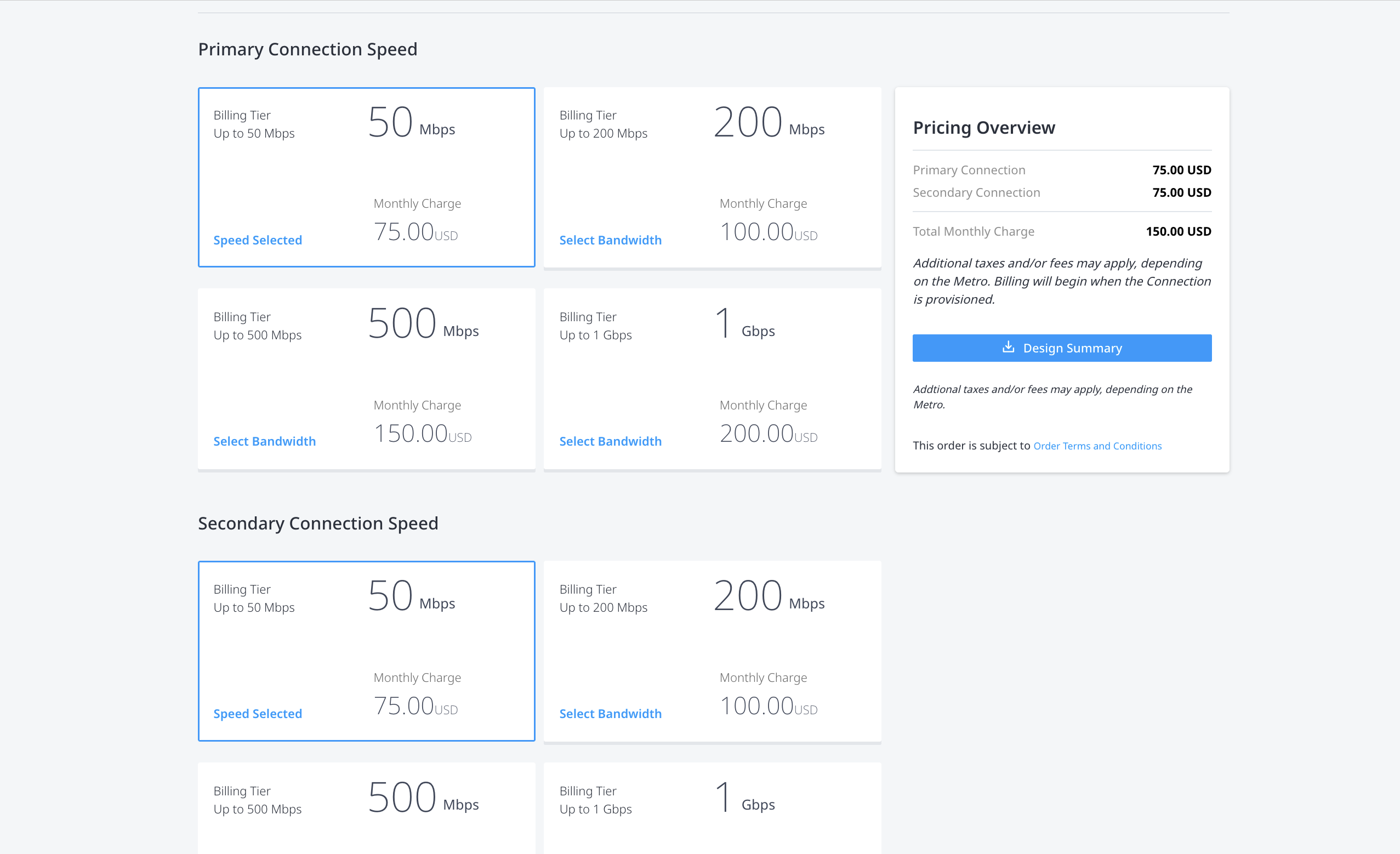
Dans vitesse de connexion principale , sélectionnez une combinaison de niveau de facturation et de vitesse. Si vous créez des connexions redondantes, sélectionnez une combinaison de niveau de facturation et de vitesse dans vitesse de connexion secondaire .
-
-
Cliquez sur suivant.
-
Sur la page vérifier , vérifiez les informations contenues dans Résumé de la connexion principale , Résumé de la connexion secondaire (si vous créez des connexions redondantes) et présentation des tarifs .
-
Utilisez le champ notifications pour fournir les adresses e-mail des destinataires à notifier de l'état de la connexion. Vous pouvez ajouter jusqu'à 12 adresses e-mail.
-
Cliquez sur Envoyer la commande.
Pour créer une connexion entre votre appareil Network Edge et Alibaba Express Connect, envoyez une POST demande au /fabric/v4/connectionsterminal.
Définissez votre dispositif Network Edge dans l'aSideobjet, y compris :
accessPoint.typeasVDvirtualDevice.typeasEDGEvirtualDevice.uuidComme UUID de votre appareil
Fournir les détails du nuage Alibaba et les détails de l'emplacement dans l'zSideobjet, y compris :
- Définir
accessPoint.typecommeSP. - Définir
profile.typecommeL2_PROFILE. - Spécifiez le profil de service Express Connect auquel vous vous connectez dans
profile.uuid. - Spécifiez l'emplacement métropolitain Equinix auquel vous vous connectez dans
location.metroCode. - Spécifiez la région de connexion express associée à la zone métropolitaine Equinix dans
sellerRegion. - Définir
authenticationKeycomme identifiant de compte Alibaba Cloud.
Exemple de requête cURL :
curl -X POST 'https://api.equinix.com/fabric/v4/connections' \
-H 'content-type: application/json' \
-H 'authorization: Bearer <token>' \
-d '{
  "type": "EVPL_VC",
  "name": "<connection-name>",
  "bandwidth": <bandwidth-speed>,
  "aSide": {
    "accessPoint": {
      "type": "VD",
      "virtualDevice": {
        "type": "EDGE",
        "uuid": "<virtual-device-uuid>"
      }
    }
  },
  "zSide": {
    "accessPoint": {
      "type": "SP",
      "profile": {
        "uuid": "<alibaba_service_profile_uuid>"
      },
      "location": {
        "metroCode": "<equinix_metro_code>"
      },
      "authenticationKey": "<alibaba_cloud_account_id>",
      "sellerRegion": "<alibaba_region_id>"
      }
    },
  "notifications": {
    "type": "ALL",
    "emails": [
      "<contact_email>",
      "<contact_email>"
    ]
  }
}'
Contrôle de l'état de la connexion
- Portal
- API
Une fois que vous avez créé la connexion, elle apparaît dans votre inventaire des connexions où vous pouvez surveiller son état.
Une fois que vous avez créé la connexion, envoyez une GET demande au fabric/v4/connections/{connectionId}point final pour surveiller l'état de la connexion.
equinixStatus valeurs d'attribut | providerStatus valeurs d'attribut | État du cloud d'Alibaba | Description |
|---|---|---|---|
PROVISIONING | NOT_AVAILABLE | - | La demande de connexion n'a pas encore été envoyée à Alibaba. |
PROVISIONED | PENDING_APPROVAL | Création en cours | La connexion est en attente d'approbation. |
PROVISIONED | PROVISIONING / PROVISIONED | Création en cours | Établissement de la connexion en cours. |
PROVISIONED | PROVISIONED | Actif | Connexion établie. |
Les frais commencent dès l'introduction de la demande de connexion.
Alibaba Cloud - accepter et payer
- Connectez-vous à la console de gestion Alibaba Express Connect.
- Dans le menu, sélectionnez connexions physiques .
- Identifiez l'instance nouvellement créée et cliquez sur accepter et payer.
Veuillez noter que vous devez d'abord accepter les conditions de facturation du transfert de données sortant avant de pouvoir accepter la connexion.
Pour plus d'informations, reportez-vous à facturation - tarification | Centre de documentation sur le cloud Alibaba .
Alibaba Cloud - créez le routeur de frontière virtuel
Un routeur de frontière virtuel (VBR) est la passerelle qui fournit la communication entre un Cloud privé virtuel (VPC) et un datacentre sur site. Vous pouvez créer le VBR dans Alibaba Cloud après avoir créé la connexion dans le Equinix Customer Portal.
Suivez les instructions de la rubrique créer et gérer des VBRs.
-
Entrez l'adresse IPv4 de la passerelle Alibaba et l'adresse IPv4 de votre routeur cloud, de votre appareil virtuel ou de toute autre infrastructure de couche 3 du côté Equinix de la connexion.
-
Saisissez le masque de sous-réseau.
-
Vérifiez que l’identifiant VLAN attribué à votre connexion côté Equinix est le même identifiant VLAN associé à votre VBR sur votre console Alibaba.
Déprovisionnement d'une connexion Alibaba Express Connect
Pour supprimer votre connexion à Alibaba Cloud :
-
Supprimez le routeur de bordure virtuel dans la console Alibaba Cloud.
-
Supprimez la connexion dans la console Alibaba Cloud.
-
La connexion est automatiquement supprimée de Fabric après avoir été effacée dans la console Alibaba Cloud.