Ajouter de la redondance à un seul appareil virtuel
Ajoutez un périphérique secondaire à un périphérique virtuel actif pour créer une paire redondante. L'ajout de résilience à un périphérique existant élimine le besoin de recommencer avec deux nouveaux périphériques.
Certains attributs du dispositif secondaire doivent être identiques à ceux du dispositif principal, notamment:
- La configuration de l'appareil
- Licence
- Ressources de l'appareil
- Logiciel
- débit de licences
Si les deux appareils appartiennent au même compte, la durée d'engagement de l'appareil secondaire doit être identique à celle de l'appareil principal.
Vous pouvez personnaliser les attributs suivants du périphérique secondaire:
- Version
- Metro
- Nom d'hôte
- Liste de notifications
- Liste des utilisateurs SSH
- Adresses IP d'accès
- Bande passante supplémentaire
Notez que la prise en charge VNF pour les périphériques redondants exécutant différentes versions varie. Si différentes versions logicielles sont prises en charge pour le périphérique secondaire, le fait d'avoir deux périphériques dans une paire redondante avec des versions logicielles différentes peut affecter les performances. Pour les fournisseurs VNF avec état/cluster (Palo Alto Networks PAN-OS HA, Fortinet FortiGate FGCP, Juniper vSRX chassis cluster), les versions logicielles incompatibles NE sont PAS prises en charge car elles interrompent activement la synchronisation de session et les mécanismes HA Heartbeat, ce qui entraîne un échec de la formation de clusters HA ou de split-cerveau.
Si vous provisionnez un périphérique secondaire dans un autre Metro que le périphérique principal, sachez que les paires redondantes inter-Metro utilisant le clustering HA natif du fournisseur nécessitent un transport à faible latence et une interconnectivité appropriée, par exemple un groupe de liaison entre périphériques ou un EVP-LAN de structure.
Conditions préalables
- Périphérique virtuel Network Edge unique non redondant.
- Le
Network Edge Device Managerrôle.
- Portal
- API
-
Connectez-vous à Equinix Customer Portal et accédez à Network Edge .
-
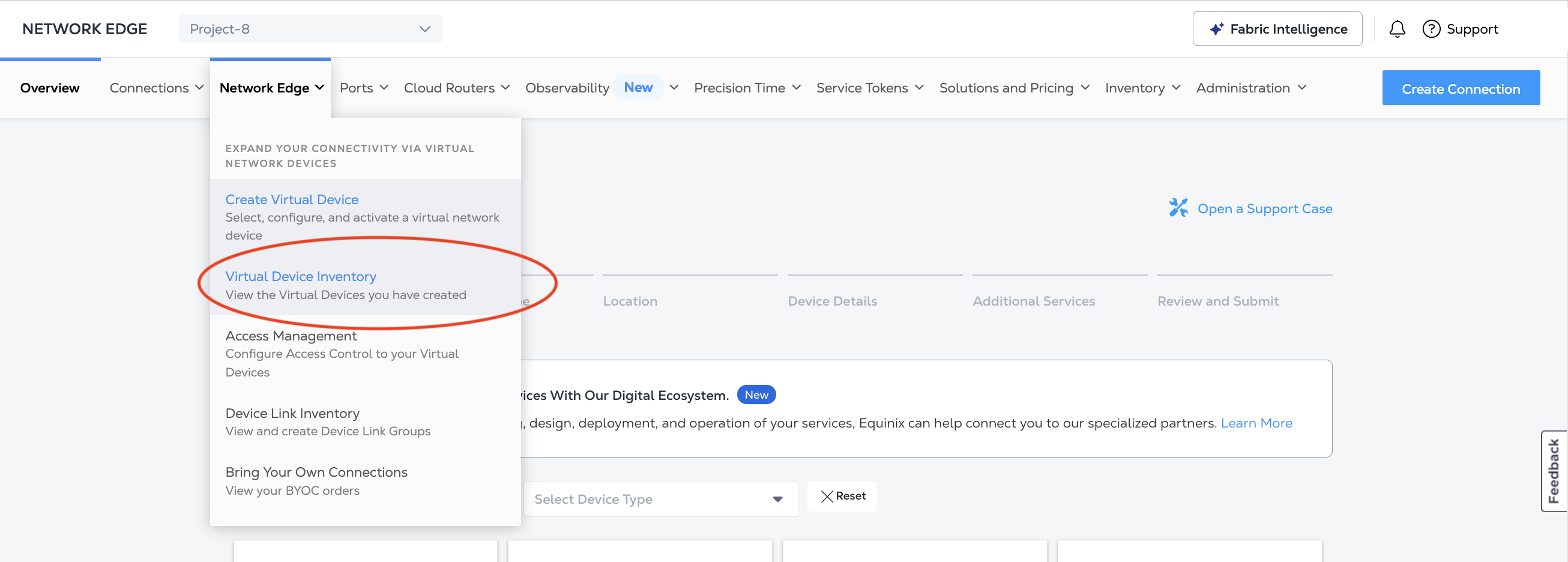
Dans le menu Network Edge , sélectionnez inventaire des périphériques virtuels .
-
Cliquez sur le périphérique que vous souhaitez modifier. Les détails du périphérique virtuel s'affichent.
-
Authentifier - soumettre vos informations d'identification utilisateur, ID client et secret client pour l'authentification OAuth2. Reportez-vous à authentification API pour obtenir des instructions sur la façon d'appeler le API OAuth pour valider et authentifier vos informations d'identification.
-
Obtenez les informations sur le périphérique principal. Envoyez une
GETdemande au/ne/v1/devicesnoeud final pour répertorier vos périphériques virtuels. Identifiez le périphérique auquel vous ajoutez un périphérique secondaire et envoyez uneGETrequête pour obtenir le/ne/v1/devices/{uuid}noeud final afin d'obtenir les attributs du périphérique principal.
Ajout de l'appareil virtuel secondaire
- Portal
- API
-
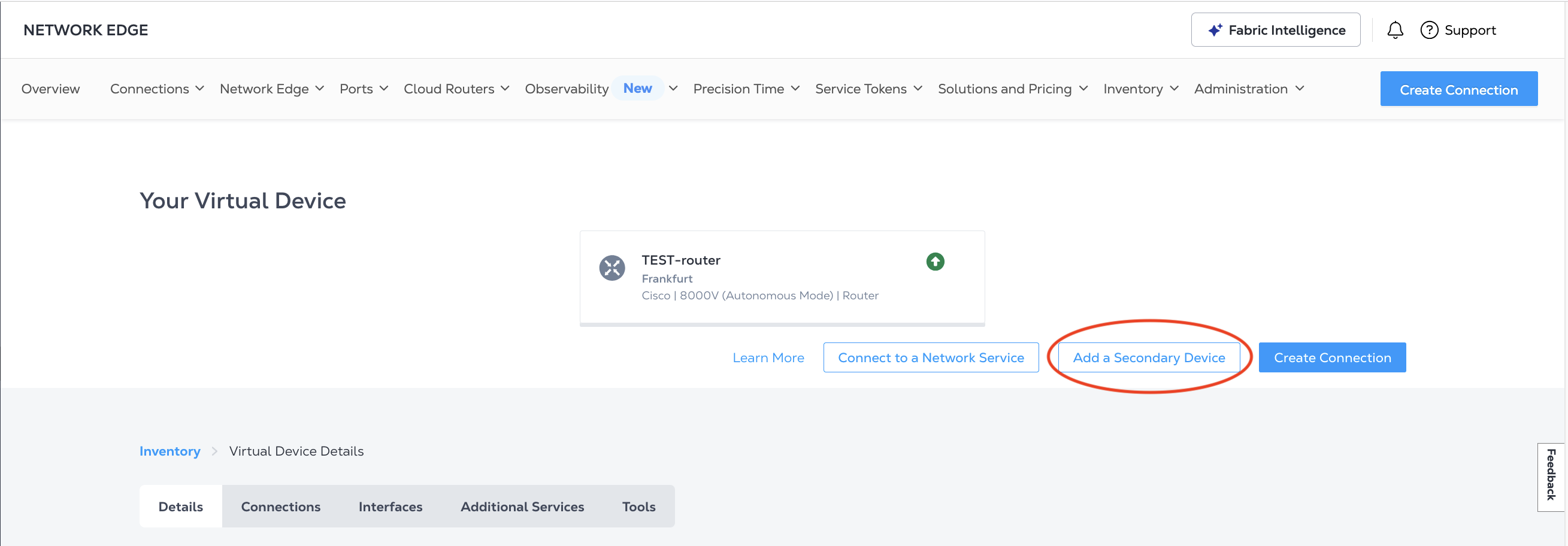
Dans votre inventaire de périphériques virtuels , cliquez sur le nom du périphérique virtuel pour afficher ses détails de périphérique virtuel .
-
Cliquez sur Ajouter un périphérique secondaire .
-
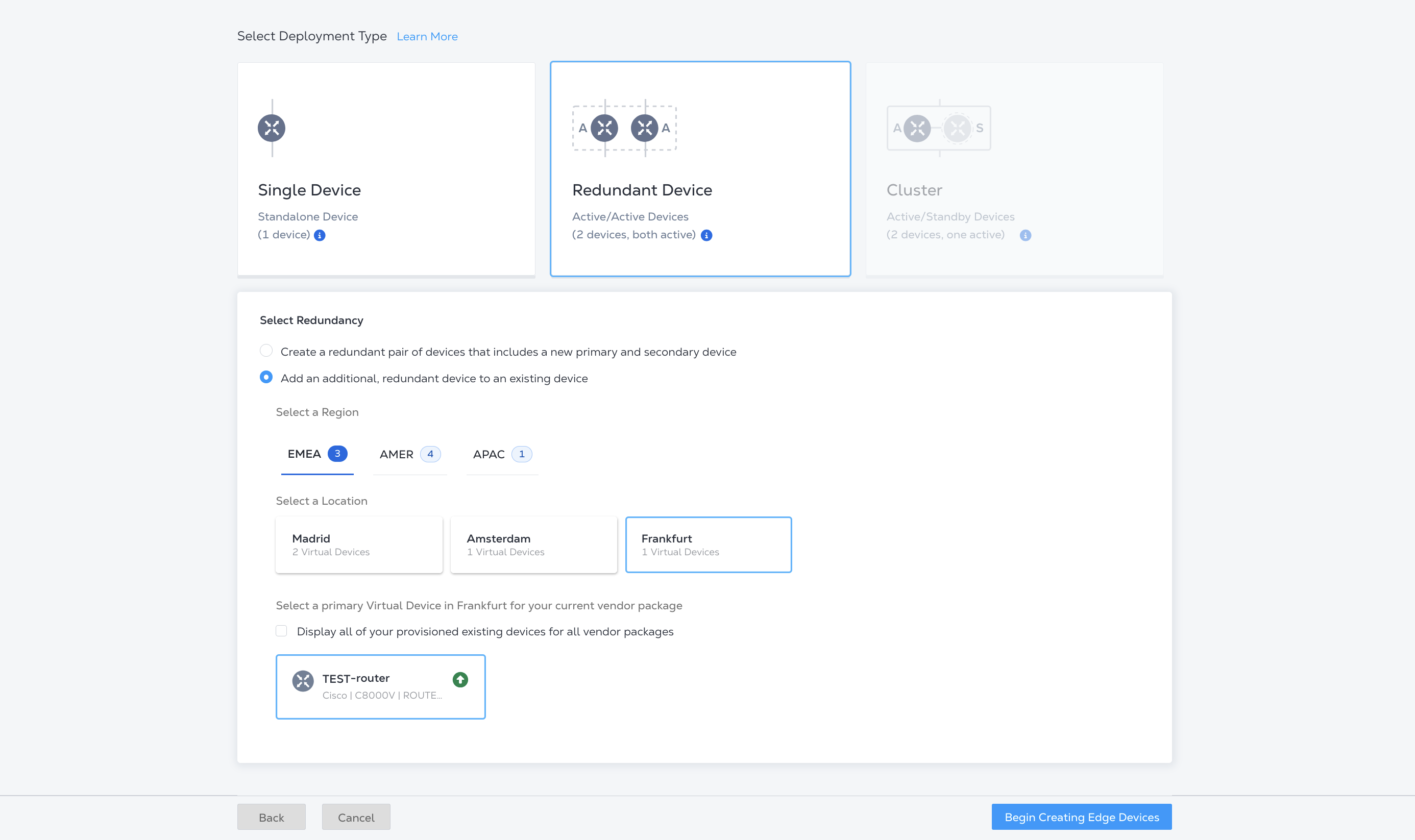
Le package fournisseur est automatiquement défini pour être le même que votre périphérique principal. Vous n'avez pas besoin de sélectionner ou de configurer le package fournisseur pour le périphérique secondaire.
-
Pour sélectionner le type de déploiement, les options suivantes sont automatiquement configurées :
- Périphérique redondant
- Ajoutez un périphérique redondant supplémentaire à un périphérique existant
- L'emplacement et l'appareil virtuel principal
-
Cliquez sur commencer la création de périphériques Edge .
-
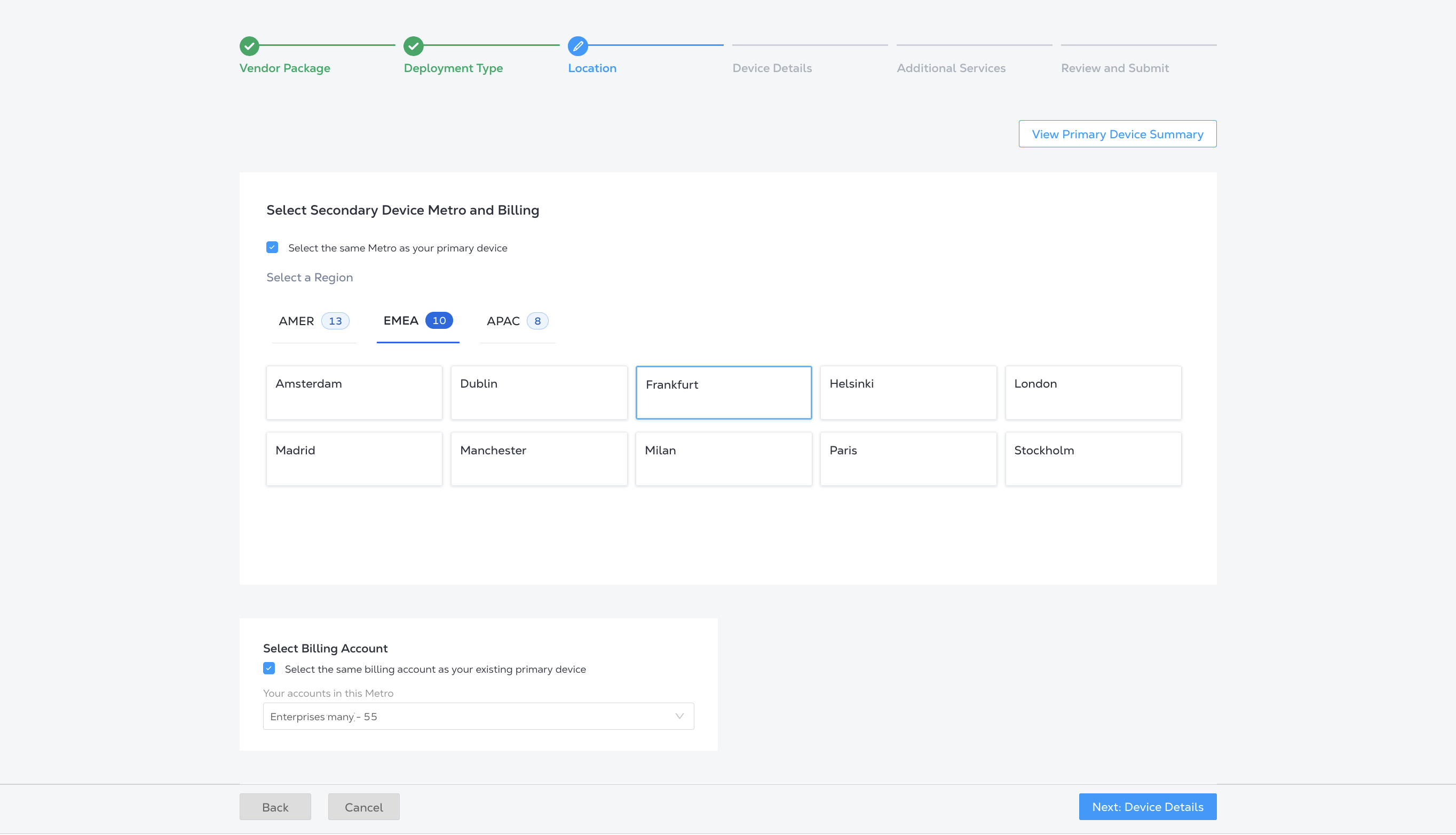
Sélectionnez un emplacement pour le périphérique secondaire. Par défaut, sélectionner le même Metro que votre périphérique principal est coché, et le Metro du périphérique principal est sélectionné.
Pour sélectionner un autre emplacement Metro, décochez sélectionner le même Metro que votre appareil principal , puis sélectionnez un autre Metro.
-
Sélectionnez un compte de facturation dans la liste déroulante ou cliquez sur sélectionner le même compte de facturation que votre appareil principal existant .
infoCliquez sur Afficher le résumé du périphérique principal pour afficher les détails du compte, les détails du périphérique, les informations de licence, les détails de notification et les informations de bande passante du périphérique principal.
-
Cliquez sur suivant : Détails du périphérique .
-
La plupart des détails du périphérique doivent être identiques à ceux du périphérique principal, sont automatiquement sélectionnés et ne peuvent pas être modifiés, sauf :
-
Vous pouvez donner un nom différent à votre appareil secondaire.
-
Si vous avez choisi un compte de facturation différent de celui utilisé pour l'appareil principal, sélectionnez une durée de session dans la section durée de session.
-
-
Cliquez sur suivant : Services supplémentaires .
-
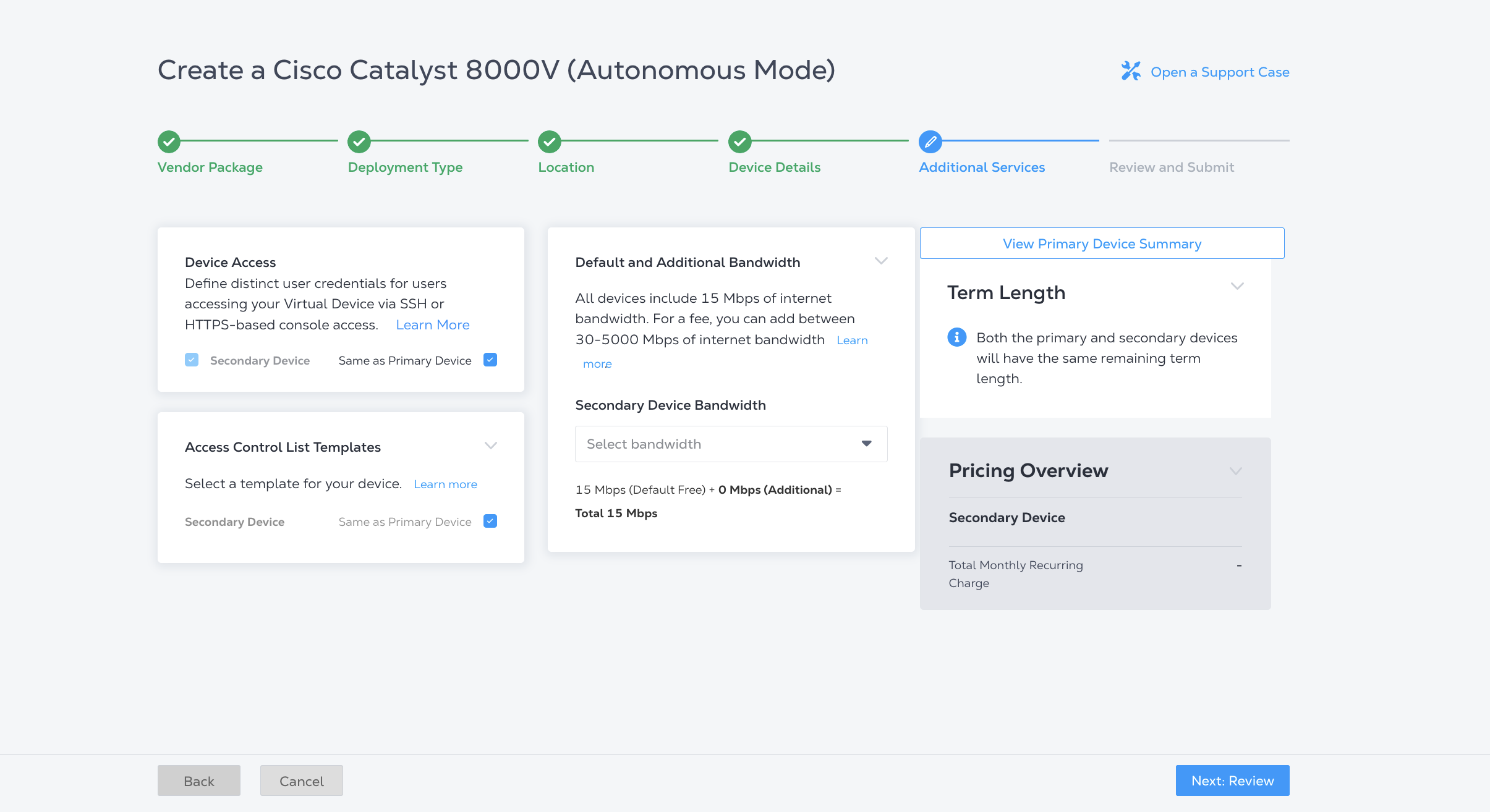
Sélectionnez des services supplémentaires pour le périphérique secondaire. Par défaut, ils ont les mêmes sélections que le périphérique principal.
-
Pour modifier l'accès au périphérique , décochez identique au périphérique principal et configurez la configuration d'accès du périphérique secondaire.
-
Pour modifier les modèles de liste de contrôle d'accès , décochez identique au périphérique principal et sélectionnez-en un dans la liste déroulante ou créez-en un nouveau.
-
Pour ajouter de la bande passante au périphérique secondaire, sélectionnez une bande passante dans la liste déroulante bande passante du périphérique secondaire.
-
-
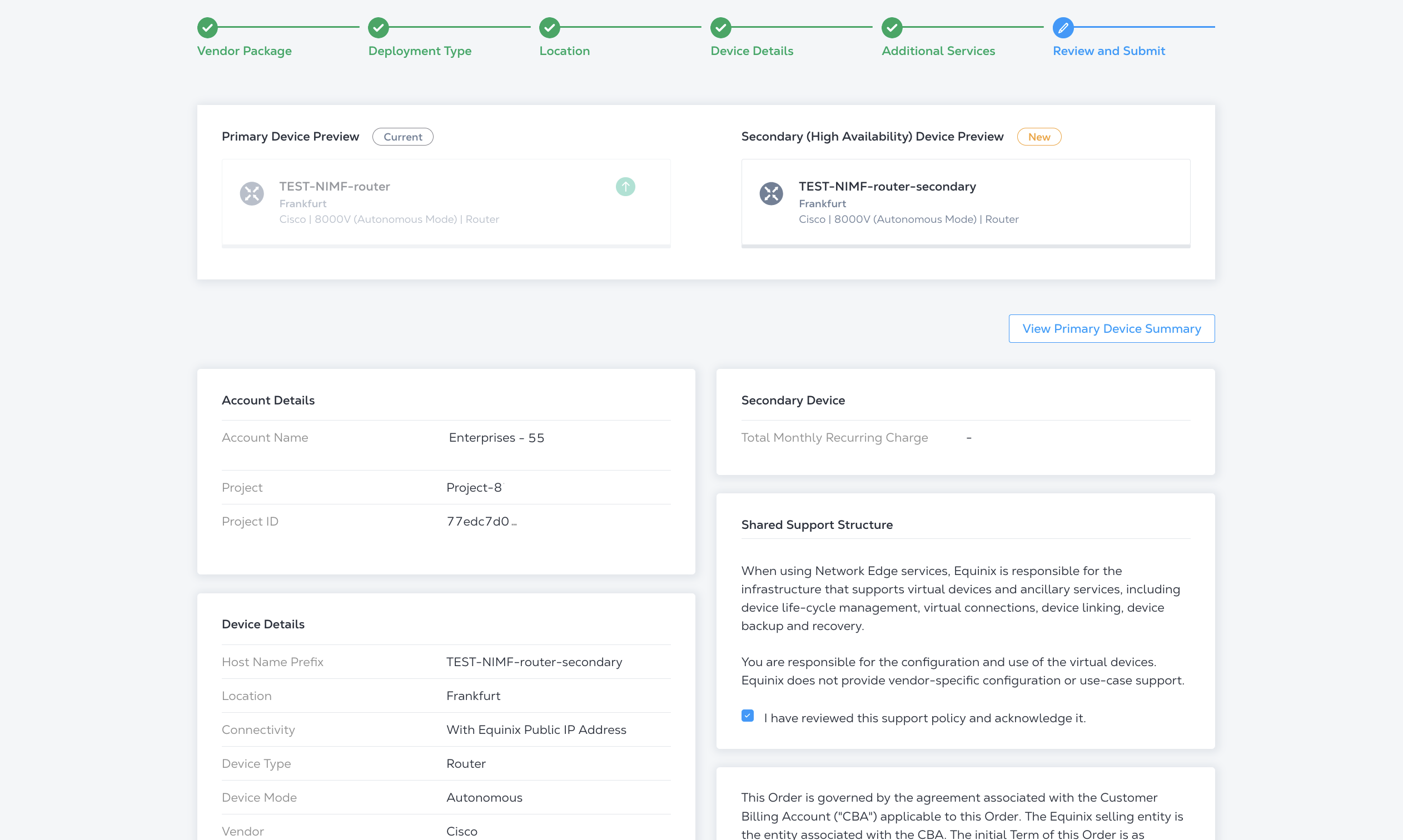
Cliquez sur suivant : Passez en revue votre commande. Dans la section structure de support partagée, vous devez cliquer sur J'ai examiné cette politique de support et je l'accepte.
-
Cliquez sur créer un périphérique virtuel .
Pour créer un périphérique secondaire, envoyez POSTune demande au /ne/v1/devicesnoeud final. Dans le corps de la requête, veuillez préciser:
- L'UUID de votre périphérique principal est
primaryDeviceUuid. - Configuration de périphérique secondaire dans l'
secondaryobjet.metroCode,virtualDeviceName, etnotificationssont des champs obligatoires.
Exemple de requête cURL:
curl -X POST "https://api.equinix.com/ne/v1/devices" \
-H "content-type: application/json" \
-H "Authorization: Bearer <token>" \
-d '{
  "primaryDeviceUuid": "device_uuid",
  "secondary": {
    "metroCode": "<metro_code>",
    "version": "<version_number>",
    "virtualDeviceName": "<secondary_device_name>",
    "hostNamePrefix": "<secondary_device_hostname_prefix>",
    "notifications": [
      "<contact_email>"
    ],
    "aclDetails": [
      {
        "uuid": "<acl_uuid>",
        "interfaceType": "<acl_interface_type>"
      }
    ],
    "userPublicKey": {
      "username": "<username>",
      "keyName": "<keyname>"
    }
  }
}'
Pendant le provisionnement du périphérique secondaire, l'état du périphérique principal passe à
WAITING_FOR_SECONDARY. Si le secondaire ne parvient pas à se provisionner, le primaire revient à l'
état provisionné. Si les dispositions secondaires, l'état des deux périphériques passe à
PROVISIONED.