Numéro de système autonome (ASN)
Un numéro de système autonome (ASN) identifie de manière unique un réseau lorsqu'il échange des informations de routage sur Internet. Les ASN sont utilisés avec le protocole BGP (Border Gateway Protocol), le protocole de routage qui permet aux réseaux d'annoncer les préfixes IP et de déterminer comment le trafic se déplace entre les fournisseurs et les destinations.
En termes pratiques, un ASN indique aux réseaux externes quel domaine de routage est à l'origine ou reçoit le trafic. Pour les clients qui commandent un accès Internet avec BGP, l'ASN devient un élément essentiel de la configuration du service.
Pourquoi un ASN est requis pour l'accès à Internet
L’accès Internet utilise BGP lorsqu’un routage dynamique est nécessaire entre votre réseau et Equinix. Comme BGP nécessite un ASN de chaque côté d'une session d'appairage, vous devez disposer d'un ASN approuvé avant de pouvoir terminer la configuration de l'accès à Internet. Les options ASN varient en fonction du type de déploiement.
- Si vous souhaitez utiliser BGP avec un accès Internet, vous devez disposer d'un ASN.
- Utilisez votre propre ASN public lorsque vous souhaitez que votre réseau soit représenté avec sa propre identité de routage publique.
- Utilisez un ASN privé fourni par Equinix lorsque vous n'avez pas besoin de votre propre identité de routage publique.
ASN privé et ASN public
La bonne option dépend de la manière dont vous prévoyez d'acheminer votre trafic et de votre propre identité de routage orientée Internet.
| Option | Ce que cela signifie | Utilisation typique |
|---|---|---|
| ASN privé | ASN utilisé pour les relations BGP privées. Il n'est pas destiné à identifier votre réseau en tant que domaine de routage public sur Internet. | Lorsque vous souhaitez une configuration plus simple et que vous n'avez pas besoin de présenter votre propre ASN publiquement. |
| ASN public | Un ASN enregistré auprès de votre organisation via un registre Internet régional (RIR). Elle représente votre réseau sur l'Internet public. | Lorsque vous souhaitez un contrôle total du routage, une identité de routage publique ou des cas d'utilisation tels que le multi-hébergement. |
Choisir un ASN
| ASN privé Equinix | Votre propre ASN public |
|---|---|
| Pour le parcours d'intégration le plus rapide et le plus simple. | Vous possédez déjà un ASN enregistré. |
| Vous n'avez pas besoin de votre propre ASN visible publiquement. | Vous souhaitez que votre organisation conserve sa propre identité de routage. |
| Vous souhaitez que Equinix fournisse l'ASN pour la connexion d'accès à Internet. | Vous avez besoin de plus de contrôle sur la politique de routage ou la présence sur Internet. |
Si votre organisation utilise déjà un ASN public en production, l'intégration de cet ASN peut simplifier le routage et la cohérence opérationnelle. Si vous n'avez besoin que d'BGP pour le service d'accès à Internet et que vous n'avez pas besoin d'une identité publique, un ASN privé Equinix est l'option la plus simple.
Embarquez votre ASN
Avant d'intégrer un ASN, décidez si vous souhaitez utiliser votre propre ASN public ou un ASN privé fourni par Equinix.
Option 1 : Utilisez votre propre ASN public
Utilisez cette option si votre organisation possède déjà un ASN public et que vous souhaitez utiliser cet ASN pour le service d'accès à Internet.
Pour localiser les détails d'un ASN public, utilisez les méthodes suivantes pour rechercher les détails d'un ASN public existant :
- Rechercher à l'aide d'un outil de recherche ASN public
- Rechercher par nom d'entreprise ou adresse IP publique.
- Les résultats afficheront votre ASN et le RIR qui le gère.
- Connectez-vous à votre portail RIR
- Si vous connaissez déjà votre RDI, connectez-vous à votre compte de registre (ARIN, RIPE NCC, APNIC, AFRINIC ou LACNIC) pour afficher les ressources Internet qui vous ont été attribuées.
- Contactez votre administrateur réseau ou votre FAI
- Si votre ASN est géré pour le compte de votre organisation, il peut fournir votre ASN et vos détails d'enregistrement.
-
Connectez-vous au Portail client .
-
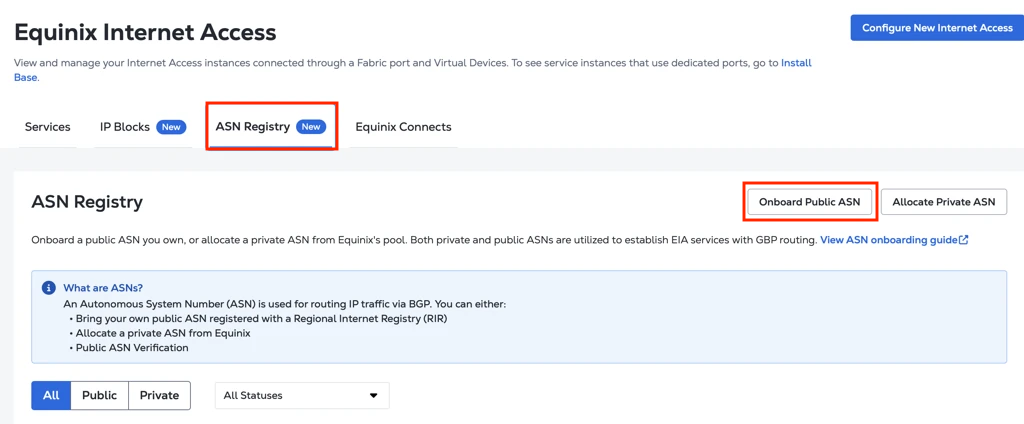
Accédez à l'onglet Registre ASN dans Equinix Internet Access .
- Sélectionnez ASN public intégré .
-
Sélectionnez un projet pour poursuivre la configuration.
-
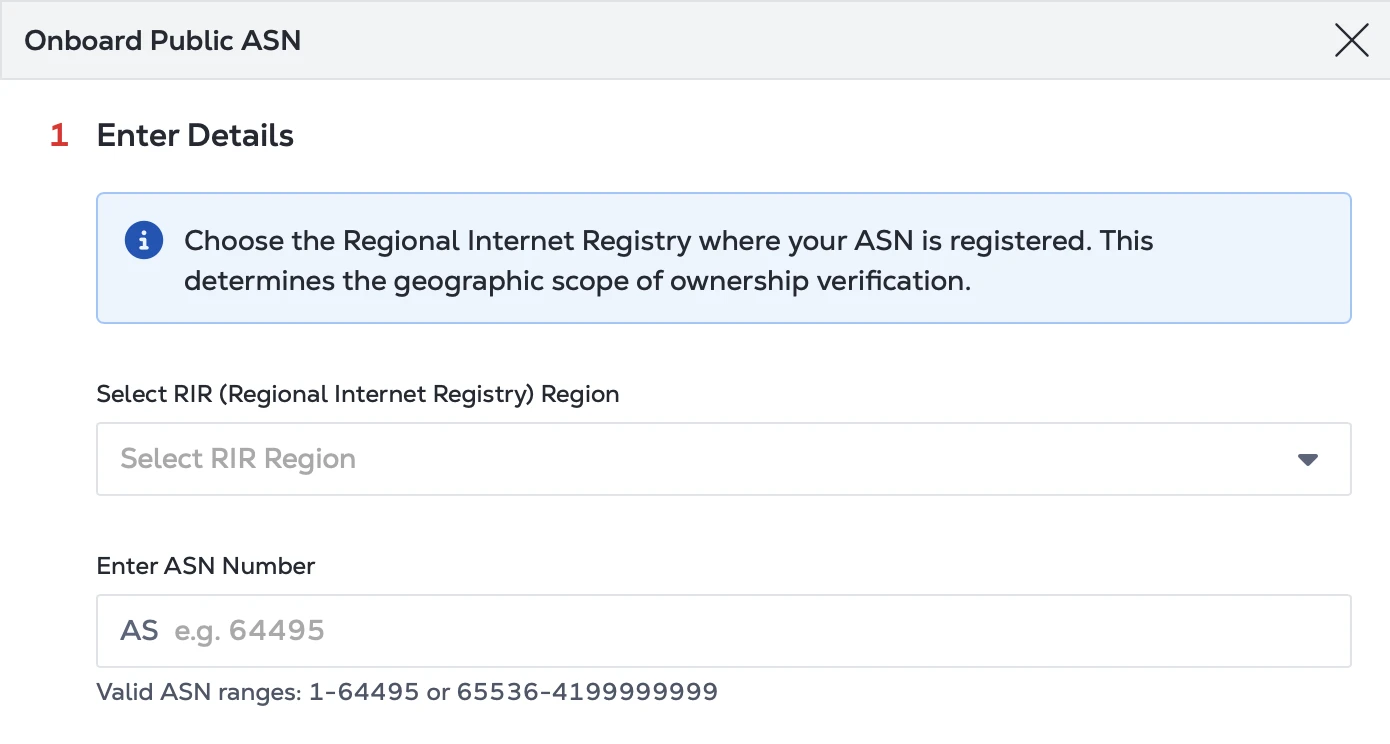
Sélectionnez le registre Internet régional (RIR) dans lequel votre ASN est enregistré. Votre sélection détermine la portée géographique de la vérification de la propriété.
 conseil
Pour identifier la RDI qui gère votre ASN, utilisez un outil de recherche d’ASN public, tel que RIPEstat ou BGP.Tools, pour effectuer une recherche par ASN, nom d’entreprise ou adresse IP publique. Les résultats identifient le registre Internet régional (RIR) qui gère l'ASN.
-
Saisissez vos informations ASN publiques exactement telles qu'elles ont été enregistrées auprès de votre organisation.

-
Vérifier la propriété de l'ASN.
- Pour confirmer que votre organisation est autorisée à utiliser l'ASN public, effectuez le processus de vérification de la propriété sur le Portail client. Suivez les instructions pour la RDI sélectionnée et fournissez les détails de vérification requis, tels que les informations d'enregistrement ASN, le nom de l'organisation et tout jeton de confirmation demandé, enregistrement d'autorisation ou preuve de registre/compte. Cette vérification permet d'éviter qu'un ASN ne soit intégré par une organisation qui ne le possède pas ou ne le gère pas.
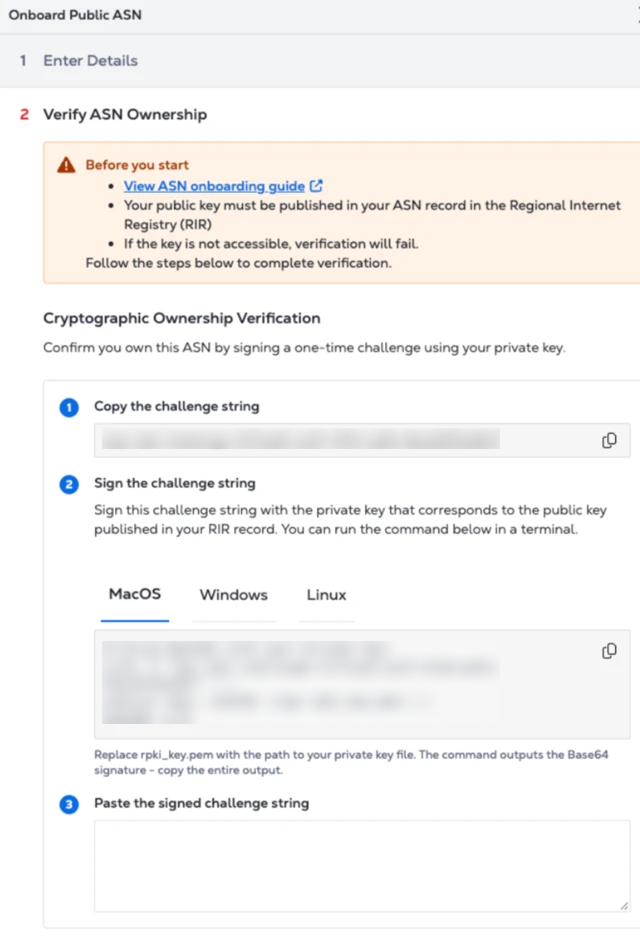
- Pour la plupart des RIR, vous devez publier la clé publique générée dans le champ Remarques de l'enregistrement ASN avant que Equinix puisse vérifier la propriété. Le processus exact dépend du registre qui gère votre ASN. Avant de soumettre la vérification sur le Portail client, vérifiez quelle RDI gère votre ASN. Accédez à ce portail RIR ou NIR et complétez la mise à jour ou la demande d’assistance côté registre requise. Equinix peut vérifier l'ASN uniquement après que l'enregistrement RIR/NIR a été mis à jour et que la modification est visible dans le registre public.
Instructions de vérification spécifiques à la RDI
Registre Comment ajouter la clé publique à des fins de vérification Remarques importantes ARIN Connectez-vous à https://www.arin.net/, ouvrez votre enregistrement ASN, choisissez modifieret collez la clé publique complète, y compris les lignes DE DÉBUT et DE FIN, dans le champ commentaires . Envoyez la demande de modification et attendez que la mise à jour du Registre devienne visible avant de poursuivre la vérification. RIPE NCC Connectez-vous à https://apps.db.ripe.net/db-web-ui/query, ouvrez l' aut-numobjet pour votre ASN et collez la clé publique complète dans unremarksattribut.Envoyer la mise à jour de l'objet et attendre que la modification se propage. AFRINIC Connectez-vous à https://my.afrinic.net/, ouvrez l' aut-numobjet pour votre ASN et collez la clé publique complète dans unremarksattribut.Si vous ne pouvez pas modifier l’objet, contactez les hostmasters AFRINIC à partir d’une adresse e-mail enregistrée dans le cadre de votre adhésion AFRINIC. APNIC L'APNIC n'autorise pas les clients à modifier directement les remarques ASN. Envoyez un e-mail à helpdesk@apnic.net à partir du contact APNIC autorisé pour votre ASN et demandez à APNIC d'ajouter la clé publique complète au remarkschamp de l'aut-numobjet.Patientez quelques jours pour permettre à APNIC de traiter la demande. Si votre ASN a été attribué par un National Internet Registry (NIR), contactez plutôt votre NIR. LACNIC LACNIC n'autorise pas les modifications du champ de remarques ASN pour ce flux de vérification. Sur le portail Equinix, sélectionnez Enregistrer et ouvrir le dossier d'assistance lorsque vous y êtes invité. Indiquez votre ASN, le nom de l'organisation enregistrée auprès de LACNIC et une preuve de propriété dans le dossier d'assistance. Le support Equinix vérifiera manuellement la propriété et l'ASN restera en attente jusqu'à ce que la vérification soit terminée. remarqueRegistres Internet nationaux (NIRS) : Certains ASN de la région APNIC sont gérés par des NIRS tels que JPNIC, KRNIC, TWNIC, CNNIC, VNNIC, ou IDNIC. Si votre ASN est attribué via un NIR, suivez le processus NIR pour mettre à jour l'enregistrement ASN ou demander au NIR d'ajouter la clé publique au champ de remarques requis. Le délai de traitement et les preuves d'autorisation requises peuvent varier selon le NIR.
-
Utilisez votre outil préféré, tel qu'un utilitaire de ligne de commande, un service de gestion de clés cloud ou une application de bureau, pour générer la paire de clés. Voici des exemples d'utilisation d'outils de ligne de commande.
Utilisation d'OpenSSL (recommandé)
Générer une paire de clés RSA 2048 bits :
# Generate private keyopenssl genrsa -out private_key.pem 2048# Extract public key from the private keyopenssl rsa -in private_key.pem -pubout -out public_key.pemAprès avoir exécuté ces commandes, vous aurez deux fichiers :
private_key.pem- Gardez cela en lieu sûr et ne le partagez pas.public_key.pem- Enregistrez cette clé dans votre dossier RIR.
Pour afficher la clé publique à copier dans le champ de remarque RIR, exécutez :
cat public_key.pemLa sortie ressemblera à :
-----BEGIN PUBLIC KEY-----MFkwEwYHKoZIzj0CAQYIKoZIzj0DAQcDQgAE...-----END PUBLIC KEY-----Copiez l'intégralité de la clé publique, y compris les
-----BEGIN PUBLIC KEY-----lignes et-----END PUBLIC KEY-----, et collez-la dans le champ de remarque de votre enregistrement ASN dans le registre RIR. -
Vérifiez et envoyez la demande d'intégration.
-
Attendez la confirmation que l'ASN est disponible pour votre commande d'accès Internet.
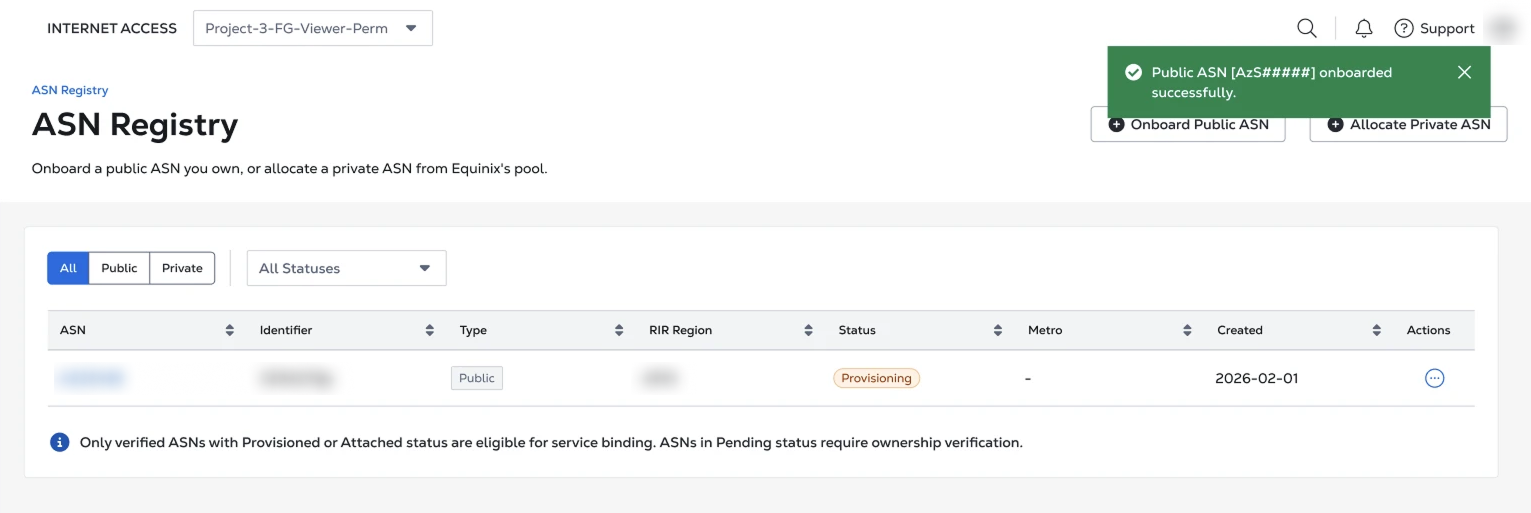
Une fois approuvé, vous pouvez sélectionner l'ASN lors de la configuration du service d'accès à Internet. Il peut vous être demandé de confirmer que l'ASN appartient à votre organisation ou que vous êtes autorisé à l'utiliser. Avant de commencer, ayez à votre disposition votre numéro ASN, les détails de propriété de l'organisation et toute information pertinente sur le registre ou le compte.
Option 2 : Utilisez un ASN privé Equinix
Utilisez cette option si vous ne disposez pas de votre propre ASN public ou si vous souhaitez qu'Equinix fournisse un ASN privé pour le service d'accès à Internet.
-
Connectez-vous au Portail client .
-
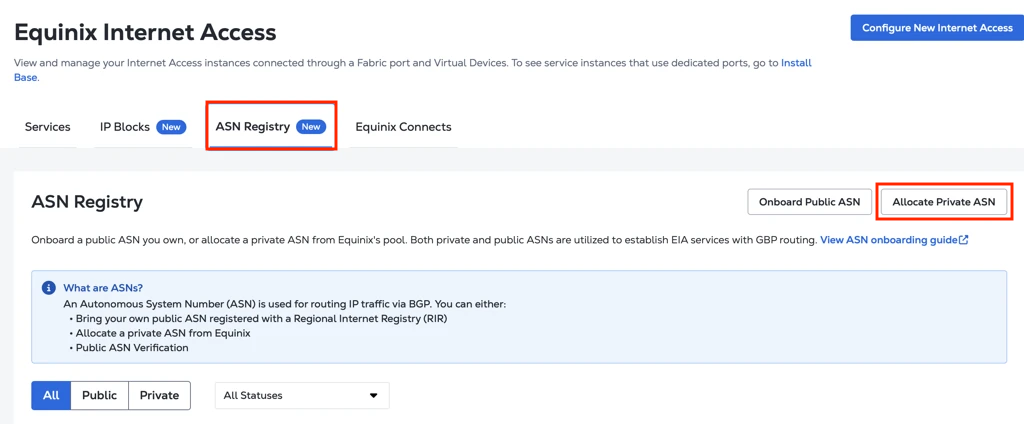
Accédez à l'onglet Registre ASN dans Equinix Internet Access .
- Sélectionnez attribuer un ASN privé .
-
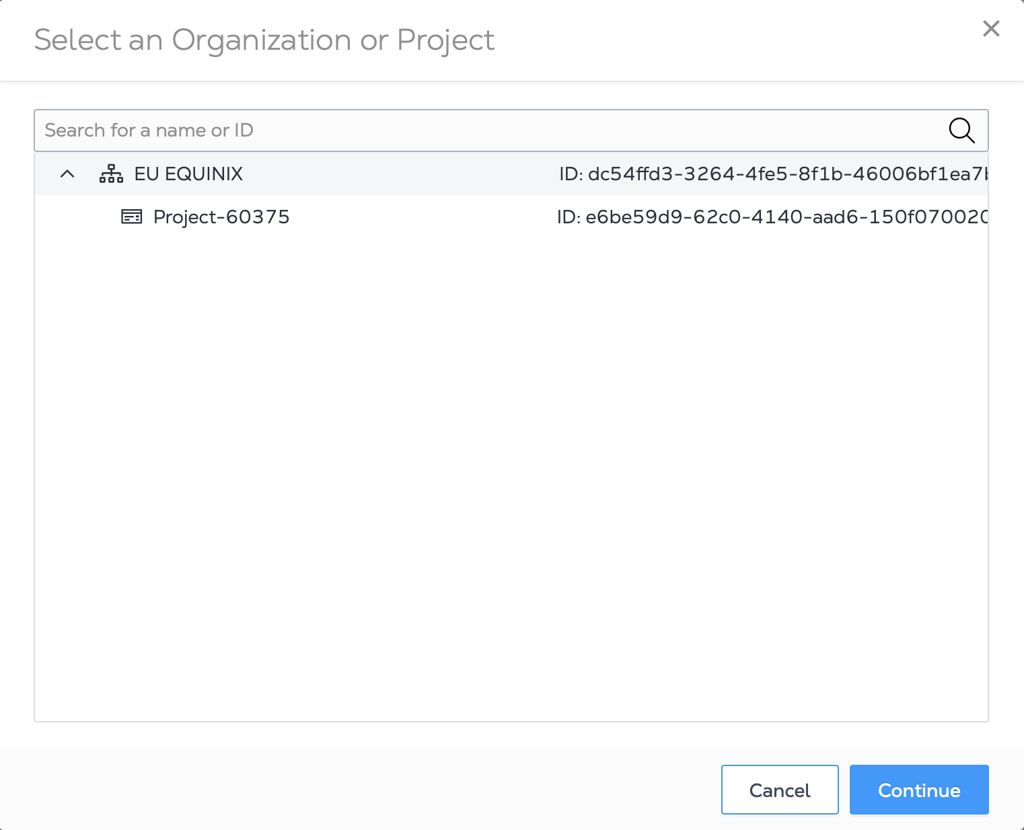
Sélectionnez un projet pour poursuivre la configuration.
-
Sélectionnez l'option permettant d'utiliser un ASN Equinix.
-
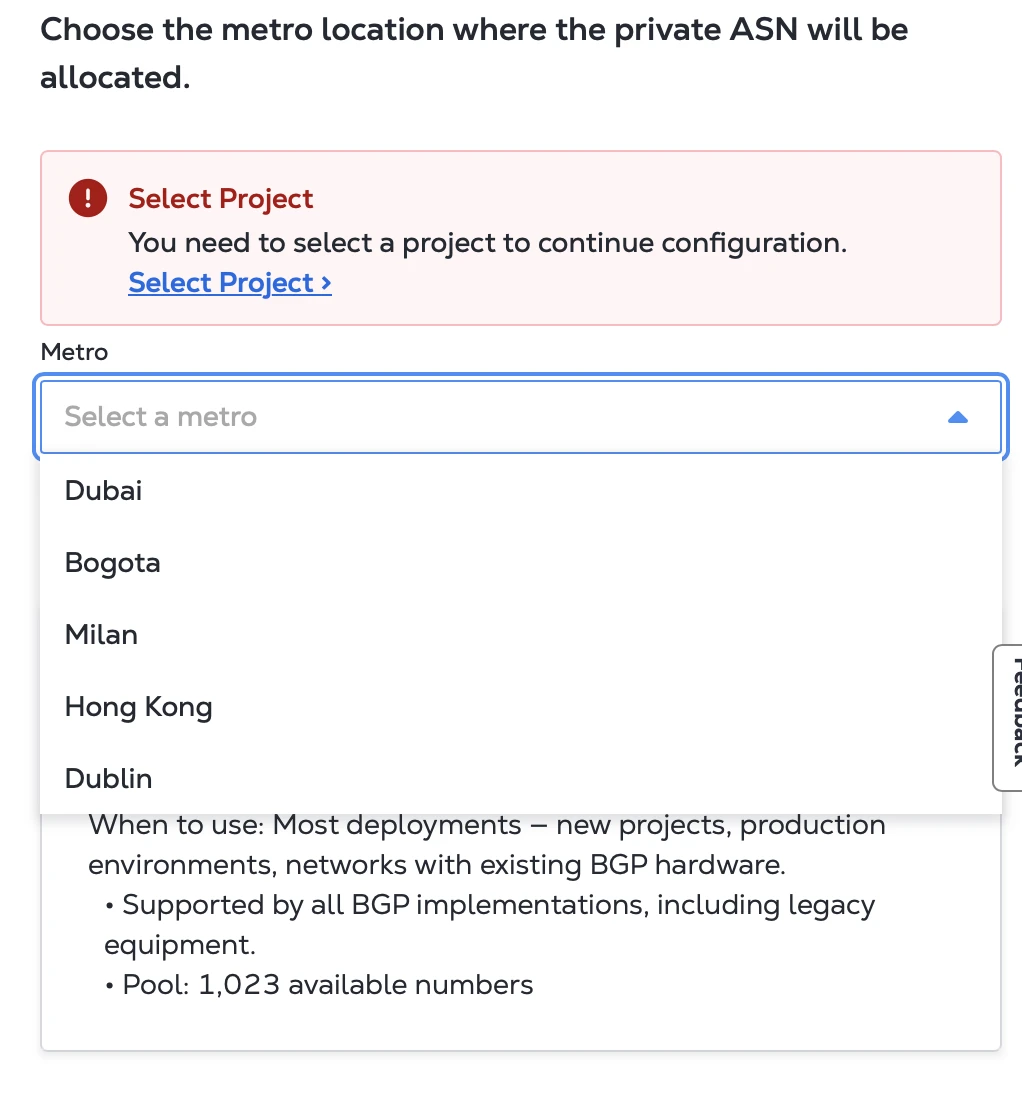
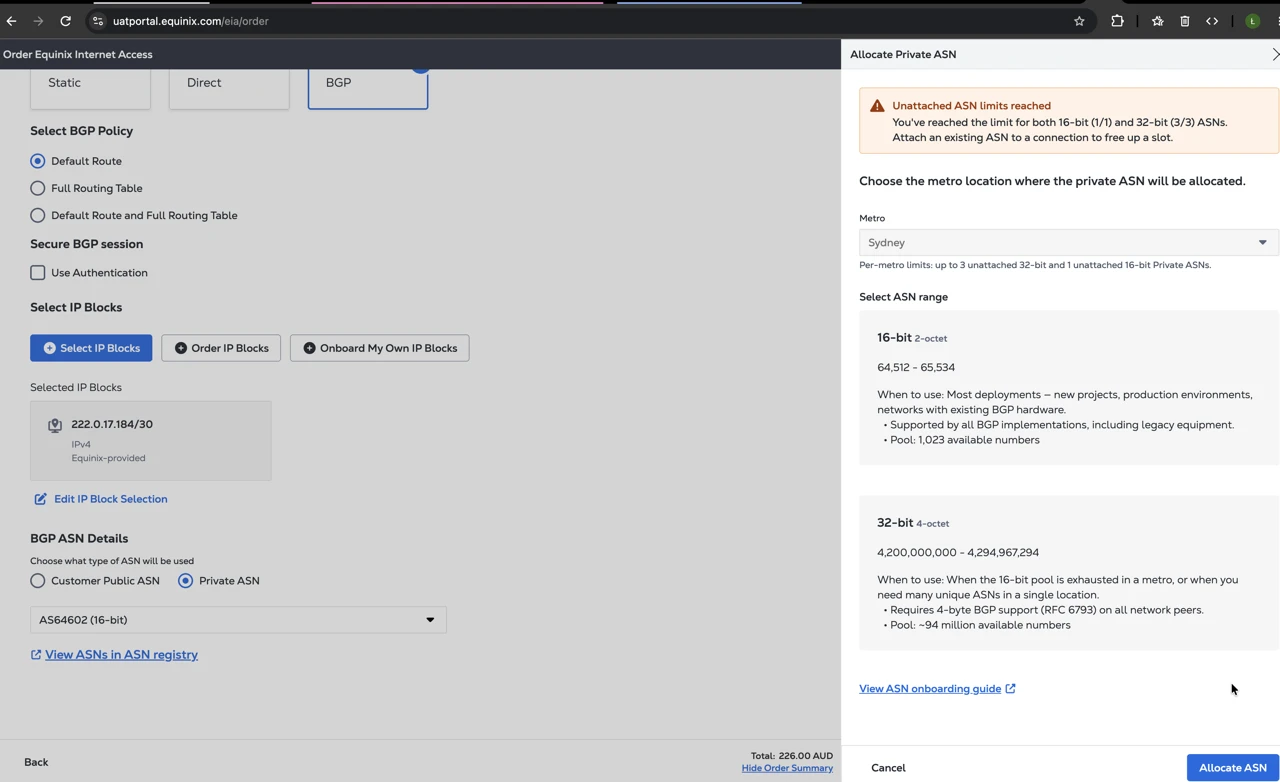
Choisissez l'emplacement métropolitain où l'ASN privé sera attribué. Vous êtes autorisé à attribuer jusqu'à 3 ASN privés par zone métropolitaine.
remarqueProvisionnement Metro manuel : Certaines métros nécessitent une autorisation manuelle de publicité de préfixe de fournisseur en amont avant que l'ASN puisse être entièrement provisionné pour l'accès Internet. Si vous créez un service dans l'une des métros nécessitant une autorisation manuelle, le provisionnement ASN peut rester en attente jusqu'à ce que l'équipe régionale et le fournisseur en amont aient terminé les étapes d'approbation requises.
-
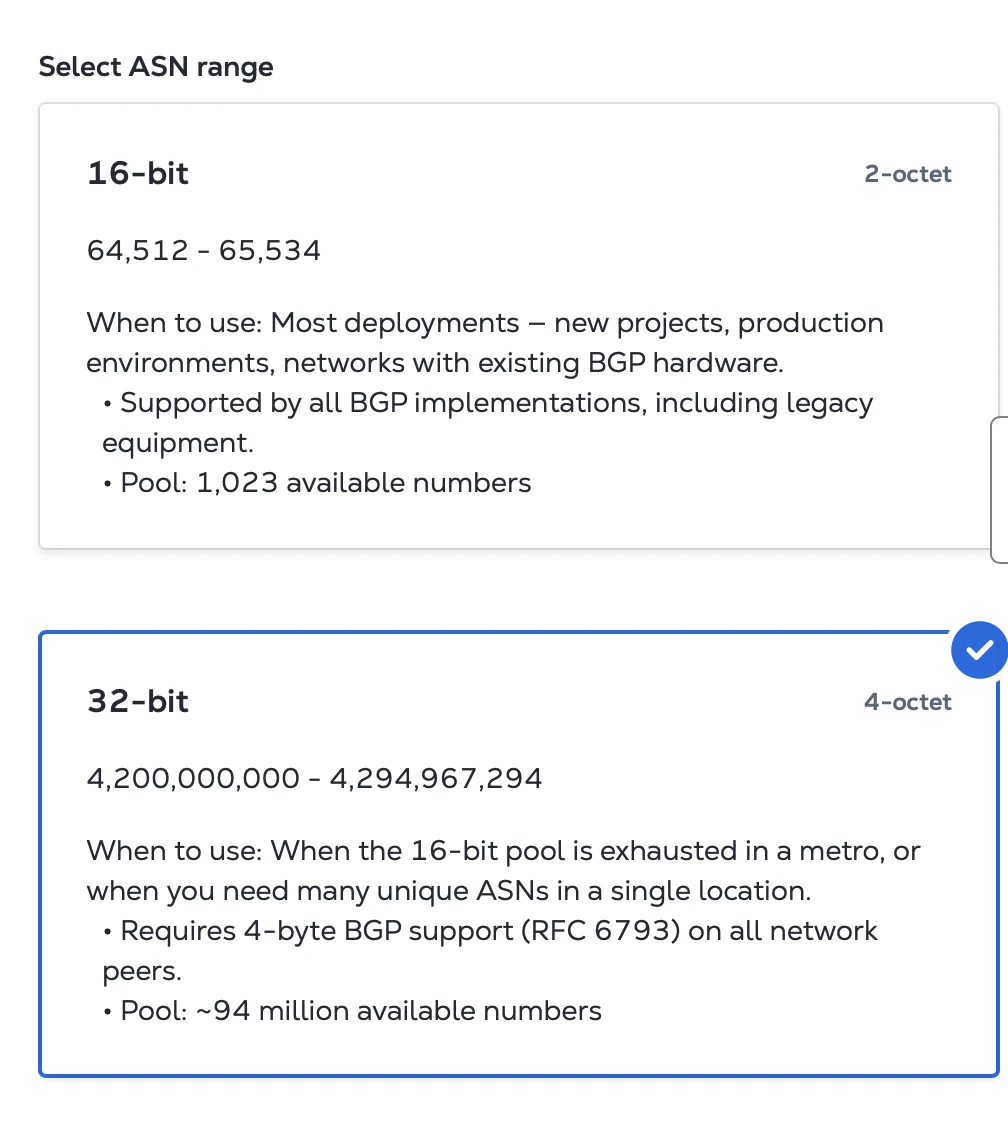
Sélectionnez une plage ASN.
-
Choisissez 16 bits (2 octets) si :
- Vous avez besoin d'une compatibilité avec les équipements réseau hérités.
- Vos homologues BGP peuvent ne pas prendre en charge les ASN 4 octets.
- Vous n'êtes pas sûr de l'option à choisir et avez besoin d'une compatibilité maximale.
- Recommandé pour la plupart des clients disposant d'environnements hérités.
-
Choisissez 32 bits (4 octets) si :
- Vos routeurs et homologues BGP prennent en charge les ASN 4 octets (RFC 6793).
- Vous déployez un réseau moderne.
- Votre déploiement nécessite un pool ASN plus important.
- Recommandé pour les déploiements modernes où tous les équipements réseau prennent en charge les ASN de 4 octets.
 conseil
Si vous n'êtes pas sûr que votre réseau prenne en charge les ASN 4 octets, contactez votre administrateur réseau ou choisissez 16 bits pour une compatibilité maximale.
-
-
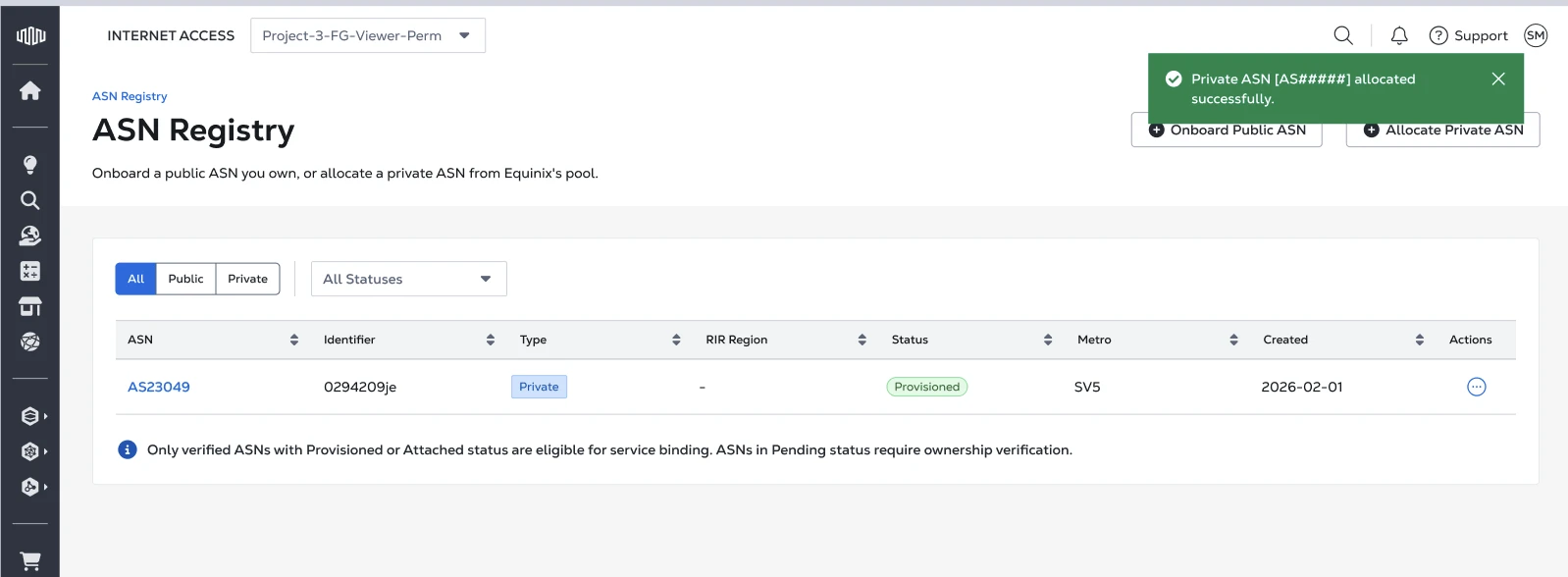
Attendez la confirmation que l'ASN privé a été attribué.
-
Après l'attribution, l'ASN fourni par Equinix peut être utilisé pour terminer la configuration de votre accès Internet.
- Un ASN privé peut également être attribué lors du processus de commande de l'accès Internet :
Configurer l'accès Internet avec un ASN intégré
Une fois l'ASN disponible, vous pouvez configurer l'accès à Internet à l'aide de BGP. Voir commande d'accès à Internet .
Lors de la commande, vous associerez l'ASN au service afin que le routage puisse être établi entre votre réseau et Equinix.
Si vous intégrez votre propre ASN public, assurez-vous que les informations saisies lors de la configuration de l'accès Internet correspondent aux informations approuvées lors de l'intégration de l'ASN. Si vous utilisez un ASN privé Equinix, saisissez l'ASN attribué exactement comme indiqué.
Gestion de l'ASN
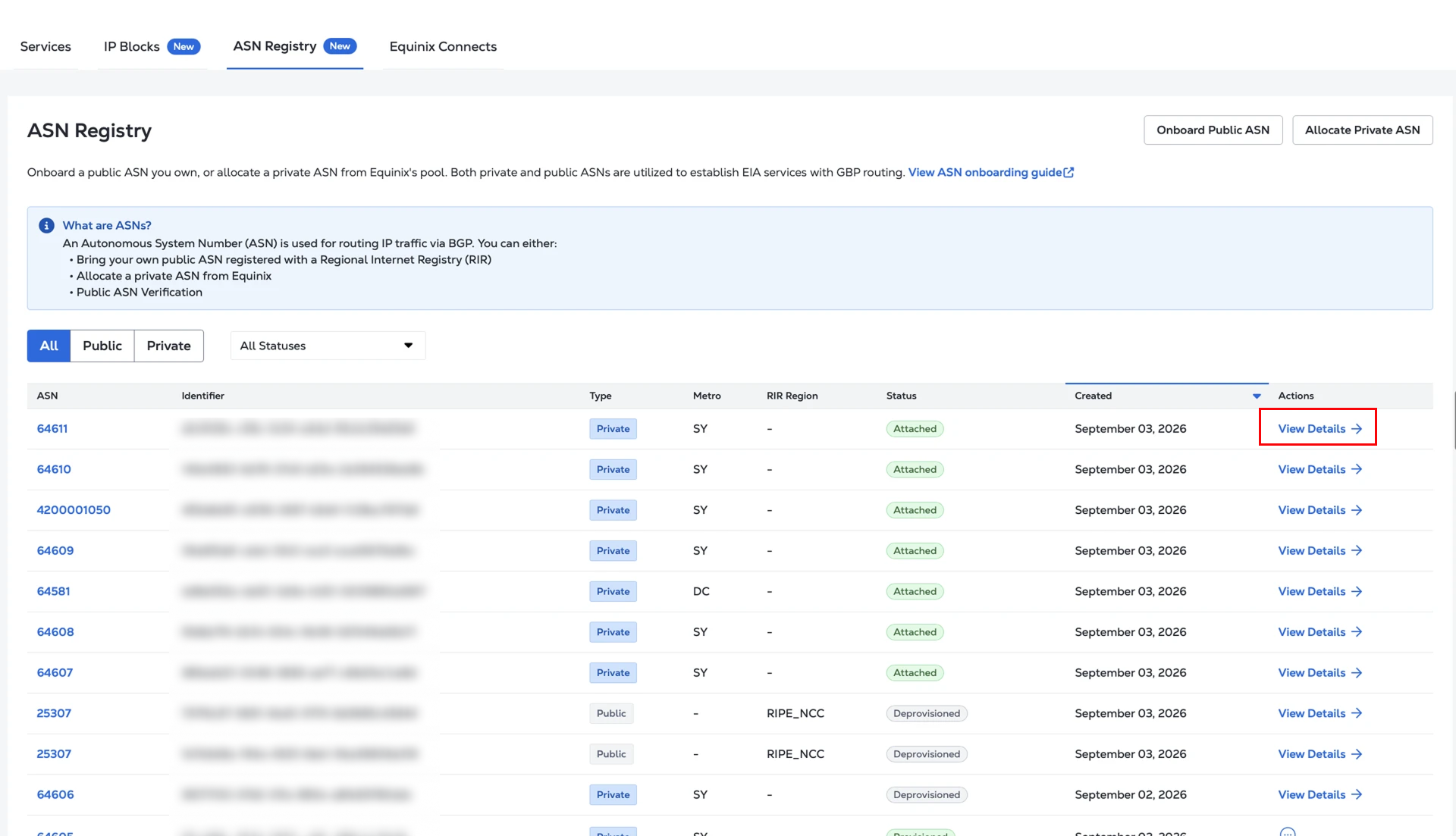
Vous pouvez afficher les détails de votre ASN dans l'inventaire ASN. Pour ouvrir la page de détails, recherchez l'ASN que vous souhaitez consulter et sélectionnez Afficher les détails.
Dans les détails de l'ASN, vous pouvez voir le statut de l'ASN :
- En attente : la demande ASN est en cours de traitement. L'ASN n'est pas encore prêt à être utilisé.
- Joint : l'ASN est associé à un service ou à une commande d'accès Internet.
- Provisionné : l'ASN a été intégré ou attribué avec succès et est disponible pour être utilisé avec votre service d'accès Internet.
- Échec du provisionnement : l'ASN n'a pas pu être provisionné. Vérifiez les détails de l'ASN et ouvrez un dossier d'assistance Equinix si le problème ne peut pas être résolu.
- Déprovisionné : l'ASN a été retiré de l'utilisation active et n'est plus disponible pour les nouvelles configurations d'accès Internet.
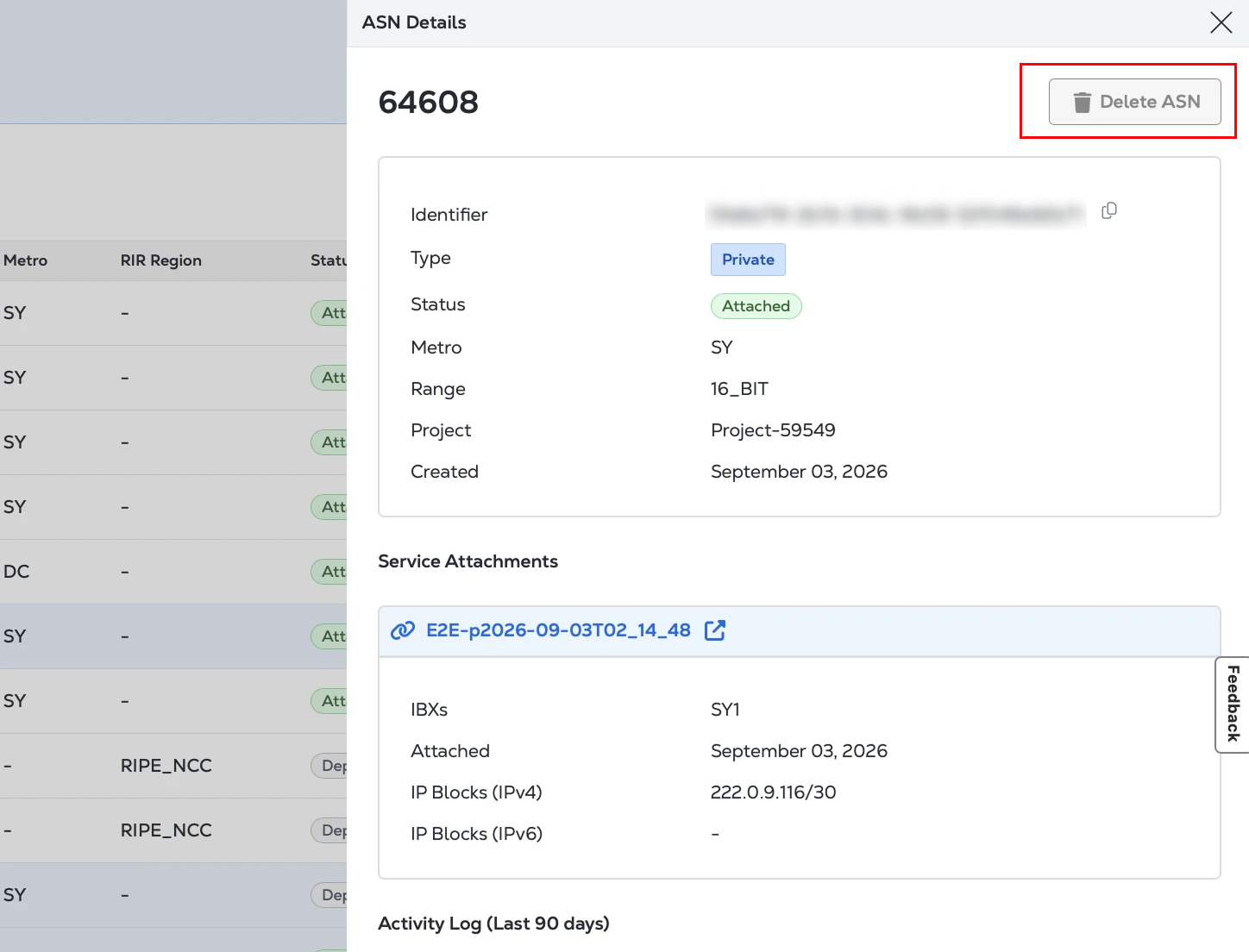
Les ASN inutilisés peuvent être supprimés de l'inventaire des ASN.
Dépannage
Si vous rencontrez des problèmes lors de l'intégration de l'ASN ou si vous ne savez pas quelle option choisir, contactez l'assistance clientèle .
| Problème | Cause probable | Que faire |
|---|---|---|
| L'intégration de l'ASN public est rejetée ou reste en attente | Les détails de propriété de l'ASN saisis dans le portail ne correspondent pas à l'enregistrement RIR (Regional Internet Registry), ou votre organisation n'a pas effectué la vérification de propriété requise. | Confirmez le numéro ASN, le nom de l'organisation et les détails RIR dans ARIN, RIPE NCC, APNIC, AFRINIC ou LACNIC. Soumettez à nouveau l'ASN avec les détails correspondants. Si les détails sont corrects mais que la validation échoue toujours, ouvrez un dossier d'assistance avec la preuve que votre organisation possède ou est autorisée à utiliser l'ASN. |
| Les préfixes annoncés ne sont pas acceptés | Des objets ou autorisations de route/route6 IRR sont manquants ou n'autorisent pas l'ASN à générer les préfixes annoncés. | Créez ou mettez à jour les objets et enregistrements IRR requis avant de publier les préfixes. Pour les préfixes PI appartenant au client, assurez-vous que l'ASN est autorisé à émettre le préfixe. Pour les préfixes PA fournis par Equinix et utilisés avec un ASN public client, créez les objets de route IRR requis référençant l'ASN client. |
| Le provisionnement ASN reste en attente pour les métros manuelles | La zone métropolitaine sélectionnée nécessite une autorisation manuelle de publicité de préfixe de fournisseur en amont avant que l'ASN puisse être entièrement provisionné pour le service d'accès à Internet. | Attendez que l'équipe régionale et le fournisseur en amont aient terminé l'autorisation manuelle requise. Si l'ASN reste en attente plus longtemps que prévu, ouvrez un ticket d'assistance . |
| L'ASN public ne peut pas être utilisé avec l'espace IP fourni par Equinix | L'ASN et le modèle de propriété de l'adresse IP sélectionnés ne sont pas compatibles pour la commande. | Si vous devez utiliser votre ASN public, sélectionnez l'espace IP appartenant au client, le cas échéant. Si vous utilisez des adresses IP fournies par Equinix, utilisez un ASN privé fourni par Equinix ou l'option ASN prise en charge par le flux de commande d'accès Internet. |
| La limite d'allocation d'ASN privé est atteinte | Le nombre maximal d'ASN privés a déjà été attribué pour la zone métropolitaine sélectionnée. | Consultez l'inventaire ASN pour la zone métropolitaine sélectionnée. Supprimer les ASN privés inutilisés du menu à trois points pour libérer de la capacité d'allocation ou sélectionner une autre zone métropolitaine, le cas échéant. |
| Le pair BGP n'accepte pas l'ASN attribué | Il est possible que le routeur ou le dispositif homologue du client ne prenne pas en charge les ASN 32 bits (4 octets) ou que la configuration du routeur ne corresponde pas à l'ASN attribué dans le portail. | Vérifiez si l'équipement réseau prend en charge les ASN de 4 octets. Si la compatibilité est incertaine, choisissez un ASN privé 16 bits si disponible. Vérifiez que les valeurs ASN local et homologue sur le routeur du client correspondent à la configuration d'accès Internet. |
| L'ASN intégré n'est pas visible lors de la commande d'accès Internet | L'ASN n'est pas encore provisionné ou a été intégré dans un projet ou un périmètre de compte différent. | Accédez au registre ASN et confirmez que le statut ASN est provisionné. Vérifiez également que la commande d'accès Internet est créée dans le cadre du même projet que celui utilisé pour l'intégration de l'ASN. |
| La session BGP reste à l'état inactif ou actif | L’ASN local, l’ASN homologue, l’IP du voisin ou d’autres paramètres BGP sur le routeur du client ne correspondent pas à la configuration d’accès Internet approuvée. | Comparez la configuration du routeur du client avec les valeurs indiquées sur le Portail client. Corrigez les paramètres ASN et voisin, puis revérifiez l'état de la session BGP. Si la session ne s'établit toujours pas, collectez les journaux du routeur et ouvrez un ticket d'assistance . |
Pour obtenir de l'aide, contactez l'assistance client ou l'équipe chargée de votre compte Equinix pour obtenir de l'aide à l'intégration.
Comprendre les exigences de l'ASN
Si votre service d'accès à Internet utilise BGP, vous devez configurer un numéro de système autonome (ASN). Vous pouvez soit intégrer votre propre ASN public, soit utiliser un ASN privé fourni par Equinix.
Un ASN public représente l'identité de routage de votre organisation sur l'Internet public et est généralement utilisé lorsque vous souhaitez un contrôle total sur les politiques de routage ou exploiter déjà un réseau public. Un ASN privé est destiné aux relations BGP privées et ne fournit pas d'identité de routage publique. Si vous n'avez pas d'ASN public, vous pouvez utiliser un ASN privé fourni par Equinix lors de l'intégration.
Le choix entre un ASN public ou un ASN privé dépend de vos exigences de routage, de votre modèle opérationnel et de votre propre identité de routage publique.
Après l'intégration et la vérification d'un ASN, vous pouvez utiliser le même ASN pour plusieurs connexions d'accès Internet dans la zone métropolitaine, à condition que chaque service soit configuré avec les paramètres BGP appropriés.
Une fois qu'un service d'accès à Internet est provisionné et actif, l'ASN fait partie de la configuration BGP du service et ne peut pas être modifié en place. Si vous avez besoin d'utiliser un autre ASN, contactez le support Equinix ou votre équipe de compte Equinix pour discuter des options de migration disponibles.