Set Up, Testing, and Support
Once you have defined and designed your services offered over Equinix Fabric, it’s time to set up and test your offer.
The high-level requirements for setting up your services to appear publicly as a Fabric Service Provider or participant are:
- Order and Provision Fabric ports (if you do not already have them).
- Create a Public Service Profile.
- Create a Company Profile.
- Attach your Service Profile(s) to your Company Profile.
A Company Profile may have more than one Service Profile attached to it. You can also create a service profile and/or order Fabric port(s) during the company profile creation process if you don’t already have one.
Order and Turn Up Ports
To become a service provider on Equinix Fabric, you must have either Fabric ports or virtual devices to which customers can connect. This will enable connectivity to your services or physical cage.
If you already have existing Fabric ports, you can use them to offer connectivity to your services over Equinix Fabric simply by creating a public service profile.
If you need to order Equinix Fabric ports, see Equinix Fabric Port Ordering for instructions. Ports typically take anywhere from 24 hours to a few days to turn up. Turn up may be accelerated either by an expedited order or by foregoing the turn up call.
The default provisioning process does not require a turn up call.
Create a Service Profile
Service profiles define how you will offer your services over Fabric. Service profiles can be public or private. To make your services discoverable and available to any Fabric customer you need to create a public service profile. For instructions, see Create a Layer 2 Service Profile.
Public service profiles allow customers to see that you have services available on Fabric in certain Equinix locations. Customers can search for Fabric services in a few different ways:
-
Equinix Global Navigation Bar
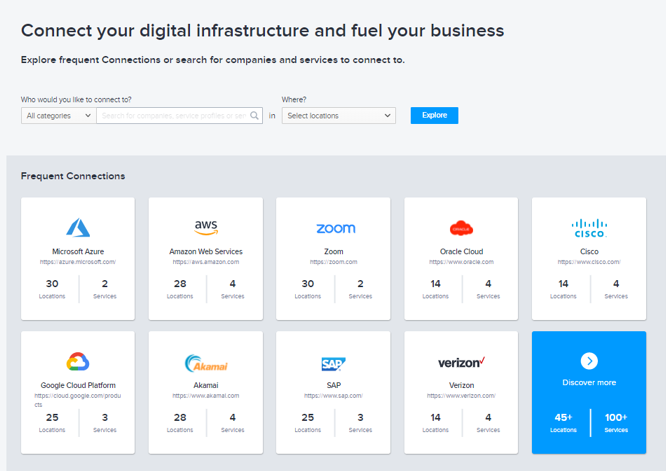
Because your service profile is how others will find your service when they wish to connect, provide an accurate description of your service and a service profile name, which includes your company name and the service that is being offered. Some examples are AWS Direct Connect or Verizon Software-Defined Interconnection.
Some other ways in which you can use service profiles to enhance the customer experience include:
- Upload a logo for your service profile by creating a support ticket. Select other as the issue type when creating the ticket.
- Utilize the custom process flows when creating or editing your service profile. This process flow defines a 2, 3, or 4-step process that your customers should follow when connecting to your service. The process flow is shown in the Customer portal when customers opt to connect to your service.
- Be sure to include a link to your company’s website in your service profile description so customer may learn more about the services and pricing.
- Make sure to tag your service for appropriate keywords when creating your service profile.
Public Service Profile Approval Process
Because public service profiles appear externally to Equinix customers in several places including our web site and our Customer Portal, it’s important that we ensure your profile is accurately completed. To ensure timely approval of your service profile:
-
Create a service profile in the Equinix Customer Portal. For instructions, see Create a Layer 2 Service Profile.
-
Provide contact information so that Equinix can contact you with any questions about your service profile.
If you have questions regarding this process, contact ServiceProfileApproval@equinix.com.
Create a Company Profile
Company profiles are used by customers to search and filter for companies that offer various types of services.Create a company profile so customers can find and connect to your services in the Fabric Marketplace.
Your company profile is how others will find your services when they wish to connect, which includes your company name, short and long descriptions, tags, as well as an accurate description of your service and a service profile names.
Customers can search by name, tag, using the filter functionality available on the search page, or by opening “Hubs” or pages that are specifically dedicated to service types such as AI providers or Network providers.
To make your services (such as SaaS and IaaS) available on the Fabric Marketplace you must have a a company profile and a service profile. Your company profile contains information about your company. Your service profiles describe your offered service and how others may connect to that service. One or more service profiles can be attached to a company profile.
Company Profile Approval Process
Because company profiles appear externally to Equinix customers in several places including our web site and our Customer portal, it’s important that we ensure your profile is accurately completed. To ensure timely approval of your Company profile:
-
Create a company profile in the Equinix Fabric portal.
-
The company profile then gets reviewed by Equinix admin for a clear short and long description of your company services, appropriate tags, a logo, and an attached service profile. Your company profile will have pending approval status while in review.
-
If approved, the service provider will appear on the service provider search page, making it discoverable. You will be able to edit or delete approved company profiles.
-
If rejected, you need to create a new company profile. You will be notified of a rejected company profile if you try to manage your company profile.

- Provide contact information when creating the company profile so that Equinix can contact you if necessary.
If you have questions regarding this process, contact ServiceProfileApproval@equinix.com.
Ensure End-to-End Service Flow
Once you are ready to receive (or initiate) connections over Equinix Fabric, be sure to test the end-to-end service flow. Whether you have enabled customer-ordered access or provider-ordered access, we recommend you test several scenarios.
If you need assistance with testing, contact your sales team.
On-Boarding Support
Equinix Fabric strives to deliver world-class support for all users of our Platform Equinix products.
Support Tickets
In the event of a service outage or failure, open a support ticket through the Equinix Customer portal. (See Submit a Support Ticket.) Provide as much information about the issue and associated assets as possible to help expedite the process.
Contact your account team for additional information such as escalation lists or detailed procedures.
Port Management and Monitoring
Service providers are responsible for capacity management on their own Equinix Fabric port(s), including oversubscription.
When a connection request from a customer is accepted, you will assign the port and VLAN to be used for that connection.
Other monitoring capabilities include:
- Port capacity threshold notifications can be enabled based on committed bandwidth.
- Port and VC utilization information is available in the portal and using APIs. The information can also be streamed using our Observability platform.