Completing an Offline Port Order
Equinix is upgrading its systems and the user experience in the Customer Portal. Products and services ordered through an offline ordering process can be configured and completed in the Customer Portal.
Equinix offers ordering Fabric Ports through a formal quote and offline ordering process through the Equinix Sales team. Once you have received and accepted the quote, you get an order confirmation with a link to the Customer Portal where you can finish configuring your order and create your Port.
To complete the order for an Equinix Fabric port, you must have one of the following roles: Fabric Port Manager, Fabric Manager, or Fabric Service Provider.
Finding the Order
You can access the order in one of two ways, from the email notification that your order has been created, or from your Order History in the Customer Portal.
To access the order from the Email Notification:
- Click the link in the email with the subject line: “Action required: Configure your Order# <order_number>”
To access the order from the Customer Portal:
-
Sign into the Customer Portal.
-
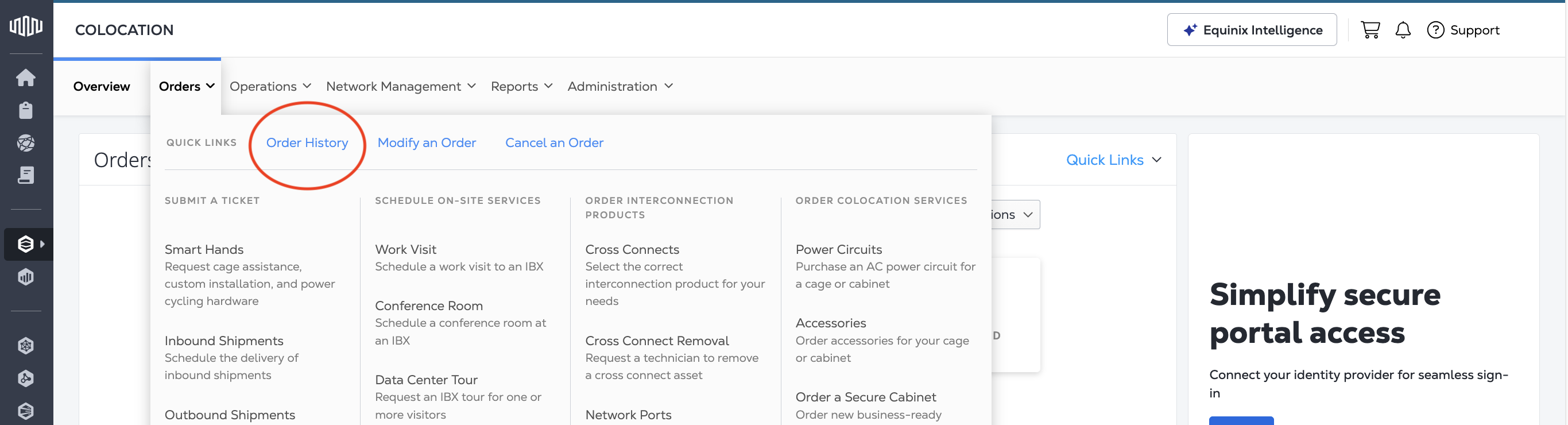
From the Colocation Dashboard, click on Orders, then Order History.
-
In the Order History table, search for the order number.
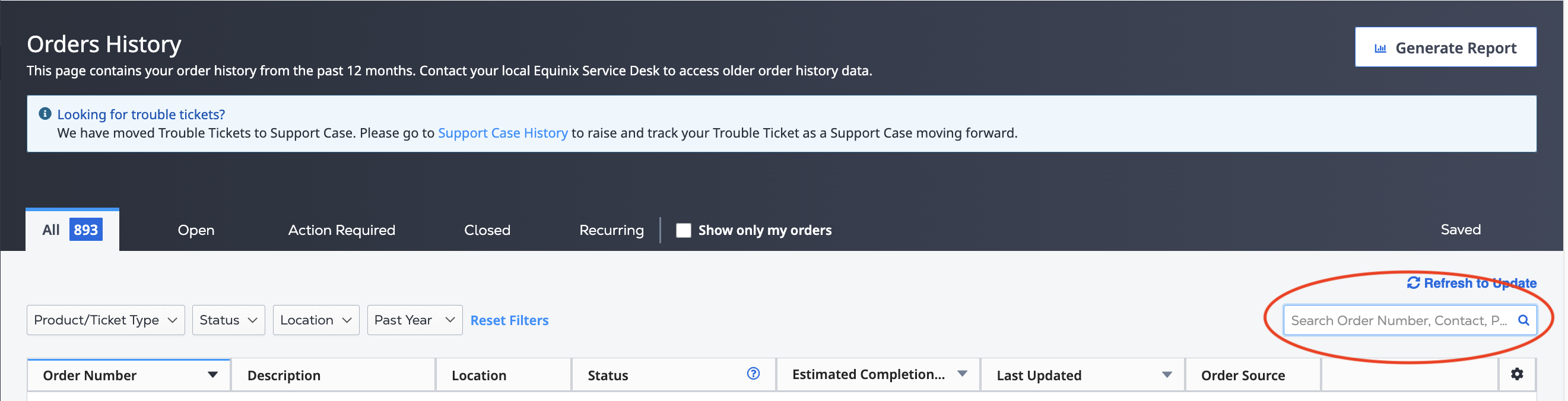
You can also use the filters to display only "Equinix Fabric" orders.
-
Once you have located the order, hover over the
Action Requiredstatus until it changes to Configure. Click Configure.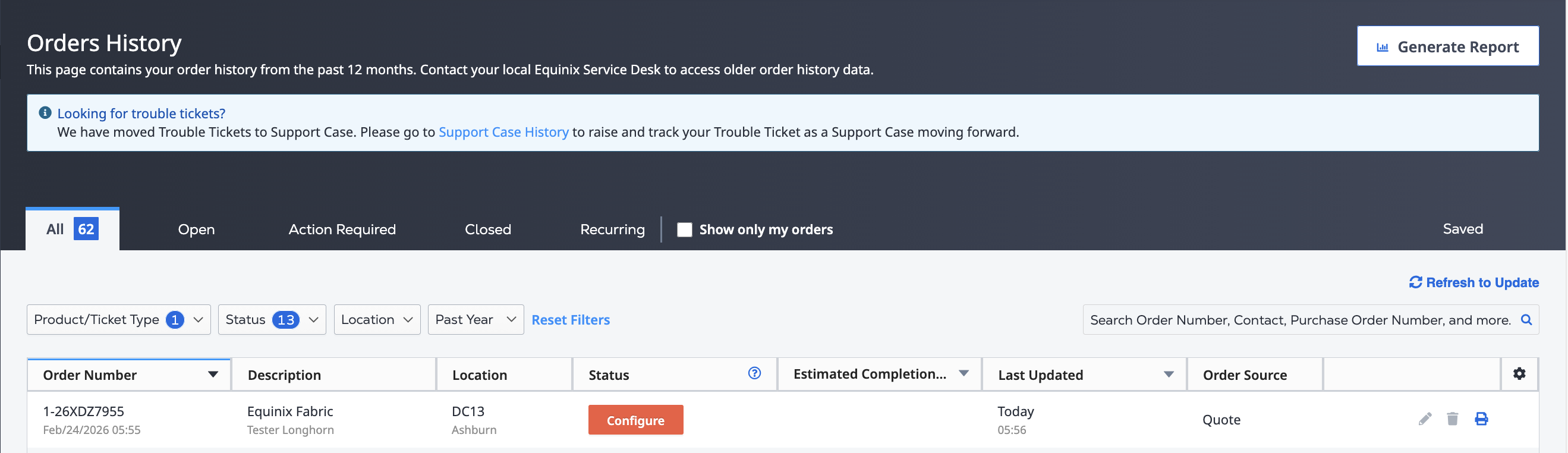
-
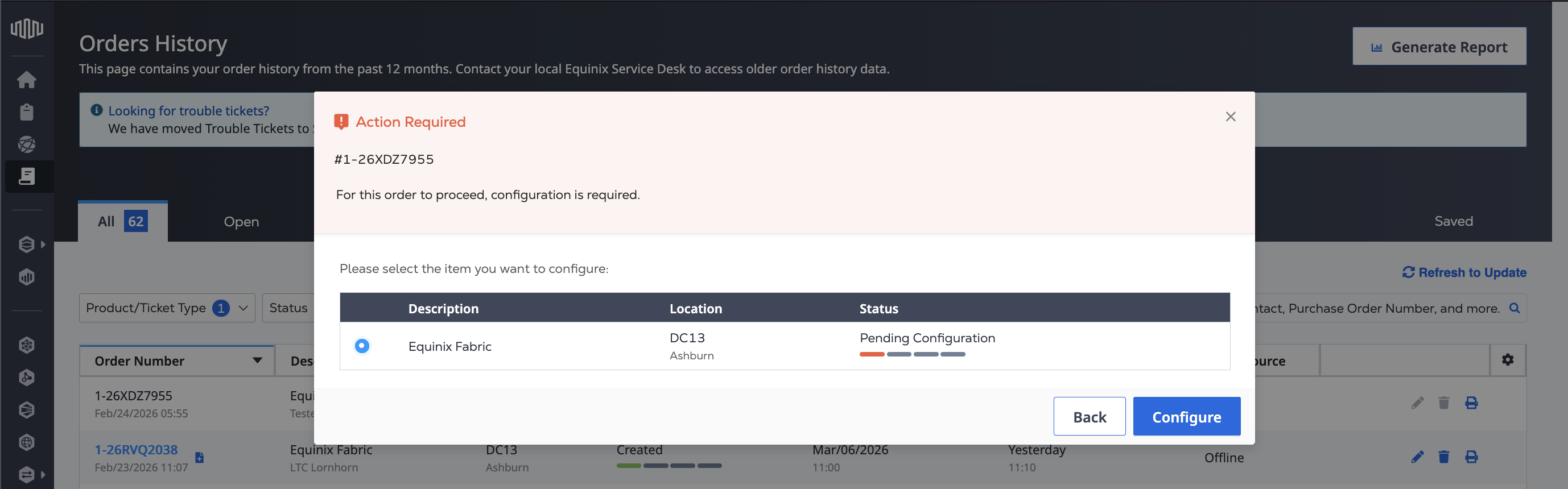
Select the Fabric Port from the order that you want to configure, and click Configure.
Completing Your Order
Configure your Port using the portal's Ordering a Fabric Port flow.
-
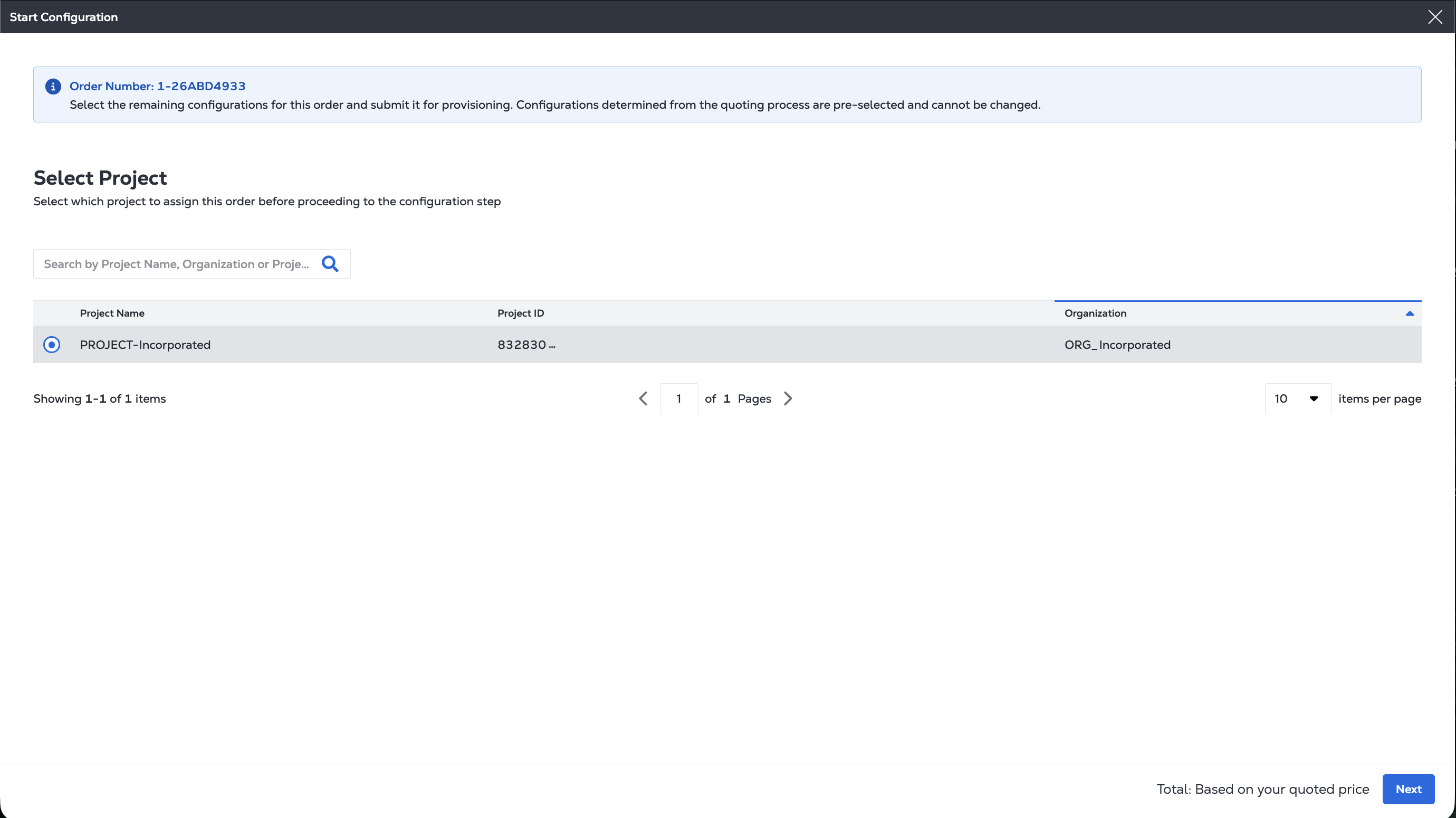
Select the Project to create the Port in, then click Next.
-
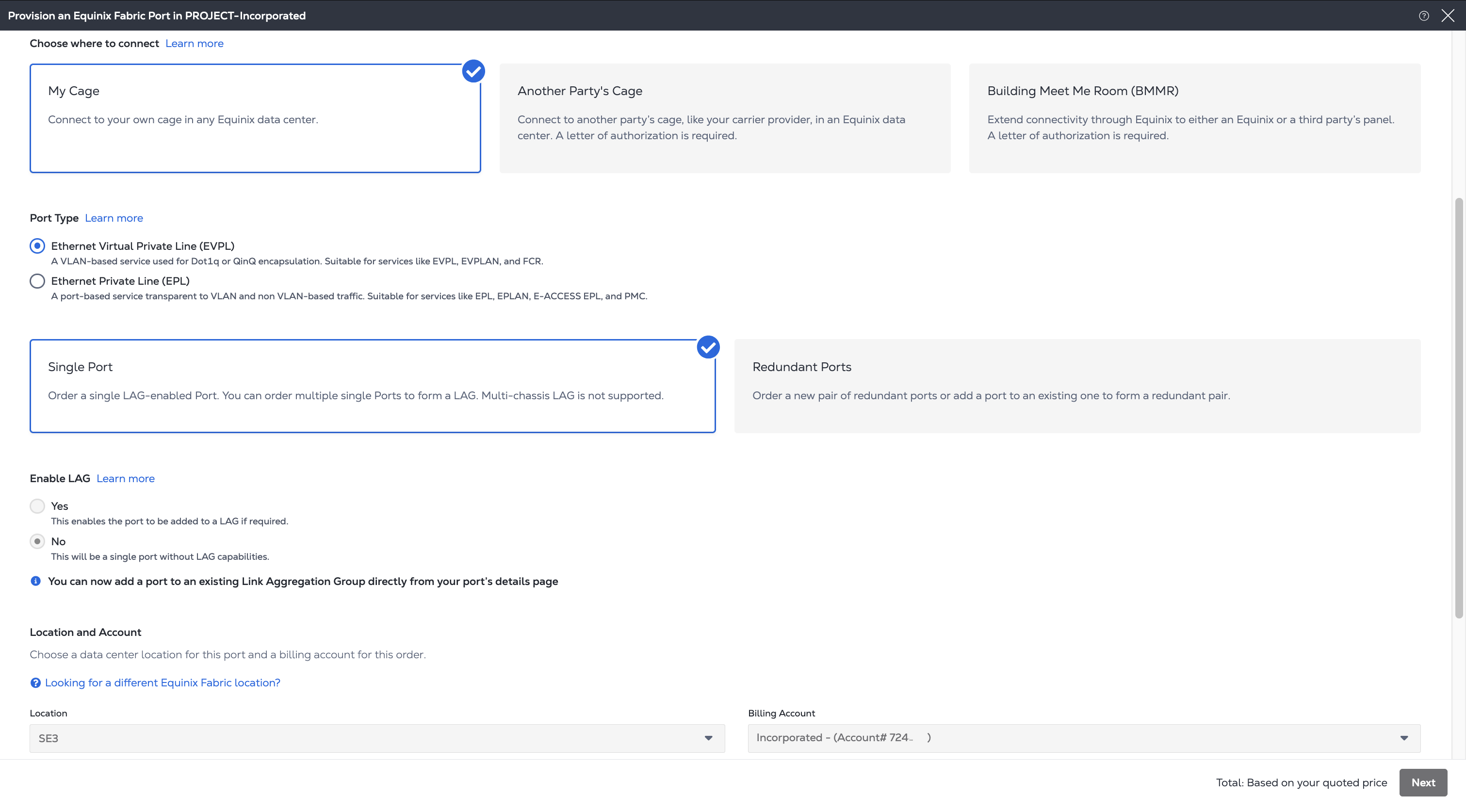
On the Customer Demarcation page:
Configuration values derived from your quote can not be changed. These include:
- Choose where to connect
- Redundancy Type
- LAG
- LAG Count
- Location – IBX
- Billing Account
Under Port Type, select either Ethernet Virtual Private Line (EVPL) or Ethernet Private Line (EPL) for the type of port to create.
Click Add Patch Panel Details and select:
- Cage
- Cabinet
- Patch Panel
- Connector Type
- and the ports on the patch panel
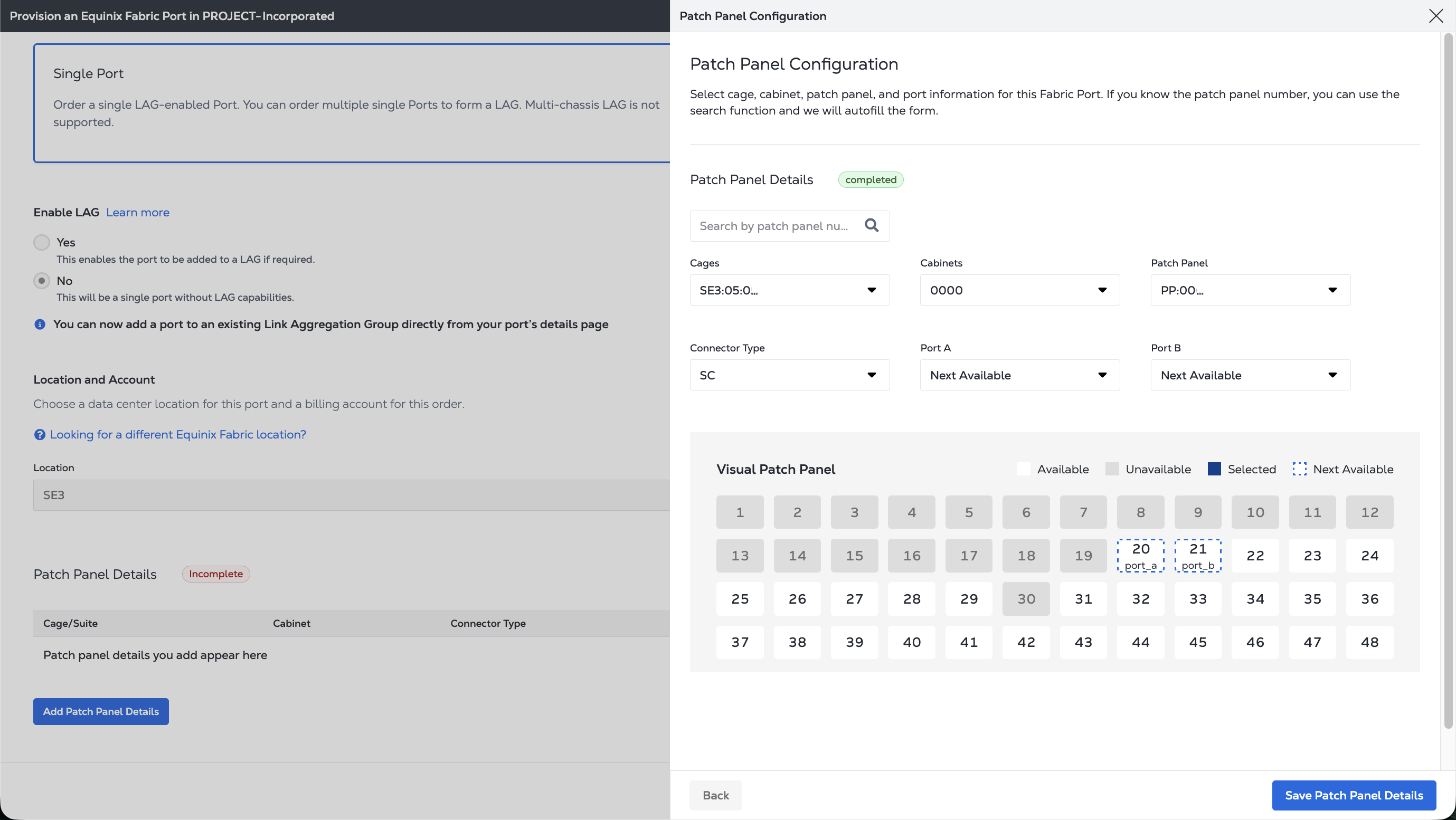
Click Save Patch Panel Details.
-
Click Next.
-
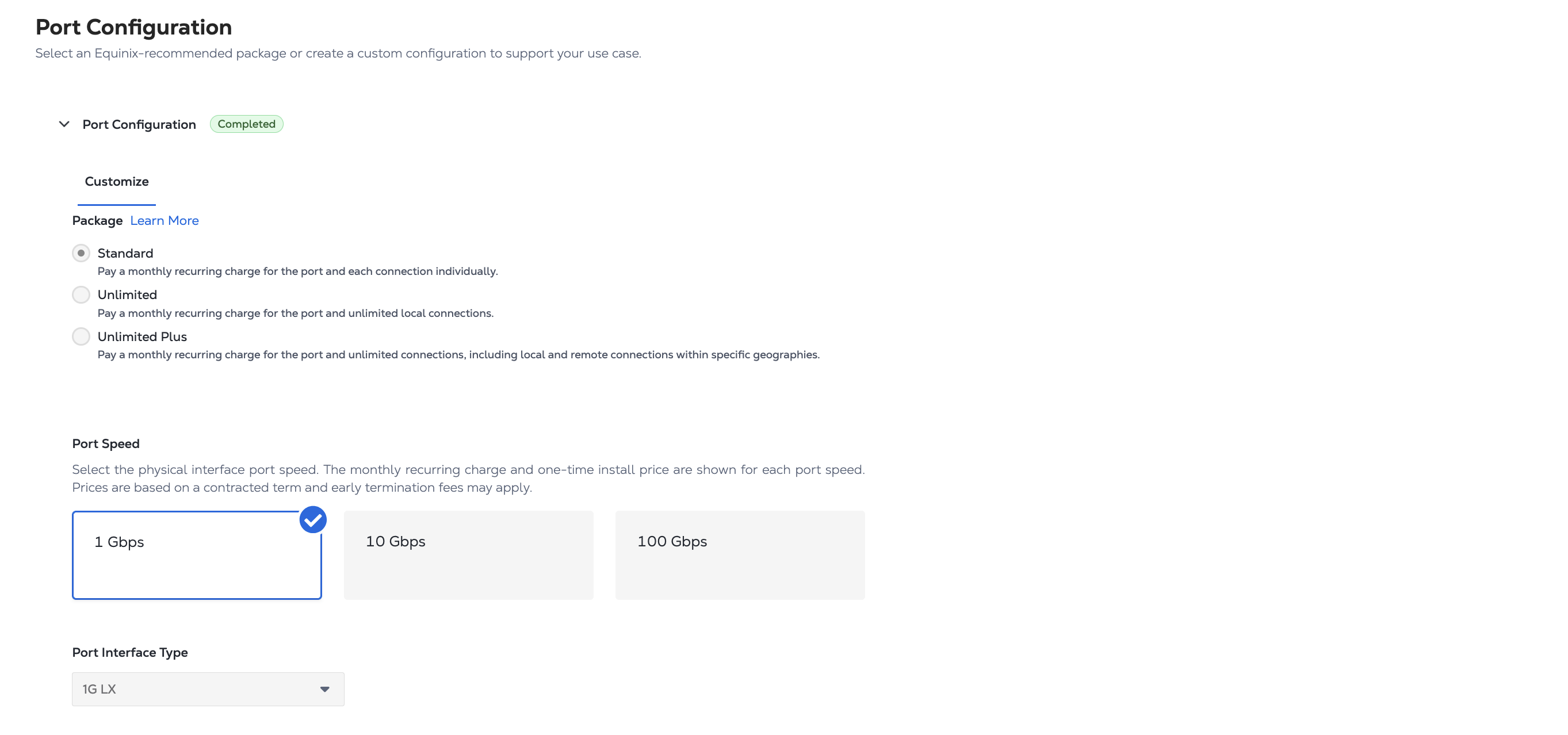
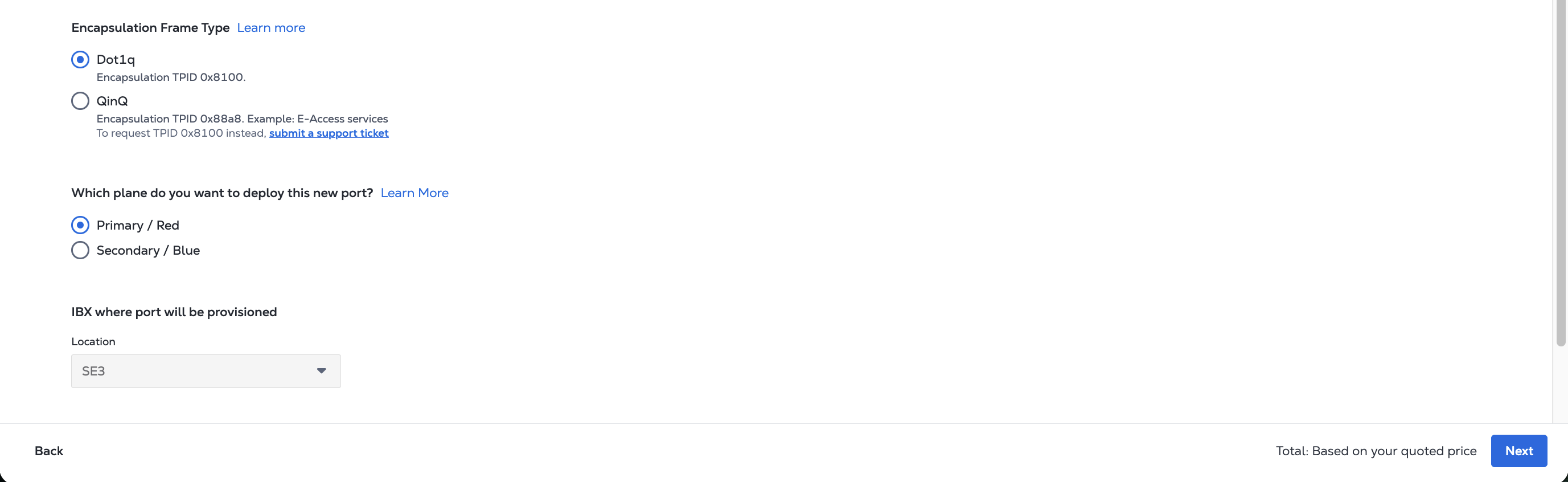
On the Port Configuration page:
Configuration values derived from your quote can not be changed. These include:
- Package
- Speed
- Interface Type
- Fabric Port IBX
You configure the following values:
- Encapsulation Frame Type
- Port Priority (Primary/Secondary)
-
Click Next.
Review and Submit
-
Review the configuration in the Customer Demarcation, Patch Panel Details, and Port Configuration panels.
-
The Contact Information panel displays the Order Contact and Technical Contact information. These contacts are derived from the quote and can not be changed.
-
The Purchase Order panel displays the Purchase Order number from your quote, if any. A Purchase Order number can not be changed or added. You can add a Customer Reference ID in the field.
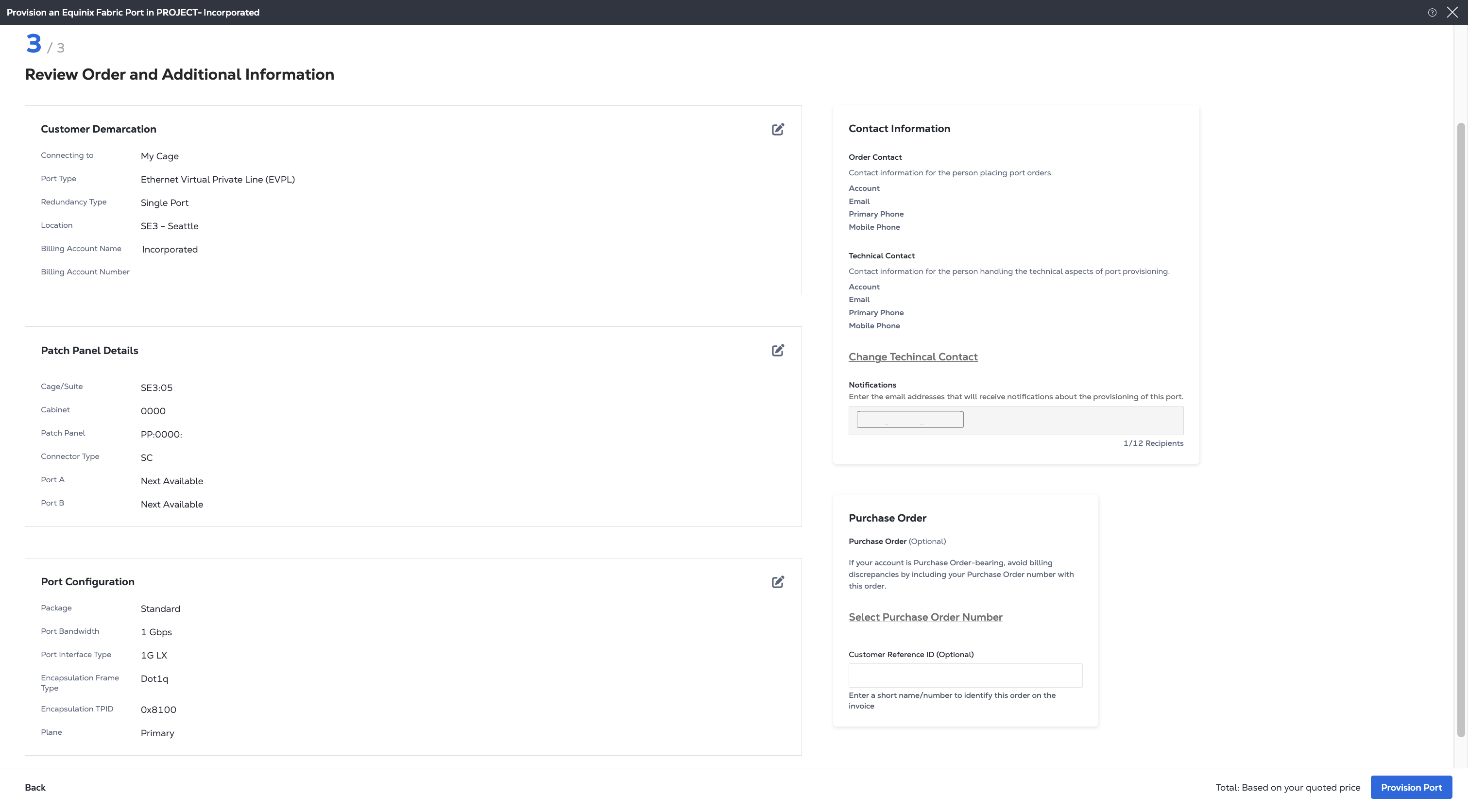
Click Provision Port to submit the request.
Once submitted, Fabric automatically begins provisioning the port and you receive a notification once the order is completed. After provisioning is complete, you can view the port in the Fabric Port Inventory.