Accept or Reject Connections
If another Fabric customer requests to connect to your services or assets, you can choose to accept or reject the connection request. In order to accept or reject connections you must have the Fabric Connection Manager role.
To view your connection requests:
- Portal
- API
-
Sign in to the Customer Portal and navigate to Fabric.
-
Use the Project Selector drop-down to select the project to view pending connection requests associated with a specific project. For more information on projects, see Managing Projects.
-
On the Overview page, click Pending Requests.

-
The Pending Actions panel displays connections that need approval.
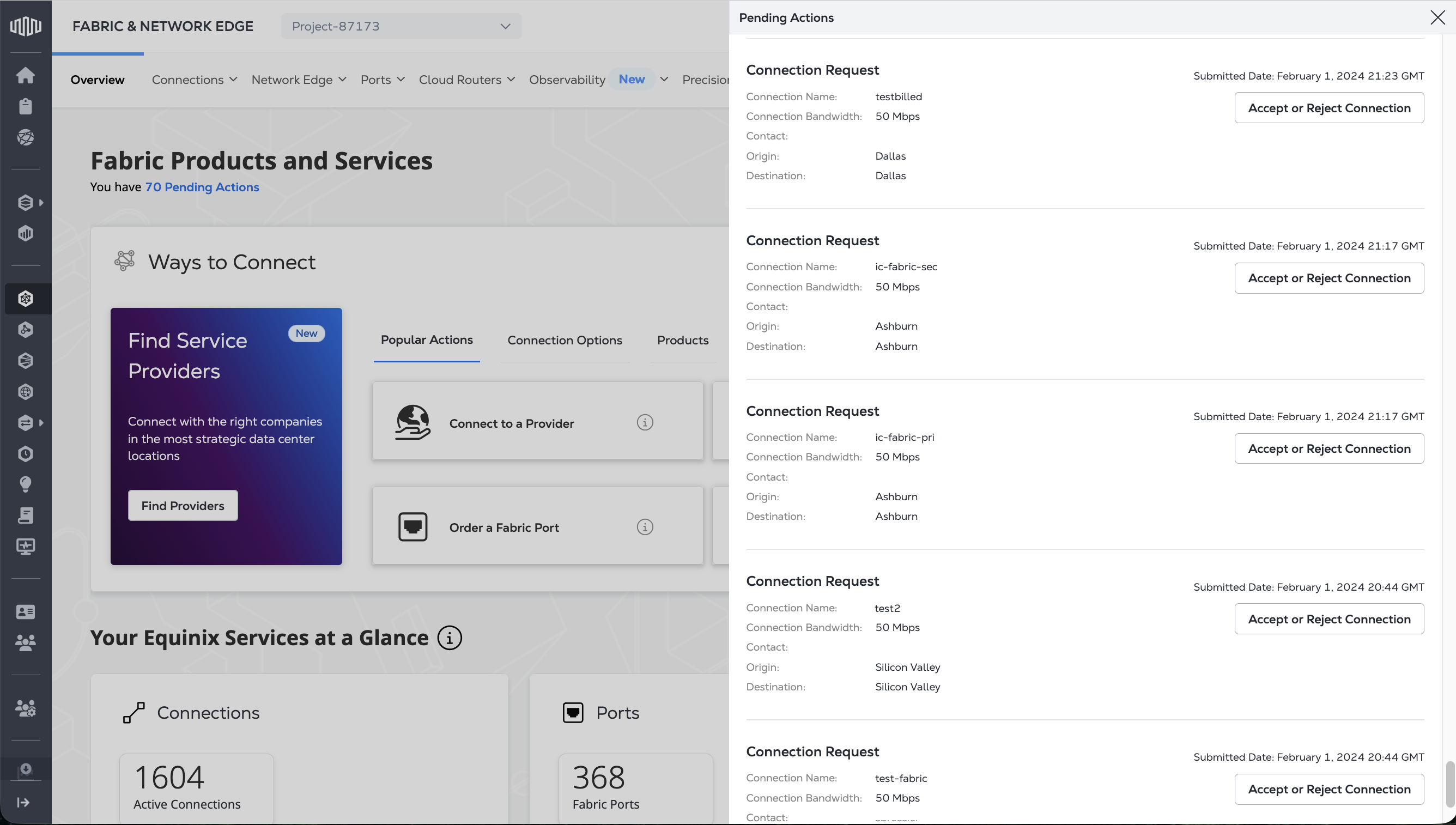
You can also filter out pending connection requests in the Connections Inventory.
Send a POST request to the /fabric/v4/connections/search endpoint. In the filter object, specify the property criteria as /operation/equinixStatus and the values criteria as PENDING_APPROVAL.
Sample cURL Request:
curl -X POST 'https://api.equinix.com/fabric/v4/connections/search' \
-H 'content-type: application/json' \
-H 'authorization: Bearer <token>' \
-d '{
  "filter": {
    "and": [
      {
        "property": "/operation/equinixStatus",
        "operator": "=",
        "values": [
          "PENDING_APPROVAL"
        ]
      }
    ]
  },
  "pagination": {
    "limit": 25,
    "offset": 0,
    "total": 0
  },
  "sort": [
    {
      "property": "/changeLog/updatedDateTime",
      "direction": "DESC"
    }
  ]
}'
Accept a Connection Request
To accept a connection:
- Portal
- API
-
Locate the connection request you want to manage and click Accept or Reject Connection.
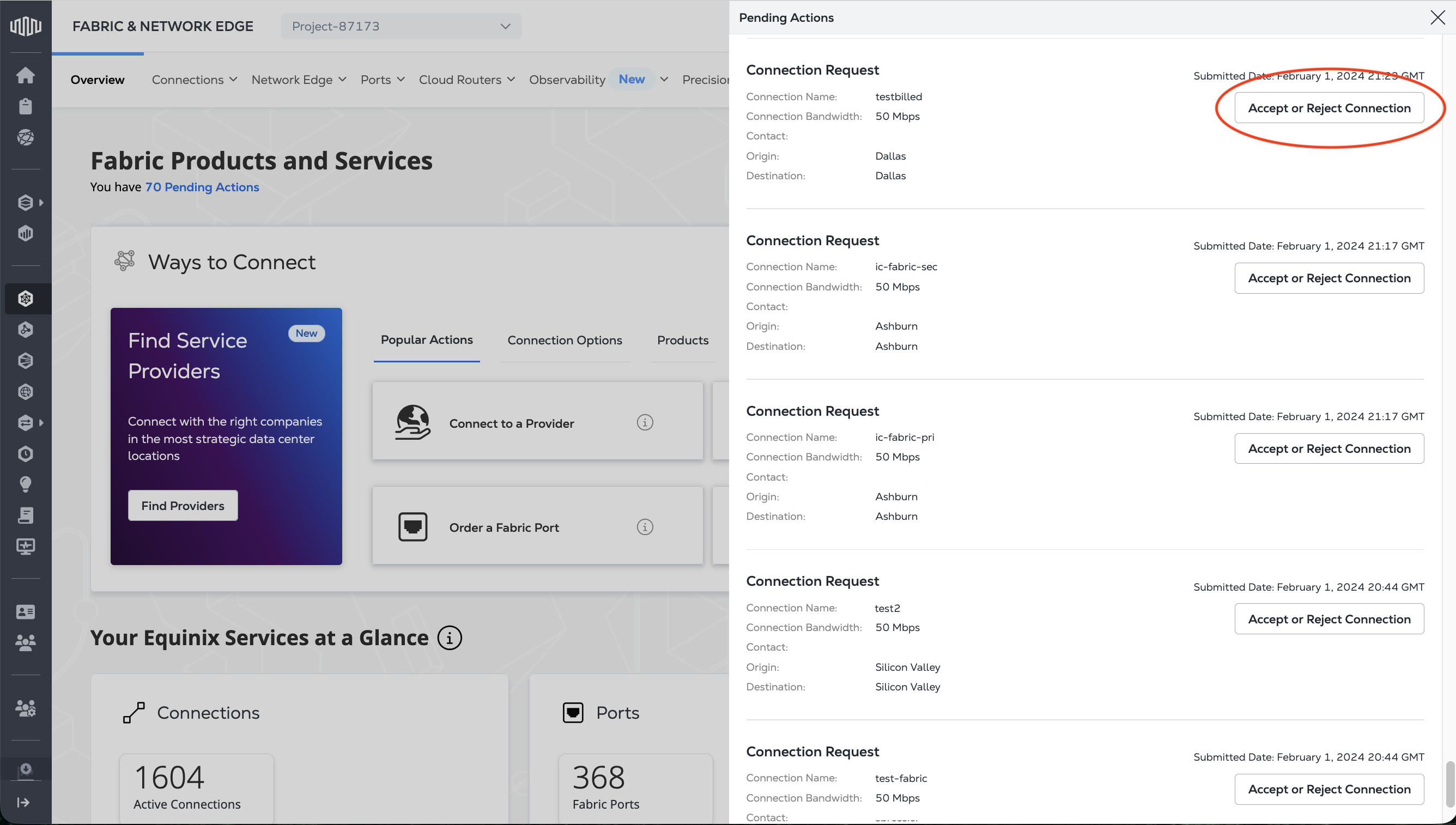
-
Click Accept.
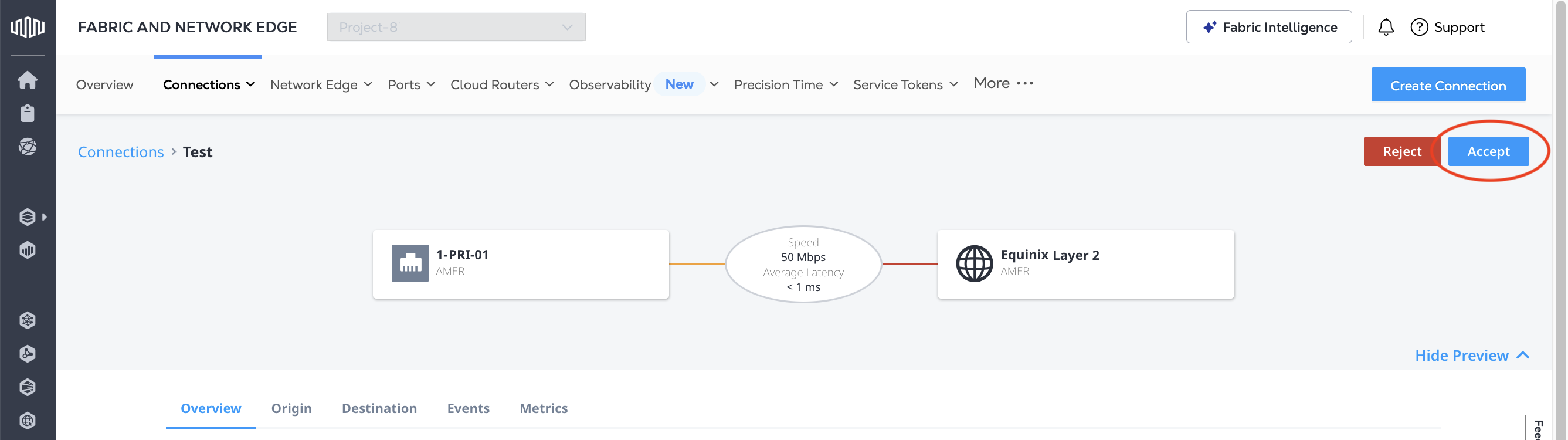
-
From the Destination Port drop-down list, select the port you want to terminate this connection at, then click Submit.
noteDestination ports list contains all eligible ports including ports assigned to different projects. If you select a port in a different project, the connection will be associated with the project that the port is assigned to.
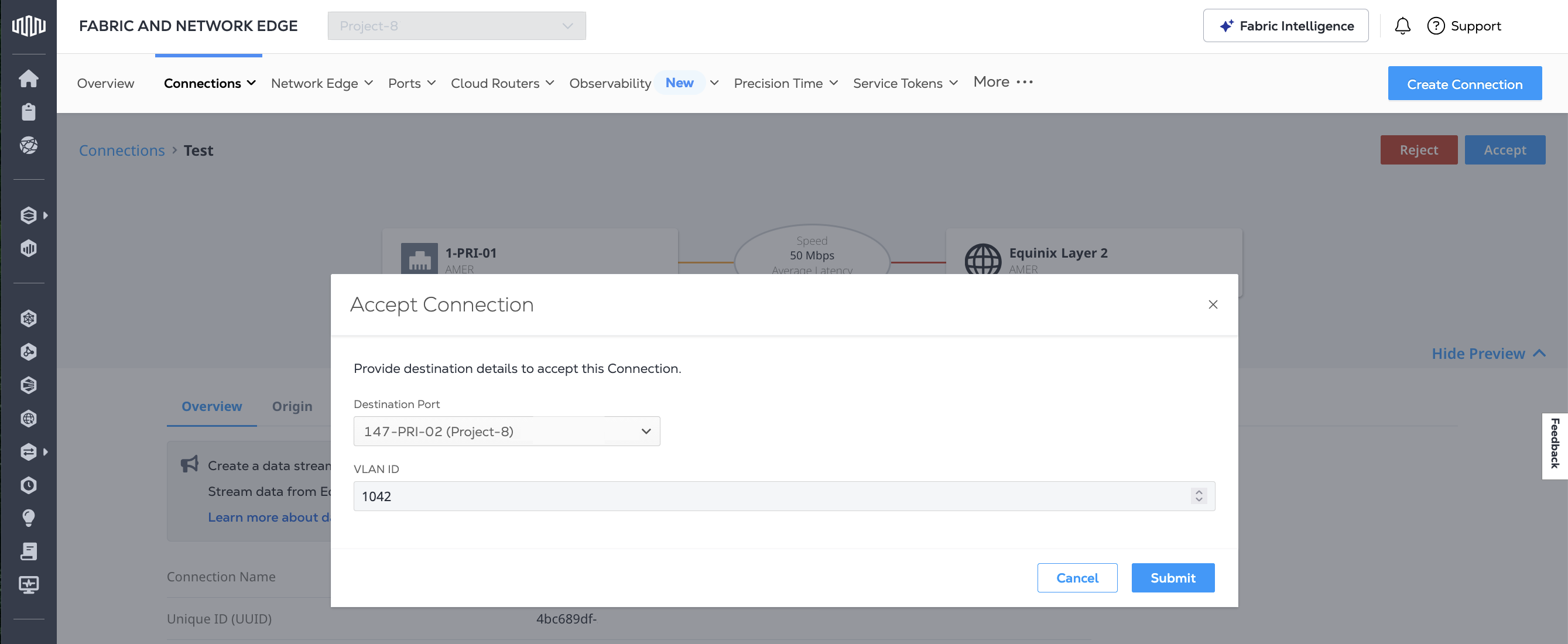
-
Click Confirm.
Send a POST request to the /fabric/v4/connections/{connection_id}/actions endpoint. In the body of the request, specify:
- The z-side port information for where you want the connection to connect to. You can get your Equinix Fabric ports' information using the
/fabric/v4/portsendpoint. - The
typeparameter asCONNECTION_CREATION_ACCEPTANCE.
Sample cURL Request:
curl -X POST 'https://api.equinix.com/fabric/v4/connections/{connection_id}/actions' \
-H 'content-type: application/json' \
-H 'authorization: Bearer <token>' \
-d '{
  "type": "CONNECTION_CREATION_ACCEPTANCE",
  "data": {
    "zSide": {
      "accessPoint": {
        "type": "COLO",
        "port": {
          "uuid": "<port_id>"
        },
        "linkProtocol": {
          "type": "QINQ",
          "vlanSTag": <vlan_id>,
          "vlanCTag": <vlan_id>
        }
      }
    }
  }
}'
Reject Connection Request
To reject a connection request:
- Portal
- API
-
Locate the connection request you want to manage and click Accept or Reject Connection.
-
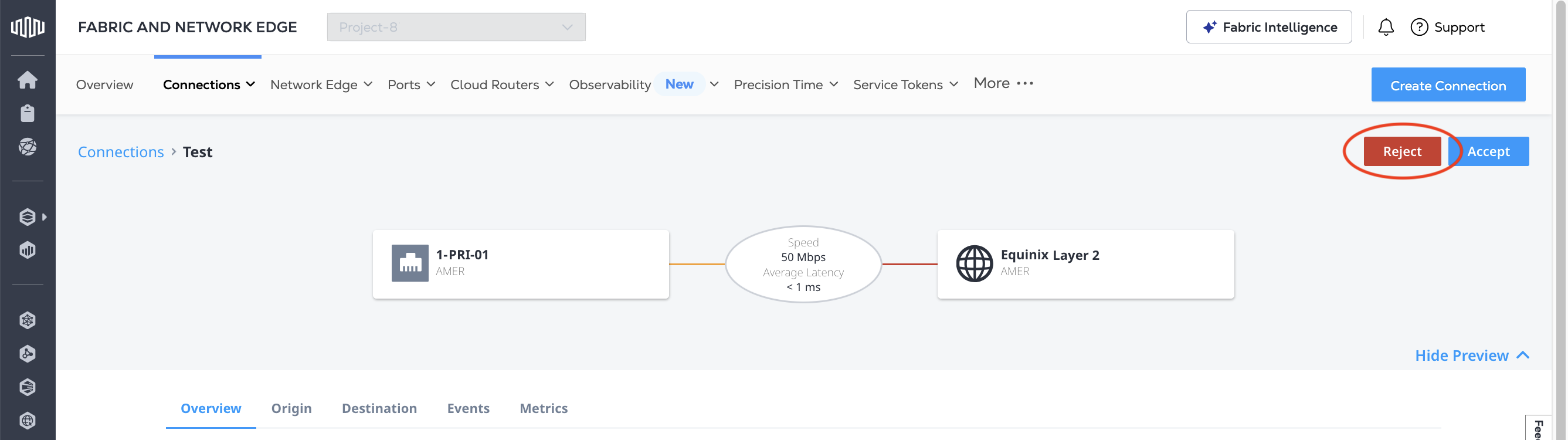
Click Reject.
-
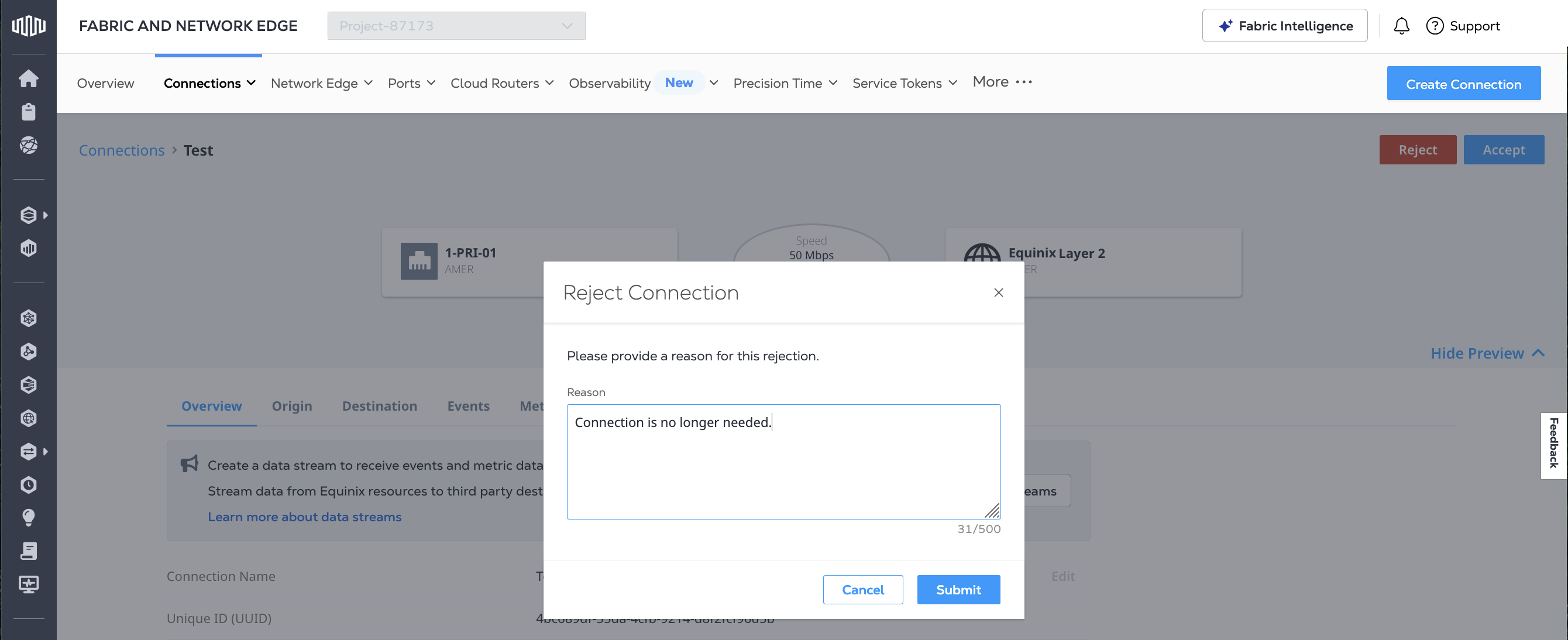
Enter the reason why you reject this connection request, then click Submit.
Send a POST request to the /fabric/v4/connections/{connection_id}/actions endpoint. In the body of the request, specify:
- The
typeparameter asCONNECTION_CREATION_REJECTION. - The reason for the rejection in the
description.
Sample cURL Request:
curl -X POST 'https://api.equinix.com/fabric/v4/connections/{connection_id}/actions' \
-H 'content-type: application/json' \
-H 'authorization: Bearer <token>' \
-d '{
  "type": "CONNECTION_CREATION_REJECTION",
  "description": "<reason_for_rejection>"
}'