Connections FROM Verizon
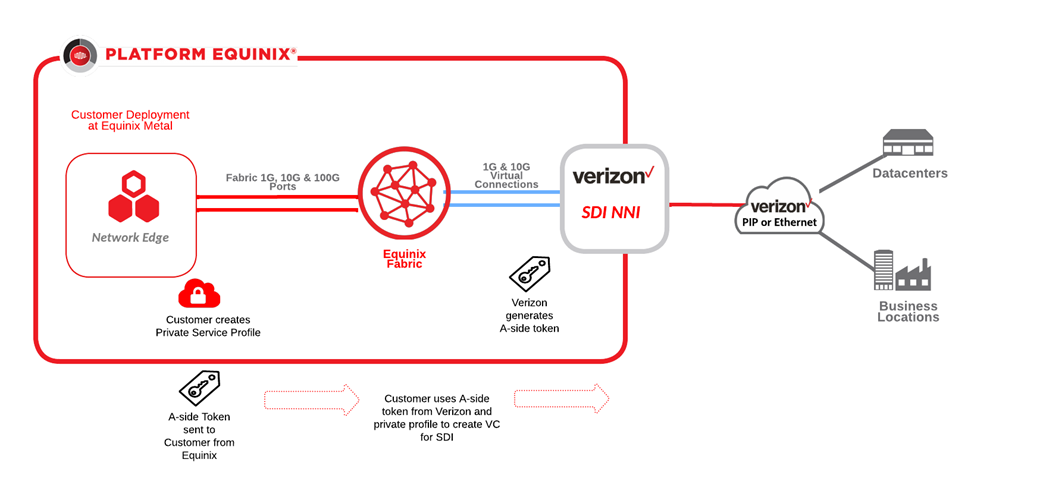
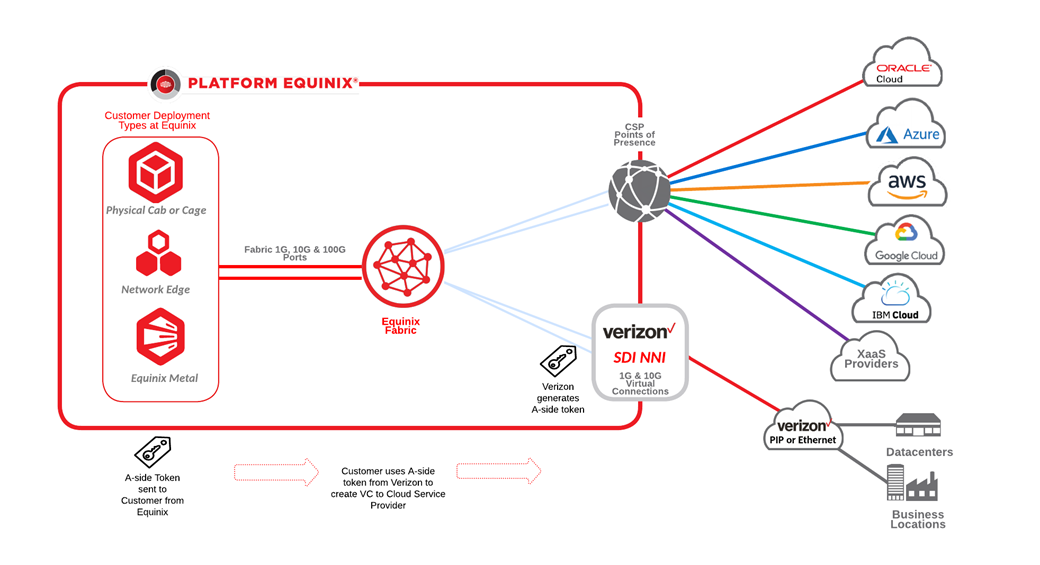
Verizon-ordered Access provides Layer 2 connections from Verizon SDI to your Equinix Fabric port, Network Edge virtual device, or to another service provider over Fabric.
This documentation specifically covers creating the connection from a Verizon-issued service token. If you are connecting TO Verizon from your Equinix infrastructure see Connections TO Verizon.
Prerequisites
- Portal
- API
-
An A-side service token authorizing you to use a Verizon SDI port as the connection origin access point. To get an A-side token, work with your Verizon sales representative. Once ready, you will receive an email from Equinix with the a-side token information.
-
An Equinix Customer Portal account.
-
One of the following for the z-side of the connection.
-
A Fabric port. For information on ordering a Fabric port, see Order an Equinix Fabric Port.
-
One or more Network Edge virtual devices. See the Network Edge docs for more information.
-
The service provider you want to connect to. For information on service providers, see the Connecting to a Service Provider section.
-
-
Authenticate - Submit your user credentials, Client ID, and Client Secret for OAuth2 authentication. Refer to API Authentication for instructions on how to call OAuth API to validate and authenticate your credentials.
-
An A-side service token authorizing you to use a Verizon SDI port as the connection origin access point. To get an A-side token, work with your Verizon sales representative. Once ready, you will receive an email from Equinix with the A-side token information.
-
Determine the Z-side information. Either:
- Determine your Equinix Fabric ports information by sending a
GETrequest to the/fabric/v4/portsendpoint. You need the port UUID(s) and the link protocol type (DOT1Q or QINQ).
OR
- Determine your Network Edge device information. Check your available virtual devices and clusters by sending a
GETrequest to the/ne/v1/devicesendpoint. You need the device UUID(s). Send aGETrequest to the/ne/v1/devices/{device_id}endpoint to get the specifics of a device. You may choose any available interface on the device for your connection. If you do not specify one, the connection is automatically assigned to the next available interface.
OR
- Identify the service provider you are connecting to and find its service profile information. Send a
GETrequest to the/fabric/v4/serviceProfilesendpoint to get a list of all available service profiles.
- Determine your Equinix Fabric ports information by sending a
Connecting from Verizon to Your Port
- Portal
- API
-
Log in to the Customer Portal > Fabric Dashboard and click Create Connection.
-
On the My Own Assets card, click Connect to My Own Assets.
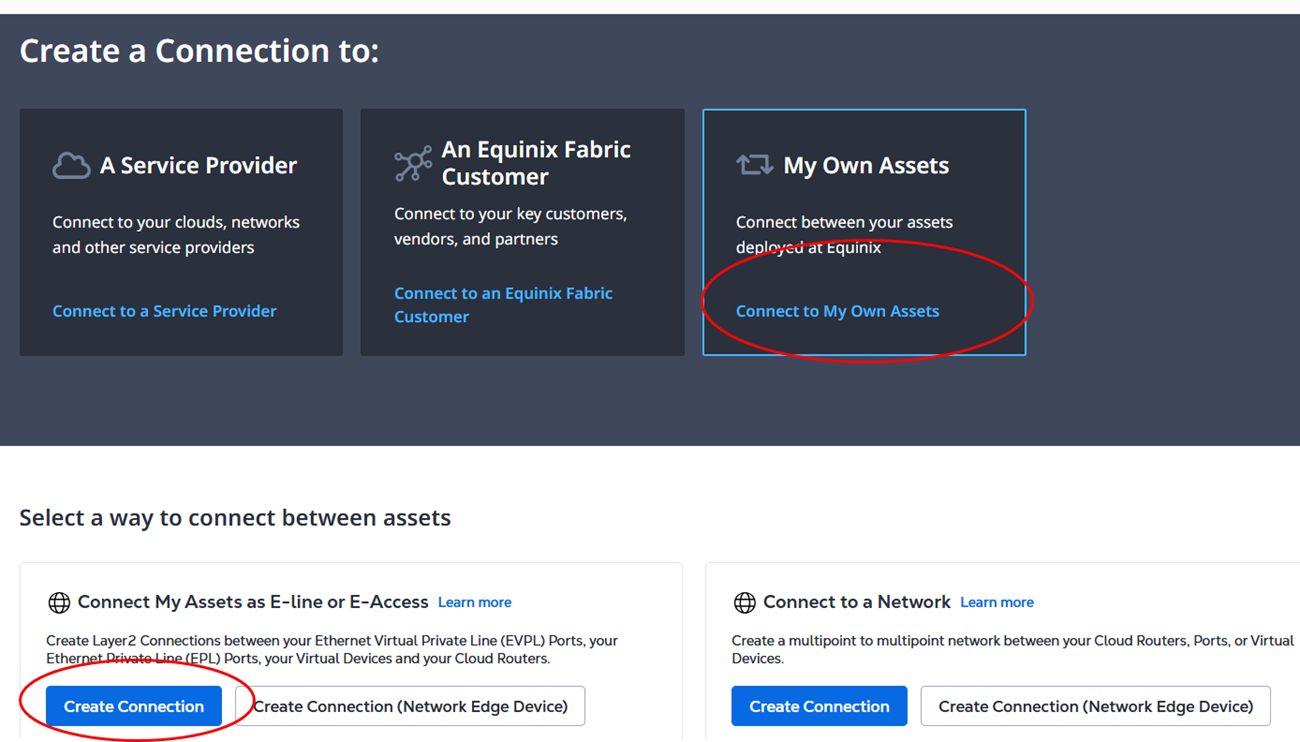
- Select Service Token as your origin asset type and enter the A-side token issued by Verizon.
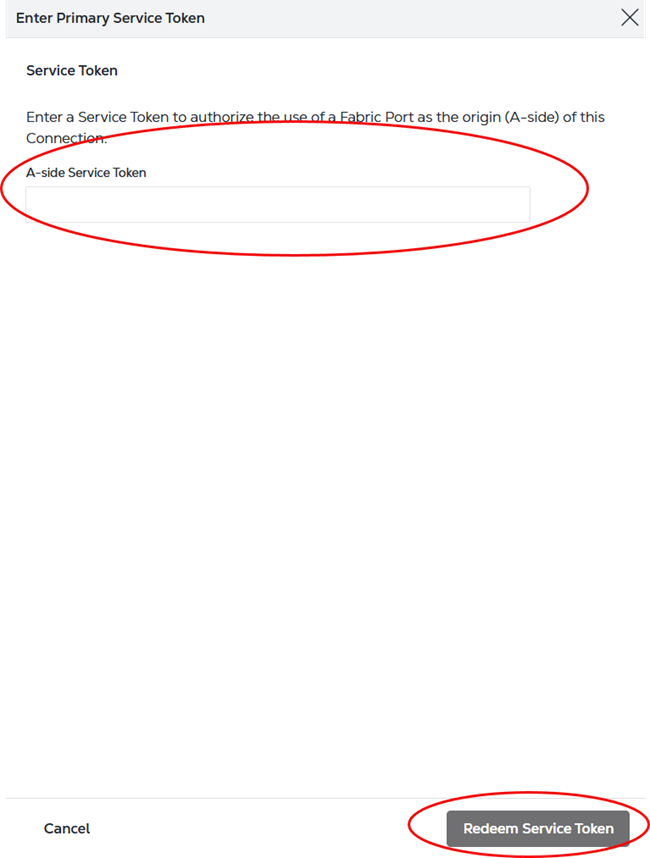
- Select your port as the destination for the connection. See Connect My Assets Using E-Line for configuration instructions.
Do not click on the Verizon service provider card on the Create a Connection page. The Verizon service profile is for creating a connection where Verizon is the destination for the connection (rather than the origin as described here).
To create a connection from Verizon to your port, send a POST request to the /fabric/v4/connections endpoint. The connection type is EVPL_VC.
Provide the Verizon-issued A-side service token information in the aSide object. The service token provides all other necessary a-side information to establish the connection.
Provide your port information in the zSide object, including:
accessPoint.typeasCOLO- Provide your port's UUID to
port.uuid
For DOT1Q ports:
- Set
linkProtocol.typeasDOT1Q. - Provide the VLAN ID to
linkProtocol.vlanTag.
For QINQ ports:
- Set linkProtocol.type as
QINQ. - Provide the inner tag ID to
linkProtocol.vlanCTag. - Provide the outer tag ID to
linkProtocol.vlanSTag.
Sample cURL Request:
curl -X
POST 'https://api.equinix.com/fabric/v4/connections'
-H 'content-type: application/json'
-H 'authorization: Bearer <token>'
-d '{
    "type": "EVPL_VC",
    "name": "<your_connection_name>",
    "bandwidth": <connection_speed>,
    "redundancy": {
        "priority": "<redundancy_code>"
    },
    "aSide": {
        "serviceToken": {
        "uuid": "<verizon_issued_service_token>"
        }
    },
    "zSide": {
        "accessPoint": {
            "type": "COLO",
            "port": {
                "uuid": "<port_uuid>"
            },
            "linkProtocol": {
                "type": "DOT1Q",
                "vlanTag": <vlan_ID>
            }
        }
    },
    "project": {
        "projectId": "<project_uuid>"
    },
    "notifications": [
        {
            "type": "ALL",
            "emails": [
            "<contact_email>"
            ]
        }
    ]
}'
Connecting from Verizon to Network Edge Virtual Devices
- Portal
- API
To connect Verizon SDI to your Network Edge device you must first create a Z-side service token for your device.
Once you have created a Z-side service token for your Network Edge device:
-
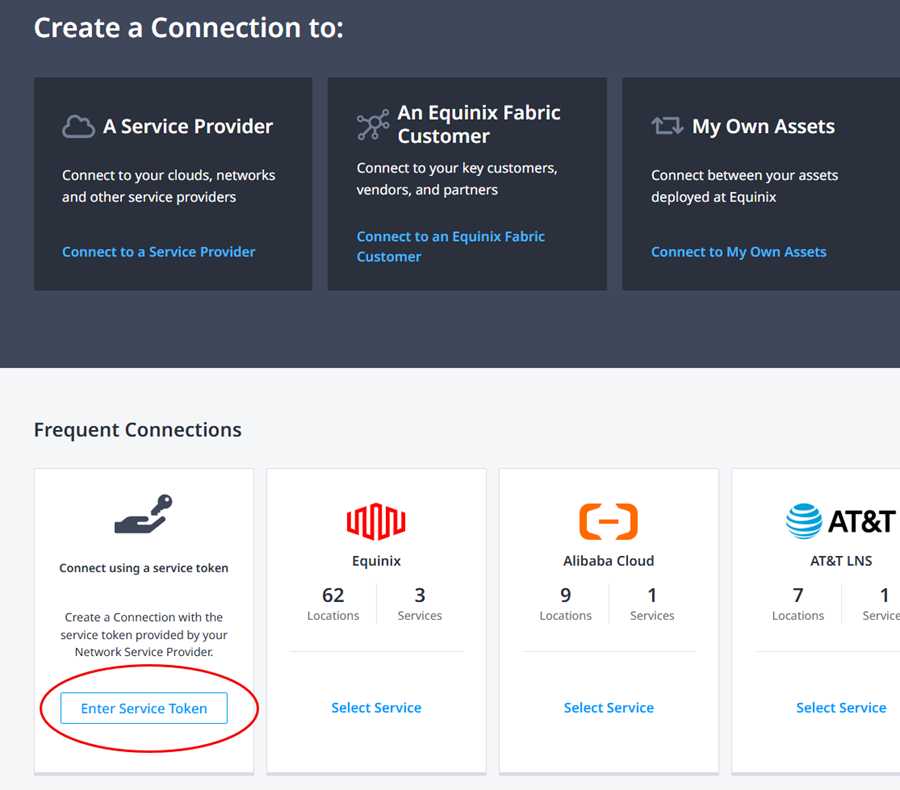
Log in to the Customer Portal > Fabric Dashboard and click Create Connection.
-
On the Connect using Service Token card, click Enter Service Token.
-
Enter the Z-side service token you created and click Redeem Service Token.
-
Select Service Token as your origin asset type and enter the A-side token as issued by Verizon.
-
Continue to configure your connection by giving it a name and selecting a bandwidth.
VLAN and available bandwidth options are predetermined by the A-side token generated by Verizon.
Generic instructions for creating a connection to your own assets is on the Connect My Assets Using E-Line page.
Private IP Multi-VRF on the same PIP port is not supported because Network Edge only allows Dot1q encapsulation. Multiple connections to Network Edge can be supported using multiple A-side tokens representing multiple PIP ports.
To create a connection from Verizon to your Network Edge device, send a POST request to the /fabric/v4/connections endpoint. The connection type is EVPL_VC.
Provide the Verizon-issued a-side service token information in the aSide object. The service token provides all other necessary a-side information to establish the connection.
Provide your virtual device information in the zSide object, including:
accessPoint.typeasVDvirtualDevice.typeasEDGEvirtualDevice.uuidas your device's UUID
Sample cURL Request:
curl -X
POST 'https://api.equinix.com/fabric/v4/connections'
-H 'content-type: application/json'
-H 'authorization: Bearer <token>'
-d '{
    "type": "EVPL_VC",
    "name": "<your_connection_name>",
    "bandwidth": <connection_speed>,
    "redundancy": {
        "priority": "<redundancy_code>"
    },
    "aSide": {
        "serviceToken": {
        "uuid": "<verizon_issued_service_token>"
        }
    },
    "zSide": {
        "accessPoint": {
            "type": "VD",
            "virtualDevice": {
                "type": "EDGE",
                "uuid": "<virtual_device_uuid>"
            }
        }
    },
    "project": {
        "projectId": "<project_uuid>"
    },
    "notifications": [
        {
            "type": "ALL",
            "emails": [
            "<contact_email>"
            ]
        }
    ]
}'
Connecting from Verizon to a Service Provider
- Portal
- API
-
Log in to the Customer Portal > Fabric Dashboard and click Create Connection.
-
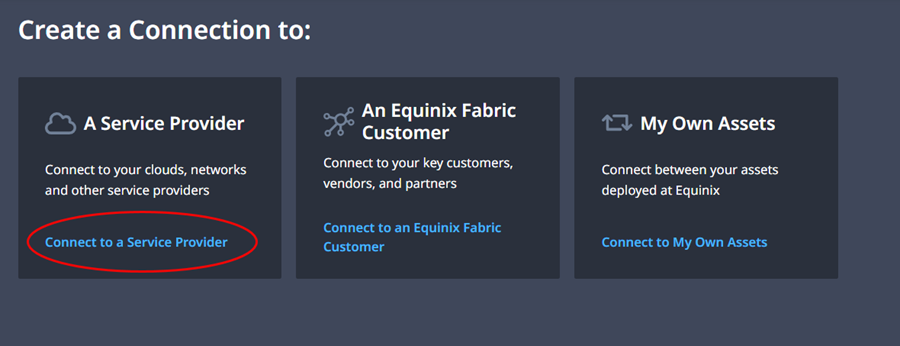
On the A Service Provider card, click Connect to a Service Provider.
-
Locate the service profile for the provider you want to connect to and click Select Service.
-
Click Create Connection.
-
Select Service Token as your Origin Asset Type and enter your Verizon provided A-side service token.
-
Continue to configure your connection. For guidelines on connecting to a specific service provider, see the Connecting to a Service Provider section of the docs.
To create a connection from Verizon to another service provider on Fabric, send a POST request to the /fabric/v4/connections endpoint. The connection type is EVPL_VC.
Provide the Verizon-issued a-side service token information in the aSide object. The service token provides all other necessary a-side information to establish the connection.
Provide the required service provider configuration to the zSide object, including:
- Set
accessPoint.typeasSP. - Set
profile.typeasL2_PROFILE. - Specify the AWS service profile you are connecting to in
profile.uuid. - Any other parameters needed for the service provider you are connecting to.
Sample cURL Request:
curl -X
POST 'https://api.equinix.com/fabric/v4/connections'
-H 'content-type: application/json'
-H 'authorization: Bearer <token>'
-d '{
    "type": "EVPL_VC",
    "name": "<your_connection_name>",
    "bandwidth": <connection_speed>,
    "redundancy": {
        "priority": "<redundancy_code>"
    },
    "aSide": {
        "serviceToken": {
        "uuid": "<verizon_issued_service_token>"
        }
    },
    "zSide": {
        "accessPoint": {
            "type": "SP",
            "profile": {
                "type": "L2_PROFILE",
                "uuid": "<service_profile_uuid>"
            }
        }
    },
    "project": {
        "projectId": "<project_uuid>"
    },
    "notifications": [
        {
            "type": "ALL",
            "emails": [
            "<contact_email>"
            ]
        }
    ]
}'
Monitoring the Connection Status
To monitor the status of your connection, from the Connections menu, select Connections Inventory.