Lumen Internet On-Demand
Lumen Internet On-Demand provides dedicated, hourly billed internet access that can be provisioned within minutes. It offers easy, fast and secure networking with built-in monitoring. With Lumen's Internet On-Demand, you can consume and pay for internet only when you need it and reduce your capital expenditures.
Prerequisites
- An Equinix Fabric account.
- An Equinix Fabric port with DOT1Q frame type encapsulation.
Provision Internet On-Demand Service in an Equinix IBX Data Center
Add an Internet On-Demand connection in an Equinix metro of your choice to obtain a z-side service token. You redeem the z-side service token to establish a Fabric connection.
-
Log in to the Control Center portal.
-
Click Services.

-
On the Service Management card, click Network-as-a-Service (NaaS).

-
Add Internet On-Demand connection using one of the following options:
tipWhen choosing location, select an Equinix metro where you have your assets deployed. If you don't have presence in any of the listed metros, choose one that will ensure the lowest Fabric connection latency.
-
Click Make your first Connection or ADD NEW CONNECTION, click CONTINUE, then search for a provider, city, or state, and click CONTINUE.

-
In the Available Data Centers section, find an Equinix IBX data center in a preferred location and click Add Connection.

-
In the Available Customer Sites/Building section, browse buildings with existing NaaS enabled ports and click Add Connection next to a facility of your choice.
-
-
Select connection bandwidth and click CONTINUE.
-
Enter a name for this service instance and click CONTINUE.
-
Select a billing account and click CONTINUE TO REVIEW.

-
Review your order information and click SUBMIT ORDER.
Once the order is complete, your order information displays the Equinix data center service token and IP addresses. Use the service token to establish virtual connection between your assets deployed in an IBX data center and your Internet On-Demand service instance. Use the IP addressing information to configure your networking equipment:
- WAN IP Block: X.XX.XXX.152/30
- Provider Edge (PE) Router Address (Gateway IP): X.XX.XXX.153
- Customer Edge (CE) WAN Address: X.XX.XXX.154
- LAN IP Block: X.XX.XXX.160/29
- Customer Usable LAN IP Addresses: X.XX.XXX.161-X.XX.XXX.166
- Broadcast IP Address: X.XX.XXX.167

Connect to Lumen Internet On-Demand
To establish a connection to your Lumen's Internet On-Demand service instance:
-
Log in to the Customer Portal > Fabric Dashboard.
-
From the Connections menu, select Create Connection.
-
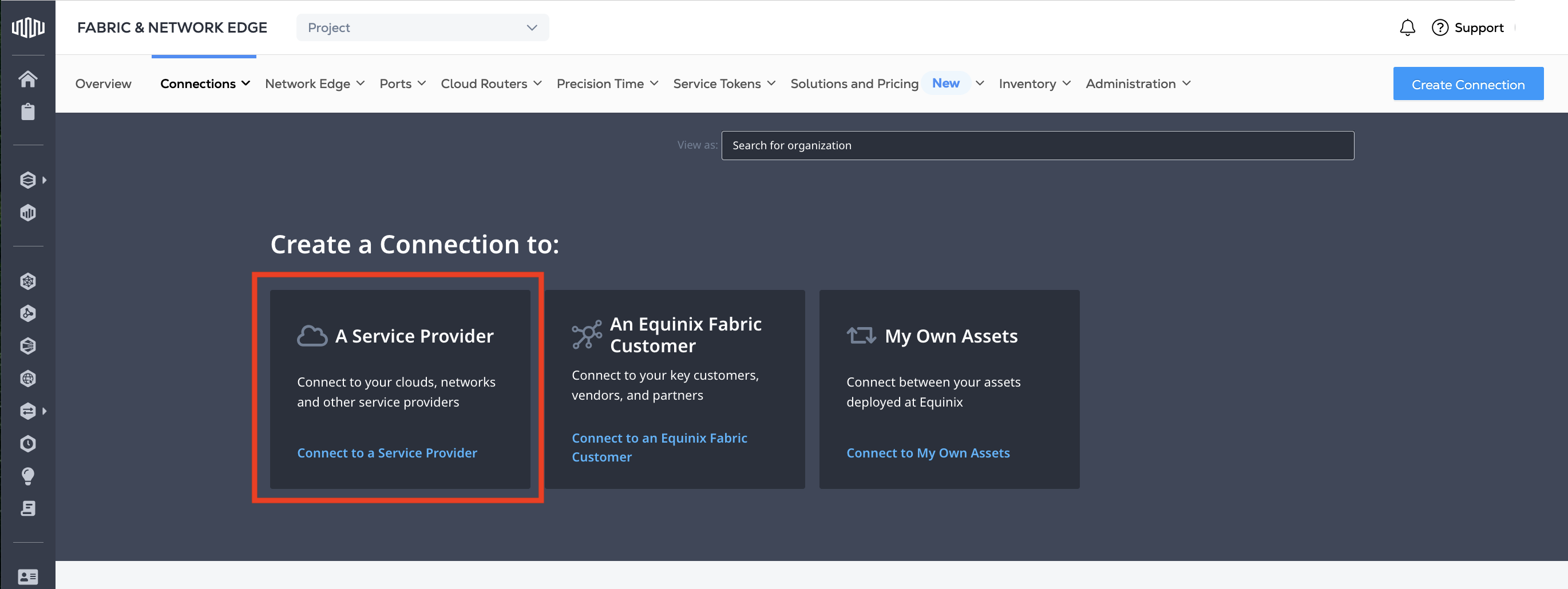
In the A Service Provider card, click Connect to a Service Provider.
-
In the Select a Service Provider section, on the Connect using a service token card, click Enter Service Token.

-
Enter the service token assigned to your Internet On-Demand order and click Validate.
-
Review token details and click Redeem to proceed with creating the connection.

-
In the Origin section, select Port, then choose Metro and select a port.
tipTo ensure the lowest latency, choose the same location as you did when you set up your Internet On-Demand service instance. If you don't have presence in that metro, choose one that will ensure the lowest Fabric connection latency.
-
Click Next.
-
In the Connection Information section, enter:
- Connection Name - The name for your connection
- VLAN ID - Your VLAN ID
-
Enter purchase order number.
-
Select connection speed and click Nexts.
tipAvailable connection speed options may not match your Internet On-Demand service instance bandwidth. We recommend you select at least the same connection speed value to ensure you can fully utilize your Internet On-Demand service.
-
Review your order and click Submit Order.
Go to the Connections Inventory, locate and click your connection to verify its status. Your service should be up and running once the Equinix Status shows Provisioned and the Provider Status shows Accepted.
Modifying connection to Lumen Internet On-Demand isn't currently supported.
Disconnecting an Internet On-Demand Service Instance
Use NaaS Manager to disconnect Internet On-Demand from a data center. Services disconnect immediately and billing stops once you confirm the disconnect.
To disconnect your Internet On-Demand service instance:
- Log in to the Control Center portal.
- Click Services.
- On the Service Management card, click Network-as-a-Service (NaaS).
- Select the Services tab.
- Locate the service instance you want to disconnect, click options and select Disconnect.
- Confirm the billing notice, then click CONFIRM DISCONNECT.
- Log in to Equinix Fabric.
- From the Connections menu, select Connections Inventory.
- Locate and click the connection to Lumen Internet On-Demand.
- Click Delete Connection, then click Yes, Delete to confirm.