# Alibaba Cloud Express Connect
Use the Equinix Customer Portal or API to create the connection from your Fabric Port, Fabric Cloud Router, or Network Edge virtual device to Alibaba Cloud Express Connect. Alibaba Cloud Express Connect connects on-premise Equinix data centers to the Alibaba Cloud through a dedicated partner backbone network.
For more information, see Express Connect in the [Alibaba Cloud Document Center](https://www.alibabacloud.com/help/en/express-connect).
## Overview
Equinix supports connecting to Alibaba Cloud through the Alibaba Cloud Express Connect service profile.
**Locations**
| APAC | AMER | EMEA |
| -------------------------------------------------- | ------------------------------------- | ------------------------------- |
| Hong Kong (HK)
Singapore (SG)
Tokyo (TY) | Ashburn (DC)
Silicon Valley (SV) | Frankfurt (FR)
London (LD) |
**Bandwidth Options**
* 50 Mbps
* 200 Mbps
* 500 Mbps
* 1000 Mbps
## Prerequisites
In order to establish a connection to Alibaba Cloud you must have:
* An account on Alibaba Cloud Express Connect and access to the Alibaba Cloud Express Connect console.
* An Alibaba Cloud Express Connect Express Connect circuit; either dedicated or shared. For more information, see [Connection over an Express Connect circuit](https://www.alibabacloud.com/help/en/express-connect/user-guide/what-is-a-physical-connection/).
note
To connect to Alibaba Express Connect through a dedicated cross connect (Single Mode Fiber), you must submit an order through the Alibaba Cloud portal.
* Your Alibaba Account ID from the Alibaba Cloud Express Connect Console.
* A [Fabric port](https://docs.equinix.com/fabric/ports/fabric-order-port-new.md), an [A-side service token](https://docs.equinix.com/fabric/service-tokens/redeem-a-side-service-token.md), a [Fabric Cloud Router](https://docs.equinix.com/fabric-cloud-router.md), or a [Network Edge virtual device](https://docs.equinix.com/network-edge.md).
* In order to create connections in Fabric, you must have the `Fabric Connections Manager` role.
## Creating the Connection in Fabric
* Portal
* API
1. Sign in to the [Customer Portal](https://portal.equinix.com) and navigate to *Find a Service Provider*.
2. Use the search bar to search for "Alibaba Cloud".
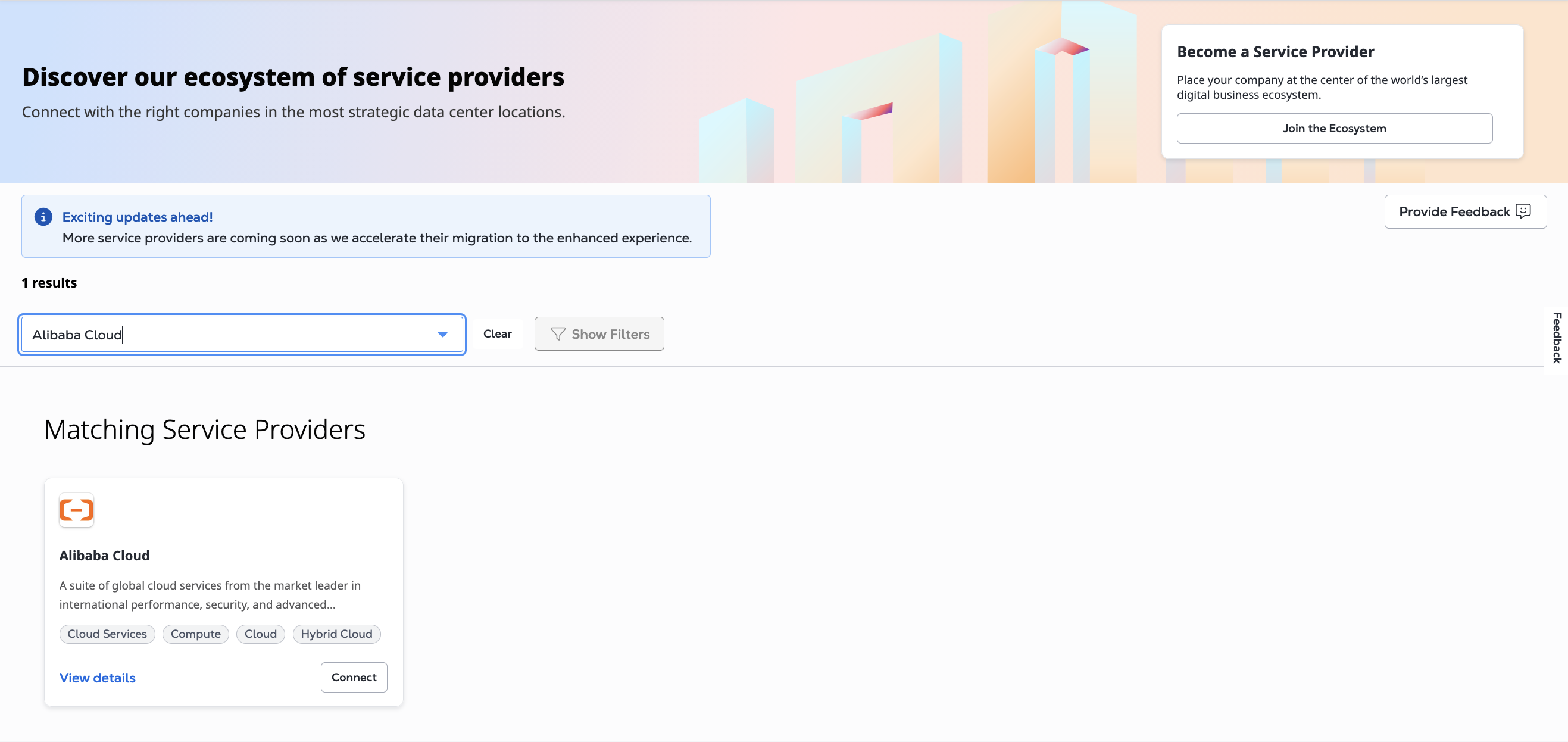
3. On the *Alibaba Cloud* card, click **Connect**. From the *Create a connection* panel, click **Create Connection**.
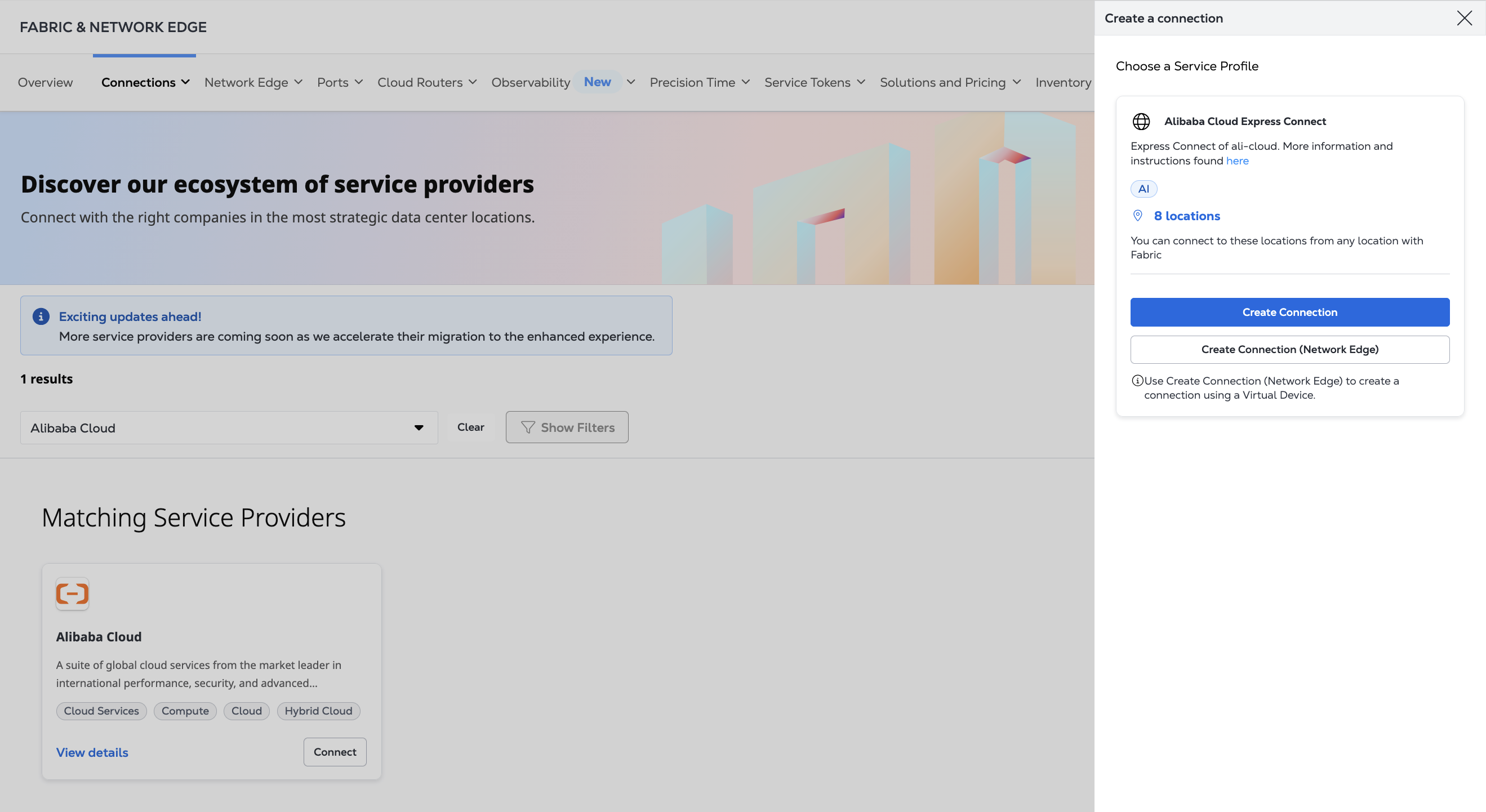
If you are connecting using a Network Edge virtual device, click **Create Connection(Network Edge Device)**, and skip to the [virtual device](#connecting-from-a-network-edge-virtual-device) section.
4. Review the steps for creating the connection and click **Okay**.
5. Enter your Alibaba information.
* Select the Metro and region where you are connecting to.
* Enter your Alibaba Cloud Account ID.
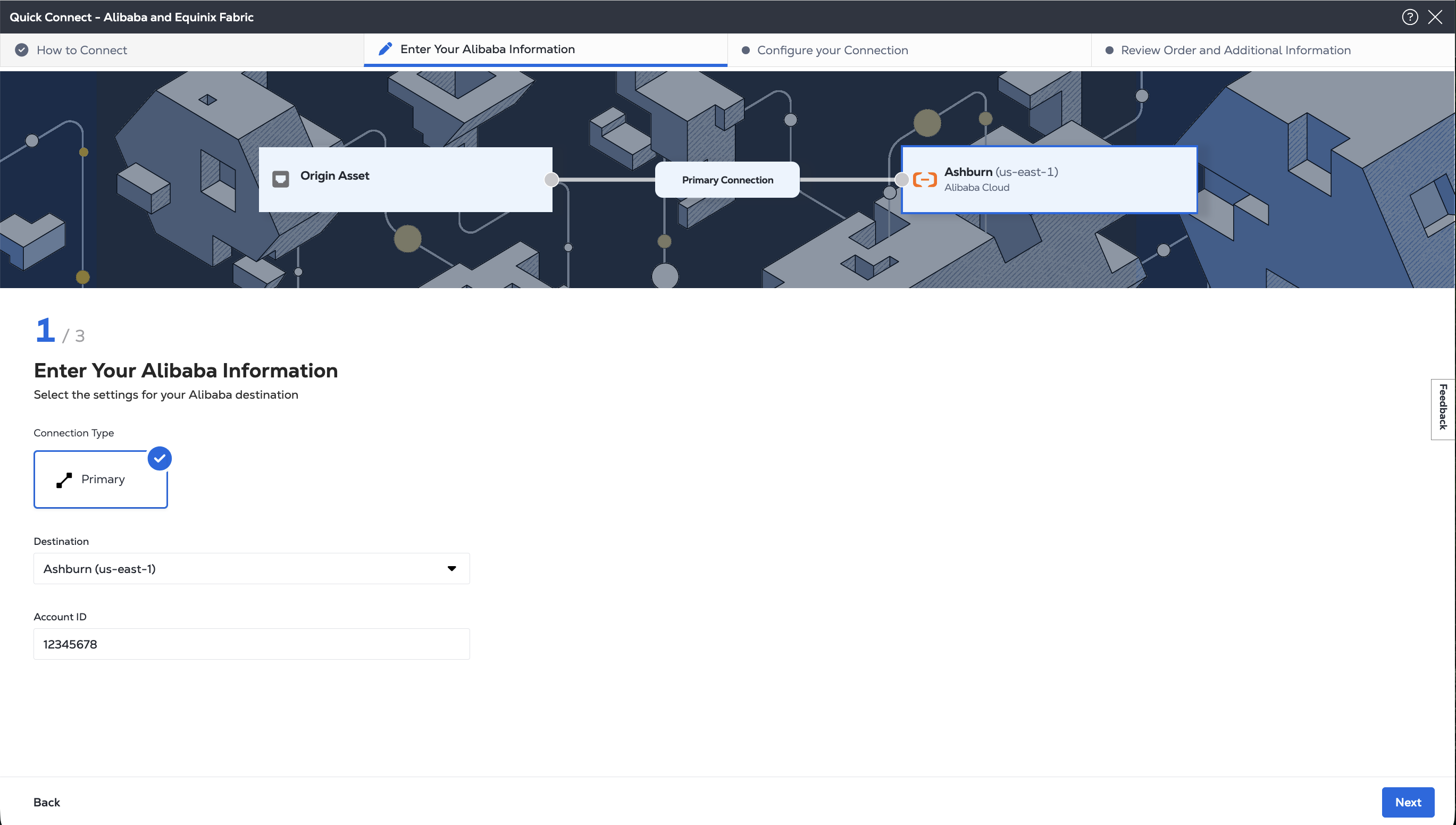
6. Click **Next** to configure your connection based on origin asset type: port, service token, cloud router.
1) Authenticate - Submit your user credentials, Client ID, and Client Secret for OAuth2 authentication. Refer to [API Authentication](https://docs.equinix.com/equinix-api/api-authentication.md) for instructions on how to call OAuth API to validate and authenticate your credentials.
2) Determine Your A-side Information. Either:
* Determine your Equinix Fabric ports information by sending a `GET` request to the [`/fabric/v4/ports`](https://docs.equinix.com/api-catalog/fabricv4.md#tag/Ports/operation/getPorts) endpoint. You need the port UUID(s) and the link protocol type (DOT1Q or QINQ),
OR
* Retrieve your a-side service token or tokens by sending a `GET` request to the [`/fabric/v4/serviceTokens`](https://docs.equinix.com/api-catalog/fabricv4/#tag/Service-Tokens/operation/getServiceTokens) endpoint. You need the token's UUID. The a-side token provides the relevant information to configure the a-side of the connection.
OR
* Determine your Fabric Cloud Router information. Check your available cloud routers by sending a `POST` request to the [`/fabric/v4/routers/search`](https://docs.equinix.com/api-catalog/fabricv4.md#tag/Cloud-Routers/operation/searchCloudRouters) endpoint. You need the router's UUID.
OR
* Determine your Network Edge device information. Check your available virtual devices and clusters by sending a `GET` request to the [`/ne/v1/devices`](https://docs.equinix.com/api-catalog/network-edgev1.md#tag/Virtual-Device/operation/getVirtualDevices) endpoint. You need the device UUID(s). Send a `GET` request to the [`/ne/v1/devices/{device_id}`](https://docs.equinix.com/api-catalog/network-edgev1.md#tag/Virtual-Device/operation/getVirtualDeviceByUuid) endpoint to get the specifics of a device. You may choose any available interface on the device for your connection. If you do not specify one, the connection is automatically assigned to the next available interface.
3) Get the Alibaba Cloud Express Connect service profile information. Use the [Retrieve Service Profiles](https://docs.equinix.com/api-catalog/fabricv4.md#tag/Service-Profiles/operation/searchServiceProfiles) API request to search for a specific service profile or use the [List Service Profiles](https://docs.equinix.com/api-catalog/fabricv4.md#tag/Service-Profiles/operation/listServiceProfiles) API request to list all available service profiles. You need the Alibaba Cloud Express Connect service profile's UUID and the location that you want to connect to in the `sellerRegion` field.
* Alibaba Cloud Express Connect - `4c4b8edf-873b-4c6c-805a-edb2c335bd6c`
## Connecting from a Port
* Portal
* API
1. From the *Origin Asset Type* drop-down list, select **Port**.
2. In the *Primary Connection* section:
* Click *+ Select Primary Port*, then select your primary connection port and click **Select Port**. Only primary ports are available for selection.
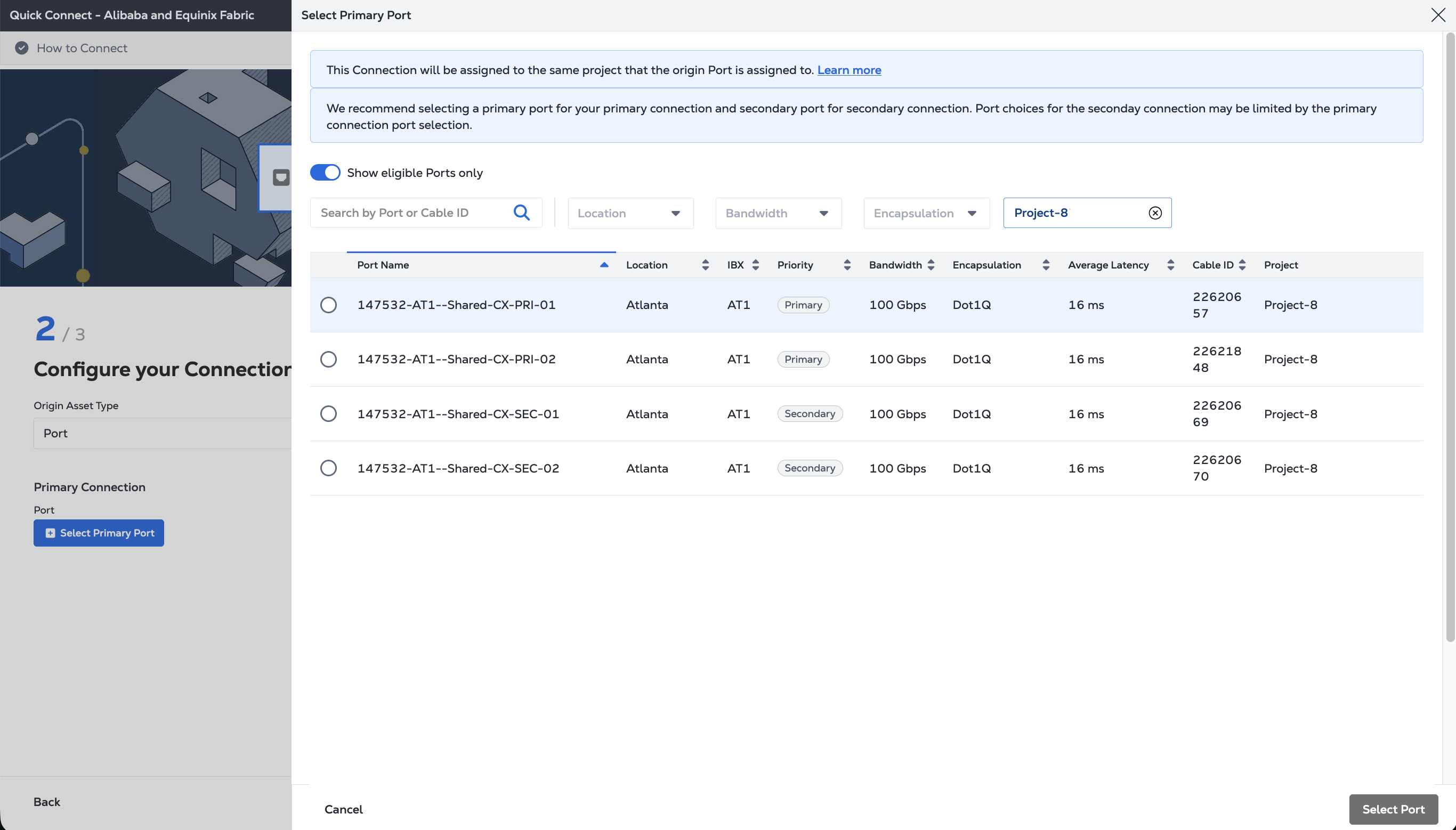
* Enter the primary connection name.
* Select a bandwidth.
* Enter a VLAN ID (applicable to DOT1Q ports) or a Customer VLAN Tag (C-tag) and a Service VLAN Tag (S-tag) (applicable to QINQ ports).
3. In the *Secondary Connection* section:
* Click *+ Select Secondary Port*, then select your secondary connection port and click **Select Port**. Only secondary ports are available for selection.
* Enter the secondary connection name.
* Select a bandwidth.
* Enter a VLAN ID (applicable to DOT1Q ports) or a Customer VLAN Tag (C-tag) and a Service VLAN Tag (S-tag) (applicable to QINQ ports).
4. (*Optional*) Choose whether to enable [Geo Zones](https://docs.equinix.com/fabric/geo-zones.md). The default is *Disabled*.
5. Select the Term Length.
6. Click **Next**.
7. On the *Review Order and Additional Information* page, review the information in the *Connection Configuration* sections.
8. Use the *Notifications* field to provide the email addresses of the recipients to be notified about the connection's status. You can add up to 12 email addresses.
9. (*Optional*) Enter or add order information in the *Purchase Order* section.
10. Provide a customer reference identifier that will help you identify this order on your invoice.
11. Click *Show Order Summary* to see order details and connection pricing information.
When you are ready, click **Create Connection**.
To create a connection from your DOT1Q port to Alibaba Cloud Express Connect, send a `POST` request to the [`/fabric/v4/connections`](https://docs.equinix.com/api-catalog/fabricv4.md#tag/Connections/operation/createConnection) endpoint.
Provide your port information in the `aSide` object including:
* `accessPoint.type` as `COLO`
* Provide your port's UUID to `port.uuid`
* linkProtocol.type as `DOT1Q`
* Provide the VLAN ID to `linkProtocol.vlanTag`
Provide the Alibaba Cloud details and location details in the `zSide` object including:
* Set `accessPoint.type` as `SP`.
* Set `profile.type` as `L2_PROFILE`.
* Specify the Express Connect service profile you are connecting to in `profile.uuid`.
* Specify the Equinix Metro location you are connecting to in `location.metroCode`.
* Specify the Express Connect region associated with the Equinix Metro in `sellerRegion`.
* Set `authenticationKey` as your Alibaba Cloud Account ID.
Sample cURL Request:
```
curl -X POST 'https://api.equinix.com/fabric/v4/connections' \
-H 'content-type: application/json' \
-H 'authorization: Bearer ' \
-d '{
"type": "EVPL_VC",
"name": ",
"bandwidth": ,
"redundancy": {
"priority": ""
},
"aSide": {
"accessPoint": {
"type": "COLO",
"port": {
"uuid": ""
},
"linkProtocol": {
"type": "DOT1Q",
"vlanTag":
}
}
},
"zSide": {
"accessPoint": {
"type": "SP",
"profile": {
"uuid": ""
},
"location": {
"metroCode": ""
},
"authenticationKey": "",
"sellerRegion": ""
}
},
"notifications": {
"type": "ALL",
"emails": [
"",
""
]
}
}'
```
To create a connection from your QINQ port to Alibaba Cloud Express Connect, send a `POST` request to the [`/fabric/v4/connections`](https://docs.equinix.com/api-catalog/fabricv4.md#tag/Connections/operation/createConnection) endpoint.
Provide your port information in the `aSide` object including:
* Set `accessPoint.type` as `COLO`
* Provide your port's UUID to `port.uuid`
* `linkProtocol.type` as `QINQ`
* Provide the inner tag ID to `linkProtocol.vlanCTag`
* Provide the outer tag ID to `linkProtocol.vlanSTag`
Provide the Alibaba Cloud details and location details in the `zSide` object including:
* Set `accessPoint.type` as `SP`.
* Set `profile.type` as `L2_PROFILE`.
* Specify the Express Connect service profile you are connecting to in `profile.uuid`.
* Specify the Equinix Metro location you are connecting to in `location.metroCode`.
* Specify the Express Connect region associated with the Equinix Metro in `sellerRegion`.
* Set `authenticationKey` as your Alibaba Cloud Account ID.
Sample cURL Request:
```
curl -X POST 'https://api.equinix.com/fabric/v4/connections' \
-H 'content-type: application/json' \
-H 'authorization: Bearer ' \
-d '{
"type": "EVPL_VC",
"name": ",
"bandwidth": ,
"redundancy": {
"priority": ""
},
"aSide": {
"accessPoint": {
"type": "COLO",
"port": {
"uuid": ""
},
"linkProtocol": {
"type": "QINQ",
"vlanCTag": ,
"vlanSTag":
}
}
},
"zSide": {
"accessPoint": {
"type": "SP",
"profile": {
"uuid": ""
},
"location": {
"metroCode": ""
},
"authenticationKey": "",
"sellerRegion": ""
}
},
"notifications": {
"type": "ALL",
"emails": [
"",
""
]
}
}'
```
## Connecting from a Service Token
* Portal
* API
1. From the *Origin Asset Type* drop-down list, select **Service Token**.
2. In the *Primary Connection* section:
* Click *+ Enter Primary Service Token*, provide the service token, then click **Redeem Service Token**.
* Enter the primary connection name.
* Select a bandwidth.
3. In the *Secondary Connection* section:
* Click *+ Enter Secondary Service Token*, provide the service token, then click **Redeem Service Token**.
* Enter the secondary connection name.
* Select a bandwidth.
4. Click **Next**.
5. On the *Review Order and Additional Information* page, review the information in the *Connection Configuration* sections.
6. Use the *Notifications* field to provide the email addresses of the recipients to be notified about the connection's status. You can add up to 12 email addresses.
7. (*Optional*) Enter or add order information in the *Purchase Order* section.
8. Provide a customer reference identifier that will help you identify this order on your invoice.
9. Click *Show Order Summary* to see order details and connection pricing information.
When you are ready, click **Create Connection**.
To create a connection to Alibaba Cloud Express Connect using an A-side Service Token, send a `POST` request to the [`/fabric/v4/connections`](https://docs.equinix.com/api-catalog/fabricv4.md#tag/Connections/operation/createConnection) endpoint. The connection `type` is `EVPL_VC`.
Provide your Service Token UUID in the `aSide` object. The service token provides all other necessary information to establish the connection.
Provide the Alibaba Cloud details and location details in the `zSide` object including:
* Set `accessPoint.type` as `SP`.
* Set `profile.type` as `L2_PROFILE`.
* Specify the Express Connect service profile you are connecting to in `profile.uuid`.
* Specify the Equinix Metro location you are connecting to in `location.metroCode`.
* Specify the Express Connect region associated with the Equinix Metro in `sellerRegion`.
* Set `authenticationKey` as your Alibaba Cloud Account ID.
Sample cURL Request:
```
curl -X POST 'https://api.equinix.com/fabric/v4/connections' \
-H 'content-type: application/json' \
-H 'authorization: Bearer ' \
-d '{
"type": "EVPL_VC",
"name": "",
"bandwidth": ,
"redundancy": {
"priority": ""
},
"aSide": {
"serviceToken": {
"uuid": ""
}
},
"zSide": {
"accessPoint": {
"type": "SP",
"profile": {
"uuid": ""
},
"location": {
"metroCode": ""
},
"authenticationKey": "",
"sellerRegion": ""
}
},
"notifications": {
"type": "ALL",
"emails": [
"",
""
]
}
}'
```
## Connecting from a Fabric Cloud Router
* Portal
* API
1. From the *Origin Asset Type* drop-down list, select **Cloud Router**.
2. Click *+ Select Cloud Router*, select a cloud router instance, then click **Select Cloud Router**.
3. In the *Primary Connection* section:
* Enter the primary connection name.
* Select a bandwidth. The bandwidth value you select will also apply to the secondary connection.
4. If you are creating a Redundant Connection, enter your secondary connection name in the *Secondary Connection* section. The bandwidth value you selected for the primary connection is also applied to the secondary connection.
5. (*Optional*) You can configure Border Gateway Protocol (BGP) routing details, or wait to configure BGP after the connection creation process is complete. Select *Configure Routing Details* and provide the [required information](https://docs.equinix.com/fabric-cloud-router/bgp/fcr-bgp.md).
6. Click **Next**.
7. On the *Review Order and Additional Information* page, review the information in the *Connection Configuration* sections.
8. Use the *Notifications* field to provide the email addresses of the recipients to be notified about the connection's status. You can add up to 12 email addresses.
9. (*Optional*) Enter or add order information in the *Purchase Order* section.
10. Provide a customer reference identifier that will help you identify this order on your invoice.
11. Click *Show Order Summary* to see order details and connection pricing information.
When you are ready, click **Create Connection**.
To create a connection from your cloud router to FastConnect, send a `POST` request to the [`/fabric/v4/connections`](https://docs.equinix.com/api-catalog/fabricv4.md#tag/Connections/operation/createConnection) endpoint. The connection `type` is `IP_VC`.
Specify your Fabric Cloud Router in the `aSide` object including:
* Set `accessPoint.type` as `CLOUD_ROUTER`.
* Set `router.uuid` as your router's UUID.
Provide the Alibaba Cloud details and location details in the `zSide` object including:
* Set `accessPoint.type` as `SP`.
* Set `profile.type` as `L2_PROFILE`.
* Specify the Express Connect service profile you are connecting to in `profile.uuid`.
* Specify the Equinix Metro location you are connecting to in `location.metroCode`.
* Specify the Express Connect region associated with the Equinix Metro in `sellerRegion`.
* Set `authenticationKey` as your Alibaba Cloud Account ID.
Sample cURL Request:
```
curl -X POST 'https://api.equinix.com/fabric/v4/connections' \
-H 'content-type: application/json' \
-H 'authorization: Bearer ' \
-d '{
"type": "IP_VC",
"name": "",
"bandwidth": ,
"redundancy": {
"priority": ""
},
"aSide": {
"accessPoint": {
"type": "CLOUD_ROUTER",
"router": {
"uuid": ""
}
}
},
"zSide": {
"accessPoint": {
"type": "SP",
"profile": {
"uuid": ""
},
"location": {
"metroCode": ""
},
"authenticationKey": "",
"sellerRegion": ""
}
},
"notifications": {
"type": "ALL",
"emails": [
"",
""
]
}
}'
```
## Connecting from a Network Edge Virtual Device
* Portal
* API
1. Review the steps for creating the connection and click **Create a Connection to Alibaba Cloud Express Connect**.
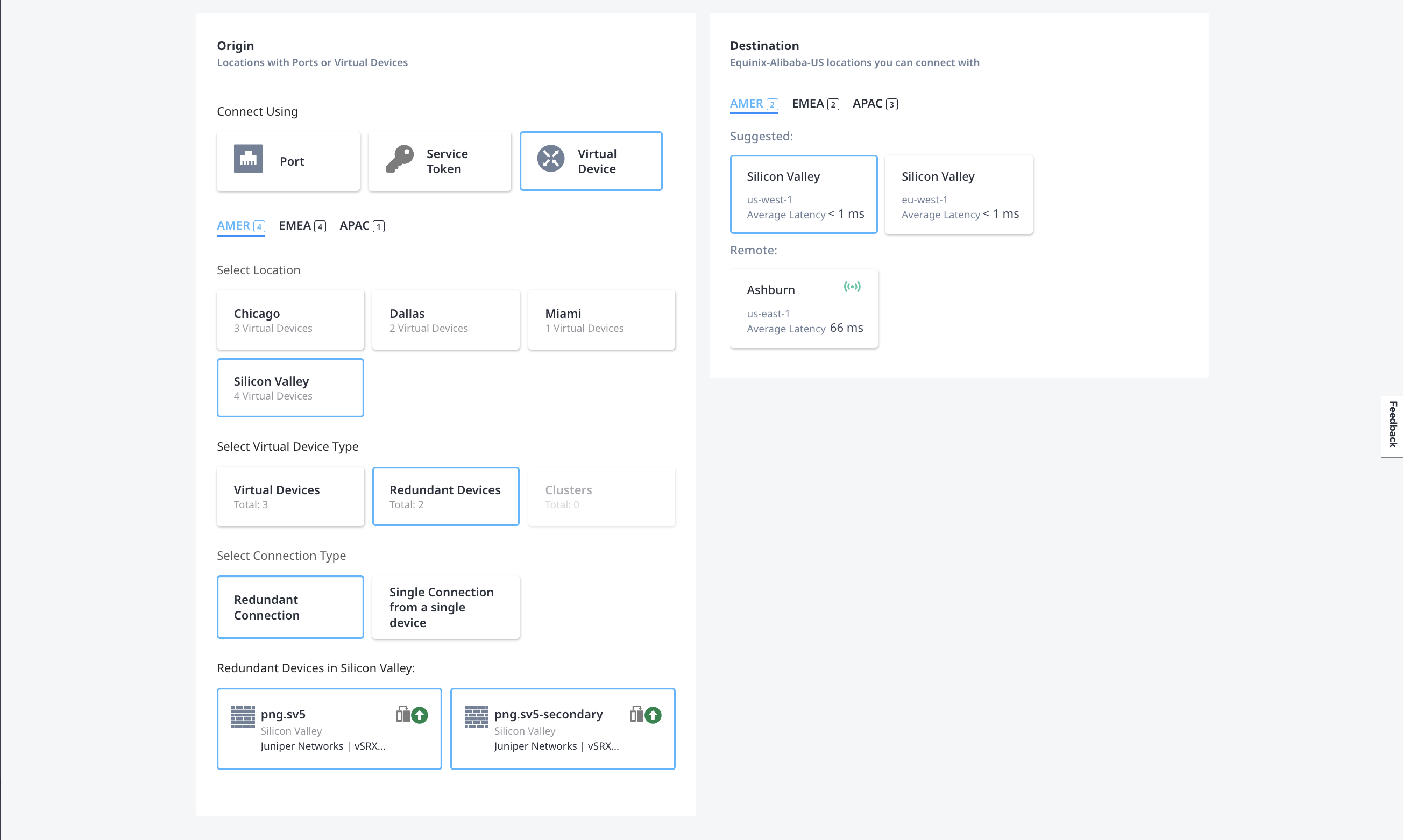
2. On the *Select Locations* page, provide location details for the Origin and Destination of the connection.
In the *Origin* section:
* Click **Virtual Device**, and select the location of the device you want to use.
* Select the *Virtual Device Type* from available single or redundant devices. And then select the *Connection Type*. You can choose single connections or redundant connections.
* Select the specific virtual device(s) to use for the connection.
In the *Destination* section, select the Express Connect location to connect to.
3. Click **Next**.
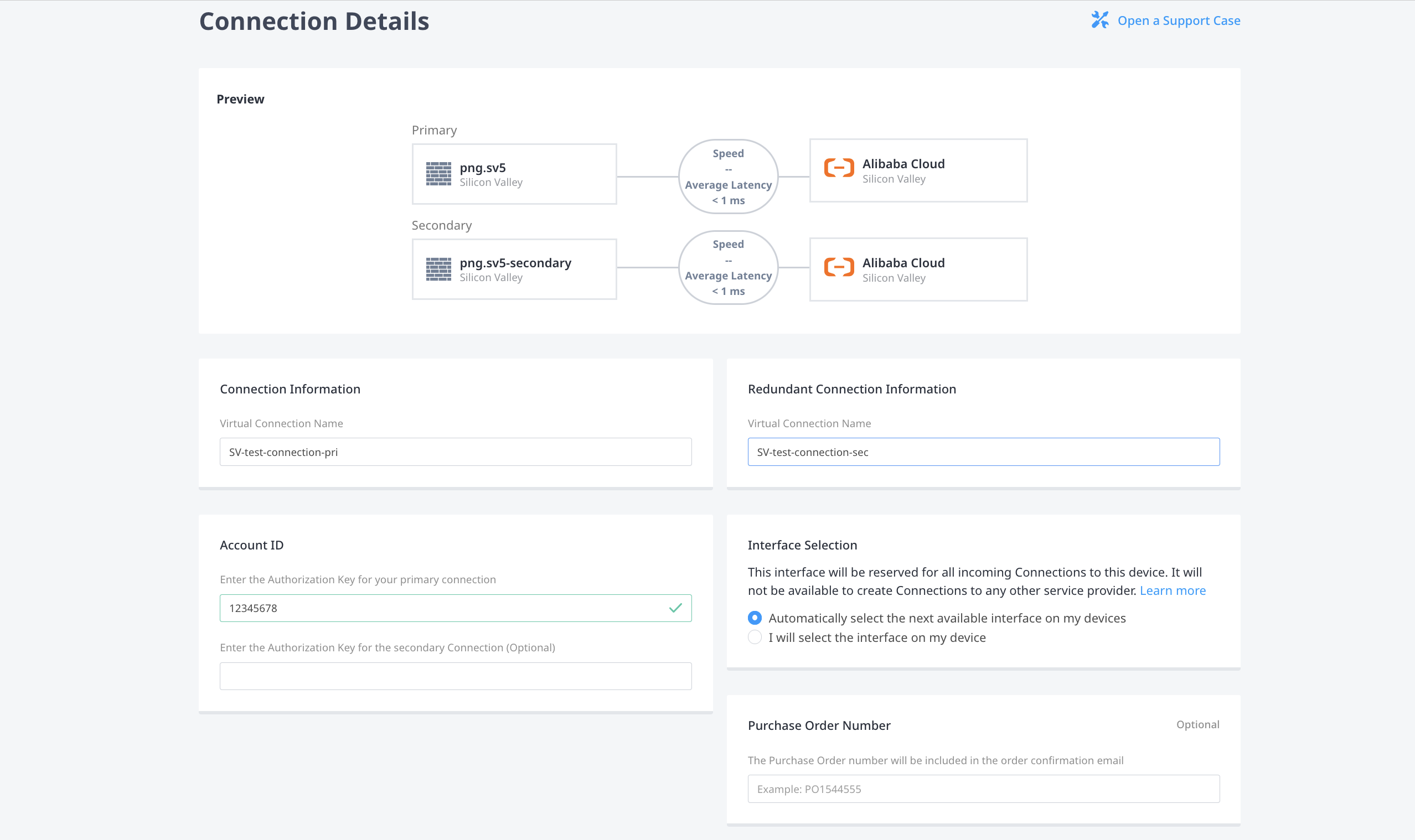
4. On the *Connection Details* page, provide additional connection information.
* Give your connection a name in *Connection Information*. If you are creating redundant connections, give the second connection a name in *Redundant Connection Information*.
* In the *Account ID* field, enter your Alibaba Cloud Account ID. If you are creating redundant connections, you can optionally enter a second Alibaba Cloud Account ID.
* Select whether to use the next available interface or manually select with interfaces to use for the connections in *Interface Selection*.
* (*Optional*) In the *Purchase Order Number* field, enter your PO number.
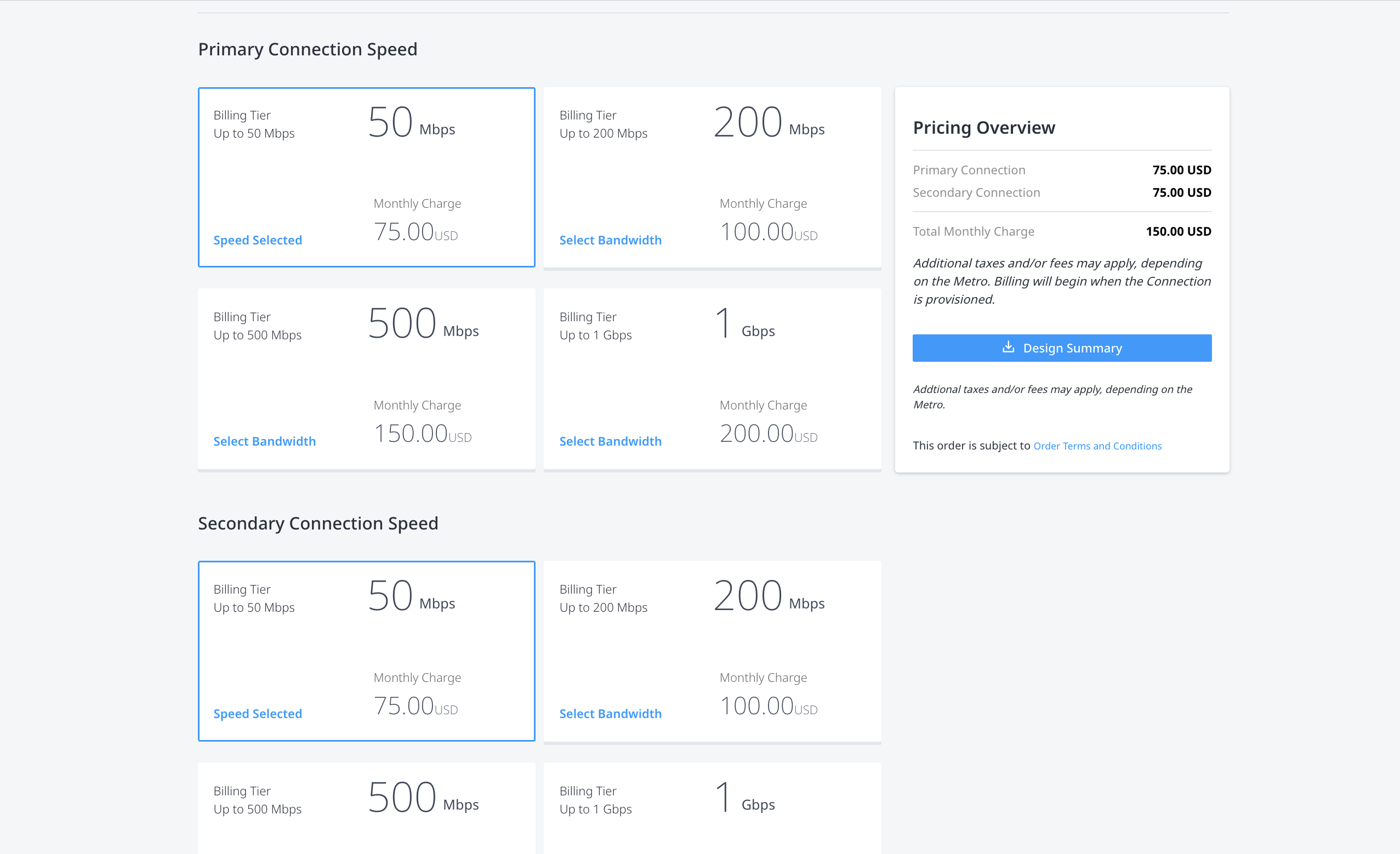
* In *Primary Connection Speed*, select a Billing Tier and Speed combination. If you are creating redundant connections, select a Billing Tier and Speed combination in *Secondary Connection Speed*.
5. Click **Next**.
6. On the *Review* page, review the information in *Primary Connection Summary*, *Secondary Connection Summary* (if you're creating redundant connections), and the *Pricing Overview*.
7. Use the *Notifications* field to provide the email addresses of the recipients to be notified about the connection's status. You can add up to 12 email addresses.
8. Click **Submit Order**.
To create a connection from your Network Edge device to Alibaba Express Connect, send a `POST` request to the [`/fabric/v4/connections`](https://docs.equinix.com/api-catalog/fabricv4.md#tag/Connections/operation/createConnection) endpoint.
Define your Network Edge device in the `aSide` object including:
* `accessPoint.type` as `VD`
* `virtualDevice.type` as `EDGE`
* `virtualDevice.uuid` as your device's UUID
Provide the Alibaba Cloud details and location details in the `zSide` object including:
* Set `accessPoint.type` as `SP`.
* Set `profile.type` as `L2_PROFILE`.
* Specify the Express Connect service profile you are connecting to in `profile.uuid`.
* Specify the Equinix Metro location you are connecting to in `location.metroCode`.
* Specify the Express Connect region associated with the Equinix Metro in `sellerRegion`.
* Set `authenticationKey` as your Alibaba Cloud Account ID.
Sample cURL Request:
```
curl -X POST 'https://api.equinix.com/fabric/v4/connections' \
-H 'content-type: application/json' \
-H 'authorization: Bearer ' \
-d '{
"type": "EVPL_VC",
"name": "",
"bandwidth": ,
"aSide": {
"accessPoint": {
"type": "VD",
"virtualDevice": {
"type": "EDGE",
"uuid": ""
}
}
},
"zSide": {
"accessPoint": {
"type": "SP",
"profile": {
"uuid": ""
},
"location": {
"metroCode": ""
},
"authenticationKey": "",
"sellerRegion": ""
}
},
"notifications": {
"type": "ALL",
"emails": [
"",
""
]
}
}'
```
## Monitoring the Connection Status
* Portal
* API
Once you have created the connection, it appears in your [*Connections Inventory*](https://docs.equinix.com/fabric/managing-connections/fabric-new-connections-inventory.md) where you can monitor its status.
Once you have created the connection, send a `GET` request to the [`fabric/v4/connections/{connectionId}`](https://docs.equinix.com/api-catalog/fabricv4.md#tag/Connections/operation/getConnectionByUuid) endpoint to monitor connection status.
| `equinixStatus` attribute values | `providerStatus` attribute values | **Alibaba Cloud** status | **Description** |
| -------------------------------- | --------------------------------- | ------------------------ | ---------------------------------------------------- |
| `PROVISIONING` | `NOT_AVAILABLE` | - | Connection request has not been sent to Alibaba yet. |
| `PROVISIONED` | `PENDING_APPROVAL` | Pending creation | The connection awaits for approval. |
| `PROVISIONED` | `PROVISIONING / PROVISIONED` | Create in progress | Connection establishment in progress. |
| `PROVISIONED` | `PROVISIONED` | Active | Connection established. |
note
Charges begin as soon as the connection request is submitted.
## Alibaba Cloud - Accept and Pay
1. Log in to Alibaba Express Connect Management Console.
2. From the menu, select **Physical Connections**.
3. Identify the newly created instance and click **Accept and Pay**.
Note that you must first accept the *Outbound Data Transfer Billing* terms before you can accept the connection.
For more information, refer to [Billing - Pricing | Alibaba Cloud Documentation Center](https://www.alibabacloud.com/help/en/express-connect/latest/billing-method).
## Alibaba Cloud - Create the Virtual Border Router
A Virtual Border Router (VBR) is the gateway that provides communication between a Virtual Private Cloud (VPC) and an on-premises data center. You can create the VBR in Alibaba Cloud after you create the connection in the Equinix Customer Portal.
Follow the instructions on [Create and Manage VBRs](https://www.alibabacloud.com/help/en/express-connect/user-guide/create-and-manage-a-vbr).
1. Enter the IPv4 address for the Alibaba Gateway an the IPv4 address for your cloud router, virtual device, or other layer 3 infrastructure on the Equinix-side of the connection.
2. Enter the subnet mask.
3. Verify that the VLAN ID assigned to your connection on the Equinix-side is the same VLAN ID associated with your VBR on your Alibaba Console.
## De-provisioning an Alibaba Express Connect Connection
To delete your connection to Alibaba Cloud:
1. Delete the Virtual Border Router in the Alibaba Cloud console.
2. Delete the connection in the Alibaba Cloud console.
3. The connection is automatically deleted from Fabric after it is cleared in the Alibaba Cloud console.