Manage Your Company Profile
Once you have created a company profile, you can use the Fabric Marketplace to view, modify, and view customer and connection information.
To manage your Company Profile:
-
Sign in to the Customer Portal and go to the Fabric Marketplace.
-
In the Welcome to the Equinix Ecosystem box, click Manage Your Profile.

To manage a company profile, you must have one of the following roles:
Equinix Company AdminFabric Service Profile ManagerFabric Service Provider- a custom role with the
fabric.serviceprofile.updateandfabric.serviceprofile.deletepermissions.
If you do not have permissions, contact your company administrator.
Overview
In the Overview, you can view all the information in the Company Profile Details section and the attached service profiles in the Services section. To view how your company will appear to potential customers, click View your company profile page.
Edit Your Company Profile
To edit your Company Profile, select Edit Profile from the Actions drop-down.
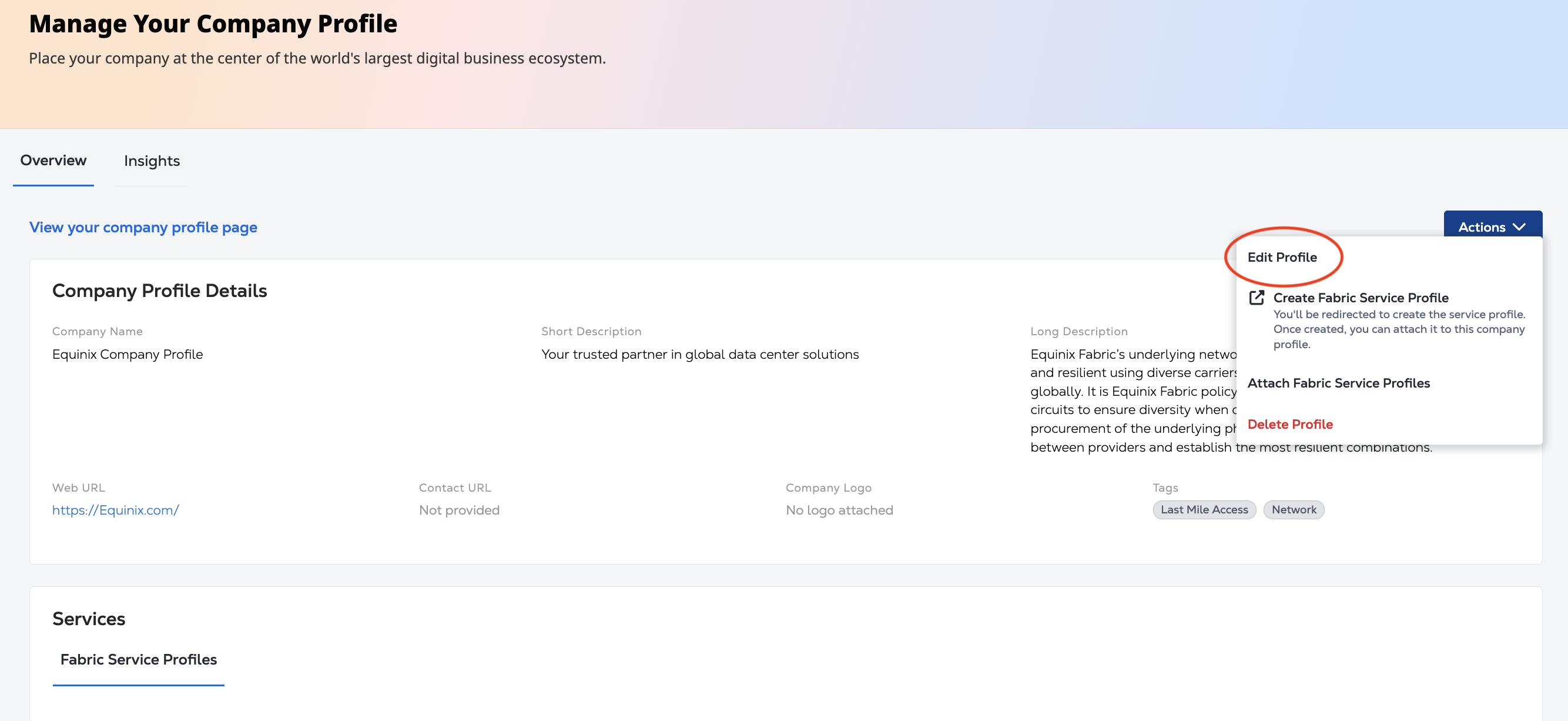
Use the Edit Company Profile panel to:
- Update the information in the Overview. Click Next.
- Update the tags or logo image.
- To save your updates, click Submit.
Delete Your Company Profile
To delete your Company Profile, select Delete Profile from the Actions drop-down.
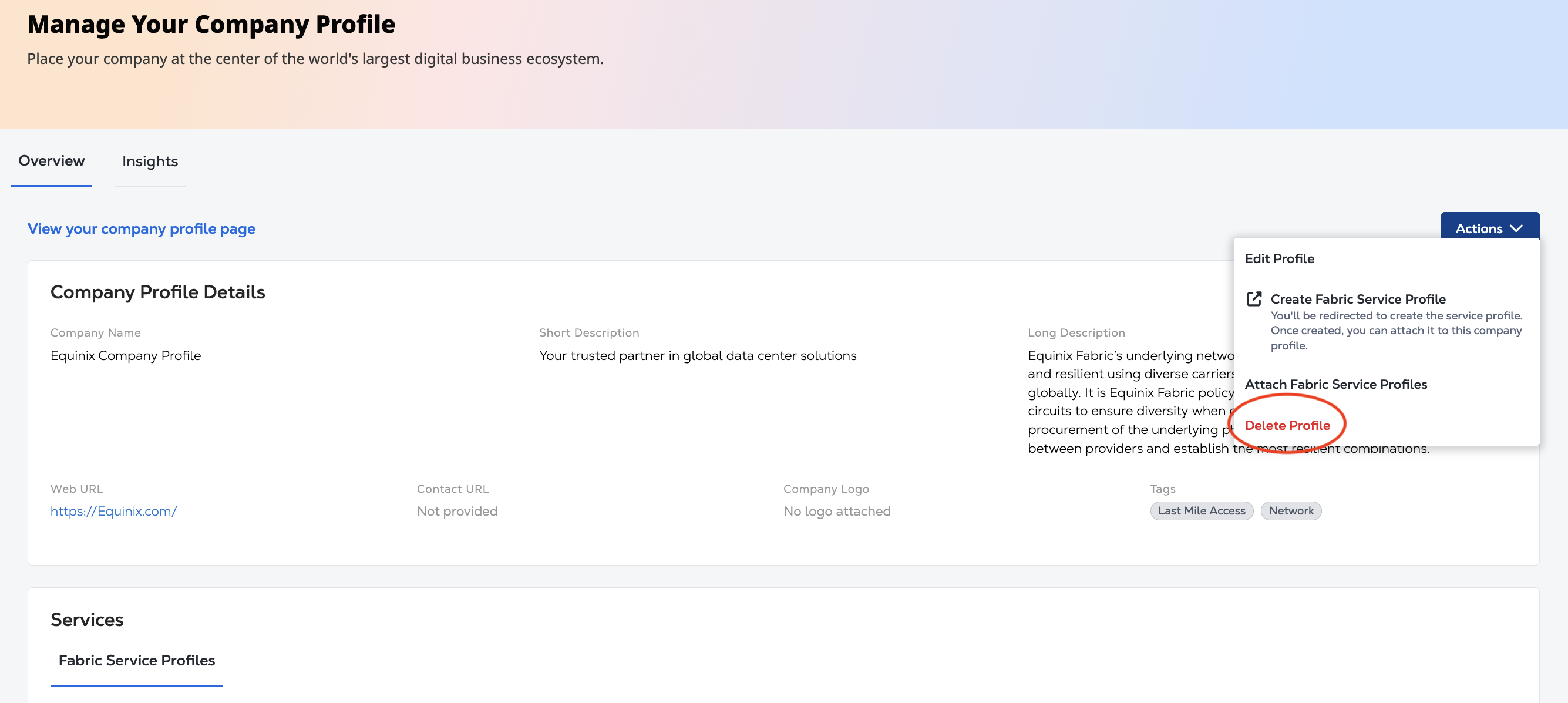
On the confirmation screen, click Delete Profile.