Connecting to a Service Provider
Use Equinix Fabric to establish direct, low-latency connections to a variety of service providers from your Fabric Cloud Router.
This topic covers connecting to service providers in general. For instructions and examples on connecting to a specific service provider, see the Connecting to a Service Provider section. Including:
Prerequisites
- An Equinix Customer Portal account, with the following roles assigned:
Fabric Connections Manager. - A Fabric Cloud Router. If you do not have a Fabric Cloud Router, you can create one.
- Portal
- API
- Terraform
-
Sign in to the Customer Portal and navigate to the Fabric Dashboard.
-
Use the Project Selector drop-down to select the project under which you want to create the connection. For more information on projects, see Managing Projects.
-
Authenticate - Submit your user credentials, Client ID, and Client Secret for OAuth2 authentication. Refer to API Authentication for instructions on how to call OAuth API to validate and authenticate your credentials.
-
Determine your Fabric Cloud Router information. Check your available cloud routers by sending a
POSTrequest to the/fabric/v4/routers/searchendpoint. You need the router's UUID. -
Determine the service provider's service profile information. Use the
/fabric/v4/serviceProfiles/searchendpoint to search for a specific service profile or use the/fabric/v4/serviceProfilesendpoint to list all available service profiles, and identify the profile you want to connect to. You need the service provider's profile UUID.
-
Determine your Fabric Cloud Router information. Check your available cloud routers using the
equinix_fabric_cloud_routersdata source. You need the router's UUID. -
Determine the service provider's service profile information. Use the
equinix_fabric_service_profilesdata source to search for a specific service profile. You need the service provider's profile UUID.
Creating the Connection
- Portal
- API
- Terraform
-
From the Connections menu, select Create Connection.
-
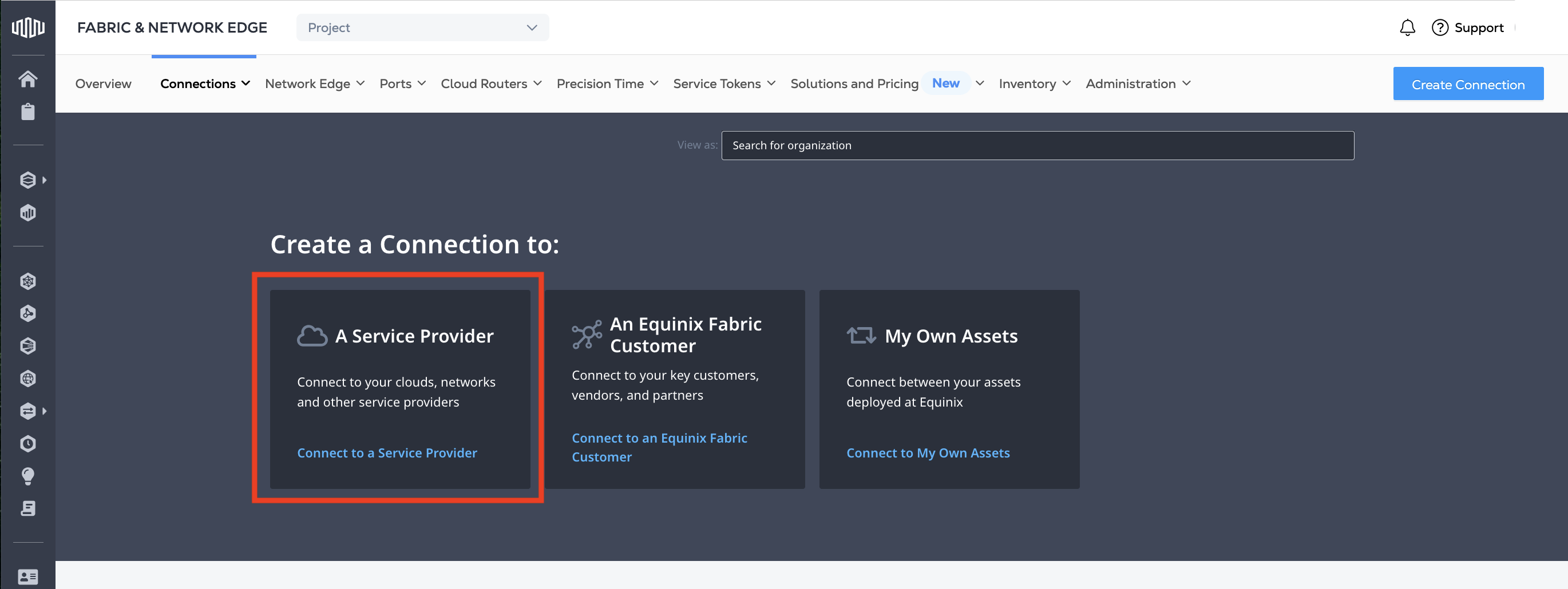
In the A Service Provider card, click Connect to a Service Provider.
-
Search for or select the service provider you are connecting to, and click Create Connection.
Your configuration options vary, but in general:
-
Choose the Connection Type based on what redundancy options the service providers offer and your requirements. Your options are Single or Redundant based on the service provider offerings.
-
Choose the Destination that you are connecting to. This is the Equinix Metro on-ramp location for the service provider's infrastructure. Redundant connections might offer connecting to two different destinations or might be limited to a single destination. Depending on the service provider, either:
- Choose the location that is closest to your infrastructure and provides the lowest latency.
- Choose the location that was pre-agreed upon by you and the service provider.
- The location information is pre-defined for you, such as when the service provider has issued you a z-side service token.
-
-
Click Next.
-
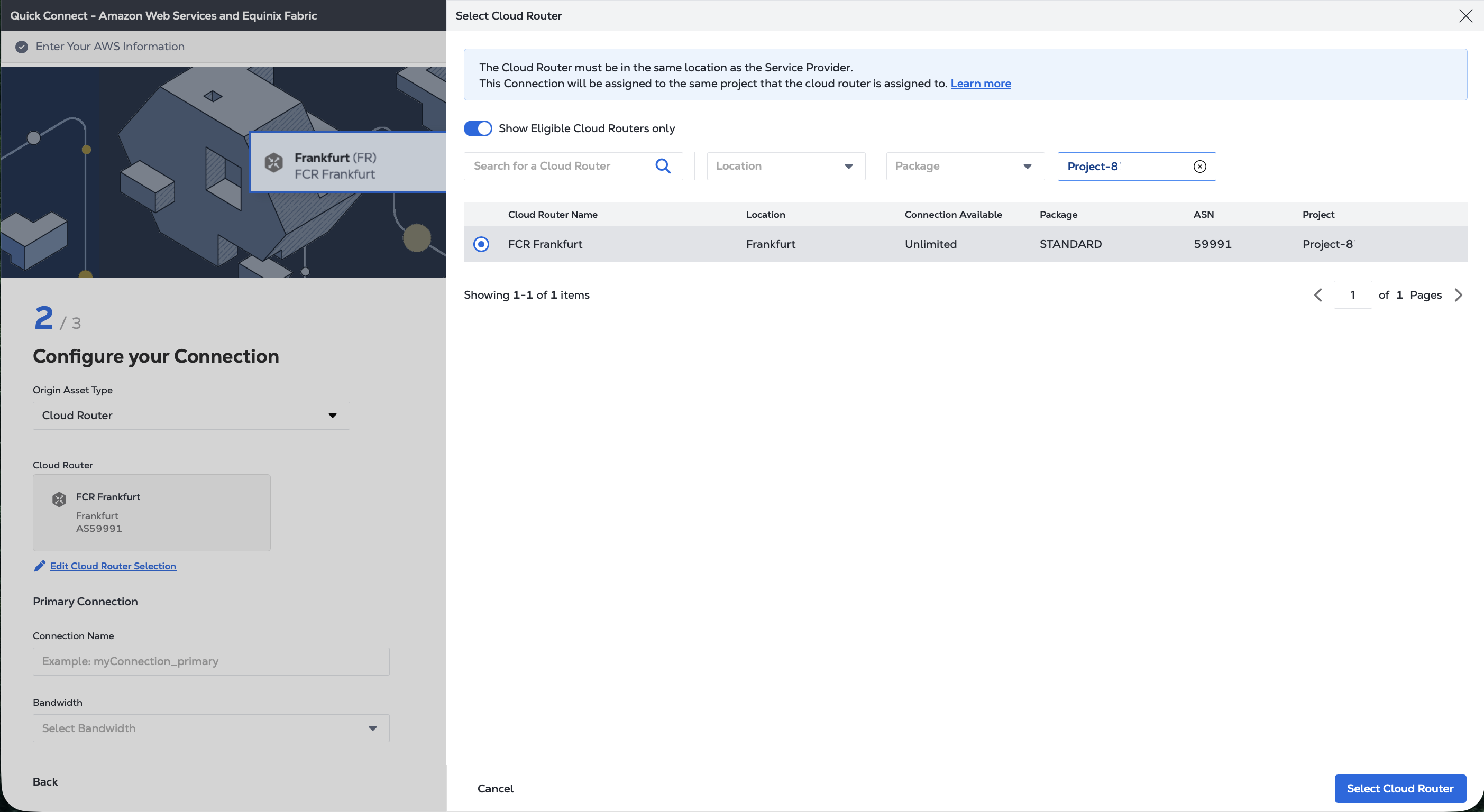
From the Origin Asset Type drop-down list, select Cloud Router.
-
Click + Select Cloud Router, select a cloud router instance, then click Select Cloud Router.
-
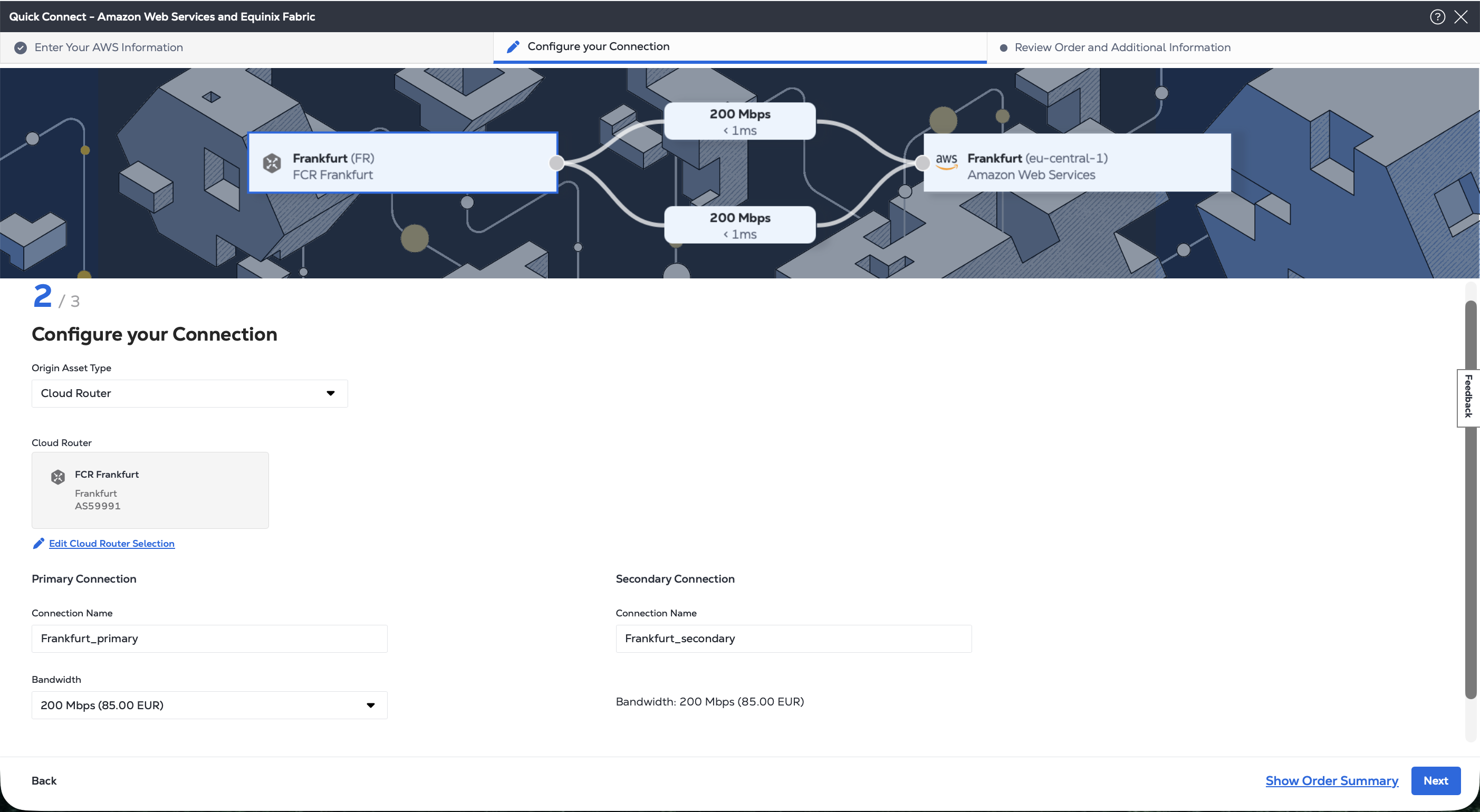
In the Primary Connection section:
- Enter the primary connection name.
- Select a bandwidth. If you are creating a redundant connection, the bandwidth value you select will also apply to the secondary connection.
-
If you are creating a redundant connection, enter your secondary connection name in the Secondary Connection section.
-
Click Next.
-
Review the information in the Destination and Connection Configuration sections.
-
Use the Notifications field to provide the email addresses of the recipients to be notified about the connection's status. You can add up to 12 email addresses.
-
(Optional) Enter or add order information in the Purchase Order section.
-
(Optional) Provide a customer reference identifier to help you identify this order on your invoice.
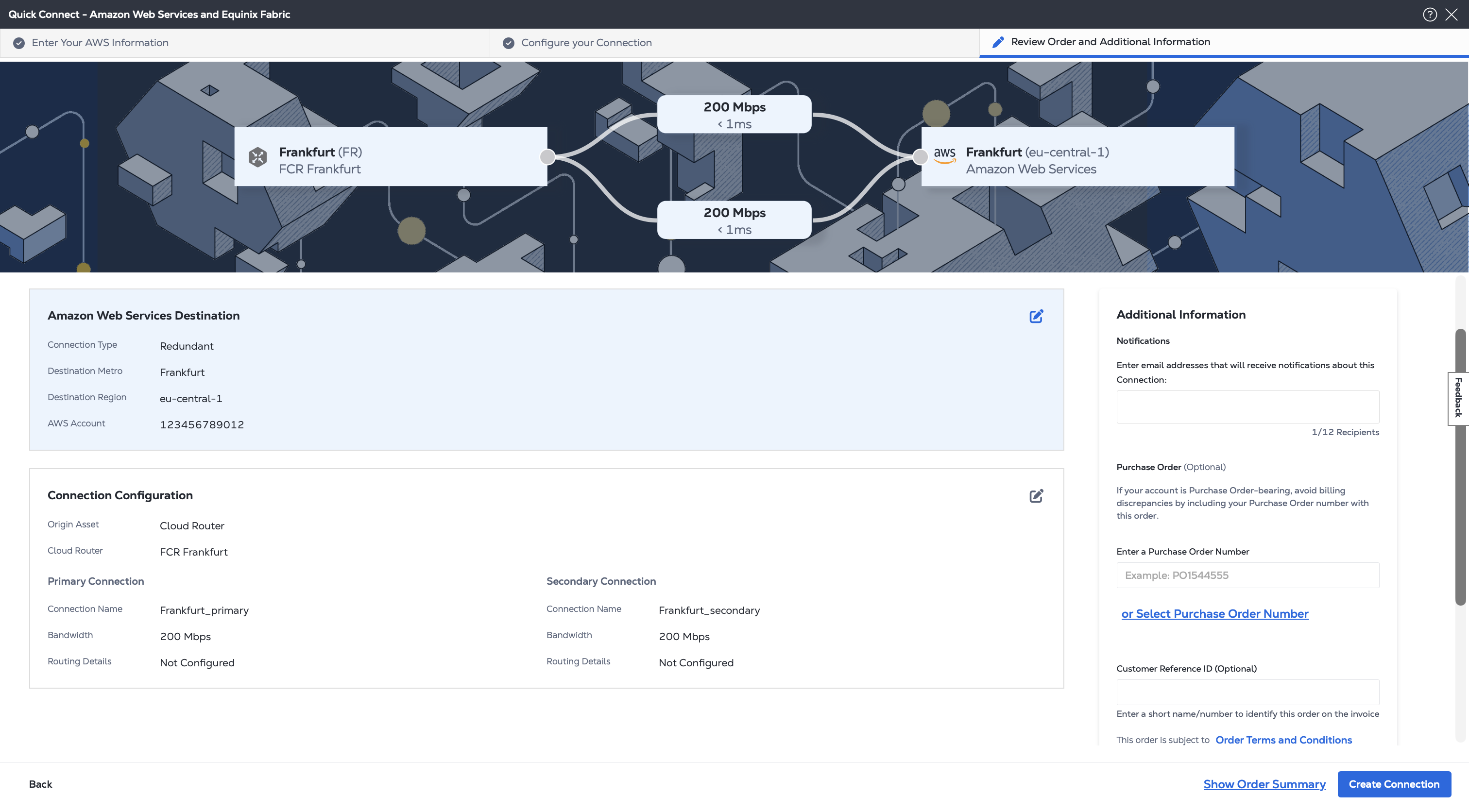
When you are ready, click Create Connection.
To create the connection send a POST request to the /fabric/v4/connections endpoint.
- Specify your Fabric Cloud Router in the
aSide:accessPointobject. - Specify the service provider information in the
zSide:accessPointobject. Required parameters vary by service provider, see the Connecting to a Service Provider documentation for specific examples.
Sample cURL Request:
curl -X POST 'https://api.equinix.com/fabric/v4/connections' \
-H 'content-type: application/json' \
-H 'authorization: Bearer <token>' \
-d '{
  "type": "IP_VC",
  "name": "<your-connection-name-here>",
  "bandwidth": <bandwidth>,
  "redundancy": {
    "priority": "<PRIMARY or SECONDARY>"
  },
  "aSide": {
    "accessPoint": {
      "type": "CLOUD_ROUTER",
      "router": {
        "uuid": "<router-uuid>"
      }
    }
  },
  "zSide": {
    "accessPoint": {
      "type": "SP",
      "profile": {
        "type": "L2_PROFILE",
        "uuid": "<service-provider-profile-uuid>"
      }
    }
  },
  "project": {
    "projectId": "<project-uuid>"
  },
  "notifications": [
    {
      "type": "ALL",
      "emails": [
        "<email-address-1>",
        "<email-address-2>"
      ]
    }
  ]
}'
Create the connection using the equinix_fabric_connection resource.
- Specify your Fabric Cloud Router in the
a_side:access_pointobject. - Specify the service provider information in the
z_side:access_pointobject. Required parameters vary by service provider, see the Connecting to a Service Provider documentation for specific examples.
resource "equinix_fabric_connection" "fcr2csp" {
  name = "<connection_name>"
  type = "IP_VC"
  notifications {
    type = "ALL"
    emails = ["<contact_email>", "<contact_email>"]
  }
  bandwidth = <bandwidth_speed>
  a_side {
    access_point {
      type = "CLOUD_ROUTER"
      router {
        uuid = "<cloud_router_uuid>"
      }
    }
  }
  z_side {
    access_point {
      type = "SP"
      profile {
        type = "L2_PROFILE"
        uuid = "<cloud_service_provider_uuid>"
      }
      location {
        metro_code = "<metro_code>"
      }
    }
  }
}
Monitoring the Connection Status
- Portal
- API
- Terraform
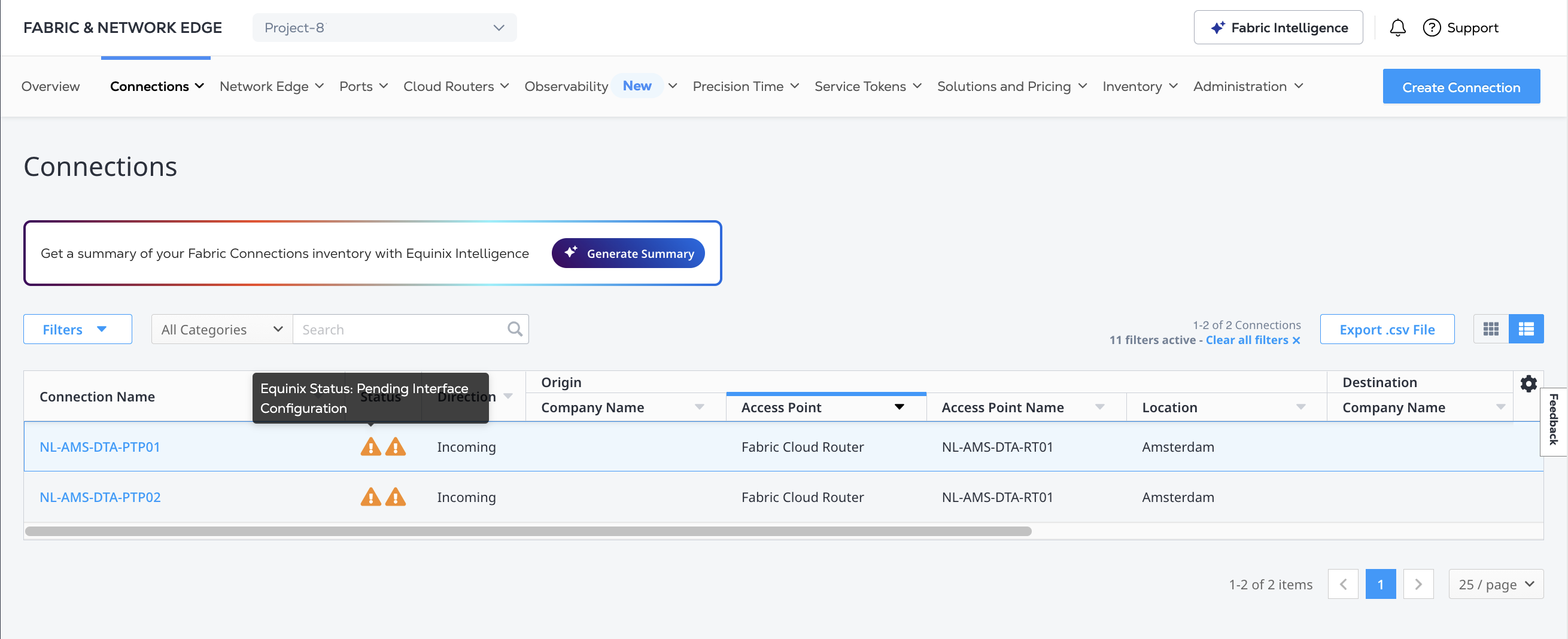
Once you have created a connection in the Customer Portal, monitor its status from your Connections Inventory.
To check the connection status, send a GET request to the /fabric/v4/connections/{connectionId} endpoint.
Fetch the connection status with the equinix_fabric_connections data source.
After the connection has been created, its Equinix Status is Pending Interface Configuration and you must configure its routing by adding either direct routing protocol details or using BGP.
The requirements for finalizing the connection before it can be used vary by service provider. Some require that you authorize the connection on the service provider's platform, or that the service provider has to approve the connection. Additionally, you might have to configure peering or routing information on the service provider side.
Check the Connecting to a Service Provider section for details on a specific service provider.