Conexión a un proveedor de servicios de tela
Realice una conexión desde sus dispositivos Network Edge a nubes, redes y otros proveedores de servicios.
Este tema cubre la conexión con proveedores de servicios de Network Edge en general. Para obtener instrucciones y ejemplos sobre cómo conectarse a un proveedor de servicios específico, consulte la secciónConexión a un proveedor de servicios. En particular:
Requisitos previos
- Una cuenta de Equinix Customer Portal, con los siguientes roles asignados:
Fabric Connections ManageryNetwork Edge Connections Manager. - Un dispositivo virtual Network Edge.
- Portal
- API
- Terraform
-
Inicie sesión en el Equinix Customer Portal y navegue hasta el panel de control de Network Edge .
-
Use el menú desplegable Selector de proyectos para seleccionar el proyecto bajo el cual desea crear la conexión. Para obtener más información sobre los proyectos, consulte Gestión de proyectos.
-
Autenticar: Envíe sus credenciales de usuario, ID de cliente y secreto de cliente para OAuth2 autenticación. Consulte Autenticación de API para obtener instrucciones sobre cómo llamar a OAuth API para validar y autenticar sus credenciales.
-
Determina la información de tu dispositivo Network Edge usando los
/ne/v1/devicesendpoints OR/ne/v1/devices/{uuid}. Puede elegir cualquier interfaz disponible en el dispositivo para su conexión. Equinix seleccionará una interfaz si no especifica una. -
Determine la información del perfil de servicio del proveedor de servicios. Utilice el
/fabric/v4/serviceProfiles/searchpunto final para buscar un perfil de servicio específico o utilice el/fabric/v4/serviceProfilespunto final para enumerar todos los perfiles de servicio disponibles e identificar el perfil al que desea conectarse. Necesita el perfil UUID del proveedor de servicios.
-
Determina la información de tu dispositivo Network Edge. Compruebe sus dispositivos disponibles utilizando la
equinix_network_devicefuente de datos. -
Determine la información del perfil de servicio del proveedor de servicios. Utilice la
equinix_fabric_service_profilesfuente de datos para buscar un perfil de servicio específico. Necesita el perfil UUID del proveedor de servicios.
Crear la conexión
- Portal
- API
- Terraform
-
Desde el panel de control de Network Edge , haga clic en Crear conexión.

-
En la sección Conexiones frecuentes, seleccione el proveedor de servicios al que se está conectando. O haga clic en Un proveedor de servicios y busque el proveedor de servicios.
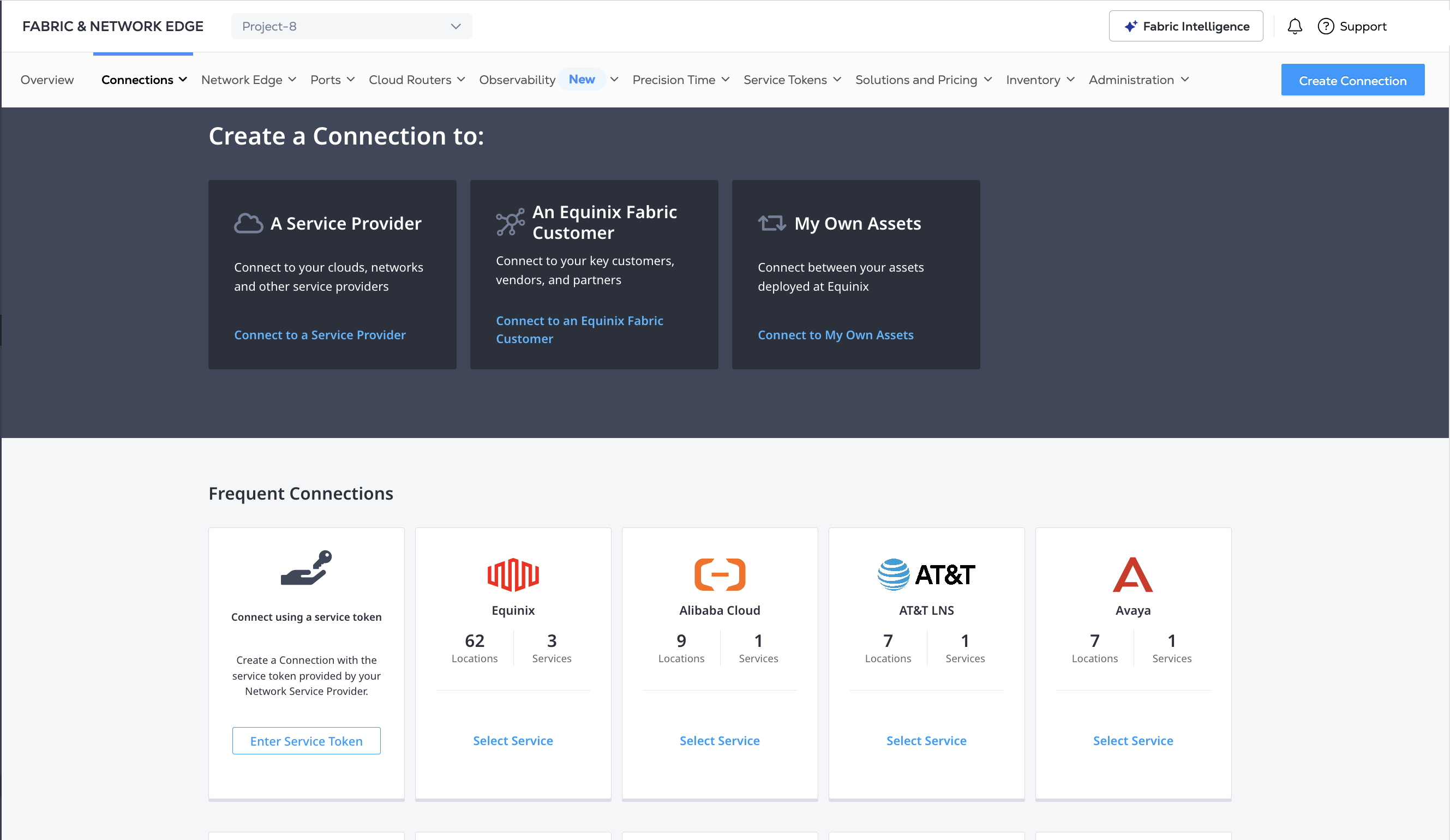
-
Haga clic en la tarjeta del proveedor de servicios y haga clic en Crear conexión (dispositivo Network Edge).
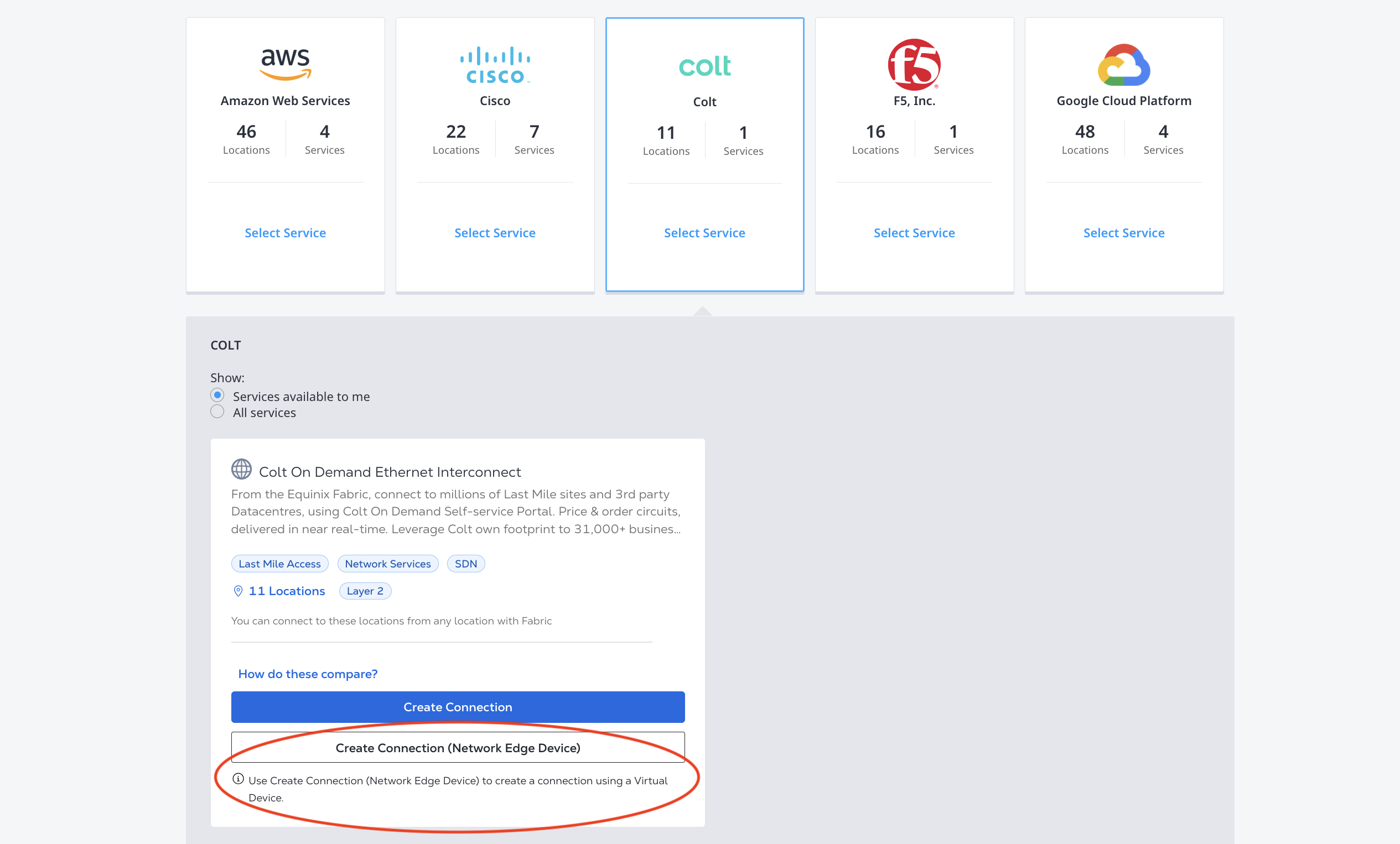
Seleccione Ubicaciones
En la página Seleccionar ubicaciones:
-
En la sección Origen, en Conectar usando, haga clic en Dispositivo virtual .
-
Seleccione el dispositivo y la ubicación de origen de la conexión.
-
En la sección Seleccionar tipo de dispositivo virtual, seleccione un tipo de dispositivo: Dispositivos virtuales, dispositivos redundantes o clústeres.
-
Seleccione el tipo de conexión . Si seleccionó un único dispositivo virtual, Conexión única se seleccionará automáticamente. Si se conecta a un clúster o dispositivos redundantes, puede elegir crear una conexión redundante o una conexión única desde un solo dispositivo en el par o clúster redundante.
-
Seleccione el dispositivo(s) que está utilizando para esta conexión.
-
La sección Destino se rellena con las opciones de ubicación del proveedor de servicios al que se está conectando. Seleccione la ubicación del proveedor de servicios a la que se está conectando.
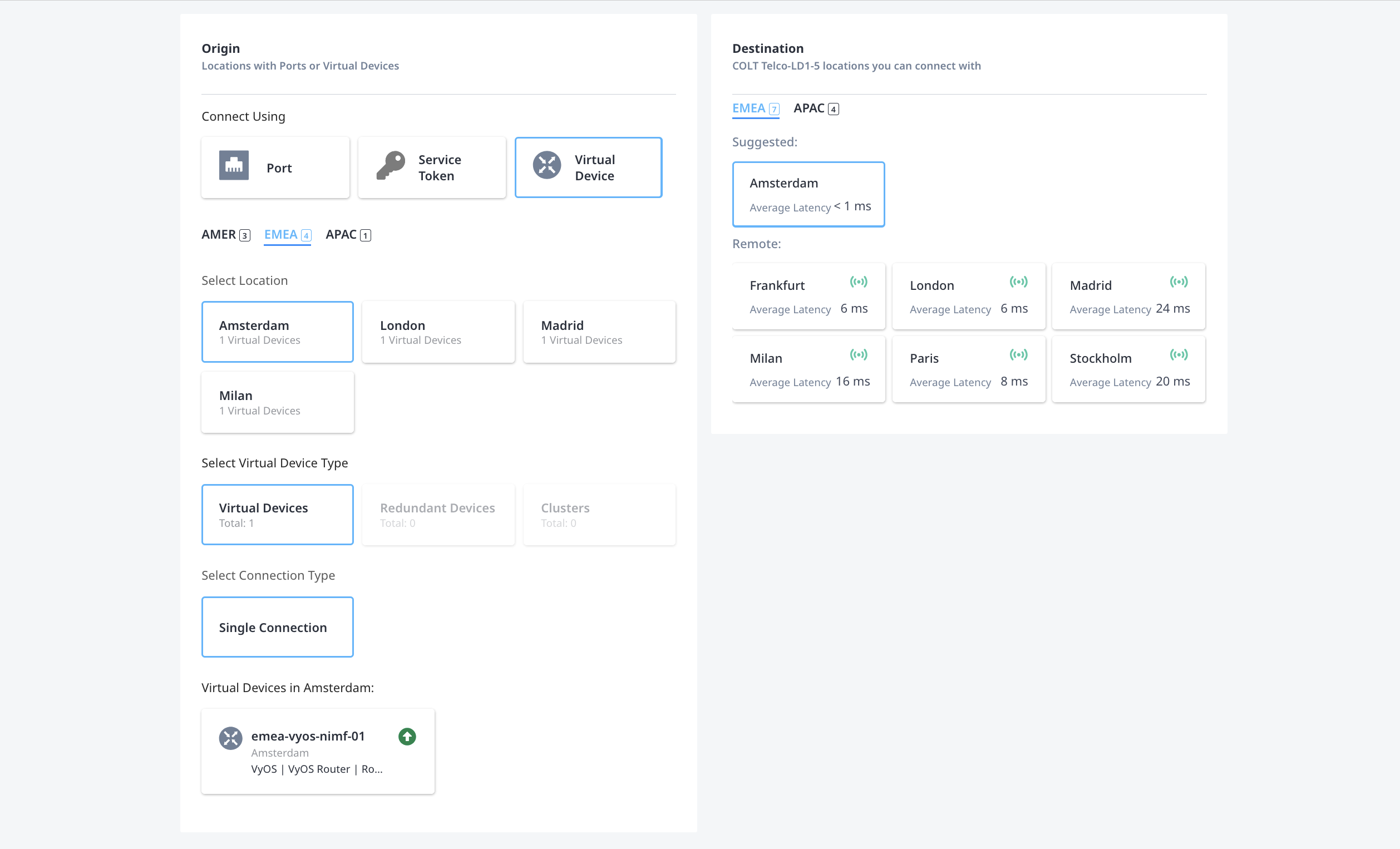
Haga clic en Siguiente.
Detalles de la conexión
En la página Detalles de la conexión:
-
En la sección Información de conexión, introduzca un nombre de conexión. Para conexiones redundantes, introduzca un nombre para la conexión principal en el campo Información de conexión y un nombre para la conexión secundaria en el campo Información de conexión redundante.
-
En la sección Selección de interfaz, seleccione:
- Seleccione automáticamente la siguiente interfaz disponible en Mis dispositivos si desea crear la conexión en la siguiente interfaz disponible.
- Seleccionaré una interfaz si desea especificar la interfaz para la conexión. Seleccione una interfaz del menú desplegable.
-
Si el Proveedor de servicios requiere un ID de cuenta, una clave de emparejamiento u otra identificación, ingrese su información en los campos proporcionados. La sección Opciones adicionales del comprador contiene opciones específicas para el proveedor de servicios al que se está conectando. Algunos de ellos pueden ser requeridos para conectarse.
-
(Opcional) Introduzca el número de orden de compra.
-
Seleccione la velocidad de conexión para el dispositivo principal. Para las conexiones redundantes, seleccione también la velocidad de conexión para el dispositivo secundario.
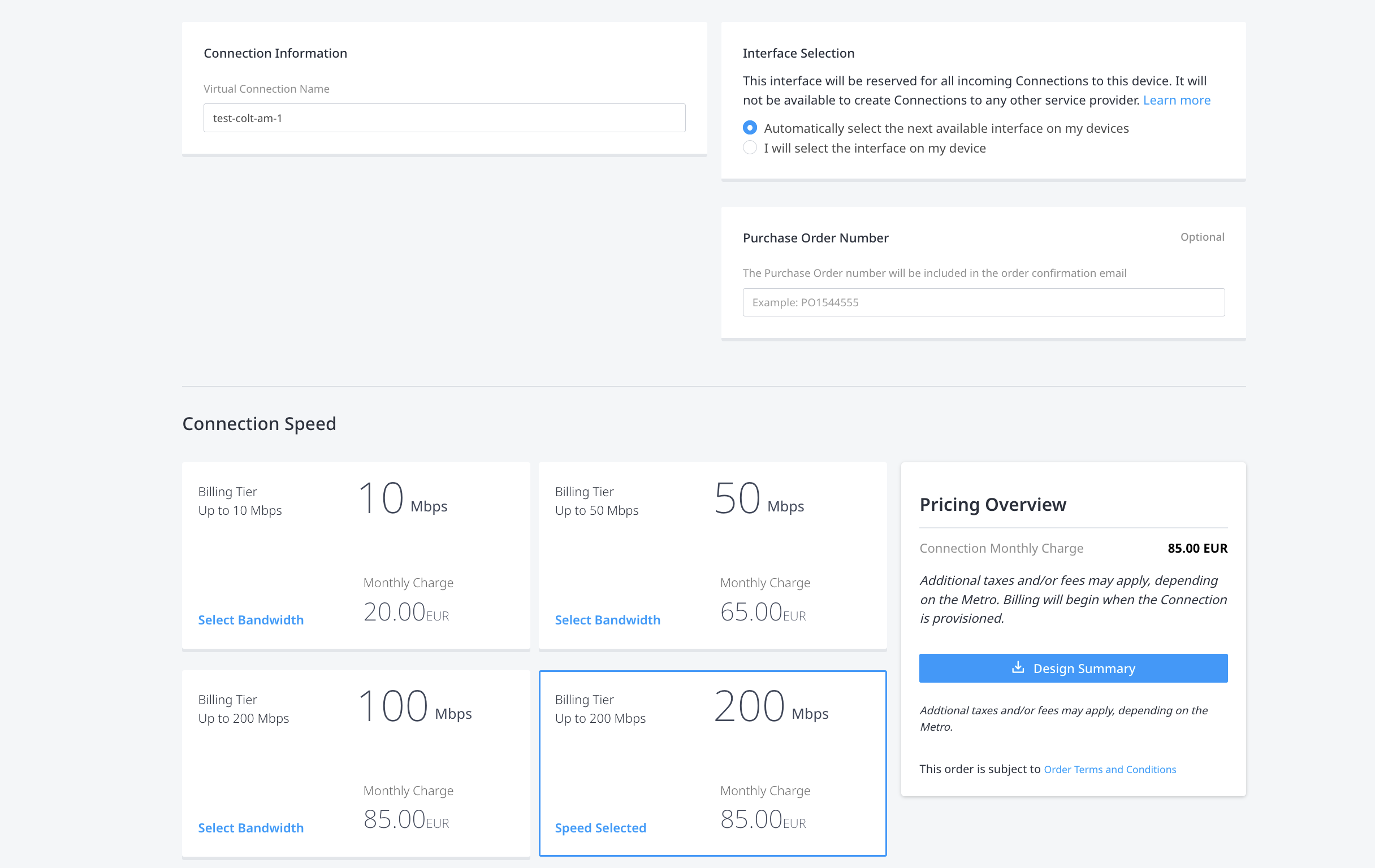
Haga clic en Siguiente
Revisar y presentar
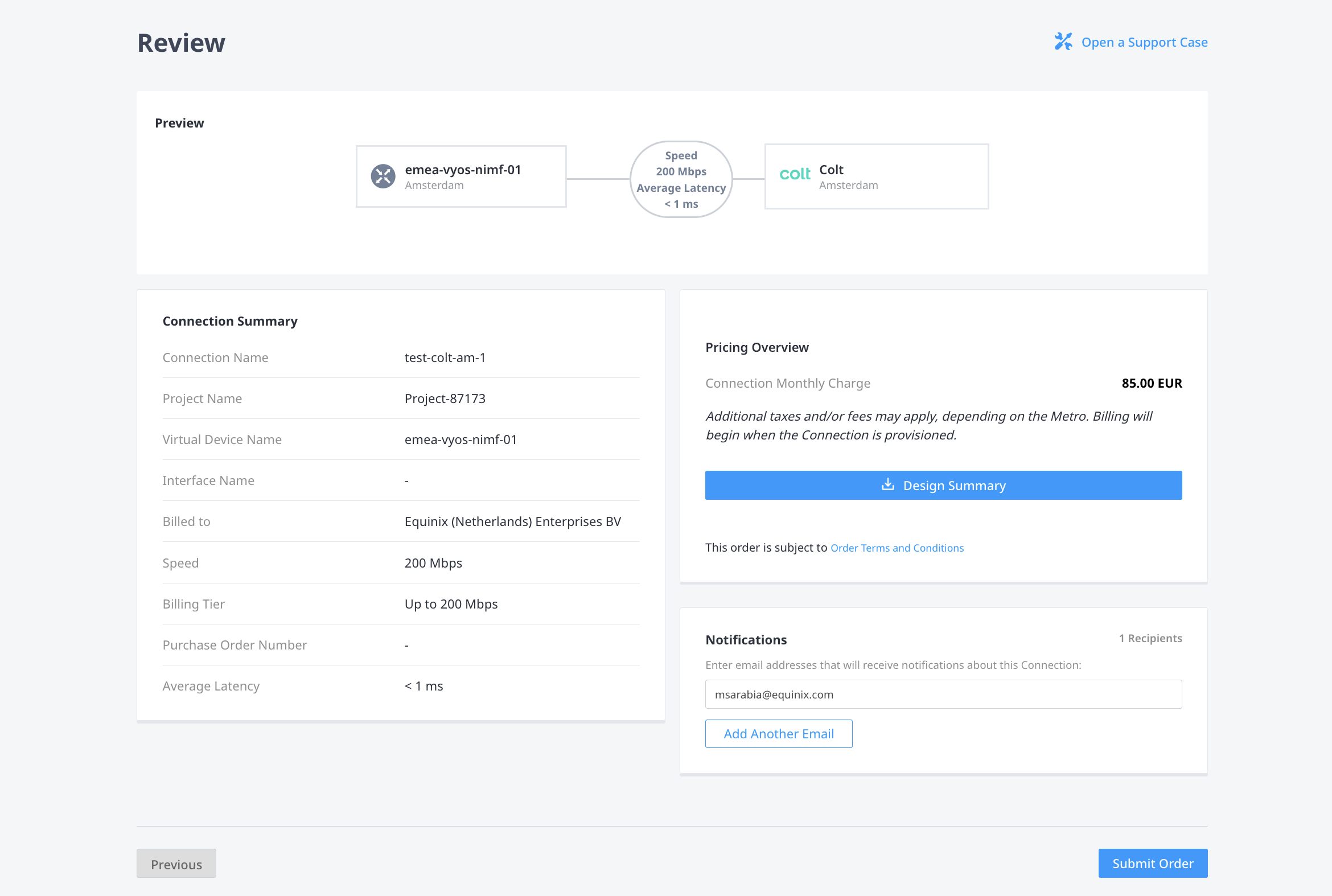
En la página Revisión:
-
Revise la información en el Resumen de Conexión y Resumen de Precios .
-
En la sección Notificaciones, agregue las direcciones de correo electrónico de todos los usuarios que deben recibir notificaciones sobre esta conexión.
-
Cuando esté listo, haga clic en Enviar su pedido.
Para crear una conexión desde su dispositivo Network Edge a un proveedor de servicios, envíe una POST solicitud al /fabric/v4/connections punto final.
- Especifique los detalles de su dispositivo virtual en el
aSide.accessPointobjeto. - Especifique la información del proveedor de servicios en el
zSide.accessPointobjeto. Los parámetros requeridos varían según el proveedor de servicios, consulte la documentaciónConexión a un proveedor de servicios para ejemplos específicos.
Ejemplo de solicitud cURL:
curl -X POST 'https://api.equinix.com/fabric/v4/connections' \
-H 'content-type: application/json' \
-H 'authorization: Bearer <token>' \
-d '{
  "type": "EVPL_VC",
  "name": "<connection_name>",
  "bandwidth": 1000,
  "aSide": {
    "accessPoint": {
      "type": "VD",
      "virtualDevice": {
        "type": "EDGE",
        "uuid": "<virtual_device_uuid>"
      }
    }
  },
  "zSide": {
    "accessPoint": {
      "type": "SP",
      "profile": {
        "type": "L2_PROFILE",
        "uuid": "<service_profile_uuid>"
       },
      "location": {
        "metroCode": "<metro_code>"
      }
    }
  },
  "project": {
    "projectId": "<project_uuid>"
  },
  "notifications": [
    {
      "type": "ALL",
      "emails": [
        "<email_address>"
      ]
    }
  ]
}'
Crea la conexión usando el equinix_fabric_connection recurso.
- Especifique los detalles de su dispositivo virtual en el objeto
a_side:access_point. - Especifique la información del proveedor de servicios en el objeto
z_side:access_point. Los parámetros requeridos varían según el proveedor de servicios, consulte la documentaciónConexión a un proveedor de servicios para ejemplos específicos.
resource "equinix_fabric_connection" "vd2csp" {
  name = "<connection_name>"
  type = "IP_VC"
  notifications {
    type = "ALL"
    emails = ["<contact_email>", "<contact_email>"]
  }
  bandwidth = <bandwidth_speed>
  a_side {
    access_point {
      type = "VD"
      virtual_device {
        type = "EDGE"
        uuid = "<device_uuid>"
      }
    }
  }
  z_side {
    access_point {
      type = "SP"
      profile {
        type = "L2_PROFILE"
        uuid = "<cloud_service_provider_uuid>"
      }
      location {
        metro_code = "<metro_code>"
      }
    }
  }
}
Después de enviar el pedido, se envía una verificación por correo electrónico del pedido a los contactos de notificaciones. Una vez que se aprovisiona la conexión, los contactos también reciben un correo electrónico de confirmación.
Supervisión del estado de la conexión
- Portal
- API
- Terraform
Una vez que haya creado una conexión en el Portal del cliente, monitoree su estado desde su inventario de conexiones.
Para comprobar el estado de la conexión, envíe una GET solicitud al /fabric/v4/connections/{connectionId}punto final.
Obtenga el estado de conexión con la equinix_fabric_connectionsfuente de datos.
| Estado de Equinix | Estado del proveedor | Descripción |
|---|---|---|
PROVISIONING | PROVISIONING | La solicitud de conexión no se ha enviado al proveedor de servicios. |
PROVISIONED | PROVISIONING | Establecimiento de conexión en curso. |
PROVISIONED | PROVISIONED | Conexión establecida. |