View Authorizations in the Digital LOA Manager
Digital LOA Manager lets you view and track the status of your Digital LOAs. The steps and navigation depend on whether you are using the Legacy Digital LOA Manager or the new Digital LOA Manager.
New Digital LOA Manager
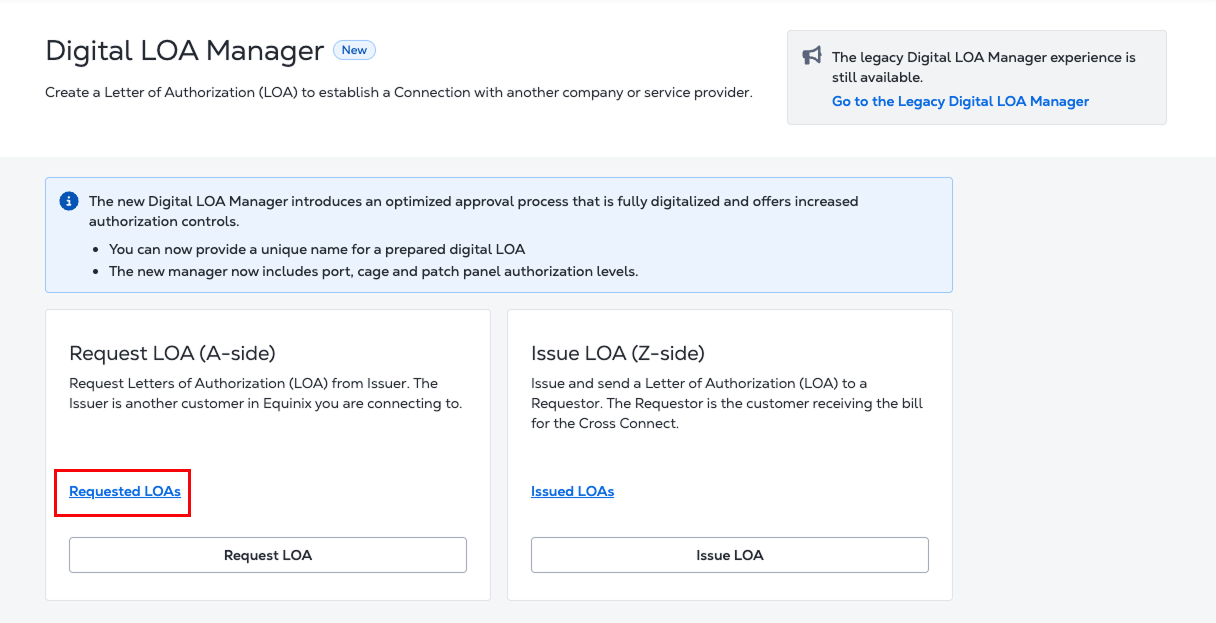
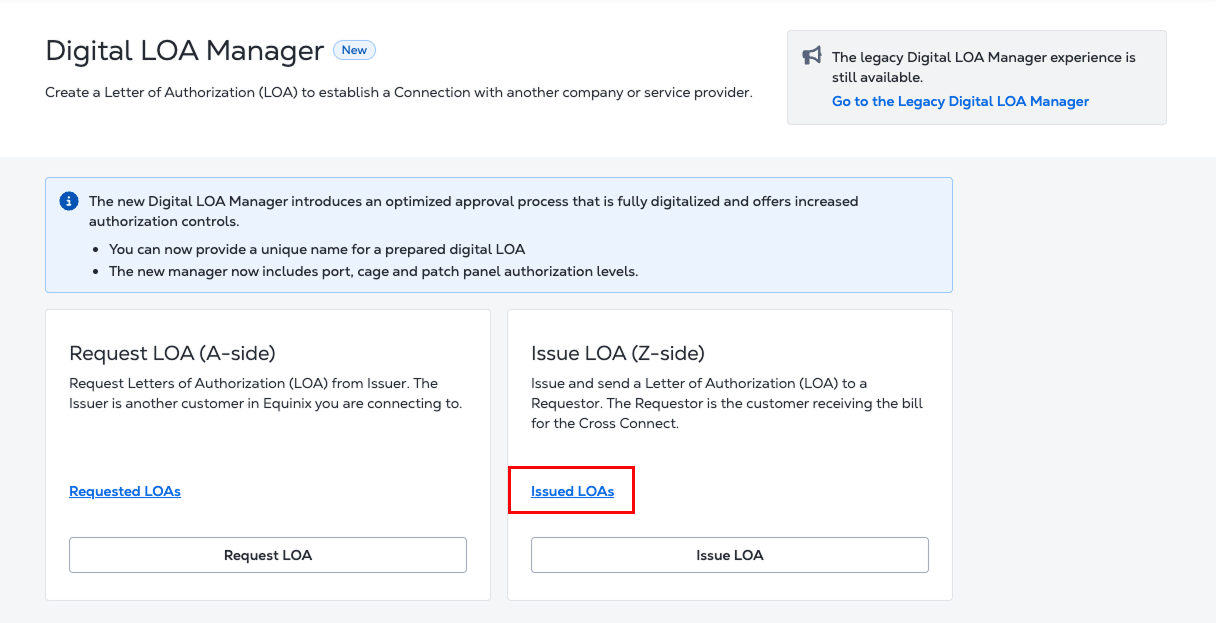
In the new Digital LOA Manager, you can review the status of requested and issued LOAs.
- Select Requested LOAs to view LOAs requested from issuers.
- Select Issued LOAs to view LOAs you have issued.
Requestor Inventory
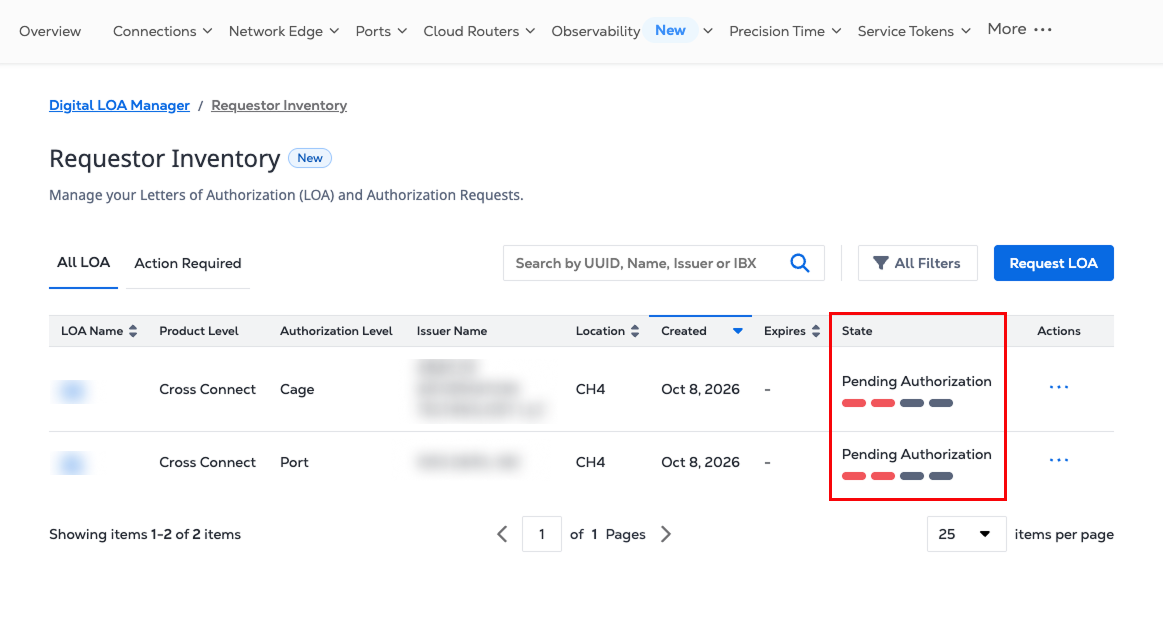
View Requested LOAs in the Requestor Inventory to track and manage your LOAs and authorization requests.
- The authorization list provides the status of each LOA.
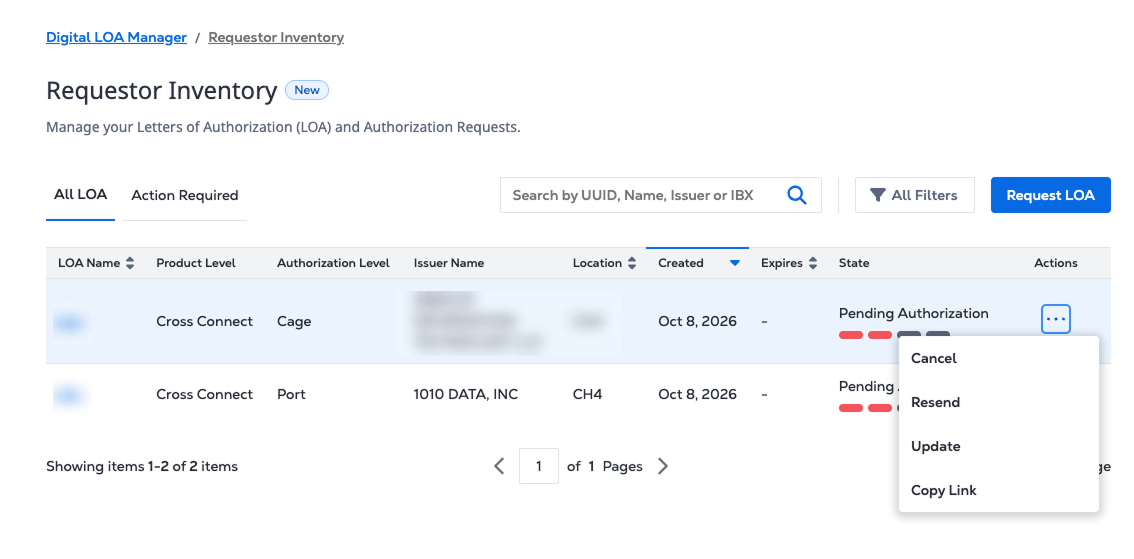
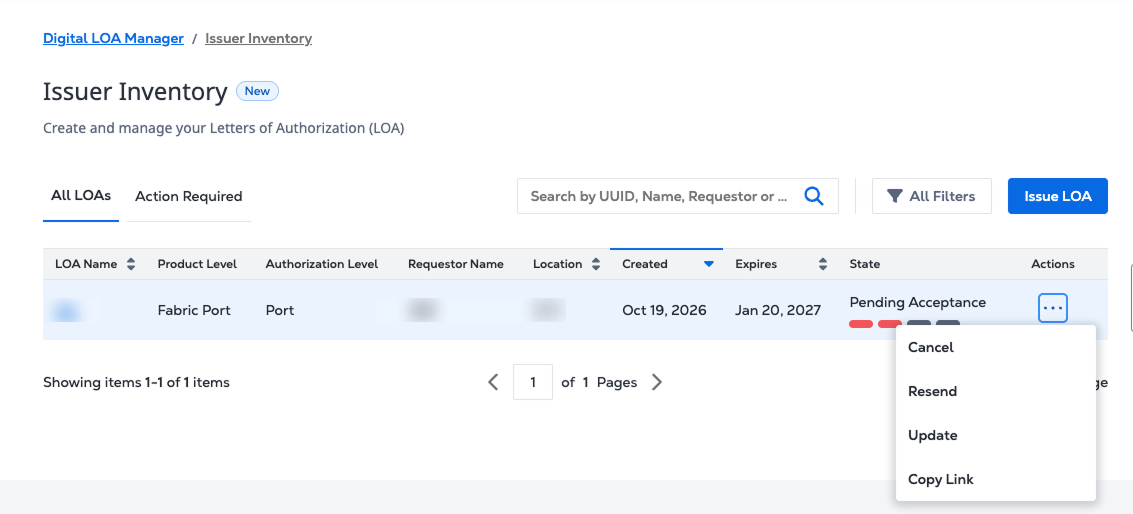
- Each row displays actions based on the LOA status. While an LOA is in progress, you can cancel, resend, update, or copy the LOA link.
- Once the LOA is fully authorized, go to Actions, select the three dots, and place the order enabled by the LOA.
Issuer Inventory
View Issued LOAs in the Issuer Inventory to track and manage issued LOAs and authorization requests.
- When the issuer needs to take action, the authorization list provides the action directly in the row, eliminating the need to open the details page.
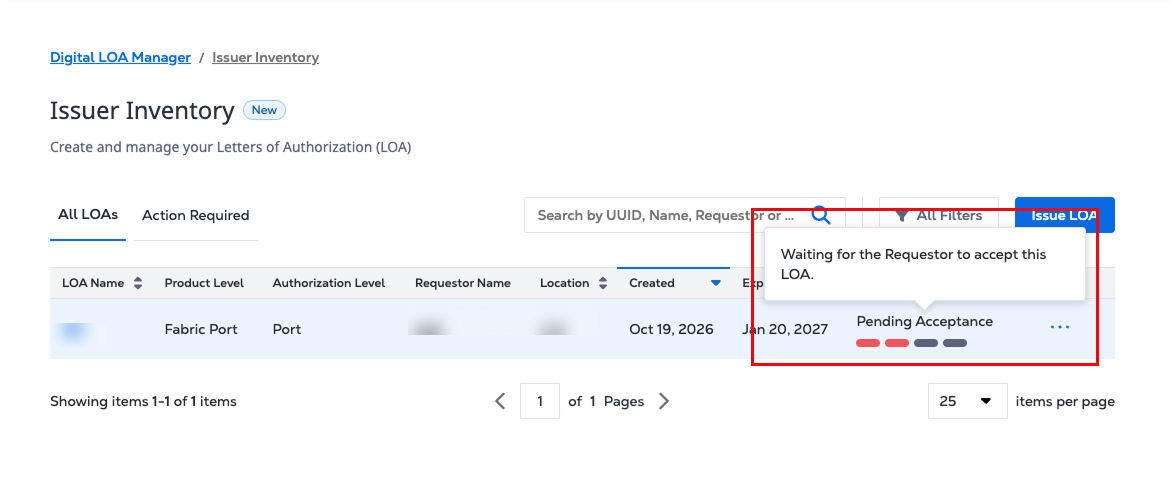
-
Each row displays actions based on the LOA status. While an LOA is in progress, you can cancel, resend, update, or copy the LOA link.
-
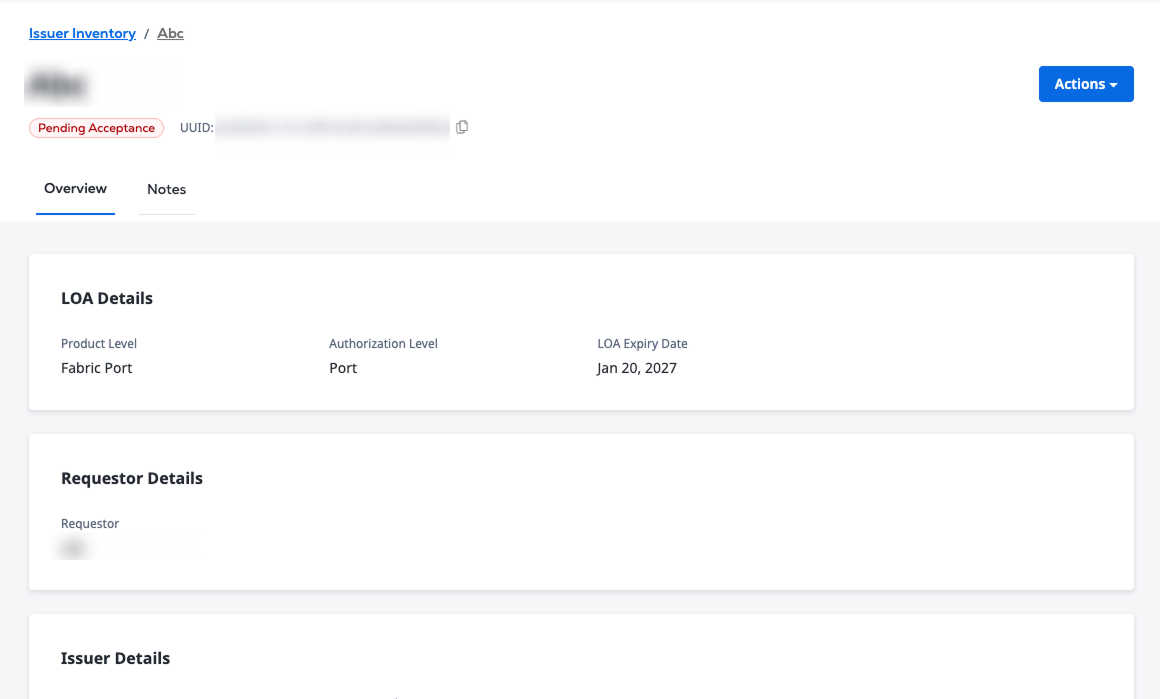
Click on the LOA Name to view its details. The details page shows the complete LOA record, including the parties, authorized equipment, expiration date, status history, and available actions.
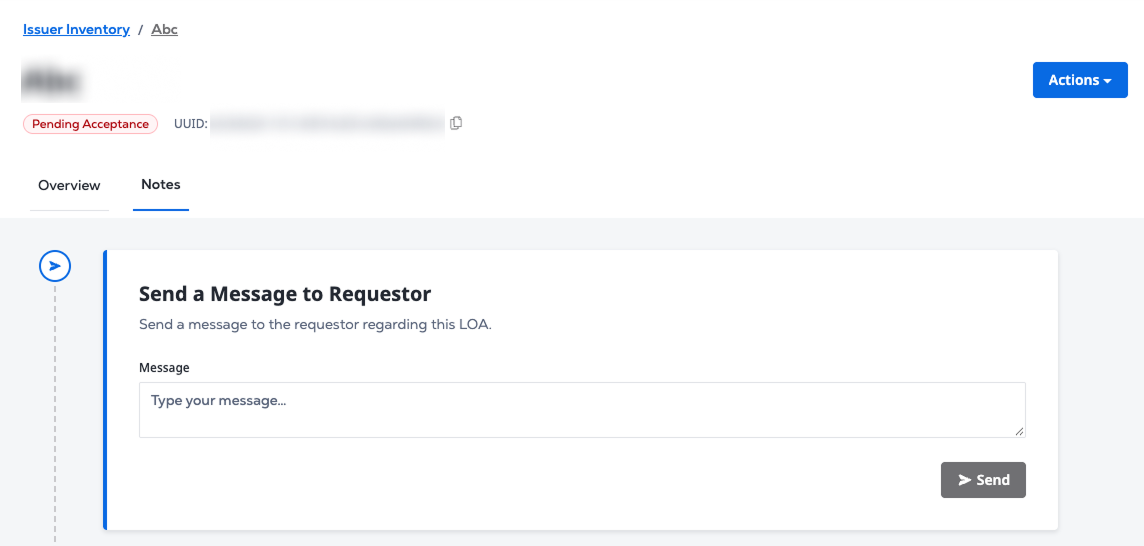
- Notes provide a shared conversation thread between the issuer and requestor while the LOA is in progress. Both parties can exchange notes until the LOA is accepted. Once the LOA is accepted, cancelled, or expired, the thread becomes read-only.
Legacy Digital LOA Manager
In the Legacy Digital LOA Manager, you can review the status of A-side and Z-side Digital LOAs.
- Select A-side Authorizations to view LOAs issued to you.
- Select Z-side Authorizations to view LOAs you have issued.
View A-side Authorizations
A-side users can display information about the Digital LOAs that were created for their company. Additionally, A-side users can verify their access to specific IBX data centers, and can view only the Digital LOAs that can be applied during their Cross Connects ordering process.
-
Sign In to the Customer Portal.
-
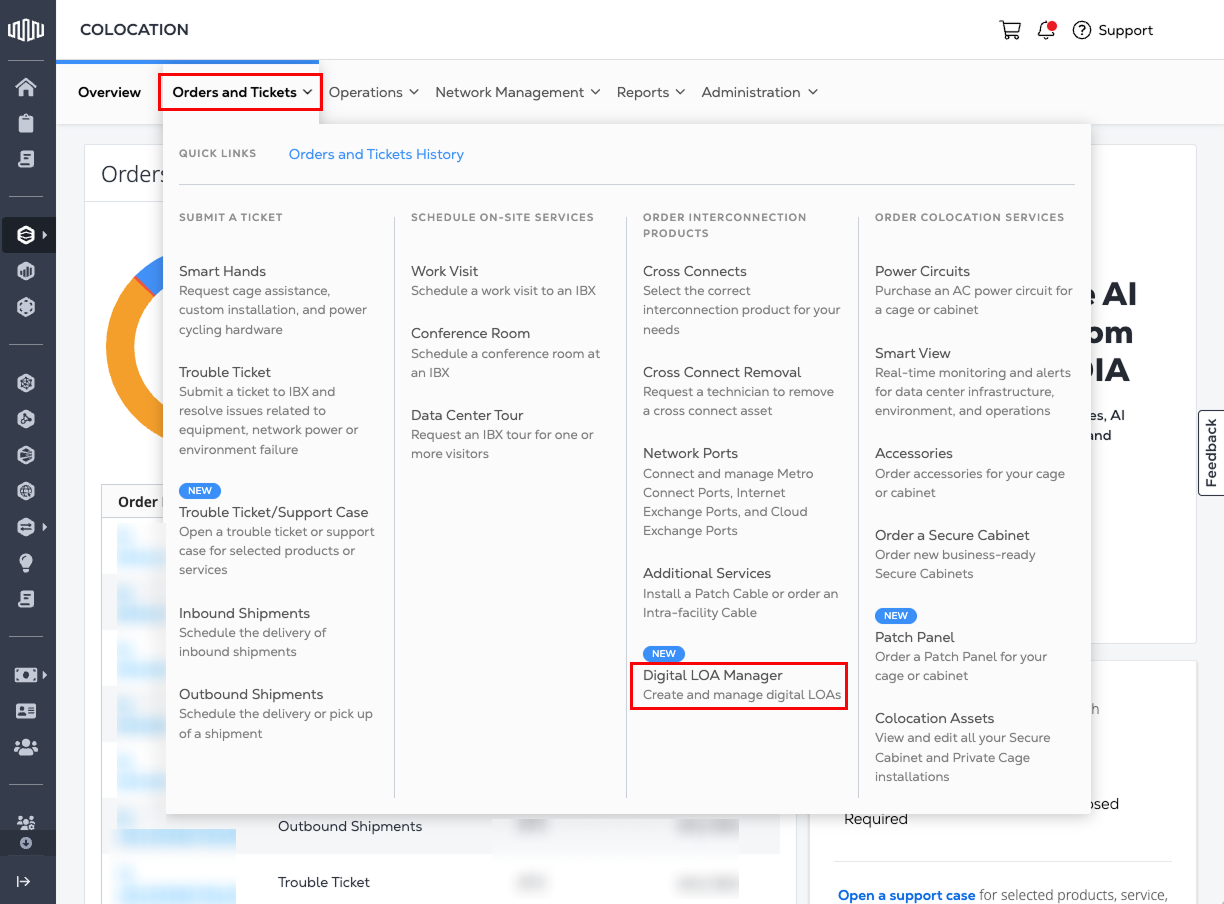
From the Orders and Tickets menu, choose Digital LOA Manager.
-
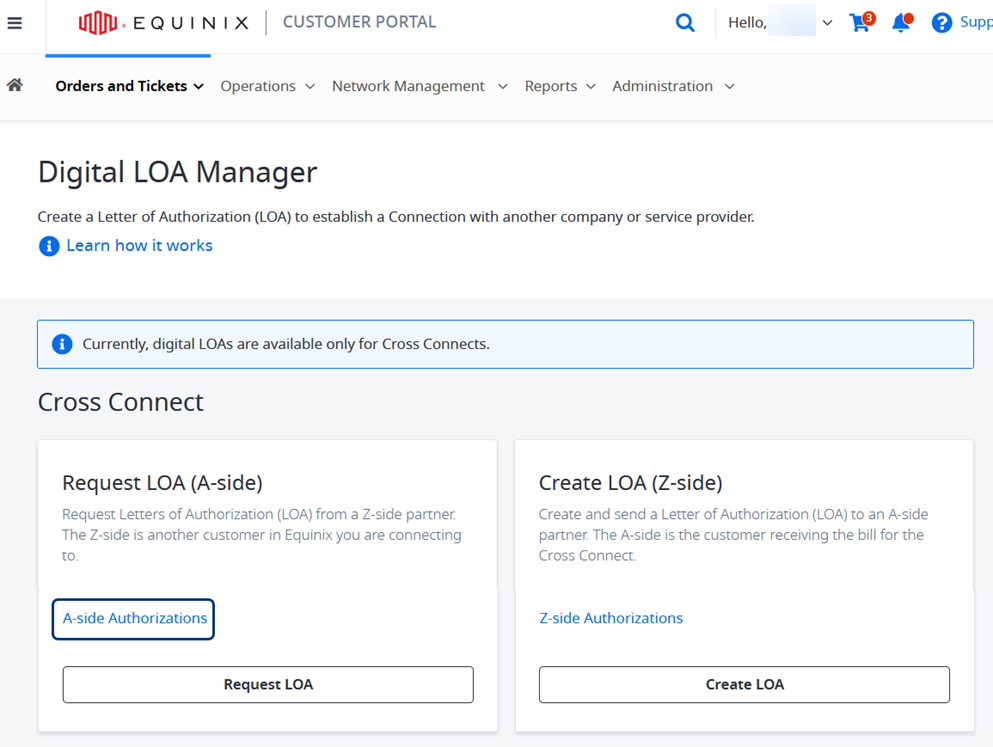
In the Digital LOA Manager, click A-side Authorizations in the Request LOA (A-side) card.
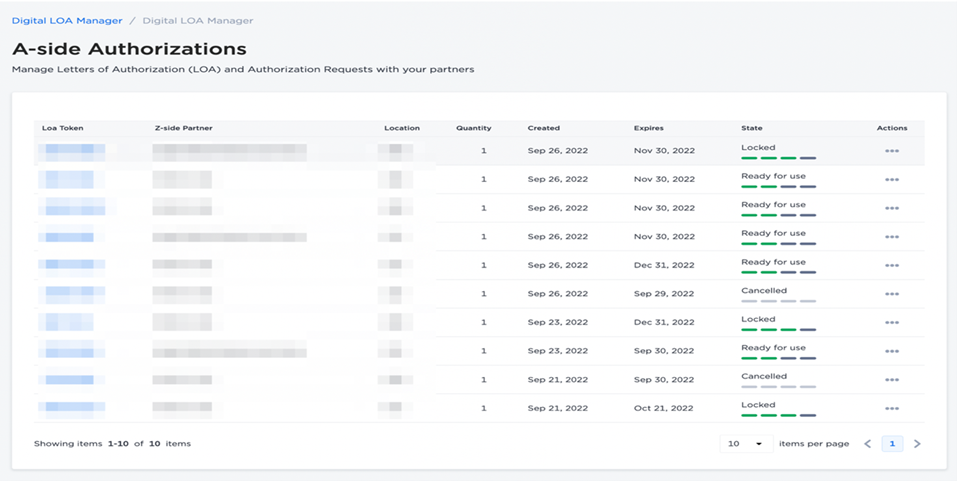
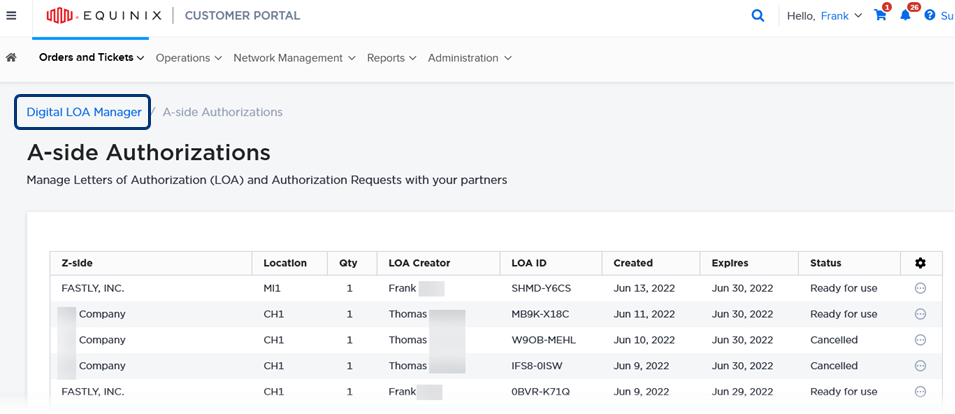
The list of your Digital LOAs is displayed.
-
To locate a specific Digital LOA, you can search and filter by entering a token, partner, or IBX.
-
Click a Digital LOA entry to review details, including:
- LOA Token
- Z-side Partner
- Location – IBX metro where the Digital LOA authorizes usage of assets
- Quantity – Number of connections that the Digital LOA authorizes
- Created – Date that the Digital LOA was submitted
- Expires – Last date that the Digital LOA can be used
- Status – Current status of the Digital LOA
-
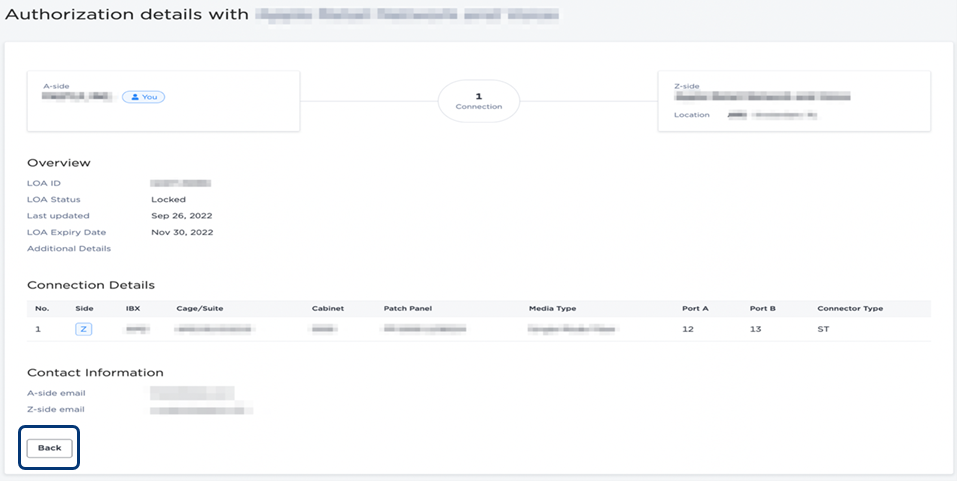
Click a list entry to review Authorization Details about the connection, including the A-side and Z-side email addresses.
-
If your Digital LOA is in
Ready for usestatus, you can use it immediately to place a new order. Click Create Cross Connect at the bottom right of the page. -
To return to the list of A-side Authorizations, click Back.
-
To return to the Digital LOA Manager page, click Digital LOA Manager.
View Z-side Authorizations
Z-side users can display information about the Digital LOAs that were created by their company. The LOAs that are ready to use can be canceled or sent again.
-
Sign In to the Customer Portal.
-
From the Orders and Tickets menu, choose Digital LOA Manager.
-
In the Digital LOA Manager, click Z-side Authorizations in the View LOA (Z-side) card.
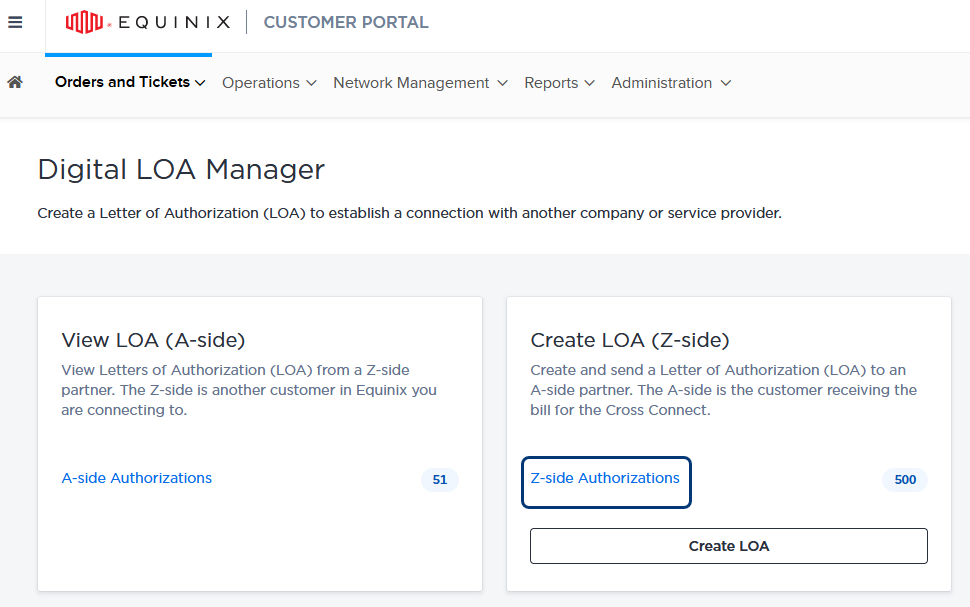
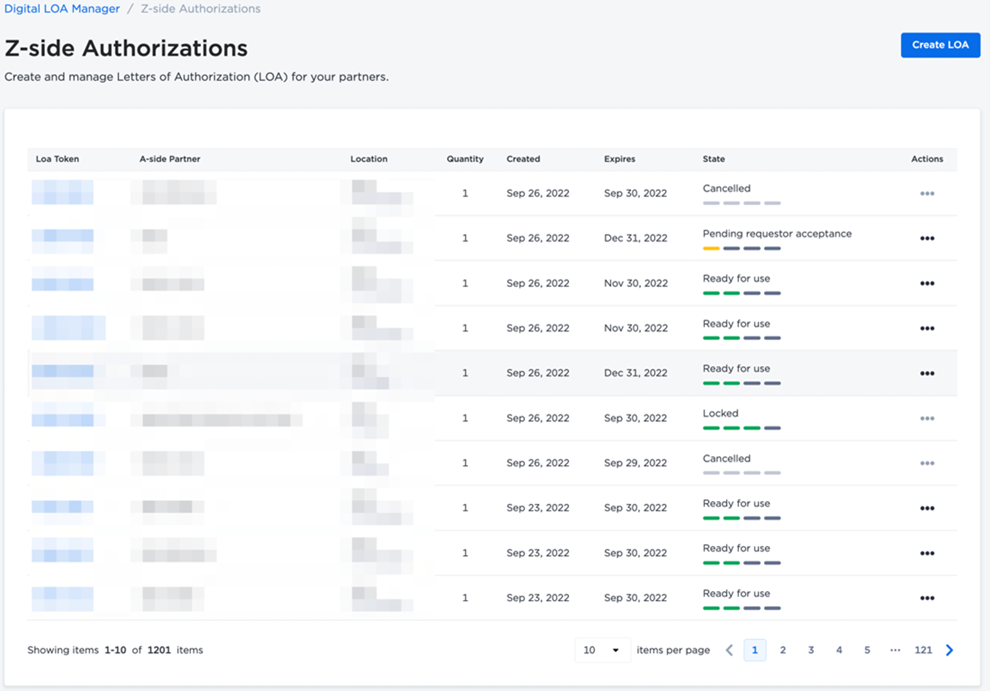
The Z-side Authorizations list shows the LOAs created by you or your organization using the Digital LOA Manager. This list is limited to IBX data centers that you can access, based on permissions from your primary administrator. If the list is empty, it may be because no Digital LOAs have been created by your organization for the IBX locations you can access.
-
Review details of your Digital LOAs, including:
- LOA Token
- A-side Partner
- Location – IBX metro where the Digital LOA authorizes usage of assets
- Quantity – Number of connections that the Digital LOA authorizes
- Created – Date that the Digital LOA was submitted
- Expires – Last date that the Digital LOA can be used
- Status – Current status of the Digital LOA
- Actions – Enabled depending on the Digital LOA status.
-
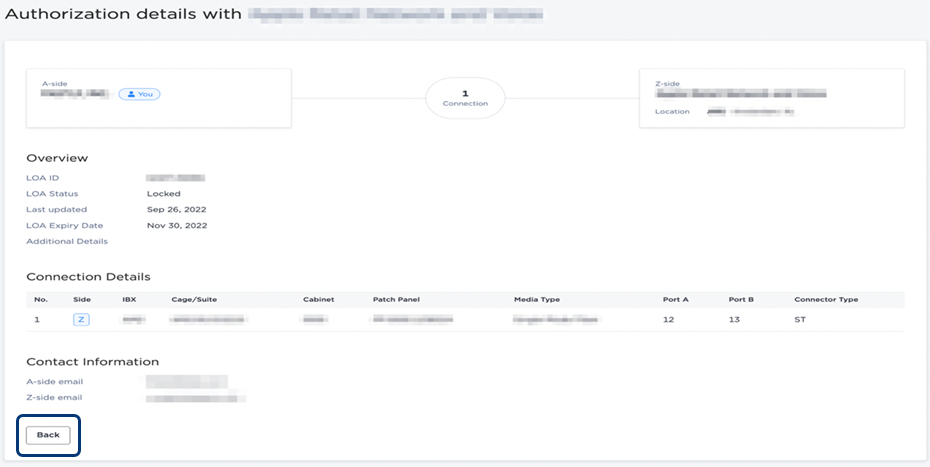
Click a list entry to review Authorization Details about the connection, including the A-side and Z-side email addresses.
-
To return to the list of Z-side Authorizations, click Back.
-
To return to the Digital LOA Manager page, click Digital LOA Manager.