Issue a Digital Letter of Authorization
New Digital LOA Manager
In the new Digital LOA Manager, Requestors request LOAs and Issuers issue and authorize them.
-
Sign in to the Customer Portal.
-
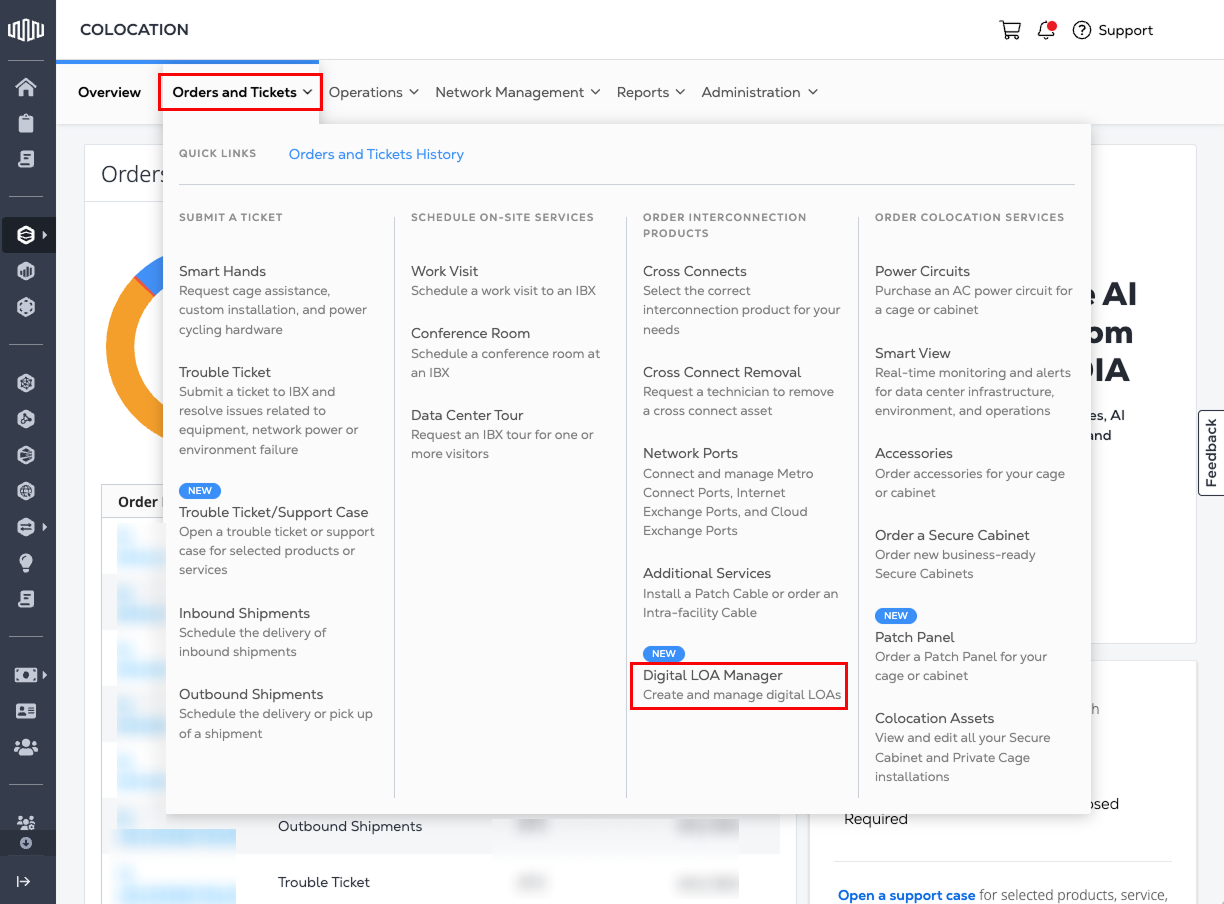
Go to the Orders and Tickets menu and select Digital LOA Manager.
-
When prompted, click Yes, Try New Digital LOA Manager to switch to the new experience.
Issue a Digital LOA to a Requestor
To issue and send a Digital LOA to a Requestor, follow these steps:
-
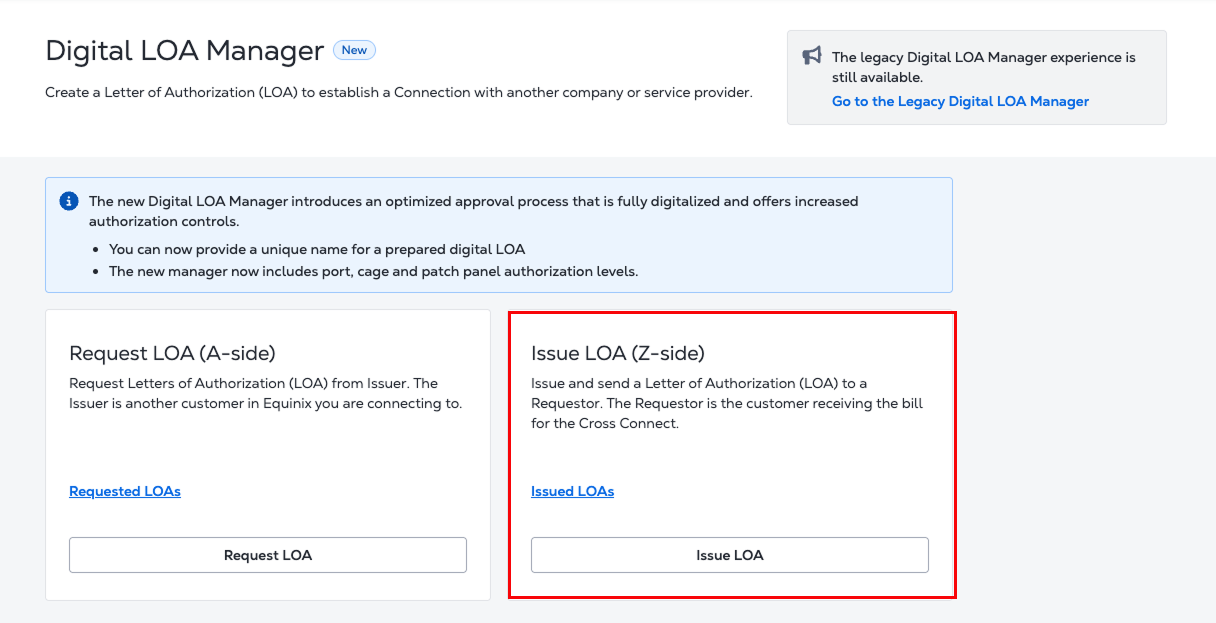
Look for the Issue LOA (Z-side) card and click Issue LOA.
-
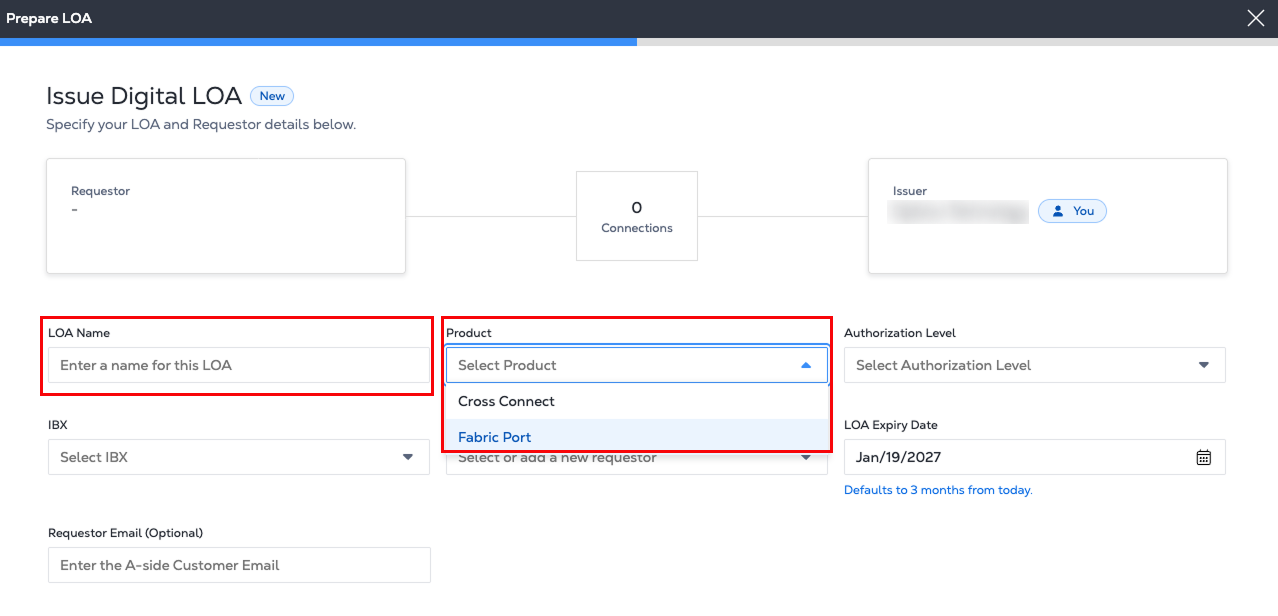
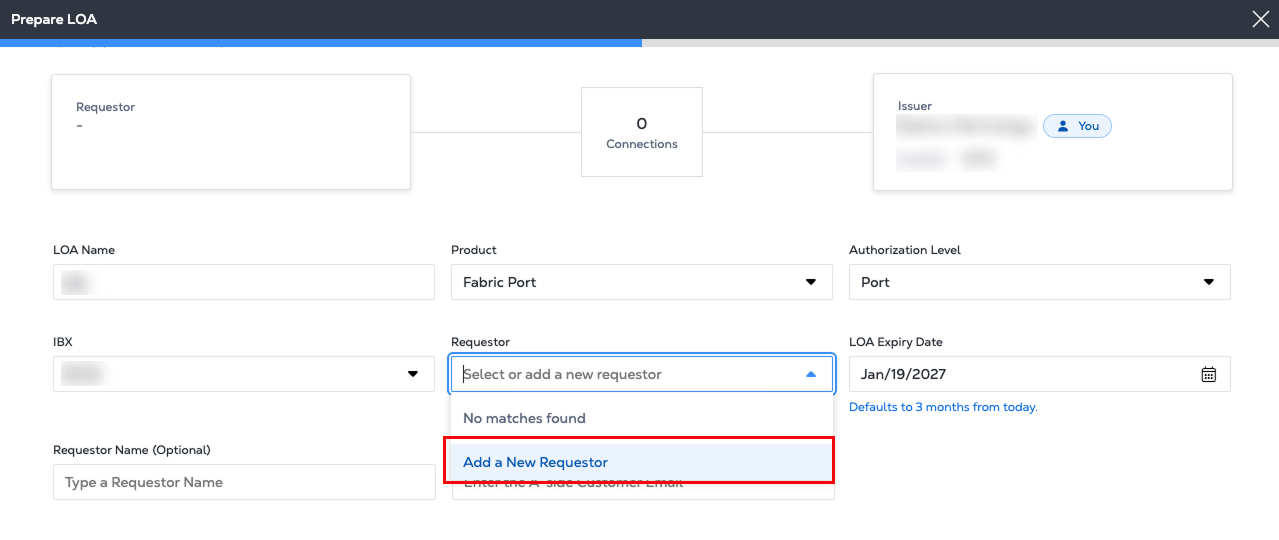
Enter a name for the LOA and select a product from the Product list
-
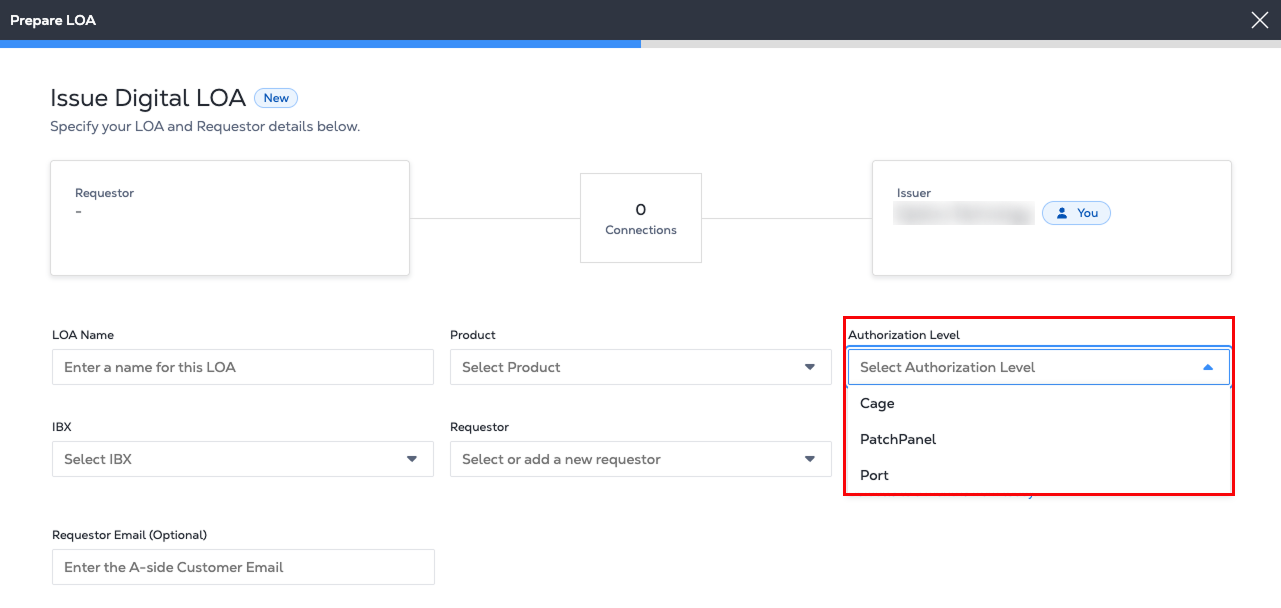
The Authorization Level determines the equipment the LOA authorizes. For instance, a cage authorization grants access to an entire cage, while patch panel and port authorizations grant access to a specific patch panel or port.
-
Select the IBX and select or add a Requestor.
- Click Add a New Requestor to enter the Requestor Name and Email.
-
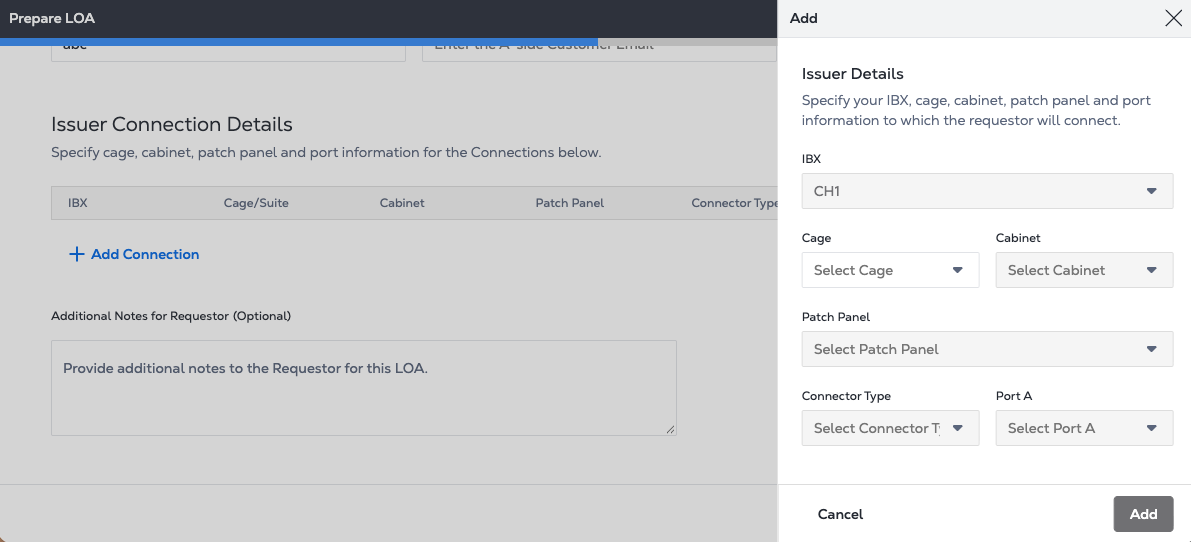
Under Issuer Connection Details, click Add Connection to specify cage, cabinet, patch panel and port information to which the requestor will connect.
-
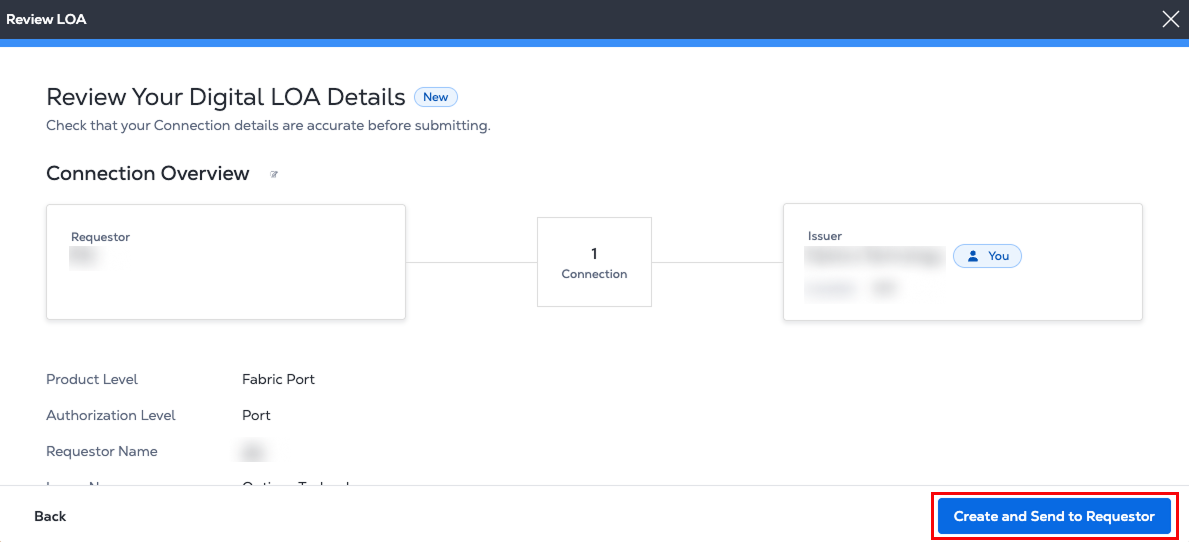
In Review Your Digital LOA Details, verify that the connection details and contact information is accurate.
- Click Create and Send to Requestor.
-
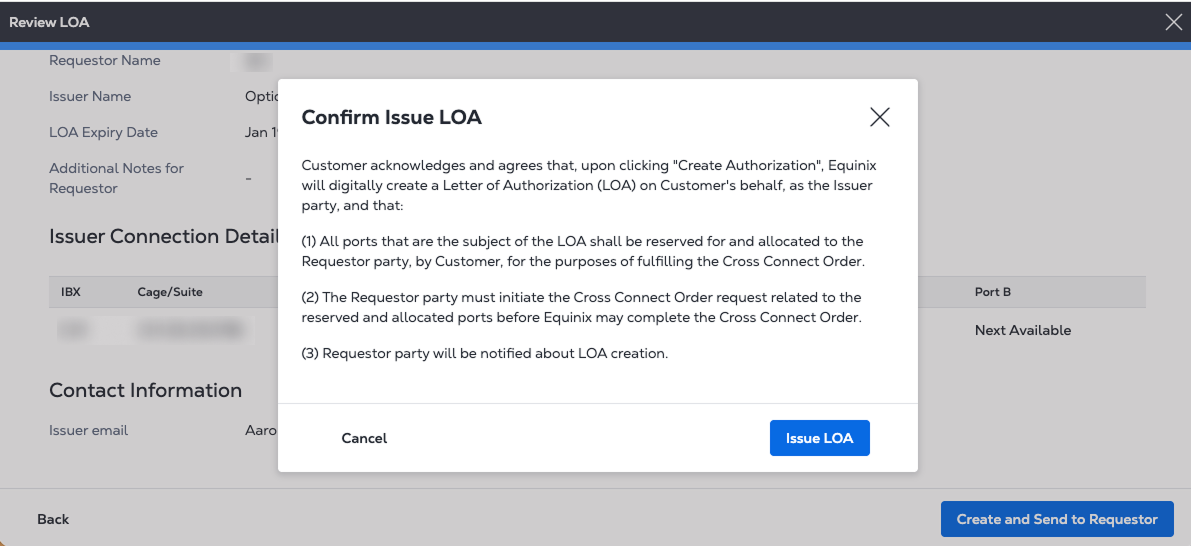
In the Confirm Issue LOA card, click Issue LOA.
-
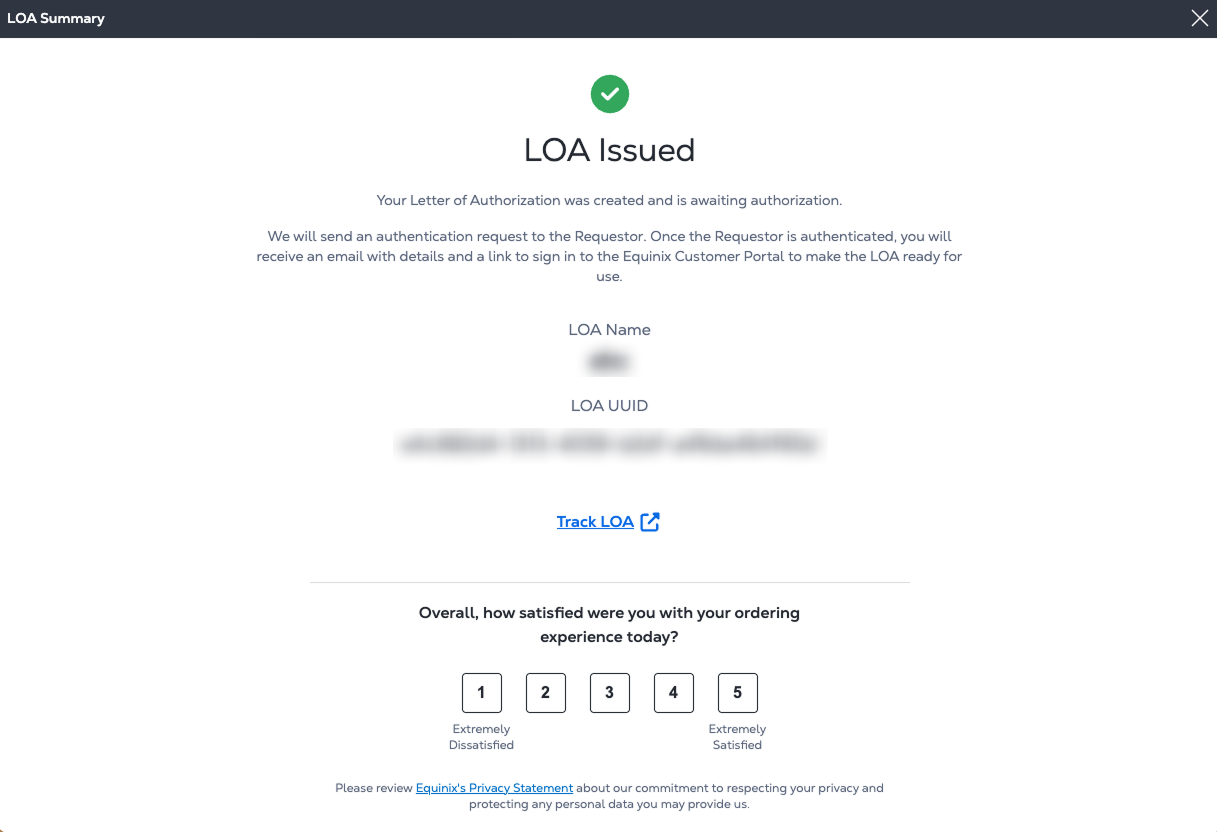
The LOA Summary contains the LOA Token number which is a unique ID for the Digital LOA across the PDF, email, and in the Customer Portal. Your Requestor receives an email notification that includes the new Digital LOA as a PDF attachment.
- Click Track LOA to view this new LOA in the Digital LOA Manager. The Digital LOA enters Processing (Pending) while the system generates the document and link. Because the success page appears before processing is complete, a newly created LOA may remain in Processing for a few seconds in the inventory.
Legacy Digital LOA Manager
In the Legacy Digital LOA Manager, the A-side partner requests an LOA to establish a Cross Connect, and the Z-side partner issues the LOA to authorize the connection.
To create a Digital LOA as a Z-side partner, follow these steps:
-
Sign in to the Customer Portal.
-
Go to the Orders and Tickets menu and select Digital LOA Manager.
-
When prompted, click No, Thank You to use the legacy experience.
Create an LOA (Z-side)
-
Look for the Create LOA (Z-side) card and click Create LOA.
- If you received an email request from an A-side partner, the link in the email takes you directly to this step.
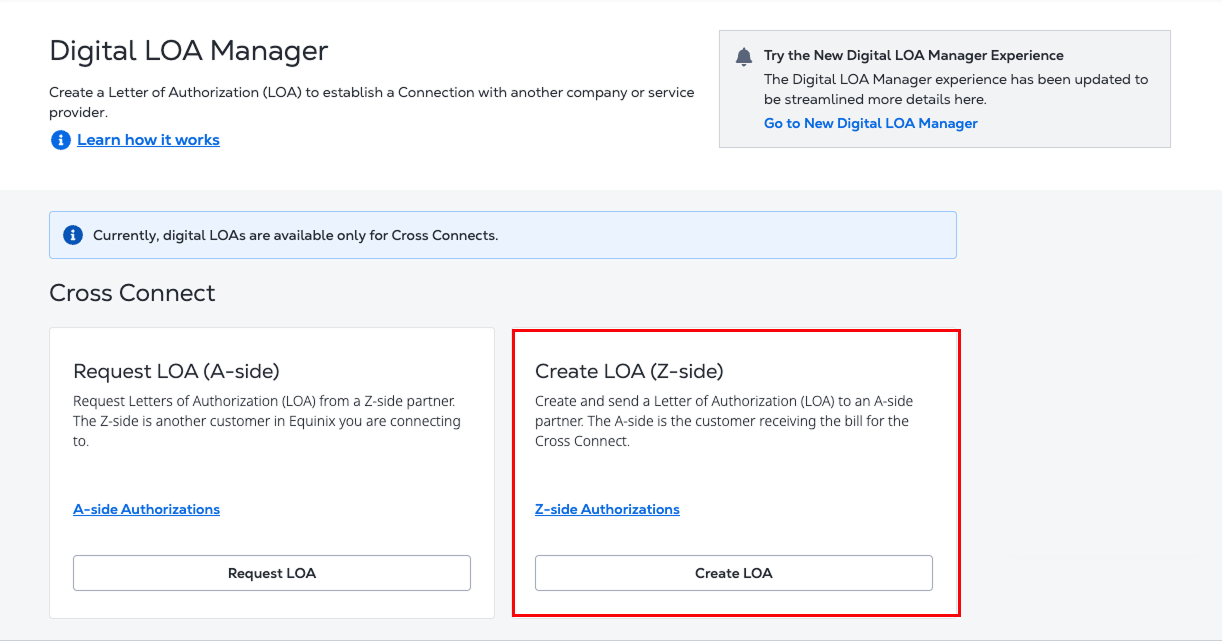
The Digital LOA Manager filters your options based on the assets that are assigned to your organization and account.
-
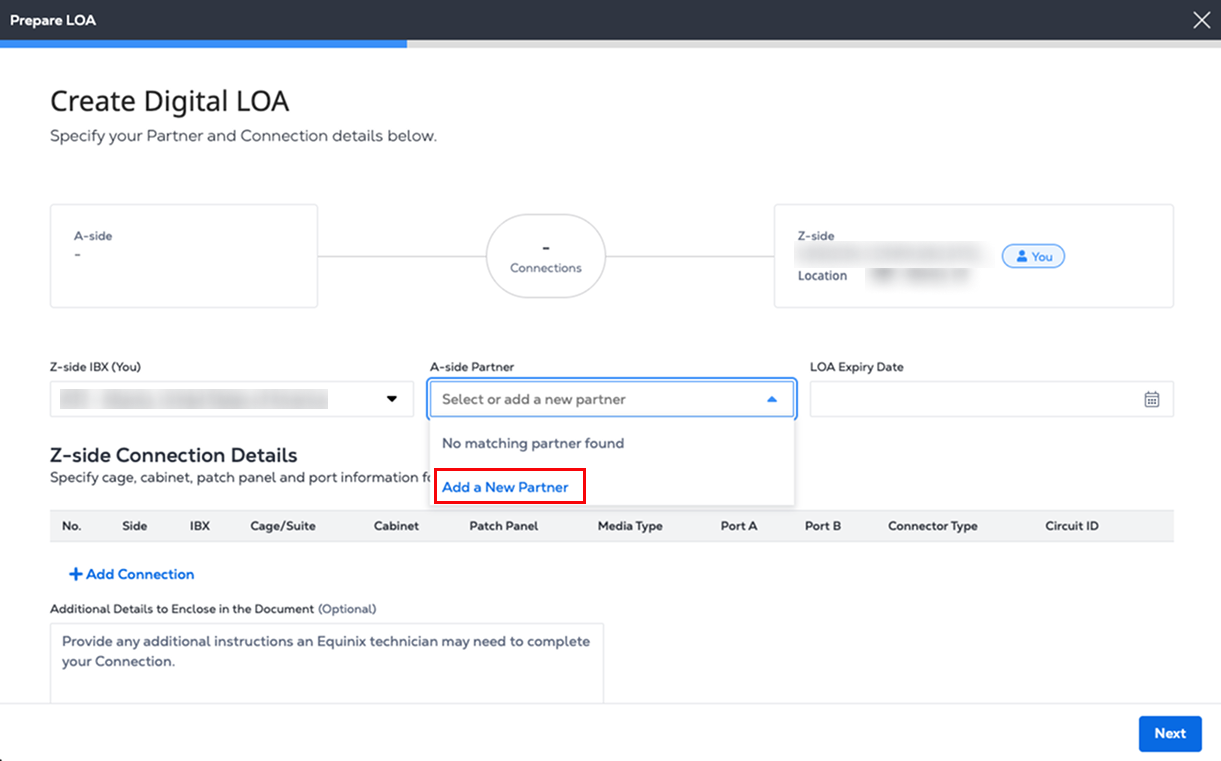
Choose a Z-side IBX and an A-side partner from the drop-down lists.
-
(Optional) If your A-side partner isn’t listed, select Add a New Partner and enter their name.
-
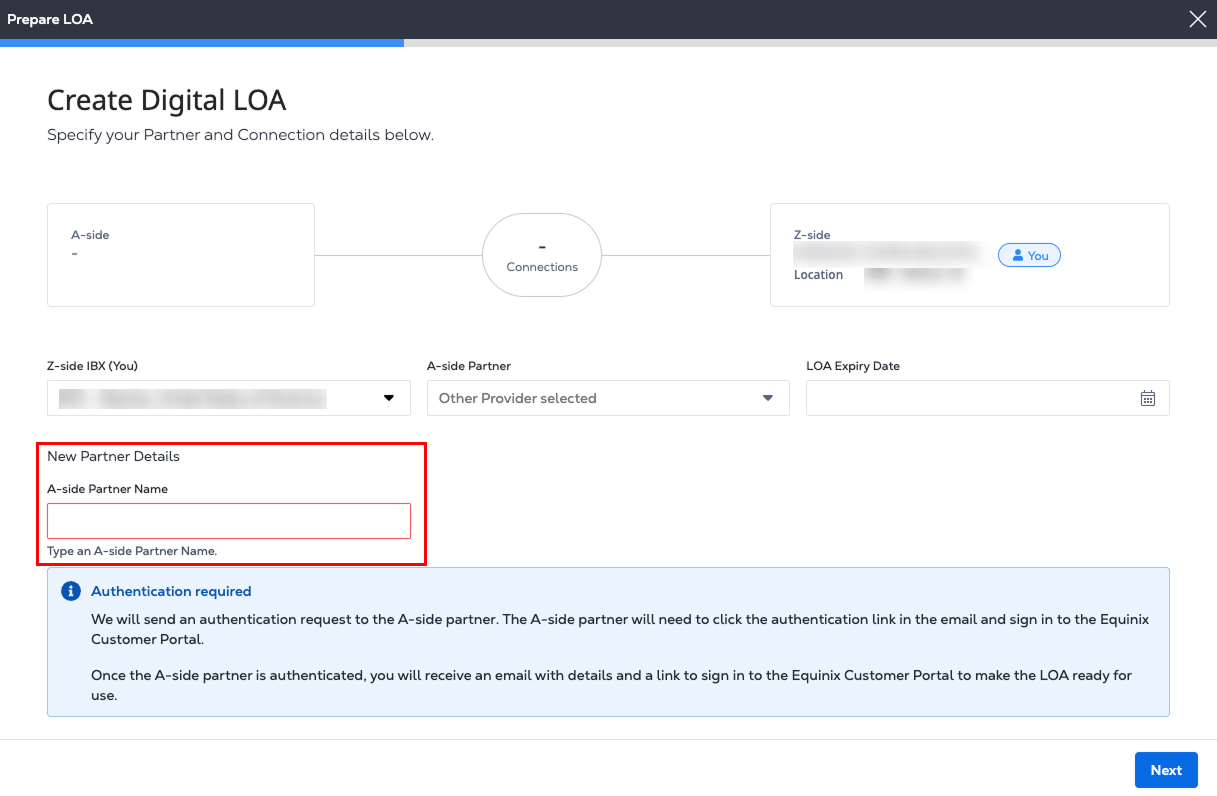
Type the new name in the A-side partner name field.
 nota
notaAdding a new partner requires two-step authentication.
- The A-side partner receives email that contains an authentication request. The A-side partner must verify via email and sign in to the Customer Portal before the LOA can be finalized.
- After the A-side partner is authenticated, you receive email with details and a link to sign in to the Customer Portal to make the LOA ready for use.
-
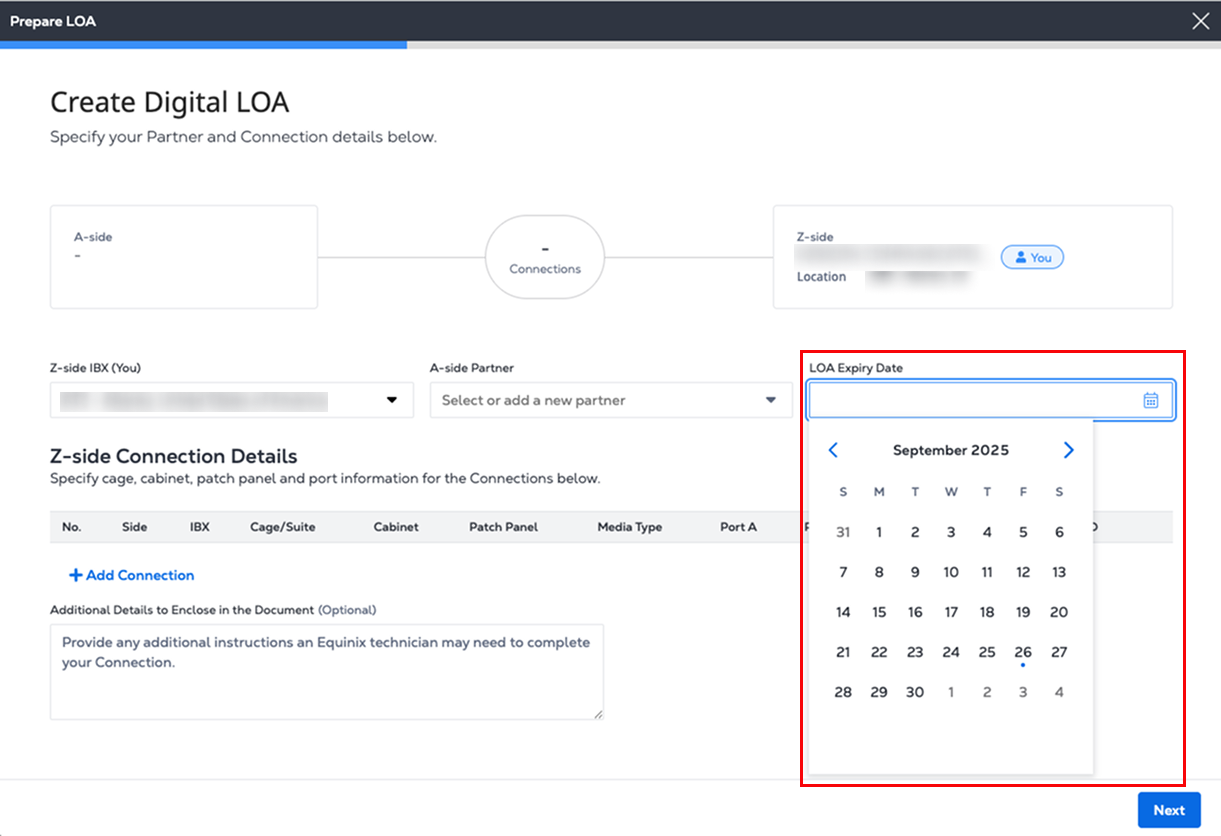
Enter an expiration date for the LOA in the LOA Expiry Date field within 100 days to allow enough time for approval and ordering.
 consejo
Setting an expiration date ensures that the reserved ports and patch panel assets are protected for a limited time. Ports of the selected patch panel are reserved and cannot be used for any other purpose. If the DLOA is not used before the expiry, the assets are automatically released and made available for other connections.
-
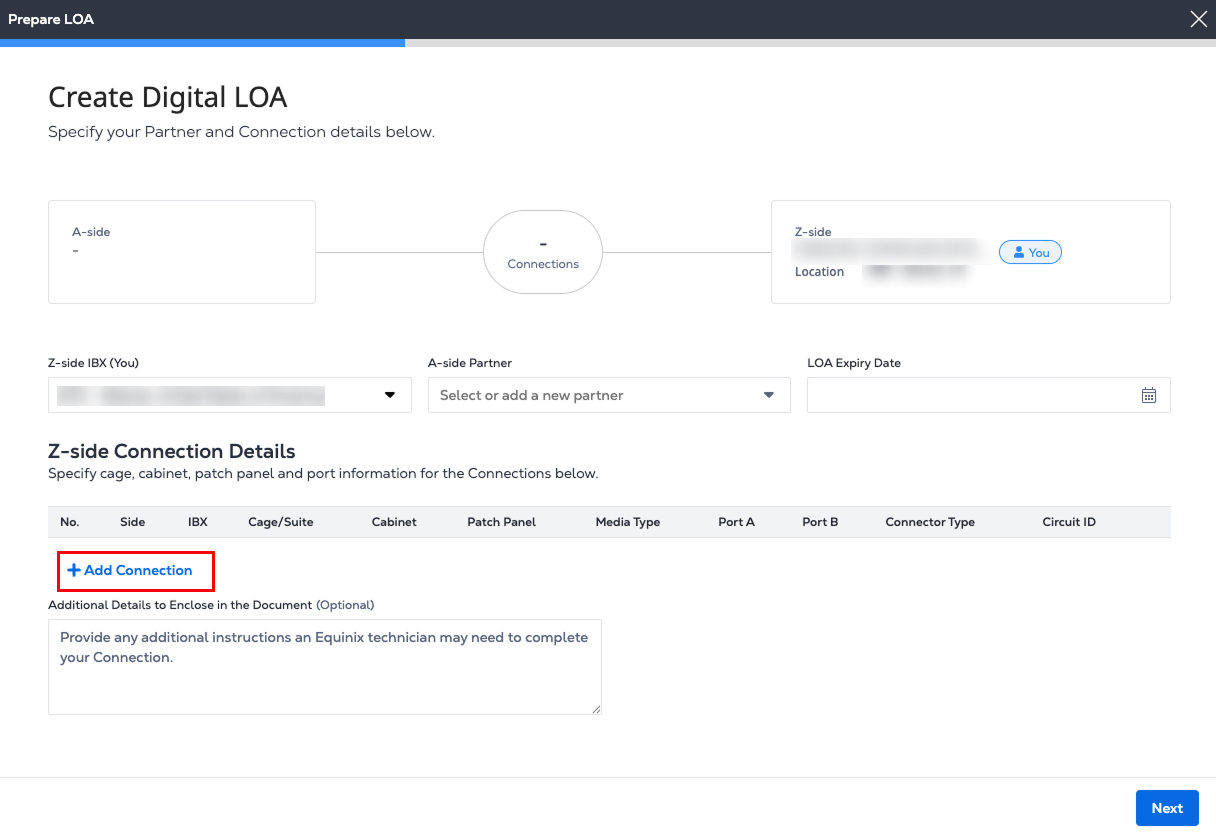
In the Z-side Connection Details section, click Add Connection.
-
Fill in your connection details: IBX, cage, cabinet, patch panel, ports, and other connection attributes. The Digital LOA reserves the specified assets. This ensures that the ports are available to complete the connection process.
-
If the patch panel identification number is available, enter it in the Search by Patch Panel field. This auto-populates the fields for IBX, cage, patch panel, and port information.
-
If you do not know the patch panel number, from the drop-down lists, choose a Cage, Cabinet, Patch Panel, Connection Service, Media Type, Protocol Type, Connector Type, and ports A and B.
-
Enter a Circuit ID.
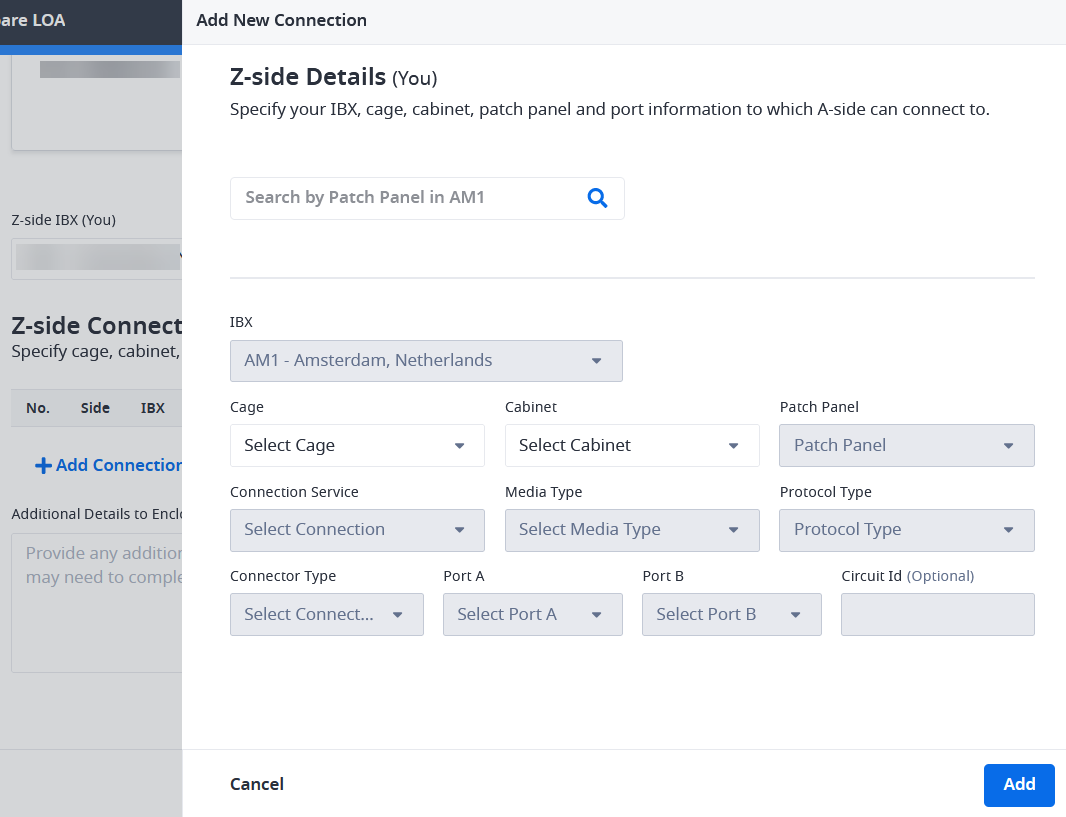
notaOnce you reserve a port using this form, it is removed from the drop-down list for future LOA selections. As a result, the number of available ports in the Patch Panel drop-down decreases.
-
-
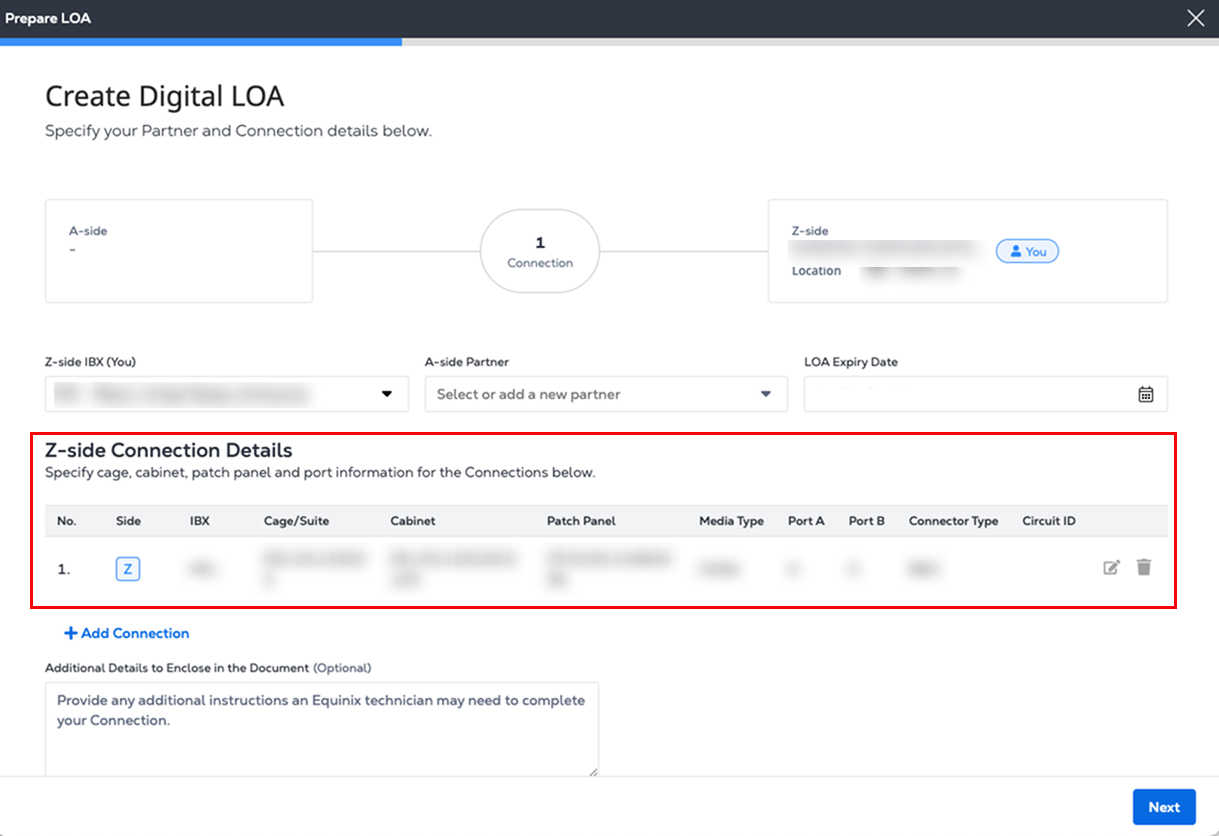
Click Add. The new Z-side Connection Details are listed.
-
Repeat steps to create up to 10 additional connections.
-
Enter any Additional Details that might be helpful to an Equinix technician.
-
Click Next.
notaWhen creating a DLOA to order multiple Cross Connects, the IBX, cage, and cabinet assigned to the first A-side connection is used for all subsequent A-side connections. These settings are fixed during the order creation process and cannot be modified.
-
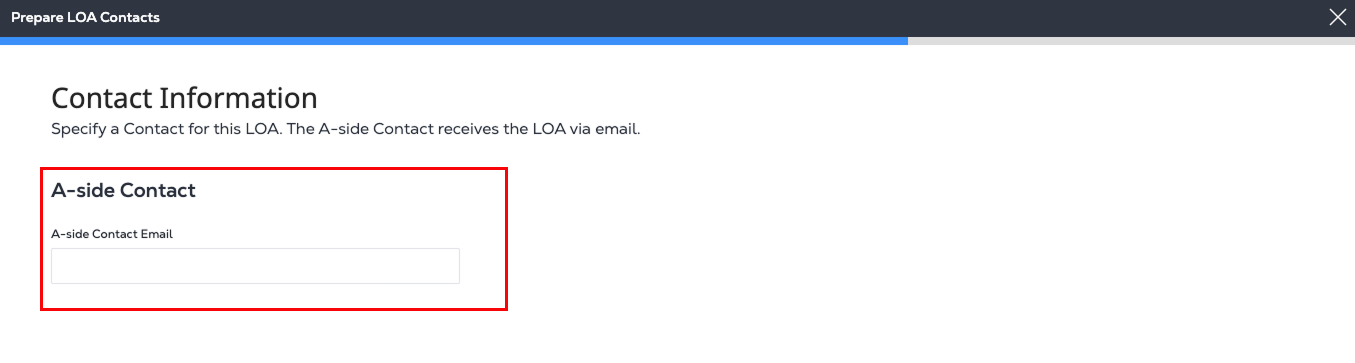
In the A-side Contact List section, add the A-side contact’s email address. If you need to add more than one contact, click Add Additional Email to include multiple A-side contacts. Once the LOA is created, it is emailed to all listed A-side contacts.
-
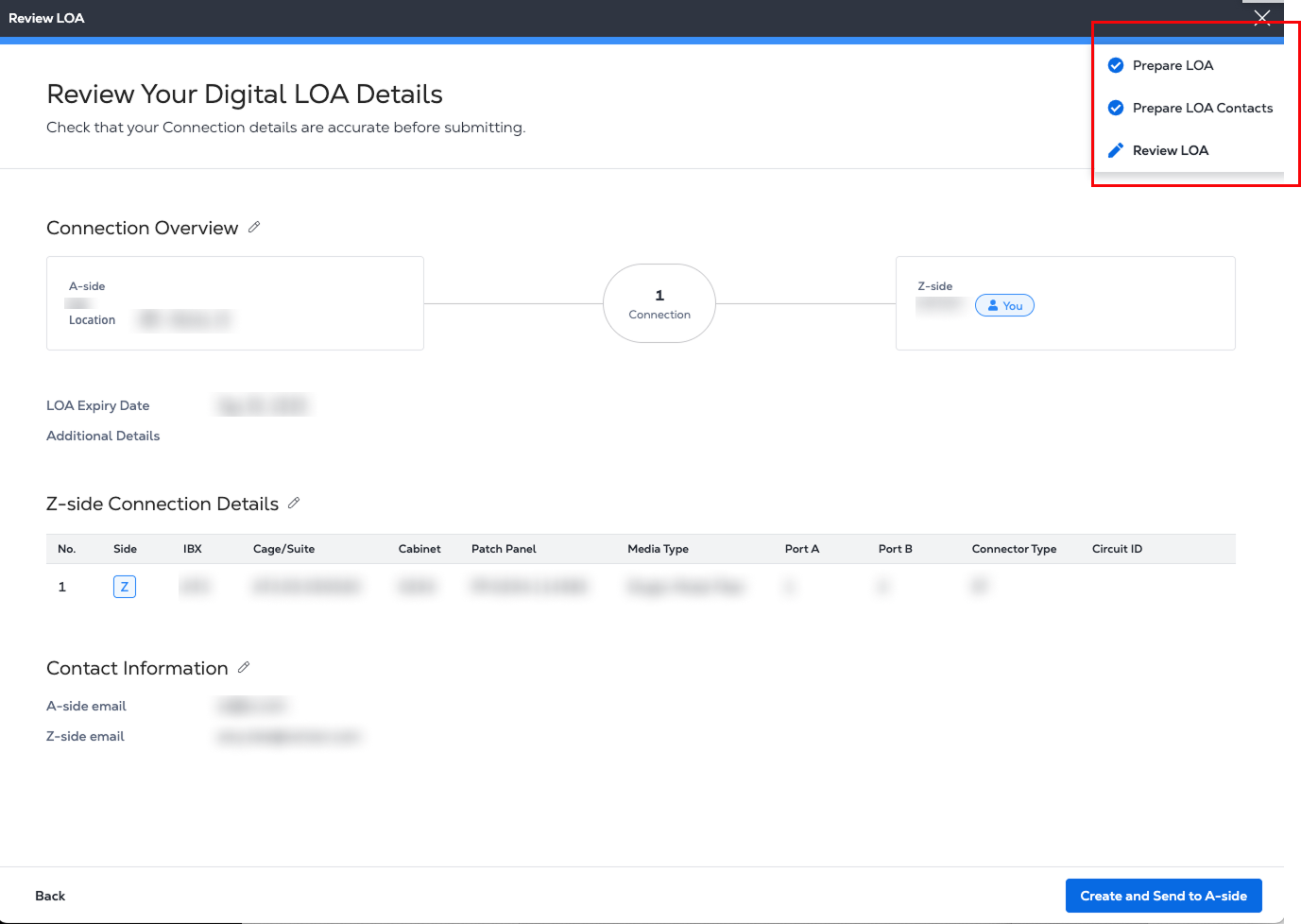
In Review Your Digital LOA Details, verify that the Z-side Connection Details and the Contact Information sections are correct.
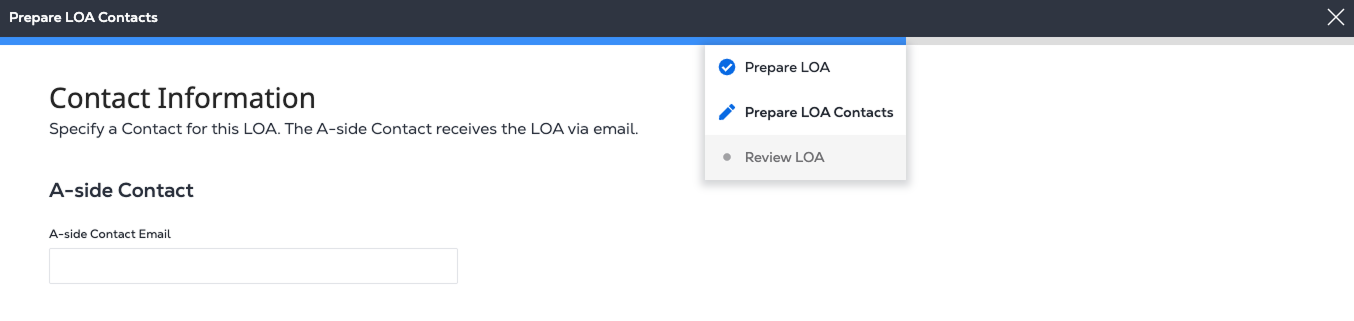
To edit this information, hover over the blue progress bar at the top of the page. In the drop-down list, click Prepare LOA or Prepare LOA Contacts to return to the previous step and make your changes.
- Click Create and Send to A-side.
-
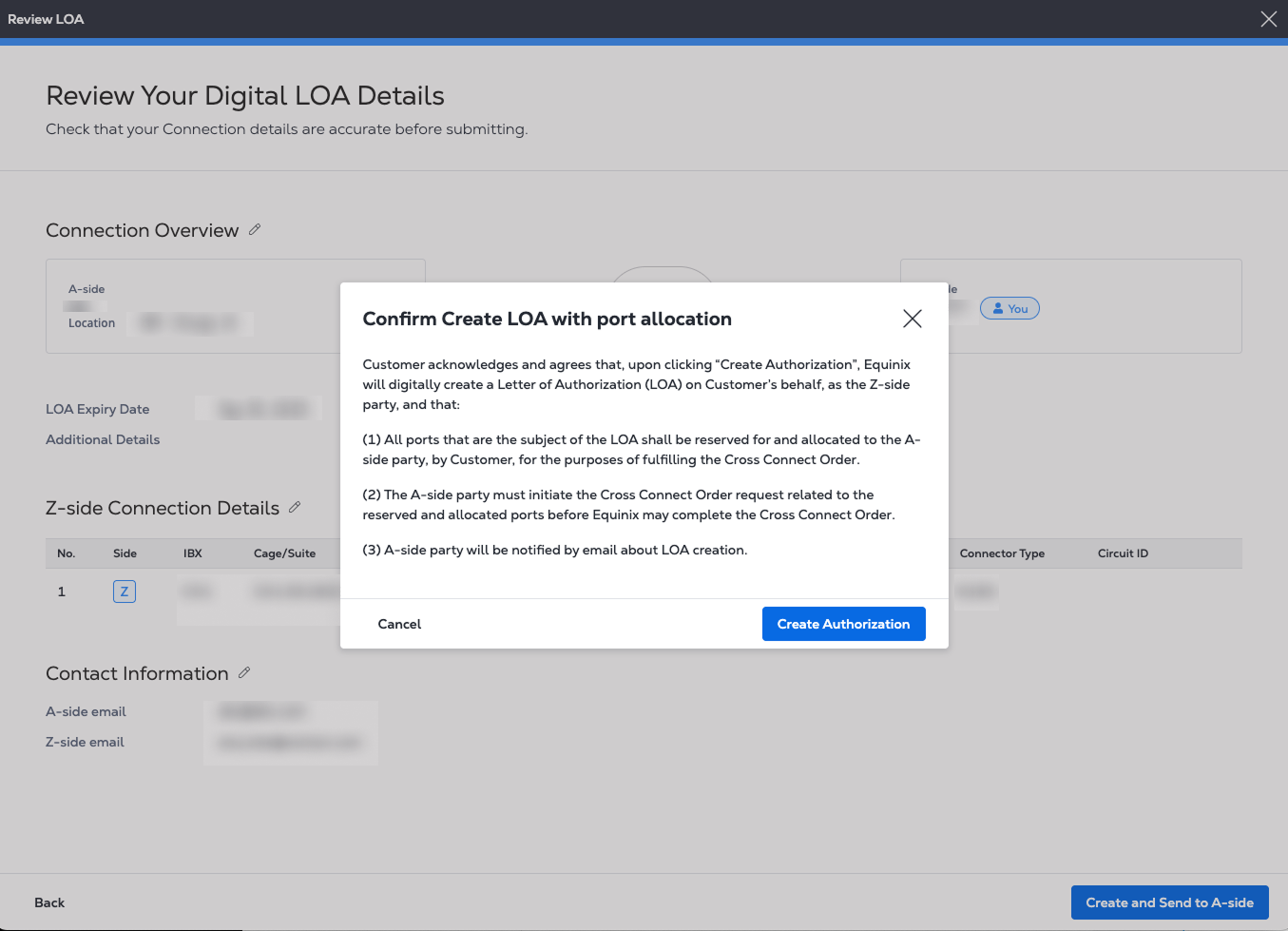
In the Confirm Create LOA with port allocation window, click Create Authorization.
-
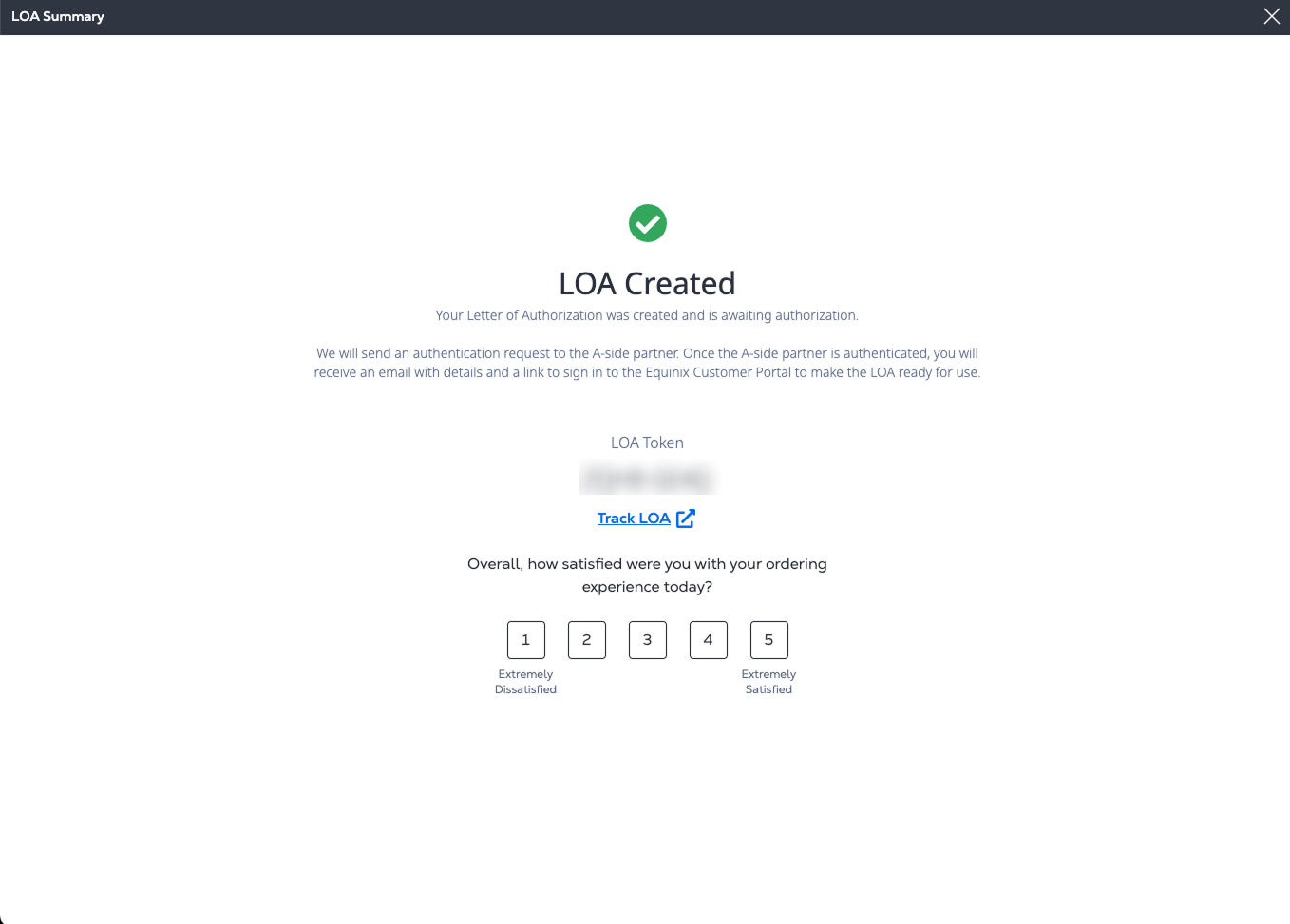
The LOA Summary contains the LOA Token number which is a unique ID for the Digital LOA across the PDF, email, and in the Customer Portal. Your A-side contacts receive an email notification that includes the new Digital LOA as a PDF attachment.
- Click Track LOA to view this new LOA in the Digital LOA Manager under Z-side Authorization. Depending on the output, the Digital LOA status is set to
Ready for useorPending Requestor Acceptance.
- Click Track LOA to view this new LOA in the Digital LOA Manager under Z-side Authorization. Depending on the output, the Digital LOA status is set to
-
A blue progress bar is displayed across the top of the page during the LOA creation process. At any time, you can hover over the bar to view a drop-down list showing your current step and overall progress. A check mark shows that you completed the previous page, Prepare LOA. To return to that step and make edits, click Prepare LOA in the drop-down list.
Partner Selection Information
When selecting an A-side partner from the drop-down list, you may notice company names that you don't currently have connections with. This is intentional, as the Digital LOA strategy is designed to authorize future connections between partners.
Equinix doesn't limit this list to current connections because we don't know which companies you may want to connect with in the future. If the A-side partners list doesn't contain the name of the company you'd like to authorize for a future connection, you can use the "Add a New Partner" option to include them.