Creating Z-Side Service Tokens
A Z-side service token is a unique key that allows another customer on Equinix Fabric to establish a connection to you.
You can create Z-side tokens for the following asset types:
- Fabric Ports (both EVPL, EPL types)
- Network Edge Virtual Devices
- Multipoint Networks - E-LAN, E-Tree, and E-Access.
Once a Z-side service token is created and shared with another customer, they can redeem the token to create a connection with your asset pre-defined as the destination.
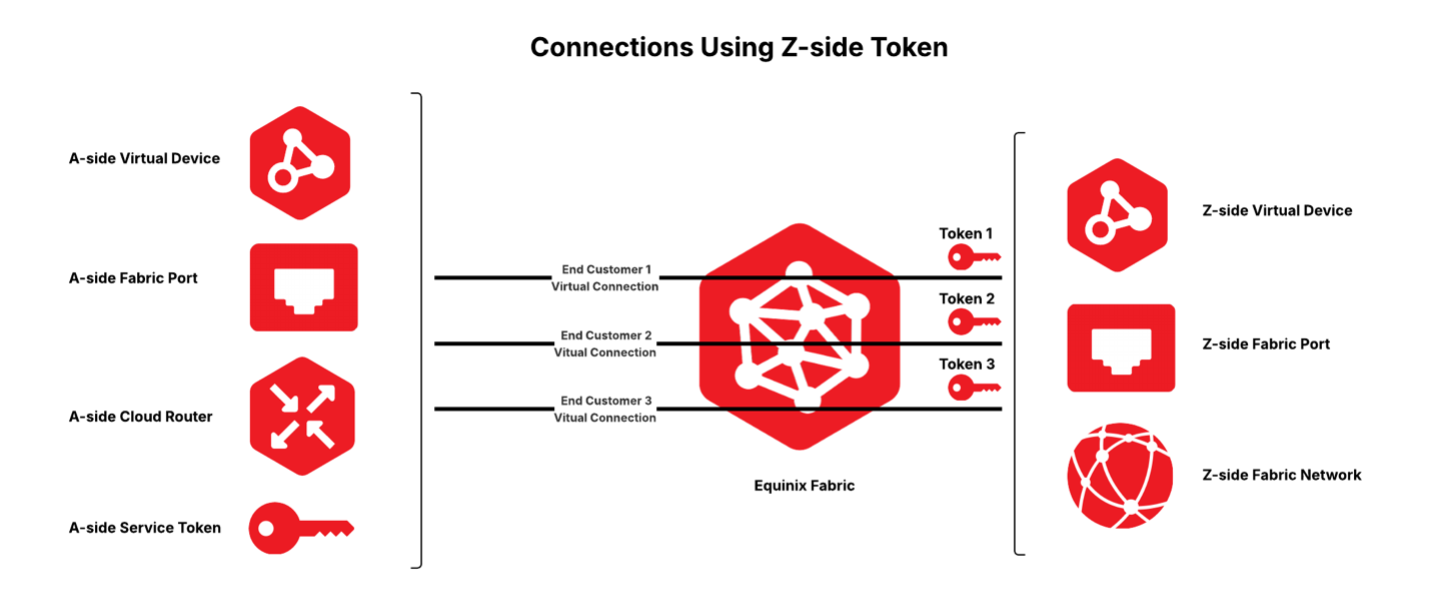
The customer redeeming the Z-side token (the owner of the originating A-side asset) is billed for the virtual connection once they create it. A Z-side service token can also be used to allow another user within your own organization who has assets in a different project so that they may connect to an asset in your project.
For more information on redeeming a Z-side service token, see Redeeming a Z-side Service Token.
Prerequisites
Before creating a service token, you must have the following:
- A Customer Portal account.
- An existing port, virtual device, or multipoint network.
- Access permissions to an asset that you want to create a service token for.
- Portal
- API
-
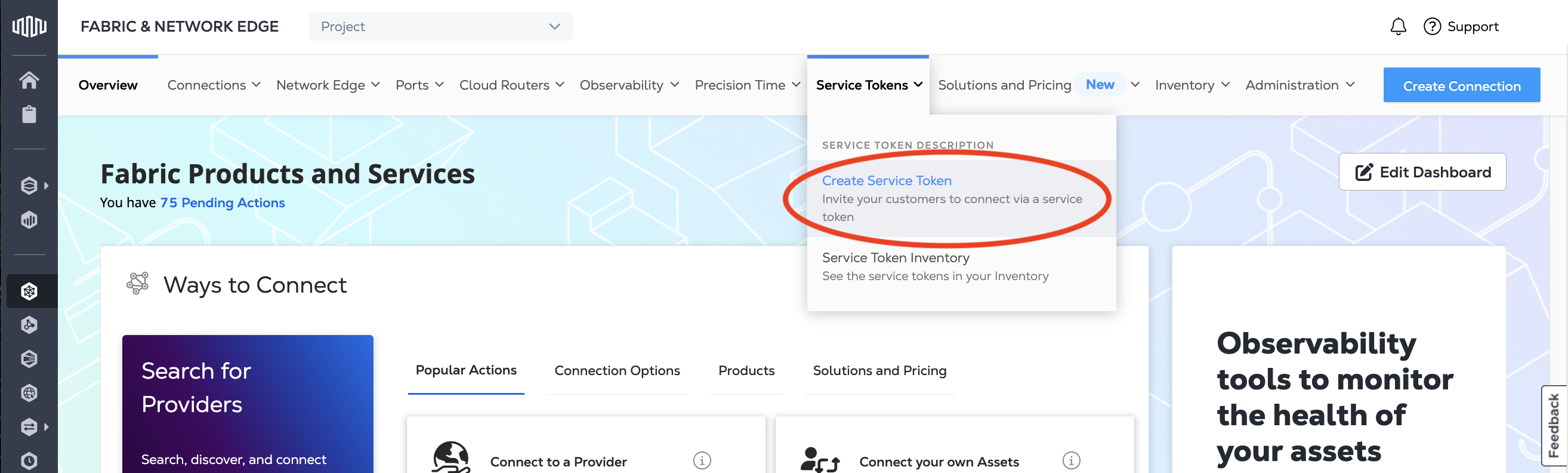
Sign in to the Customer Portal and navigate to the Fabric Dashboard.
-
From the Service Tokens menu, select Create Service Token.
-
In the Service Token Type section, select Z-side Service Token.
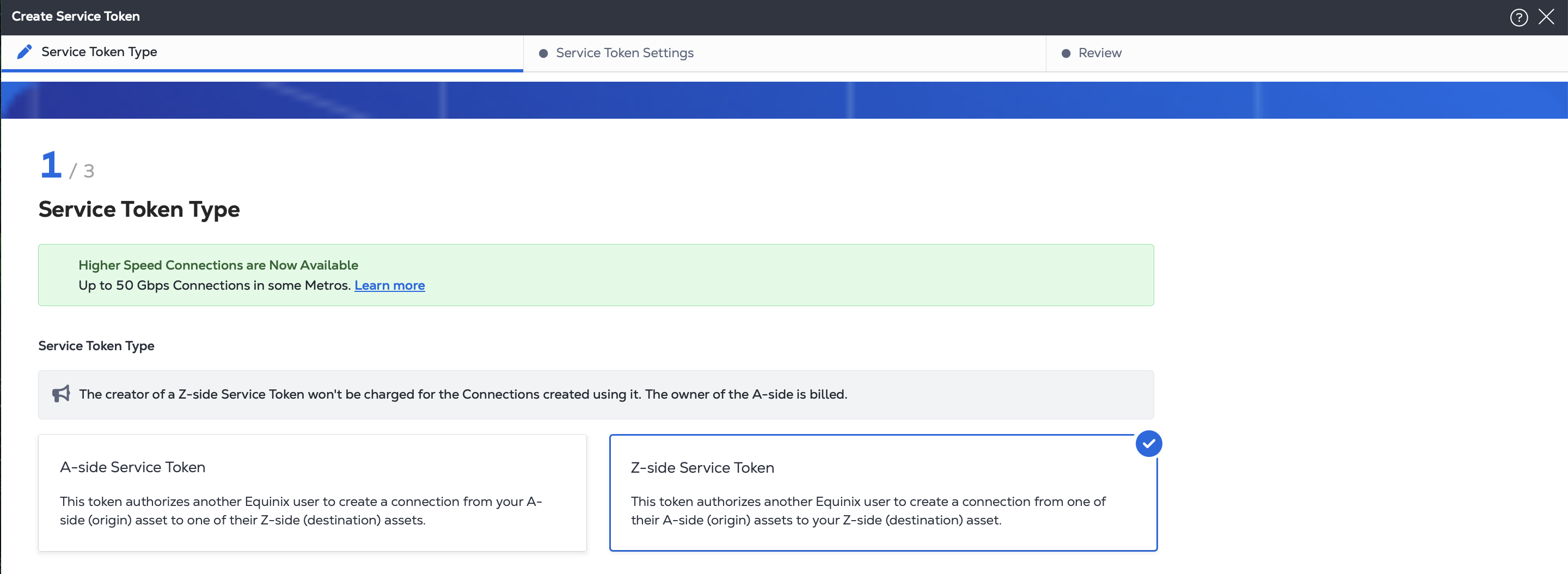
Select the asset type for which you want to create the Z-side token: Port, Virtual Device, or Multipoint Network.
-
Authenticate - Submit your user credentials, Client ID, and Client Secret for OAuth2 authentication. Refer to API Authentication for instructions on how to call OAuth API to validate and authenticate your credentials.
-
Determine your Z-side asset information.
-
If you are using a port, send a
GETrequest to the/fabric/v4/portsendpoint. You need the port UUID(s), port type, link protocol type (DOT1Q or QINQ). -
If you are using a virtual device, send a
GETrequest to the/ne/v1/devicesendpoint. You need the device UUID(s). Send aGETrequest to the/ne/v1/devices/{device_id}endpoint to get the specifics of a device. You may choose any available interface on the device for your connection. If you do not specify one, the connection is automatically assigned to the next available interface. -
If you are using a multipoint network, send a
GETrequest to the/fabric/v4/networks/{networkId}endpoint. You need the network's type and UUID.
-
Create a Service Token for a Port
- Portal
- API
-
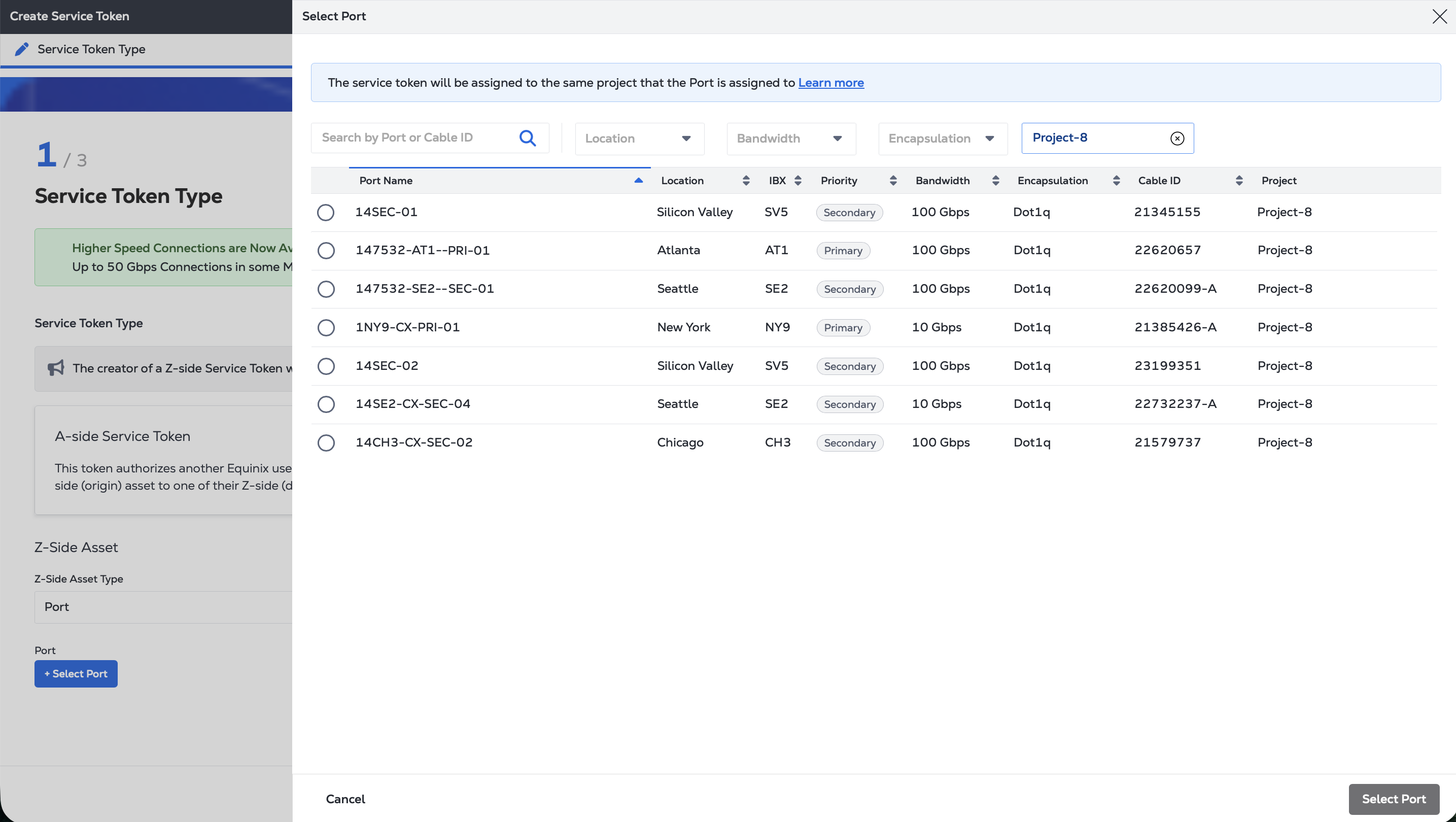
In the Z-side Asset dropdown, select Port.
-
Click + Select Port and choose the specific port for service token from the list. Click Select Port.
-
Click Next.
-
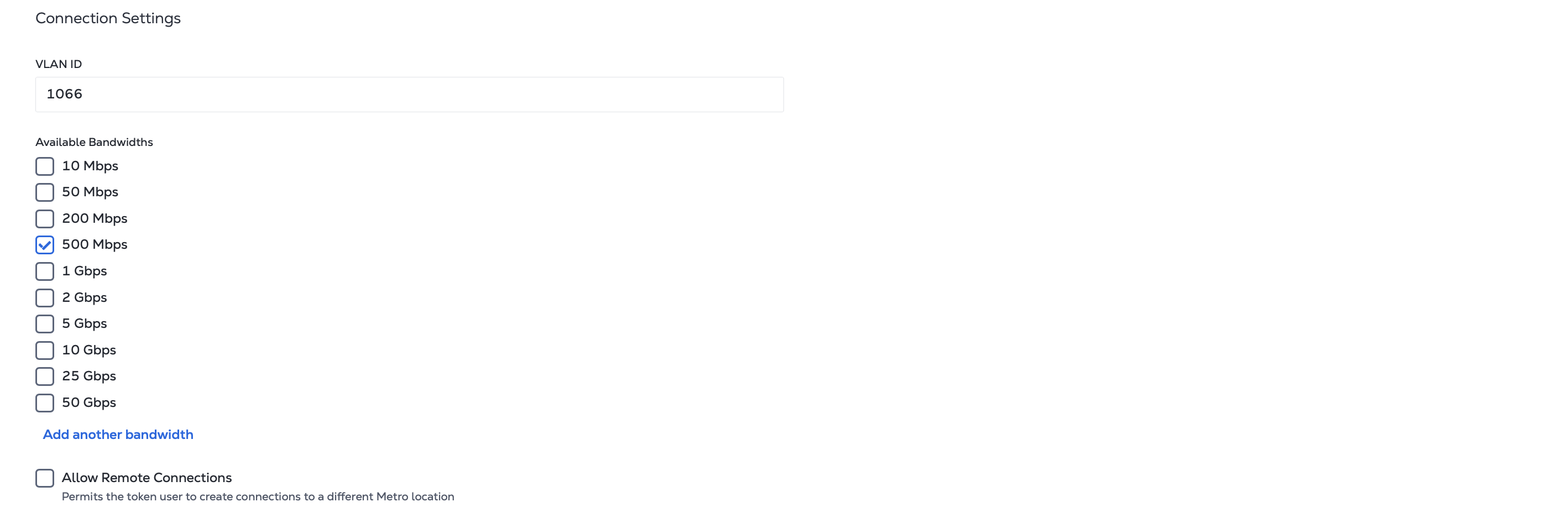
In Connection Settings:
- Enter the VLAN ID(s) for the connection on your Z-side asset.
- Select the bandwidths to make available to the token user. Click Add another bandwidth to create a custom bandwidth option.
- Choose whether to allow remote connections. Check the Allow Remote Connections box to let token users connect from a different metro than the Z-side asset’s location.
-
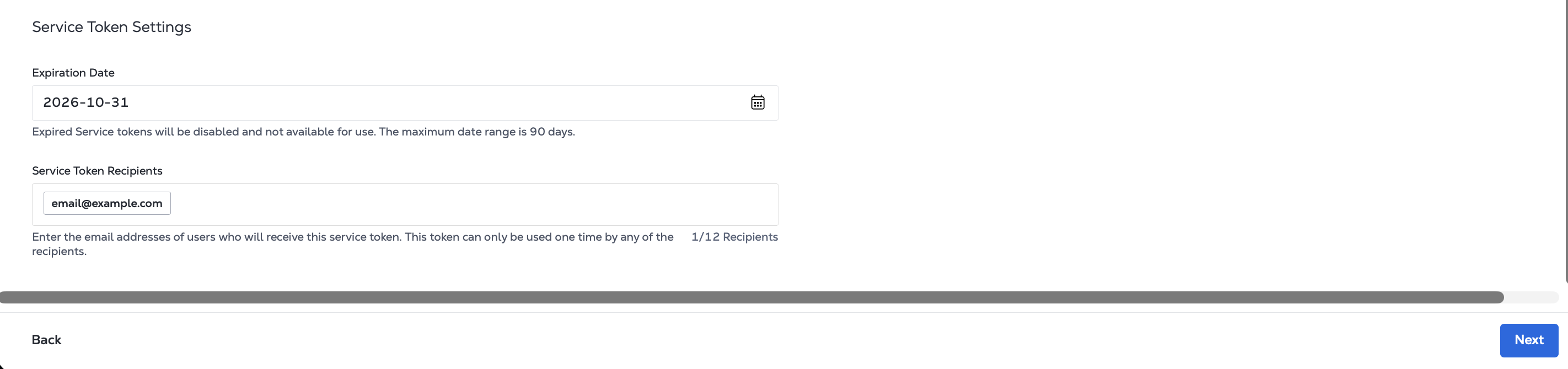
In Service Token Settings:
- Enter an expiration date for the service token. The token must be redeemed by this date or it expires. The maximum date range is 90 days.
- Enter the email addresses of the users who are authorized to use the service token. You can enter up to 12 recipients. The token can only be used one time by any of the recipients.
-
Click Next.
-
On the Review page, review the information in the Service Token Type and Service Token Settings panels.
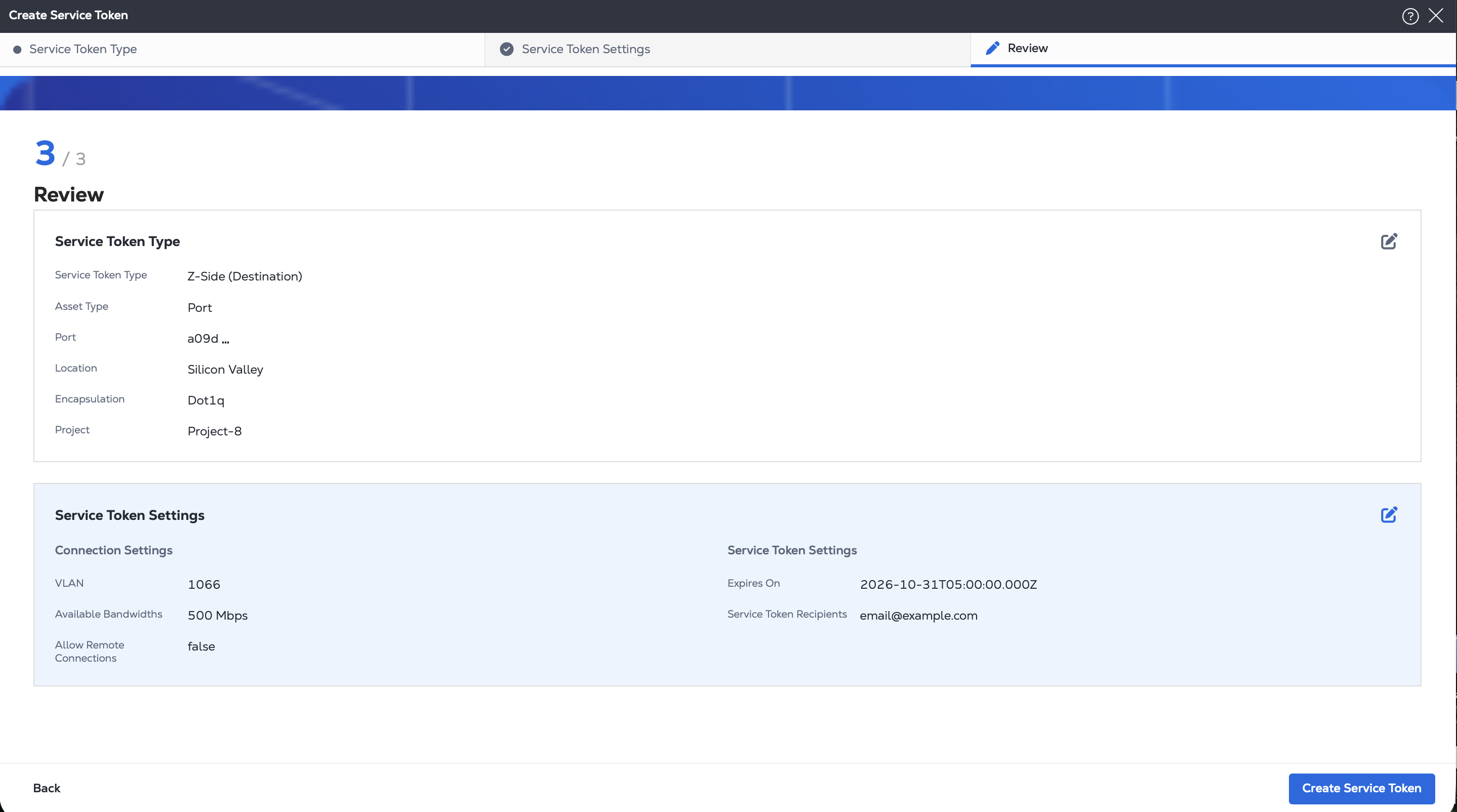
When you are ready, click Create Service Token.
To create a Z-side service token for a port, send a POST request to the /fabric/v4/serviceTokens endpoint. Provide your connection settings, port details, and service token settings in the body of the request.
-
In the
connectionobject, specify:- The connection type based on the underlying port:
EVPL_VCorEPL_VC. - Whether this token can be used to create remote connections.
- The allowed bandwidth for the connection.
- Whether this token allows custom bandwidth to be used for the connection.
- The connection type based on the underlying port:
-
In the
zSideobject, specify:- The
typeasCOLO. - The port's UUID.
- the port's link protocol type and appropriate VLAN information.
- The
-
Use the
expirationDateTimefield to specify the date and time that the token expires in ISO 8601 format. -
In the
notificationsobject, specify the email addresses of the token recipients.
Sample cURL request:
curl -X POST 'https://api.equinix.com/fabric/v4/serviceTokens'
-H 'Content-Type: application/json'
-H 'Authorization: Bearer <token>'
-d '{
  "type": "VC_TOKEN",
  "name": "<service_token_name>",
  "description": "<service_token_description>",
  "connection": {
    "type": "EVPL_VC",
    "allowRemoteConnection": <boolean>,
    "allowCustomBandwidth": <boolean>,
    "supportedBandwidths": [
      <bandwidth_speed>,
      <bandwidth_speed>,
      <bandwidth_speed>
    ],
    "zSide": {
      "accessPointSelectors": [
        {
          "type": "COLO",
          "port": {
            "uuid": "<port_uuid>"
          },
          "linkProtocol": {
            "type": "DOT1Q",
            "vlanTag": "<vlan_ID>"
          }
        }
      ]
    }
  },
  "expirationDateTime": "<expiration_date>",
  "notifications": [
    {
      "type": "NOTIFICATION",
      "emails": [
        "<email_address>"
      ]
    }
  ]
}'
Create a Service Token for a Virtual Device
- Portal
- API
-
In the Z-side Asset dropdown, select Virtual Device.
-
Choose a virtual device type:
- Single Device - Single instance virtual devices.
- Redundant Devices - A pair of redundant virtual devices. Important: To create redundant connections to redundant devices, you must create a separate service token for each device in the redundancy pair.
- Clusters - Clustered virtual devices.
-
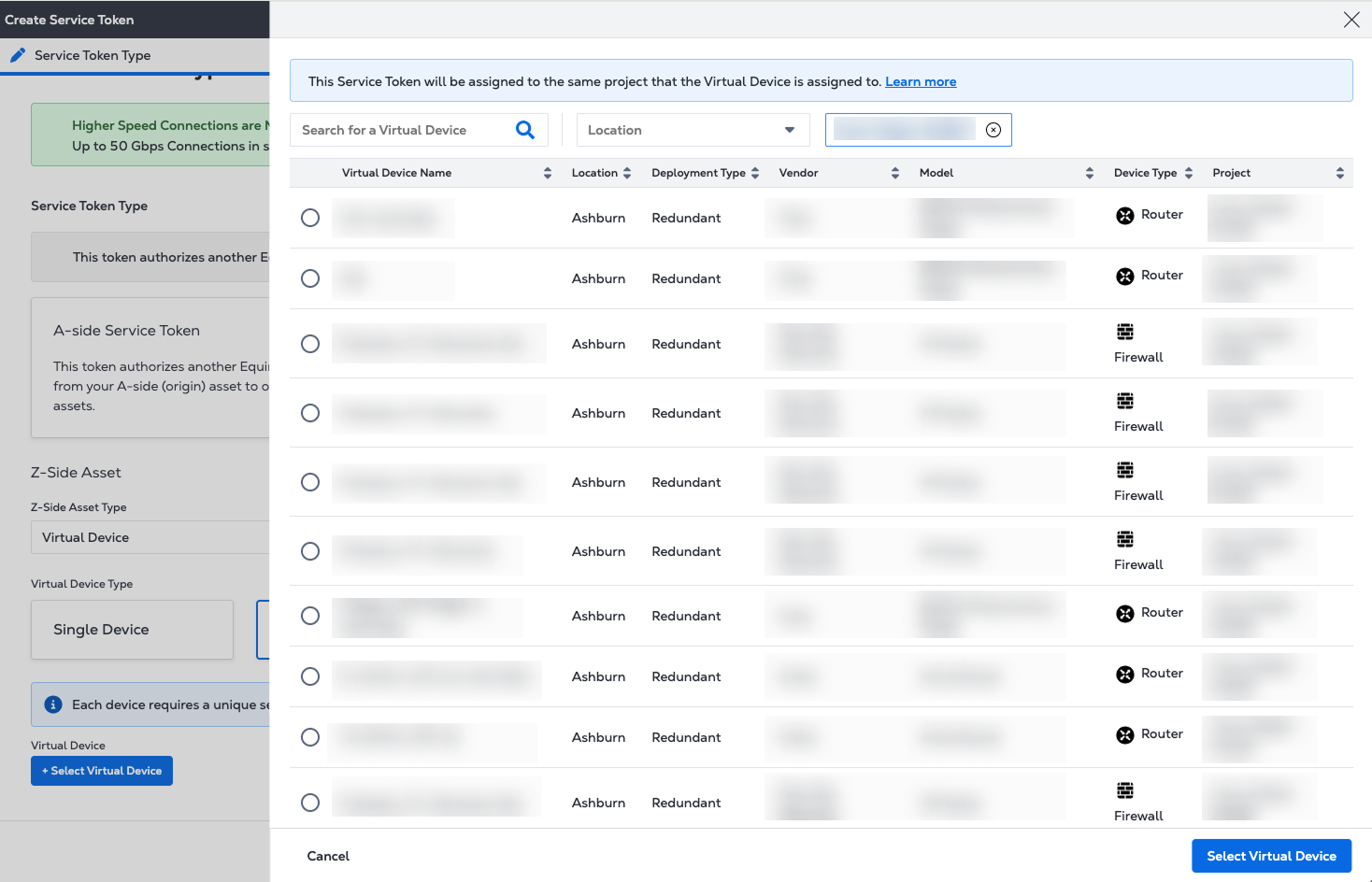
Click + Select Virtual Device and select a virtual device instance from the list. Click Select Virtual Device.
-
Click Next.
-
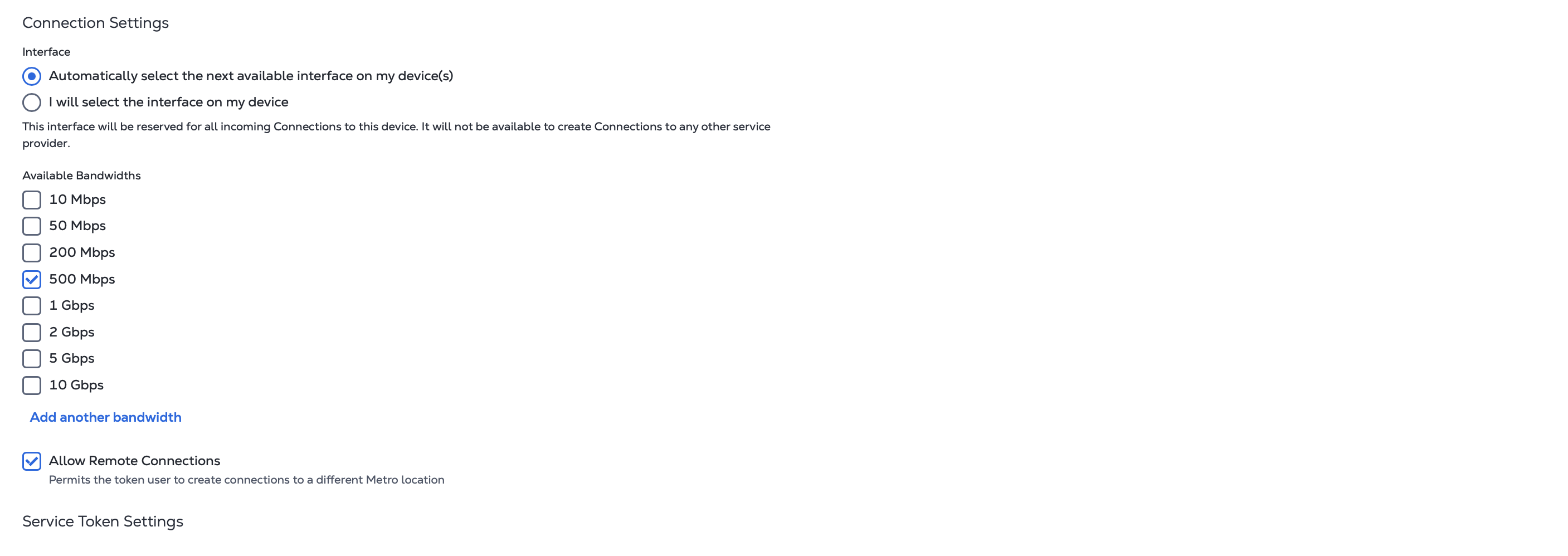
In Connection Settings:
- Configure the interface to use for the connection. Choose whether to use the next available interface or choose a specific interface.
- Select the bandwidths to make available to the token user. Click Add another bandwidth to create a custom bandwidth option.
- Choose whether to allow remote connections. Check the Allow Remote Connections box to let token users connect from a different metro than the Z-side asset’s location.
-
In Service Token Settings:
- Enter an expiration date for the service token. The token must be redeemed by this date or it expires. The maximum date range is 90 days.
- Enter the email addresses of the users who are authorized to use the service token. You can enter up to 12 recipients. The token can only be used one time by any of the recipients.
-
Click Next.
-
On the Review page, review the information in the Service Token Type and Service Token Settings panels.
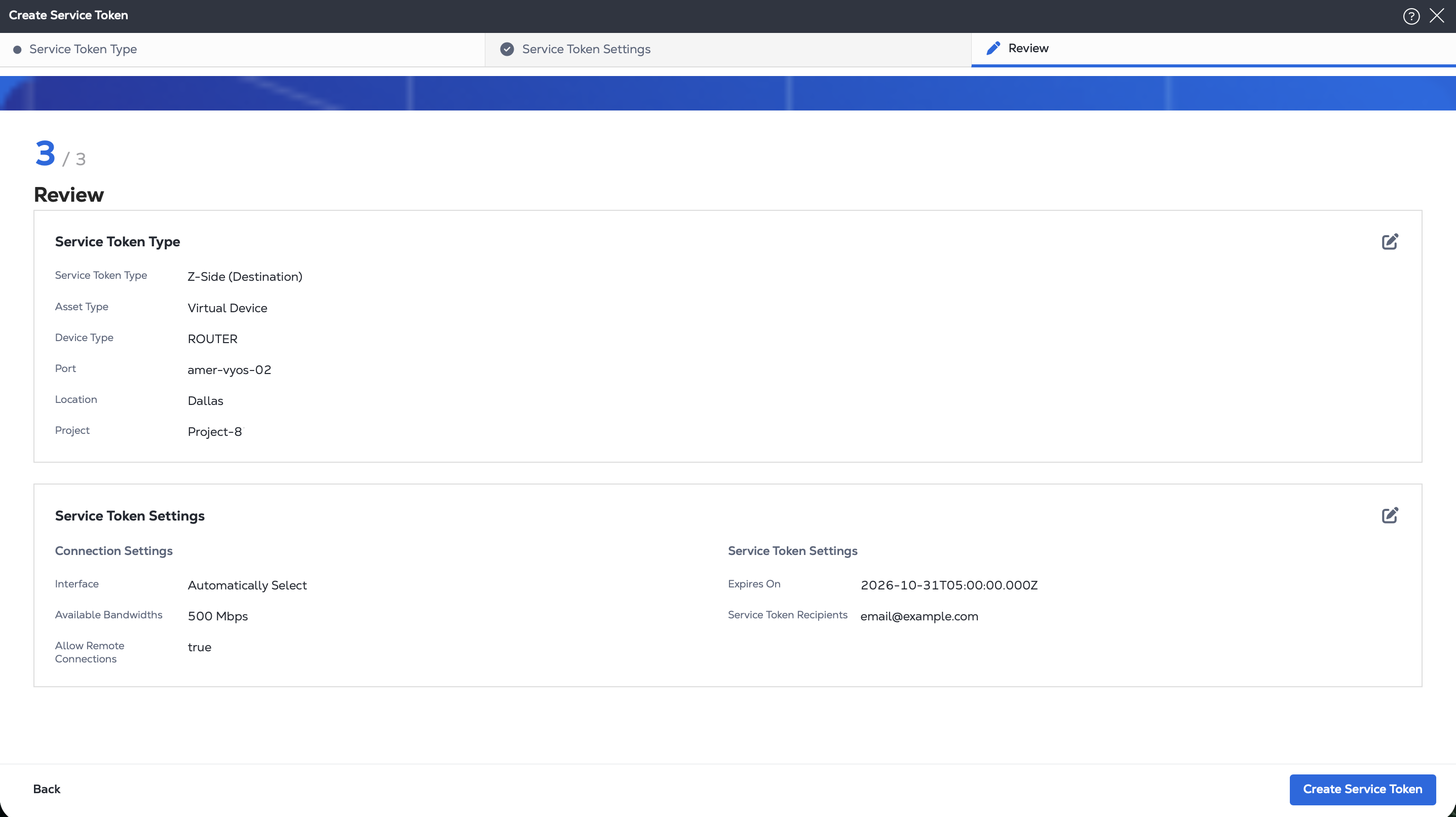
When you are ready, click Create Service Token.
To create a Z-side service token for a virtual device, send a POST request to the /fabric/v4/serviceTokens endpoint. Provide your connection settings, virtual device details, and service token settings in the body of the request.
-
In the
connectionobject, specify:- Whether this token can be used to create remote connections.
- The allowed bandwidth for the connection.
- Whether this token allows custom bandwidth to be used for the connection.
-
In the
zSideobject, specify:- The
typeasVD. - Your virtual devices UUID.
- The interface to use for the service token's connection. If the
interfaceobject is omitted, the next available interface on the device is used for the connection.
- The
-
Use the
expirationDateTimefield to specify the date and time that the token expires in ISO 8601 format. -
In the
notificationsobject, specify the email addresses of the token recipients.
Sample cURL request:
curl -X POST 'https://api.equinix.com/fabric/v4/serviceTokens'
-H 'Content-Type: application/json'
-H 'Authorization: Bearer <token>'
-d '{
  "type": "VC_TOKEN",
  "name": "<service_token_name>",
  "description": "<service_token_description>",
  "connection": {
    "type": "EVPL_VC",
    "allowRemoteConnection": <boolean>,
    "allowCustomBandwidth": <boolean>,
    "supportedBandwidths": [
      <bandwidth_speed>,
      <bandwidth_speed>,
      <bandwidth_speed>
    ],
    "zSide": {
      "accessPointSelectors": [
        {
          "type": "VD",
          "virtualDevice": {
            "type": "EDGE",
            "uuid": "<virtual_device_uuid>"
          },
          "interface": {
            "type": "NETWORK",
            "id": <interface_id>
          }
        }
      ]
    }
  },
  "expirationDateTime": "<expiration_date>",
  "notifications": [
    {
      "type": "NOTIFICATION",
      "emails": [
        "<email_address>"
      ]
    }
  ]
}'
Create a Service Token for a Multipoint Network
- Portal
- API
-
In the Z-side Asset dropdown, select Multipoint Network.
-
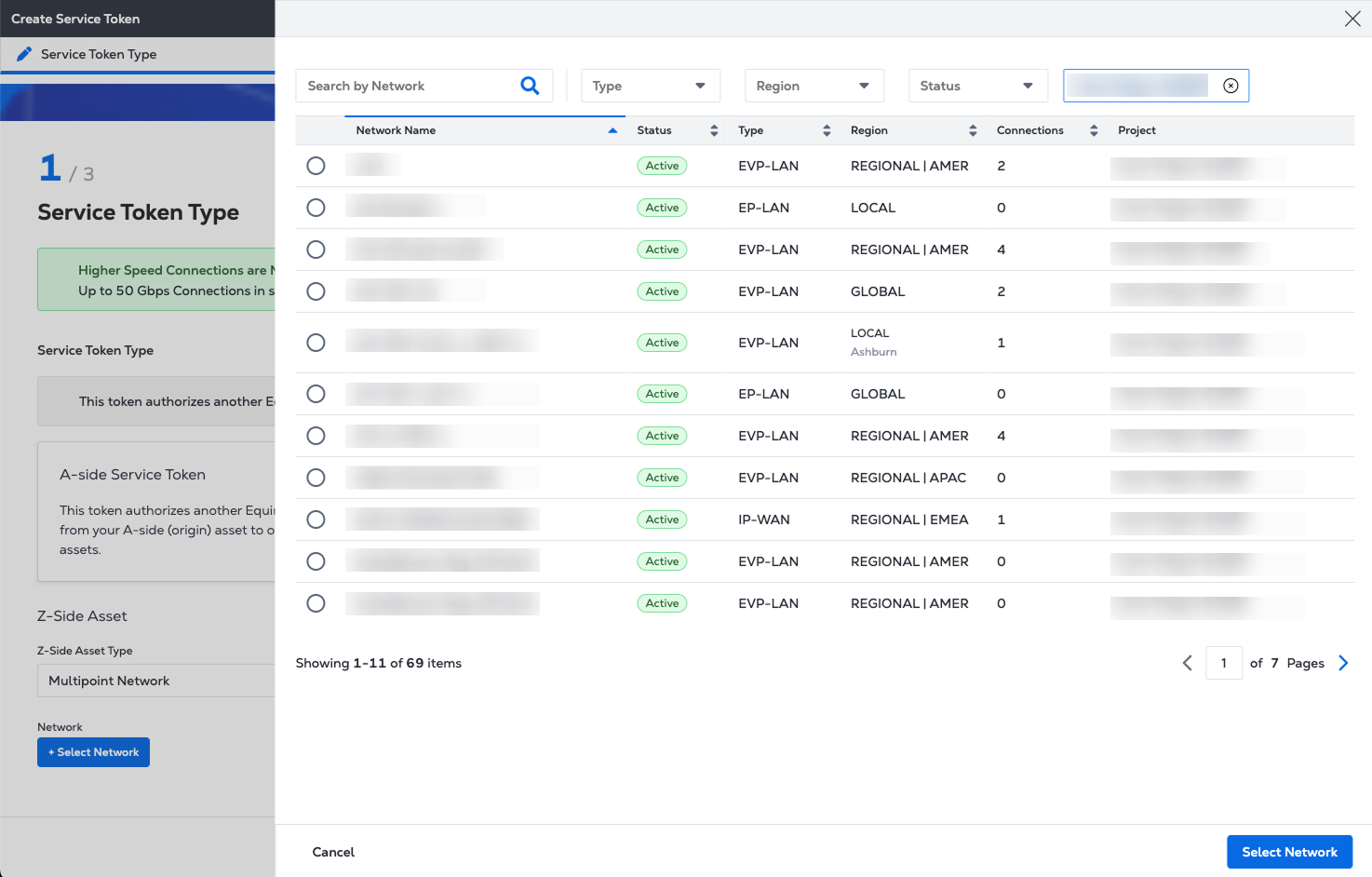
Click + Select Network and select the multipoint network from the list. Click Select Network.
-
Click Next.
-
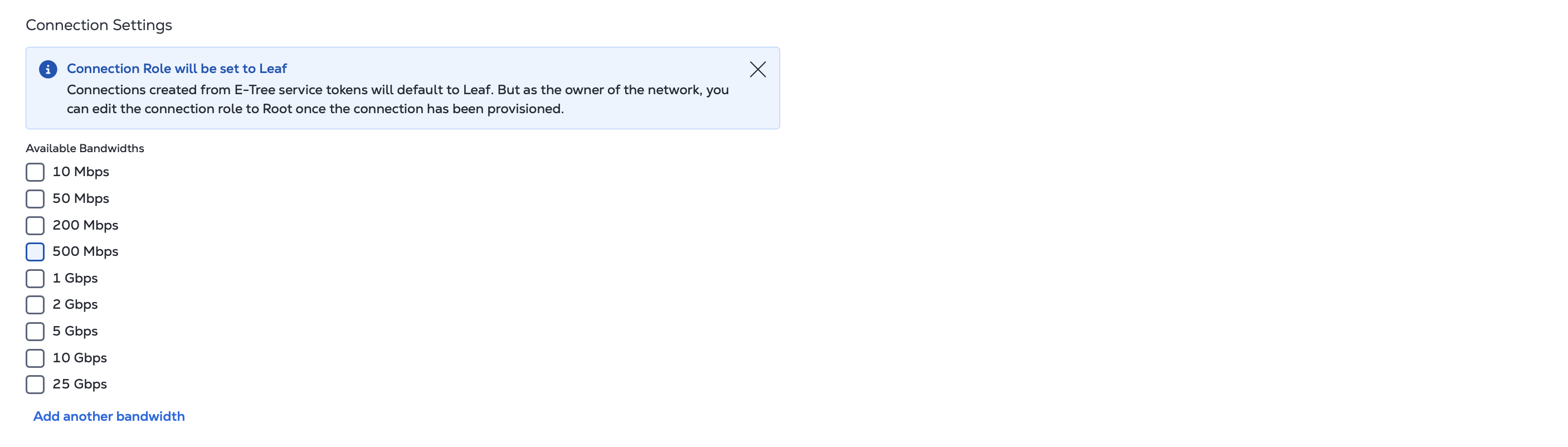
In Connection Settings:
- Note that connections created from E-Tree service tokens will default to Leaf. As the owner of the network, you can edit the connection role to Root once the service token is redeemed and the connection has been provisioned.
- Select the bandwidths to make available to the token user. Click Add another bandwidth to create a custom bandwidth option.
-
In Service Token Settings:
- Enter an expiration date for the service token. The token must be redeemed by this date or it expires. The maximum date range is 90 days.
- Enter the email addresses of the users who are authorized to use the service token. You can enter up to 12 recipients. The token can only be used one time by any of the recipients.
-
Click Next.
-
On the Review page, review the information in the Service Token Type and Service Token Settings panels.
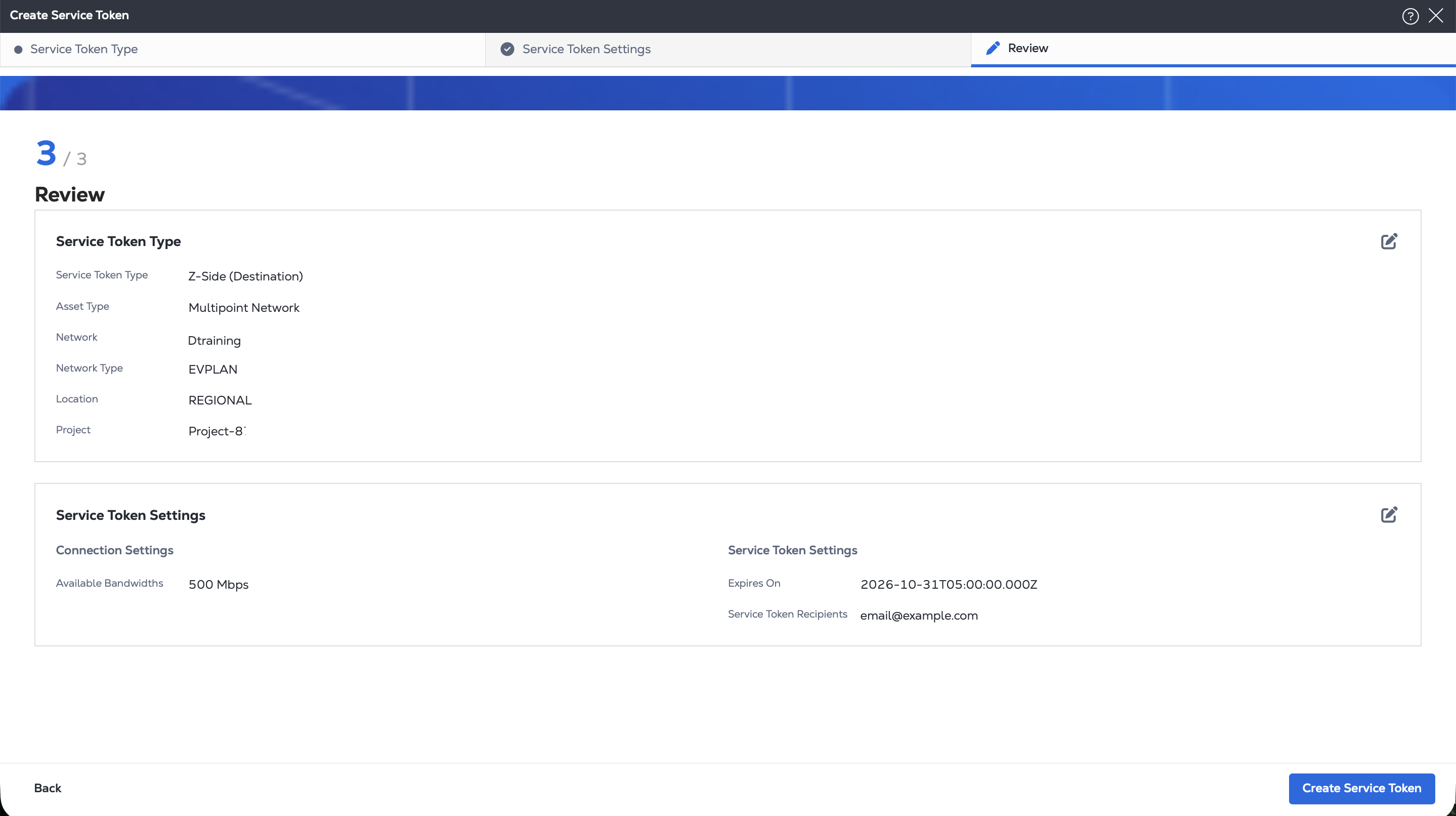
When you are ready, click Create Service Token.
To create a Z-side service token for a multipoint network, send a POST request to the /fabric/v4/serviceTokens endpoint. Provide your connection settings, network details, and service token settings in the body of the request.
-
In the
connectionobject, specify:- The connection type as
EVPLAN_VC,EPLAN_VC,EVPTREE_VCorEPTREE_VCdepending on your network configuration. - Whether this token can be used to create remote connections.
- The allowed bandwidth for the connection.
- Whether this token allows custom bandwidth to be used for the connection.
- The connection type as
-
In the
zSideobject:- Specify the
typeasNETWORK. - Indicate the network type as
EVPLAN,EPLAN,EVPTREE, orEPTREE. - Provide your network's UUID.
- Specify the
-
Use the
expirationDateTimefield to specify the date and time that the token expires in ISO 8601 format. -
In the
notificationsobject, specify the email addresses of the token recipients.
Sample cURL request:
curl -X POST 'https://api.equinix.com/fabric/v4/serviceTokens'
-H 'Content-Type: application/json'
-H 'Authorization: Bearer <token>'
-d '{
  "type": "VC_TOKEN",
  "name": "<service_token_name>",
  "description": "<service_token_description>",
  "connection": {
    "type": "EVPLAN_VC",
    "allowRemoteConnection": <boolean>,
    "supportedBandwidths": [
      <bandwidth_speed>,
      <bandwidth_speed>,
      <bandwidth_speed>
    ],
    "zSide": {
      "accessPointSelectors": [
        {
          "type": "NETWORK",
          "network": {
            "type": "EVPLAN",
            "uuid": "<network_uuid>"
          }
        }
      ]
    }
  },
  "expirationDateTime": "<token_expiration_date>",
  "notifications": [
    {
      "type": "NOTIFICATION",
      "emails": [
        "<email_address>"
      ]
    }
  ]
}'
Service Token Status
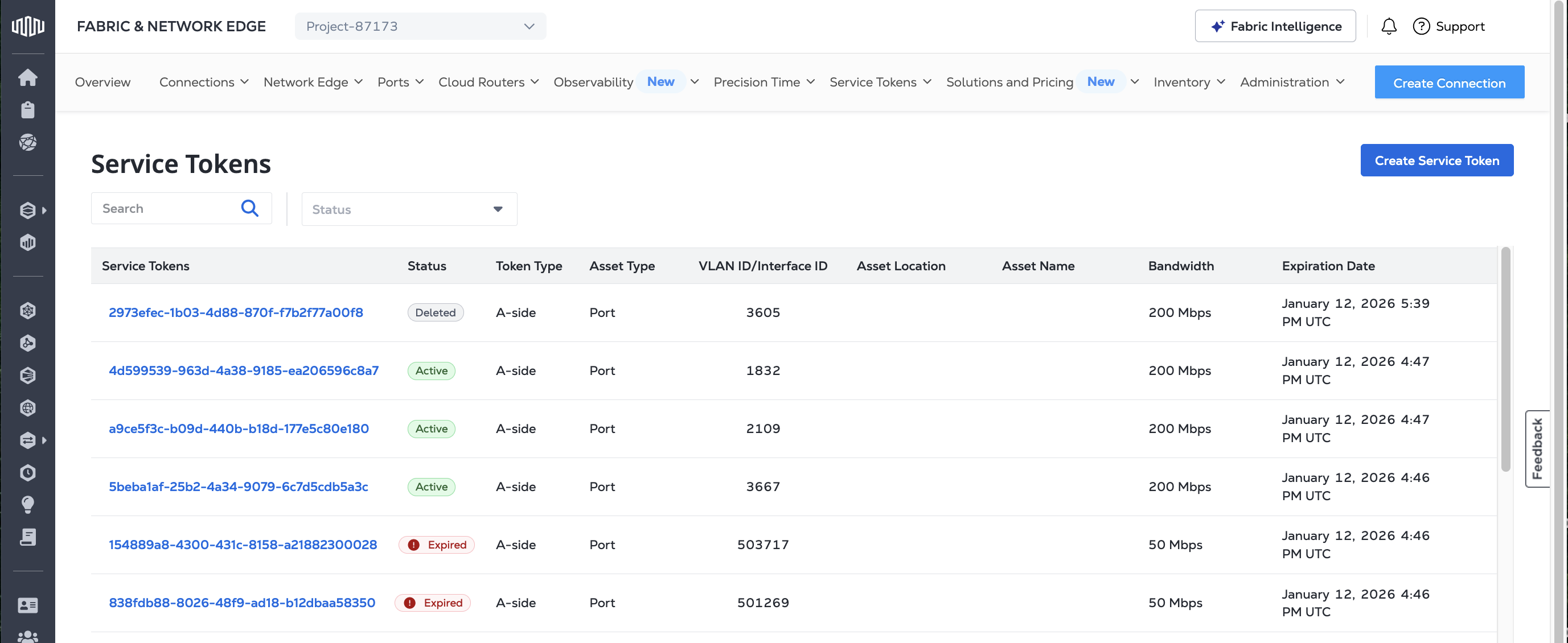
Once you have created a service token, you can check its status, including whether it has been redeemed by the other customer. If the status is Inactive, the service token hasn't been redeemed yet. If the status is Active, the service token has been redeemed.
The creator of the connection using a Z-side token is billed for the connection.
If the status is Expired, the service token has reached its expiration date without being redeemed.
- Portal
- API
To check your service token status, sign into the Customer Portal and navigate to your Service Token Inventory
To check the status of your service tokens, send a GET request to the /fabric/v4/serviceTokens endpoint. The response includes a list of your service tokens along with their statuses in the state field.
Sample cURL Request:
curl -X GET 'https://api.equinix.com/fabric/v4/serviceTokens'
-H 'Authorization: Bearer <token>'
More information on managing service tokens is available on the Service Token Inventory page.