Opening a Support Case
Submit support cases for technical issues, service requests, or account-related inquiries.
Depending on your permissions, access to creating different case types may be limited.
How to Open a Support Case
-
Go to the Customer Portal.
-
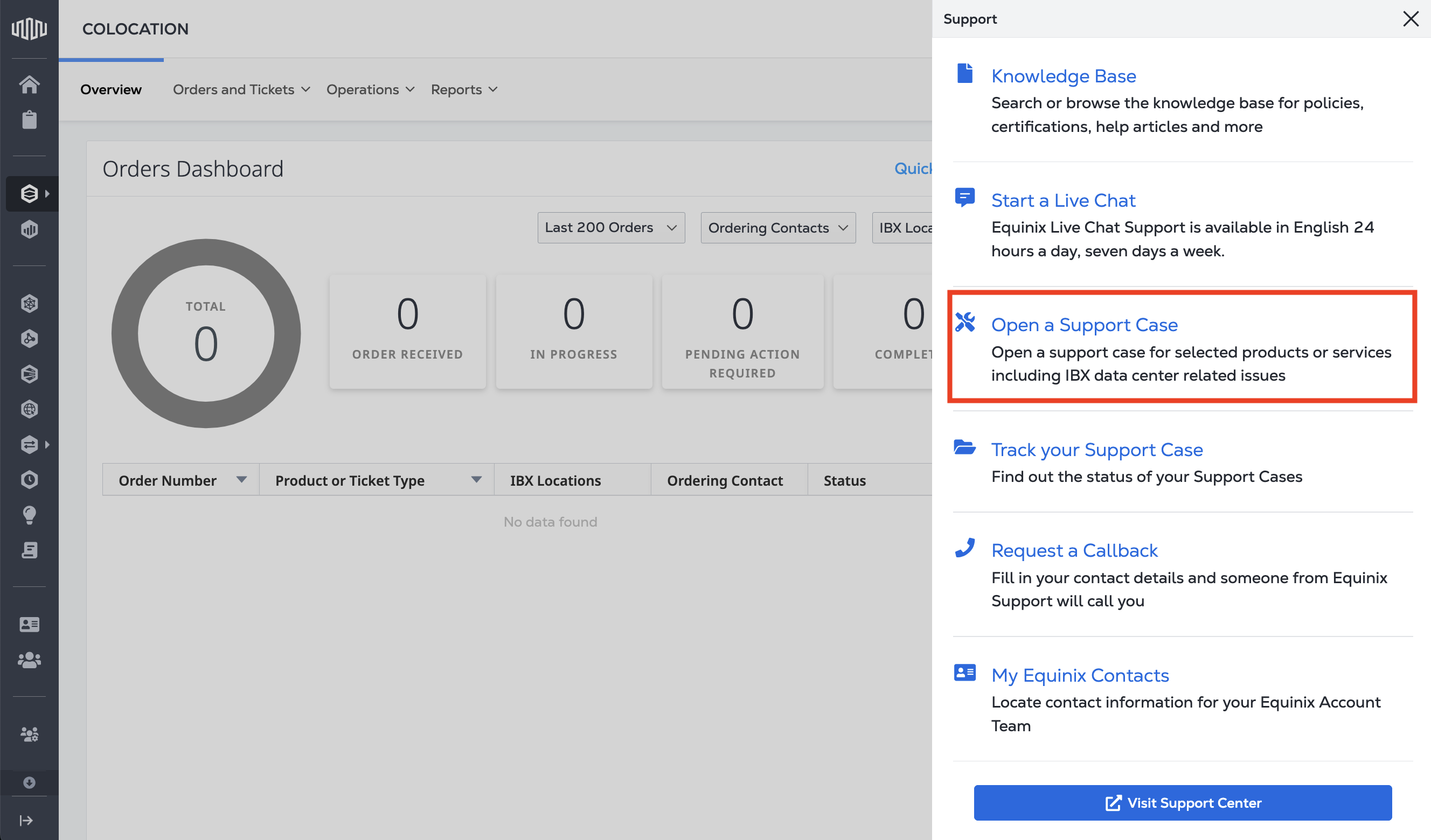
Select Support from the main navigation, then select Open a Support Case.
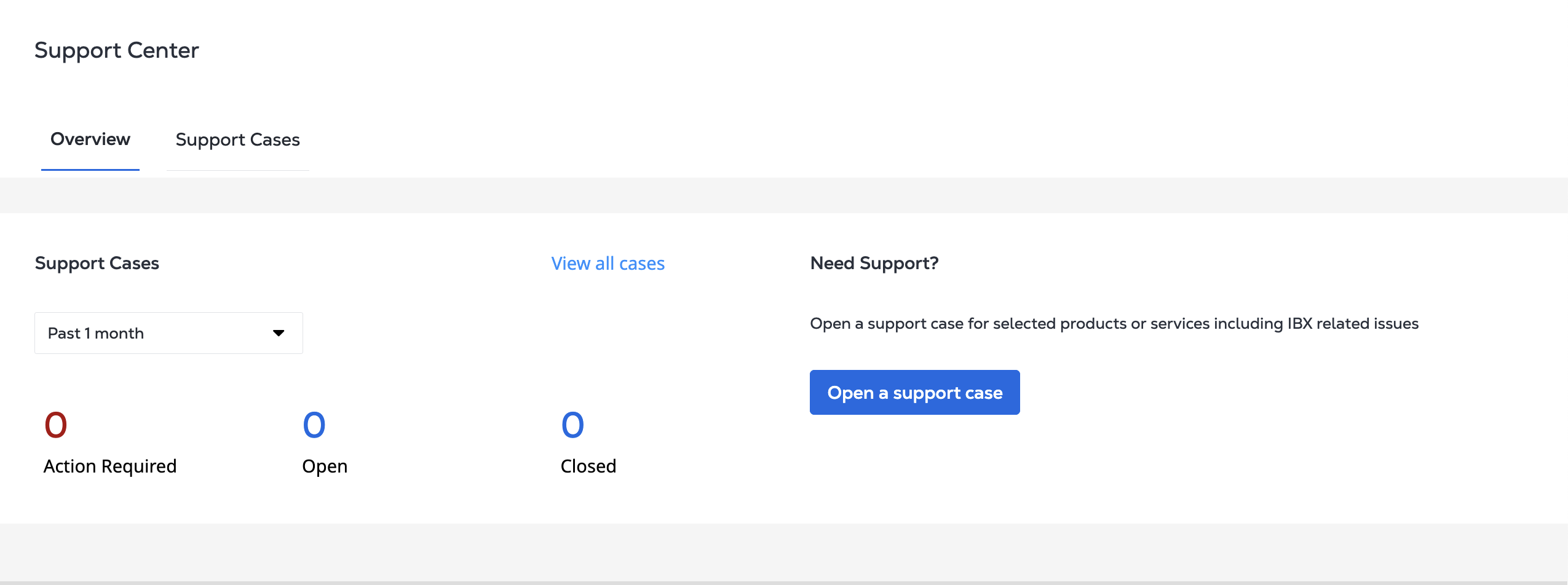
Alternatively, from the Support Center, click Open a support case.
-
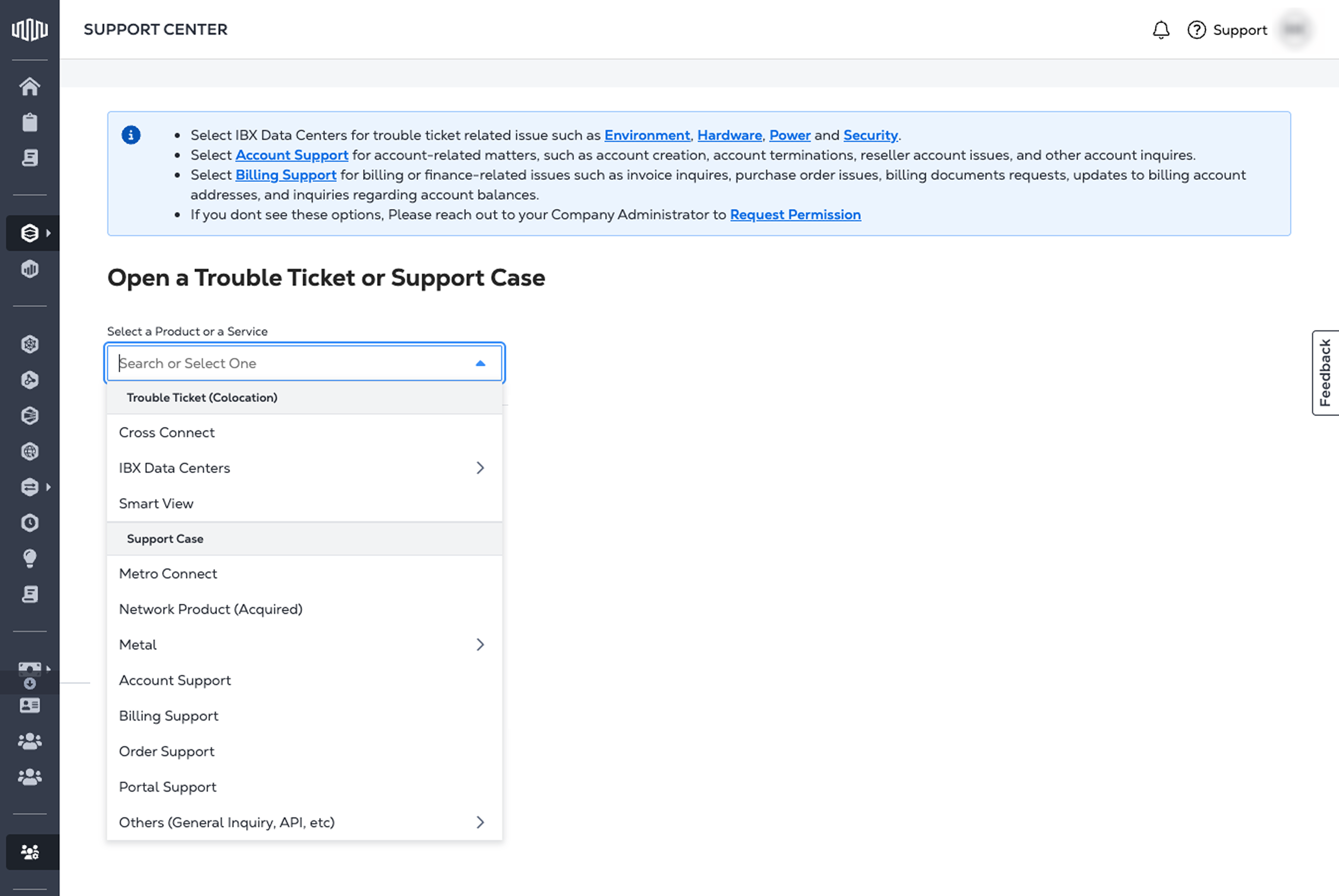
Select the appropriate category from the dropdown menu. Refer to Products and Services for descriptions.
-
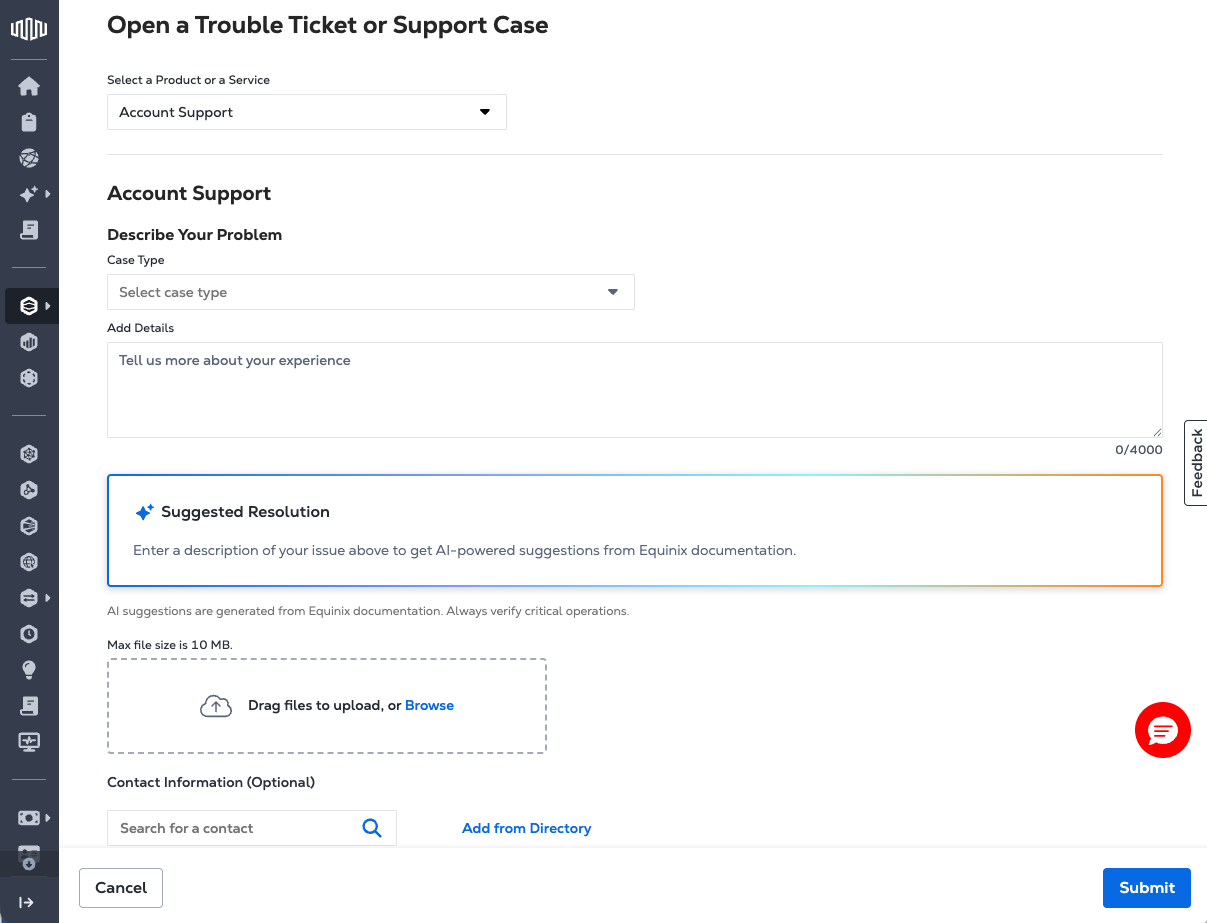
Complete the form by filling in the required details based on the product or service selected. Each form may vary in its required fields, which can include:
- Case type
- Service ID or asset reference
- Issue description
- Severity level - for Digital Services only.
- Attachments and any supporting documents
-
Submit the case and monitor its status. Refer to Managing Support Cases to learn how.
Resolution Agent
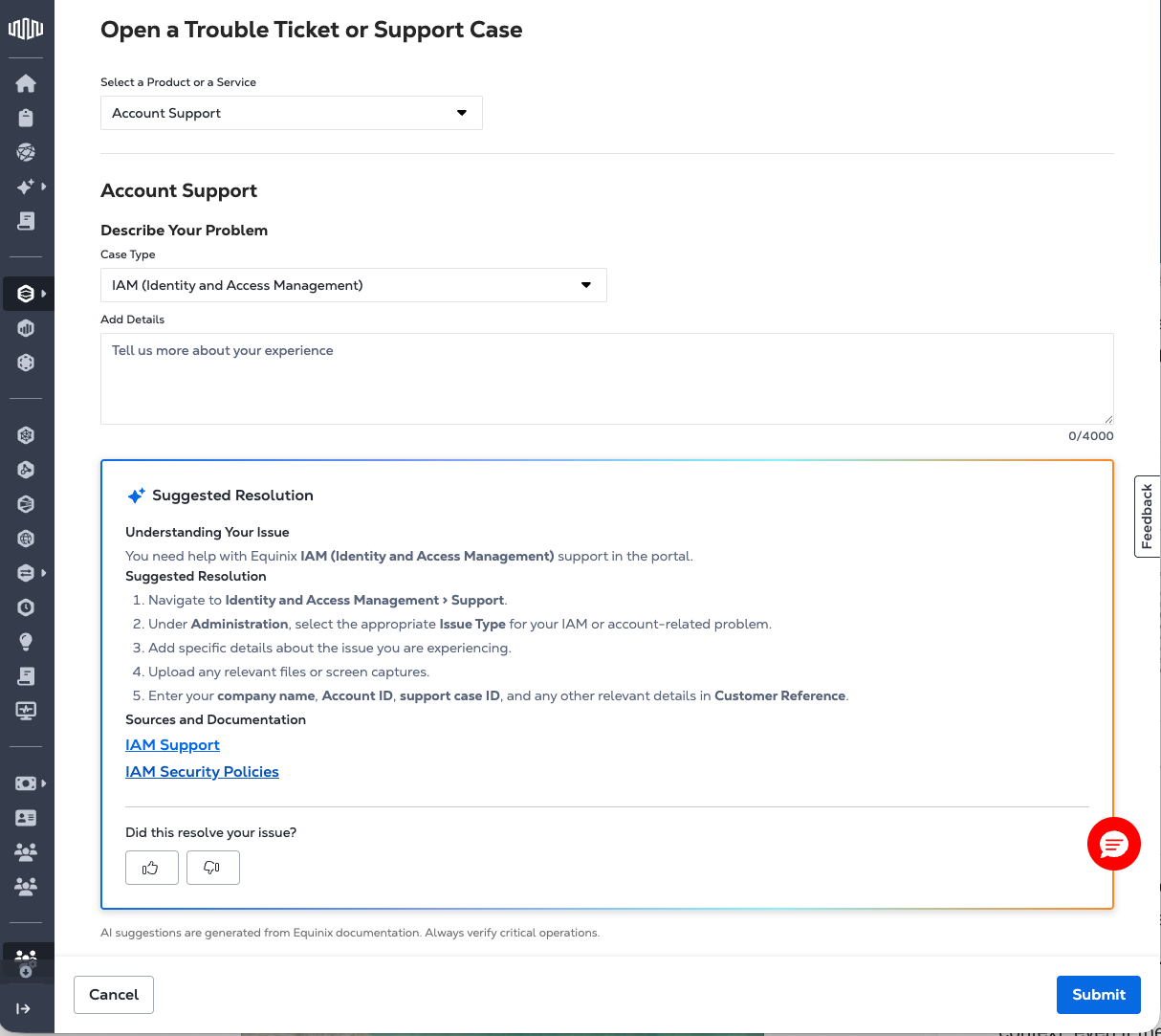
The Resolution Agent suggests step-by-step guidance to help resolve issues before a support case is submitted. Embedded within the Support Case intake forms, it activates automatically as users enter information in the form, analyzing input in real time and returning a suggested resolution inline as a structured, step‑by‑step solution. This capability contributes to more efficient support workflows, including streamlined self‑service resolution and improved agent handling.
Suggestions are generated based on the context of the selected support form (for example, Fabric, Colocation, or Cross Connect). The Resolution Agent uses this context to interpret the user’s description, even if the product is not explicitly specified.
Active Incident Alerts
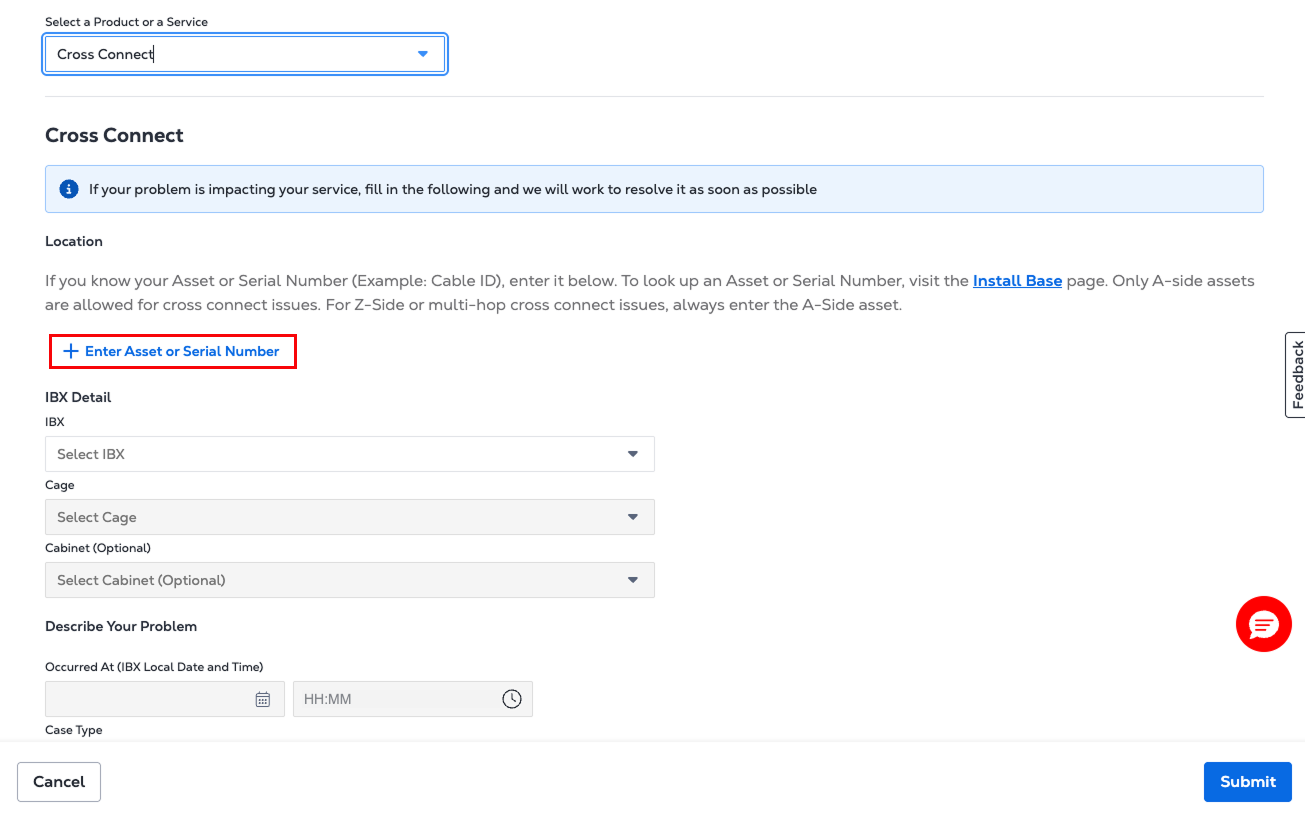
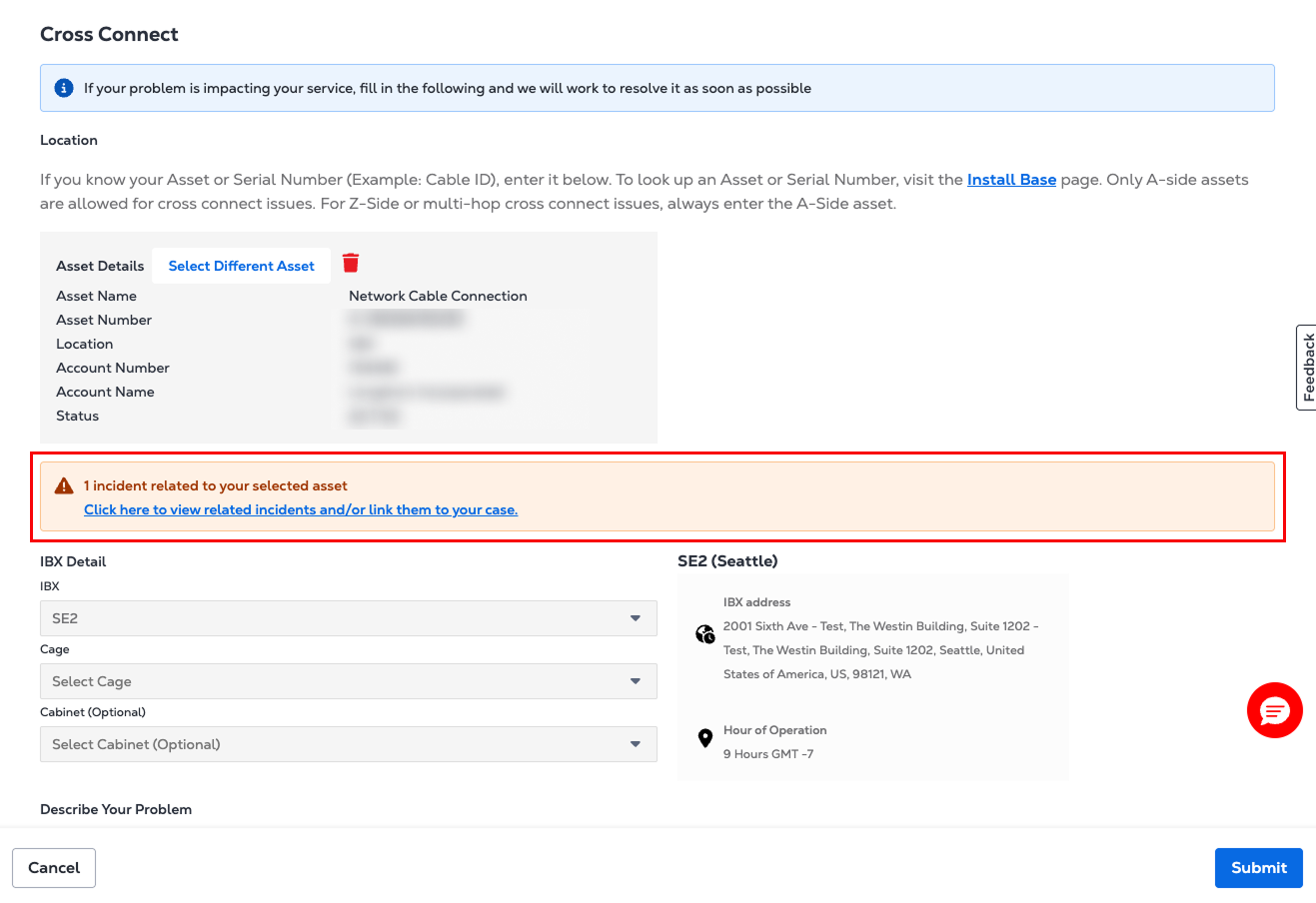
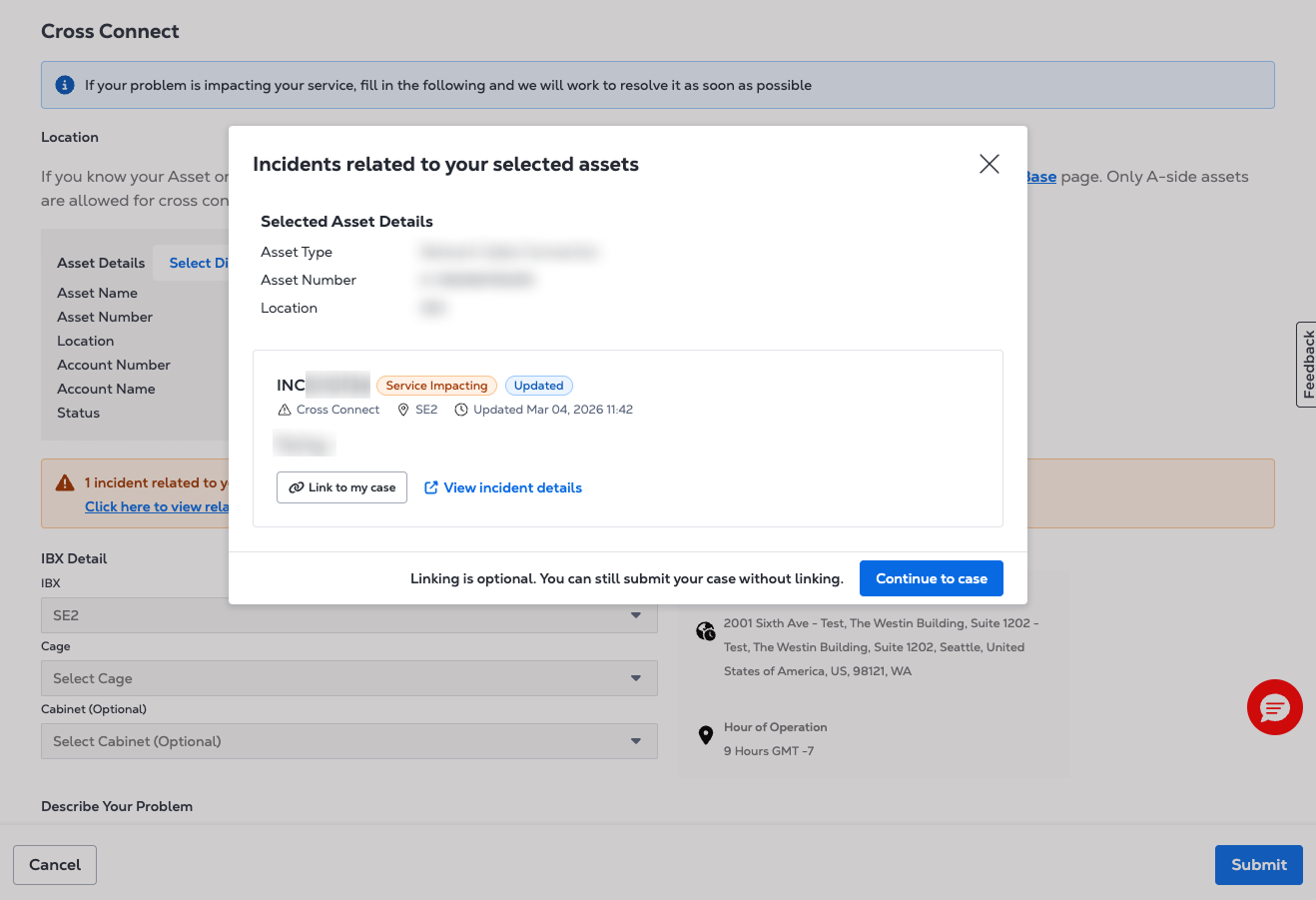
When selecting an asset or IBX data center during case submission, a banner appears if there is an active incident associated with that asset or IBX data center. The banner displays a summary of the incident and its current status.
Select Link to my case to associate the case with the incident. If no related incident is found, or if the incident service is temporarily unavailable, case submission continues as normal.
Products and Services
You can open support cases for the following categories:
-
Cross Connect - Get help with your cross connect setup
-
IBX Data Centers
- Environment - Temperature, humidity, or air quality issues in your space
- Hardware - SeEquipment-related issues
- Power - Power supply or circuit issues
- Security - Access or badge-related issues
- IBX Support - General IBX facility inquiries
- Customer Questionnaire Support - Self-service option to submit forms related to site-specific questions, due diligence, or vendor onboarding.
-
Smart View - Issues related to Smart View monitoring and analytics services
-
Equinix Fabric
- Ports - Issues with existing or new port connections
- Connections - Issues with existing or new connections
- Networks - Issues with existing or new networks
- Other Technical Issues - Miscellaneous Fabric issues
-
Network Edge
- Virtual Device - Get help with an existing device or setting up a new one
noteFor customers with Cisco devices, see Opening a Cisco TAC Case to open a case directly with Cisco.
- Connections - Get help with layer 2 or 3 connections
- Device Link - Get help with network location and pricing
- Other Technical Issues - All other Network Edge-related issues
-
Equinix Connect - Routing or connectivity issues
-
Equinix Internet Access - Performance, configuration, or availability concerns.
-
Internet Exchange - Peering or traffic issues
-
Metro Connect - Service disruptions, provisioning delays, or configuration changes
-
Precision Time
- Services - Use search functions to find your service ID or inquire about your new service order
- Other Technical Issues - Find locations and pricing for consumer and network services
-
Account Support
- Contact Account Team
- Reseller setup
- IAM (Identity and Access Management)
- Full Account Termination
- Full Deployment Termination
- Products/Services De-install
- Billing Account Creation
-
Billing Support - Get billing help and assistance with invoices, accounts, purchase orders, and other finance inquiries.
-
Order Support - Modify existing orders and get help with ordering issues
-
Portal Support - Get help with password resets, locating colocation assets, generating reports, or managing user access.
-
Others
- General Inquiry
- Turn-up Call Request - IBX technicians will check end-to-end connections and the network team will test virtual configurations.
- API Support - Receive technical assistance with API inquiries or issues.
- Interconnection Migration Request - Provide necessary information to Equinix to facilitate an existing live interconnection service migration.
-
Contact My Customer Success Team - Use this option to open a support case with the Customer Success Team (available only to select customers at this time).
Severity Levels - Digital Services
If you are opening a support case for your Digital Services product or service, including:
- Metro Connect
- Equinix Connect
- Fabric
- Internet Access
- Internet Exchange
- Network Edge
- Precision Time
You are asked to select a severity level for your case. Severity levels indicate the impact of the issue you are reporting. Selecting the right severity level when opening a support case helps us prioritize and route your ticket appropriately.
| Severity Level | Description |
|---|---|
| P1 - Production System Down | Critical impact, causing severe business impact and service degradation. The issue requires a high urgency response with the customer working with Equinix 24/7 until resolution. The severity level could be adjusted if customer resources are not readily available for timely resolution of the issue. |
| P2 - Production System Impaired | High impact causing significant loss and service degradation. The issue requires a high urgency response with the customer working with Equinix 24/7 until resolution. The severity level could be adjusted if customer resources are not readily available for timely resolution of the issue. |
| P3 - System Impaired | Moderate impact causing some loss and service degradation. Temporary workarounds maintain reasonable business continuity. The issue requires a medium urgency response with the customer working continuously with Equinix until resolution. The severity level could be adjusted if customer resources are not readily available for timely resolution of the issue. |
| P4 - General Guidance | Minimal impact causing only minor loss and service degradation, or a general question requiring a low urgency response. |
Priority Levels - Colocation
Priority for Colocation service-impacting issues and response times are determined based on the severity and impact of the issue.
| Priority Level | Description |
|---|---|
| Service Unavailable | Your service is unavailable and no acceptable workaround exists. Equinix aims to make initial contact within 30 minutes. |
| Service Degraded | Your service is operational but significantly degraded and requires prompt attention. Equinix aims to make initial contact within 2 hours. |
| Minor Service Impact | Your services remain operational with minor impact or an acceptable workaround. Equinix aims to respond and perform the work within 24 hours (for 24x7 IBX data centers) or 24 business hours (for non-24x7 locations). |