Managing Support Cases
All support cases can be viewed and managed in the Support Center in the Customer Portal, where case status can be tracked, updates received, and modifications made.
The Company Administrator can view all Support cases for the organization. Other users must be assigned the Support Case Manager permission type in order to view, manage, and reply to cases submitted by other users.
Support Case History
The Support Case History table lists all support cases you have access to. To view the table:
-
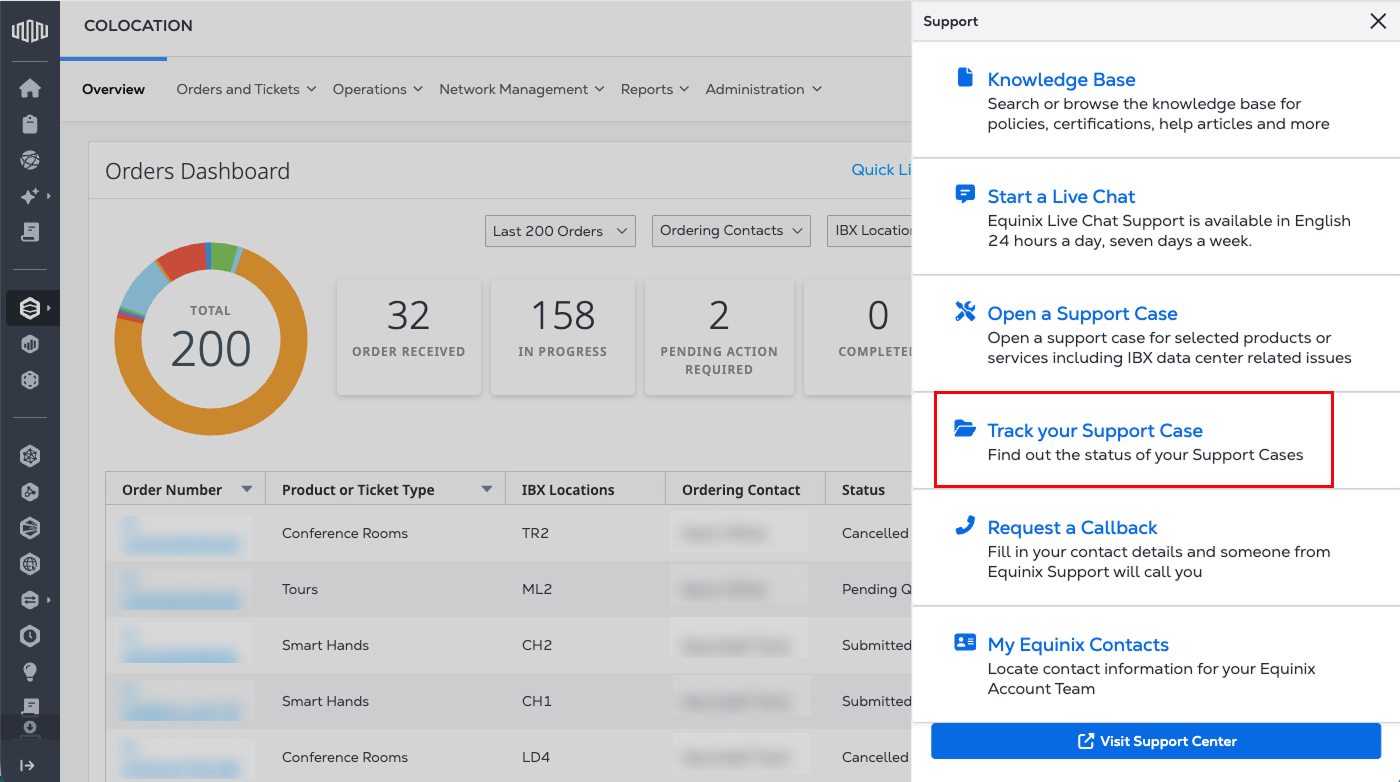
Select Support from the main navigation, then select Track Your Support Case.
OR
-
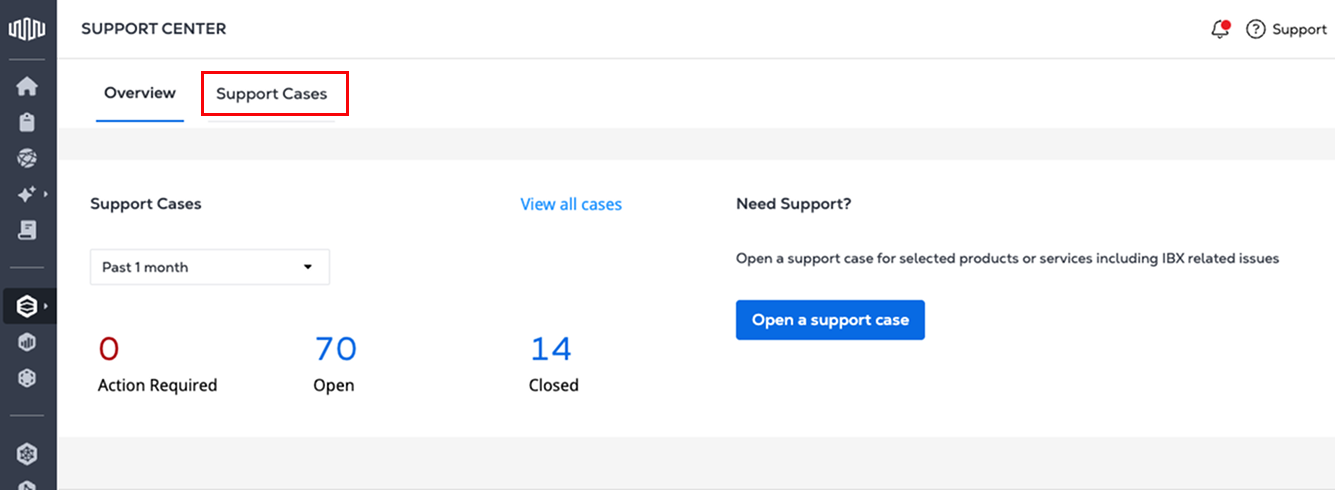
Click the Support Cases tab in the Support Center.
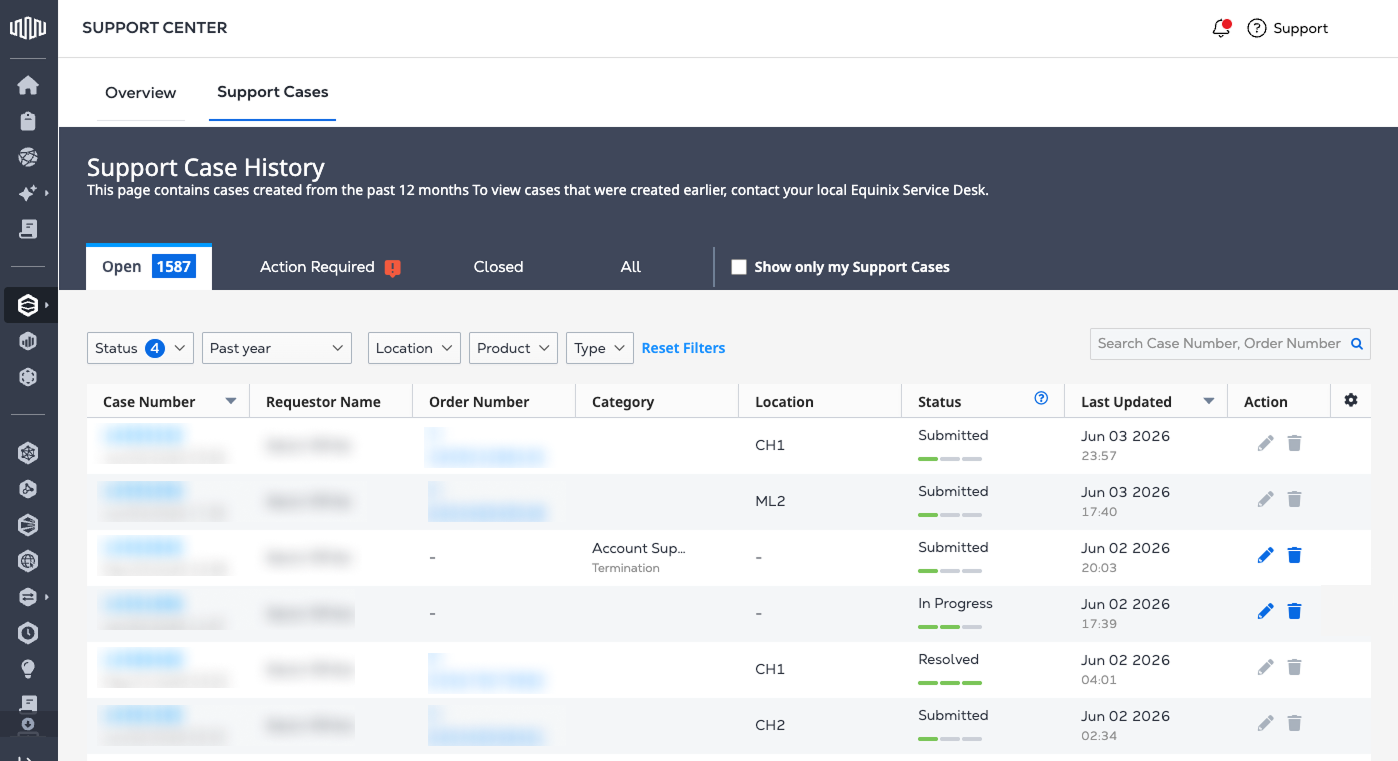
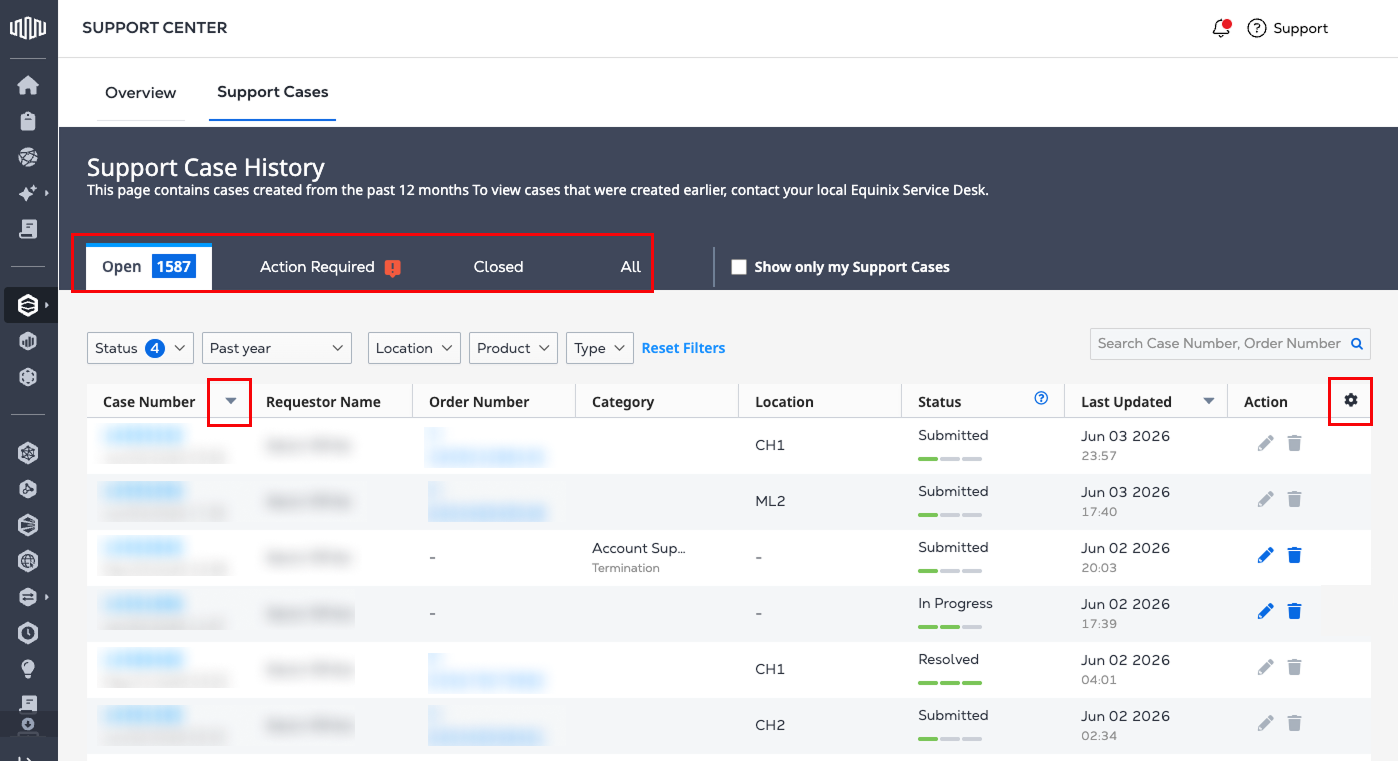
By default, the Support Case History displays the Open tab with all open cases.
Support Case History Filters and Searches
-
Pre-configured filters are available as tabs across the top of the Support Case History table.
- Open - Displays current open cases and enables filtering by date range.
- Action Required - Displays cases that require additional action or details.
- Closed - Displays resolved cases that have been closed.
- All - Displays all cases, past and present.
-
To change the sort order (ascending or descending), select the arrow in the Case Number column header.
-
To customize the columns displayed in the table, select the gear icon in the table header row.
Equinix is upgrading its systems and the user experience in the Customer Portal. Trouble Ticket functionality is being migrated to Support Cases. However, open or previous Trouble Tickets were not migrated to Support Cases. If you are looking for past or open Trouble Tickets, they are available in your Order History.
Support Case History Status
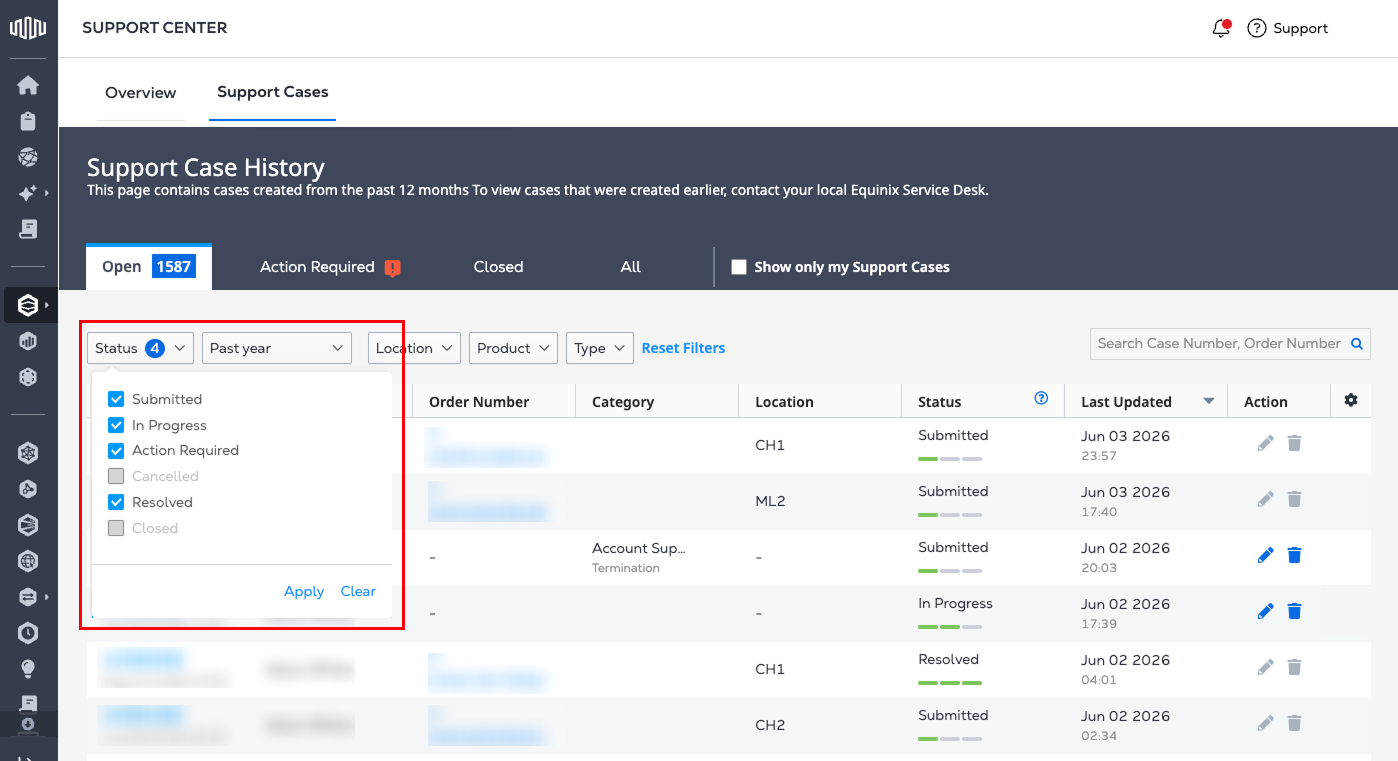
The support case history table can also be filtered using the Status menu. The number of selected status filters is indicated by a blue circle.
- Submitted - Displays current submitted cases and enables filtering by date range.
- In Progress - Displays cases that are currently being worked on.
- Action Required - Displays cases that require additional action or customer-provided details.
- Canceled - Displays cases that have been canceled.
- Resolved - Displays cases that have been resolved.
- Closed - Displays past cases that have been resolved and closed.
Support Case Details
To view details for a specific case, select the Case Number.
-
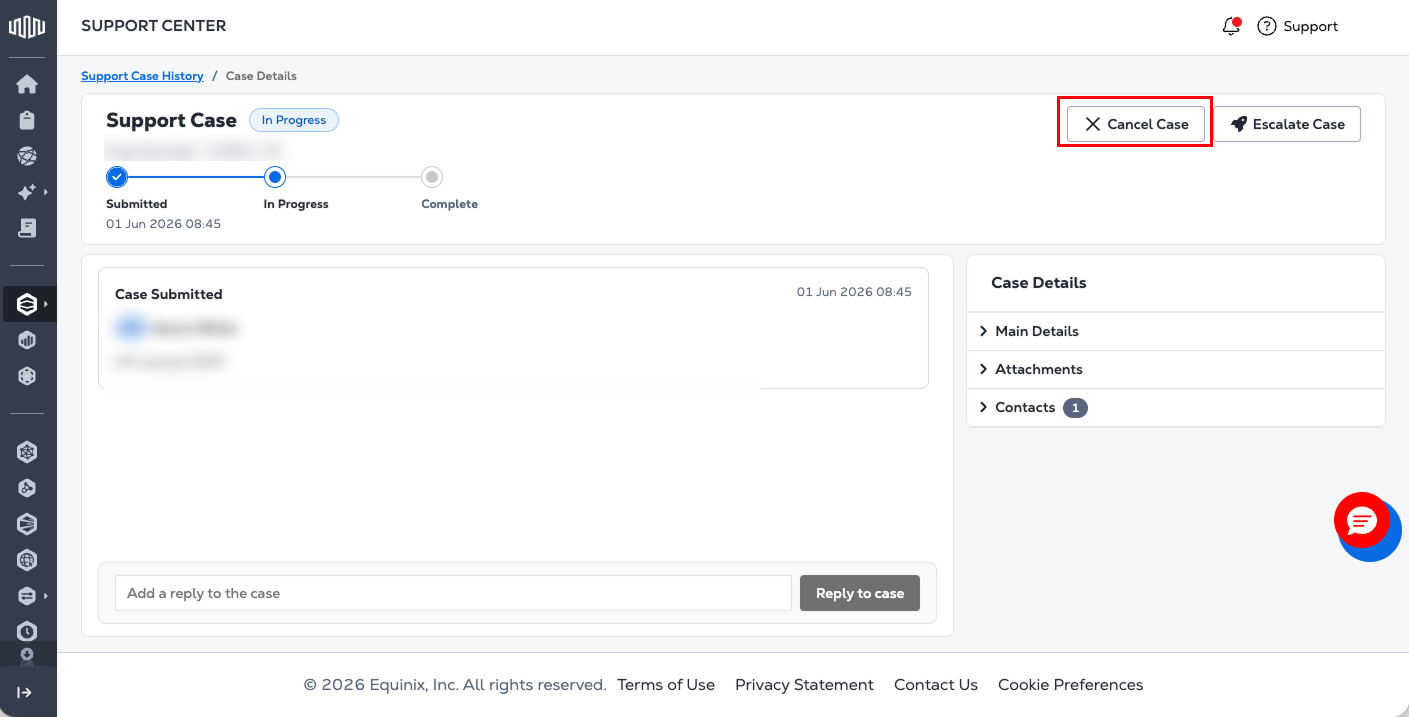
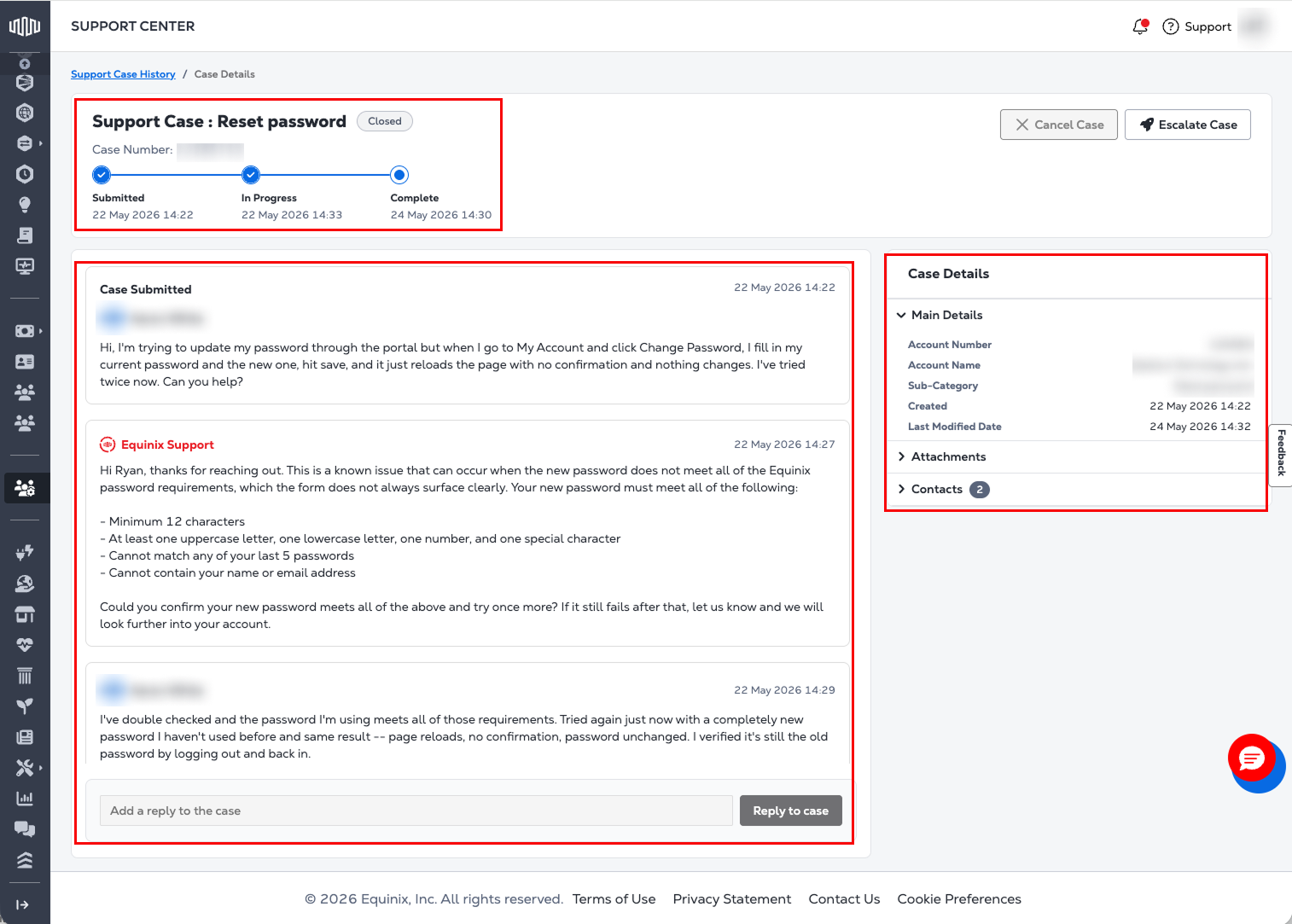
The header provides an at-a-glance view of case status and lifecycle, with a horizontal activity tracker showing the high-level lifecycle stages: Submitted, In Progress, and Complete with timestamps for each stage.
-
The conversation section displays the full interaction between the customer and Equinix.
- The original issue description appears at the top of the conversation.
- Comments are ordered with the most recent displayed first; older replies are available by scrolling.
- The reply box appears at the bottom of the conversation section on page load and remains accessible as users scroll.
- One or more files can be attached when submitting a reply.
-
The right-side panel, Case Details, contains collapsible cards for Main Details, Attachments, and Contacts. The cards are collapsed by default. Select a card to view its contents.
To return to the Support Case History table, select Support Case History at the top of the page.
Modifying a Support Case
To edit a case, select it from the Support Case History table, then click the pencil icon. This will take you to the Support Case Details page, where you can make your changes.
To update the case, use the reply functionality at the bottom of the conversation section.
-
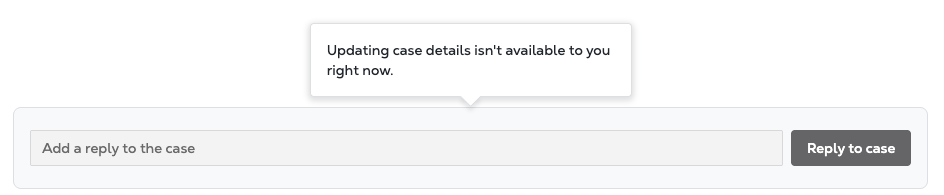
If replying isn’t available (for example, when a case is closed or cancelled), users will see a tooltip on the reply button.
-
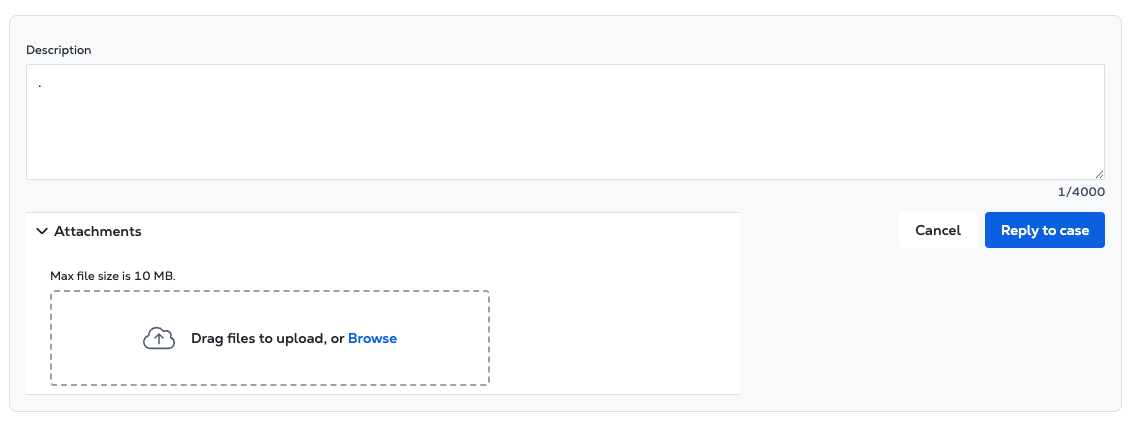
If replying is available, enter your additional details in the reply box. Users can attach one or more files directly within the reply box. Attachments are visible before sending, allowing you to review or remove them as needed.
Cancelling a Support Case
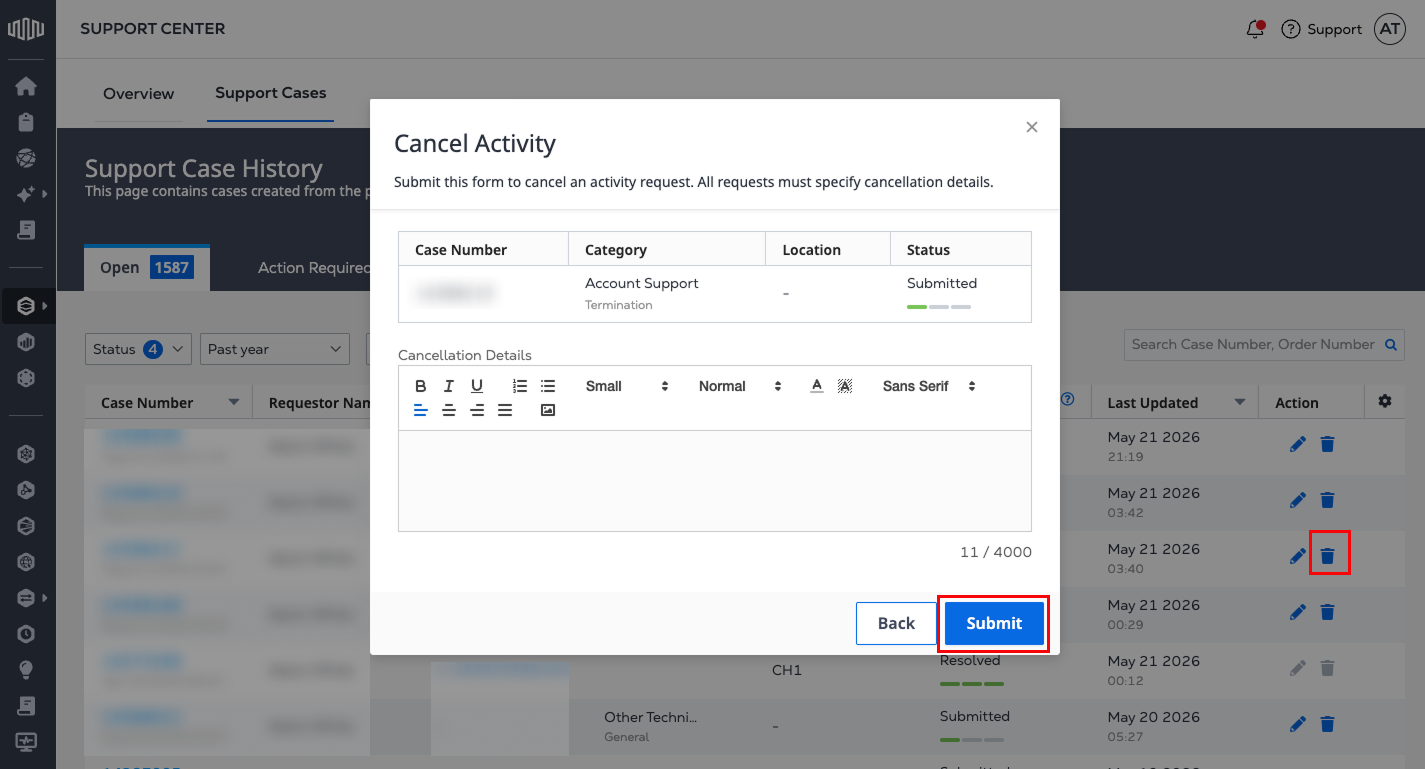
- To cancel a Support Case, select it from the Support Case History table and click the trash icon. Complete the Cancel Activity form with the required cancellation details, then click Submit. Cases that are canceled cannot be reopened.
- From within the Case Details page, click the Cancel Case button.