Completing an Offline Cross Connect Order
Equinix is upgrading its systems and the user experience in the Customer Portal. Products and services ordered through an offline ordering process can be configured and completed in the Customer Portal.
Equinix offers ordering Cross Connect through a formal quote and offline ordering process through the Equinix Sales team. Once you have received and accepted the quote, you get an order confirmation with a link to the Customer Portal where you can finish configuring your order and create your service.
Finding the Order
You can access the order in one of two ways, from the email notification that your order has been created, or from your Order History in the Customer Portal.
To access the order from the Email Notification:
- Click the link in the email with the subject line: "Action required: Configure your Order#
<order_number>"
To access the order from the Customer Portal:
-
Sign into the Customer Portal.
-
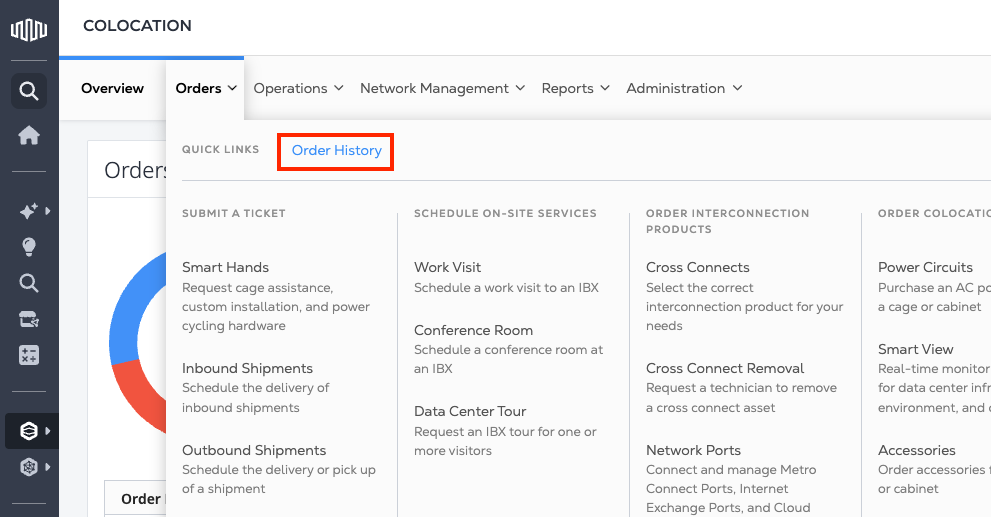
From the Colocation Dashboard, click on Orders, then Order History.
-
In the Order History table, search for the order number.
- You can also use the filters to show only Cross Connect orders.
-
Locate the order, then hover over
Action Requireduntil Configure appears, then click it.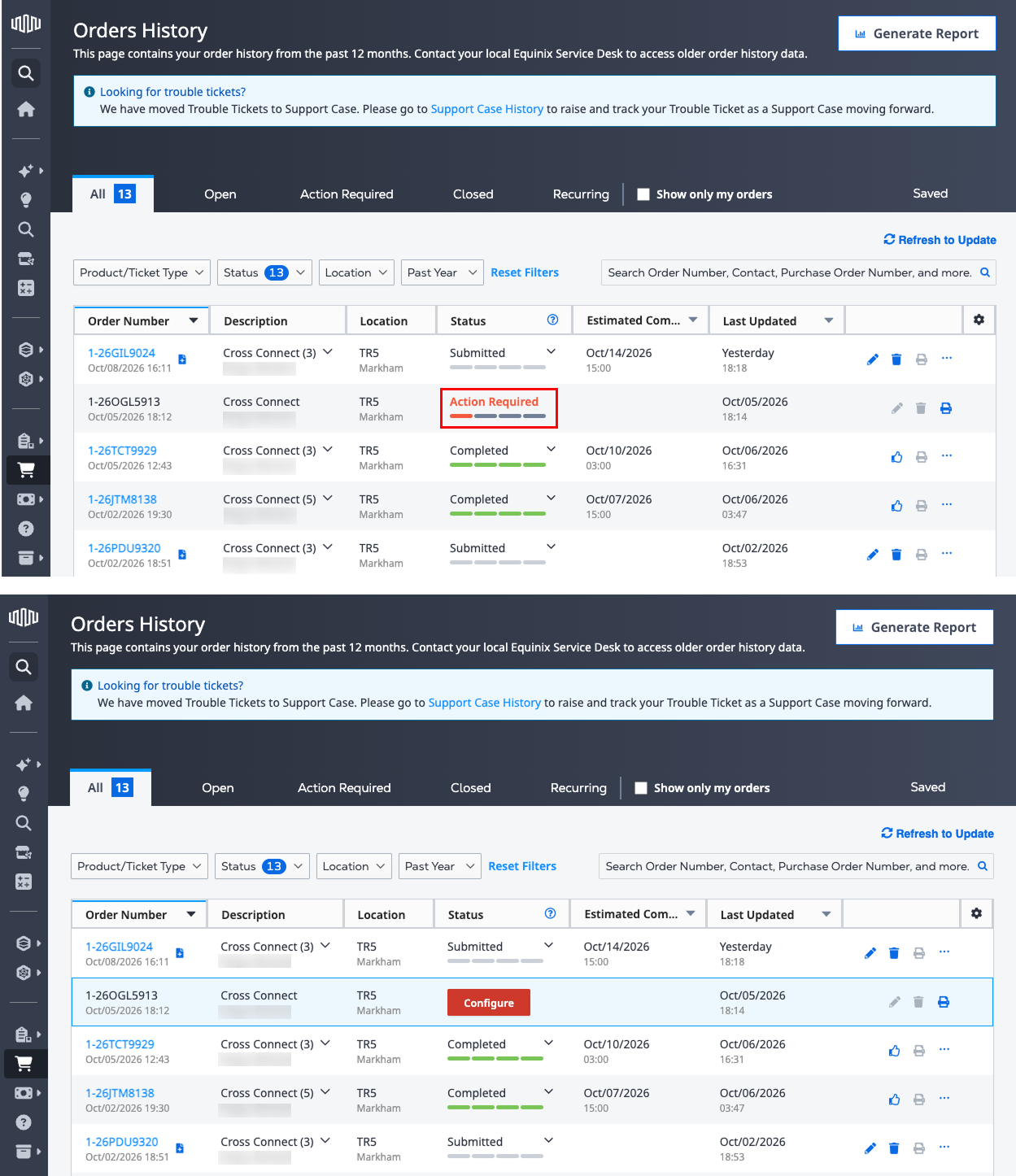
-
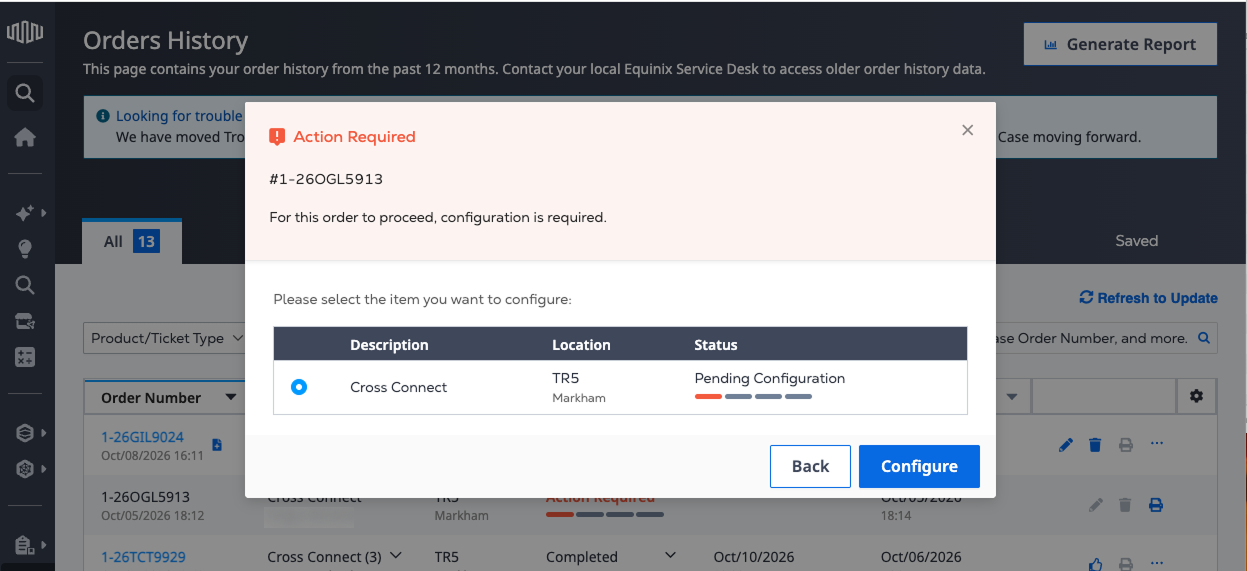
Select the Cross Connect order that you want to configure, and click Configure.
Completing Your Order
Complete your Cross Connect order using the on-line ordering flow. Configuration values derived from your quote cannot be changed.
Standard Order
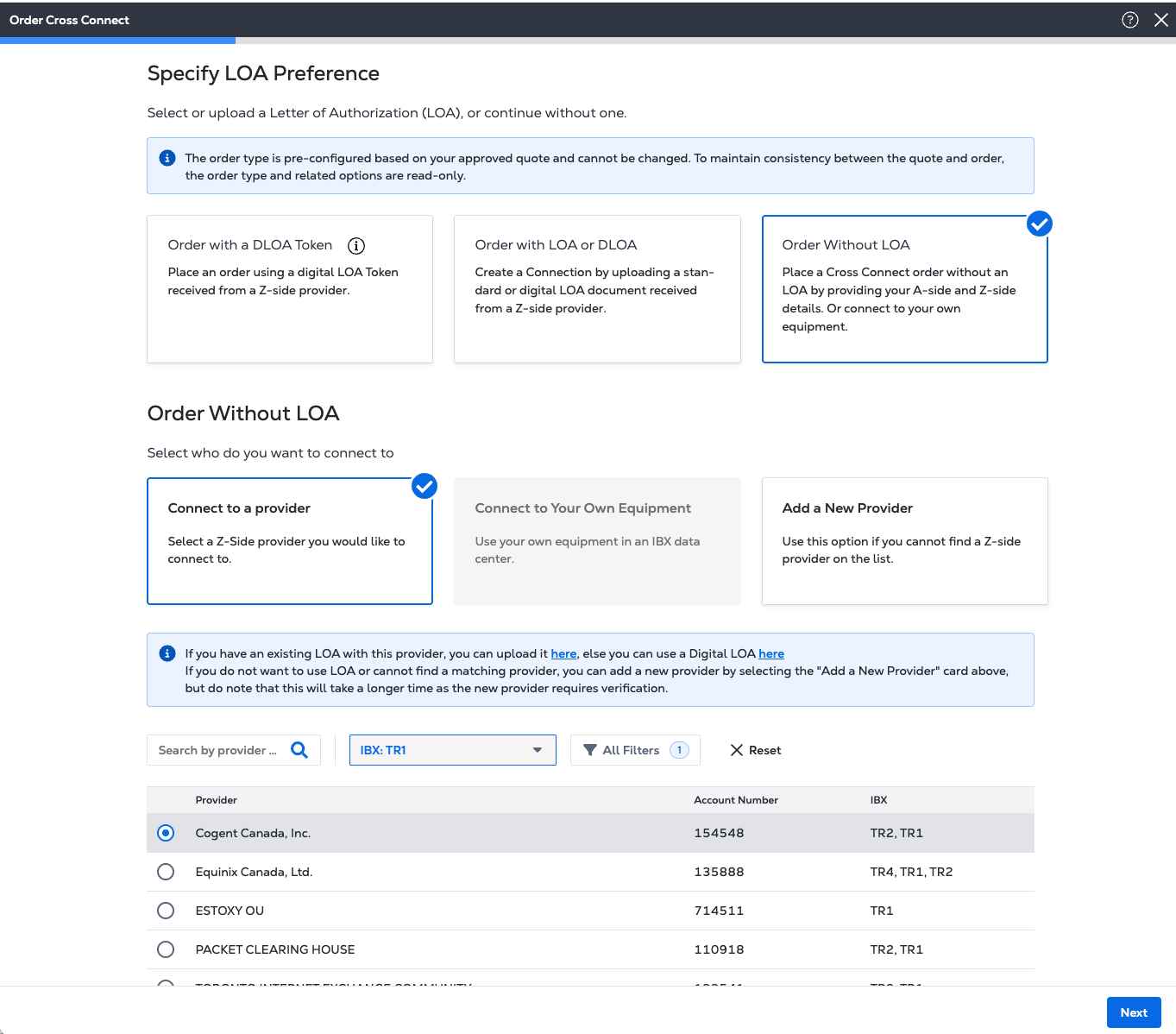
The quote process does not verify whether you have an LOA, a LOA, or an existing connection with the same customer. As a result, all three options remain available and follow the standard workflow to connect to a provider.
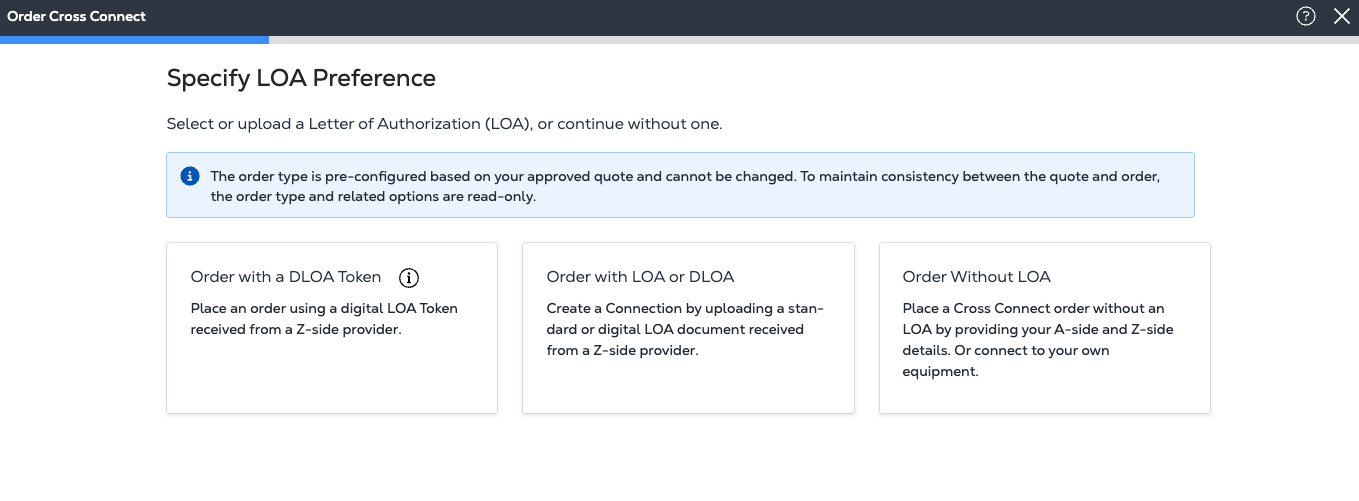
Select a provider and click Next.
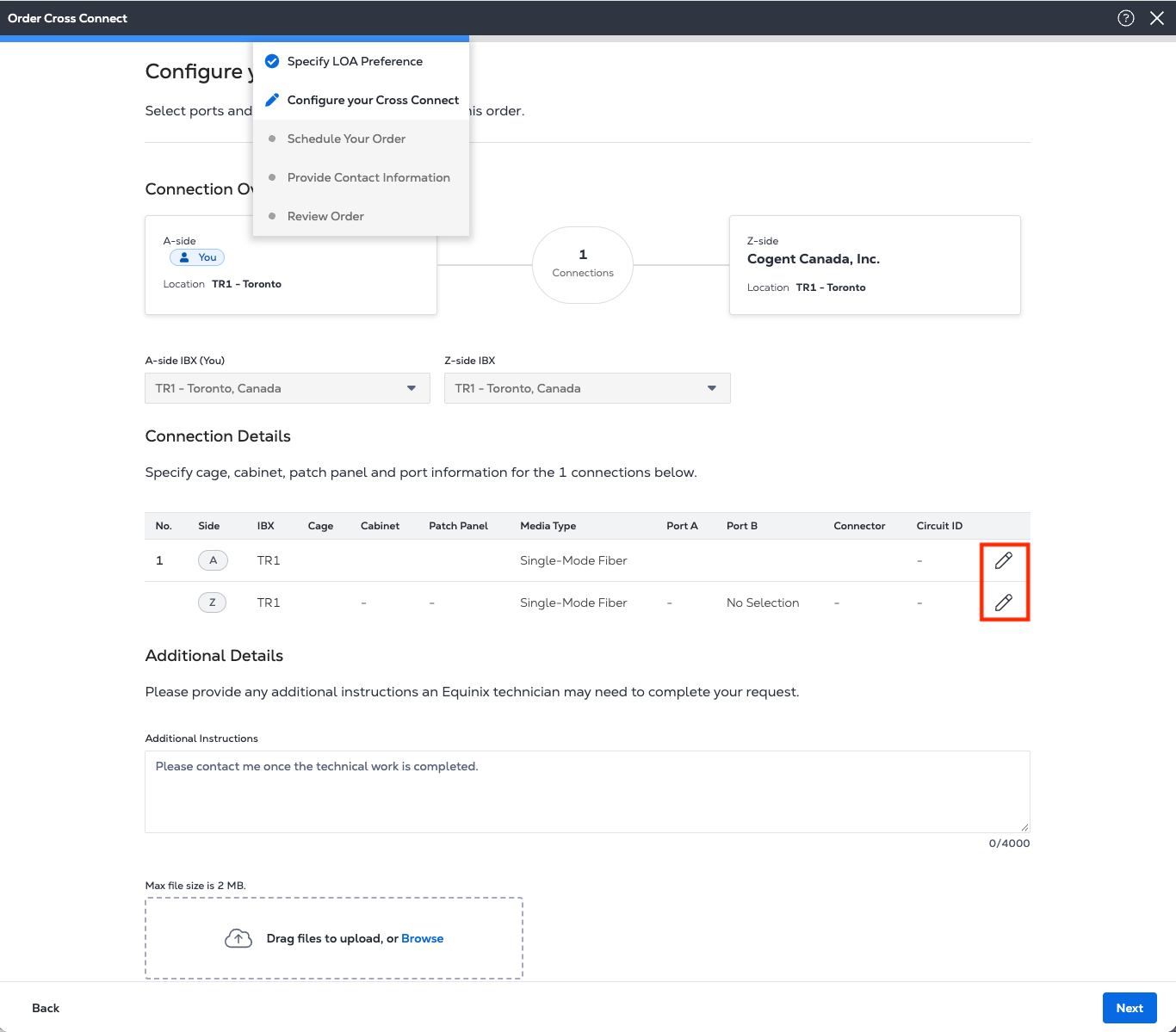
On the Configure your Cross Connect page, complete the connection details to continue.
- Click the pencil icon to assign connection details such as cage, cabinet, patch panel and port information.
-
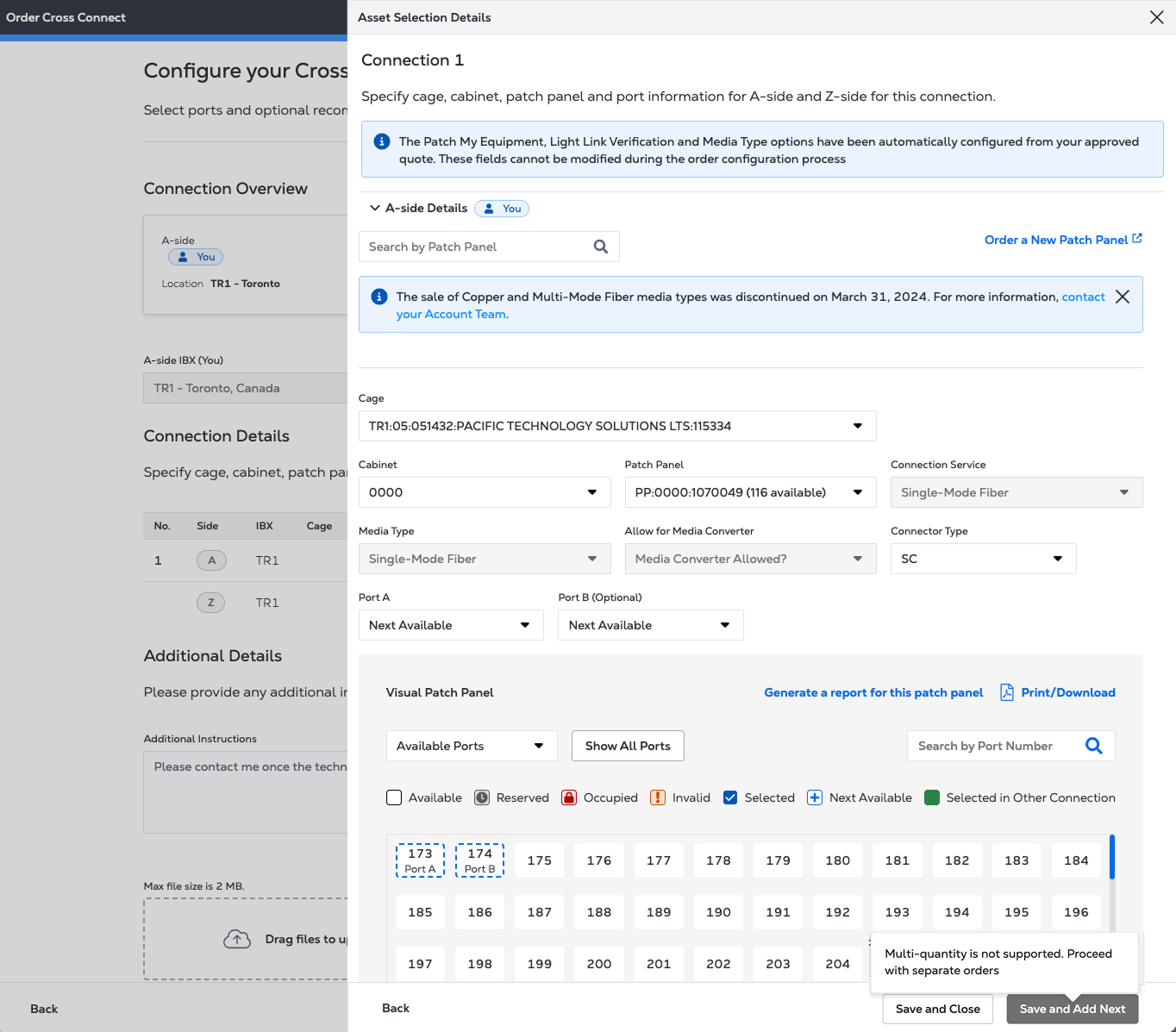
Complete asset details for the A-side and Z-side , then click Save and Close.
-
Submit separate orders for additional quantities.
Extended Cross Connect Order
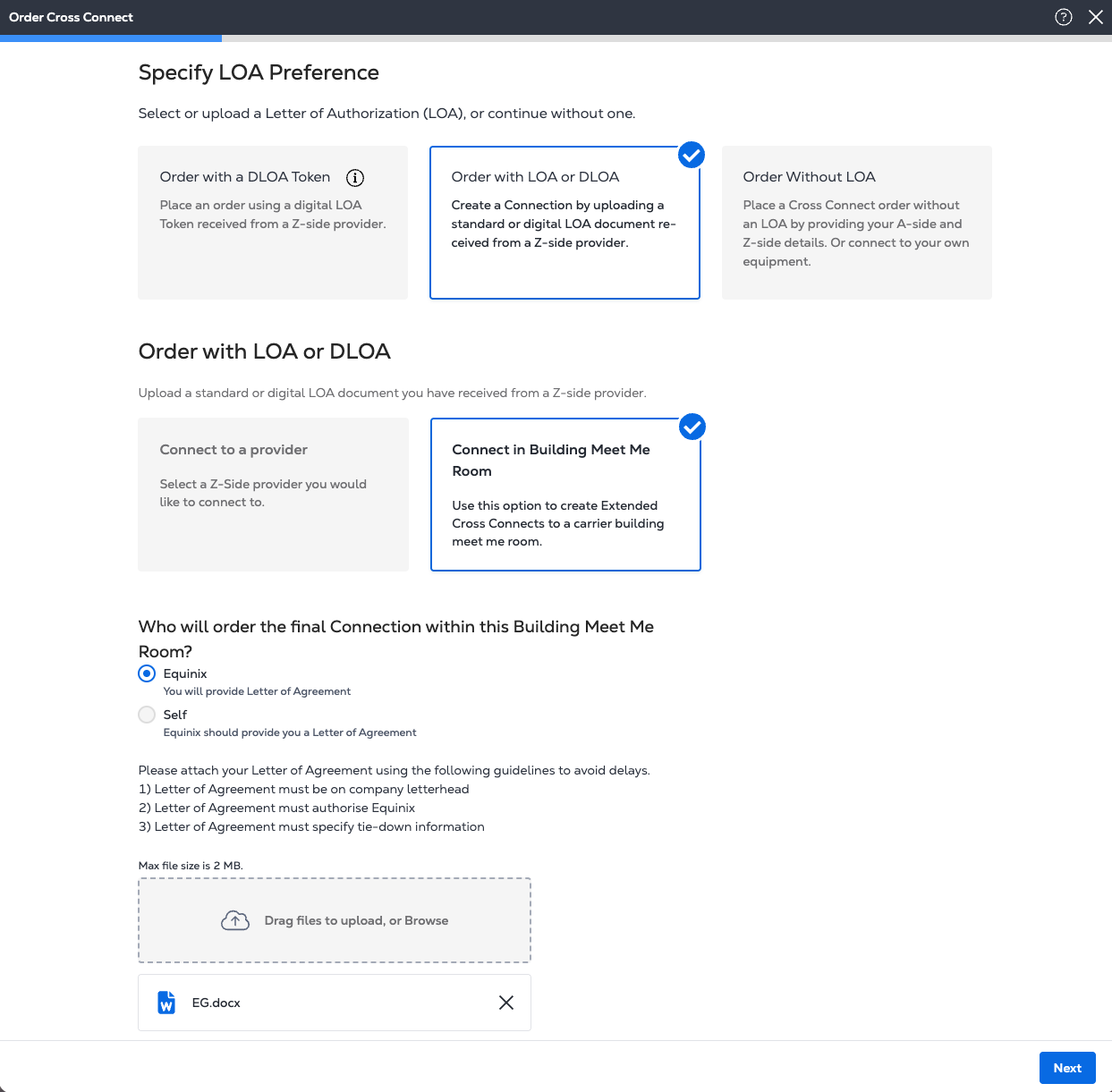
Unlike the standard workflow, extended cross-connect orders follow the BMMR workflow.
-
In the Specify LOA Preference page, attach a Letter of Agreement, and select Next.
-
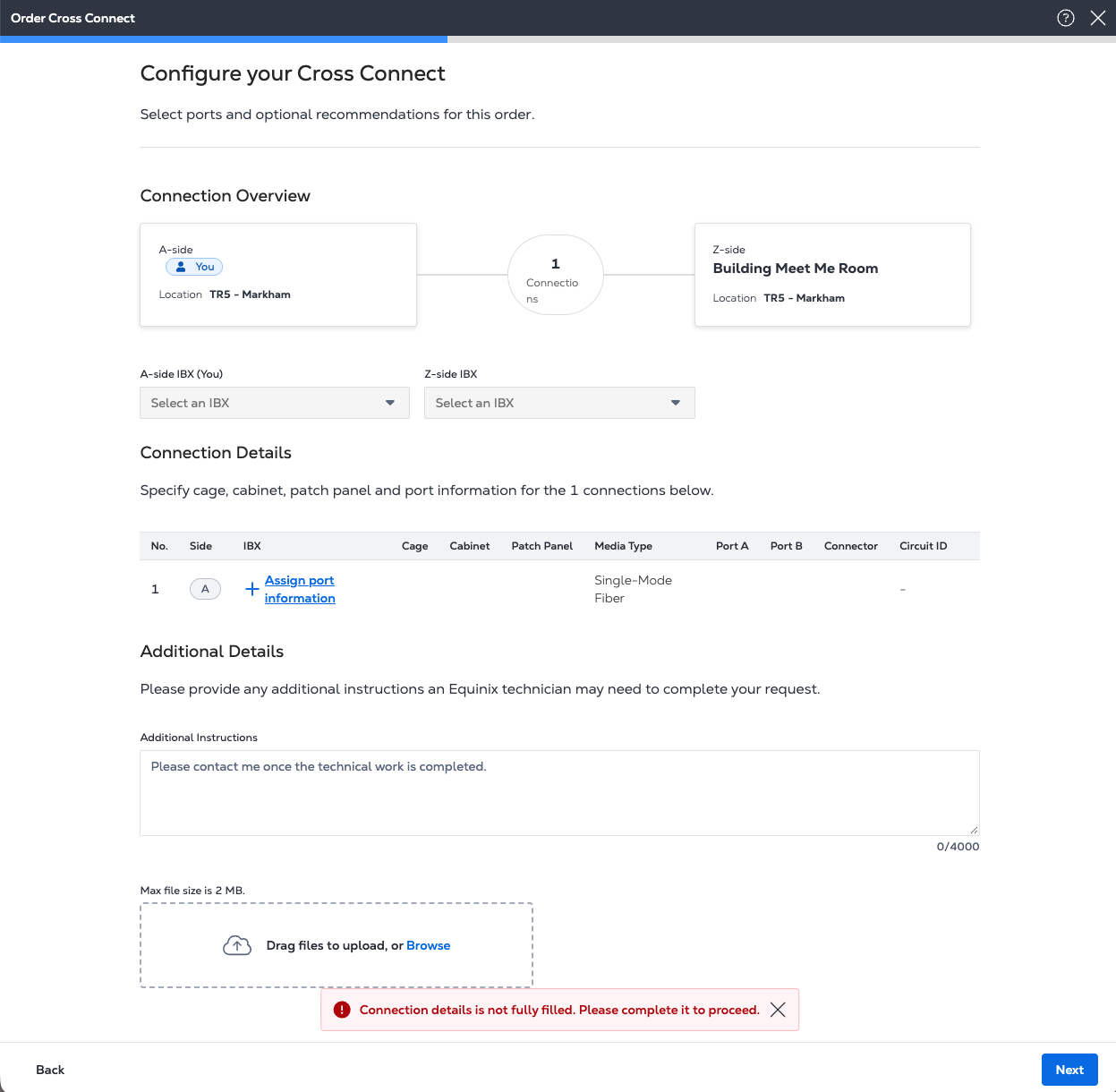
On the Configure your Cross Connect page, complete the connection details to continue.
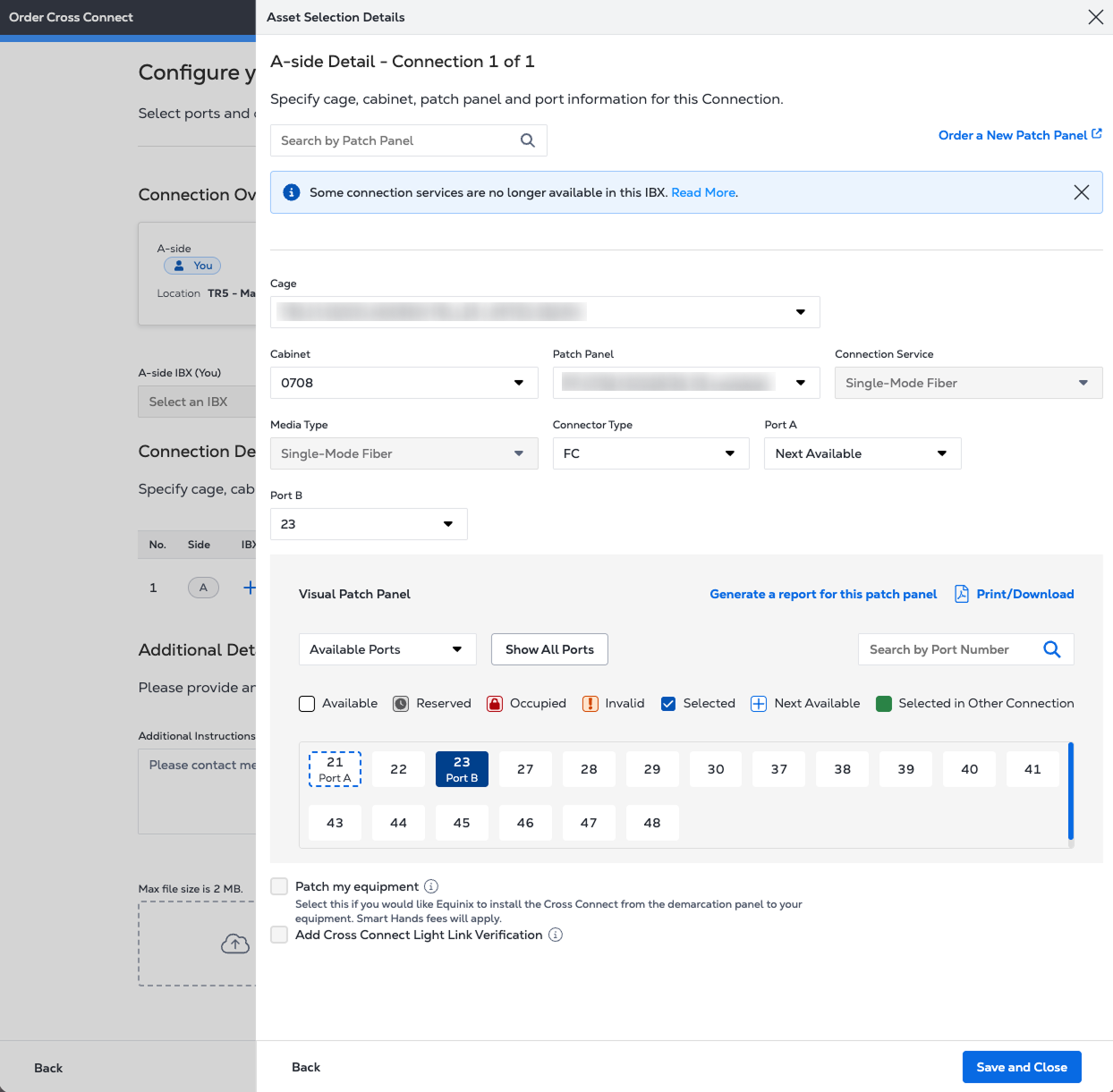
- Click Assign port information to open Asset Select Details where you can assign asset details such as cabinet, patch panel, connector types, and ports.
-
In Schedule Your Order, select a scheduling option, and click Next.
-
The Provide Contact Information panel displays the Ordering Contact and Technical Contact information. These contacts are derived from the quote and cannot be changed.
Review Your Order
-
Review the order including Connection Overview, Connection Details, Additional Details, and Contact Information.
-
Optional: Click Add Purchase Order Number to associate a purchase order with the order. You can also enter a Customer Reference ID.
-
Click Submit to complete your order.
After you place the order, you can track its progress in Order History.