Responding to 'Action Required' Items
If your order is in Action Required status, Equinix needs information or approval from you. For example, the technician may have questions about the work, or Equinix may have proposed a different scheduled date/time for the work.
Important: In some cases, your action may be required by a certain date/time (which is specified in the order's Activity Timeline or the notification you received). If you do not respond within that time period, the order may be cancelled.
Use any of the following ways to find orders that need your attention:
-
Click the Action Required tab on the Orders and Tickets History screen.
-
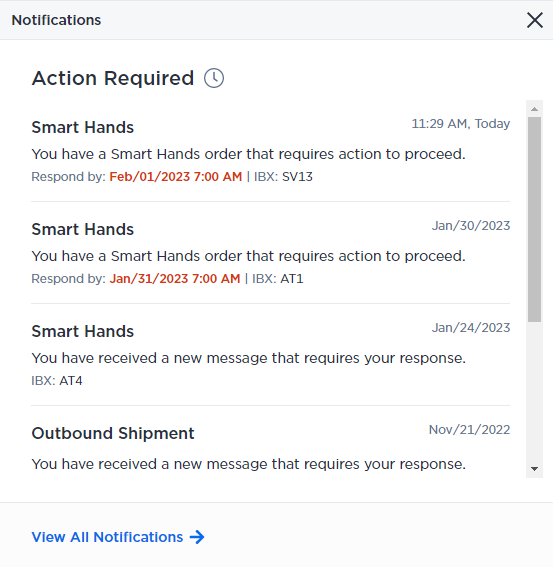
Click the Notifications bell in the Customer Portal to see your action-item notifications. Items with a Respond By date are shown in red:
-
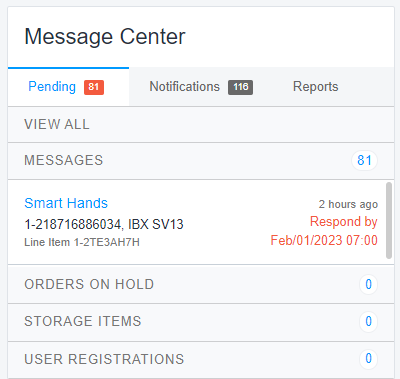
Check the Message Center on the Colocation Dashboard. Respond By dates are shown in red:
Responding to a Request
To respond to an Action Required item from the Notifications list or the Message Center, click on the item.
To respond to an item from the Orders and Tickets History screen:
-
Hover over the
Action Requiredstatus until it changes to Respond. -
Click Respond, enter the requested information, and submit it.
Only the ordering contact or the Technical Contact can respond to an Action Required item.
Pending Configuration Orders
Equinix is upgrading its systems and the user experience in the Customer Portal.
Offline orders for Ports, Network Edge virtual devices, Cross Connects, Internet Access, or Connections often need additional configuration for your specific use-case in order to be completed. These orders now appear in your Orders History and have the Action Required status.
To complete your order:
-
Hover over the
Action Requiredstatus until it changes to Configure. Click Configure.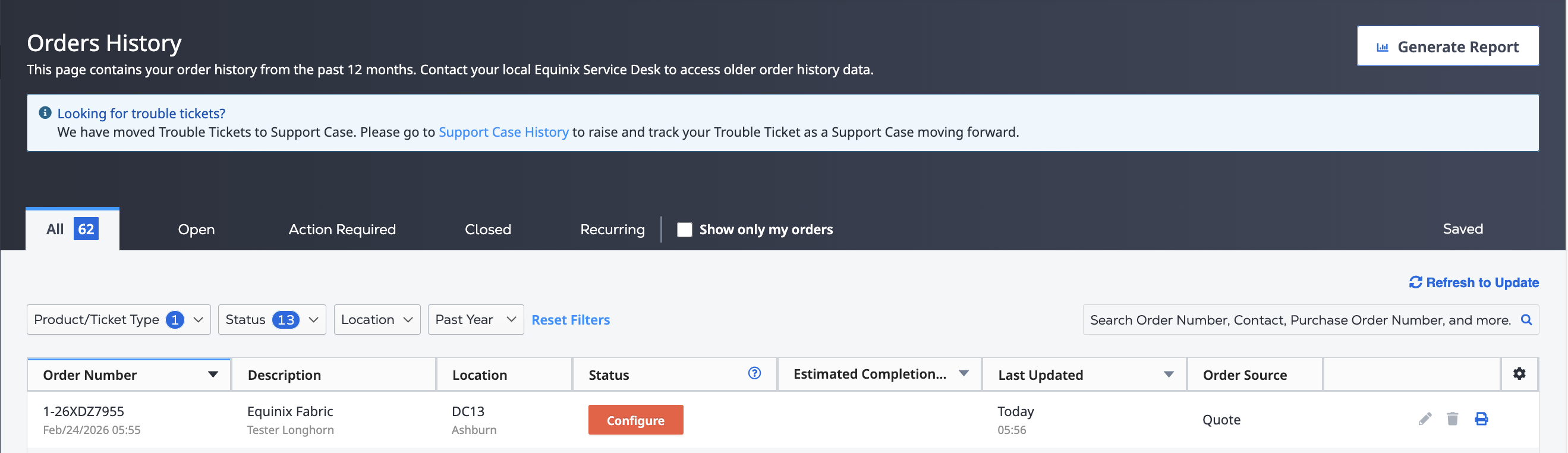
-
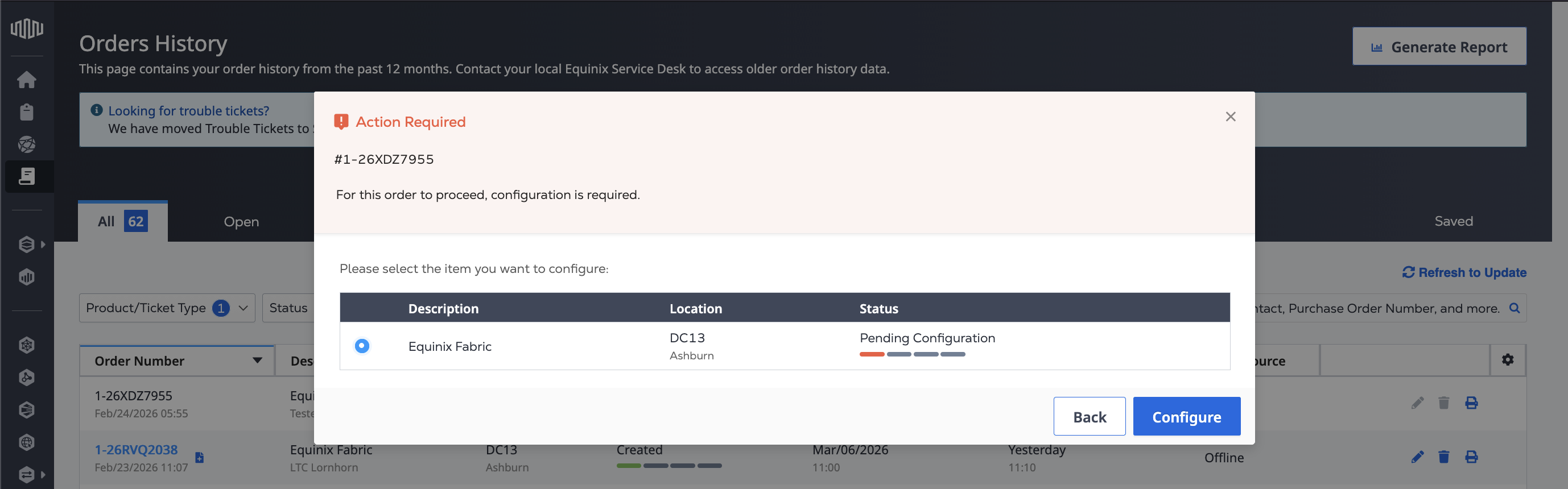
Select the product or service from this order that you want to configure, and click Configure.
Depending on the product, you are guided through the additional required configuration to complete your order. Note that not all options are available for configuration. The configuration that was agreed upon during the offline ordering process are not editable. For more information, see the product-specific documentation.